Unlock a world of possibilities! Login now and discover the exclusive benefits awaiting you.

Recent Documents
-
How to extract changes from the change store (Write table) and store them in a Q...
This article is currently under review. This article explains how to extract changes from a Change Store and store them in a QVD by using a load scrip... Show MoreThis article is currently under review.
This article explains how to extract changes from a Change Store and store them in a QVD by using a load script in Qlik Analytics.
The article also includes
- An app example with an incremental load script that will store new changes in a QVD
- Configuration instructions for the examples
Scenario
This example will create an analytics app for Vendor Reviews. The idea is that you, as a company, are working with multiple vendors. Once a quarter, you want to review these vendors.
The example is simplified, but it can be extended with additional data for real-world examples or for other “review” use cases like employee reviews, budget reviews, and so on.
The data model
The app’s data model is a single table “Vendors” that contains a Vendor ID, Vendor Name, and City:
Vendors:
Load * inline [
"Vendor ID","Vendor Name","City"
1,Dunder Mifflin,Ghent
2,Nuka Cola,Leuven
3,Octan, Brussels
4,Kitchen Table International,Antwerp
];
The Write Table
The Write Table contains two data model fields: Vendor ID and Vendor Name. They are both configured as primary keys to demonstrate how this can work for composite keys.
The Write Table is then extended with three editable columns:
- Quarter (Single select)
- Action required? (Single select)
- Comment (Manual user input)
Prerequisites
- A shared space
- A managed space (optional but advised for the tutorial)
- A connection to the Change-stores API to the Analytics REST connector in the shared space. A step-by-step guide on creating this connection is available in Extracting write table changes with the REST connector in Qlik Cloud.
Steps
- Upload the attached .QVF file to a shared space
- Open the private sheet Vendor Reviews
- Click the Reload App (A) button and make sure data appears (B) in the top table
- Go to Edit sheet (A) mode
- Drag a Write Table Chart (B) on the top table, and choose the option Convert to: Write Table (C).
This transforms the table into a Write Table with two data model columns Vendor ID and Vendor Name.
- Go to the Data section in the Write Table’s Properties menu and add an editable column
- This prompts you to define a primary key inside the table. Click Define (A) in the table and use both Vendor ID and Vendor Name as primary keys (B).
You can also just use Vendor ID, but we want to show that this also supports composite primary keys. - Configure the editable column:
- Title: Quarter
- Show content: Single selection
- Add options for Q1Y26 through Q4Y26.
Tip! Also add an empty option by clicking the Add button without specifying a value.
- Add another Editable column with the below configuration
- Title: Action required
- Type: Single select
- Options: Yes and No
- Add another Editable column with the below configuration
- Title: Review
- Type: Single select
- Options: Yes and No
- The Write Table is now set up.
Go to the Write Table’s properties and locate the Change store (A) section. Copy the Change store ID (B).
- Leave the Edit sheet mode. Then add changes for at least two records. Save those changes.
- Go to the app’s load script editor and uncomment the second script section by first selecting all lines in the script section (CTRL+A or CMD+A) (A) and then clicking the comment button (B) in the toolbar.
- Configure the settings in the CONFIGURATION part at the end of the load script
- Update the load script with the IDs of the editable columns.
The easiest solution to get these IDs is to test your connection. Make sure the connection URL is configured to use the /changes/tabular-views endpoint and uses the correct change store ID.
- Copy and paste the example load script (for the editable columns only) and paste it in the app’s load script SQL Select statement that starts on line 159:
- Replace the corresponding * symbols in the LOAD statement that starts on line 176:
- Choose which records you want to track in your table by configuring the Exists Key on line 216.
This key will be used to filter the “granularity” on which we want to store changes in the QVD and data model, as the load script will only load unique existing keys (line 235).
- $(vExistsKeyFormula) is a pipe-separated list of the primary keys.
- In this example, Quarter is added as an additional part of the exists key to keep track of changes by Quarter.
- Optionally, this can be extended with createdBy and updatedAt to extend the granularity to every change made:
- Reload the app and verify that the correct change store table is created in your data model. The second table in the sheet should also successfully show vendors and their reviews.
Environment
- Qlik Cloud Analytics
-
How To Delete Data Files and Datasets from Qlik Cloud Hub and Data Spaces
Method 1: From the Data Sources In Analytics, select Catalog Pick your Space Click Space DetailsAlternatively, add /data at the end of the URL afte... Show MoreMethod 1: From the Data Sources
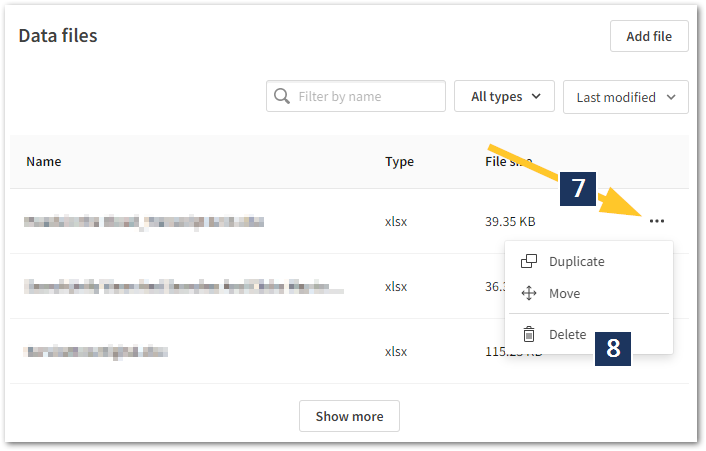
- In Analytics, select Catalog
- Pick your Space
- Click Space Details
Alternatively, add /data at the end of the URL after picking the Space. - Select Data Files from the context menu
- Locate the data you wish to delete
- Click the ellipses to open the next menu
- Click Delete
Method 2: From the Data Load Editor
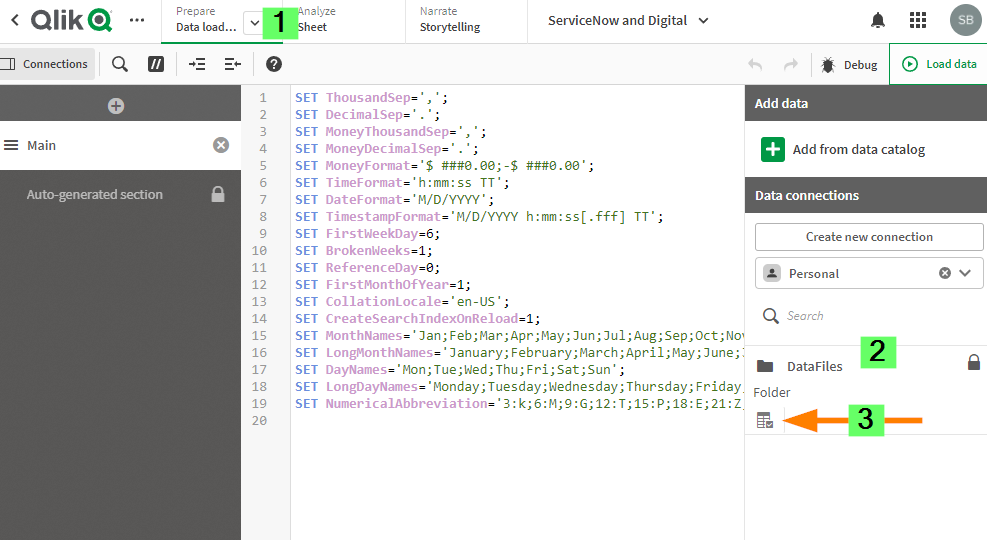
- Open the App with a connection to the data files you wish to edit
- Go to Data Load Editor
- On the Right Side of the Data Load Editor under add data section select your data space.
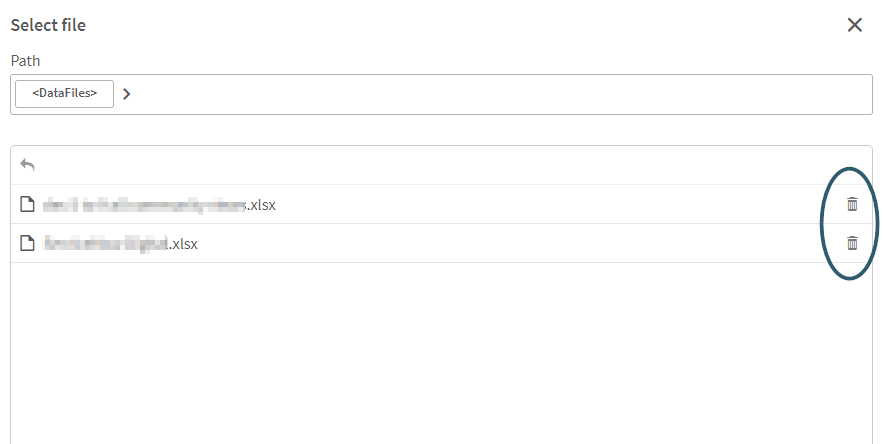
- Click on the table icon under datafiles.
- Select the Delete option on the right side of each file that you want to delete.
Method 3: Qlik Automate
To delete just one file, use the "Delete Data File" block.
To delete all files in a space, check the instructions in Delete all data files in a space | qlik.dev no code tab.
Method 4: API calls or Qlik-cli
Follow the instructions in Delete data files from Qlik Cloud | qlik.dev.
Environment
- Qlik Cloud Analytics
-
Migrating QlikView to Qlik Cloud
This Techspert Talks session covers: Converting QlikView documents to Sense Apps Qlik Cloud Advantages Migration Tools Chapters: 02:30 - Sta... Show More
-
What is the default user session timeout in Qlik Cloud?
What is the default user session timeout for Qlik Sense Business and Qlik Sense Enterprise SaaS? Can the session timeout for Qlik Cloud be changed? Th... Show MoreWhat is the default user session timeout for Qlik Sense Business and Qlik Sense Enterprise SaaS? Can the session timeout for Qlik Cloud be changed?
The default (fixed) value is set to 30 minutes. This is controlled by SESSION_TTL.
It is not currently possible to adjust the session timeouts in the Qlik Cloud.
Environment:
-
Introducing new permissions for Qlik Automate
This article provides details about the new permissions available for Private automations, which will replace the previous Automation Creator role. ... Show MoreThis article provides details about the new permissions available for Private automations, which will replace the previous Automation Creator role.
You can assign these permissions to a custom role or the User Default. More information about creating & managing custom roles is available here.
The existing Automation Creator role will be deprecated later in 2026.
Private automations
These permissions allow users to run and create automations in their personal space.
Shared automations
Earlier in 2025, we introduced the shared automation permission that allows users to run, create, and manage automations in shared spaces in which they have the correct permissions. More information about which space roles are required for the various automation actions is available here:
-
The Qlik Analytics Migration Tool
The Qlik Analytics Migration Tool provides a structured and repeatable process for migrating analytics assets to Qlik Cloud. It enables teams to defin... Show MoreThe Qlik Analytics Migration Tool provides a structured and repeatable process for migrating analytics assets to Qlik Cloud. It enables teams to define migration plans, validate each step, and coordinate across roles to ensure secure and accurate execution.
Content
- Core Capabilities
- What Makes the Tool Different
- Why Move to Qlik Cloud
- How to Get Started
- Qlik Analytics Migration Tool (Quick Video Demo)
Core Capabilities
- Migrate Qlik Sense Client-Managed apps, streams, users, groups, data files, data connections, and much more
- Preserve content ownership, access rights, and user-generated content such as apps, private and community sheets, as well as bookmarks through dynamic user mapping
- Automatically rewrite load scripts to reflect updated cloud data connections and paths
- Configure structured plans and jobs to manage projects at scale
- Enable multi-user access to support collaboration and phased execution
- Log, validate, and roll back migration steps as needed
- Partially supports QlikView and Qlik NPrinting migrations to reduce redevelopment
What Makes the Tool Different
- Designed from real-world experience and refined for enterprise use
- Fully branded, hardened, and extended since acquisition
- Supports phased and repeatable execution across migration stages
- Adjusts load scripts and metadata automatically during migration
- Maintains user identity, private content, and access policies
Why Move to Qlik Cloud
Qlik Cloud provides continuous innovation, centralized governance, and integrated AI that is not available in on-premises environments. Customers migrating to Qlik Cloud immediately benefit from:
- Qlik Predict for AI-driven forecasting and predictions built into dashboards
- Qlik Answers for intuitive, natural language search and explanation
- Continuous cloud-native feature delivery with automated upgrades
- Real-time access to governed and streaming data sources
- Simplified DevOps, reduced infrastructure management, and tighter security control
How to Get Started
- Download the Qlik Analytics Migration Tool from Qlik's Download page.
- Review full documentation at Qlik Analytics Migration Tool overview | Help.qlik.com
Qlik Analytics Migration Tool (Quick Video Demo)
Learn More, Ask Questions, Share Experiences
The Qlik Community is the central place to get answers, exchange ideas, and collaborate with peers using the Qlik Analytics Migration Tool. Whether you're preparing for a full environment shift or running phased pilots, we encourage you to share your approach and learn from others moving to Qlik Cloud in the Move to Cloud forum.
Environment
- Qlik Cloud
-
Migrating To Qlik Cloud Analytics
This Techspert Talks session covers: Demonstration of the Qlik Cloud Analytics Migration tool Advantages of Qlik Cloud SaaS Readiness Chapters... Show More
-
Qlik Sense Cloud and multiple IdPs
Is it possible to create more than one IdP for Qlik Sense Enterprise SaaS? Multiple IdPs can be configured, but only one can be active simultaneous... Show More -
Export Stitch Integration Details of My Account
Question I would like to get a full list of integrations and configuration details of those integrations. Things like the list of tables we are synci... Show MoreQuestion
I would like to get a full list of integrations and configuration details of those integrations. Things like the list of tables we are syncing, the schedule it is being synced on, etc.
Can you provide a way to let Stitch users export the details of the integrations in one file? It should show the list of tables replicated, replication frequency, the integration settings to show how its configured.
You can accomplish this with the Qlik Talend Cloud Migration Toolkit: stitch-assets-inventory | Qlik Help
Alternatively, if you have an Advanced or Premium subscription you can leverage Stitch's Connect API to obtain metadata on your account:
Stitch Connect API Reference# API functionality (Qlik Stitch Documentation)
For any details not available in the above, please submit a feature request via qlik-product-insight
Environment
-
How to set up a test connection from Qlik Sense Client-Managed to the Qlik Analy...
Creating a Qlik Sense Client-Managed connection | Migration Center Help documents all steps needed to create a Qlik Sense Client-Managed connection to... Show MoreCreating a Qlik Sense Client-Managed connection | Migration Center Help documents all steps needed to create a Qlik Sense Client-Managed connection to the Qlik Analytics Migration Tool.
As a part of the System Requirements (System requirements | Migration Center Help), Qlik advises that the Qlik Sense Proxy service must have a valid third-party certificate.
This article explains the process to follow if no third-party certificate is available; for example, when setting up a test connection in your UAT or test environment. For this example, we will be using the self-signed certificate used by Qlik Sense.
Securing the connection
The first challenge we need to overcome is the Not Secure alert when accessing Qlik Sense:
- Run certlm.msc with elevated permissions (as Administrator)
- Select Trusted Root Certification Authorities > Certificates > All Tasks > Import
- Click Next
- Select All Files and choose the root.pem stored in C:\ProgramData\Qlik\Sense\Repository\Exported Certificates\.Local Certificates
- Click Open and follow the onscreen instructions; when prompted for the Certificate Store choose the Trusted Root Certificate Authorities storage location
- Confirm the CA cert was installed by refreshing the Trusted Root Certificate Authorities > Certificates list:
- Close CertML and open https:// YOUR-HOST.domain.local/hub to confirm the connection is now displayed as Secured:
Connecting to the Qlik Analytics Migration Tool
Creating a Qlik Sense Client-Managed connection | Migration Center Help
To establish a connection to the Qlik Analytics Migration Tool in this example, we will be using Method 2 of the recommended steps: Create a virtual proxy using the tool | help.qlik.com.
- In the Qlik Analytics Migration Tool, navigate to the Connections tab and select Qlik Sense Client-Managed
- Click Create New
- Switch to the Virtual Proxy Setup tab
- In the Qlik Server URL field, enter the login URL of the Qlik Sense Client-Managed environment
- Click Login to Qlik
- After logging in, open your web browser's Developer Tools (F12 or fn + F12)
- Go to the Application tab, expand Cookies, then select the Qlik Sense domain and copy the Cookie Name and Cookie Value
- Paste the values into the Session Cookie fields in the Virtual Proxy Setup – Guide
- Click Retrieve users and proxies from Qlik and confirm the message
- In the Select Service User dropdown, select a RootAdmin user to associate with the virtual proxy
- In the Select Proxy Service dropdown, select the proxy service (typically Central)
- Optionally, set a Virtual Proxy Name (no spaces allowed)
- Click Create Virtual Proxy
- After proxy creation, a JWT token will be displayed (optional to save)
- Click Go to Connection Setup
- Click Test Connection to validate the setup
- Click Create Connection
- A confirmation message will appear, and the connection will be added to the list
- This step creates a Qlik Sense Converter connection
Environment
- Qlik Cloud Migration Tool
- Qlik Sense Enterprise on Windows
- Qlik Cloud Analytics
- Run certlm.msc with elevated permissions (as Administrator)
-
Qlik Analytics Migration Tool: Missing Tenant Access message
Accessing the Qlik Analytics Migration Tool fails with: Missing Tenant Access. Your account requires a tenant association to access this resource. Cur... Show MoreAccessing the Qlik Analytics Migration Tool fails with:
Missing Tenant Access. Your account requires a tenant association to access this resource. Currently, no tenant is linked to your account.
Resolution
Log in with the correct account defined during the installation process.
- Open an Incognito window in your browser
- Access the Qlik Analytics Migration Tool
- Log in with the admin account used during installation
You can now define other users, removing the need for the workaround.
The admin account is configured during the Qlik Analytics Migration Tool installation process:
Cause
The user logged in to Windows does not match the admin user originally defined.
Environment
- Qlik Cloud
- Qlik Sense Enterprise on Windows
- QlikView
-
Qlik Analytics Migration Tool fails with Details: Forbidden
The Qlik Analytics Migration Tool fails to migrate an app between Qlik Sense Client-Managed and Qlik Cloud Analytics. The error reads: [ERR] App '<App... Show MoreThe Qlik Analytics Migration Tool fails to migrate an app between Qlik Sense Client-Managed and Qlik Cloud Analytics. The error reads:
[ERR] App '<App Name> '<App ID>' could not be exported to path 'C:\ProgramData\Qlik Analytics Migration Tool\Migration Projects\Cloud Migration_<Migration Guid>\Exported Apps\<AppID>.qvf' from Client-Managed tenant. Details: Forbidden
Resolution
A successful migration requires the account selected when creating the Qlik Sense Client-managed connection to have the appropriate permissions to export the app from Qlik Sense Enterprise on Windows.
If this has been verified, other factors may come into play, such as:
- Load Balancing rules preventing an app from loading on a certain node
- Modified Security rules
- Legacy License Allocation Rules giving Root Admins Analyzer Capacity license; see Qlik Sense Enterprise on Windows: Root Admin cannot duplicate or export apps on QMC for details.
Cause
During App Migration, the app is exported via API from the Qlik Sense Client-Managed environment by the Root Admin account specified.
The migration fails if the account does not have the correct permissions or is otherwise prevented from accessing the app.
Environment
- Qlik Sense Enterprise on Windows
- Qlik Cloud Analytics
-
Migrating Qlik Sense Client-Managed To Qlik Cloud
This Techspert Talks session covers: - What to plan for- Migration Pathways- Cloud Best Practices Chapters: 01:20 - Cloud Tenant Locations 01:47... Show MoreThis Techspert Talks session covers:
- What to plan for
- Migration Pathways
- Cloud Best PracticesChapters:
- 01:20 - Cloud Tenant Locations
- 01:47 - Qlik Cloud Architecture
- 03:08 - Planning the migration
- 03:50 - Migration Journey
- 05:13 - Licensing Guardrails
- 06:39 - Migrating users, groups, and permissions
- 11:11 - Migrating apps
- 14:44 - Migrating the data connections
- 21:07 - Completed Migration
- 21:35 - 5 Key Take Aways
- 22:48 - Q&A: How to license sync with hybrid?
- 23:59 - Q&A: Best practices for 1 app migration?
- 24:47 - Q&A: What's included with license cost?
- 26:03 - Q&A: How to customize the UI?
- 26:45 - Q&A: How safe is the data in Cloud?
- 27:37 - Q&A: What are common stumbling blocks?
- 28:41 - Q&A: How are reload monitored?
- 29:28 - Q&A: What is the data size cap?
- 30:15 - Q&A: What cannot be migrated?
Resources:
- Demonstration of the Qlik Cloud Analytics Migration tool
- Qlik Cloud Best Practices
- Troubleshooting Qlik Data Gateway Direct Access
- Qlik Cloud Migration Center
- Qlik Professional Services
- Space-aware data source syntax examples
- Trust and Security at Qlik
- The Reload Analyzer for Qlik Cloud Customers
- Qlik Licensing Service Reference Guide
- Migrating NPrinting to Qlik Cloud Reporting
-
Stitch Migration to Qlik Cloud
This Techspert Talks session will address: Understanding the schemas Demonstration of the migration process Best practices and tips for a smooth tran... Show MoreThis Techspert Talks session will address:
- Understanding the schemas
- Demonstration of the migration process
- Best practices and tips for a smooth transition
Chapters:
- 01:05 - How to learn about Qlik Talend Cloud
- 01:52 - Why migrate to Qlik Talend Cloud
- 02:42 - Feature difference highlights
- 03:08 - Using the Migration Inventory Tool
- 06:58 - First look at Qlik Talend Cloud Data Integration
- 07:33 - Creating the first Project and Space
- 08:21 - Creating the Klaviyo Source connection
- 09:54 - Creating the Target connection
- 10:52 - Choosing the task settings
- 12:59 - Viewing Pipeline tasks in action
- 13:55 - Target table differences
- 15:19 - Creating the my SQL source
- 19:24 - Q&A: Will QTC features be added to Stitch?
- 20:04 - Q&A: What is the QTC warehouse architecture?
- 21:45 - Q&A: How to build incremental loads?
- 22:28 - Q&A: Can QTC load data from Marketo?
- 23:37 - Q&A: Why are the schemas different?
- 24:26 - Q&A: Where is the list of data sources?
- 25:23 - Q&A: Where can I get a test account to try it?
Resources:
- About Qlik Talend Cloud subscriptions
- Technical feature comparison
- Performing an inventory analysis
- Qlik Ideation
- Schema Differences in data loading
-
Migrating to Qlik Cloud from Client-Managed Qlik Sense or QlikView
Qlik Cloud is a modern analytics and data platform built on the same software engine as QlikView and Qlik Sense Client-Managed and adds significant va... Show MoreQlik Cloud is a modern analytics and data platform built on the same software engine as QlikView and Qlik Sense Client-Managed and adds significant value to empower everyone in an organization to make better decisions daily. Qlik Cloud allows you to use one common platform for all users – executives, decision-makers, and analysts.
Navigation:
Migrating to Qlik Cloud can help your organization:
- Expand your analytics possibilities.
- Reduce infrastructure costs and the total cost of ownership of your Qlik solutions.
- Automate entitlement management and upgrades.
Recommended Resources
Q&A with Qlik: Qlik Sense Migration to Qlik Cloud
Articles relevant to migration and new Qlik Cloud usersMigrating from Client-Managed Qlik Sense
This site provides you the tools to monitor, manage, and execute a migration from Client-Managed Qlik Sense to Qlik Cloud.
Index and home
Planning your migration
Setting up the Qlik Cloud migration tools
Create and configure a cloud tenantMigrating from QlikView
This site provides you the tools to begin your journey to move from QlikView to Qlik Sense and Qlik Cloud.
- Index and home
- Comparing QlikView and Qlik Sense
- Comparing QlikView and Qlik Cloud for administrators
- Concepts and best practices
- Migrating QlikView to Qlik Cloud
-
Why Qlik doesn't support multiple interactive identity providers on a Qlik Cloud...
Content RationaleUnderstanding interactive IdPs in Qlik CloudWhy Qlik Cloud only supports one interactive IdPWhy Federate Identity In-House?Solution: ... Show MoreContent
- Rationale
- Understanding interactive IdPs in Qlik Cloud
- Why Qlik Cloud only supports one interactive IdP
- Why Federate Identity In-House?
- Solution: Federate IdPs with an enterprise-grade IdP
- How to Implement a Federated IdP
- Conclusion
Qlik Cloud is designed to support a single interactive Identity Provider (IdP) per tenant.
This approach enhances security, governance, and operational control while simplifying authentication management. Organizations that require multiple identity sources can achieve this by using a federated IdP (such as Azure Entra, Auth0, Keycloak, or Okta) to consolidate authentication and seamlessly connect it to Qlik Cloud, as described by @Leigh_Kennedy in Using Multiple concurrent Identity Providers with Qlik Cloud.
Rationale
Understanding interactive IdPs in Qlik Cloud
Qlik Cloud allows organizations to configure an interactive IdP to manage user authentication. Options include:
- Qlik Account (default for new, non-government tenants).
- A standards-compliant OIDC or SAML provider, such as Azure Entra, Okta, Auth0, or Keycloak.
Any unauthenticated user attempting to access the tenant is redirected to the configured interactive IdP for authentication, ensuring a streamlined and secure login experience.
Why Qlik Cloud only supports one interactive IdP
Using a single interactive IdP is a best practice for identity management and ensures consistency, security, and simplified administration.
Key reasons include:
-
User Identity Consistency: Qlik Cloud relies on a user's subject and email as unique identifiers. Managing a single interactive IdP helps prevent duplicate identities and ensures seamless user access, reducing risk of users gaining unauthorized access to sensitive data or permissions.
-
Streamlined Identity & Access Management: Since Qlik Cloud does not transform incoming claims beyond remapping keys, keeping authentication centralized prevents unintended variances in usernames, email formats, or group names. This improves security and reduces maintenance of licenses and entitlements.
-
Optimized Group Management: A single interactive IdP provides a consistent structure for groups, ensuring they align with an organization’s access policies. By managing group filtering in one place, organizations can maintain clear and structured permissions. Managing groups across multiple IdPs can quickly become unmanageable, leading to inconsistencies in user access.
-
Simplified Access Control: Groups in Qlik Cloud are referenced by name, making it more efficient to manage access through a single federated IdP rather than multiple sources.
-
Efficient Token Management: A unified IdP helps maintain consistency in authentication tokens, reducing administrative overhead and ensuring a smooth user experience.
-
Enhanced Security & Auditability: By centralizing authentication through a single IdP, organizations can apply security controls, enforce device policies, and monitor user access through audit logs.
A federated IdP ensures that organizations retain full control over authentication policies, while providing a seamless experience for users accessing Qlik Cloud.
Why Federate Identity In-House?
Many organizations choose to use a federated identity provider to streamline identity management, enhance security, and improve user experience across multiple applications. Benefits include:
-
Centralized User Lifecycle Management: Users from different sources can be managed in a single system, reducing duplication and inconsistencies.
-
Improved Security Policies: Organizations can enforce multi-factor authentication (MFA), conditional access policies, and device trust settings at the IdP level.
-
Single Sign-On (SSO) Across Applications: Users authenticate once and gain seamless access to multiple platforms, including Qlik Cloud.
-
Comprehensive Logging & Compliance: A federated IdP provides consolidated audit trails and governance controls for user authentication.
By implementing a federated identity provider, organizations can maintain flexibility in their authentication strategy while ensuring compatibility with Qlik Cloud.
Solution: Federate IdPs with an enterprise-grade IdP
The recommended approach for organizations that need to authenticate users across multiple identity sources is to configure a federated IdP that consolidates authentication. Solutions like Azure Entra ID or Okta can be used to unify identity management and connect to Qlik Cloud via OIDC or SAML.
How to Implement a Federated IdP
-
Set Up a Federated IdP (Azure Entra ID, Okta, or another identity management solution).
-
Sync Identity Sources within the federated IdP to ensure unique identities across different user groups.
-
Configure OIDC/SAML Authentication in Qlik Cloud with the federated IdP.
This approach ensures a secure, efficient, and scalable authentication strategy that aligns with best practices for enterprise identity management.
Conclusion
Qlik Cloud is designed to integrate seamlessly with a single interactive IdP, providing a robust and secure authentication framework. Organizations that need to consolidate multiple identity sources can achieve this through a federated IdP, ensuring centralized management, improved security, and a streamlined user experience. By leveraging enterprise-grade IdPs like Azure Entra ID or Okta, organizations can enhance their identity management strategy while maintaining full control over authentication policies and governance.
Environment
- Qlik Cloud
-
How to Request for Talend License Renewal ( Renewal of existing license)
Introduction Maintaining up-to-date licenses is crucial for leveraging the latest features and ensuring compliance with software requirements. Tal... Show More -
How to use Qlik-CLI to Migrate Apps to Qlik Sense SaaS
This video will demonstrate how to use Qlik-CLI for SaaS to migrate Apps from your on-premises Qlik Sense environment to your Qlik Sense SaaS edition.... Show MoreThis video will demonstrate how to use Qlik-CLI for SaaS to migrate Apps from your on-premises Qlik Sense environment to your Qlik Sense SaaS edition. Qlik-CLI makes it possible for scripting and automating App migration.
Environment
Related Content
- How to install and start using Qlik-CLI for SaaS editions of Qlik Sense
- Qlik Sense: How to set up JWT authentication
- Using Qlik Sense on Windows Repository API (QRS) with qlik-cli
- NodeJS download
- JQ download
- Qlik Sense Business and Enterprise SaaS: App Size, Storage Size and Size for Data File
- Migrate Apps from Qlik Sense on Windows to Qlik Sense SaaS
- Migrating to Qlik Sense SaaS editions
- How to Generate API Keys in Qlik Sense SaaS using APIs
Transcript
-
How To Publish Qlik Sense App to Qlik Cloud and Edit a Published Apps
Note: These instructions apply to Qlik Cloud. Qlik Sense Enterprise on Windows functions similarly. See How To Edit Published Qlik Sense Apps on Qlik ... Show MoreNote: These instructions apply to Qlik Cloud. Qlik Sense Enterprise on Windows functions similarly. See How To Edit Published Qlik Sense Apps on Qlik Sense Enterprise on Windows.
Qlik Cloud offers two different spaces to work in. Shared Spaces and Managed Spaces. Apps previously published to a Managed Space e cannot be edited in place, and they will need to be replaced by an app modified on a personal or shared space.This article covers publishing to both. For additional information on the available space types, see Working in spaces.
- Shared Spaces
- Moving an App to a Shared Space
- Editing in a Shared Space
- Managed Spaces
- Publishing an app to a Managed Space
- Editing a published app in a Management Space
- Replace an app in a Managed Space
- Related Content
- Environment
Shared Spaces
Apps are not published to Shared Spaces. They are moved to or uploaded to them. Apps in shared spaces can therefore be edited freely by anyone that has the correct permissions, like any other unpublished app. Please, check Developing and sharing apps with shared spaces on the help site.
Moving an App to a Shared Space
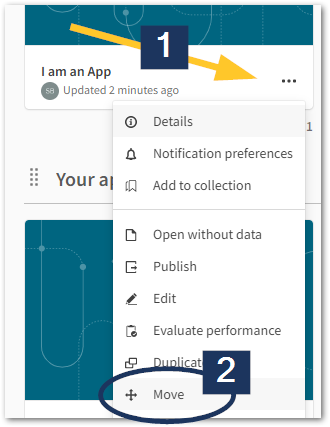
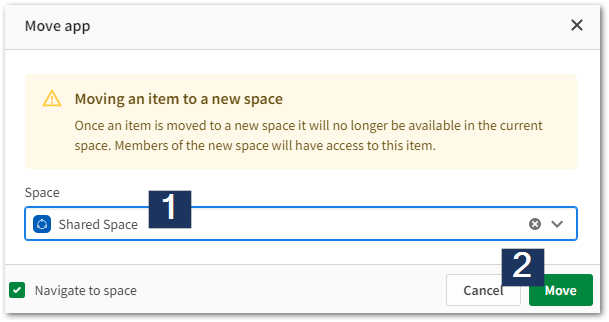
- Click the ellipses menu on the app you wish to move
- Click Move
- Choose the Shared Space you wish to use and click Move
Editing in a Shared Space
- Open the app inside the Shared Space
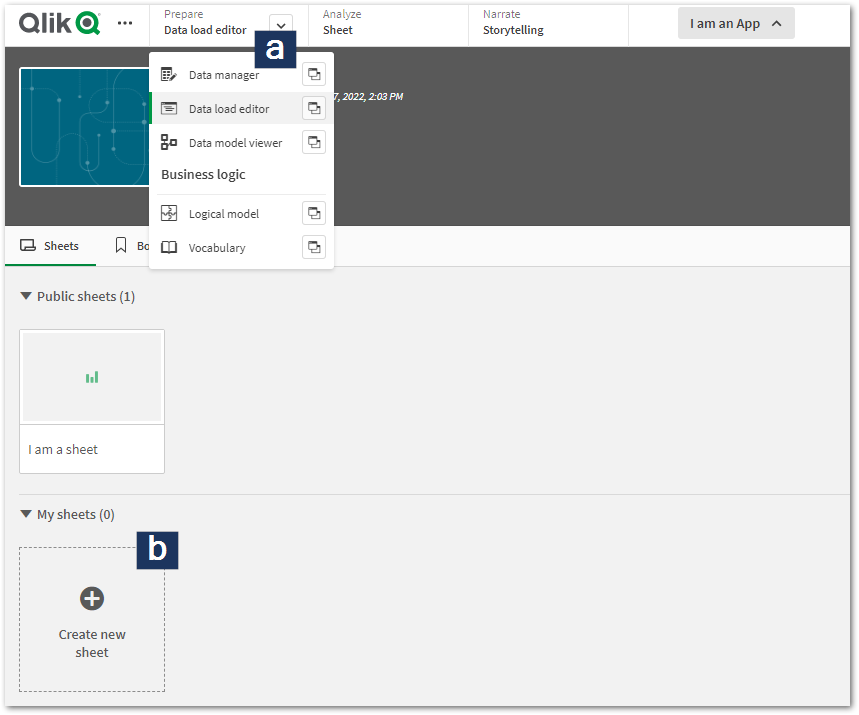
- If the correct permissions are applied to your account (see Permissions) you will have access to all edit options, such as the Data load editor and Sheet modifications.
You can also publish the App to a Managed Space from inside the Shared Space.
Managed Spaces
Apps cannot be edited directly in managed spaces. The developer will have to modify the original app which is present in their own personal space, or in a shared space. The app is always left in its original place when the app gets published: the publishing process will make a copy of the app, and keep the original where it was.
Publishing an app to a Managed Space
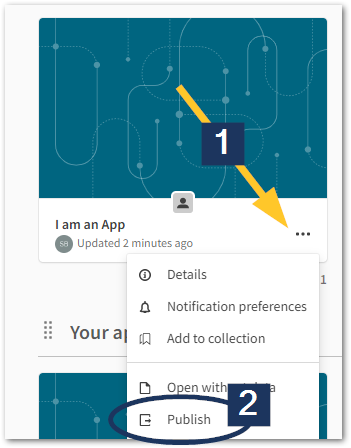
- Click the ellipses menu on the app you wish to publish
- Click Publish
- Choose the Managed Space and click Publish
At this stage, the app is copied. A copy of it will remain in the personal (or shared) space from which you are working. Do not delete this copy.
Editing a published app in a Management Space
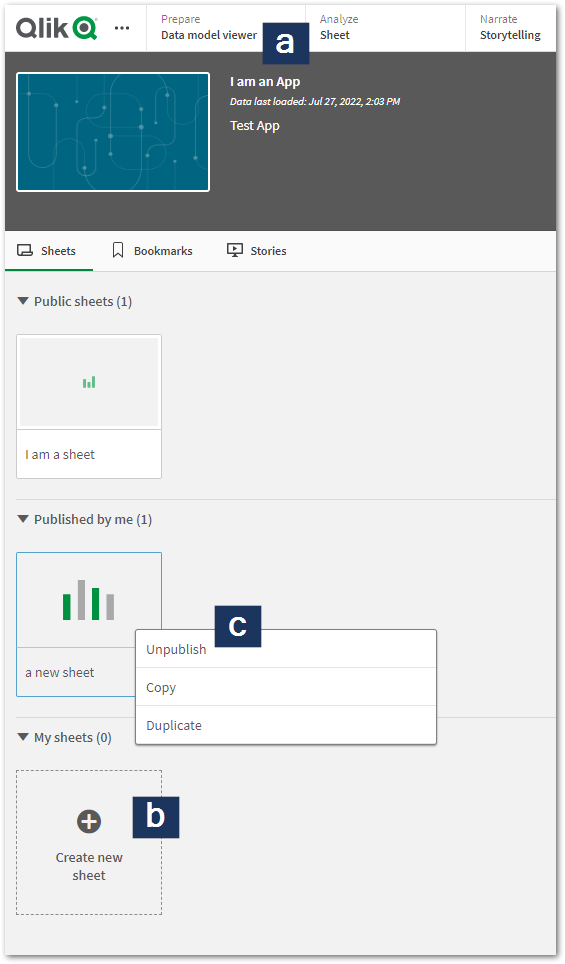
- Once published to a Managed Space, the app edit possibilities are reduced to sheet and object creation.
You will not have access to the Data Load Editor, but can still create new sheets, publish/unpublish these sheets, and copy existing sheets. - If you need to edit the app directly, work on the copy of the app in your personal or shared space and then publish and replace the existing published app.
If the original app was deleted at some stage, a published app can be unpublished using the REST API. The developer will then be able to edit the unpublished app.
Replace an app in a Managed Space
- Click the ellipses menu on the app you wish to publish
- Click Publish
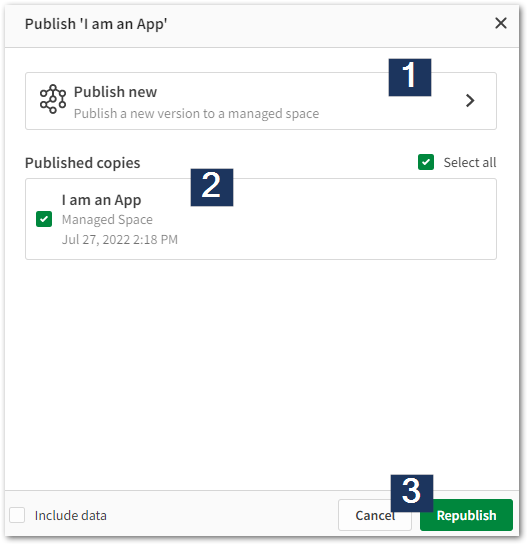
- Leave Publish new and choose your app. Then click Republish.
- The next step will depend on whether the system is able to identify an existing connection between an unpublished and a published app.
- If the system was able to identify a connection, the app will be replaced. If multiple ones are available, choose the app you wish to replace.
-
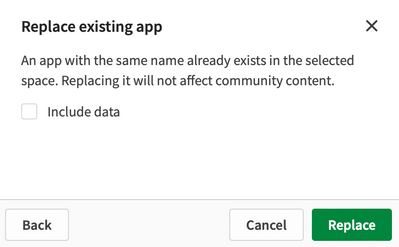
If the system cannot identify a connection (for instance, if the modified app was actually redeveloped from scratch) you will need to manually the space and the exact name of the published app and prompt to replace the app.
Related Content
Environment
-
How to upload QVW files (QlikView apps) to Qlik Cloud
You can upload QlikView applications (.qvw files) to your Qlik Sense SaaS hub. Log in to your Qlik Sense Enterprise SaaS tenant Click on Add new (fig... Show MoreYou can upload QlikView applications (.qvw files) to your Qlik Sense SaaS hub.
- Log in to your Qlik Sense Enterprise SaaS tenant
- Click on Add new (fig 1)
Fig 1
- Click Upload app (fig 1)
- Drag and drop the file into the window or Browse for it.
- Decide what Space the App should be added to and if any tags are necessary.
- Click Upload.
Uploaded apps cannot exceed 1 GB in size. If you are licensed for expanded apps, you can upload apps up to 2 GB in size. If you are licensed for dedicated capacity, you can upload apps up to 10 GB in size.
Environment