Unlock a world of possibilities! Login now and discover the exclusive benefits awaiting you.

Recent Documents
-
Qlik Replicate Transaction Consistency Timeout occurred. xtransactions are still...
Running a task causes the following to be logged: W: Transaction consistency timeout occurred. x transactions are still open The message indicates... Show MoreRunning a task causes the following to be logged:
W: Transaction consistency timeout occurred. x transactions are still open
The message indicates that the Qlik Replicate process exceeded the timeout wait period set.
The setting can be configured in the Qlik Replicate Task Settings (see Full Load Tuning😞
- Go to Full Load
- Locate Full Load Tuning
- Choose Transaction consistency timeout (seconds):
This will not cause the task to fail but could result in missing data.
What does this mean? When the task starts, it will start reading the source transaction log first, looking for a point where there are no open transactions. When the task reads the log and there are open transactions, it will wait for them to be committed or rolled back. If the time to commit is longer than "Transaction consistency timeout" value, then the task will start anyway and changes from the open transactions are not captured.
Therefore it is a best practice to start a full load during quiet time on the source database. You also have the option to increase the "Transaction consistency timeout (seconds):" parameter on the Full Load Tuning screen so that Replicate will wait longer for transactions to complete or roll back before the full load begins.
-
Optimizing Qlik Cloud App Performance
This Techspert Talks session covers: App performance evaluation tools How to improve app performance Development best practices Chapters: 01:5... Show More
-
Qlik Talend Administration Center: How to clean up the Talend Administration Cen...
In Talend Administration Center environments with a high number of tasks (700–800) or frequent task cycles (e.g., executions every minute), the task e... Show MoreIn Talend Administration Center environments with a high number of tasks (700–800) or frequent task cycles (e.g., executions every minute), the task execution history table in the Talend Administration Center (TAC) database may grow rapidly.
A large history table can negatively impact overall Talend Administration Center performance, leading administrators to manually truncate the table to maintain stability.
Talend Administration Center provides configuration parameters to automatically purge old execution history and maintain system performance.TaskExecutionHistoryCleanUp
How To
Talend Administration Center includes two configuration parameters in the Talend Administration Center database configuration table that control the cleanup process.
These parameters allow administrators to adjust:
- How often Talend Administaion Center cleans execution history
- How long execution records are retained
Both parameters must be tuned to effectively control table size.
Configuration Parameters
- dashboard.conf.taskExecutionsHistory.frequencyForDeletingAction
Description Interval (in seconds) between cleanup operations Default value 3600(1 hour)Behavior Talend Administration Center performs a cleanup every 3600 seconds. Setting value to 0 disables automatic cleanup The default value is 3600 seconds, which corresponds to 1 hour. After the time defined in this parameter has elapsed, the system cleans up old task execution history and old misfired task execution records. This means the system performs the cleanup action in one hour, rather than immediately.
Lower the value to check more frequently the records that need to be deleted. Set 0 to disable the delete actions.
- dashboard.conf.taskExecutionsHistory.timeBeforeDeletingOldExecutions
Description Maximum retention time (in seconds) before records are purged Default value 1296000seconds (15 days), 15 days × 24 × 60 × 60 = 1,296,000Behavior During each cleanup cycle, Talend Administation Center deletes records older than the retention period.
Related Content
Both parameters are documented below:
improving-task-execution-history-performances | Qlik Talend Help
Environment
-
LogAnalysis App: The Qlik Sense app for troubleshooting Qlik Sense Enterprise on...
It is finally here: The first public iteration of the Log Analysis app. Built with love by Customer First and Support. "With great power comes great r... Show MoreIt is finally here: The first public iteration of the Log Analysis app. Built with love by Customer First and Support.
"With great power comes great responsibility."
Before you get started, a few notes from the author(s):
- It is a work in progress. Since it is primarily used by Support Engineers and other technical staff, usability is not the first priority. Don't judge.
- It is not a Monitoring app. It will scan through every single log file that matches the script criteria and this may be very intensive in a production scenario. The process may also take several hours, depending on how much historical data you load in. Make sure you have enough RAM 🙂
- Not optimised, still very powerful. Feel free to make it faster for your usecase.
- Do not trust chart labels; look at the math/expression if unsure. Most of the chart titles make sense, but some of them won't. This will improve in the future.
- MOD IT! If it doesn't do something you need, build it, then tell us about it! We can add it in.
- Send us your feedback/scenarios!
Chapters:
-
01:23 - Log Collector
-
02:28 - Qlik Sense Services
-
04:17 - How to load data into the app
-
05:42 - Troubleshooting poor response times
-
08:03 - Repository Service Log Level
-
08:35 - Transactions sheet
-
12:44 - Troubleshooting Engine crashes
-
14:00 - Engine Log Level
-
14:47 - QIX Performance sheets
-
17:50 - General Log Investigation
-
20:28 - Where to download the app
-
20:58 - Q&A: Can you see a log message timeline?
-
21:38 - Q&A: Is this app supported?
-
21:51 - Q&A: What apps are there for Cloud?
-
22:25 - Q&A: Are logs collected from all nodes?
-
22:45 - Q&A: Where is the latest version?
-
23:12 - Q&A: Are there NPrinting templates?
-
23:40 - Q&A: Where to download Qlik Sense Desktop?
-
24:20 - Q&A: Are log from Archived folder collected?
-
25:53 - Q&A: User app activity logging?
-
26:07 - Q&A: How to lower log file size?
-
26:42 - Q&A: How does the QRS communicate?
-
28:14 - Q&A: Can this identify a problem chart?
-
28:52 - Q&A: Will this app be in-product?
-
29:28 - Q&A: Do you have to use Desktop?
Environment
Qlik Sense Enterprise on Windows (all modern versions post-Nov 2019)
How to use the app:
- Go to the QMC and download a LogCollector archive or grab one with the LogCollector tool
- Unzip the archive in a location visible to your user profile
- Download the attached QVF file
- Import/open it in Qlik Sense
- Go to "Data Load Editor" and edit the existing "Logs" folder connection, and point to the extracted Log Collector archive path
- If you are using a Qlik Sense server, remember to change the Data Connection name back to default "Logs". Editing via Hub will add your username to the data connection when saved.
- Go to the "Initialize" script section and configure:
- Your desired date range or days to load
- Whether you want the data stored in a QVD
- Which Service logs to load (Repository, Engine, Proxy and Scheduler services are built-in right now, adding other Qlik Sense Enterprise services may cause data load errors).
- LOAD the data!
My workflow:
- I'm looking for a specific point in time where a problem was registered
- I use the time-based bar charts to find problem areas, get a general sense of workload over time
- I use the same time-based charts to narrow in on the problem timestamp
- Use the different dimensions to zoom in and out of time periods, down to a per-call granularity
- Log Details sheets to inspect activity between services and filter until the failure/error is captured
- Create and customise new charts to reveal interesting data points
- Bookmarks for everything!
Notable Sheets & requirements:
- Anything "Thread"-related for analysing Repository Service API call performance, which touches all aspects of the user and governance experience
- Requirement: Repository Trace Performance logs in DEBUG level. Otherwise, some objects may be empty or broken.
- Commands: great for visualizing Repository operations and trends between objects, users, and requests
- Transactions: Repository Service API call performance analysis.
- Requirement: Repository Trace Performance logs in DEBUG level. Otherwise, some objects may be empty or broken.
- Task Transactions: very powerful task scheduling analysis with time-based filters for exclusion.
- Log Details sheets: excellent filtering and searching through massive amounts of logs.
- Repo + Engine data: resource consumption and Thread charts for Repository and Engine services, great for correlating workloads.
*It is best used in an isolated environment or via Qlik Sense Desktop. It can be very RAM and CPU intensive.
The information in this article is provided as-is and to be used at own discretion. Depending on tool(s) used, customization(s), and/or other factors ongoing support on the solution below may not be provided by Qlik Support.
Related Content
Optimizing Performance for Qlik Sense Enterprise - Qlik Community - 1858594
-
How is data processed through Qlik Stitch?
We often see new users implement Qlik Stitch in under five minutes. While the user experience for adding a data source and a destination is simple, th... Show MoreWe often see new users implement Qlik Stitch in under five minutes. While the user experience for adding a data source and a destination is simple, there is a lot of complexity behind the scenes.
Let’s pull the curtains back and see how each record gets from its source to its destination through Qlik Stitch’s data pipeline.
The journey typically begins in a SaaS application or database, where it’s either pushed to Stitch via our API or through a webhook, or pulled on a schedule by the Singer-based replication engine that Qlik Stitch runs against data sources like APIs, databases, and flat files.
The image below outlines the internal architecture. For a full view, click on the image or download it.
The data’s next stop is the Import API, a Clojure web service that accepts JSON and Transit, either point-at-a-time or in large batches. The Import API does a validation check and an authentication check on the request’s API token before writing the data to a central Apache Kafka queue.
At this point, Qlik Stitch has accepted the data. Qlik's system is architected to meet our most important service-level target: don’t lose data. To meet this goal, we replicate our Kafka cluster across three different data centers and require each data point to be written to two of them before it is accepted. Should the write fail, the requester will try again until it’s successful.
Under normal conditions, data is read off the queue seconds later by the streamery, a multithreaded Clojure application that writes the data to files on S3 in batches, separated according to the database tables the data is destined for. We have the capacity to retain data in Kafka for multiple days to ensure nothing is lost in the event that downstream processing is delayed. The streamery cuts batches after reaching either a memory limit or an amount of time elapsed since the last batch. Its low-latency design aims to maximize throughput while guarding against data loss or data leaking between data sets.
Batches that have been written to S3 enter the spool, which is a queue of work waiting to be processed by one of our loaders. These Clojure applications read data from S3 and do any processing necessary (such as converting data into the appropriate data types and structure for the destination) before loading the data into the customer’s data warehouse. We currently have loaders for Redshift, Postgres, BigQuery, Snowflake, and S3. Each is a separate codebase and runtime because of the variation in preprocessing steps required for each destination. Operating them separately also allows each to scale and fail independently, which is important when one of the cloud-based destinations has downtime or undergoes maintenance.
All of this infrastructure allows us to process more than a billion records per day, and allows our customers to scale their data volumes up or down by more than 100X at any time. Qlik Stitch customers don’t need to worry about any of this, however. They just connect a source, connect a destination, and then let Qlik Stitch worry about making sure the data ends up where it needs to be.
For additional information, reference the official Stitch documentation on Getting Started.
Environment
- Qlik Stitch
-
Troubleshooting Data Connections in Qlik Cloud and Qlik Sense Enterprise on Wind...
Data connections to Qlik Cloud or Qlik Sense Enterprise on Windows can fail for several reasons. In this article we aim to provide you with a step-by-... Show MoreData connections to Qlik Cloud or Qlik Sense Enterprise on Windows can fail for several reasons. In this article we aim to provide you with a step-by-step guide on how to begin troubleshooting data connectivity errors, ruling out the most common root causes.
Content:
- Step 1: Verify the Database Connection
- Network Connectivity
- Credentials and Settings
- Step 2: Verify the Connection Details in Qlik
- In Qlik Cloud
- In Qlik Sense Enterprise on Windows:
- Step 3: Test the Connection in Qlik Sense
- Step 4: Review the Qlik Sense logs
- Step 5: Contact the Database Vendor
Step 1: Verify the Database Connection
Network Connectivity
The first step in your investigation is to verify basic network connectivity to the database.
- Run a simple ping or telnet either from the Qlik Sense (on-prem) server or your desktop in case of a Qlik Cloud issue.
- Rule out a restrictive firewall blocking required ports on both target and source by reviewing or temporarily disabling the firewall rules.
Work with your network administrator on both where necessary.
Credentials and Settings
If the network and firewall settings are not the issue, verify if the database operates as expected.
- Is it online?
- Has a recent upgrade been performed and has this affected the current configuration (driver compatibility issues, disabling features, introducing new security capabilities which need to be reviewed, etc..)
Next, we verify if the credentials and settings in our connection are correct. The easiest way to do this is by logging in directly to the database using its native client.
Examples of on-premise database clients include:
- SQL Server Management Studio (SSMS) for SQL Server databases
- Oracle SQL Developer for Oracle databases
- MySQL Workbench for MySQL databases
For cloud-based databases:
- Cloud provider console: Most cloud providers, such as Amazon Web Services (AWS), Microsoft Azure, and Google Cloud Platform (GCP), have a web-based console that you can use to monitor and manage your cloud resources.
- Cloud database management tools: Some cloud providers offer database management tools that can help you monitor and manage your database resources.
- Logging and monitoring tools: You can use logging and monitoring tools, such as AWS CloudWatch, to monitor the performance and activity of your cloud database. These tools can provide valuable information about any issues that may be affecting your database, including connectivity issues.
The specific tools you use will depend on the cloud provider you are using and the type of database you have.
Step 2: Verify the Connection Details in Qlik
Verify if the following are correct in Qlik Sense (details may vary depending on your data connection):
- Host or server name
- Database name
- Port
- User name
- Password
In Qlik Cloud
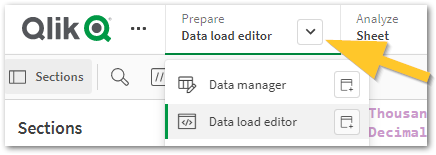
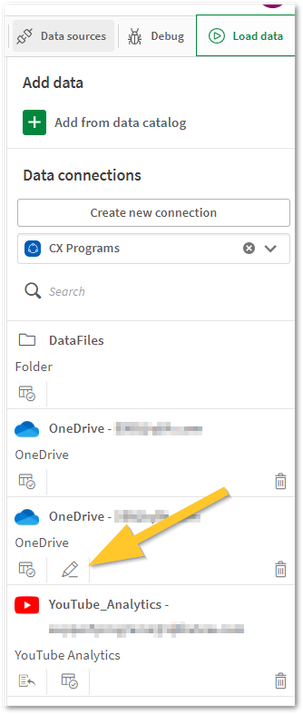
Depending on your permissions, you can either edit/verify your connection directly in the Qlik Sense App Data Load Editor or in the Space.
Using the Data Load Editor:
- Open the Qlik Cloud App
- Open the Data Load Editor
- Choose the Data Connection you want to verify:
In Qlik Sense Enterprise on Windows:
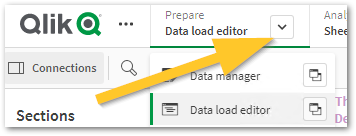
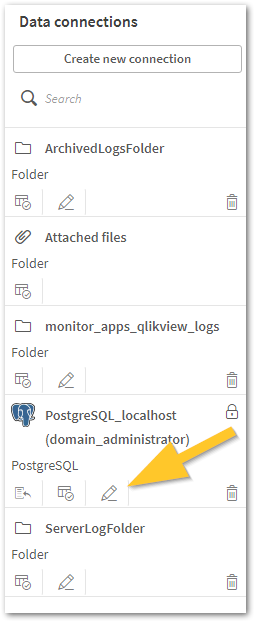
Depending on your permissions, you can either edit/verify your connection directly in the Qlik Sense App Data Load Editor or in the Qlik Sense Management Console.
Using the Data Load Editor:
- Open the Qlik Sense App
- Open the Data Load Editor
- Choose the Data Connection you want to verify:
Using the Qlik Sense Management Console:
- Open the Qlik Sense Enterprise Management Console
- Open Data Connections
- Locate the Data Connection causing an issue and open it
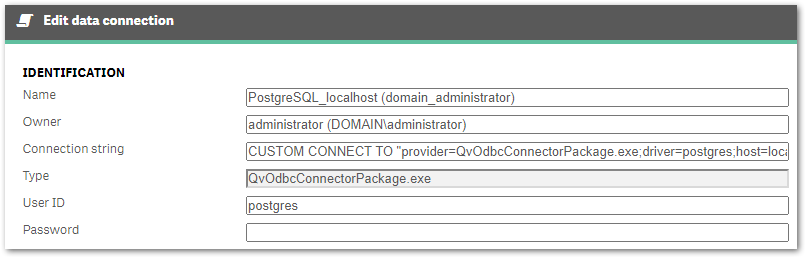
- You can review the Connection String and Username and Password from here
Step 3: Test the Connection in Qlik Sense
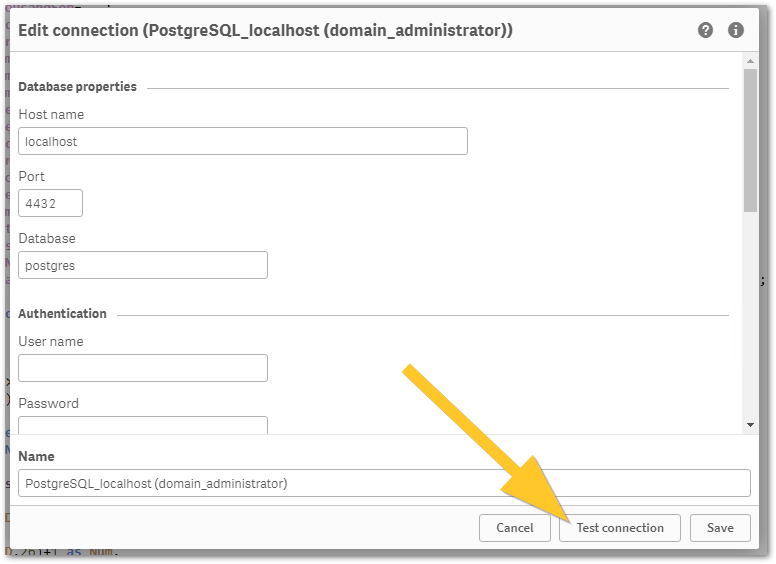
Once you have confirmed the connection details, you can test the connection in Qlik Sense.
- Open the Data Connection
- Click Test connection
Any eventual will help you identify the issue.
Step 4: Review the Qlik Sense logsData connections generally fail during reload. Qlik Sense will log details of the error or preceding warnings in the corresponding reload log. These error and warning messages can then be used to look up solutions or troubleshoot further.
- Qlik Cloud: Qlik Cloud Log files: Where to find log information in Qlik SaaS editions
- Qlik Sense on-premise: How to find the Script (Reload) logs in Qlik Sense Enterprise on Windows
Search the warnings and errors in our knowledge base for known solutions. Begin your search here.
Step 5: Contact the Database Vendor
If you have completed all the above and have not found solutions in the Qlik knowledge base, reach out to the database vendor for additional support. They will be able to provide specific information on troubleshooting the issue with your specific database.
-
How to disable 'Base memory size' info and 'StaticByteSize' calls in Qlik Sens E...
After upgrading to Qlik Sense Enterprise on Windows May 2023 (or later), the Qlik Sense Repository Service may cause CPU usage spikes on the central n... Show MoreAfter upgrading to Qlik Sense Enterprise on Windows May 2023 (or later), the Qlik Sense Repository Service may cause CPU usage spikes on the central node. In addition, the central Engine node may show an increased average RAM consumption while a high volume of reloads is being executed.
The Qlik Sense System_Repository log file will read:
"API call to Engine service was successful: The retrieved 'StaticByteSize' value for app 'App-GUID' is: 'Size in bytes' bytes."
Default location of log: C:\ProgramData\Qlik\Sense\Log\Repository\Trace\[Server_Name]_System_Repository.txt
This activity is associated with the ability to see the Base memory size in the Qlik Sense Enterprise Management Console. See Show base memory size of apps in QMC.
Resolution
The feature to see Base memory size can be disabled. This may require an upgrade and will require downtime as configuration files need to be changed.
Take a backup of your environment before proceeding.
- Verify the version you are using and verify that you are at least on one of the versions (and patches) listed:
- May 2023 Patch 13
- August 2023 Patch 10
- November 2023 Patch 4
- February 2024 IR
- Back up the following files:
- C:\Program Files\Qlik\Sense\CapabilityService\capabilities.json
- C:\Program Files\Qlik\Sense\Repository\Repository.exe.config
*where C:\Program Files can be replaced by your custom installation path.
- Stop the Qlik Sense Repository Service and the Qlik Sense Dispatcher Service
- Open and edit the capabilities.json with a text editor (using elevated permissions)
- Open C:\Program Files\Qlik\Sense\CapabilityService\capabilities.json
- Locate: "enabled": true,"flag": "QMCShowAppSize"
- Change this to: "enabled": false,"flag": "QMCShowAppSize"
- Save the file
- Open and edit the repository.exe.config with a text editor (using elevated permissions)
- Open C:\Program Files\Qlik\Sense\Repository\Repository.exe.config
- Locate: </appSettings>
- Before the </appSettings> closing statement, add:
<add key="AppStaticByteSizeUpdate.Enable" value="false"/> - Save
- Start all Qlik Sense services
- Verify you can access the Management Console
If any issues occur, revert the changes by restoring the backed up files and open a ticket with Support providing the changed versions of repository.exe.config, capabilities.json mentioning this article.
Related Content
Show base memory size of apps in QMC
Internal Investigation:
QB-22795
QB-24301Environment
Qlik Sense Enterprise on Windows May 2023, August 2023, November 2023, February 2024.
- Verify the version you are using and verify that you are at least on one of the versions (and patches) listed:
-
Build on Iceberg with Qlik Open Lakehouse
This Techspert Talks session covers: Benefits of Iceberg Lakehouse How to build an Open Lakehouse Mirroring Chapters: 01:11 - Why use a Data... Show More
-
Slow connection to Qlik Cloud: test your network latency towards AWS
Long access times to Qlik Cloud or when performing reloads using the Direct Access Gateway may be caused by high network latency between your location... Show MoreLong access times to Qlik Cloud or when performing reloads using the Direct Access Gateway may be caused by high network latency between your location and the AWS datacenter hosting the affected tenant.
A possible browser test to check the network connection from a computer to AWS can be found at AWS Latency Test.
This test does not concern Qlik Cloud's platform, and can therefore be used to determine if there are purely network-related issues.
- Find the correct AWS region for your tenant. You can do so by cross-referencing regions and IP addresses as documented in Allowlisting domains and IP addresses.
For instance, the region for .de tenants is in Frankfurt: - On the AWS Latency Test, select your region and a couple of other ones to compare results
- Wait for the test results to be returned:
- In case of immediate apparent problems, involve your network team to discuss possible remediations
This is just a first-step tool, not a conclusive one. A latency of 300ms or more might still not affect user experience in Qlik Cloud, but it's still worth using the tool quickly for a first assessment.
Related Content
How to verify and measure transfer speed from Direct Access gateway to Qlik Cloud
Environment
- Qlik Cloud Analytics
- Find the correct AWS region for your tenant. You can do so by cross-referencing regions and IP addresses as documented in Allowlisting domains and IP addresses.
-
Qlik Insight Advisor Performance Slow
Qlik Insight Advisor performs slowly. No errors are logged. Resolution To optimize performance, Review what fields you have available for analysis:... Show MoreQlik Insight Advisor performs slowly. No errors are logged.
Resolution
To optimize performance,
- Review what fields you have available for analysis: Enabling a custom logical model
- Review the business logic to improve performance using the following guide: What is Insight Advisor and business logic?
For additional performance or optimization questions, head over to the Qlik App Development forum, where your knowledgeable Qlik peers and our active Support Agents can better assist you.
Environment
- Qlik Insight Advisor
-
Qlik Replicate DB2i Source Endpoint Performance setting for Apply Change Task
This article covers how to improve performance when using the Qlik Replicate Source Endpoint DB2i in a task, specifically by enabling the AfterImageOn... Show MoreThis article covers how to improve performance when using the Qlik Replicate Source Endpoint DB2i in a task, specifically by enabling the AfterImageOnly Internal Parameter.
Enabling the AfterImageOnly option on a DB2 for i (DB2i) source endpoint in Qlik Replicate provides performance and efficiency benefits, particularly when running Apply Changes tasks.
Content
- What is AfterImageOnly?
- Setting AfterImageOnly
- What are the benefits of enabling AfterImageOnly?
- When not to use AfterImageOnly
What is AfterImageOnly?
In DB2i journaling, every change to a record can be logged with:
- Before image: the state of the record before the change.
- After image: the state of the record after the change.
By default, both images may be captured. The AfterImageOnly setting signals Qlik Replicate to capture only the after image of each change.
Setting AfterImageOnly
AfterImageOnly is an Internal Parameter. To set it:
- Go to the DB2i Source Endpoint
- Open the Advanced tab
- Scroll to the bottom and click Internal Parameters
- Add the Internal Parameter AfterImageOnly and tick the Value checkbox
- Save your changes
No reload of the task or table is required. You can resume your task after saving the Endpoint.
What are the benefits of enabling AfterImageOnly?
- Reduced CPU Usage on iSeries
- Processing only the after image reduces the workload on the DB2i system.
- Less data needs to be read, parsed, and transferred.
- Lower Latency
- Smaller journal entries lead to faster reads and quicker replication cycles.
- Especially helpful when multiple tasks are reading from the same journal.
- Lower Network Bandwidth Usage
- Only the necessary data (the new state of the record) is transferred.
- This is particularly useful in high-volume environments.
- Simpler Change Processing
- For Apply Changes tasks, only the after image is typically needed.
- This simplifies the logic and speeds up the apply process on the target.
- Cleaner Journal Reads
- Reduces the volume of journal entries that need to be scanned and interpreted.
- Helps avoid bottlenecks when multiple tasks are reading from the same journal receiver.
When not to use AfterImageOnly
AfterImageOnly does not fit every situation. To not use the parameter, if:
- You do full auditing, conflict detection, or custom transformations that require the before image
- You use Upsert or Merge logic that relies on comparing old vs. new values
Environment
- Qlik Replicate
-
Qlik Replicate on Linux: High System Memory Usage
When Qlik Replicate runs on a newly provisioned Linux server, the system memory usage is abnormally high and reaches critical thresholds. Resolution... Show MoreWhen Qlik Replicate runs on a newly provisioned Linux server, the system memory usage is abnormally high and reaches critical thresholds.
Resolution
To resolve the issue, reduce or disable huge page allocation by updating the kernel parameter:
vm.nr_hugepages = 0To make it persistent across reboots, update /etc/sysctl.conf. Then apply the change by "sudo sysctl -p"
Cause
The issue is related to the Linux kernel parameter vm.nr_hugepages, which defines the number of huge pages (typically 2 MB each) that are pre-allocated in memory.
In this case, the system was configured with:
vm.nr_hugepages = 24629
This reserves approximately 48 GB of memory (2M * 24629) for huge pages, significantly reducing the amount of available memory for other processes. If too many huge pages are reserved, the system may run low on regular memory pages, leading to performance degradation or instability.
Internal Investigation ID(s)
00352619
Environment
- Qlik Replicate, all versions
- Linux Server, all supported versions
-
Qlik Replicate: How to add notification rule that will be triggered when task fa...
Qlik Replicate provides the option to set different types of notification rules. These notifications then send emails when specific events occur durin... Show MoreQlik Replicate provides the option to set different types of notification rules. These notifications then send emails when specific events occur during a task's runtime.
Every notification rule is set for a specific event of interest. You can define one or more notification rules for one or more tasks.
For detailed information on the different notification options, please refer to the section Notification settings in the Qlik Replicate Users guide
This article describes how to set up a notification rule that will send an email to a recipient list when a task faces latency:
- In the Qlik Replicate UI, go to SERVER (A), then select Notifications (B), and click New Notification... (C)
- Click Task Events... (D)
Task events will notify on the task, while Server events notify on Qlik Replicate server events. - Name the rule (E) and configure it based on your specifications. For our task latency event, we configure the rule as follows:
- Expand Performance/Resources (F)
- Select Latency exceeds [ ] seconds and enter your desired value and define the Clear notification when latency drops below [ ] seconds value (G)
In our example, a notification email will be sent when task latency exceeds 90 seconds and will then be cleared when latency drops to one minute (60 seconds).
- Define the email addresses of the recipients to whom the email notification will be sent. You can also edit the email content and define the tasks to which the rule applies.
- Once finalized, the rule will appear in the notifications rule list. It will take effect once the task is next started.
To deactivate the notification, untick the active check box:
Related Content
- Qlik Replicate Loading Best Practices
- Troubleshooting Qlik Replicate Latency
- How to create a Replicate notification for an individual task
- Replicate "Any Error" Notification
Environment
- Qlik Replicate
- In the Qlik Replicate UI, go to SERVER (A), then select Notifications (B), and click New Notification... (C)
-
Qlik Talend Product: How to Remove /Clean Up Kar files from Talend Runtime Serve...
For better performance of Talend Runtime Server, you could uninstall Kar files to free up storage space. This article briefly introuduces How to unin... Show MoreFor better performance of Talend Runtime Server, you could uninstall Kar files to free up storage space.
This article briefly introuduces How to uninstall kar files from Talend Runtime Server
Prerequiste
For command
kar:uninstall
It is a command used to uninstall a KAR file (identified by a name).
By uninstall, it means that:
- The features previously installed by the KAR file are uninstalled
- Delete (from the KARAF_DATA/system repository) all files previously "populated" by the KAR file
For instance, to uninstall the previously installed
my-kar-1.0-SNAPSHOT.karKAR file:karaf@root()> kar:uninstall my-kar-1.0-SNAPSHOT
Talend Runtime Server
Please run the following karaf commands to clean Kar files from your Repository
#stop running artifact task
bundle:list |grep -i <artifact-name>
bundle:uninstall <artifact-name | bundle-id>
#clean task kar cache
kar:list |grep -i <artifact-name>
kar:uninstall <artifact-name>
Related Content
For more information about KAR file, please refer to Apache Content
kar:* commands to manage KAR archives.
Environment
-
Qlik Talend Cloud: OutOfMemory Error Occurs When Executing a job on Cloud Engine
Some particular job is always failing with OutOfMemory error when using Cloud Engine. Resolution Please check the job design you made to see if it ... Show MoreSome particular job is always failing with OutOfMemory error when using Cloud Engine.
Resolution
- Please check the job design you made to see if it is consuming too much memory near the maximum memory usage of Cloud Engine. One way to check it through monitoring the memory usage, by using tools like: Monitoring the resource consumption on Remote Engine and Showing JVM resource usage during Job or Route execution.
Cloud Engine has a maximum memory usage of 8GB
- Please check the VM Memory that you specified for the particular job is sufficient. Please check here for details: Specifying the limits of VM memory for a Job or Route.
- If only a particular job is facing this issues "OutofMemory" and other jobs are not, Please try to delete the current job and newly re-create a copy one which may fix the issue.
Cause
- The job may be consuming too much memory.
- There may not be enough VM memory specified for the current job.
- There may be an unknown issue with the creation flow of job.
Related Content
If you are also looking for OutOfMemory Error Occurs when executing a job on Remote Engine, please have a look at this article as below:
OutOfMemory Error Occurs When Executing a job on Remote Engine
Environment
- Please check the job design you made to see if it is consuming too much memory near the maximum memory usage of Cloud Engine. One way to check it through monitoring the memory usage, by using tools like: Monitoring the resource consumption on Remote Engine and Showing JVM resource usage during Job or Route execution.
-
Qlik Talend Cloud: Connection and Network Slow Issues between Talend Cloud and T...
There are connection and Net Work Slow issues between Talend Cloud and Talend Remote Engine The following errors are produced in the logs: org.apache.... Show MoreThere are connection and Net Work Slow issues between Talend Cloud and Talend Remote Engine
The following errors are produced in the logs:
org.apache.http.conn.ConnectTimeoutException: Connect to pair.**.cloud.talend.com:443 [pair.**.cloud.talend.com/****,
Retry processing request to {s}-> pair.**.cloud.talend.com:443
org.apache.http.conn.ConnectTimeoutException: Connect to pair.**.cloud.talend.com:443 [pair.**.cloud.talend.com/****,
pair.**.cloud.talend.com/****, pair.**.Resolution
- Check with your network team if you had any network issues at the time of occurrence. If you are using a proxy, and the logs are related to connection issues to your proxy server,please check that there are no issues connecting from the remote engine to the proxy server, and the proxy server to the URL you are connecting to (in this example, it would be the connection to Talend Cloud).
- If you see the following error or any other connection errors that relate to problems connecting to pair.ap.cloud.talend.com, please check that you can connect to the service from the remote engine server.
This service is used to communicate the status information for the Remote Engine such as its heartbeats and availability.
org.apache.http.conn.ConnectTimeoutException: Connect to pair.**.cloud.talend.com:443 [pair.**.cloud.talend.com/****,pair.**.cloud.talend.com/****, pair.**.cloud.talend.com/****] failed: Connect timed out
Retrying request to {s}->pair.**.cloud.talend.com:443
- If you see the following error or any other connection errors that relate to problems connecting to https://msg.**.cloud.talend.com:443, please check that you can connect to the service from the remote engine server.
This service is used to communicate about task runs such as receiving, deploying, or undeploying events, and sending information about task run status and metrics.
Failed to connect to [https://msg.**.cloud.talend.com:443] after: 1 attempt(s) with Failed to perform GET on: https://msg.**.cloud.talend.com:443 as response was: Connect to **** [****] failed: Connection refused: connect, continuing to retry.
- Increase the timeout from the following setting. The default value will be 300 in seconds for each parameter. Go to file <RemoteEngine InstallationFolder>/etc/org.talend.ipaas.rt.deployment.agent.cfg and increase these two parameters value from 300
to 600# In seconds wait.for.connection.parameters.timeout=300 flow.deployment.timeout=300# In seconds wait.for.connection.parameters.timeout=600 flow.deployment.timeout=600 - There may have been a Talend Cloud incident at the time of occurrence that may have caused connection issues. Please check Talend Cloud Status. For further investigation regarding Talend Cloud incidents, you can always contact our technical support team for assistance.
Cause
There are connection issues and Network slow between Talend Cloud and Talend Remote Engine.
Related Content
If you access the Internet via a proxy, you need to add the following URLs to your allowlist.
Adding URLs to your proxy and firewall allowlist
Environment
-
Qlik Talend Cloud: JVM Hanging Errors occur in Wrapper Log for Talend Remote Eng...
There are JVM hanging errors in wrapper.log during job running for Talend Remote Engine Server JVM appears hung: Timed out waiting for signal from JVM... Show MoreThere are JVM hanging errors in wrapper.log during job running for Talend Remote Engine Server
JVM appears hung: Timed out waiting for signal from JVM.
JVM did not exit on request, terminated
JVM exited in response to signal SIGKILL (9).
Unable to start a JVM
<-- Wrapper StoppedWhen the CPU is high (time interval) the jvm exited and also you see JVM hanging errors in wrapper log.
This is because when the jvm is not getting response, the wrapper tries to restart the container and try to recover from the hung behavior.
Resolution
- Please check that the memory you have allocated to your remote engine is enough to handle the jobs that you run.
In order to allocate memory to your remote engine, please check here: Specifying Java heap size for a Remote Engine service.
To monitor the resource consumption, and check if you are consuming too much memory, please use the following tools for monitoring. - Even when you check the resource consumption, the data may show normal activity. For further investigation, please try the followings:
- Check Event Logs: Review the event logs for system messages or events occurring around the time of termination for more context. (For example, for Linux, use commands like journalctl, and for Windows, Windows Event Viewer).
- Monitor System Activity: Use tools to monitor resource usage (For example, for Linux, top, htop, or performance monitor tools like atop, and for Windows, Task Manager or Performance Monitor) to track CPU, memory, and disk usage.
- Investigate External Scripts or Tools: Ensure no external scripts or tools are configured to terminate the JVM under certain conditions.
Cause
- JVM/CPU/Disk usage is very high
- Some scripts or automated system management tasks might be configured to terminate processes under specific conditions
- The OS may terminate a process if the system runs out of resources, such as memory
Environment
- Please check that the memory you have allocated to your remote engine is enough to handle the jobs that you run.
-
How Qlik NPrinting consumes resources when connecting to Qlik Sense Enterprise o...
This article outlines how Qlik NPrinting and Qlik Sense Enterprise on Windows consume resources. Environment Qlik NPrinting Qlik Sense Enterprise on... Show MoreThis article outlines how Qlik NPrinting and Qlik Sense Enterprise on Windows consume resources.
Environment
- Qlik NPrinting
- Qlik Sense Enterprise on Windows
Resolution
Qlik NPrinting interacts with Qlik Sense when a metadata reload or a task execution is started (a report preview or an On-Demand request is essentially the same as a task execution).
For metadata reloads, Qlik NPrinting directly opens a connection with the Qlik Sense Server, and the following actions are performed on the Qlik Sense side:
- The Qlik Sense app is opened in the background
- Section access is removed (Qlik NPrinting opens the app as an admin)
- All selections, bookmarks, and reductions are removed
- Qlik Sense sends the metadata to Qlik NPrinting
This includes: all object names and types, all fields and their values, and all variables - NPrinting collects this information and organizes it in the database
The resource consumption is mainly on the Qlik Sense side. In particular, opening the app requires RAM, and removing selections/bookmarks/Session Access requires calculations that consume CPU.
When a task is run, Qlik NPrinting connects to the Qlik Sense Server, which performs the following:
- Open the Sense app(s)
- Remove the selections
- Apply the filters to generate the reports
Note: Cycles, Pages, and Levels are essentially filters on each field value - Export each single table or image requested by each template with the correct selection
This is quite expensive in terms of resources, especially if many filters are present (or Cycles/Levels/Pages) because a filter is essentially a selection on the app and each selection requires calculations and, therefore, CPU usage.
Moreover, Qlik NPrinting is multi-treading. This means that multiple instances of the same app can be opened in Qlik Sense at the same time. This enables Qlik NPrinting to execute the requests of filter applications and table exports in parallel. On the other side, having many applications opened at the same time represents a resource cost for Qlik Sense.
The maximum number of apps that can be opened at the same time equals the number of logical cores on the Qlik NPrinting Engine machine. You have to sum them up if more engines are installed.
The situation is more complex if Session Access is used. In this case, Qlik NPrinting cannot apply all the requests on the apps in the same session. The app must be closed and re-opened for each Qlik NPrinting user, with a high consumption of RAM and CPU on the Sense side. This also loses the possibility to apply many of the Qlik NPrinting optimizations for the report generation.
On the Qlik NPrinting side, some resources are used by the Engine service to keep in memory images, tables, and other values sent by Sense. NPrinting then needs to place these objects correctly on the template. Also, this action is performed by the Qlik NPrinting Engine service and it is more resource-consuming on the Qlik NPrinting side. Generally, we do not expect a problematic consumption in a supported NPrinting environment, unless very heavy and complex reports are generated or many tasks are run at the same time. The main resource request is on the Qlik Sense side.
Frequently Asked Questions
Does Qlik NPrinting respect the Qlik Sense load balancing rules?
Qlik NPrinting uses the same proxy to connect as an end user. Load balancing rules will be respected.

-
Qlik Talend Cloud: OutOfMemory Error Occurs When Executing a job on Talend Remot...
Out of memory error is found in the Talend Management Center or Remote Engine Logs when executing a job on Remote Engine. Resolution Check that yo... Show MoreOut of memory error is found in the Talend Management Center or Remote Engine Logs when executing a job on Remote Engine.
Resolution
- Check that your Talend Studio job has enough VM memory to execute your job.
For information on how to specify the memory to your job, please check here: Specifying the limits of VM memory for a Job or Route. - Check if you can change your job design, in a way that will not consume large amounts of memory.
- Check that your job server (remote engine in this example) has enough memory allocated to execute the task.
For information on how to set the memory in your remote engine, please check here: Specifying Java heap size for a Remote Engine service - Monitor the memory consumption by using a monitoring tool. Please find information regarding Talend's monitoring tools from the following:
Cause
The job is consuming a lot of memory or the JVM Memory allocated to the job or remote engine is not enough to execute.
Related Content
If you are looking for allocating more memory and OutOfMemory exception from Talend Studio side, please refer to these articles
Environment
- Check that your Talend Studio job has enough VM memory to execute your job.
-
Qlik Talend Product Q&A: Multiple IP addresses show up for Talend Cloud URLs
Question Why are there multiple IP addresses showing up when using the nslookup command for Talend Cloud URLs like "api.ap.cloud.talend.com"? nslook... Show MoreQuestion
Why are there multiple IP addresses showing up when using the nslookup command for Talend Cloud URLs like "api.ap.cloud.talend.com"?nslookup api.ap.cloud.talend.com
Multiple IP addresses show up because Round-Robin DNS is being used. It ensures high availability and distributes traffic among multiple servers.Related Content
What is Round-Robin DNS? Optimize Server Load
Environment