Unlock a world of possibilities! Login now and discover the exclusive benefits awaiting you.

Recent Documents
-
Qlik Cloud Monitoring Apps Workflow Guide
This template was updated on December 4th, 2025 to replace the original installer and API key rotator with a new, unified deployer automation. Please... Show MoreThis template was updated on December 4th, 2025 to replace the original installer and API key rotator with a new, unified deployer automation. Please disable or delete any existing installers, and create a new automation, picking the Qlik Cloud monitoring app deployer template from the App installers category.
Installing, upgrading, and managing the Qlik Cloud Monitoring Apps has just gotten a whole lot easier! With a single Qlik Automate template, you can now install and update the apps on a schedule with a set-and-forget installer using an out-of-the-box Qlik Automate template. It can also handle API key rotation required for the data connection, ensuring the data connection is always operational.
Some monitoring apps are designed for specific Qlik Cloud subscription types. Refer to the compatibility matrix within the Qlik Cloud Monitoring Apps repository.
'Qlik Cloud Monitoring Apps deployer' template overview
This automation template is a set-and-forget template for managing the Qlik Cloud Monitoring Applications, including but not limited to the App Analyzer, Entitlement Analyzer, Reload Analyzer, and Access Evaluator applications. Leverage this automation template to quickly and easily install and update these or a subset of these applications with all their dependencies. The applications themselves are community-supported; and, they are provided through Qlik's Open-Source Software (OSS) GitHub and thus are subject to Qlik's open-source guidelines and policies.
For more information, refer to the GitHub repository.
Features
- Can install/upgrade all or select apps.
- Can create or leverage existing spaces.
- Programmatically verified prerequisite settings, roles, and entitlements, notifying the user during the process if changes in configuration are required, and why.
- Installs latest versions of specified applications from Qlik’s OSS GitHub.
- Creates required API key.
- Creates required analytics data connection.
- Creates a daily reload schedule.
- Reload applications post-install.
- Tags apps appropriately to track which are installed and their respective versions.
- Supports both user and capacity-based subscriptions.
Configuration:
Update just the configuration area to define how the automation runs, then test run, and set it on a weekly or monthly schedule as desired.
Configure the run mode of the template using 7 variable blocks
Users should review the following variables:
- configuredMonitoringApps: contains the list of the monitoring applications which will be installed and maintained. Delete any applications not required before running (default: all apps listed).
- refreshConnectorCredentials: determines whether the monitoring application REST connection and associated API key will be regenerated every run (default: true).
- reloadNow: determines whether apps are reloaded immediately following updates (default: true).
- reloadScheduleHour: determines at which hour of the day the apps reload at for the daily schedule in UTC timezone (default: 06)
- sharedSpaceName: defines the name of the shared space used to import the apps into prior to publishing. If the space doesn't exist, it'll be created. If the space exists, the user will be added to it with the required permissions (default: Monitoring - staging).
- managedSpaceName: defines the name of the managed space the apps are published into for consumption/ alerts/ subscription use.If the space doesn't exist, it'll be created. If the space exists, the user will be added to it with the required permissions (default: Monitoring).
- versionsToKeep: determines how many versions of each staged app is kept in the shared space. If set to 0, apps are deleted after publishing. If a positive integer value other than 0, that many apps will be kept for each monitoring app deployed (default: 0).
App management:
If the monitoring applications have been installed manually (i.e., not through this automation), then they will not be detected as existing. The automation will install new copies side-by-side. Any subsequent executions of the automation will detect the newly installed monitoring applications and check their versions, etc. This is due to the fact that the applications are tagged with "QCMA - {appName}" and "QCMA - {version}" during the installation process through the automation. Manually installed applications will not have these tags and therefore will not be detected.
FAQ
Q: Can I re-run the installer to check if any of the monitoring applications are able to be upgraded to a later version?
A: Yes. The automation will update any managed apps that don't match the repository's manifest version.
Q: What if multiple people install monitoring applications in different spaces?
A: The template scopes the application's installation process to a managed space. It will scope the API key name to `QCMA – {spaceId}` of that managed space. This allows the template to install/update the monitoring applications across spaces and across users. If one user installs an application to “Space A” and then another user installs a different monitoring application to “Space A”, the template will see that a data connection and associated API key (in this case from another user) exists for that space already. It will install the application leveraging those pre-existing assets.
Q: What if a new monitoring application is released? Will the template provide the ability to install that application as well?
A: Yes, but an update of the template from the template picker will be required, since the applications are hard coded into the template. The automation will begin to fail with a notification an update is needed once a new version is available.
Q:I have updated my application, but I noticed that it did not preserve the history. Why is that?
A: Each upgrade may generate a new set of QVDs if the data models for the applications have changed due to bug fixes, updates, new features, etc. The history is preserved in the prior versions of the application’s QVDs, so the data is never deleted and can be loaded into the older version.
-
How to create NPrinting GET and POST REST connections
NPrinting has a library of APIs that can be used to customize many native NPrinting functions outside the NPrinting Web Console. Environment: Qlik N... Show MoreNPrinting has a library of APIs that can be used to customize many native NPrinting functions outside the NPrinting Web Console.
Environment:
An example of two of the more common capabilities available via NPrinting APIs are as follows
- Connection reloads
- Publish Task executions
These and many other public NPrinting APIs can be found here: Qlik NPrinting API
In the Qlik Sense data load editor of your Qlik Sense app, two REST connections are required (These two REST Connectors must also be configured in the QlikView Desktop application>load where the API's are used. See Nprinting Rest API Connection through QlikView desktop)
- GET
- POST
Requirements of REST user account:
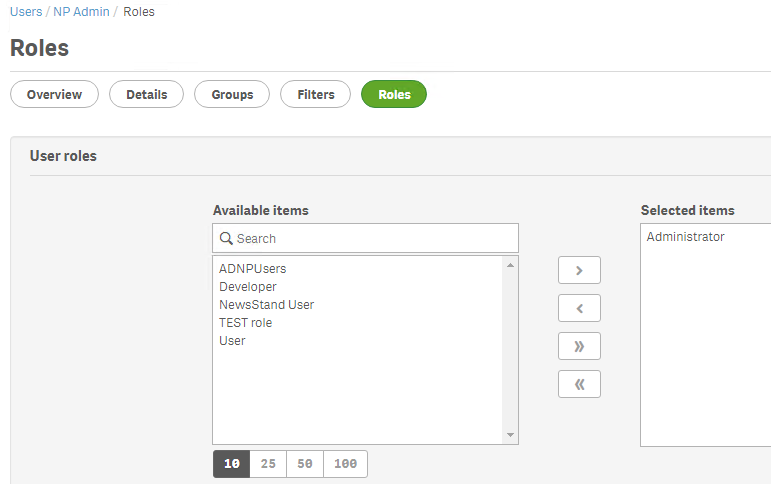
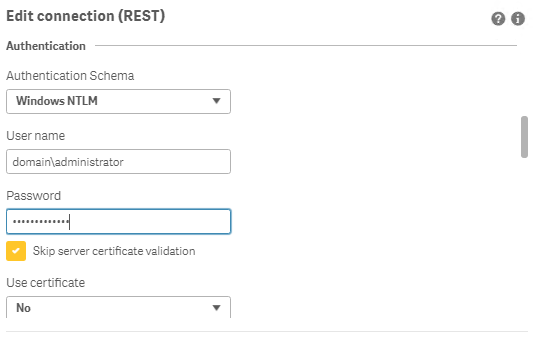
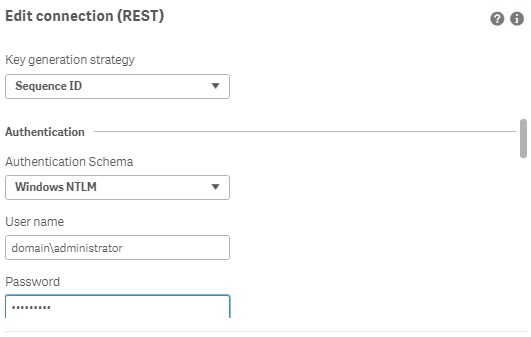
- Windows Authentication is required in both these connectors. The required user account is the NPrinting service account (which is also ROOTADMIN on the Qlik Sense server)
- This user account must also be a member of the NPrinting 'Administrators' Security Role on the NPrinting Server.
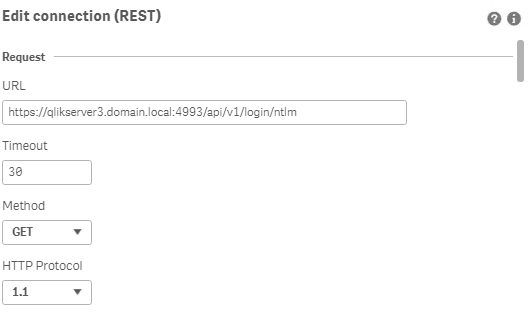
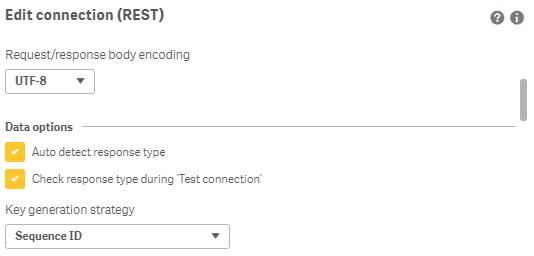
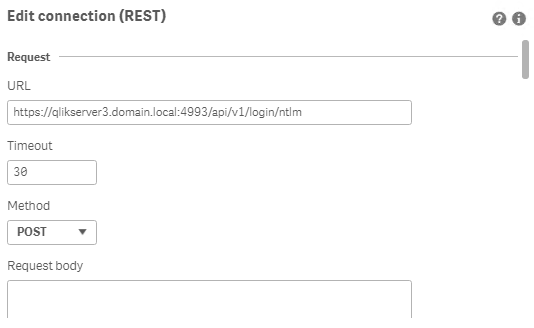
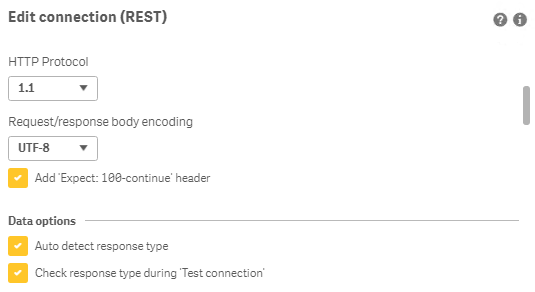
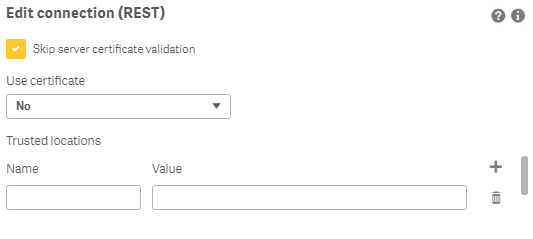
Creating REST "GET" connections
Note: Replace QlikServer3.domain.local with the name and port of your NPrinting Server
NOTE: replace domain\administrator with the domain and user name of your NPrinting service user account
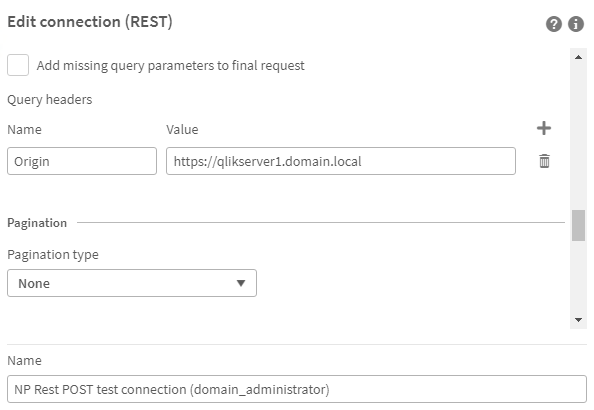
Creating REST "POST" connections
Note: Replace QlikServer3.domain.local with the name and port of your NPrinting Server
NOTE: replace domain\administrator with the domain and user name of your NPrinting service user account
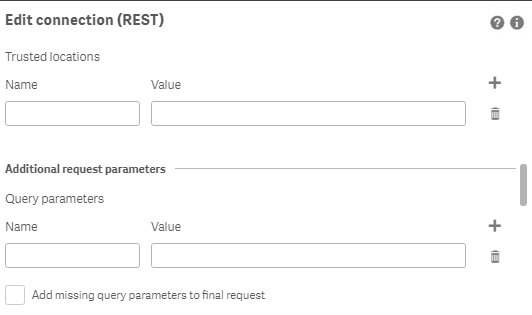
Ensure to enter the 'Name' Origin and 'Value' of the Qlik Sense (or QlikView) server address in your POST REST connection only.
Replace https://qlikserver1.domain.local with your Qlik sense (or QlikView) server address.
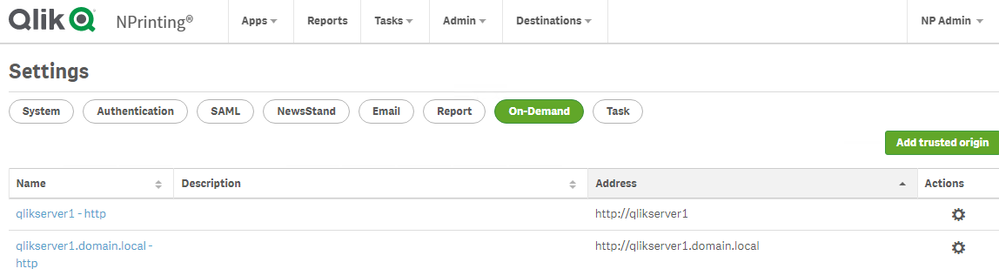
Ensure that the 'Origin' Qlik Sense or QlikView server is added as a 'Trusted Origin' on the NPrinting Server computer
Related Content
- Distribute NPrinting reports after reloading a Qlik App
- Extending Qlik NPrinting
- Run a Qlik NPrinting API POST command via QlikView reload script
- Troubleshooting Common NPrinting API Errors
NOTE: The information in this article is provided as-is and to be used at own discretion. NPrinting API usage requires developer expertise and usage therein is significant customization outside the turnkey NPrinting Web Console functionality. Depending on tool(s) used, customization(s), and/or other factors ongoing, support on the solution below may not be provided by Qlik Support.
-
How to use task chaining with Qlik Automate
This article explains how to perform task chaining for your Qlik Cloud apps using Qlik Automate. It'll start with a simple app reload example and fin... Show More -
Qlik Automate: Automation ownership changes for Analytics Admins May 2026
Qlik introduced a change in how automation permissions are handled for the Analytics Admin role. When was the change introduced? The change is already... Show MoreQlik introduced a change in how automation permissions are handled for the Analytics Admin role.
When was the change introduced?
The change is already live as of the 11th of May, 2026.
What does that mean for me?
Analytics Admins can now claim ownership of another user's automation. After claiming ownership, they can make necessary changes to it and enable the automation. However, they can no longer transfer ownership to another user.
How do I claim ownership of an automation?
As an Analytics admin, to claim ownership of an automation:
- Navigate to the Automations section in the Administration Console
- Locate the automation you want to claim ownership of, and click the Actions menu (...)
- Choose Claim ownership
This behavior change only applies to Analytics Admins. Tenant admins can still transfer ownership to any user with the appropriate access rights in the tenant.
Environment
- Qlik Cloud Analytics
- Qlik Automate
-
QlikView distribution to Qlik Cloud fails with "TestCloudLicense: Failed - Unaut...
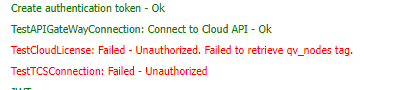
The distribution of QlikView apps from QlikView Distribution Service to Qlik Cloud fails with the error "TestCloudLicense: Failed - Unauthorized. Fail... Show MoreThe distribution of QlikView apps from QlikView Distribution Service to Qlik Cloud fails with the error "TestCloudLicense: Failed - Unauthorized. Failed to retrieve qv_nodes tag."
Environment
Resolution
- The license used in Qlik Cloud is missing the QV_NODES tag, which allows the access to QlikView apps from Sense Deployments. For QlikView to distribute to a Qlik Cloud tenant, the tag must be present in the tenant license.
Please, reach out to your account manager to have that fixed.
- This issue could also occur if there are missing configuration entries in he QVDistributionService.exe.config file, refer to the following article QlikView Distribute to cloud fails: The type initializer for System.IdentityModel.Tokens.Jwt.JsonExtensions threw an exception.
-
Qlik Cloud report with subscription: variables do not get updated in reports, wh...
A user subscribes to a sheet or chart that references a variable. When the variable changes, the report is still delivered with the old value. The Ql... Show More- A user subscribes to a sheet or chart that references a variable.
- When the variable changes, the report is still delivered with the old value.
- The Qlik Sense app, on the other hand, shows the correct value when opened.
Environment
Resolution
This is a current limitation.
Variables are among the settings that are only saved (as value, not as formulas) when the subscription is saved.The subscription report will continue to use first value.
We have an improvement planned to include variables as formulas planned, but currently no precise ETA.
-
How to export files to a custom SharePoint document library with Qlik Automate
It is possible to save files generated by Qlik Automate (such as reports from the Generate Report and Copy File block) directly to a custom SharePoint... Show MoreIt is possible to save files generated by Qlik Automate (such as reports from the Generate Report and Copy File block) directly to a custom SharePoint document library instead of the default Shared Documents or Documents library.
By default, the Drive ID dropdown in the Copy File block will only show the default library; this article explains how to correctly target any custom library using the List Drives From Site block.
Background Information
The Microsoft SharePoint connector in Qlik Automate uses the concept of Drives, where each SharePoint document library is a separate Drive with its own unique Drive ID (GUID).
By default, when you use the Copy File on Microsoft SharePoint (or any similar write blocks) and perform a Do Lookup on the Drive Id field, Qlik Automate only displays and allows selection of the site's default document library, which is typically called Documents or Shared Documents.
Even if you have created additional custom document libraries and they appear correctly in the SharePoint Site Contents view as separate Folders, these custom libraries do not appear in the simple Drive ID dropdown of the Copy File block.
As a result, any file copy operation defaults to the default library. If you enter a path such as New Folder/QLIK/filename.pdf, the automation interprets New Folder as a subfolder inside the default library, causing the file to be saved under /Shared documents/New Folder/QLIK/... instead of directly at the root of the custom library.
How to target a custom document library
To target a custom document library, we retrieve its unique Drive ID and then use that ID in the Copy File block. But before we can do this, we need to first discover all available document libraries (drives) on the SharePoint site so we can select the correct Drive ID for the custom library instead of defaulting to Documents.
- Create or open an automation that needs to write to SharePoint
- Add the List Drives From Site from the Microsoft SharePoint connector.
- Configure the List Drives From Site block as follows:
- Site Id:
- Click the field
- Select Do Lookup
- Select the correct site
- Leave other fields at their default or with empty values
- Site Id:
- Right-click the List Drives From Site block and select Test Run
- After the block executes successfully, go to the History tab and expand the output of the List Drives From Site block
- In the output, locate the entry for your custom library; look for the name, title, or WebUrl field to identify it
Copy the entire id value - Go to your original Copy File block (or whichever write block you are using) and configure it as follows:
- Drive Id: paste the Drive Id you retrieved from the History; this can either be hard-coded or stored in a variable for reusability
- Destination Path: enter the relative path starting from the root of that library
Example: QLIK/<filename>.pdf or QLIK/[Date]_Report.pdfDo not include the library name in the path.
- Save and test the automation
Environment
- Qlik Automate
- Create or open an automation that needs to write to SharePoint
-
How to get started with Snowflake in Qlik Application Automation
This article overviews the available blocks in the Snowflake connector in Qlik Application Automation. It will also cover some basic examples of retri... Show MoreThis article overviews the available blocks in the Snowflake connector in Qlik Application Automation. It will also cover some basic examples of retrieving data from a Snowflake database and creating a record in a database.
Connector overview
The Snowflake connector has the following blocks:
- List Tables: returns a list of the tables from the connected database
- List Records: returns a list of records from the specified table
- Insert Record: create one record in the specified table
- Upsert Record: create or update one record in the specified table
- Insert Bulk: create multiple records in the specified table
- Upsert Bulk: create or update multiple records in the specified table
- Do Query: do a generic SQL query against the connected Snowflake database
- Update Record by One Field: update a single record in the specified table
- Delete Record: delete one record in the specified table
- List Schemas: returns a list of schemas from the connected database
Authentication
To create a new connection to Snowflake, the following parameters are required:
- account_name: your Snowflake account/tenant name. Type 'ABC' if your Snowflake URL is abc.snowflakecomputing.com.
Warning
Account names that include underscores can cause issues for certain features. For this reason, Snowflake also supports a version of the account name that substitutes the hyphen character (-) in place of the underscore character. For example, both of the following URLs are supported:
URL with underscores:
https://acme-marketing_test_account.snowflakecomputing.comURL with dashes:
https://acme-marketing-test-account.snowflakecomputing.comMore details about the account name can be found in the below Snowflake documentation
- username: username for the user with remote access to the Snowflake database.
- password: password used to authenticate the above username. If the key pair authentication method is being used, use this field to provide the decryption passphrase.
- dbname: the name of the database you want to use for this connection. You'll need to create multiple connections to connect to multiple databases in the same automation.
- warehouse: the name of the warehouse you want to use for this connection.
- keyfile: an optional parameter that is used for the key pair authentication method. Only the encrypted version of the private key is supported as this method offers enhanced authentication security. You must generate a Privacy Enhanced Mail (.pem) file and copy the contents into this field. Use the password field to provide the private key passphrase for decryption. For more information about the key pair authentication method, see Creating a Snowflake Key Pair based connector for Application Automation and Key-pair authentication and key-pair rotation (docs.snowflake).
The password field is a required field when configuring a Snowflake connection in Qlik Automate. While Snowflake does permit the use of unencrypted private keys, which do not require a passphrase, Qlik's connector mandates the password field for both username and password authentication and key pair authentication with a password-protected keyfile.
If you have a keyfile without a passphrase, tools such as OpenSSL can be used to add one.
Example OpenSSL command to add a passphrase:openssl pkcs8 -topk8 -in existing_key.p8 -out encrypted_key.p8
-in existing_key.p8: your current private key file
-out encrypted_key.p8: the output file for the encrypted key
You will be prompted to enter and confirm a new passphrase after running the command.
Examples
Insert a new record into a table
- Add the Insert Record block from the Snowflake connector to your automation.
- Configure the block to point to a table in the database you're currently connected to. You can use the do lookup function for this.
- Run the automation. This will insert a new record in your Snowflake table.
Use the Do Query block to create a new table
The Do Query block can be used to perform actions in Snowflake that aren't supported by the other blocks.
- Create a new automation
- Search for the Snowflake connector in the Block library menu on the left side of the canvas, and find the Do Query block. Drag this block inside the automation. Highlight the Do Query block by clicking it and configure it in the Block configuration menu on the right side of the canvas.
- Add your query to create a new table in the Query input field. Here is a query example that creates a table:
CREATE TABLE "MY_DATABASE"."PUBLIC"."TEST" (ID INT, "Description" varchar (100), "Serial" NUMBER, COST FLOAT, "Create_date" DATE, "Details" VARIANT); - Run the automation. This will create a new table with the specified structure within the selected database.
Upsert multiple records into a table
- Add the Upsert Bulk block from the Snowflake connector to your automation.
- Configure the block to point to a table in the database you're currently connected to. You can use the do lookup function for this.
- The value of the Where key input parameter should be a unique identifier that is used to check the existing records and update them if needed.
- The value of the Data input parameter should be Json List to pass multiple records as Json Objects, along with a unique identifier added as a key-value pair to the Json Object.
The information in this article is provided as-is and to be used at own discretion. Depending on tool(s) used, customization(s), and/or other factors ongoing support on the solution below may not be provided by Qlik Support.
-
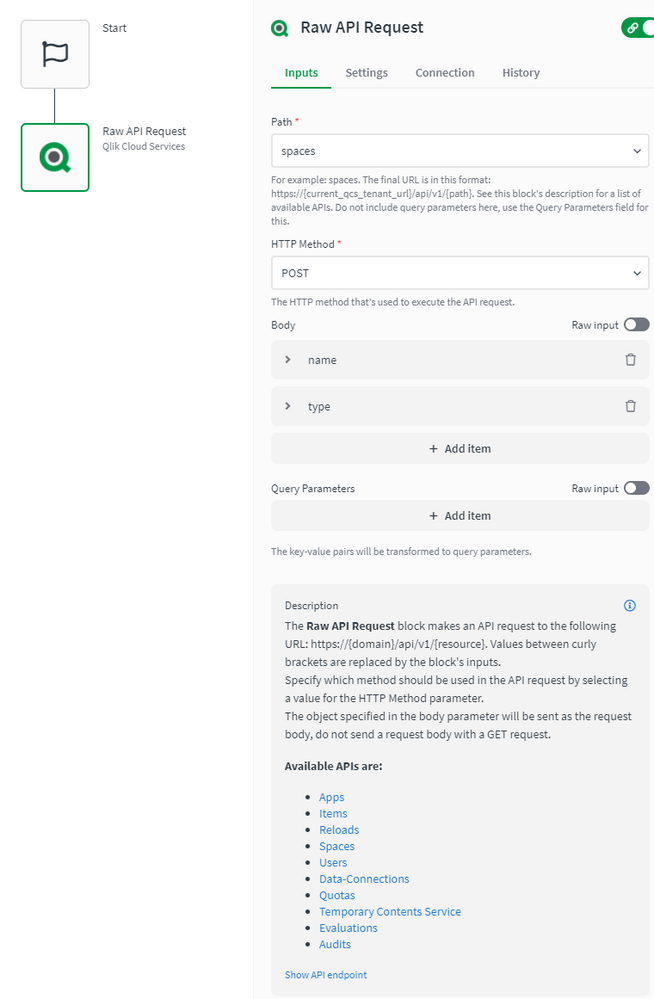
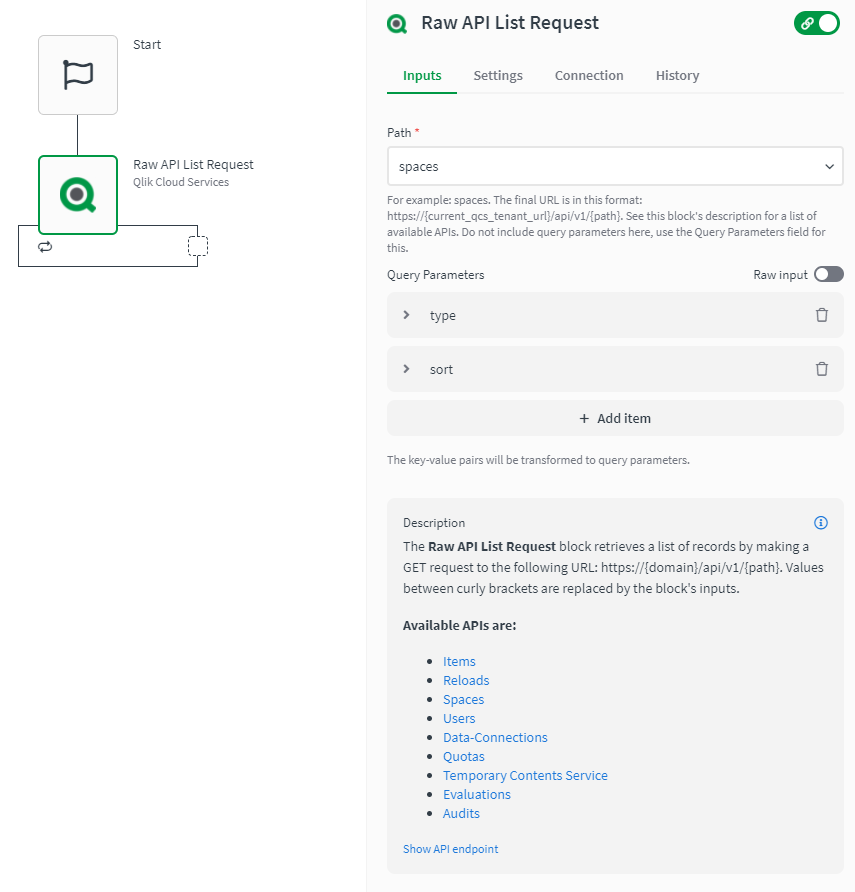
How to use the Raw API Request blocks in Qlik Automate
This article explains how the Raw API Request blocks in Qlik Automate can be used. Most connectors in Qlik Automate have a Raw API Request and a Raw ... Show More -
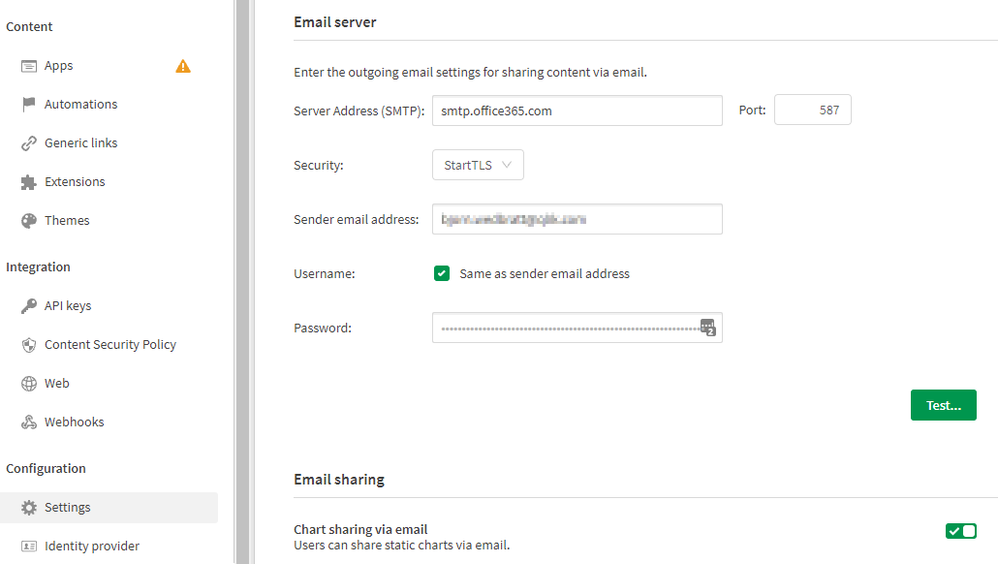
How to configure the Mail Connector in Qlik Automate
Content: Step-by-Step:LimitationsRelated Content Step-by-Step: To create a Mail connection in Qlik Automate, do the following: In Qlik Cloud Hub, c... Show MoreContent:
Step-by-Step:
To create a Mail connection in Qlik Automate, do the following:
- In Qlik Cloud Hub, create a new Automation
- In the Edit Dialogue, locate Mail
- Drag the Send Mail (A) block onto the canvas
- Click Connection (B) and Create Mail connection (C) to set up a new Mail connection; alternatively, choose an existing connection
- In the Input pane, fill out the required fields to send a test email
- Press Save and Run to execute the automation
- Verify that the test email is being sent successfully and received in the mailbox
If you receive any error when running the test automation, verify the details of your SMTP server are correct (Host, Password still accurate, Port etc): - In the menu select Connections to go back to the connections page
- In My connections, select the Mail connection and press Edit connection
- Confirm all settings being correct and press Save
- Run the test automation again to confirm the email being sent
Limitations
- The Mail Connector does not at present support SSO. See Qlik Application Automation: "Send Mail" block doesn't work with Gmail's with Okta integration
- The configuration for an Email server that already exists on a tenant cannot be used within an automation. A new connection must be created in Qlik Automate.
- The connection will not be verified during creation. As a best practice it is always recommended to verify the Mail connection with a simple automation, before using the Send Mail block in more advanced automations.
Related Content
The information in this article is provided as-is and to be used at own discretion. Depending on tool(s) used, customization(s), and/or other factors ongoing support on the solution below may not be provided by Qlik Support.
- In Qlik Cloud Hub, create a new Automation
-
How to extract changes from the Change Store (Write Table) and store them in a d...
This article explains how to extract changes from a Change Store by using the Qlik Cloud Services connector in Qlik Automate and how to sync them to a... Show MoreThis article explains how to extract changes from a Change Store by using the Qlik Cloud Services connector in Qlik Automate and how to sync them to a database.
The example will use a MySQL database, but can easily be modified to use other database connectors supported in Qlik Automate, such as MSSQL, Postgres, AWS DynamoDB, AWS Redshift, Google BigQuery, Snowflake.
The article also includes:
- Two automation examples you can download and import (see Qlik Automate: How to import and export automations):
- Automation Example to Extract Change Store History to MySQL Incremental.json
- Automation Example to Bulk Extract Change Store History to MySQL Incremental.json
- Configuration instructions for the examples
Content
- Prerequisites
- Creating the automation
- Insert changes in MySQL one by one
- Making this incremental
- Bulk updates
- Attachment configuration instructions
- Bonus!
- Replace field names
- User email instead of user id
- Triggering the automation from a sheet
Prerequisites
- A working Write Table with a set of editable columns and some example values already stored in it. More information about the Write Table chart can be found in Write Table | help.qlik.com.
- A MySQL (or similar) database table with columns that match your editable columns.
- Setting up the database, extend your database with metadata fields:
- userId: to store the user ID of the user who made a change
- updatedAt: to store the datetime when a change was saved
Here is an example of an empty database table for a change store with:
- a single PK “productId”
- editable columns are “AmountToOrder”, “Priority”, and “Note”.
- additional columns “userId” and “updatedAt”, which will be used to log user activity and merge separate changes into the same record
Creating the automation
- Create a new automation. See Qlik Automate for details.
- Add the List Change Store History block from the Qlik Cloud Services connector.
- Configure this block with the change store ID. You can copy this from the write table chart.
- Perform a manual run of the automation to make sure some records are returned. The List Change Store History block will return a list of objects for each cell that contains one or more changes. Every object includes the combination of primary key(s), the editable column for that cell, and a list of all values belonging to that cell.
- You have two options on how to perform this sync:
- Insert changes one by one
- Insert changes in bulk (this option is more complex but also more performant)
Insert changes in MySQL one by one
- Add a Loop block (A)inside the List Change Store History block and configure it to loop over the list of changes inside each object returned by the List Change Store History block (B) :
- Search for the MySQL connector (A) in the automation block library and drag the Upsert Record block inside the Loop block (B) :
- Create a new connection (C) to your MySQL database in the Connection tab of the Upsert Record block and activate it for the block by clicking it once created.
- Configure the Upsert Record block as follows
- Table: the database table you have created for the Write Table
- Where: the key:value mappings for the granularity on which you want to save the changes. In this example, it is a combination of the primary key (productId) with userId and updatedAt.
- productId (primary key): this comes from the cellKey in the List Change Store History block.
- userId and createdAt: these are defined for each change, so they should be retrieved from the item in the Loop block.
The userId maps to the createdBy parameter.
- productId (primary key): this comes from the cellKey in the List Change Store History block.
- Record: this is the key:value mapping for the individual change that should get updated. The Key maps to the columnName that is returned by the List Change Store History block, the Value maps to the cellValue parameter that is returned in the Loop block:
- This is what your automation will look like now:
Run the automation manually by clicking the Run button in the automation editor and review that you have records showing in the MySQL table:
Making this incremental
Currently, there is no incremental version yet for the Get Change Store History block. While this is on our roadmap, the automation from this article can be extended to do incremental loads, by first retrieving the highest updatedAt value from the MySQL table. The below steps explain how the automation can be extended:
- Add a Do Query block from the MySQL connector to the automation and configure the query as follows:
SELECT MAX(updatedAT) FROM <your database table>
- Run a test run of the automation without the other blocks attached to verify the result in the Do Query block’s History tab:
- Add a Condition block (A) to the automation and configure it to evaluate the MAX(updatedAt) (B) field from the Do Query block.
Because the Do Query block returns the value as part of a list, the automation editor prompts you to specify which item of the list you want to use. Use the default version option Select first item from list (C).
- Configure the operator in the Condition block to is not empty. If an updatedAt timestamp is found, the Yes part of the Condition block will be executed. If no timestamp is found, the No part will be executed.
- Add a Variable block (A)to the Yes part of the Condition block and create a new variable of type String named Filter. The setting is accessed from the Manage variables (B) button in the Variables block.
- Add an operation to the Variable block to Set value of Filter and type updatedAt gt “ in the input field.
Click in the input field to add a reference to the timestamp in the Do Query block, mirroring the Condition block configuration.
After the mapping is added, append it with an additional double quote character: - Right-click the Variable block and duplicate it, then add the duplicated block to the No part of the Condition (A).
Remove the Set value of Filter step and replace it with the Empty Variable (B) operation.
Right-click each Variable block and add a comment explaining the respective function.
- Reattach the original automation after the Condition block.
Verify that it is attached after the block and not inside the Yes or No sections.
- In the List Change Store History block (A), map the Filter variable to the Filter parameter (B) :
- Run the automation and confirm it only picks up new changes on new runs.
Bulk updates
The solution documented in the previous section will execute the Upsert Record block once for each cell with changes in the change store. This may create too much traffic for some use cases. To address this, the automation can be extended to support bulk operations and insert multiple records in a single database operation.
The approach is to transform the output of the List Change Store History block from a nested list of changes into a list of records that contains the changes grouped by primary key, userId, and updatedAt timestamp.
See the attached automation example: Automation Example to Bulk Extract Change Store History to MySQL Incremental.json.
- Drag the Loop and Upsert Record block outside the List Change Store History loop, but do not delete them:
- Add a Variable block inside the List Change Store History block loop (A) and create a new variable partialChangeRecord of type Object (B).
This variable will be used to map each cell value to the primary key(s), userId and updatedAt timestamp. - Add the first operation to the Variable to Empty it (A).
This is important to ensure that for every item in the loop, we start with an empty partialChangeRecord variable.
Next, add a Set key/values operation to set the primary key(s) (B).
In our example, we have a single primary key, productId, but if you have multiple fields, you should add them one by one.
Set it to the cellKey.rowKey parameter returned in the output from List Change Store History
- Drag the Loop block back into the automation and attach it to the Variable block.
Disconnect the Upsert Record block. - Add a new Variable block inside the Loop block and configure the Variable parameter to the partialChangeRecord object.
Now set additional Key/values in the variable for the primary userId, updatedAt, and the cellValue:
- userId: createdBy parameter returned in the loop
- updatedAt: updatedAt parameter returned in the loop
- For the Cell value, set the key to the columnName returned by the List Change Store History block and set the Value to the cellValue returned from the Loop block:
- uniqueKey: add a fourth keyValue pair uniqueKey.
This will be used later to merge various cell changes into a single record.
This combines the primary key(s), userId, and updatedAt timestamp, each separated by a pipe (|) symbol.
Click the input field, map the first parameter, then type a | -symbol, and click the input field again to map the next parameter:
- Add another Variable block inside the Loop block (A) and create a new list type variable listOfPartialChanges.
Add an Add item operation to add the partialChangeRecord variable (B) to this list.
- Add a Merge Lists block after the List Change Store History block.
The Merge Lists block will be used to merge the partial change records into full records for each change.
Configure both List parameters in the Merge Lists block to use the listOfPartialChanges variable.
- Go to the Settings tab of the Merge Lists block and apply this configuration:
- Item merge strategy: Merge list 1 item and list 2 item in one new item (default)
- List 1 unique key: uniqueKey
- List 2 unique key: uniqueKey
- On duplicate unique key: Merge item from list 2 into item from list 1
- When a property exists on both lists: Keep value from list 1 (default)
Due to an ongoing defect, this parameter is only available after refreshing the automation editor. As the parameters use the default values, this should not impact you.
- Perform a manual run of the automation to verify that the Merge Lists block output is merging.
You will notice that this list contains many duplicates. - Add a Deduplicate List block (A) and configure the List parameter to use the output from the Merge Lists block, then set the key to uniqueKey (B).
- Perform another manual run and confirm that the Deduplicate List block now only contains unique entries.
- The output still contains the uniqueKey parameter that is not compatible with the database.
There are two options: either extend the database or remove uniqueKey.
To remove it, add a Transform List block and set the Input List parameter to the Deduplicate list block:
- Configure the Fields in output list parameter from the Transform List block.
To make this easier, it is best to have example data from a manual run. If you haven’t performed a manual run yet, do one now.
Click the Add Field button and configure new fields:
- For the Field parameter, click the input field and start by mapping your primary keys
- For the Value parameter, do the same and select the corresponding parameter in the Item in input list option
- Repeat this for all other items in the list except for the uniqueKey
- For the Field parameter, click the input field and start by mapping your primary keys
- Add a Loop batch block (A) to the automation and configure it to loop over the Transform List block output in batches of 50 (B).
Adjust this batch size depending on your database and the number of editable columns.
- Add an Insert Bulk block from the MySQL connector within the Loop Batch block loop.
Configure it to use your database table variable (or hardcode your table name) and set the Values parameter to the Batch in Loop Batch parameter. - Run the automation and confirm that the database gets updated.
- Optionally, collapse all empty loop blocks to clean up the automation and provide comments to explain what the blocks and functions do.
This will help you understand this automation when you revisit it in the future.
To add a comment, right-click on the block and click Edit comment.
Attachment configuration instructions
The provided automations will require additional configuration after being imported, such as changing the store, database, and primary key setup.
Automation Example to Extract Change Store History to MySQL Incremental.json
- Variable - databaseTable -> configure with the name of your database table
- Variable - changeStoreId -> configure with your change store ID
- Upsert Record - MySQL -> replace the productId with your primary key, add additional primary keys if necessary
Automation Example to Bulk Extract Change Store History to MySQL Incremental.json
- Variable - databaseTable -> configure with the name of your database table
- Variable - changeStoreId -> configure with your change store id
- Variable - partialChangeRecord -> replace the productId with your primary key, add additional primary keys if necessary
- Variable - partialChangeRecord in Loop block -> Update the uniqueKey field by replacing the productId with your primary key, add additional primary keys if necessary
- Transform List -> replace the productId with your primary key, add additional primary keys if necessary
Bonus!
Replace field names
If field names in the change store don't match the database (or another destination), the Replace Field Names In List block can be used to translate the field names from one system to another.
- Search the Replace Field Names List block and add it to your automation.
- Provide the translations for the field names that need to be changed to match the destination system.
User email instead of user id
To add a more readable parameter to track the user who made changes, the Get User block from the Qlik Cloud Services connector can be used to map User IDs into email addresses or names.
- Search the Get user block (A) in the Qlik Cloud services connector and add it to your automation.
Configure it to use the createdBy parameter (B). - Update the Upsert Record block to use the output from Get User.
A user's name might not be sufficient as a unique identifier. Instead, combine it with a user ID or user email.
Triggering the automation from a sheet
Add a button chart object to the sheet that contains the Write Table, allowing users to start the automation from within the Qlik app. See How to run an automation with custom parameters through the Qlik Sense button for more information.
Environment
- Qlik Cloud Analytics
- Qlik Automate
- Two automation examples you can download and import (see Qlik Automate: How to import and export automations):
-
Introducing new permissions for Qlik Automate
This article provides details about the new permissions available for Private automations, which will replace the previous Automation Creator role. ... Show MoreThis article provides details about the new permissions available for Private automations, which will replace the previous Automation Creator role.
You can assign these permissions to a custom role or the User Default. More information about creating & managing custom roles is available here.
The existing Automation Creator role will be deprecated later in 2026.
Private automations
These permissions allow users to run and create automations in their personal space.
Shared automations
Earlier in 2025, we introduced the shared automation permission that allows users to run, create, and manage automations in shared spaces in which they have the correct permissions. More information about which space roles are required for the various automation actions is available here:
-
How to run an automation with custom parameters through the Qlik Sense button
This article explains how the Qlik Sense app button component can be used to send custom parameters directly to the automation without requiring a tem... Show MoreThis article explains how the Qlik Sense app button component can be used to send custom parameters directly to the automation without requiring a temporary bookmark. This can be useful when creating a writeback solution on a big app as creating and applying bookmarks could take a bit longer for big apps which adds delays to the solution. More information on the native writeback solution can be found here: How to build a native write back solution.
Contents
Button configuration
- In this example, we'll use an app that contains car sales opportunities from Salesforce. The straight table, the variable input dropdown, and the native button are important for this example.
- Start editing the sheet and go to the button configuration section, set the action to "Execute automation" and specify the automation that should run when the button is clicked. If your automation isn't shown, you can copy and paste the automation id.
- Additional input parameters can now be added through the "Add parameter" button.
- Parameters require a key and a value, it's possible to use Qlik Expressions as input for the value. These expressions are evaluated when the button is clicked.
- After adding the parameters, use the "Copy input block" button to copy the all parameters that will be sent to the automation to your clipboard.
Automation configuration
- If you want anyone who can access the button to be able to run the automation, then set the automation's run mode to "Triggered".
If you want to limit this to a specific group of users, you can leave the automation in Manual run mode and place it in a shared space that this group of users can access. More information about this is available here: Introducing Automation Sharing and Collaboration. Make sure to disable the Run mode: triggered option in the button configuration.
- Right-click in the automation canvas and select "Paste Block(s)" to add the Inputs block to the automation. Connect the new Inputs block to the Start block. Apart from the default parameters, you'll also find your custom parameters as Inputs in the block.
- You can now reference the custom parameters from the button in other blocks in the automation by selecting the output from the Inputs block.
Limitations
- The maximum payload size when triggering an automation is 32kb. When using the GetCurrentSelections expression, every field value will be sent to the automation. This could exceed the 32kb limit. Use the temporary bookmark solution as described in this article instead: Native writeback solutions.
- Other automation limitations are available here: Platform limitations.
- More info on configuring the native button can be found here: Creating buttons.
Related Content
Environment
- Qlik Cloud
- Qlik Application Automation
The information in this article is provided as-is and will be used at your discretion. Depending on the tool(s) used, customization(s), and/or other factors, ongoing support on the solution below may not be provided by Qlik Support.
- In this example, we'll use an app that contains car sales opportunities from Salesforce. The straight table, the variable input dropdown, and the native button are important for this example.
-
Github - How to get started with Github in Automations
This article gives an overview of the available blocks in the Github connector in Qlik Application Automation. It will also go over some basic example... Show MoreThis article gives an overview of the available blocks in the Github connector in Qlik Application Automation. It will also go over some basic examples of retrieving file/blob contents from your repos as well as other functionalities within a GitHub account.
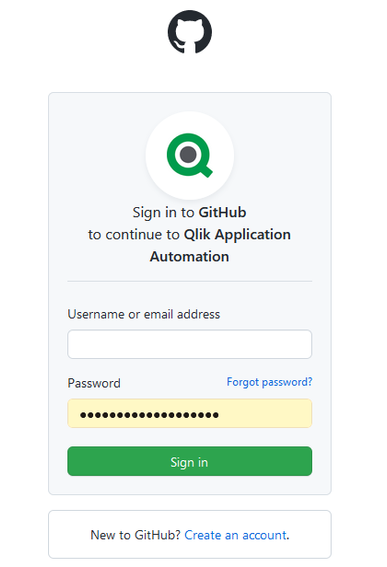
As with most connectors provided for automations the authentication for this connector is based on the oAuth2 Protocol, so when connecting to it you provide the user name and password of the account directly to the Github platform to request access so it is done in the most secure manner there is.
Let's now go over a few basic examples of how to use the Github connector:
How to list owned repositories and check their contents from your Github account:
- Create an automation;
- From the left menu, select the Github connector;
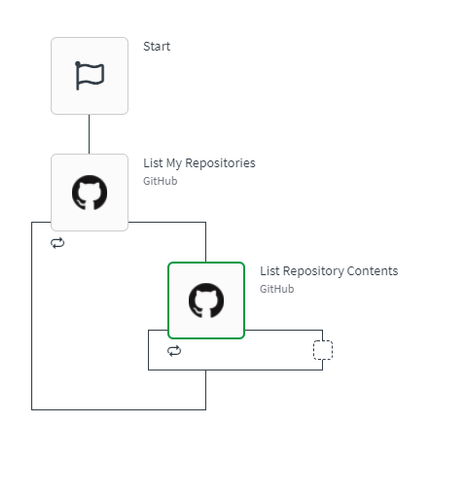
- drag and drop the "List my repositories" block
- drag and drop the "List repositories contents" block inside the loop created by the first block:
Now the "list my repositories" block offers a couple of filtering options depending what result you want (all repos or just the private or public ones and if you want the result to come in sorted by some rule) but they are mostly optional. Not filling them in will return by default all repositories.
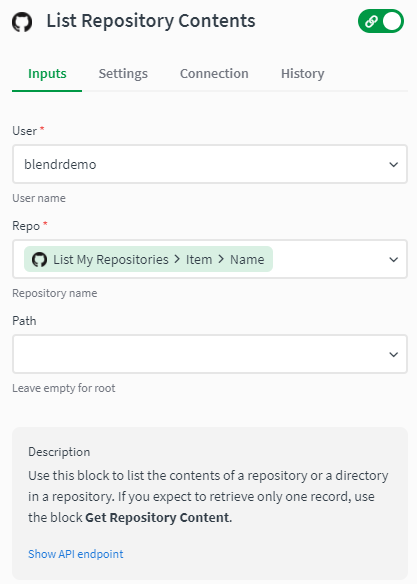
As for the "List repository contents" block you will need to fill in the username you use for your github account as well as the repository name which can be filled in with the results gotten from the first block. You can leave the path parameter empty to get the contents from the root folder or you can specify a path and the contents of that path will be returned.
As stated, if you expect to retrieve only one record, the use of "get repository content" block is more better suited. Also, you might want to switch this "List repository contents" block On Error status to either warning or ignore since Github API platform returns a 404 error if one of the queried repositories is empty.
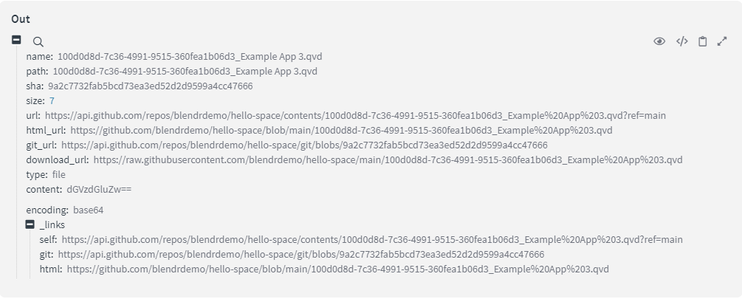
Now if you are planning to use the "Get repository content" block another warning should be mentioned and that this block only works for files or blobs up to a maximum of 1 MB in size, as per Githubs platform limitations. The response of this block should look like:
As you can see we have a couple of information stubs of that file, but most importantly from here is the SHA property, which is needed if you are planning to later on use the "Create or update file contents" block, required input parameter for the update of a file/blob.
Now if you're planning on updating files that are bigger than 1MB and you require the SHA of that file, we suggest using the list repository contents block and search for the required file and SHA in that result.
As for other functionalities of the Github connector we support also getting and listing commits or issues present in a repository, listing of users and many other requests but, if you are in need of a request that isn't present, we also offer the functionality to create your own requests to the Github API by making use of the RAW API blocks. These API blocks and their uses are explained in a separate article.
You can find attached to this article a simple JSON example which you can upload to your workspace, if you want to see a quick example of how to use version control to back up your QCS apps I suggest visiting the related article.
The information in this article is provided as-is and to be used at own discretion. Depending on tool(s) used, customization(s), and/or other factors ongoing support on the solution below may not be provided by Qlik Support.
Related Content
How to: Qlik Application Automation for backing up and versioning Qlik Cloud apps on Github
-
How to take control of your Qlik Cloud subscription: a guide to monitoring and m...
Understanding and managing your Qlik Cloud subscription consumption is essential for maintaining predictable costs, ensuring uninterrupted service, an... Show MoreUnderstanding and managing your Qlik Cloud subscription consumption is essential for maintaining predictable costs, ensuring uninterrupted service, and optimizing resource allocation across your organization. This guide provides you with the tools, strategies, and best practices to gain complete visibility into how your subscription is being consumed and implement proactive controls to stay within your capacity limits.
While Qlik Cloud measures consumption at the tenant level, you can achieve effective governance through strategic monitoring, automated alerting, and space-based management practices. This guide will walk you through the monitoring tools available, how to automate their deployment and refresh, and practical approaches to tracking consumption patterns and implementing controls that align with your organizational needs.
Content:
- Understanding the Administration activity center capacity consumption view
- The Home page capacity consumption dashboard
- How does this view fit into your monitoring strategy?
- Official consumption data: The Data Capacity Reporting App
- Automating the deployment of the consumption app
- Getting estimated usage with Qlik Cloud Monitoring Apps
- Automating Qlik Cloud Monitoring Apps deployment
- Proactive monitoring strategies: What to track and at what levels
- Monitoring automation runs
- Monitoring Data for Analysis
- Monitoring scheduled reloads
- Monitoring reports generated
- Practical approaches to controlling consumption
- 1. User education and communication
- 2. Alert-driven intervention workflow
- 3. Development vs. production separation
- Leveraging Qlik's alerting and distribution capabilities for consumption monitoring
- Available monitoring and distribution tools
- Setting up each monitoring approach
- Examples: Setting up consumption monitoring across key metrics
- Your action plan: From reactive to proactive
- Additional resources
Understanding the Administration activity center capacity consumption view
The Administration activity center Home page provides your first line of visibility into capacity consumption. Understanding what this view offers and how it complements the detailed monitoring apps will help you build an effective monitoring strategy.
The Home page capacity consumption dashboard
Navigate to the Administration activity center → Home to see a real-time dashboard summarizing capacity consumption. This view displays visual bar charts for consumption metrics relevant to your subscription:
Common metrics displayed:
- Data for Analysis: Purchased vs. used with color-coded breakdown (App Import, App Reload, Datafile); not available for user-based subscriptions
- Reports generated (monthly): Purchased count vs. used
- Standard automation runs (monthly): Purchased vs. used
- Third-party automation runs (monthly): Purchased vs. used
- Assistant questions asked (monthly): Purchased vs. used (if Qlik Answers is enabled)
Additional metrics may include Data Moved, Large App consumption, Qlik Predict deployed models, and others, depending on your subscription.
Metrics appear dynamically as features are adopted. If no one has asked an assistant question yet, that metric won't display until first use, keeping the dashboard focused on what you're consuming.
The Data for Analysis chart shows a current snapshot with the last update timestamp. Most metrics update multiple times per hour, providing near real-time visibility into your consumption position.
How does this view fit into your monitoring strategy?
The Administration activity center provides high-level consumption visibility designed for rapid assessment. For detailed analysis, investigation, and proactive monitoring, you'll complement this view with a set of monitoring apps.
Daily quick check (2 minutes):
- Scan consumption bars to identify any metrics approaching capacity
- Review indicators showing current usage levels
- Verify Data for Analysis timestamp shows recent data
When you need more detail, the Home page tells you what is being consumed. The monitoring apps tell you who, where, when, and why. Capacity subscriptions should use the Data Capacity Reporting App as the source of truth, while the Qlik Cloud Monitoring apps can be treated as estimated consumption reports, for example:
- For automation consumption details: Use the Automation Analyzer
- For data consumption details: Use the Data Capacity Reporting App and Reload Analyzer
- For report consumption details: Use the Report Analyzer
Use the Home page for daily checks and status awareness. When consumption requires attention or you need to understand trends, drill into the appropriate monitoring app for detailed analysis.
For more information, see Monitoring resource consumption.
Official consumption data: The Data Capacity Reporting App
The Data Capacity Reporting App is your official, billable record of consumption for capacity-based subscriptions. This Qlik-supported application is generated once per day (morning Central European Time) and provides the definitive view of your consumption against your entitlement.
The app tracks eight key value meters across the current and previous two months:
- Data for Analysis: Total data loaded into or created in Qlik Cloud (measured by monthly peak usage)
- Data Moved: Volume of data moved to cloud destinations via Qlik Talend Data Integration
- Third Party Transformations: Datasets used in transformations but not delivered by Qlik Talend Data Integration
- Automation Runs: All automation executions using Qlik Automate
- Reports: Reports distributed using Qlik Reporting Service
- Job Executions: Number of Talend job task runs (Qlik Talend Cloud subscriptions)
- Job Duration: Total duration of Talend job executions (Qlik Talend Cloud subscriptions)
This app represents your billable consumption record. The data in this app is what Qlik uses for official capacity reporting and billing purposes. When there's any discrepancy between this app and other monitoring sources, the Data Capacity Reporting App is the authoritative source. This app refreshes only once daily, meaning you see yesterday's official position, not real-time consumption. For more frequent monitoring and estimated usage, you'll complement this with the Qlik Cloud Monitoring Apps.
For detailed information, see Monitoring detailed consumption for capacity-based subscriptions.
Automating the deployment of the consumption app
Rather than manually distributing the consumption app from the Administration activity center each day, automate this process using the Capacity consumption app deployer template in Qlik Automate.
Setup steps:
- Create a new automation in Qlik Automate
- Navigate to the App Installer category
- Select "Capacity consumption app deployer" template
- Configure variables (space names, versions to keep)
- Test manually once
- Schedule to run daily around midday CET
This automation creates or uses designated spaces, imports the latest version, publishes it to a managed space, and maintains version history according to your configuration. You now have a single source of truth that updates automatically each day. Create automations or alerts on the published app for automated insights.
For complete details, see the Qlik Community article: Automate deployment of the Capacity consumption app with Qlik Automate.
Getting estimated usage with Qlik Cloud Monitoring Apps
While the official consumption report updates once daily, the Qlik Cloud Monitoring Apps (community-supported) can be reloaded multiple times per day up to your contractual reload limits, giving you more timely estimated usage insights.
The Qlik Cloud Monitoring Apps provide estimated consumption data that may differ slightly from the official Data Capacity Reporting App. Use these apps for trend monitoring, troubleshooting, and proactive management, but always refer to the Data Capacity Reporting App for official billable consumption figures.
Particularly valuable monitoring apps include:
App Analyzer: Provides comprehensive application usage and operational analytics, including:
- App access patterns and session frequency by user
- Sheet and object usage tracking
- App metadata and lineage information
- Historical snapshots to track changes over time
Automation Analyzer: Provides detailed analysis of automation runs, including:
- Run frequency by automation, space, and user
- Success/failure rates and error patterns
- Execution duration trends
- Third-party block usage tracking
Reload Analyzer: Tracks data refresh activity, including:
- Reload frequency by app and space
- Duration and resource consumption
- Success rates and failure patterns
- Reload scheduling patterns
Access Evaluator: Analyzes user roles, access, and permissions across your tenant
Report Analyzer: Tracks report generation, including:
- Report task execution frequency
- Report distribution patterns
- Report generation consumption
Entitlement Analyzer: For user-based subscriptions, provides insights into:
- Professional and Analyzer seat allocation and utilization
- Analyzer capacity consumption by user (for Analyzer capacity licenses)
- User session patterns and license assignment
For a complete list of available monitoring apps, see the Qlik Community article: The Qlik Sense Monitoring Applications for Cloud and On-Premise.
Automating Qlik Cloud Monitoring Apps deployment
The Qlik Cloud Monitoring Apps deployer template simplifies installation and maintenance of these community apps.
What it handles:
- Installs/upgrades selected monitoring apps from Qlik's OSS GitHub
- Creates required API keys and data connections
- Manages API key rotation to ensure connections remain operational
- Creates or uses existing shared and managed spaces
- Schedules regular reloads (configurable frequency)
- Verifies prerequisite settings and notifies if configuration changes are needed
Reload frequency considerations: You can reload these monitoring apps multiple times per day to get more current estimated usage data. However, each reload counts against your tenant's reload capacity limits. Consider your contractual limits when scheduling. For most organizations, reloading 2-4 times per day provides a good balance between timely insights and consumption.
For complete implementation details, see the Qlik Community guide: Qlik Cloud Monitoring Apps Workflow Guide.
The monitoring apps are also available on GitHub: qlik-oss/qlik-cloud-monitoring-apps.
Proactive monitoring strategies: What to track and at what levels
Effective governance comes from monitoring consumption at multiple levels and implementing proactive interventions. Here's how to approach monitoring for key consumption metrics.
Monitoring automation runs
Automation runs are counted across all automations in your tenant, regardless of owner or run mode (manual, scheduled, triggered, webhook, API). Test runs within the automation editor also count toward your limit.
What to monitor:
Tenant level:
- Total automation runs per month against your purchased capacity
- Rate of consumption (tracking whether you're on pace to exceed limits)
- Third-party block usage (may incur additional costs depending on subscription)
Space level:
- Which spaces are generating the most automation runs
- Identify spaces with unusually high consumption
Automation level:
- Individual automation run frequency
- Failed runs that retry excessively
- Scheduled vs. triggered vs. webhook run distribution
User level:
- Which users own the most frequently running automations
- Users with failed automations requiring attention
Example alert scenario: Using the Automation Analyzer, create alerts when:
- Total third-party (billable) runs reach 80% of purchased capacity
- Any single automation runs more than 100 times per day
- Failed run rate exceeds 20% for any automation
- A specific space's automations account for more than 40% of total runs
Monitoring Data for Analysis
Data for Analysis is measured by monthly peak usage. A single day's spike can impact your entire month's consumption.
This data is only available via the Data Consumption report; it is a lagging metric and currently lacks customer data such as app names, user names, and space names. As such, use of an automation template to provide notifications may be preferable to standard alerts, and some app size metrics may be better analyzed in the reload analyzer.
What to monitor:
Tenant level:
- Daily peak compared to purchased capacity
- Trend analysis: Are daily peaks increasing?
- Current month peak vs. previous months
App level:
- Which apps are contributing most to data volume
- New apps that significantly increase consumption
- Apps with unexpectedly large data reloads
Space level:
- Data consumption by space
Example alert scenario: Using the Data Capacity Reporting App and Reload Analyzer:
- Alert when the daily peak reaches 80%, 90%, 95% of purchased capacity in the Data Capacity Reporting App
- Alert when any single app reload increases data volume by more than 20GB in the Reload Analyzer
- Alert when a space's total data exceeds a defined threshold in the Data Capacity Reporting App
Monitoring scheduled reloads
Each subscription tier has limits on maximum concurrent reloads, and capacity subscriptions have daily reload counts. Exceeding concurrent limits causes queuing; exceeding daily limits can block operations.
What to monitor:
Tenant level:
- Scheduled reloads that exceed contractual limits
- Concurrent reload patterns during peak hours
- Failed reload rate
Space level:
- Reload frequency by space (wasted work)
- Reload schedule overlap that causes queuing
App level:
- Apps with multiple reload tasks
- Apps with long-running reloads that block concurrency
Example alert scenario: Using the Reload Analyzer:
- Alert when an app has more than one reload task active
- Alert when failed reloads exceed 10% in any 24-hour period
- Alert when reload queuing occurs during business hours
Monitoring reports generated
Report generation counts vary by subscription tier, with add-on packs available for purchase. Across all reporting capabilities, tenants have a maximum of 30,000 reporting-related requests per day.
What to monitor:
Tenant level:
- Monthly report generation against purchased capacity
- Rate of consumption throughout the month
Report task level:
- Which report tasks generate the most reports
- Report tasks using cycling (can generate up to 500 unique reports per task)
Example alert scenario: Using consumption reporting and monitoring apps:
- Alert when monthly reports reach 75% of capacity
- Alert when any single report task generates more than 100 reports in a day
- Alert when daily reporting requests approach 25,000
For detailed information on report limits, see Qlik Reporting Service specifications and limitations.
Practical approaches to controlling consumption
While Qlik Cloud measures consumption at the tenant level, you can implement effective governance practices that provide meaningful control over resource usage.
1. User education and communication
Make users aware of the impacts of their consumption and empower them to monitor their own usage.
Implementation:
- Publish monitoring apps to managed spaces accessible by content creators
- Regular communications showing tenant-wide consumption status to creators
2. Alert-driven intervention workflow
Create early warning systems that trigger well before official capacity notifications.
Implementation:
Alert tier 1 (60-70% of capacity):
- Notification to admins and space owners & managers
- Review consumption trends
- Identify optimization opportunities
Alert tier 2 (75-85% of capacity):
- Formal review meeting
- Suspend non-critical scheduled executions (automation runs, assistants, reload tasks, report tasks, etc)
- Contact the account manager about potential overage
Alert tier 3 (90%+ of capacity):
- Disable non-essential executions (automation runs, assistants, reload tasks, report tasks, etc)
- Defer development/testing activities to next month
- Discussion about capacity expansion or overage management
3. Development vs. production separation
Use strict space controls to prevent development consumption from impacting production limits, or procure a development subscription from Qlik to fully isolate capacity.
Implementation:
- Create clear development space boundaries
- Limit development automation runs through governance
- Schedule development reload activities during off-peak hours
- Regular cleanup of abandoned development content
For information on subscription types and capacity planning, see Qlik Cloud capacity-based subscriptions.
Leveraging Qlik's alerting and distribution capabilities for consumption monitoring
Now that you have the monitoring apps deployed and refreshed regularly, you can leverage Qlik Cloud's built-in alerting and distribution capabilities to create a proactive monitoring system. These tools transform static consumption data into actionable intelligence that reaches the right people at the right time.
Available monitoring and distribution tools
Data Alerts: Create threshold-based alerts that evaluate conditions on a schedule and notify recipients when conditions are met. Alerts can be created on any chart or measure in your monitoring apps and can be shared with users or groups. Inclusive in all plans.
Subscriptions: Schedule automatic distribution of charts, sheets, or entire apps to users via email or Microsoft Teams. Subscriptions ensure stakeholders receive regular consumption reports without needing to log into Qlik Cloud. Inclusive in all plans.
In-app monitoring: Create bookmarks and sheets in the monitoring apps that focus on specific consumption areas. Share these bookmarks with space owners or functional teams so they can self-service their consumption monitoring. Inclusive in all plans.
Automations: Build custom workflows that trigger actions based on consumption thresholds, such as sending notifications through Slack, creating tickets in ServiceNow, or disabling specific automations when limits are approached. Value-add feature, if third-party connectors are used.
Setting up each monitoring approach
Creating Data Alerts:
- Open the relevant monitoring app (e.g., Automation Analyzer)
- Navigate to the sheet containing the metric you want to monitor
- Right-click on a chart and select "Alerts" → "Create new alert"
- Define the alert condition using an expression (e.g.,
Sum(AutomationRuns) > 4000) - Set the evaluation frequency (hourly, daily, weekly)
- Add recipients (individuals or groups)
- Customize the alert message to provide context
- Save and enable the alert
Creating Subscriptions:
- Open the monitoring app
- Navigate to the sheet you want to distribute
- Click the subscription icon or access via the context menu
- Choose distribution format (image, PDF, or data)
- Set the schedule (daily, weekly, monthly)
- Select recipients (users or groups)
- Add a custom message if desired
- Save the subscription
Creating In-App Bookmarks:
- Open the monitoring app
- Apply filters and selections to focus on specific consumption areas (e.g., filter to a specific space)
- Click "Bookmarks" and create a new bookmark
- Give it a descriptive name (e.g., "Marketing Space Automation Consumption")
- Publish the bookmark to make it available to all app users, and share the link
Creating Automations:
- Navigate to Automations in the Analytics activity center
- Create a new automation
- Use the "Qlik Cloud Services" connector to monitor app data or events
- Add conditional logic based on consumption thresholds
- Configure actions (send notifications, disable automations, create records)
- Test and enable the automation
All of these tools support distribution to groups, making it easy to ensure the right teams have visibility into the consumption metrics relevant to them. Space administrators can receive alerts about their space consumption, development teams can get daily subscription reports, and executive stakeholders can receive monthly summary reports.
Examples: Setting up consumption monitoring across key metrics
The following examples demonstrate how to set up comprehensive monitoring for different consumption metrics. These examples assume you have deployed the Capacity consumption app deployer (running daily around midday UTC) and the Qlik Cloud Monitoring Apps deployer (running overnight) with default settings.
Explore the apps to discover a wide range of operational metrics you can monitor, alert, automate, and subscribe to.
Example 1: Third-party automation runs monitoring and alerts
Scenario: Your organization uses third-party automation blocks (such as Slack, ServiceNow, or Salesforce connectors), which incur additional costs based on consumption. You need to monitor third-party automation runs to prevent unexpected charges and identify which automations are driving costs.
Navigate to the Automation Analyzer and create the following alerts:
Alert 1: Third-party runs approaching limit
- Location: Create on the "Run Quotas" chart in the "Dashboard" sheet by right-clicking on the Billable bar. This will create an alert with three useful measures present:
- Condition: "Runs Billable Remaining (Bar)" Less than 2000 (for example):
- Schedule: When data changes
- Share with others: Add other key administrators/ managers
Alert 2: Individual user excessive third-party runs
- Location: On the "Dashboard" sheet, open the "Runs by executor" tab, and create an alert from this table.
- Condition: Where "Runs Billable CMTD" is Greater than 1000 (or a reasonable limit for an individual user in the tenant):
- Schedule: When data changes
- Share with others: Add other key administrators/ managers
Automation - Automation usage notifier: Automation or user email notifications
This approach allows you to send email notifications or take action directly on executing users or owners, while sending a fully customised template to notify them that they are approaching limits.
See Automation Usage Notifier | GitHub for details.
- Location: Create a new automation by importing the JSON file provided at automationNotifier. There is a readme present there, in summary:
- Monitors automation run usage against tenant quota
- Works directly with the Automation Analyzer monitoring app
- Supports threshold limits by (automatic lowest-limit enforcement):
- Absolute run count
- Percentage of licensed quota
- Assessment modes:
- Per automation (notify owners)
- Per user (notify heavy users)
- Automatic fallback notification to admin group for orphaned automations or deleted users
- Rich HTML email alerts with direct automation links
- Safe to schedule daily or trigger after analyzer reload
- Fully configurable via simple variables
- Designed for soft governance and early quota protection
Example 2: Data for Analysis capacity monitoring
Scenario: Your Data for Analysis consumption is measured by monthly peak usage. You need early warning when daily peaks are trending upward and visibility into which apps are driving consumption.
Step 1: Create peak usage alerts in the Data Capacity Reporting App
Alert 1: Warning capacity threshold
- Location: Create on the "Data for Analysis" current month peak usage chart
- Condition: Set "Capacity remaining" to Less than 0.3 (for 30%; adjust to business need)
- Schedule: When data changes
- Share with others: Add other key administrators/ managers
Alert 2: Critical capacity threshold
- Location: Create on the "Data for Analysis" current month peak usage chart
- Condition: Set "Capacity remaining" to Less than 0.15 (for 15%; adjust to business need)
- Schedule: When data changes
- Share with others: Add other key administrators/ managers
Step 2: Create a weekly trend subscription
In the Data Capacity Reporting App:
- Create a sheet showing: Weekly peak trend (last 8 weeks), Top 10 apps by data volume, Space breakdown
- Create a subscription
- Schedule: Monday at 9:00 AM
- Recipients: Administrators, managers
- Format: PDF
- Name: "Weekly Data for Analysis consumption report."
Example 3: Comprehensive monthly consumption review package
Scenario: You want to create a comprehensive monthly review package that combines official billable data with estimated usage trends to facilitate informed capacity planning discussions.
Create a Qlik Automate automation that runs on the first business day of each month:
- Trigger: Scheduled monthly on the first weekday at 9:00 AM
- Block 1: Generate a snapshot from the Data Capacity Reporting App using the Qlik Reporting connector:
- All value meters with official consumption vs. purchased capacity
- Month-over-month trends
- Year-to-date comparison
- Block 2: Generate a snapshot from Automation Analyzer using the Qlik Reporting connector:
- Top 10 consuming automations
- Executor breakdown
- Space breakdown
- Block 3: Generate snapshot from Reload Analyzer using the Qlik Reporting connector:
- Top 10 apps by reload duration
- Reload frequency analysis
- Failed reload summary
- Block 4: Compile snapshots into a single PDF or PowerPoint
- Block 5: Distribute to stakeholder group via email
Your action plan: From reactive to proactive
The key to managing Qlik Cloud consumption effectively is shifting from reactive (waiting for 80%/90%/100% notifications) to proactive (continuous monitoring with early intervention).
This week:
- Deploy the Capacity consumption app deployer automation (if on a capacity-based subscription)
- Deploy the Qlik Cloud Monitoring Apps deployer automation with your selected monitoring apps
- Review the deployed monitoring apps and familiarize yourself with available metrics
- Set up your first consumption alert targeting your highest-risk metric
This month:
- Configure a comprehensive tiered alert system across all relevant consumption metrics
- Establish consumption targets for high-usage spaces or functions
- Create documentation for users on consumption best practices
- Conduct the first monthly consumption review meeting
Ongoing:
- Daily: Quick review of the Administration activity center Home page for the current status
- Weekly: Review of alert notifications and trend analysis in monitoring apps
- Monthly: Formal consumption review meeting with stakeholders
- Quarterly: Comprehensive audit of automations, apps, and reload schedules to identify optimization opportunities
- Continuous: Regular communication with users about consumption practices and organizational targets
By combining automated monitoring through the official Data Capacity Reporting App and community monitoring apps, tiered alerts, clear governance policies, and proactive intervention workflows, you can effectively manage your subscription costs and maintain predictable, controlled consumption across your organization.
Additional resources
Qlik Help documentation:
- Monitoring resource consumption
- Monitoring detailed consumption for capacity-based subscriptions
- Qlik Cloud capacity-based subscriptions
- Understanding the subscription value meters
- Managing automations
- Qlik Automate limitations
- Qlik Reporting Service specifications and limitations
Qlik Community Official Support Articles:
- The Qlik Sense Monitoring Applications for Cloud and On-Premise
- Qlik Cloud Monitoring Apps Workflow Guide
- Automate deployment of the Capacity consumption app with Qlik Automate
Developer resources:
- Monitor your deployment (Qlik Developer Portal)
- Qlik Cloud Monitoring Apps on GitHub
The Qlik Cloud Monitoring Apps are community-supported and provided as-is. They are not officially supported by Qlik, though they are maintained through Qlik's Open-Source Software GitHub. The Capacity consumption app deployer and Qlik Cloud Monitoring Apps deployer are supported automation templates found in the template picker catalog.
-
Qlik Cloud Webhooks: Migration to new event formats is coming
The event payloads emitted by the Qlik Cloud webhooks service are changing. Qlik is replacing a legacy event format with a new cloud event format. Any... Show MoreThe event payloads emitted by the Qlik Cloud webhooks service are changing. Qlik is replacing a legacy event format with a new cloud event format.
Any legacy events (such as anything not already cloud event compliant) will be updated to a temporary hybrid event containing both legacy and cloud event payloads. This will start on or after November 3, 2025.
Please consider updating your integrations to use the new fields once added.
A formal deprecation with at least a 6-month notice will be provided via the Qlik Developer changelog. After that period, hybrid events will be replaced entirely by cloud events.
Webhook automations in Qlik Automate will not be impacted at this time.
Events impacted by this migration
The webhooks service in Qlik Cloud enables you to subscribe to notifications when your Qlik Cloud tenant generates specific events.
At the time of writing, the following legacy events are available:
Service Event name Event type When is event generated API keys API key validation failed com.qlik.v1.api-key.validation.failed The tenant tries to use an API key which is expired or revoked Apps (Analytics apps) App created com.qlik.v1.app.created A new analytics app is created Apps (Analytics apps) App deleted com.qlik.v1.app.deleted An analytics app is deleted Apps (Analytics apps) App exported com.qlik.v1.app.exported An analytics app is exported Apps (Analytics apps) App reload finished com.qlik.v1.app.reload.finished An analytics app has finished refreshing on an analytics engine (not it may not be saved yet) Apps (Analytics apps) App published com.qlik.v1.app.published An analytics app is published from a personal or shared space to a managed space Apps (Analytics apps) App data updated com.qlik.v1.app.data.updated An analytics app is saved to persistent storage Automations (Automate) Automation created com.qlik.v1.automation.created A new automation is created Automations (Automate) Automation deleted com.qlik.v1.automation.deleted An automation is deleted Automations (Automate) Automation updated com.qlik.v1.automation.updated An automation has been updated and saved to persistent storage Automations (Automate) Automation run started com.qlik.v1.automation.run.started An automation run began execution Automations (Automate) Automation run failed com.qlik.v1.automation.run.failed An automation run failed Automations (Automate) Automation run ended com.qlik.v1.automation.run.ended An automation run finished successfully Reloads (Analytics reloads) Reload finished com.qlik.v1.reload.finished An analytics app has been refreshed and saved Users User created com.qlik.v1.user.created A new user is created Users User deleted com.qlik.v1.user.deleted A user is deleted Any events not listed above will remain as-is, as they already adhere to the cloud event format.
How are events changing
Each event will change to a new structure. The details included in the payloads will remain the same, but some attributes will be available in a different location.
The changes being made:
- All new property names will be lowercase, which may cause some duplication of existing properties within the
dataobject. - The following properties or objects will be updated:
cloudEventsVersionis replaced byspecversion. For most events this will be fromcloudEventsVersion: 0.1tospecversion: 1.0+.contentTypeis replaced bydatacontentypeto describe the media type of the data object.eventIdis replaced byid.eventTimeis replaced bytime.eventTypeVersionis not present in the future schema.eventTypeis replaced bytype.extensions.actoris replaced byauthtypeandauthclaims.extensions.updatesis replaced bydata._updatesextensions.meta, and any other direct objects onextensionsare replaced by equivalents indatawhere relevant.- The direct properties of the
extensionsobject will be moved to the root and renamed to be lowercase if needed, such astenantId,userId,spaceId, etc.
Example: Automation created event
This is the current legacy payload of the automation created event:
{
  "cloudEventsVersion": "0.1",
  "source": "com.qlik/automations",
  "contentType": "application/json",
  "eventId": "f4c26f04-18a4-4032-974b-6c7c39a59816",
  "eventTime": "2025-09-01T09:53:17.920Z",
  "eventTypeVersion": "1.0.0",
  "eventType": "com.qlik.v1.automation.created",
  "extensions": {
    "ownerId": "637390ef6541614d3a88d6c3",
    "spaceId": "685a770f2c31b9e482814a4f",
    "tenantId": "BL4tTJ4S7xrHTcq0zQxQrJ5qB1_Q6cSo",
    "userId": "637390ef6541614d3a88d6c3"
  },
  "data": {
    "connectorIds": {},
    "containsBillable": null,
    "createdAt": "2025-09-01T09:53:17.000000Z",
    "description": null,
    "endpointIds": {},
    "id": "cae31848-2825-4841-bc88-931be2e3d01a",
    "lastRunAt": null,
    "lastRunStatus": null,
    "name": "hello world",
    "ownerId": "637390ef6541614d3a88d6c3",
    "runMode": "manual",
    "schedules": {},
    "snippetIds": {},
    "spaceId": "685a770f2c31b9e482814a4f",
    "state": "available",
    "tenantId": "BL4tTJ4S7xrHTcq0zQxQrJ5qB1_Q6cSo",
    "updatedAt": "2025-09-01T09:53:17.000000Z"
  }
}
This will be the temporary hybrid event for automation created:
{
// cloud event fields
  "id": "f4c26f04-18a4-4032-974b-6c7c39a59816",
  "time": "2025-09-01T09:53:17.920Z",
  "type": "com.qlik.v1.automation.created",
  "userid": "637390ef6541614d3a88d6c3",
  "ownerid": "637390ef6541614d3a88d6c3",
  "tenantid": "BL4tTJ4S7xrHTcq0zQxQrJ5qB1_Q6cSo",
  "description": "hello world",
  "datacontenttype": "application/json",
  "specversion": "1.0.2",

// legacy event fields
  "eventId": "f4c26f04-18a4-4032-974b-6c7c39a59816",
  "eventTime": "2025-09-01T09:53:17.920Z",
  "eventType": "com.qlik.v1.automation.created",
  "extensions": {
    "userId": "637390ef6541614d3a88d6c3",
    "spaceId": "685a770f2c31b9e482814a4f",
    "ownerId": "637390ef6541614d3a88d6c3",
    "tenantId": "BL4tTJ4S7xrHTcq0zQxQrJ5qB1_Q6cSo",
  },
  "contentType": "application/json",
  "eventTypeVersion": "1.0.0",
  "cloudEventsVersion": "0.1",

// unchanged event fields
  "data": {
    "connectorIds": {},
    "containsBillable": null,
    "createdAt": "2025-09-01T09:53:17.000000Z",
    "description": null,
    "endpointIds": {},
    "id": "cae31848-2825-4841-bc88-931be2e3d01a",
    "lastRunAt": null,
    "lastRunStatus": null,
    "name": "hello world",
    "ownerId": "637390ef6541614d3a88d6c3",
    "runMode": "manual",
    "schedules": {},
    "snippetIds": {},
    "spaceId": "685a770f2c31b9e482814a4f",
    "state": "available",
    "tenantId": "BL4tTJ4S7xrHTcq0zQxQrJ5qB1_Q6cSo",
    "updatedAt": "2025-09-01T09:53:17.000000Z"
  },
  "source": "com.qlik/automations"
}
Timeline
- November 3, 2025: Hybrid events start emitting (combined legacy and cloud event payloads).
- At least 6 months after a formal deprecation notice: Legacy fields will be removed, leaving fully cloud events only.
Environment
- Qlik Cloud
- Qlik Cloud Government
- All new property names will be lowercase, which may cause some duplication of existing properties within the
-
Qlik Automate: How to run an automation between working hours and only on busine...
This article documents how to schedule automations between specific hours and days of the week. This is intended as a workaround until a native soluti... Show MoreThis article documents how to schedule automations between specific hours and days of the week. This is intended as a workaround until a native solution is delivered.
Getting started
- Download the attached automation file (Automation on business hours and working days only.json) and import it into a blank automation workspace. See How to import and export automations.
- Configure the timezone in the first variable block.
- Update the first condition block to set the latest time (hour) and day of the week for which you want the automation to run. Define the hour in the 24-hour format and the day in a 1 (Monday) to 7 (Sunday) format.
For example, 5 pm on a Friday would be 17 (hour) and 5 (day). - Configure the Schedule Start and Time Interval parameters on the first Update Automation Schedule block. For Schedule Start you should only edit the time parameter, no changes are required to the date formula.
- Update the second condition block to set the earliest and latest time (hour) at which you want the automation to run on business days.
Define the hour in the 24-hour format.
For example, 5 pm would be 17. - Now configure the other Update Automation Schedule blocks similarly to step 4, but do not edit the Schedule Start parameter on the middle Update Automation Schedule block as this will follow the automation's scheduled interval.
The information in this article is provided as-is and will be used at your discretion. Depending on the tool(s) used, customization(s), and/or other factors, ongoing support on the solution below may not be provided by Qlik Support.
Environment
- Qlik Cloud
- Qlik Application Automation
-
Setting Up Knowledge Marts for AI
This Techspert Talks session addresses: Synchronizing data in real time Connecting to Structured and Unstructured data Demonstration of chatbot appl... Show More
-
How to extract changes from the change store (Write Table) and store them in an ...
This article explains how to extract changes from a Change Store by using the Qlik Cloud Services connector in Qlik Automate and how to sync them to a... Show MoreThis article explains how to extract changes from a Change Store by using the Qlik Cloud Services connector in Qlik Automate and how to sync them to an Excel file.
While the example uses a Microsoft Excel file, it can easily be modified to create a CSV as well.
The article also includes:
- An automation example you can download and import (see Qlik Automate: How to import and export automations): Automation Example To Extract Change Store Data and Store in Microsoft Excel.json
- A Qlik app example with an inline load script with example data: Write Table Purchase Order Demo.qvf
- Example purchase order template Excel file: Purchase order template.xlsx
- Configuration instructions for the example
Content
- Prerequisites
- Installing the example app
- Create the automation and get the SharePoint metadata
- Configure the automation
- Running the automation from the sheet
- Bonus: overwriting an existing Excel file
- Bonus: Sending the Excel file as an email attachment
Prerequisites
You will need the following:
- A working Write Table with a set of editable columns and some example values already stored in it.
For more information on the Write Table chart, see Write Table | help.qlik.com.
Here is an example of the Write Table that will be used in this article. It has the following configuration:
-
Week start is included in the primary key because the purchasing process (making the changes) happens on a weekly basis.
-
Product Name is included in the primary key to make sure it is always returned when retrieving changes through the Get Current Changes From Change Store block in Qlik Automate.
Below is an example of the table in an app:
-
- An Excel file that will be the template for purchase orders.
- This must be stored in SharePoint or OneDrive.
- This file must contain a sheet with an empty table on the sheet. Take note of the sheet name/id and the table name and id.
An example template file is attached to this article.
- This must be stored in SharePoint or OneDrive.
- A destination folder in Microsoft SharePoint or OneDrive where the new purchase order files should be created.
Example of the SharePoint structure:
Installing the example app
Optionally, you can use the app that is included in this article. Follow these steps to install the app and configure the Write Table:
- Import the app into your Qlik Cloud tenant.
- Go to the Data Load Editor and do a manual reload.
- Open the Inventory management sheet and go to edit mode.
- Drag a Write Table Chart (A) on top of the Straight Table.
- Select Convert to: Write Table (B).
- Go to the Change store section in the Write Table's configuration panel and define a new primary key.
- Select Product ID, Product Name, and Order Date as columns for the primary key, then click Save.
- Add the following editable columns to the Write Table:
- To purchase: Manual user input
- Priority: Single selection: High, Low
Tip! Add an empty option by clicking the + button without providing a value. - Note: Manual user input
- To purchase: Manual user input
- Leave the edit sheet mode and take note of the change store id for the change store that is linked to the Write Table.
- First, make a selection in the app, then provide some example changes in the Write Table to use as example data to configure the automation:
Create the automation and get the SharePoint metadata
- Create a new automation. See Qlik Automate for details.
- Before the automation can be configured, SharePoint metadata is required that cannot be retrieved dynamically in the automation.
- Get the SharePoint Drive Id. You need access to the Drive in the SharePoint Site on which the Excel template file is stored. To do this, add the List Drives From Site block from the Microsoft SharePoint connector. Connect your SharePoint account to this block.
- Click the input field for the Site Id in the Inputs tab (A) on the List Drives From Site block and use the do lookup functionality (B) to search for the site (C).
- Right-click the List Drives From Site block (A) to perform a Test Run (B) of the automation.
Once completed, review the automation’s run history to retrieve the correct Drive Id from the List Drives From Site block to find the Drive Id of the drive you want to use.
Store this id for later use.
- Add a List Items On Drive block from the Microsoft SharePoint connector to the automation.
This block will be used to retrieve the folder id for the destination folder in which the purchase orders should be created. Configure the block with the Drive Id from step 5.
Specify root as the Item Id. - Run the automation manually to review the automation run’s history and retrieve the correct Item Id for your destination folder from the output of the List Items On Drive block.
Tip! If your destination folder is nested in other folders, you will need to repeat this step until you have the item Id of the destination folder. Start with root as the Item Id and then replace it with each folder’s item id as you go towards the destination folder. - Right-click both SharePoint blocks and collapse (A) their loops.
Then right-click them again to disable (B) them as they are no longer needed for the regular automation runs.
But you might want to keep them inside the automation if you want to take this automation to a different SharePoint team or folder structure in the future. If you are certain you will not need another drive id or folder id for this automation, you can delete the blocks.
Configure the automation
- Add an Inputs block and configure it with one required parameter weekStart.
This will be used to capture the weekStart date from the app when a user triggers the automation from the app. - Add six Variable blocks to the automation and add the following variables of type String:
- driveId: store the Drive Id from step 5 in the previous section
- folderId: store the folder’s item id of step 7 in the previous section
- templateFileName: name of the Excel file template
- destinationFileName: name of the purchase order file to create
- sheetName: name of the sheet that contains the table
- tableName: name of the table
- Set values for the variables that correspond with your Excel file template. If you are using the example template from this article, you can supply the following values:
- driveId: store the Drive Id from step 5 in the previous section
- folderId: store the folder’s item id of step 7 in the previous section
- templateFileName: Purchase order template.xlsx
- destinationFileName: Purchase order_{$.inputs.weekStart}.xlsx
Tip! if your date format uses slashes, it will not work for the Excel file name, as Excel will create directories. Instead, use a different date format, such as MM-DD-YYYY or MM_DD_YYYY. - sheetName: Purchase order
- tableName: Products
- Add an Open File block from the Cloud Storage connector and configure it as follows:
- Connector: Microsoft SharePoint
- Path: templateFileName variable
- Drive Id: driveId variable.
- Add a Copy File block from the Cloud Storage connector.
This block will copy the template Excel File and create a new empty Excel file to create the purchase order.
Configure the block as follows:
- Source File: select the “Open File on Microsoft SharePoint …” block
- Destination connector: Microsoft SharePoint
- Destination Path: folder path + / + destinationFileName variable
- Drive Id: driveId variable
- Add a List Items On Drive block from the Microsoft SharePoint connector.
This block will be used to get the Item Id for the file created by the Copy File block.
Configure it as follows:
- Drive Id: driveId variable
- Item Id: folderId variable
Tip! Right-click on the List Items On Drive block and choose Collapse loop. This saves space in the automation and makes it more readable.
- Perform a manual run of the automation to verify that the destination Excel file is created and is returned by the List Items On Drive block.
- Add a Lookup Item In List block from the Lists blocks section.
This block will be used to retrieve the item id of the file created by the Copy File block (because this id is not returned by the Copy File block).
Configure the block as follows:
- List: full output from List Items On Drive 2 (A)
- Conditions:
- Click the first input box (Property from) in the Condition parameter (B) and select the name parameter (C).
- Set the next input field (operator) to equals (D).
-
Set the third one (Value) to the destinationFileName (E) variable.
- Click the first input box (Property from) in the Condition parameter (B) and select the name parameter (C).
- Add a Create Workbook Session block from the Microsoft Excel connector and configure it with the output from the Lookup Item In List block.
- Add a List Current Changes From Change Store block from the Qlik Cloud Services connector.
This block will return all saved changes from the change store.
Configure the Store Id parameter with the write table’s change store id.
- Add a Filter List block. This block will be used to filter orders for the correct week.
Configure it as follows:
- List: output of the List Current Changes From Change Store block
- Conditions:
- Property from: the Order Date (A) returned by the List Current Changes From Change Store block.
Tip! Make sure this field is part of your primary key so it is included in the change data from the change store.
-
Operator: equals
- Value: the weekStart input from the Inputs block
- Property from: the Order Date (A) returned by the List Current Changes From Change Store block.
- Add an Update Rows In Worksheet block from the Microsoft Excel connector.
This block will only be used to update a single cell in the Excel template with the date of the Week Start.
If your Order form does not have such a value, you can ignore this step.
If it has multiple of these values, then you can repeat it for each of them.
Configure the block as follows:
- Drive Id: Drive Id from the “Parent Reference” from the Lookup Item In List block
- Item Id: Id from the Lookup Item In List block
- Worksheet Name: Sheet Name variable
- Start Cell: Coordinate of the Excel cell that needs to be updated. In the example template, this is G2.
- End Cell: Same coordinate as the Start Cell since we are only updating a single cell.
- Values: The weekStart input from the Inputs block. Since it will only update a single cell, there is no need to create an array as described in the help text.
- Add a Loop Batch block.
This block will divide the output from the Filter List block across multiple batches that can be added to Excel batch by batch.
Configure the block as follows:
- Loop over items of list: Filter List block
- Amount of items per batch: 100
- Add a Variable block inside the Batch Loop block.
Create a new variable RowsString of type string.
This variable will be used to build a string containing the changes in a format that is accepted by the Microsoft Excel connector.
Add the following operations in the variable block:
- Empty RowsString: this makes sure that on every new batch, the variable is emptied.
- Append to RowsString: this will add the first text value to the string. Configure this to a single square bracket [.
- Add a Loop block.
This block will iterate over all the changes in the current batch.
Configure it as follows:
Loop over items of list: Loop Batch > Batch
Tip! Perform a manual run of the automation to make sure there are example values in the Loop block. - Add a Get User block from the Qlik Cloud Services connector inside the loop of the Loop block.
This block will be used to retrieve the user information for the updatedBy parameter in each change.
Configure it to use the updatedBy parameter as input for the User Id parameter. - Add a Variable block to the Get User block and configure it to use the RowsString variable.
Add an Append to RowsString operation and configure the Value to be of this format [“value1”,“value2”,…] where every item in this list corresponds with a value from the change that should be stored in the Excel file.
- This string should be built value by value.
Start by typing [“ and then click to add the first value Product ID (A)
- Add another double quote, a comma, and a new double quote (",") for the next value:
- Repeat steps a and b to add all the values.
Finally, add the user’s name from the Get User block as the final value.
Optionally, this can also be another indicator, such as an email address. Finish the operation with another square bracket and a trailing comma ("],).
- This string should be built value by value.
- Add an Add Rows To Table (Batch) block from the Microsoft Excel connector after the loop from the Loop block.
This block will be used to update the Excel file with the generated string that represents the current batch of changes.
Configure the block as follows:
- Drive Id: Drive Id from the “Parent Reference” from the Lookup Item In List block
- Item Id: Id from the Lookup Item In List block
- Worksheet: Sheet Name variable
- Table Id: Table Name variable
- Rows: This will be the Rows String variable, but it is not fully ready yet and needs some modifications:
- Add the Rows String variable
- Click the field mapping to the variable and choose Add formula. This will open the formula picker.
-
Search for the Right trim formula.
-
Configure the Character to trim parameter to a single comma.
-
Type a single square bracket after the field mapping in the Rows input field:
- Add the Rows String variable
- Add a Close Workbook Session block from the Microsoft Excel connector at the end of the automation after the loop from the Loop Batch block.
Configure the block as follows:
- Drive Id: Drive Id from the Parent Reference from the Lookup Item In List block
- Item Id: Id from the Lookup Item In List block
- Session Id: Id from the output of the Create Workbook Session block
- Run the automation manually and review the generated Excel file to make sure the table in the order form is correctly populated.
Running the automation from the sheet
The automation is now configured and can be run manually. But ideally, a user can run it from within the Qlik Sense app whenever they are finished with creating orders through the Write Table.
This article will only cover the button’s configuration in a sheet. A step-by-step guide on configuring the button object to run automations is available in How to run an automation with custom parameters through the Qlik Sense button.
- Add a Button object to the sheet that contains the Write Table, set the button's action to 'Execute automation', and configure the automation.
Tip! The automation selector in the button object only returns the first 100 automations. If your automation is not shown, you might need to manually copy and paste the automation id from the automation URL. - Add a parameter for the weekStart input from the automation's Inputs block.
Then configure it to use the GetFieldSelections formula for the [Order Date] field (this is used as Week start in the Write Table).
- Select a date in the app and click the button to run the automation and ensure that the correct date is received by the Inputs block:
Bonus: overwriting an existing Excel file
The Copy File block will fail when there already exists an Excel file with the same name. Depending on the use case, that might be the right behavior or you might want to overwrite the file.
The overwrite process explained below will delete the existing file and then create a new file.- Go to the automation and disconnect the Open File on Microsoft SharePoint block from the Variable - tableName block.
- Search for the Check If File Exists block from the Cloud Storage connector and connect it to the Variable - tableName block.
Configure the block as follows:
- Connector: Microsoft SharePoint
- Path: folder path + / + destinationFileName variable (this should be the same path as the one configured in the Copy File block)
- Drive Id: driveId variable
-
Add a Condition block to the automation and configure it to evaluate the output from the Check If File Exists block.
This block will return a Boolean (true or false) result. If it is true, the file exists.
Configure the Condition block to evaluate that output using the Boolean 'is true' operator: - Add a Delete File block from the Cloud Storage connector to the 'Yes' part of the Condition block. This will then only be executed when a file already exists, and will then delete the file. Configure the block as follows:
- Connector: Microsoft SharePoint
- Path: folder path + / + destinationFileName variable (this should be the same path as the one configured in the Copy File block)
- Drive Id: driveId variable
- Collapse the 'No' part of the Condition block as this will not be used (when there is no file, the automation can continue and copy the template to create a new file). Right-click on the Condition block and select the 'Hide NO Condition' option.
- Reconnect the Open File block (and the other attached blocks) to the Condition block.
- Perform two runs of the automation for the same date (weekStart) and ensure the original file is deleted and then recreated.
Bonus: Sending the Excel file as an email attachment
Qlik Automate can also be used to share the purchase order with your purchasing team. This can be built in the same automation or in a separate automation. Below are the steps to add this to the same automation.
- Add an Open File block from the Cloud Storage connector at the end of the automation.
Configure it as follows:
- Connector: Microsoft SharePoint
- Path: folder path + / + destinationFileName variable
- Drive Id: driveId variable
- Add a Send Mail With Attachments block from the Microsoft Outlook 365 connector.
This block will be used to send the Excel file as an email attachment to one or more recipients.
Configure the block as follows:
- To: one or more email addresses for the recipients of the purchase order
- Subject: Purchase order { $.inputs.weekStart }
- Type: text
- Content Body: <your email body>
- Attachments:
- Click the 'Add attachment' button
- Specify the output from the Open File 2 block
Tip! Update the button label to make it clear to users of your app that clicking it will also send the purchase order.
As an alternative, it is also possible to add these blocks to a new automation that is triggered from a second button.
-
Qlik Automate: Copy data to Microsoft excel sheets using automations (small data...
This article describes the templates available in Qlik Automate which allow you to synchronize data from a Qlik Sense straight table to Microsoft Exc... Show More