Unlock a world of possibilities! Login now and discover the exclusive benefits awaiting you.

- Qlik Community
- :
- Forums
- :
- Analytics & AI
- :
- Products & Topics
- :
- Reporting Service & Alerting
- :
- Could not generate
- Subscribe to RSS Feed
- Mark Topic as New
- Mark Topic as Read
- Float this Topic for Current User
- Bookmark
- Subscribe
- Mute
- Printer Friendly Page

 Denyo77
- Mark as New
- Bookmark
- Subscribe
- Mute
- Subscribe to RSS Feed
- Permalink
- Report Inappropriate Content
Could not generate
Hello,
I have set up a task that sends me Excel documents by email. The task itself works if I don't have any app content in the template. However, as soon as I integrate elements from the app into the template, this no longer works and I receive the error message "failed to send: could not generate" after triggering. It doesn't matter whether I use fields from the data model in the element that I tag in the template or not. Even a text object with a free text leads to the error described above.
The sheet is public and there is no “always one selected value”-issue 😊
Can anyone help me?
 jason34
- Mark as New
- Bookmark
- Subscribe
- Mute
- Subscribe to RSS Feed
- Permalink
- Report Inappropriate Content
Hello,
@Denyo77 ky kynectwrote:
Hello,
I have set up a task that sends me Excel documents by email. The task itself works if I don't have any app content in the template. However, as soon as I integrate elements from the app into the template, this no longer works and I receive the error message "failed to send: could not generate" after triggering. It doesn't matter whether I use fields from the data model in the element that I tag in the template or not. Even a text object with a free text leads to the error described above.
The sheet is public and there is no “always one selected value”-issue 😊
Can anyone help me?
The "failed to send: could not generate" error when sending template-based emails likely indicates a problem with template compatibility, data model integration, app content placement, template permissions, or task configuration. To troubleshoot, verify compatibility, check field mapping, ensure element placement, review permissions, and debug the task.
Denyo77
- Mark as New
- Bookmark
- Subscribe
- Mute
- Subscribe to RSS Feed
- Permalink
- Report Inappropriate Content
Thank you for your answer @jason34.
Could you please explain the app content placement posibilities? Tbh. i don`t really know what to do. Are there any "forbidden" areas on the sheet for elements i want to integrate in my template later?
Thank you 🙂

 Frank_S
- Mark as New
- Bookmark
- Subscribe
- Mute
- Subscribe to RSS Feed
- Permalink
- Report Inappropriate Content
Hi @Denyo77
Have a look at this article.
If that doesn't help.
Try this:
1. check to ensure that your recipient import file has loaded successfully. If no, refer to the troubleshooting article.
2. If recipient import is ok, create a new blank template on your desktop MS excel installation and connect to your tenant with the Add-in defined for your tenant.
3. add objects to the blank template and preview.
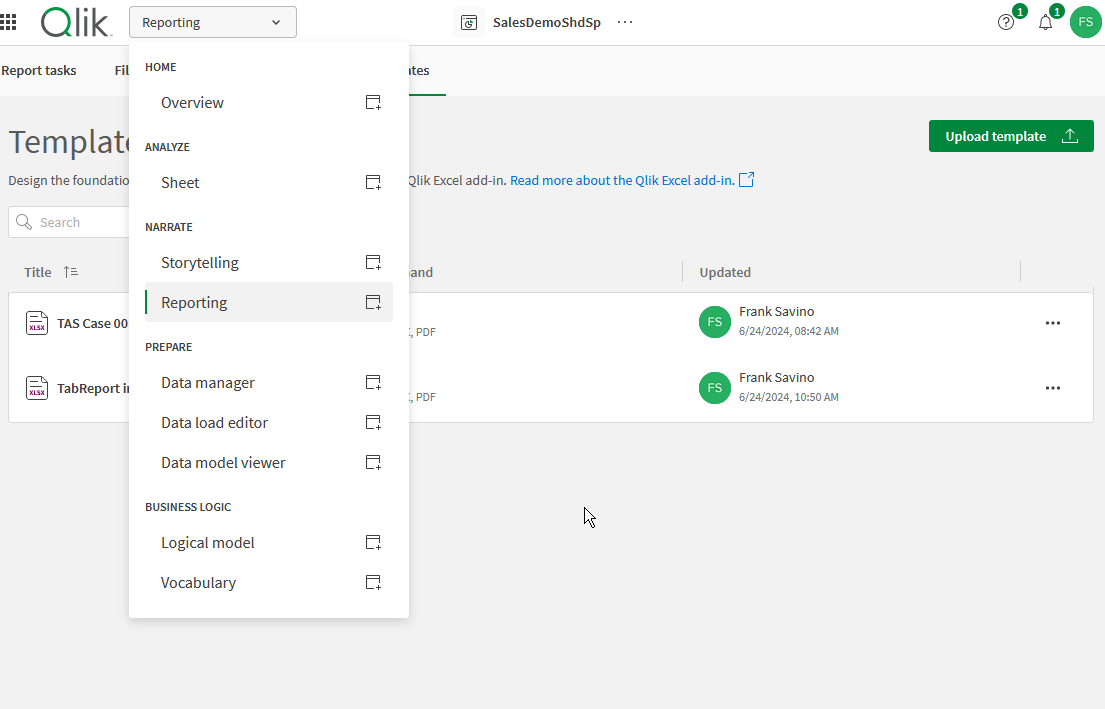
If the preview is successful, then upload the new report template to the 'Reporting' section of the App which you are using for report creation.
Add this new report to your distribution task (remove the old one). Remove recipients from the tasks then re-add just one.
That should do it.
Kind regards...
Denyo77
- Mark as New
- Bookmark
- Subscribe
- Mute
- Subscribe to RSS Feed
- Permalink
- Report Inappropriate Content
Hi Frank, thank you for your reply.
Unfortunately those steps doesn`t work, although the preview looks good.
If i distribute a blank template with the existing report-task it works. Do you have any other ideas? I will post some screenshots, maybe they can help. Best regards and thank you!


The template:

Frank_S
- Mark as New
- Bookmark
- Subscribe
- Mute
- Subscribe to RSS Feed
- Permalink
- Report Inappropriate Content
Did you have an opportunity to review the article from end to end?
There is also a section in the article in which 'exit script;' must be removed from your load script.
Recheck the article carefully as well as the troubleshooting link found in the 'related...' section of the article.
Hopefully you just need to remove any 'exit script;' syntax as this would most certainly block your report from generating since reloading of the app will fail if an exit script exists.
If after checking the article as well as the troubleshooting link therein and you still have the issue, please do start a support case.
Kind regards...
 RIchard_Brown
- Mark as New
- Bookmark
- Subscribe
- Mute
- Subscribe to RSS Feed
- Permalink
- Report Inappropriate Content
Frank - I am having the same problem. I have followed the steps. I have other reporting tasks working against different apps. I had the problem with Exit Scripts initially but fixed that by moving the Distribution List section above any of the Exit Scripts. I am still getting the error (failed to send: could not generate). I have a very simple template (1 table), my recipients is one group of 2 people no filters. Any ideas?
Denyo77
- Mark as New
- Bookmark
- Subscribe
- Mute
- Subscribe to RSS Feed
- Permalink
- Report Inappropriate Content
I have used a filter that was defined as a key so the sending of the report hasn’t succeed.
RIchard_Brown
- Mark as New
- Bookmark
- Subscribe
- Mute
- Subscribe to RSS Feed
- Permalink
- Report Inappropriate Content
The task is enabled and I have not got a filter. (The filter field in the recipients file is blank - which has worked for another app).
Frank_S
- Mark as New
- Bookmark
- Subscribe
- Mute
- Subscribe to RSS Feed
- Permalink
- Report Inappropriate Content
Start a new report template connected to the same app.
Add your report objects to the new template
Upload the template
Preview the report. IF works then...
Add your report to the task.
Send the reports from the task.
*Make sure to do this all from your MS Excel on your desktop (not the cloud version of MS excel. I myself have encountered unexpected results when creating reports in the cloud version of MS excel.).
If this doesn't help then start a new support case.
Kind regards.
