Unlock a world of possibilities! Login now and discover the exclusive benefits awaiting you.

Analytics & AI
Forums for Qlik Analytic solutions. Ask questions, join discussions, find solutions, and access documentation and resources.
Data Integration & Quality
Forums for Qlik Data Integration solutions. Ask questions, join discussions, find solutions, and access documentation and resources
Explore Qlik Gallery
Qlik Gallery is meant to encourage Qlikkies everywhere to share their progress – from a first Qlik app – to a favorite Qlik app – and everything in-between.
Qlik Community
Get started on Qlik Community, find How-To documents, and join general non-product related discussions.
Qlik Resources
Direct links to other resources within the Qlik ecosystem. We suggest you bookmark this page.
Qlik Academic Program
Qlik gives qualified university students, educators, and researchers free Qlik software and resources to prepare students for the data-driven workplace.
Recent Blog Posts
-
Welcome to the Qlik Digest!
This was created thanks to requests from some of our top customers, looking to share the best of Qlik with everyone at the organisation. Regular conte... Show MoreThis was created thanks to requests from some of our top customers, looking to share the best of Qlik with everyone at the organisation. Regular content includes:
- The latest Qlik product updates.
- Useful resources including new training materials, and tips on getting the most from your data.
- Hot events and webinars for you to attend.
- Customer stories and a spotlight to introduce you to other Qlikkies.
- A monthly flash poll to let us know your thoughts on a range of topics.
We want all Qlik users to get access so please share with your colleagues and encourage them to subscribe to the mailing list or to the Qlik Digest Blog on Qlik Community.
If you have any feedback we would love to hear from you. Please comment below or send an email to lucy.bannister@qlik.com
Happy Reading!
-
Cosmos Saint Seiya Container Data Sheet
Cosmos Saint Seiya Container Data Sheet RCD - Department Business Analytics This app was created with the purpose of being able to show the use ... Show MoreCosmos Saint Seiya Container Data SheetRCD - Department Business Analytics This app was created with the purpose of being able to show the use of the container together with the use of buttons, graphics and video extension, this allows exploring the data and being able to tell a visual story and enrich the information. For this app, the Saint Seiya animation was used as a reference. ¡ And who says data stories can't be told in a fun way while also providing learning and practice on topics we love !
Discoveries
Use and practice of the container and visual part with transposed buttons and graphics
Impact
Use this practice to learn more about the container's functionality in a fun and dynamic way and then be able to apply it in official and formal projects that require a visual environment with this approach.
Audience
Team members to explore the container's functionalities
Data and advanced analytics
Practice of transposed objects with the purpose of implementing it in formal projects
-
Qlik Cloud 8月の新機能
Qlik Cloud の新機能 Qlik Cloud Learning 従来の 「Getting started」 が「Learn(学習)」ページに置き換わりました。ステップバイステップの成果重視型学習パスを提供します。 SAML ベースの IdP が暗号化されたアサーションをサポート Qli... Show MoreQlik Cloud の新機能
Qlik Cloud Learning
従来の 「Getting started」 が「Learn(学習)」ページに置き換わりました。ステップバイステップの成果重視型学習パスを提供します。
SAML ベースの IdP が暗号化されたアサーションをサポート
Qlik Cloud は、プラットフォームと互換性のあるすべての SAML ID プロバイダーのアサーション署名の検証と復号をサポートするようになりました。SAMLアイデンティティプロバイダーでは、アサーション(ユーザーの認証情報や属性情報、権限などを記述したXMLドキュメント)を使用してユーザーの認証と承認を行います。
これらのアサーションは、信頼性を検証するために署名され、内容を保護するために暗号化されます。Qlik Cloud は、プラットフォームと互換性のあるすべての SAML ID プロバイダーのトークン署名の検証と復号をサポートしています。
詳細については、下記を参照してください。
署名および暗号化された ID アサーション (SAML) のキー ペアの管理
データ接続管理(新しいセキュリティスコープ)
Qlik Cloud では、管理者がデータ接続の作成、管理、または読み取りのみを行える権限を誰に付与するかを完全に制御できるようになりました。この新しいセキュリティスコープは、スペースの枠を超えたエンタープライズグレードのガバナンスを提供し、テナント全体にわたる一貫した適用を保証します。
- Global Control - テナント全体でデータ接続を作成または読み取ることができるユーザーを定義します。
- Governance Beyond Spaces – スペース レベルの権限に加えてグローバルな適用を追加します。
- Stronger Restrictions – スペース エディターや PACC(Private Analytics Content Creator) ユーザーであっても、接続を作成するには明示的な割り当てが必要です。
この待望の機能強化により、データ ガバナンス、セキュリティ、プライバシー、コンプライアンスが強化されるとともに、組織が求めていた精度が実現します。
詳細は、こちらを参照してください。
分析の新機能
OpenAI Connector で新しい 生成AIモデルのサポート
Open AI Connector で下記のモデルをサポートしています。
- GPT 5
- GPT 5 mini
- GPT 5 nano
新しい GenAI 分析コネクタ
次の新しい GenAI 分析コネクタが追加されました。
- Amazon Bedrock – Converse API は、Converse API を通じてアクセスできるすべての生成テキスト モデルに対してユニバーサル サポートを提供します。ガードレールのサポートも利用できます。
- Google AI – Gemini は、Gemini などの Google AI テキスト生成モデルのサポートを追加します。
詳細はこちらを参照してください。
Amazon Bedrock - Converse API 分析ソース
Windowスクリプト関数の強化
- 指定されたソート式で順序付けされたデータに対する集計処理をサポートし、デフォルトのロード順序に依存せずソート済みスライディングウィンドウを実現
- オプションパラメータの処理に関するドキュメントの明確化と動作の改善
- WRank関数が他の式内にネストされた際に不正な値を返す問題を修正
テーブルレシピ
- シンプルな単一テーブルのデータ準備のための、使い慣れたスプレッドシートのようなインターフェース
- データクレンジング、標準化、変換、分割、マスキング、フォーマットのための 60 以上のノーコード関数
- 列のプロファイリングとフィルタリングが組み込まれており、データをすばやく検査、調査、調整
- 柔軟な使用オプション:
⁻スタンドアロンテーブルレシピ : レシピをカタログアセットとして作成し、1つのソースから1つのターゲットにステップを適用し、出力を実行またはスケジュールします。単一ソースから単一ターゲットへのシンプルなユースケースに最適です。
⁻データ フローに埋め込まれる : テーブル レシピを、中間または混合ユース ケースの大規模なデータ フロー内のプロセッサとして使用し、複数のソース、ターゲット、またはより複雑なプロセッサを同じフロー内で組み合わせます。
詳細は、こちらを参照してください。
データ統合の新機能
スケジュールされた CDC タスクの拡張モニタリング
スケジュールが実行されなかった場合に警告を出すために、データ タスク モニターには、スケジュールされた CDC タスクに関する次の情報が表示されるようになりました。
- スケジュール:スケジュール間隔
- スケジュール未実行からの経過時間:前回のスケジュール実行からの経過時間。スケジュール通りに実行が開始されなかった場合、未実行のスケジュール数と共に警告が表示されます。
以下の場合、スケジュールされたCDCタスクが実行できない場合があります。
- ソースに多数の変更があったため、前回のタスクは次回のスケジュールされた実行までに完了しない
- データ ソースまたはターゲットへの接続を妨げるネットワークの問題
- ターゲットにアクセスするための Data Movement gateway (VPC 内にある場合)
詳細はこちらを参照してください。
検証ルールの強化
Qlik Talend Cloudは、is of typeオペレーターを検証ルール定義でサポートしています。この機能強化により、ユーザーはフィールドの内容が特定のセマンティックタイプと一致するかどうかを確認できます。利用可能なセマンティックタイプは、データ統合アクティビティセンターの「データ品質セクション」内の「セマンティックタイプ管理」タブで設定された組み込みタイプとユーザー定義タイプの両方に依存します。
詳細はこちらを参照してください。
プレビューデータに列データ型の表示
SQL 変換をプレビューすると、結果に列のデータ型が含まれるようになりました。データ移動ゲートウェイを使用してデータ ソースにアクセスする場合、この機能にはバージョン 2024.11.70 以降が必要です。
テーブルエラー処理のトリガータイミングの制御
レプリケーションタスクとランディングタスクのテーブルエラー処理設定に、テーブルエラーを返すまでの再試行回数という新しい設定が追加されました。

-
Growing engagement with Singapore Universities and Polytechnics
Singapore is an important center of business and economy in Asia and particularly, in the ASEAN region. Many educational institutions continue to flou... Show MoreSingapore is an important center of business and economy in Asia and particularly, in the ASEAN region. Many educational institutions continue to flourish and provide world class education here. Some of the top Universities in the world are located in Singapore. In addition, the Polytechnics provide vocational and skill based education to students.
The Qlik Academic Program has been engaged with many Universities and Polytechnics in Singapore in an effort to provide quality data analytics training, qualifications and certifications.
With Republic Polytechnic, for the Diploma in Business Analytics students , a talk was organized led by our Technical Expert, Kam Wei Leong. The title of the talk was “Agentic AI: Real Value, Right Now” where he spoke about the evolution from descriptive analytics to GenAI and Agentic AI. Also, he shared the key building blocks of Agentic AI and Qlik's perspective on how such technology can actually be of value to users in their respective roles and to their organisation. Kam Wei also shared how to build end-to-end AI applications in Qlik Cloud.
Republic Polytechnic's Professor Ho Chee-wai is also an Educator Ambassador for the Qlik Academic Program's batch of 2025 and he is going to be on a panel discussion during Qlik's flagship event, AI Reality Tour on October 1st.
With Institute of Technical Education ( ITE), Qlik is a partner for the "ITE Digitalisation & Sustainability Challenge 2025" in November. Along with the support for this event in the form of prizes, students and professors are also leveraging the benefits of the Qlik Academic Program. Recently, a workshop to explain the benefits of Qlik Sense and help them build dashboards and visualisations was organised. ITE is also hosting a session for their students in October, where Qlik Chief Marketing Officer, Chris Powell is planning to address them.
National University of Singapore ( NUS) has been one of the stronger partners of the Qlik Academic Program. Students of the MBA in Business Analytics course have been gaining from the program every year. We have conducted various sessions for students to get familiar with Qlik Sense and how they could solve business problems using the software.
We continue to grow in Singapore and expand the academic program offerings to students and professors. If you would like to know more about the academic program, please visit: qlik.com/academicprogram
-
How to Handle Custom CSS in Qlik Sense (Now and Going Forward)
Custom CSS has been a popular workaround in Qlik Sense for years, helping developers tweak layouts, hide buttons, and get around styling limitations. ... Show MoreCustom CSS has been a popular workaround in Qlik Sense for years, helping developers tweak layouts, hide buttons, and get around styling limitations. But things are shifting. With the Multi-KPI object being deprecated and native styling options getting stronger with every release, it’s a good time to rethink how we approach custom styling in Qlik Sense moving forward.
In this post, we’ll break down:
- Why custom CSS is used in Qlik Sense
- What’s changing (and why Multi-KPI is being deprecated)
- Best practices for styling moving forward
- Alternatives for injecting CSS when needed
- What you can (and should) do now to future-proof your apps
Let’s dive in!
Why is custom CSS used in Qlik Sense?
In the past, Qlik’s built-in styling options were limited. That led to many developers using CSS to:
- Hide toolbars, buttons, and headers
- Apply custom fonts or background gradients
- Create grouped layouts or dashboards with unique branding
Most of this was made possible by either creating custom themes, building extensions, or using the Multi-KPI object as a helper to inject CSS code. But as powerful as these techniques were, they also came with downsides, like breakage after updates or difficulty governing app behavior at scale.
So, What’s Changing?
The biggest shift is the deprecation of the Multi-KPI object, which has served as a popular CSS injection tool. Here's what you need to know:
EOL of the Multi-KPI object is May 2026:
- Existing dashboards will still work for now, but migration is highly encouraged.
- The object is deprecated due to governance challenges and unintended side effects from injected CSS.
If you’ve been using the Multi-KPI as a styling workaround, it’s time to plan for alternatives.
Native Styling Has Come a Long Way
Before reaching for CSS, it's worth exploring what Qlik now offers natively. Many of the styling tweaks that once required CSS are now fully supported in the product UI.
Here’s a quick look at recent additions:
Native styling available now or coming in the next update
Straight Table
Background images, word wrap, mini charts, zebra striping, null styling, header toggle
Pivot Table
Indentation mode, expand/collapse, RTL support, cyclic dimensions
Text Object
Bullet lists, hover toggle, border control, support for up to 100 measures
Line Chart
Point and line annotations
Scatter Plot
Reference lines with slope, customizable outline color and width
Layout Container
Object resizing and custom tooltips
Navigation Menu
Sheet title expressions, left/right panel toggle, divider control
And this list keeps growing. If you're building new apps or redesigning old ones, these built-in features will cover a huge percentage of use cases.Many deprecated CSS tricks are now native. Check out the full Obsolete CSS Modifications post for examples and native replacements.
What About Themes?
Themes are not going anywhere. In fact, they remain the most robust and supported way to apply consistent styling across your app portfolio.
With custom themes, you can:
- Define global font families, sizes, and colors
- Style specific object types like bar charts, pie charts, list boxes, and even treemaps
- Customize titles, footers, legends, and more via the JSON schema
- Apply branding at scale without touching each sheet manually
You can still include CSS files in themes, but remember:
- Inline styles used by Qlik objects may require the use of "!important" to override.
- Themes are not ideal for object-ID-specific or user-interactive CSS injection.
If you're new to themes, Qlik.dev has a great guide to get started, or checkout my previous blog post for some tips and tricks.
Still Need Custom CSS? Here’s What You Can Do
If your use case goes beyond what native styling or themes can handle—like hiding a specific button, or styling based on object IDs—you still have a few options:
- Extensions (with scoped CSS)
Prefix styles with .qv-object-[extension-name] to isolate your rules.
Load styles using RequireJS or inject via <style> in JS.? - Mashups
Full control over styling via your own HTML + CSS + JavaScript.
Ideal for web apps embedding Qlik charts via qlik-embed
What's Missing
A lot of Qlik users have voiced the same thing: "we still need an officially supported way to inject CSS at the sheet or app level"
Some have suggested:
- A new “Advanced Styling” section in sheet properties.
- A standalone helper object just for advanced styling (like Multi-KPI but cleaner).
- Ability to define per-object-type styling rules in themes (e.g. “all straight tables”).
Qlik has acknowledged this feedback and hinted that future solutions are being considered.
What You Should Do Today
- Use native styling wherever possible—it's safer, easier to maintain, and now way more powerful
- Migrate away from Multi-KPI if you’ve been using it to inject CSS
- Explore themes for app-wide branding and consistent object styling
- Use extensions or mashups for truly custom experiences
- Follow community updates for new announcements around styling capabilities
That’s a wrap on this post. With more native styling features on the way, I’ll be keeping an eye out and will be likely sharing a follow-up as things evolve. If you're in the middle of refactoring or exploring new approaches, stay tuned, there’s more to come.
-
Table Recipe now in Qlik Cloud Analytics
Clean, prep, and go. It’s that simple. It’s here! Your new go-to for quick no-code data preparation in Qlik Cloud Analytics. Table Recipe makes it ... Show MoreClean, prep, and go. It’s that simple.
It’s here! Your new go-to for quick no-code data preparation in Qlik Cloud Analytics. Table Recipe makes it easy for anyone to clean single-table datasets fast and keep your insights flowing.
Just pick your dataset, build your step-by-step recipe, and see your results instantly.
See it in action for yourself! Check out this awesome walkthrough of Table Recipe by @igoralcantara, showing exactly how it works.
Fast, Visual Data Prep
Clean up your data with over 60 built-in functions, from formatting and masking to calculating new columns. All in an interactive spreadsheet-like interface where you can apply changes and view the outcome right away.
Each step you take becomes part of a recipe tracked on the right-side panel. Easy to repeat. Easy to share.
Designed for Everyone
Table Recipe is made for Qlik users who want to prep data without writing script. Whether you're new to data prep or just need to clean up a dataset quickly, it's built to keep things simple and clear.
“Table Recipe gives non-technical users the ability to create datasets on their own, which is essential as companies scale to 100,000 users.”
— Alessandro Furtado, Principal Consultant, Farol Data AnalyticsPrep that Fits into Your Workflow
Fully integrated into Qlik Cloud Analytics, you can use Table Recipe on its own for quick, one-off table prep, or embed it into larger Data Flow workflows to combine and shape multiple data sources. As you build your recipe, it automatically generates Qlik Script behind the scenes, giving you the power of scripting without complexity. Easily collaborate in shared spaces, track changes in Activity Center, and send your cleaned data directly into dashboards, apps, ML or AI models.
Key Highlights
- Spreadsheet-style, no-code interface
- 60+ data prep functions for cleansing, standardizing, converting, splitting, masking, and formatting data
- Built-in column profiling and filtering to easily explore and inspect data
- Instant visual feedback
- Full integration within Qlik Cloud Analytics (apps, scripts, Data Flows, Activity Center, shared spaces)
- Included with all Qlik Cloud Analytics editions
Learn More
- Loading and preparing data with table recipe | Qlik Help
- Table Recipe Product Tour
- What’s New in Qlik Cloud | Qlik Help
- Data Preparation Webpage
-
Are you A Learning Admin? Exciting News: The Updated Learning Admin Portal Is He...
We are excited to announce that an updated version of the Qlik Learning Admin Portal will be launching on September 4th! This update will introduce a... Show MoreWe are excited to announce that an updated version of the Qlik Learning Admin Portal will be launching on September 4th! This update will introduce additional functionality that will enhance experience of Learning Admins.
Please note that during this update, some features may be temporarily unavailable.
Key updates include:
- Review Subscription Details: You will now have the ability to view and manage subscription details more efficiently.
- Invite or Remove Other Admins: You can now easily invite new admins or remove existing ones, ensuring your admin team is always up to date.
- Create a Team: You can select a team to add members, and assign Managers directly within the admin portal.
- Manage Learners on the Learners Tab: If you have selected the email-domain Subscription model, you can now view who has accessed your learning subscription with your email domains.
If you are a Learning Admin, we encourage you to log into the Qlik Learning Admin Portal and explore these new features as well as the updated Admin Guide.
Questions? Reach out to us education@qlik.com

-
【オンデマンド配信】保険業界のデータ課題と Qlik での高度化
保険業界では、レガシーシステムや情報のサイロ化、非構造化データの未活用といった課題がある中、デジタルトランスフォーメーションが求められています。本 Web セミナーでは、保険会社が抱える経営課題・IT 課題の全体像を整理し、Qlik を活用したデータ統合・分析による解決策をご紹介します。「非構造化デ... Show More -
Watch Q&A with Qlik: Qlik Cloud Migration!
Don't miss our previous Q&A with Qlik! Pull up a chair and chat with our panel of experts to help you get the most out of your Qlik experience. Our ... Show MoreDon't miss our previous Q&A with Qlik! Pull up a chair and chat with our panel of experts to help you get the most out of your Qlik experience.
Our Qlik experts held a Qlik Cloud Migration live Q&A with Qlik webinar, answering all your questions about migration from on-prem to Qlik Cloud and using the tools that are available to make the process easier.

-
【オンデマンド配信】海外の自治体は DX 推進にどのように取り組んでいるか
海外の自治体が DX 推進にどのように取り組んでいるかを、Qlik のデータ活用事例を交えて紹介します。本 Web セミナーでは、住民サービスの向上、業務の効率化、政策判断の迅速化など、データドリブンな行政運営の実現に向けた具体的なアプローチを解説。日本の自治体にとって参考となるヒントや実践的な知見... Show More -
Onyx Data Challenge June 2025
Onyx Data Challange June 2025 Lupus Analitycs Social Media Analysis Discoveries Educational and Product Related post have most engagements... Show More
Onyx Data Challange June 2025Lupus AnalitycsSocial Media AnalysisDiscoveries
Educational and Product Related post have most engagements
Impact
Showing when to post and which content is the best
Audience
Everyone interested in Social media content
Data and advanced analytics
Showing when to post and which content is the best
-
Pick() Function
The Pick function is a chart and script function that can be used to return the nth expression in a list based on a field or value. It is a good alter... Show MoreThe Pick function is a chart and script function that can be used to return the nth expression in a list based on a field or value. It is a good alternative to a large or nested If statement where each If statement needs to be evaluated. With the pick function, one value is read to determine which expression should be returned.
The syntax of the pick function according to Qlik Help looks like this:
pick(n, expr1[ , expr2,...exprN])
The first parameter (n) should be an integer. Based on this value, the first expression, second expression, third expression or nth expression is returned. Let’s look at an example. In the table below, there are three dimensions listed – the state abbreviation, the state name and a state code for the U.S. region the state is in. One is the Northeast region, 2 is the Midwest region, 3 is the South region and 4 is the West region.
The pick function can be used to show the region name that is represented by the state code. This can be done by adding the measure below to the table.
The pick function will assess the value of StateCode and based on that return a region. With the measure added to the table, the region name can also be displayed as seen below.
The pick function measure used in the table above is simpler than a nested if statement and is easy to read. It optimizes the table, returning results faster and using less resources to evaluate. Try it out.
Thanks,
Jennell
-
Qlik Automate execution token changes
Hello Qlik Users, Execution tokens will become header parameters on February 1st, 2026. On January 13th, 2025, Qlik introduced breaking changes to the... Show MoreHello Qlik Users,
Execution tokens will become header parameters on February 1st, 2026.
On January 13th, 2025, Qlik introduced breaking changes to the execution token functionality for triggered automations.
Contents
-
Learning on Your Own Time: How Self-Paced Education and Qlik’s Academic Program ...
One of the biggest shifts in education over the past few years has been the rise of self-paced learning. With students juggling busy schedules, intern... Show MoreOne of the biggest shifts in education over the past few years has been the rise of self-paced learning. With students juggling busy schedules, internships, part-time jobs, and extracurricular activities, the traditional classroom model doesn’t always provide the flexibility they need. That’s why universities and employers alike are placing more emphasis on programs and tools that let learners set their own pace.
Self-paced learning allows students to:
-
Revisit difficult topics without feeling rushed.
-
Move ahead quickly in areas they already understand.
-
Balance academics with personal and professional responsibilities.
And it’s not just about convenience. Research shows that when students have control over their learning journey, they retain more knowledge and build stronger skills for the real world.
Where Qlik’s Academic Program Fits In
The Qlik Academic Program is designed with this same philosophy in mind. Every student and educator who joins the program gets free, self-paced access to:
-
Online training modules on data analytics and visualization.
-
Qualifications and certifications to showcase on a resume or LinkedIn profile.
-
Interactive lesson plans and resources that can be used in or outside the classroom.
-
Qlik software, so students can practice and apply their skills right away.
Whether you’re a professor designing flexible assignments or a student looking to upskill on your own schedule, Qlik’s Academic Program makes it possible to learn at your pace and still achieve professional-level results.
Why It Matters Now
With the demand for data literacy and analytics skills growing across every industry, students who take advantage of self-paced resources like Qlik’s Academic Program are positioning themselves ahead of the curve. Employers aren’t just looking for degrees—they want proof of hands-on, applicable skills. Earning Qlik qualifications through self-paced learning is one way to stand out.
Take the Next Step
Education isn’t just happening in the classroom anymore—it’s happening anytime, anywhere. If you’re ready to take control of your learning journey and gain the skills employers value most, the Qlik Academic Program is here to support you every step of the way.
👉 Sign up today and start learning at your own pace: https://www.qlik.com/us/company/academic-program
-
-
Calculated Fields
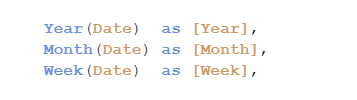
Normally, new fields are created in the script and stored as additional columns in the data model. Just write your expression inside a Load statement ... Show MoreNormally, new fields are created in the script and stored as additional columns in the data model. Just write your expression inside a Load statement and you’re done:
But you can also do the same thing in the user interface, and then it could look like this:
So, which way should you do it?
Generally, I would say that you should put as much as possible in the script. In most cases, it is far better to have these calculations pre-made, so that they do not have to be calculated at run-time, i.e. when the user clicks.
The Qlik Engine has two fundamentally different ways to calculate such expressions: As “Calculated dimension” or as “Field-on-the-fly”. The engine automatically decides how a specific calculation should be made, depending on the expression.
Fields-on-the-fly
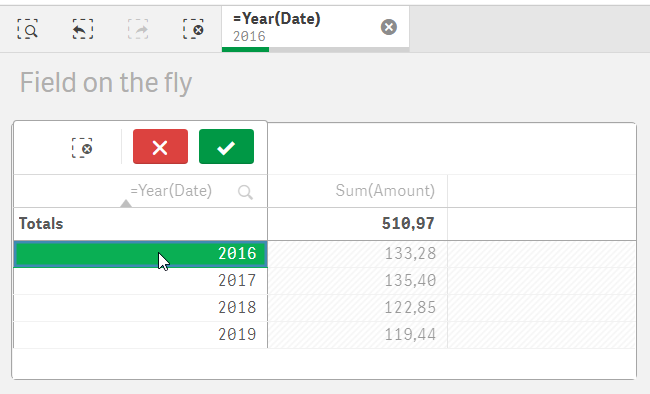
This method was introduced in one of the early versions of Qlik Sense. As the expression is evaluated, the engine creates an additional column in the data model, with a corresponding symbol table. Just as for a real field, the selection is stored in state vectors linked to this column.In the picture below you can see a table dimension defined as “=Year(Date)”, which results in four rows.
Now look at the selection bar: When a selection is made, the corresponding year is selected in the Field-on-the-fly called “=Year(Date)” – a field that does not exist in the original data model. And in the selection bar you can see that the selection is indeed stored in this “virtual” field, and not in the Date field.
Calculated dimensions
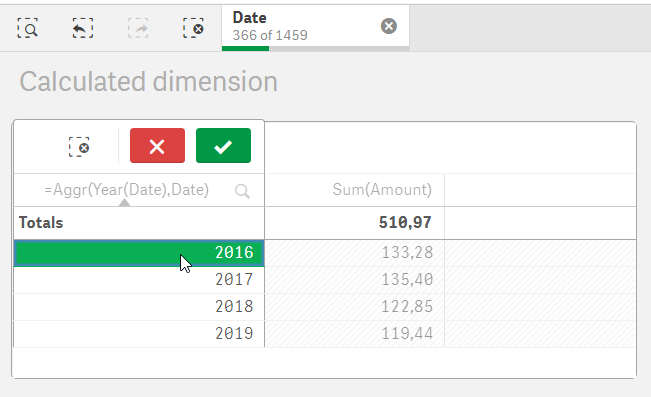
This is the old-fashioned way, and this is how QlikView still today does it. In the example below, the table dimension is “=Aggr(Year(Date),Date)” and it also results in four rows. Logically, this expression is equivalent to the above one.But here the selection is instead made in in the underlying field: in the Date field.
It is always possible to create a Calculated dimension, no matter what the expression looks like. But the same is not true for Fields-on-the-fly. There are limitations to when they can be generated:
- The expression must be based on one single field only, or on multiple non-key fields from the same table in the data model
- The expression cannot depend on the selection state, e.g. through the GetSelectedCount() function
- The expression cannot contain an Aggr() function
If a Field-on-the-fly cannot be generated, the expression will be evaluated as a Calculated dimension instead.
Performance
Both Calculated dimensions and Fields-on-the-fly can cause performance problems, so it is a good idea to consider moving them to the script instead. Fields-on-the-fly can almost always be moved to the script.For Fields-on-the-fly, the performance problems become especially severe if the underlying field has many distinct values. A common example is when calendar functions like Year and Month are used on a timestamp with millions of distinct values, rather than on a date with fewer values, like 2 x 365 dates. Further; since Fields-on-the-fly are added to the data model, and the hash of the data model is used in the ID of the cache entry, Fields-on-the-fly can prevent the cache from being re-used properly.
To improve the performance, Master dimensions containing Fields-on-the-fly are now (since Nov 2019) calculated already when the first user opens the app, something which can increase the time it takes to open a document. On the other hand, this will improve the response time considerably in the analysis phase, as well as mitigate cache problems, so we are confident that this is a correct decision. Hence, put your Fields-on-the-fly in the Master dimensions!
Should you want to tweak the behavior of the engine, you can always try the following:
- Using “UseAutoFieldOnTheFly=0” in Settings.ini will disable Fields-on-the-fly for all documents served by the engine
- Using “Set QlikInternalDisableFotfMode=1;” in the script will disable Fields-on-fly in the app
- Using “Set QlikInternalDisableFotfPregen =1;” in the script will prevent Fields-on-fly from being pre-calculated when the app is opened
- Wrapping the expression in “=CalcDim(…)” will force it to be a Calculated dimension
But most importantly - don't use a timestamp to create your calendar! Use a date instead:
Good luck!
HIC
Read also in Calculated Fields in Qlik Data Analytics .

-
Techspert Talks - Migrating to Qlik Cloud Analytics
Hi everyone, Want to stay a step ahead of important Qlik support issues? Then sign up for our monthly webinar series where you can get first-hand ins... Show MoreHi everyone,
Want to stay a step ahead of important Qlik support issues? Then sign up for our monthly webinar series where you can get first-hand insights from Qlik experts.The Techspert Talks from August look at Migrating to Qlik Cloud Analytics.
But wait, what is it exactly?
Techspert Talks is a free webinar held on a monthly basis, where you can hear directly from Qlik Techsperts on topics that are relevant to Customers and Partners today.In this session we covered:
- Demonstration of the Qlik Cloud Analytics Migration tool
- Advantages of Qlik Cloud
- SaaS Readiness
-
Upload Utility App
Upload Utility App Mahindra and Mahindra Ltd Purpose of the app The Upload Utility app provides business users with a self-service way to upload... Show MoreUpload Utility AppMahindra and Mahindra LtdPurpose of the app The Upload Utility app provides business users with a self-service way to upload and manage ad-hoc data files (mainly CSVs) that are not available in core systems like SAP. What it shows The app mirrors a three-level folder structure (Category → Sub-Category → KPI) from SharePoint into Qlik SaaS. Users select a folder from each level, and upon pressing the Fetch Files button, an automation is triggered that retrieves the file names from the chosen KPI folder. From this list, the user selects a file and uploads it into BigQuery, where it is stored along with the uploader’s name and timestamp. Users can also delete previously uploaded files through the same interface. Who uses it Multiple business stakeholders across functions use the app to independently contribute data specific to their KPIs, without requiring developer intervention. Value it’s having The app removes dependencies on IT teams, accelerates data availability, and empowers users to enrich dashboards with custom data. This has streamlined reporting processes, reduced turnaround time, and provided greater flexibility for business analysis.Discoveries
Some of the discoveries from using this app include: Business users can easily upload and manage non-system data to enhance dashboards. Automated user and timestamp logging improved transparency and governance. KPI-based folder navigation made organizing and locating files much simpler. Quick upload/delete reduced delays and improved reporting efficiency. Developers were freed from repetitive manual uploads and could focus on higher-value work.
Impact
The app has empowered business teams with self-service data uploads, reduced dependency on IT, and accelerated reporting cycles. By making complete and reliable data quickly available in dashboards, it has improved both decision-making speed and confidence.
Audience
The app is primarily used by business stakeholders such as Deputy Managers, managers, analysts, and operations teams across different functions. It is accessed directly in Qlik SaaS and used frequently to upload KPI-specific data not available in core systems. Since multiple departments rely on it, the app has become an important enabler for timely reporting and analysis.
Data and advanced analytics
The app has empowered business teams with self-service data uploads, reduced dependency on IT, and accelerated reporting cycles. By making complete and reliable data quickly available in dashboards, it has improved both decision-making speed and confidence.
-
【オンデマンド配信】DX - 建設業界の IT 課題と解決の方向性
建設業界は、人手不足や技術継承、属人化、進捗管理の難しさなど、DX が進みにくい課題を抱えています。本 Web セミナーでは、これらの課題に対し、データ分析・管理・統合といったデジタルツールがどのように貢献できるか、その方向性と解決のヒントを探っていきます。 ※ 参加費無料。パソコン・タブレット・ス... Show More -
Peeking through the Window() Script Function
You might be familiar with the concept of Window functions from Excel or SQL and know just how convenient and powerful they can be. Well, Qlik has one... Show MoreYou might be familiar with the concept of Window functions from Excel or SQL and know just how convenient and powerful they can be. Well, Qlik has one that you can use right in your Load Script!
Simply put, the Window function performs calculations over multiple rows producing a value for each row separately, unlike aggregate functions that will give a single value for the group of rows aggregated together.
You can think of it as looking through a window at your dataset and only seeing a subset based on different parameters you set which we will go over in a minute.
If you wanted to calculate the average transaction_amount by customer, you could of course do this in the chart expression with something like this: aggr(avg(transaction_amount), customer_id), or if you’re in the Load Script, perform another load and use Group By as follows:
Temp:
//inline load here

Transactions:
NoConcatenate Load
transaction_id,
transaction_date,
transaction_amount,
transaction_quantity,
customer_id,
size,
color_code
Resident Temp;

Load customer_id,
Avg(transaction_amount) AS AvgAmount
Resident Transactions
Group By customer_id;
But this requires a separate load and can’t just be done on the same loaded table, and it might not be ideal for more complex use cases.
This is where the Window function comes in, and the above can be re-written as follows:
Temp:
//inline load here

Transactions:
NoConcatenate Load
transaction_id,
transaction_date,
transaction_amount,
transaction_quantity,
customer_id,
size,
color_code,
Window(Avg(transaction_amount),customer_id) as AvgCustTransaction
Resident Temp;
Much easier!
Syntax:
Let’s take a closer look at the function syntax to understand it a little more and see what other capabilities it has:
Window( input_expr, [partition1, partition2, ...], [sort_type, [sort_expr]], [filter_expr], [start_expr,end_expr] )
- input_expr
Refers to the input expression calculated and returned by the function. It must be any expression based on an aggregation, such as Median(Salary). For example:
Window(Median(Salary)) as MedianSalaryThe input can also be a field name with no aggregation applied and in that case Qlik treats it like the Only() function. For example:
Window(Salary,Department) as WSalary- Partition: [partition1, partition2, ...]
After input_expr, you can define any number of partitions. Partitions are fields that define which combinations to apply the aggregations with. The aggregation is applied separately with each partition. (Think of it as the Group By clause). Multiple partitions can be defined. For example:
Window(Avg(Salary), Unit, Department, Country) as AvgSalary- sort_type, sort_expr
The sort type and the sort expression can be specified optionally. sort_type can have one of two values ASC (Ascending sorting) or DESC (Descending sort)
If sort_type is defined, then the sorting expression must also be defined. This is an expression that decides the order of the rows within a partition.
For example:
Window(RecNo(), Department, 'ASC', Year) // results within the partition are sorted Ascendingly by year- filter_expr
The optional Filter Expression is a Boolean expression that decides whether the record should be included in the calculation or not.
This parameter can be omitted completely, and the result should be that there is no filter.
For example:
Window(avg(Salary), Department, 'ASC', Age, EmployeeID=3 Or EmployeeID=7) as wAvgSalaryIfEmpIs3or7- Sliding Window with start_expr,end_expr
Optionally, you can set the argument for sliding window functionality. A sliding window requires two arguments:
- start_expr: The number of rows prior to the current row to include in the window.
- end_expr: The number of rows after the current row to include in the window.
For example, if you want to include the 3 preceding rows, the current row, and the 2 following row:
Window(concat(Text(Salary),'-'), Department, 'ASC', Age, Year>0, -3, 2) as WSalaryDepartmentExamples:
Let’s take a look at different use case examples:
1- Adding a field containing an aggregation
Transactions:
Load
*,
Window(Avg(transaction_amount),customer_id) as AvgCustTransaction;

Load * Inline [
transaction_id, transaction_date, transaction_amount, transaction_quantity, customer_id, size, color_code
3750, 20180830, 23.56, 2, 2038593, L, Red
3751, 20180907, 556.31, 6, 203521, M, Orange
3752, 20180916, 5.75, 1, 5646471, S, Blue
3753, 20180922, 125.00, 7, 3036491, L, Black
3754, 20180922, 484.21, 13, 049681, XS, Red
3756, 20180922, 59.18, 2, 2038593, M, Blue
3757, 20180923, 177.42, 21, 203521, XL, Black
3758, 20180924, 153.42, 14, 2038593, L, Red
3759, 20180925, 7.42, 5, 203521, M, Orange
3760, 20180925, 80.12, 18, 5646471, M, Blue
3761, 20180926, 3.42, 7, 3036491, XS, Black
3763, 20180926, 63.55, 12, 049681, S, Red
3763, 20180927, 177.56, 10, 2038593, L, Blue
3764, 20180927, 325.95, 8, 203521, XL, Black
];
2- Adding a field containing an aggregation filtered for specific values
Transactions:
Load
*,
Window(Avg(transaction_amount),customer_id, color_code = 'Blue') as AvgCustTransaction;

Load * Inline [
// Table goes here
];
3- Adding a field with a sliding window
Transactions:
Load
*,
Window(Avg(transaction_amount),customer_id, 'ASC', -1, 1, 0, 1) as AvgCustTransaction;

Load * Inline [
// Table goes here
];
This concludes this post, I hope you found it helpful!
A qvf with all the scripts is attached for reference.- Thanks
-
Qlik Cloud Reporting API: Going Beyond the Tenant Interface
If you’re running Qlik on-premise, NPrinting is the go-to for producing highly formatted, template-based reports. It works seamlessly with QlikView an... Show MoreIf you’re running Qlik on-premise, NPrinting is the go-to for producing highly formatted, template-based reports. It works seamlessly with QlikView and Qlik Sense Enterprise on Windows, letting you design in familiar tools like Excel, Word, PowerPoint, and PixelPerfect, then deliver reports as PDFs, HTML, or Office files to folders, the NPrinting NewsStand, email recipients, or even the Qlik Sense Hub — all with scheduling, cycling, and bursting built in.
In Qlik Cloud, reporting takes a different shape. You still have built-in options for creating and delivering reports directly in the tenant interface, but you also gain something new: an API-driven approach that opens up possibilities well beyond what’s available in the UI. And that’s where the Qlik Cloud Reporting API comes in.
What You Can Do in Qlik Cloud (Inside the Interface):
Qlik Cloud Reporting allows you to create reports from apps using native templates or PixelPerfect templates, then distribute them as PDFs, Excel files, or other formats. Through the tenant interface, you can:
-
Create and edit report templates
-
Apply selections and filters
-
Schedule recurring reports
-
Deliver reports to email recipients or Qlik Cloud spaces
These capabilities are fully documented in Qlik Help, and for many users, the UI-based workflow is all they need.
Why Go Beyond the Tenant Interface?
The Reporting API enables everything above — but from outside Qlik Cloud.
That means you can:-
Trigger reports from external systems
-
Integrate reporting into your own applications
-
Automate delivery to custom destinations
-
Include Qlik reports in larger automated workflows (think: customer portals, scheduled partner updates, or triggered operational reports)
If you’ve ever wished you could generate a Qlik report as part of an end-to-end automation pipeline, the API is the key.
Reporting with Qlik Automate
Not every reporting workflow requires custom code. Qlik Automate lets you build automated reports using the Qlik Reporting Service through a low-code, drag-and-drop interface. Reports can be delivered as PDF or PowerPoint and distributed via email or cloud connectors like SharePoint, OneDrive, Dropbox, Google Cloud Storage, Amazon S3, or SFTP.
Some common use cases include:
-
Bursted reports where each recipient only sees their own data
-
Looping reports that generate one page per dimension value (e.g. region or product)
-
Cross-app reporting combining insights from multiple Qlik Sense apps
-
External delivery to recipients without Qlik Cloud accounts
Think of Automate as the middle ground — more flexible than the tenant UI, but easier to adopt than full API coding.
How the Qlik Cloud Reporting API Works
At its core, the process involves:
1- Sending a POST request to create a report generation job.
2- Polling the outputs endpoint to check when the job is complete.
3- Downloading the generated file once it’s ready.
Here’s a real example:
Step 1: Request a Report
POST https://<tenant>/api/v1/reports
Body:
{
  "type": "sense-pixel-perfect-template-1.0",
  "sensePixelPerfectTemplate": {
    "appId": "1234567-a480-43f5-bc88-825736d8842f",
    "templateId": "1a2b3c-ba56-46ee-ac74-4746dd145816",
    "templateLocation": {
      "path": "https://<tenant>/api/v1/report-templates/3de5c6c2-ba56-46ee-ac74-4746dd145816",
      "format": "url"
    },
    "selectionChain": [
      {
        "selectionType": "selectionFilter",
        "selectionFilter": {
          "selectionStrategy": "stopOnError",
          "selectionsByState": {
            "$": [
              {
                "fieldName": "Currency",
                "defaultIsNumeric": false,
                "values": [{ "text": "USD", "isNumeric": false }]
              },
              {
                "fieldName": "Year",
                "defaultIsNumeric": true,
                "values": [{ "number": 45778, "isNumeric": true }]
              }
            ]
          }
        }
      }
    ]
  },
  "output": { "type": "pdf", "outputId": "pp", "pdfOutput": {} }
}
Response:
{
  "message": "Report request has been accepted and is being processed.",
  "outputsUrl": "https://<tenant>/api/v1/reports/1234567-bed1-4024-8614-37bb898a41b0/outputs",
  "requestId": "987654321-bed1-4024-8614-37bb898a41b0"
}
Here, you’ll notice:
-
outputsUrl gives you the endpoint to poll for the report status.
-
requestId uniquely identifies the job.
Step 2: Poll for the Output
GET https://<tenant>/api/v1/reports/{requestId}/outputs
Response:
{
  "data": [
    {
      "cycleSelections": [],
      "location": "https://<tenant>/api/v1/temp-contents/2342346c185413cc5ec121b",
      "outputId": "pp",
      "sizeBytes": 382078,
      "status": "done",
      "traceId": "abc1234d2e88db9bc155d8a732132899d"
    }
  ],
  "links": {
    "self": {
      "href": "https://<tenant>/api/v1/reports/{requestId}/outputs"
    }
  }
}
Key things to look for in the response:
-
status — "done" means the report is ready.
-
location — the direct link to the generated file.
Step 3: Download the File
Once the status is "done", perform a GET to the location URL.
For example:
GET https://<tenant>/api/v1/temp-contents/2342346c185413cc5ec121b
This returns the actual PDF (or other format, depending on your request).
Where to Learn More:
You can visit these pages for full API documentation and working samples:
Qlik Cloud’s tenant interface is powerful for building and scheduling reports right inside your analytics environment — but the Reporting API takes it further. By integrating directly with your external systems, you can build modern, automated, and scalable reporting workflows that go well beyond what’s possible within the tenant.
If you’re ready to move from manual scheduling to full automation, the Reporting API is where you start.
-