Unlock a world of possibilities! Login now and discover the exclusive benefits awaiting you.

- Qlik Community
- :
- Support
- :
- Support
- :
- Knowledge
- :
- Support Articles
- :
- QlikView Client connection fails with Connected se...
- Subscribe to RSS Feed
- Mark as New
- Mark as Read
- Bookmark
- Subscribe
- Printer Friendly Page
- Report Inappropriate Content
QlikView Client connection fails with Connected server OK, negotiations timed out Switching to HTTP tunneling No reply received

 Sonja_Bauernfei
- Mark as New
- Bookmark
- Subscribe
- Mute
- Subscribe to RSS Feed
- Permalink
- Report Inappropriate Content
QlikView Client connection fails with Connected server OK, negotiations timed out Switching to HTTP tunneling No reply received
Mar 24, 2026 4:45:22 AM
Aug 22, 2017 5:03:05 AM
The QlikView Desktop client or IE Plugin return the error:
Connected server OK, negotiations timed out Switching to HTTP tunneling Connected to server OK, No reply received
Documents cannot be opened and Licenses cannot be leased. Port 4747 is available.
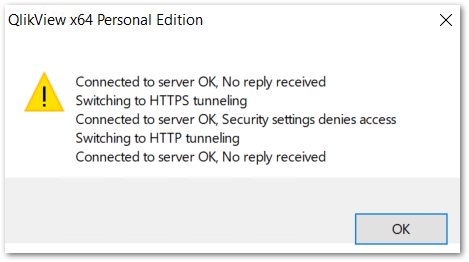
If extended error logging is enabled on the QlikView server, in the extended error log, users may see the following error:
2017-08-15 17:22:58 Info General QVDoc.cpp 4297 Trying TCP/IP connection [<servername>:4747] 0
2017-08-15 17:22:58 Warning Connect CryptAcquire.cpp 97 Could not CryptSetProvParam 1008 An attempt was made to reference a token that does not exist.
2017-08-15 17:23:02 Error Connect ClientKeyExchange.cpp 59 Could not CryptGenKey 5 Access is denied.
2017-08-15 17:23:02 Warning General Context_qv.cpp 527 Server closed connection 0
2017-08-15 17:23:02 Warning Connect ClientServerSupport.cpp 585 Server denied connection: "" 0
Resolution
There are two common root causes for this scenario:
- Permissions
- Timeout
Permissions to RSA\MachineKeys
- Enable the QlikView Desktop client Extended Error log. See How-to enable Extended Error logging in QlikView Desktop or Internet Explorer Plugin.
- Attempt to reconnect.
- Review the log file for: Could not CryptAcquireContext
This indicates that the user running the QlikView client does not have permissions to read/write to and from the RSA\MachineKeys directory. Contact a System Administrator to grant full-access rights to:
- Windows XP: C:\Documents and Settings\All Users\Application Data\Microsoft\Crypto\RSA\MachineKeys
- Windows 7 and up: C:\ProgramData\Microsoft\Crypto\RSA\MachineKeys
When enabling the QlikView Desktop client Extended Error log, sometimes the following error is observed:
Warning: Connect C:\Jws\engine-common-ws\src\QvFrontEnd\ClientKeyExchange.cpp (70) Could not CryptAcquireContext (-2146893809): The object already exists.
If the above error occurs:
- Open C:\ProgramData\Microsoft\Crypto\RSA\MachineKeys, and check if some key files are saved in the folder.
- If no files are there, make sure the user who is trying to license lease has Read/Write access against "MachineKeys" folder.
- If there are files in "MachineKeys" folder, rename "MachineKeys" folder to e.g. "MachineKeys_backup". (ok to leave the folder in the same path)
- Create a new folder named "MachineKeys"
- Try the license lease (Open in Server) again.
- If Open in Server succeeded, check the new "MachineKeys" folder for a new key file.
- Close the Desktop, and the new key file should be removed automatically. (This file is generated every time you access QVS via Desktop)
Server Connection Timeout
Timeout value set is not long enough for the client and server to negotiate the connection. This can happen if the client is not in the same geographic location as the QVServer or other network latency issues are occurring in the environment.
To configure the timeout setting:
- Click Help in the menu bar of the Desktop Client
- Click on About QlikView
- Right click on the QlikView logo in the bottom left of the pop-up window
- Scroll through the list until you see ServerConnectionTimeout
- Increase the value to 20000 or 30000 milliseconds.
Related Content:
Open in Server fails using QlikView Desktop May 2023 or later against earlier version of QlikView Se...
Communication to QlikView server fails: Switching to HTTPS tunneling
Environment:


 p_verkooijen
- Mark as Read
- Mark as New
- Bookmark
- Permalink
- Report Inappropriate Content
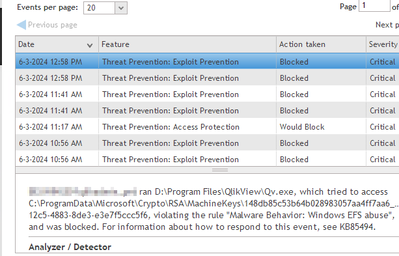
Had this issue
Antivirus was blocking the access to the RSA MachineKeys path
C:\ProgramData\Microsoft\Crypto\RSA\MachineKeys\*************
p_verkooijen
- Mark as Read
- Mark as New
- Bookmark
- Permalink
- Report Inappropriate Content
Just had the issue on an (old) Windows Server 2012R2 which I upgraded to May2023 SR2
Had to revert to SessionAlgorithm=CALG_AES_128 as mentioned in https://community.qlik.com/t5/Official-Support-Articles/QlikView-12-80-set-a-different-Session-Algor...
- Stop all Qlik services
- Shutdown QlikView Desktop instances
Changed:
QlikView client and Server settings.ini
- Client: %appdata%\QlikTech\QlikView\Settings.ini
- Server: C:\ProgramData\QlikTech\QlikViewServer\Settings.ini
Add: SessionAlgorithm=CALG_AES_128

QlikView server
- C:\Program Files\QlikView\Distribution Service\QVDistributionService.exe.config
- C:\Program Files\QlikView\Server\Web Server\QVWebServer.exe.config
- C:\Program Files\QlikView\Management Service\QVManagementService.exe.config
Add: <add key="SessionAlgorithm" value="CALG_AES_128"></add>

If you are using IIS, also change
- C:\Program Files\QlikView\Server\QlikViewClients\QlikViewAjax\Web.config
Start all Qlik services, start the QlikView desktop and Open in Server should work.

 ADC_D2I
- Mark as Read
- Mark as New
- Bookmark
- Permalink
- Report Inappropriate Content
I fixed this issue.
1. Validate the read and write permission in the path, for the users and local administrators.
C:\ProgramData\Microsoft\Crypto\RSA\MachineKeys
2. If the owner is System, change the owner to Administrator (local groups).

3. Enable Heritance
