Please note:This tutorial refers to NPrinting versions prior to NPrinting 16.0.
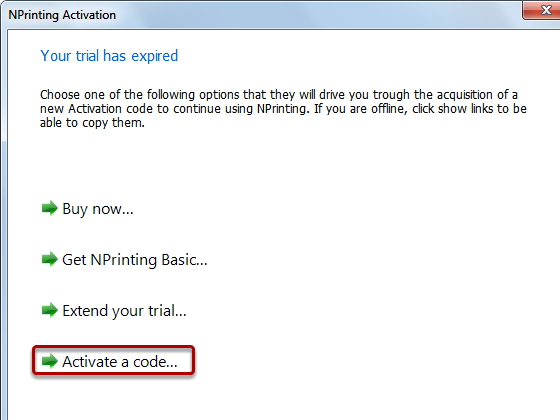
Follow these steps to activate a new installation of NPrinting or reactivate a deactivated one manually if you don't have internet access. You can download, install and activate your copy of NPrinting after receiving a Registration code or reactivate an installation that you have deactivated to move to another machine. When NPrinting opens, you will see the dialog window below.
(Re)Activate NPrinting
Copy your Registration code from the window that opens just after you register for a trial license or from the e-mail message that you receive after purchasing a license and click on Activate a code...
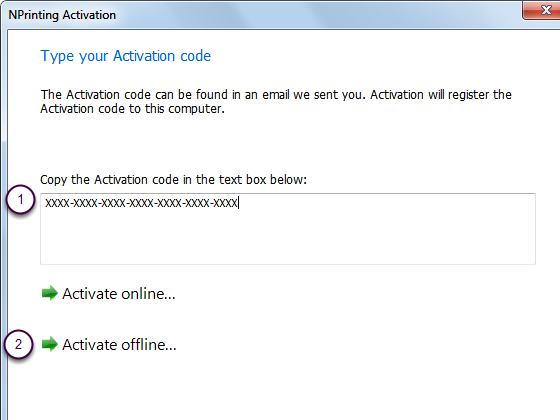
Use Your Registration Code to Activate NPrinting
Paste your registration code into the Copy the Activation code in the text box below: box
Click on Activate offline...
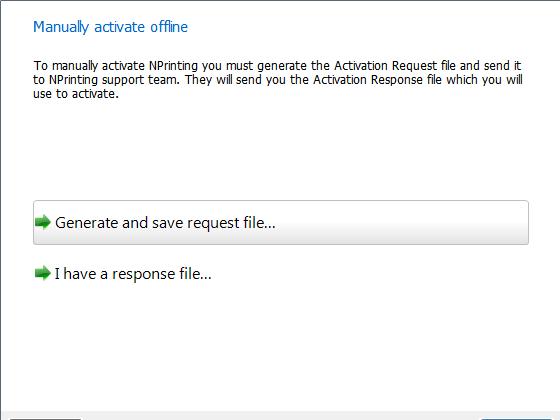
Generate Request File
Click on Generate and save request file
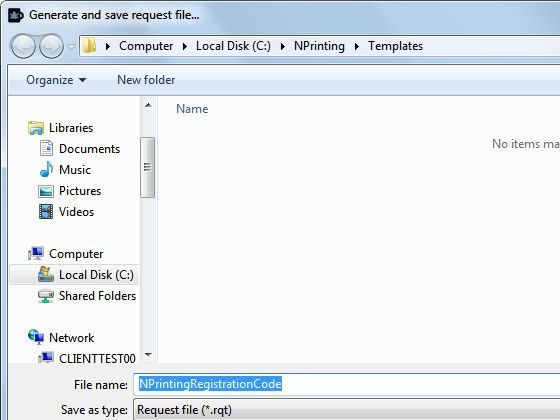
Name and Save Request File
Give it a name, save it, attach it to an explanatory message addressed to support@vizubi.com, and send it off. Registration code validation and activation is a manual process and so will not be instantaneous, though it is given priority.
Receive Response File
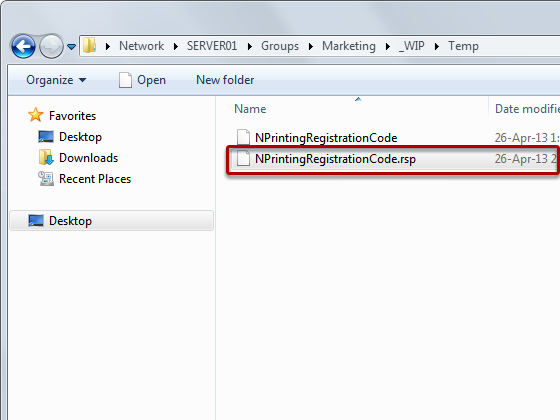
Receive and save the response file.
Use Your Response File
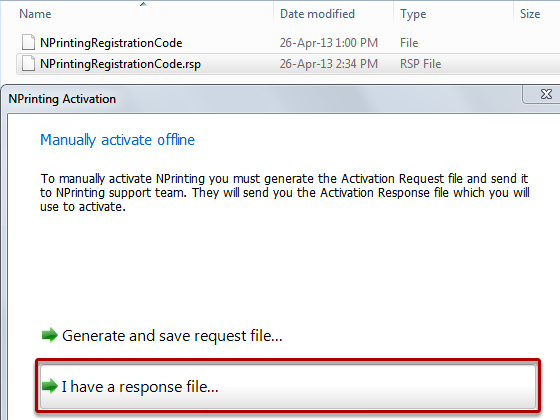
Click on the I have a response file button.
Select Response File
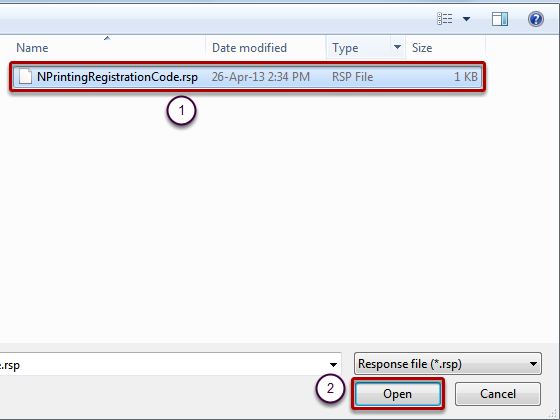
Browse to and select the response file
Click on Open
Get Ready to Work
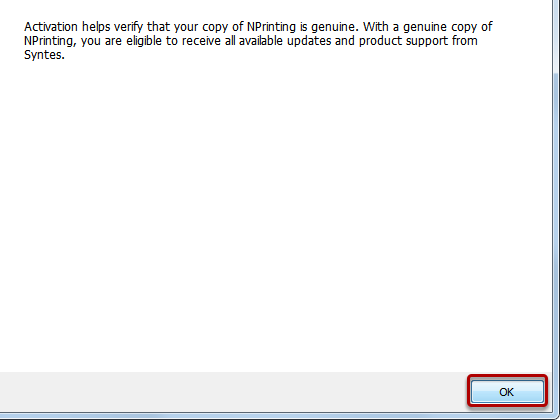
Click on OK
NPrinting is now activated. Please remember that if you need to move your NPrinting installation to a different server or make a significant change to your computer hardware configuration, NPrinting will need to be deactivated before carrying out the operation and reactivated afterwards.