This tutorial illustrates how to create a report with barcodes. We will use EAN-13 (International Article Number) barcode fonts. You need a field with the EAN13 code in your .qvw.
You must have installed an EAN-13 font on your machine. If you haven't it download one and installed it, refer to "Install or uninstall fonts".
Start New Excel Report Template and Add the Barcode Table
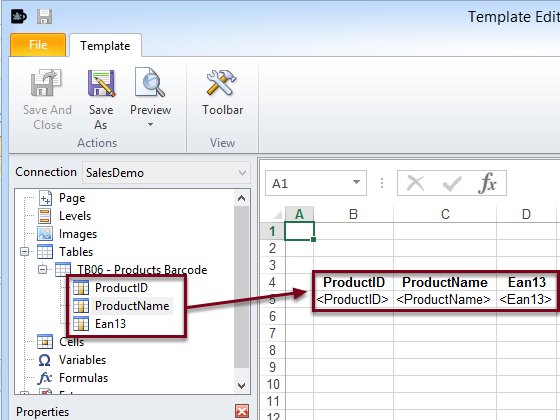
After adding Products Barcode as Table:
Drag the ProductID, ProductName and Ean13 node icons to empty cells on your template
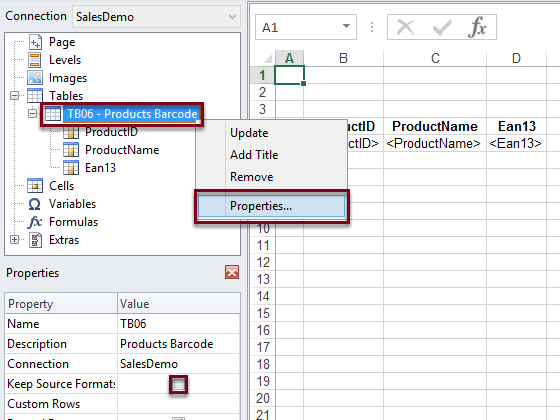
Deselect the Keep Source Formats Property
Right click on Products Barcode
Select Properties
Deselect the Keep Source Formats box
It is necessary to remove the source format only in the Ean13 column to be able to apply the barcode font to it. You can decide if you want to keep or remove the source format in the other columns
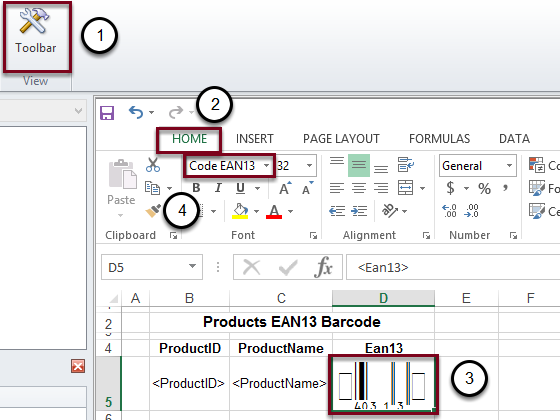
Format the <Ean13> Tag with the EAN-13 Font
Click on Toolbar
Click on HOME tab
Select the <Ean13> cell
Select Code EAN13 or similar as Font
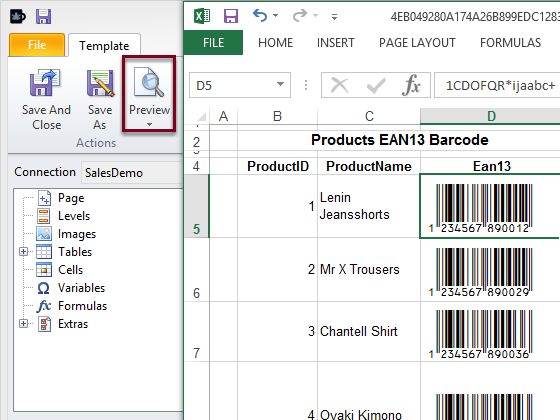
Result
Click on Preview
The Ean13 tag will be replaced by the EAN-13 barcode
is there way to call custom rest api to generate the bar code dynamically and stored the image in the some folder and map it as image file path dynamically to place for each customer.