Unlock a world of possibilities! Login now and discover the exclusive benefits awaiting you.

- Qlik Community
- :
- All Forums
- :
- QlikView App Dev
- :
- reading of text file in qvw
- Subscribe to RSS Feed
- Mark Topic as New
- Mark Topic as Read
- Float this Topic for Current User
- Bookmark
- Subscribe
- Mute
- Printer Friendly Page

- Mark as New
- Bookmark
- Subscribe
- Mute
- Subscribe to RSS Feed
- Permalink
- Report Inappropriate Content
reading of text file in qvw
how to read a text file in qlikview dashboard.
- « Previous Replies
-
- 1
- 2
- Next Replies »

 rahulpawarb
- Mark as New
- Bookmark
- Subscribe
- Mute
- Subscribe to RSS Feed
- Permalink
- Report Inappropriate Content
Hello Shivali,
Could you please elaborate more on this?
Refer below given link:
https://help.qlik.com/en-US/qlikview/12.1/Subsystems/Client/Content/Loading_data_from_files.htm
Regards!
Rahul
- Mark as New
- Bookmark
- Subscribe
- Mute
- Subscribe to RSS Feed
- Permalink
- Report Inappropriate Content
i have content like below in my txt file
kasjkjafkjd KJSKFjskdjfsjgj
sfhsbdjfbsjbg dfhsdjkhjsdhdkg
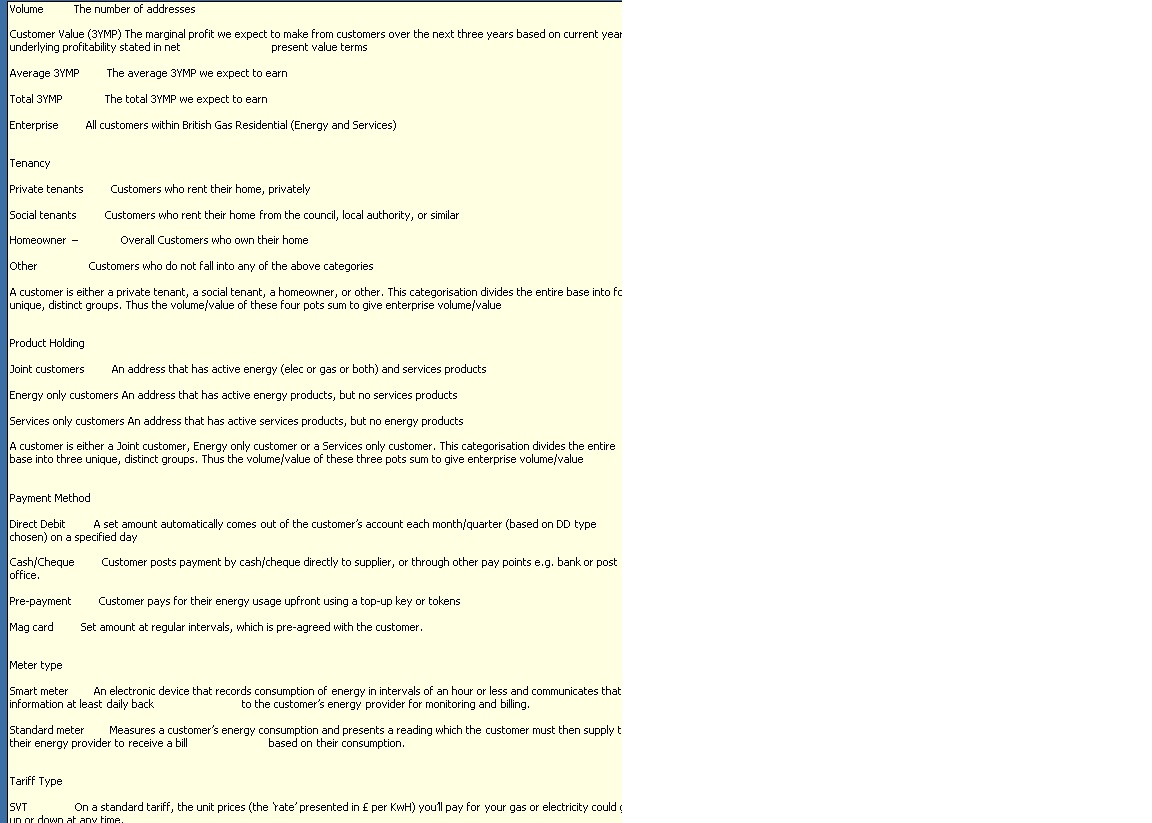
but when i see this in qvw ,all is coming dfrently like
kasjkjafkjd KJSKFjskdjfsjgj
rahulpawarb
- Mark as New
- Bookmark
- Subscribe
- Mute
- Subscribe to RSS Feed
- Permalink
- Report Inappropriate Content
Is it possible to share the application file?
Regards!
Rahul
- Mark as New
- Bookmark
- Subscribe
- Mute
- Subscribe to RSS Feed
- Permalink
- Report Inappropriate Content
am unable to attcah a file,bt can u suggest something on this for alignment
how to load as it is text file in qlikview.
rahulpawarb
- Mark as New
- Bookmark
- Subscribe
- Mute
- Subscribe to RSS Feed
- Permalink
- Report Inappropriate Content
While loading any file into QlikView it looks for tabular structure where the data is stored. Considering this you have to pay attention towards delimiter character. This will help you to define your data.
Please correct me if I am wrong.
Regards!
Rahul
- Mark as New
- Bookmark
- Subscribe
- Mute
- Subscribe to RSS Feed
- Permalink
- Report Inappropriate Content
which delimeter character i should choose
rahulpawarb
- Mark as New
- Bookmark
- Subscribe
- Mute
- Subscribe to RSS Feed
- Permalink
- Report Inappropriate Content
By default delimiter is '\t'. You can choose a character which will split the data into fields.
P.S.: If we get the file or file contents and desired output then we can provide you expected response.
Regards!
Rahul

 flaurntiu
- Mark as New
- Bookmark
- Subscribe
- Mute
- Subscribe to RSS Feed
- Permalink
- Report Inappropriate Content
When using the Qlik data load wizerd for files, you have the option to specify if it is a delimited file (e.g. using a comma/tab/colon/etc) or a fixed record file (each column has a fixed length) or another type of file.
Depending on your text file layout you have to use the relevant option.
To use the wizard start the Script editor.
Select to use 'Relative paths' or not.
Press the button Table Files...
Select the proper file format and select the file
When you've chosen for delimited, select the appropriate delimiter, header size, character set, etc.
Set the column names when you do not have embedded labels.
Press next
If data transformation is needed press the button, otherwise press next.
Now select the additional where clauses to select data or other options desired.
Press next
Check the script and modify it when needed.
Press Finish.
p.s. for all of the import options, please look at the help documentation. It should clarify all the options 
Best regards,
Ferry
- Mark as New
- Bookmark
- Subscribe
- Mute
- Subscribe to RSS Feed
- Permalink
- Report Inappropriate Content
this is in qlikview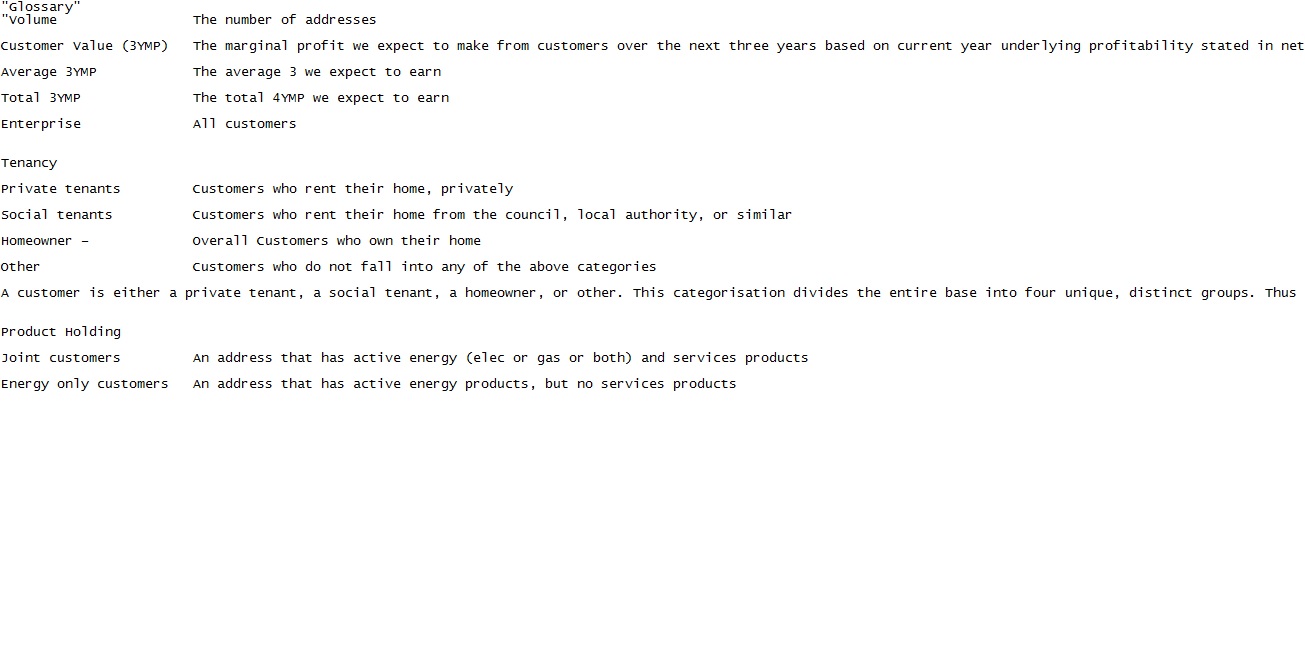
- « Previous Replies
-
- 1
- 2
- Next Replies »