Unlock a world of possibilities! Login now and discover the exclusive benefits awaiting you.

- Qlik Community
- :
- Blogs
- :
- Technical
- :
- Design
- :
- Accumulative Sums

.png "Former Employee") elif-tutuk
elif-tutuk
- Subscribe to RSS Feed
- Mark as New
- Mark as Read
- Bookmark
- Subscribe
- Printer Friendly Page
- Report Inappropriate Content
We all use QlikCommunity when we need an answer for a QlikView question. We post a question and get an answer, usually in minutes, leveraging the expertise of 91,000+ QlikView users! QlikCommunity is the most-visited and active user community in the BI industry.
I also use QlikCommunity. And sometimes not to get an answer for a question but to think about new ways of doing things by reading the answers on the existing posts. So I have been curious about the answers on calculating the accumulative sums in QlikView and did a search on QlikCommunity. There are many answers provided as expected. Here is one way of achieving it by using rangesum() and aggr() functions.
It is a very common requirement to display the accumulative sum of a chart metric. The easiest way of doing this is to use the accumulate setting under the expressions tab of chart property.
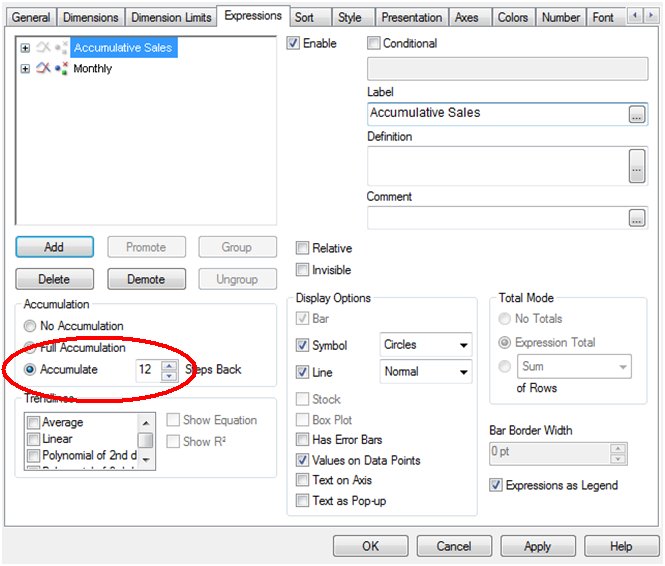
Figure 1. Accumulate option on chart property
With this setting, the values of the selected metric will be accumulated. But sometimes, the requirement is to have the first data point accumulated as well. For example, to show the accumulated sales for 12 months where the first month displayed should be the sum of the previous 12 months and the following months should accumulate on top of this value by adding one month at a time. One way of achieving this is to use the rangesum() and the aggr() functions together.
Let us first look at Rangesum(). It is a range function that returns the sum of a range of 1 to N arguments Together with the above() function, you can calculate the sum of the last 12 months;
rangesum( above( sum(Sales),0,12) )
This expression will return the sum of sales evaluated for each month as they appear on the 12 rows above the current row.
The next step is to combine RangeSum() with the aggr() function to aggregate the sum of sales for the 12 months at the month level.
sum( aggr( rangesum( above( sum(Sales),0,12) ),Month))
Using the Aggr() function, it is possible to calculate the accumulated sum for any other dimensions in addition to the time dimension. For example, the 12 months accumulated sum of sales by store can be calculated as;
sum( aggr( rangesum( above( sum(Sales),0,12) ),Month, Store))
Optionally you could also clear any selections on the month field as the calculation should reflect the accumulated sales for the previous 12 months, regardless of selections. This is achieved by using the set analysis “{$<Month>}”.
sum( aggr( rangesum( above( sum( {$<Month>} Sales),0,12) ),Month))
One important thing to notice with this solution is the sort order inside the aggr() function. If the sort order is not correct, the aggregated sum of the 12 months would not be correct. QlikView always sorts the groupings (in this case the groups defined by the second parameter of the aggr() function) according to the load order. If the data is sorted by date during the load, QlikView will use this order and the aggr() function will show the correct totals for the desired time frame.
In summary, the accumulation option on the expression tab is the simplest way of achieving accumulations, but the use of rangesum() and aggr() functions are alternative ways of accumulating the data in more complex situations.
You must be a registered user to add a comment. If you've already registered, sign in. Otherwise, register and sign in.