Unlock a world of possibilities! Login now and discover the exclusive benefits awaiting you.

- Qlik Community
- :
- Blogs
- :
- Technical
- :
- Design
- :
- Sheet and Object-level Access Control in Qlik Clou...

 Michael_Tarallo
- Subscribe to RSS Feed
- Mark as New
- Mark as Read
- Bookmark
- Subscribe
- Printer Friendly Page
- Report Inappropriate Content

Sheet and object-level access control in Qlik Cloud
This is a relatively common request, especially from customers coming from Qlik Sense Enterprise Client-Managed. The use case is when organizations want to show/hide specific assets in an application based on the group membership of the current user that is accessing the application. Note that this is in no way a strategy or solution for data security (which is handled with section access), but rather serves as a potential design pattern for custom tailoring apps for specific groups of users.
Example Scenario
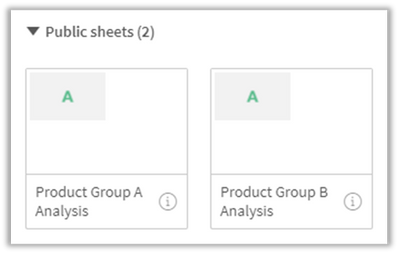
Let’s assume a customer has a global sales application. That application contains sheets that are designed for specific product group sales that not every sales representative sells. The customer wants to show the product-specific sheets only to the sales representatives that sell those respective products. If the user contains the group “Product Group A” then they should see the “Product Group A Analysis” sheet, and likewise if the user contains the group “Product Group B” then they should contain the “Product Group B Analysis” sheet.
Solution
To achieve this in Qlik Cloud, we can use the Advanced Analytics connector, which in essence is a RESTful server-side extension. This connector offers the ability to connect to RESTful services in real-time from both the load script and from the front-end (charts and expressions). We can use this connector to connect directly to the Qlik Cloud APIs to fetch the groups of the current user, return those groups as a pipe-delimited string, and then use those groups in a show condition expression.

Setup
Prerequisites:
- The Advanced Analytics connector is going to be making API calls to Qlik Cloud on behalf of the logged in user. This means that you must have a user with the “Developer” role assigned as well as an API key issued to that user.
- The Creation of groups setting must be enabled in the Console under Settings > Feature control

- Ensure that there are groups available to the user that you are testing for in the tenant. To check this, you can enter the following into the browser, replacing {tenant} and {region} accordingly: https://{tenant}.{region}.qlikcloud.com/api/users/me -- There, you will find the assignedGroups array which contains the groups that are assigned to the logged in user.
Connector Setup:
- Import the sample application attached to this page.
- Open the application and navigate to the load script.
- Under Data connections, select Create new connection and select Advanced Analytics.
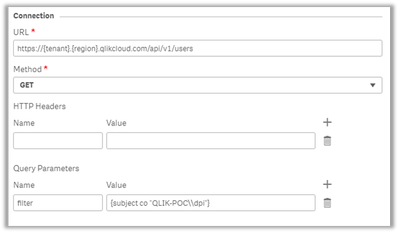
- For URL, fill in your own tenant for URL followed by ‘/api/v1/users’
- https://{tenant}.{region}.qlikcloud.com/api/v1/users
- Change the Method to GET.
- Under Query Parameters, add a parameter with the Name of ‘filter’ and the Value should resemble the following, where {subject} is an existing user subject for the filter so you can test whether the connection is operational:
- {subject co “{subject}”}
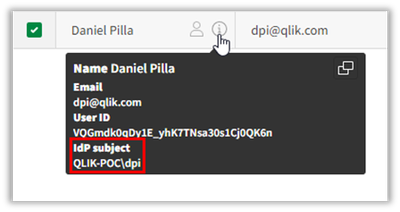
- In this example, the user I am using has a REALM value. Note that you will have to escape the backslash with an extra backslash, e.g., QLIK-POC\dpi needs to be QLIK-POC\\dpi
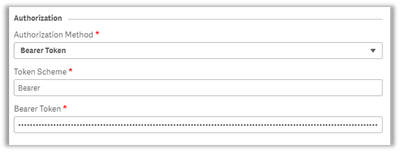
- Within Authorization, change the Authorization Method to Bearer Token.
- Under Token Scheme, select Bearer.
- For Bearer Token, enter in the API key mentioned as a prerequisite above.
- Within Response Table, for Name of Returned Table enter the value of ‘data’. Note that this value is only really relevant for the load script, but the field is required to be populated nonetheless.
- Under Table Path (JMESPath), enter in the value of ‘data’. Note that this is the name of the JSON object containing the data returned from `api/v1/users` and contains source of data that we require from the payload.
- Within Response Fields, deselect Load all available fields. This is so we can customize the value that is returned.
- Within Response Table, under Table Fields (JMESPath), enter a new Name value as ‘groups’, then enter the Value of ‘join(‘|’,assignedGroups[*].name)’. This will concatenate all of the values of the ‘assignedGroups’ array returned by the API into a pipe delimited string. This function is a part of the JMESPath query language that is supported by the Advanced Analytics connector. To learn more, you can refer to: https://jmespath.org/tutorial.html.

- Leave the remaining settings untouched.
- Set the Name of the connection as ‘Get Groups’. Note in this case this is important because the name of the connection is directly referenced in the expression of the accompanying sample app.

- Test the connection and ensure that it is operational.
Sample App Testing:
The sample application includes three sheets:
- Get Current User Groups – this sheet displays the current groups of the logged in user.
- Product Group A Analysis – this sheet has a commented out calculation condition to only show the sheet if the user contains the group ‘Product Group A’.
- Product Group B Analysis – this sheet has a commented out calculation condition to only show the sheet if the user contains the group ‘Product Group B’.
The application transforms the OsUser() result into the subject format, looks up the user, gets the groups, and returns them as a pipe-delimited string. You can find this process defined in the vUserSub and vUserGroups variables.
To test the application, first confirm that the first sheet returns your user groups. If it does, you can modify the sheet calculation conditions on the latter two sheets to your desired group names that you want to show based on.
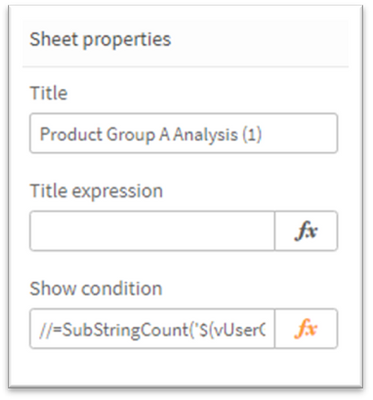
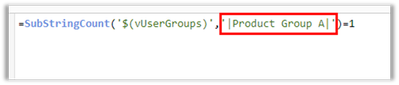
Modify the expression by uncommenting it and adding in your desired group name (ensured it is enclosed by pipes so as to not partially match another group name):
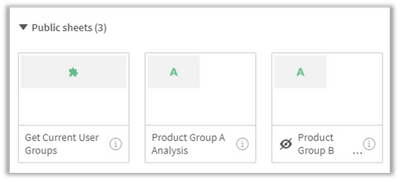
In my example, I am a member of the group `Product Group A’ and not `Product Group B’, so while in edit mode, I see the following, confirming the ‘Product Group B Analysis’ is hidden from my view:
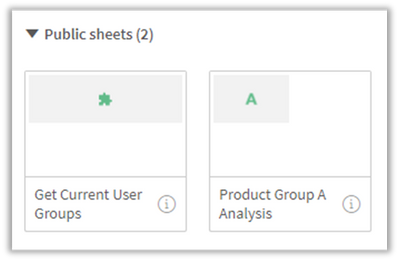
Exiting edit mode, I now see:
Additional Notes
- If users have edit-level access or greater to the application where this method is deployed, when in “Edit” mode, they will be able to see that the hidden sheet(s) exist. The user could then duplicate that sheet and remove/alter the show condition so that they could see the sheet. This is not a data security risk, as this technique only focuses on cosmetic app design, however it should be noted that if it is desired that the users cannot have access to these sheets then they must not have any roles that allow for edit-level access including “Can manage”, “Can contribute”, and “Can edit”.
- This solution relies on API calls being made by the owner of the API key.
- This user must:
- Continue to be exist
- Continue to have the “Developer” role
- Ensure that the API key does not expire and/or is rotated to prevent downtime
- This user must:
- As this solution is making calls on behalf of a single user as users are leverage the application, there is the potential for rate-limiting at the Users API. The current rate limit of the Users API is 1,000 calls per minute.
- The Advanced Analytics connector function call in the sample app leverages the "ShouldCache":"False" setting in the vUserGroups variable. This ensures that the user’s groups are not cached by the engine, however it makes more calls to the APIs. If you are experiencing or are concerned about rate limiting, this setting can be removed.
You must be a registered user to add a comment. If you've already registered, sign in. Otherwise, register and sign in.