Unlock a world of possibilities! Login now and discover the exclusive benefits awaiting you.

- Qlik Community
- :
- Blogs
- :
- Technical
- :
- Design
- :
- ValueList() – For those tricky situations

 Alexander_Thor
- Subscribe to RSS Feed
- Mark as New
- Mark as Read
- Bookmark
- Subscribe
- Printer Friendly Page
- Report Inappropriate Content
Have you ever been asked to create a table that has several independent calculations over different metrics?
Mixing aggregation formulas and counts in the same table?
Did you end up creating different tables for every view point on the same information?
Or did you create a table like the one below?
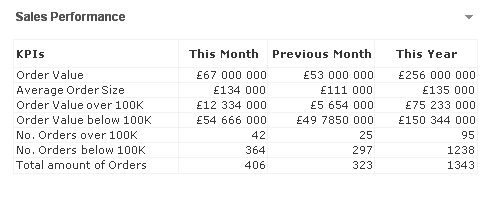
If not, let me introduce you to ValueList() and its number oriented big brother ValueLoop().
ValueList
ValueList (value {, value })
ValueList allows us to specify a set of arbitrary values within the function, when used as a calculated dimension in a chart this will act as a synthetic dimension.
We can later restate the same function, with the same parameters, in our expression to reference the corresponding value in our newly created synthetic dimension.
And it is as simple as creating a straight table with following dimension and expression
Calculated Dimension:
=ValueList('My First KPI','My Second KPI')
Expression:
=IF( ValueList('My First KPI','My Second KPI')='My First KPI',
Sum([My First KPI Field],
Count([My Second KPI Field])
)
And voila we have created a table/chart with a dimension that does not exist in our data model and with an expression that has the possibility to mix and match aggregation functions over each dimension.
Matthew Crowther has also created an excellent Explosion Chart that also leverages ValueList, you can read more on his blog
ValueLoop
ValueLoop(from [, to [, step = 1 ]])
ValueLoop shares the same characteristics as it’s little brother ValueList with the exception that it will create a series of numbers as the synthetic dimension.
To create a dimension with values that spans between 1-100 we would create a calculated dimension with
=ValueLoop(1,100,1)
which we can reference from our expression with the expression
IF( ValueLoop(1,100,1)=3,
'Almost Pi',
'Not Pi'
)
ValueLoop also allows us to create the, not so useful but fun to make, square pie chart which you can read more on in this technical brief.
You must be a registered user to add a comment. If you've already registered, sign in. Otherwise, register and sign in.