Do not input private or sensitive data. View Qlik Privacy & Cookie Policy.
Skip to main content

Announcements
ALERT: QlikView server communication interruptions following Microsoft Windows Domain Controller security updates

Qlik Sense for Windows: How to set up Keycloak as SAML Identity Provider

100% helpful (1/1)
cancel
Showing results for 
Search instead for 
Did you mean: 
Damien_V
Support
Support

Qlik Sense for Windows: How to set up Keycloak as SAML Identity Provider

Last Update:

Dec 29, 2022 5:02:24 AM

Updated By:

Sonja_Bauernfeind

Created date:

Jan 22, 2021 7:01:44 AM

This is a quick guide on how to set up SAML authentication in Qlik Sense for Windows using Keycloak as the Identity Provider.


Environment:

Qlik Sense Enterprise on Windows  February 2020 and later


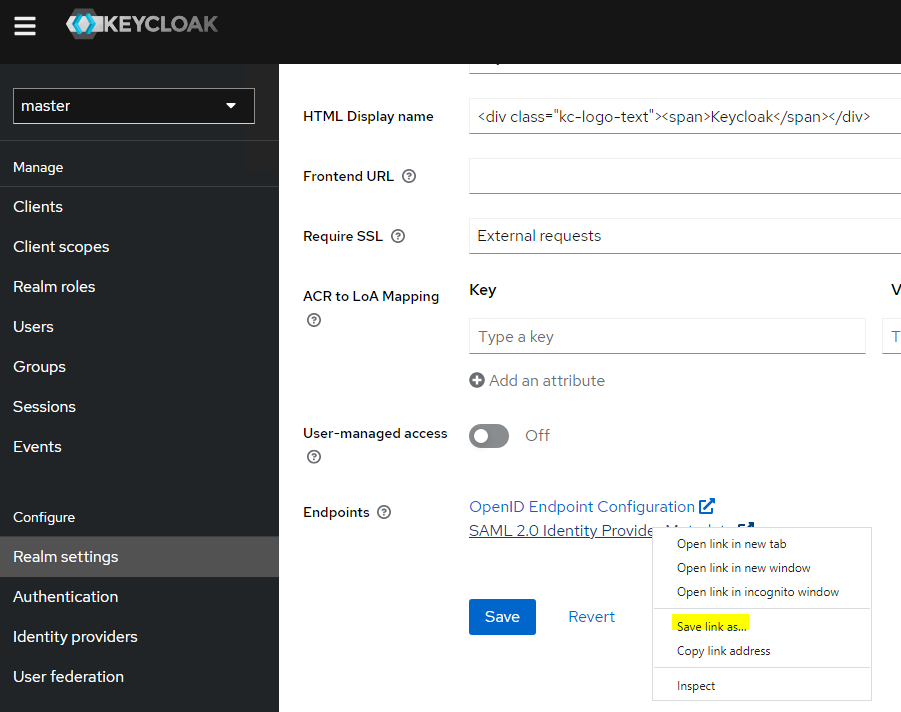
  1. In Keycloak, navigate to General and Realm Settings and download the IdP metadata 

    Damien_Villaret_0-1671765374463.png

  2. In Qlik Sense Enterprise on Windows, set up a new virtual proxy:

    Damien_Villaret_1-1611302885434.png

    SAML Host URI: The Qlik Sense server DNS name accessed by end users
    SAML Entity ID: Any string, but should match the Client ID in the Keycloak configuration.
    SAML attribute for user ID: this should be the attribute containing the value that will be used as the user ID in Qlik Sense. Those attributes are set in “Mappers” in the Keycloak configuration.

  3. In Keycloak, set up a test user:

    Damien_Villaret_1-1671765491608.png

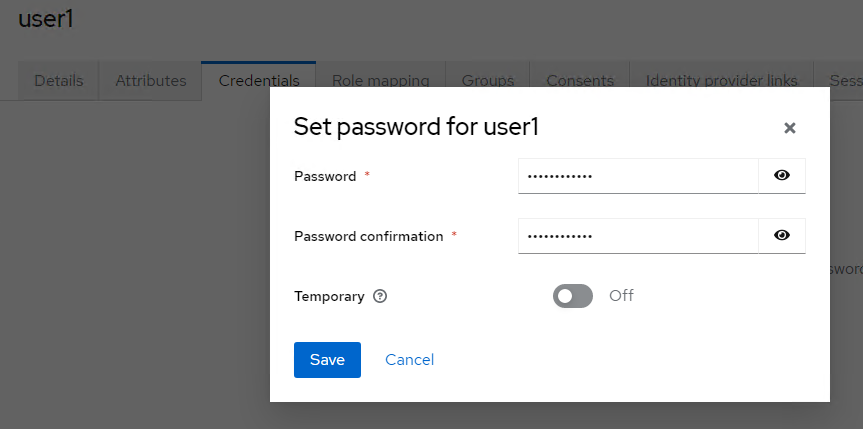
  4. Click Save and go to Credentials to set the password

    Damien_Villaret_2-1671765595894.png

  5. In Keycloak, add a new Client.

    Note: Client ID needs to be the Entity ID set in Qlik Sense in step 2.

    Damien_Villaret_3-1671765686271.png

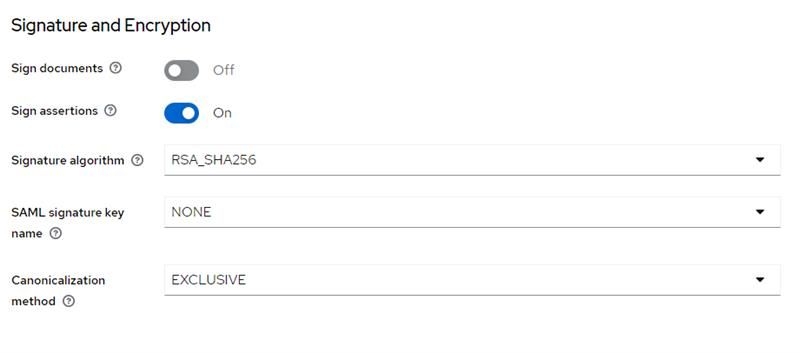
  6. In the Client settings locate Signature and encryption and make sure that Sign Assertions is enabled. Sign Documents should be disabled (if it remains enabled, the implementation will still function, but Qlik Sense does not use Sign Documents and will ignore it).

    Damien_Villaret_4-1671765741225.jpeg

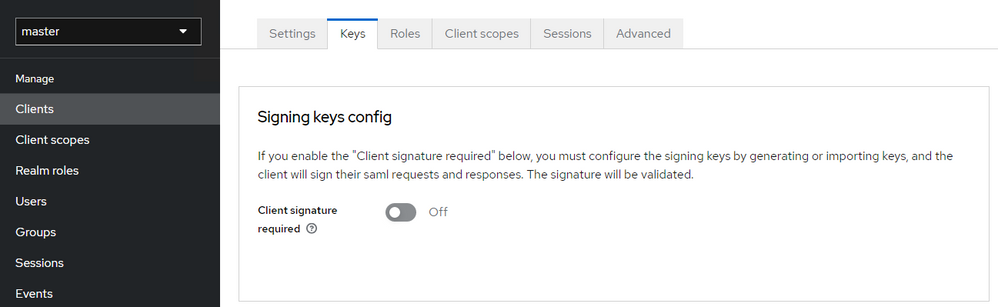
  7. Switch to the Keys tab and disable Client Signature Required. In order to enable this feature, some extra steps are needed, see at the end of this article (Optional Steps - Client Signature) if you wish to enable the feature.

    Damien_Villaret_5-1671767133315.png

  8. Switch to the Advanced tab and set the Assertion Consumer Service POST Binding URL.

    It should be https://{SAML Host URI}/{virtual proxy prefix}/samlauthn/ 

    Make sure not to forget the ending slash after samlauthn, otherwise the authentication will fail.

    Damien_Villaret_0-1671777877902.png

    The last step is to add the X500 email User Property as we are using the attribute "email" as the User ID in the Qlik Sense virtual proxy settings.

    Under "Client Scopes", click on the name of client scope that has the description "Dedicated scope and mappers for this client", in the below screenshot the name is QSKeycloak-dedicted.

    Damien_Villaret_1-1671778247451.png

  9. Choose Add predefined mapper and choose X500 email then click Add

    Damien_Villaret_2-1671778324089.png

    Damien_Villaret_3-1671778390270.png

  10. Everything is now set up and operational.


Optional steps

Client Signature

In order to enable Client Signature Required, which means that Keycloak will check the signature on the SAMLAuthnRequest sent from Qlik Sense, the Qlik Sense certificate needs to be added in the Keycloak client configuration.

The certificate can be copied directly from the SP Metadata downloaded from the Qlik Sense Management Console. 

  1. Open the Management Console and navigate to Virtual Proxies
  2. Open your Virtual proxy set up for Keycloak
  3. Click Download SP metadata

    Damien_Villaret_0-1611315136765.png


  4. It will look like this:

    Damien_Villaret_0-1611315433412.png

  5. Copy it to a new file, and add:

    -----BEGIN CERTIFICATE-----
    [content]
    -----END CERTIFICATE----- 


    then save it as a .pem file.

    Damien_Villaret_0-1611315759828.png

  6. Import the certificate as PEM in Keycloak by clicking Client signature required under Keys

    Damien_Villaret_4-1671779118041.png

    Damien_Villaret_5-1671779634110.png


SAML Assertion Encryption
The SAML assertion can be encrypted by checking the option in Keycloak in Keys in the same way as for Client Signature required.
 
Damien_Villaret_6-1671779818853.png

The certificate can be extracted in the same way that it is done when enabling Client signature required.

Labels (1)
Comments
edhuangry
Contributor
Contributor

Possible to do an update for this? New Keycloak UI and fields are different from these screenshots. 

Damien_V
Support
Support

@edhuangry Thank you for your feedback.

The article has now been updated with screenshots from the current latest Keycloak (version 20)

Version history
Last update:
‎2022-12-29 05:02 AM
Updated by: