Description: A QlikView sheet can be exported directly from QlikView as images. Supported formats are PNG, JPEG, BMP or GIF. NPrinting automatically sets the image dimensions to include the entire sheet.
A QlikView sheet can also be used in NPrinting Reports. Select the QlikView sheet you want to use in the list and add it as an image into a Microsoft Office, HTML or PixelPerfect report template. In this case the available output formats the ones supplied by the used report type.
Begin Creating New HTML Report
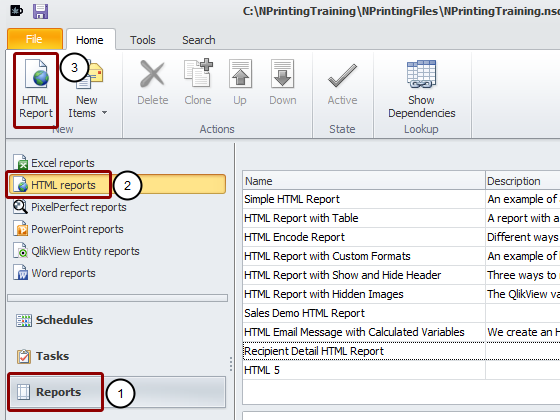
- Select Reports in the lower left pane
- Select HTML reports in the upper left pane
- Click on the HTML Report icon in the New group of the tool bar
Identify Report
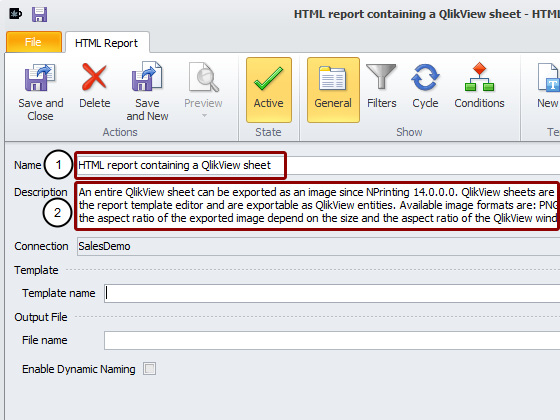
- Enter HTML report containing a QlikView sheet as the Name of the report
- Enter a clarifying description (optional)
Open New Template in Template Editor
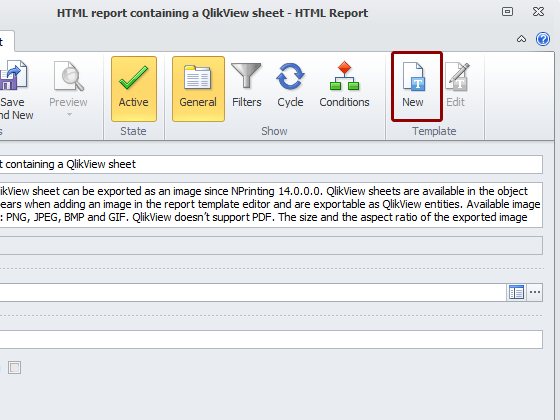
Click on the New icon in the Template group of the tool bar
Open Select Objects Window to Add Sheet as Image
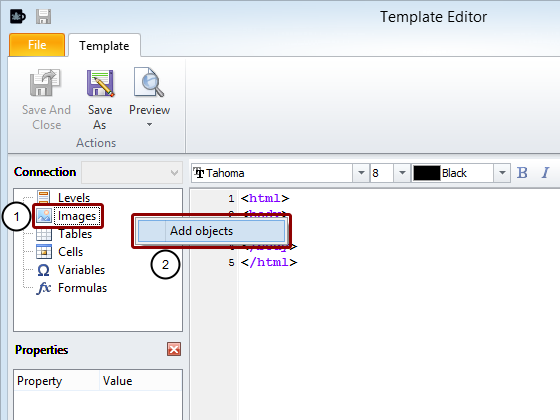
- Right click on the Images node
- Click on the Add objects button
Select Sheet Object
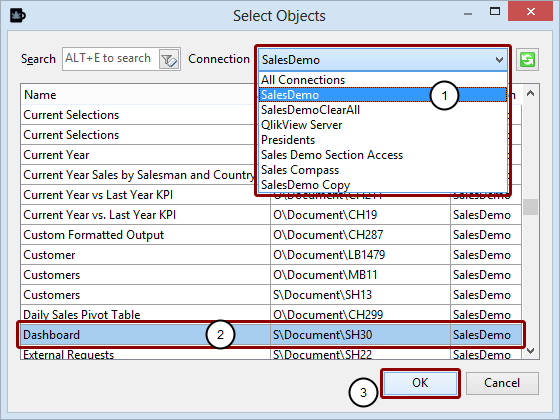
- Select the Connection to the QlikView document that contains the Sheet you want
- Select the Dashboard - SH30 object
- Click on the OK button
Embed Sheet Object in Template and Preview
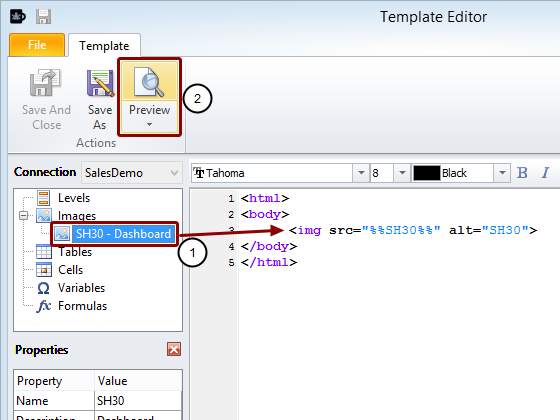
- Drag the SH30 - Dashboard node token into the template and drop it on the line between the body tags
- Click on the upper part of the Preview icon in the Actions group of the tool bar
View Original Sheet in QlikView
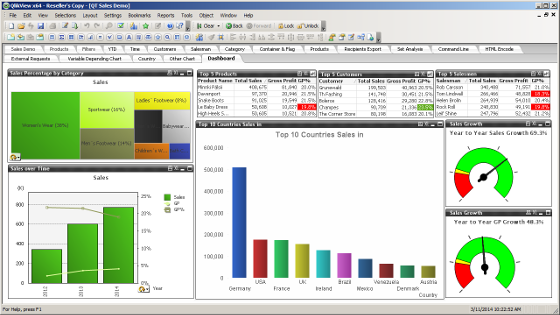
We want to export the entire sheet as a single image regardless QlikView window dimensions.
Run a report Preview
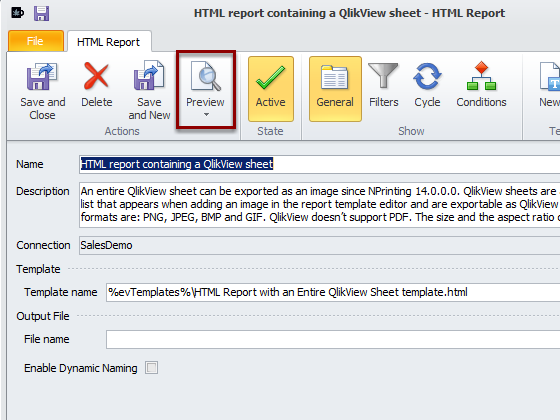
Click on Preview
Preview Dashboard Image
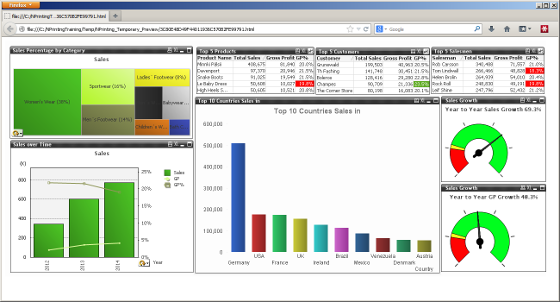
Notice that the aspect ratio and content of the preview image depend only on the aspect ratio and visible content of the sheet in QlikView. It doesn't depends on the visible dimensions of the QlikView window.
Begin Saving Your Report Template
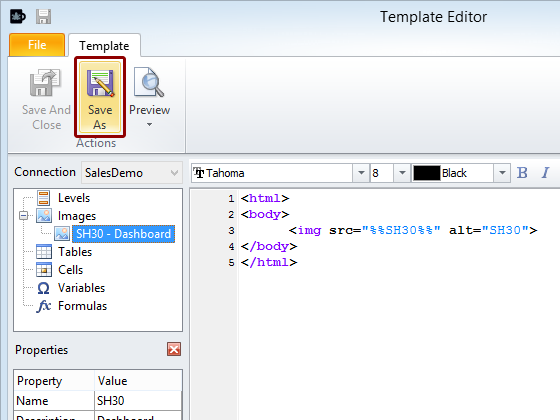
Click on the Save As icon in the Actions group of the tool bar
Save Your Report Template
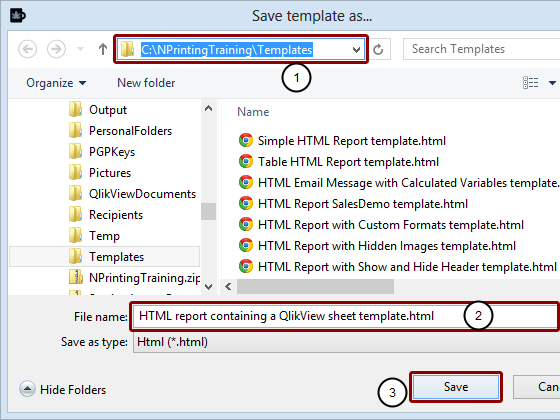
- Browse to C:\NPrintingTraining\Templates if necessary
- Enter a File name or accept the suggested one
- Click on the Save button
Close the Template Editor
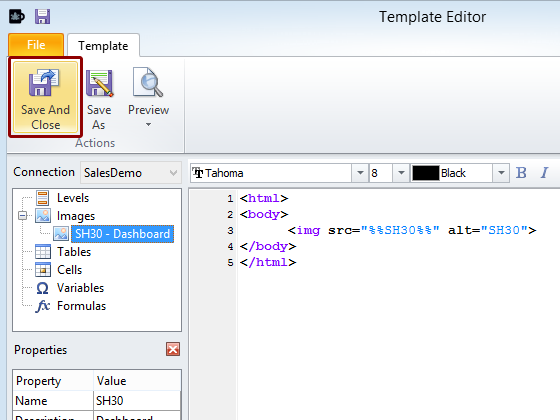
Click on Close (X) in the upper right corner of the editor window or click on Save and Close icon in the Actions group.
Save and Close HTML Report
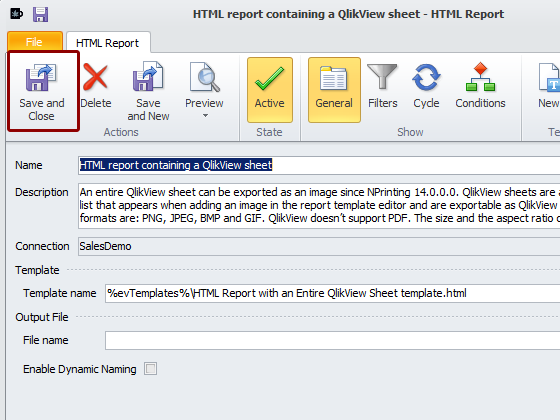
Qlick on the Save and Close icon in the Actions group
Save Current Content of NPrinting Project File
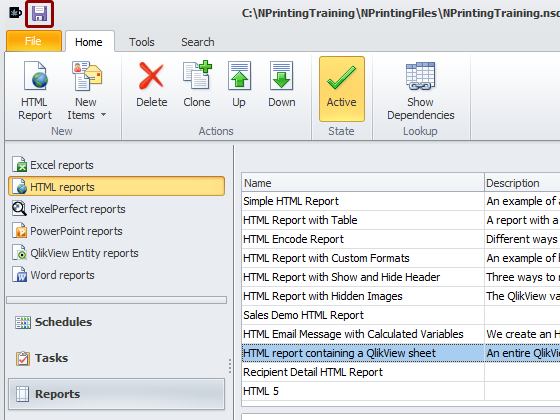
Click on the floppy disk icon in the upper left corner of the NPrinting application window next to the NPrinting coffee mug logo.


