This article will share some basics to get you started with the Qlik Cloud connector in Qlik Application Automation. We have many other articles that cover use cases, examples and tips&trics.
In the Automation editor, you'll find on the left panel the 'Qlik Cloud' connector with a broad range of blocks to build workflows for both analytic DevOps and active intelligence use cases
 Qlik Cloud blocks
Access and Authentication
The automation features are made available for all Qlik Sense Enterprise SaaS users and each user can access through the Qlik Cloud connector their own apps without additional authentication.
Each automation and all connections are private per users.
Blocks
You have access to the following APIs
- Items
- Reloads
- Spaces
- Apps
- Users
- tenants
- Collections
- data-connections
- quotas
- temporary-content
- app-evaluator (evaluations)
- audit
- license (list and get)
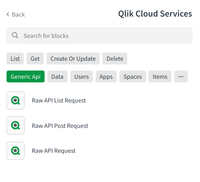
where we configured the most common API endpoints as blocks, and also allow you to build your own API call through the generic endpoints "Raw API Request'.
Some blocks are using the QIX JSON RPC API and use separate automation sessions to executed e.g. selections or to do master item management (dimension, variables, measures, ..)
Webhooks
As start block you can enable Qlik Cloud webhooks to listen to events for users and apps.

Saving automation that uses a webhook In the management console will automatically create the webhook in the management console under 'Integration > Webhook'

Permissions
Always make sure you have sufficient permissions to work with certain resources. While you might have permission to read a resource, editing or managing the resource might be prohibited for your account.
An example of this is the Do Reload block when used with apps in shared spaces. You might be able to list all apps in a shared space, but without the roles 'Owner' 'Can manage' or 'Can edit', you will not be able to execute a reload on an app in that shared space.
Click here for more information on managing permissions in shared spaces
Known limitations
- QlikView apps are not supported. You might see the apps in the list apps blocks, but manipulating these apps can cause errors.
- Qlik Sense on Windows apps are only supported when they are exported and imported as QVF or moved from on-prem through the 'stage' area in the QMC and have an assigned owner
- "Big Apps" (>1GB) can cause slow processing and loading times of some blocks.
Introduction video
https://www.youtube.com/watch?v=XbcEGnWKu_c&ab_channel=QlikHelp


.png "Former Employee")