Unlock a world of possibilities! Login now and discover the exclusive benefits awaiting you.

- Qlik Community
- :
- Forums
- :
- Analytics & AI
- :
- Products & Topics
- :
- Visualization and Usability
- :
- Pivot table: Move measures to rows
- Subscribe to RSS Feed
- Mark Topic as New
- Mark Topic as Read
- Float this Topic for Current User
- Bookmark
- Subscribe
- Mute
- Printer Friendly Page

 Tommmy
- Mark as New
- Bookmark
- Subscribe
- Mute
- Subscribe to RSS Feed
- Permalink
- Report Inappropriate Content
Pivot table: Move measures to rows
Hi experts
I have a pivot table with two measures. Can you move measures to the rows and dimensions to the column side?
Thanks for your help!
Accepted Solutions

 Or
Or
- Mark as New
- Bookmark
- Subscribe
- Mute
- Subscribe to RSS Feed
- Permalink
- Report Inappropriate Content
I actually wanted to do this on my end recently and was surprised that it was both available and trivial - one simply has to drag the "Values" box over to the left (Dimension) side and the dimensions over to the Column (measure) side:


 Andrei_Cusnir
- Mark as New
- Bookmark
- Subscribe
- Mute
- Subscribe to RSS Feed
- Permalink
- Report Inappropriate Content
Hello,
I believe that your use case scenario most probably is not supported. Row and Column is found under "Dimension", while Values is found under "Measures". This means that you can't use measures as dimension, otherwise you will get "Invalid dimension" error.
Here is an example:
Using dimension:
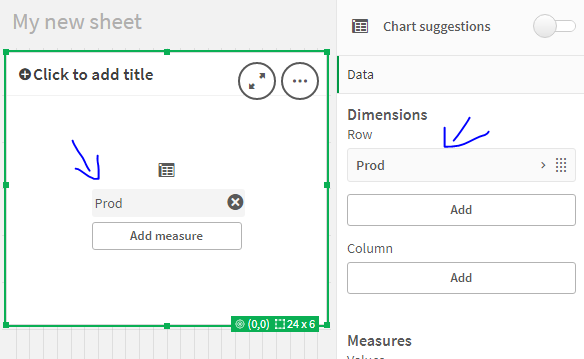
Using measure:
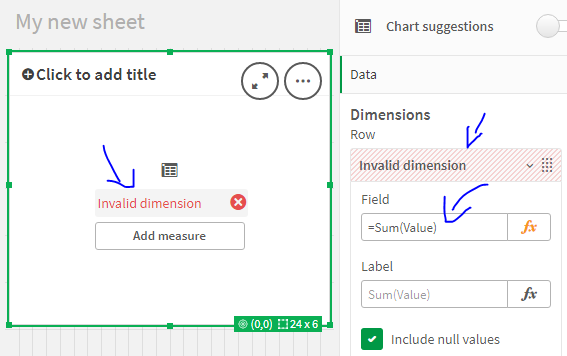
As you can see, you are getting an error message "Invalid dimension". Unless somebody else was able to find a workaround and can share it here, I assume that the only thing you can try is:
- In Data load editor use the measure to create a new calculated dimension
- Then you can use the new field as dimension and load some data as rows (if needed) to use them as measure etc.
I hope that this information was helpful. In case I have misunderstood the use case scenario, please elaborate in details by providing additional information. However, if it has helped you resolve the issue, addressed your concerns or at least pointed you in the right direction, please mark it as Accepted Solution to give further visibility to other community members.
Or
- Mark as New
- Bookmark
- Subscribe
- Mute
- Subscribe to RSS Feed
- Permalink
- Report Inappropriate Content
I actually wanted to do this on my end recently and was surprised that it was both available and trivial - one simply has to drag the "Values" box over to the left (Dimension) side and the dimensions over to the Column (measure) side:
