Unlock a world of possibilities! Login now and discover the exclusive benefits awaiting you.

- Qlik Community
- :
- Blogs
- :
- Technical
- :
- Design
- :
- Controlling Fields Shown in Smart Search

 Michael_Tarallo
- Subscribe to RSS Feed
- Mark as New
- Mark as Read
- Bookmark
- Subscribe
- Printer Friendly Page
- Report Inappropriate Content

In this week's edition of the Qlik Design Blog, I'd like to introduce Mitul Vadgama. Mitul is a member of our Qlik Consulting Services team in the UK. He has worked on a variety of consulting projects using both Qlik Sense and QlikView with many enterprise customers. His passion is transforming data into valuable business insights, knowledge sharing, and enabling customers to get the most value out of Qlik products. Mitul is going to show you how to optimize a powerful and unique capability in Qlik Sense, Smart Search. Thanks for your valuable contribution Mitul!
Smart Search
Smart Search provides powerful functionality allowing users to search dimensions and values found within an application’s data model. When working with customers on consulting projects I have found that sometimes the business users, data architects, and app designers want to control which fields are included or excluded in the search. Did you know that you can control which fields are included or excluded from Smart Search?
Here is an example using Smart Search in action where I search for “Rob” in my sales application:
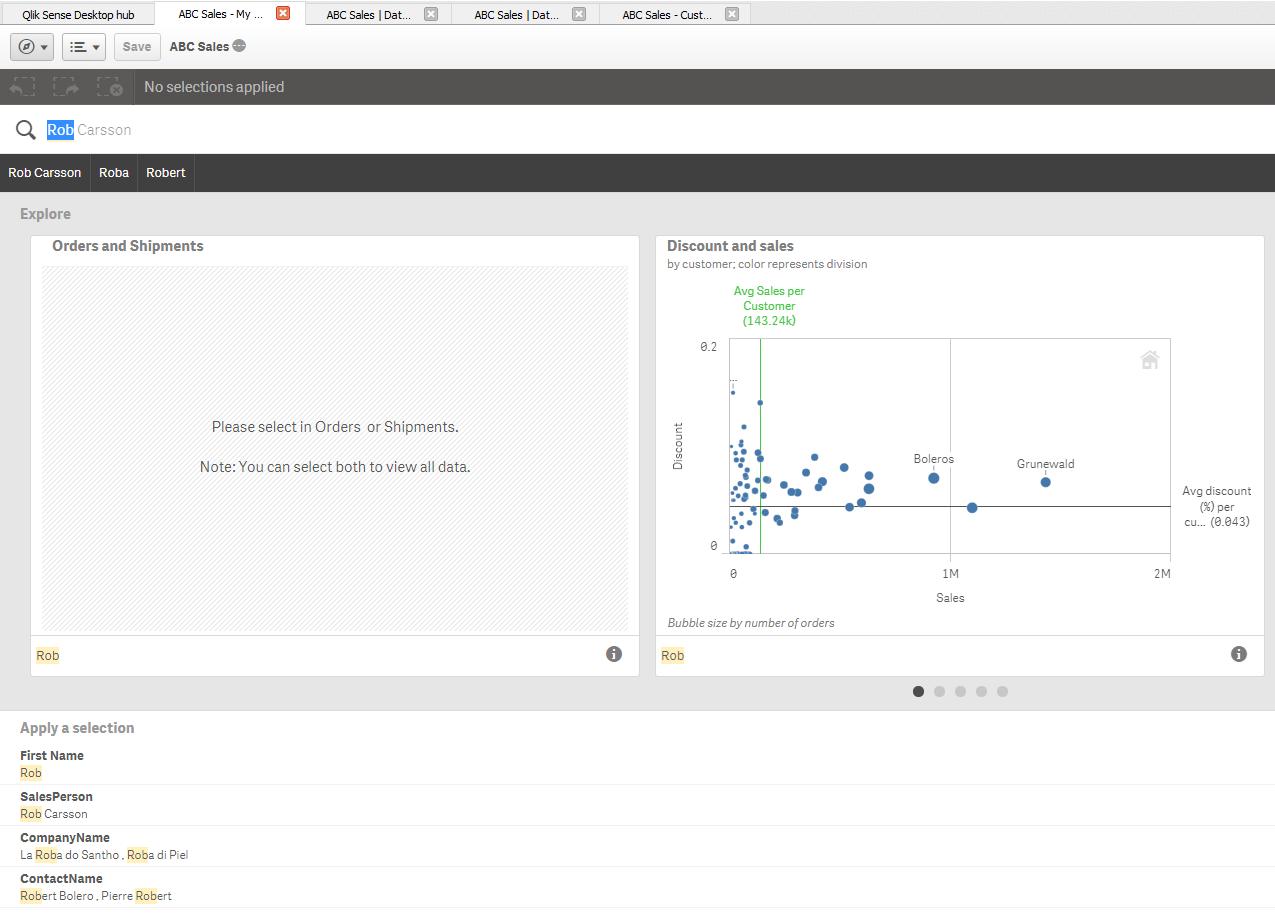
You can see Qlik Sense finds the value “Rob” in the following fields:
• First Name
• SalesPerson
• CompanyName
• ContactName
Consider a scenario where you want Smart Search to exclude searching in the “ContactName” field when the users search. You can achieve this by inserting the exclude clause in the Search statement in your script.
The Search statement
The Search statement is a script function used for including or excluding fields in smart search.
It can contain two clauses:
Syntax:
- Search Include *fieldlist
- Search Exclude *fieldlist
In our case I want to exclude ContactName from my results. I do this by opening my data load editor and typing in the following right after the SET statements:
Search exclude ContactName;
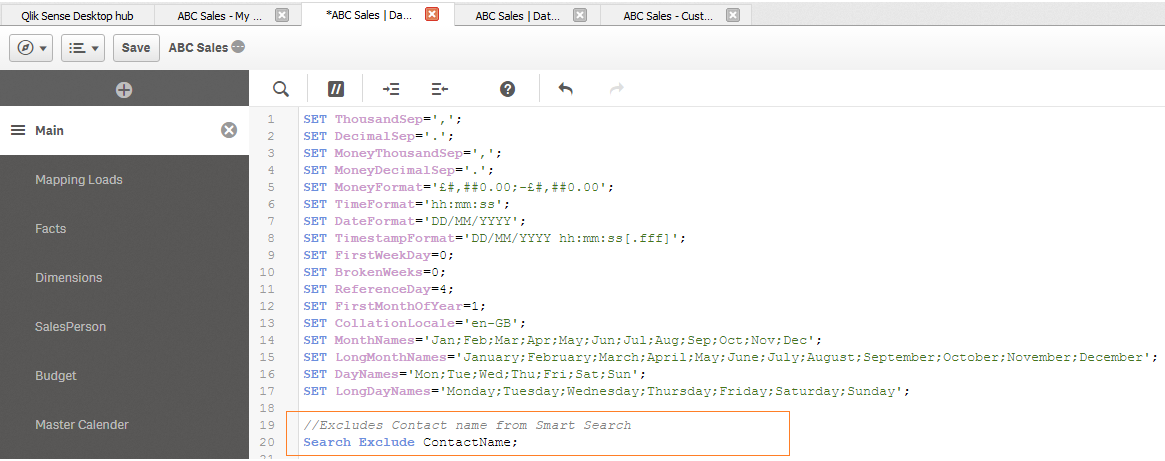
....and reload.
When I search again for “Rob” you can now see ContactName excluded from the results:
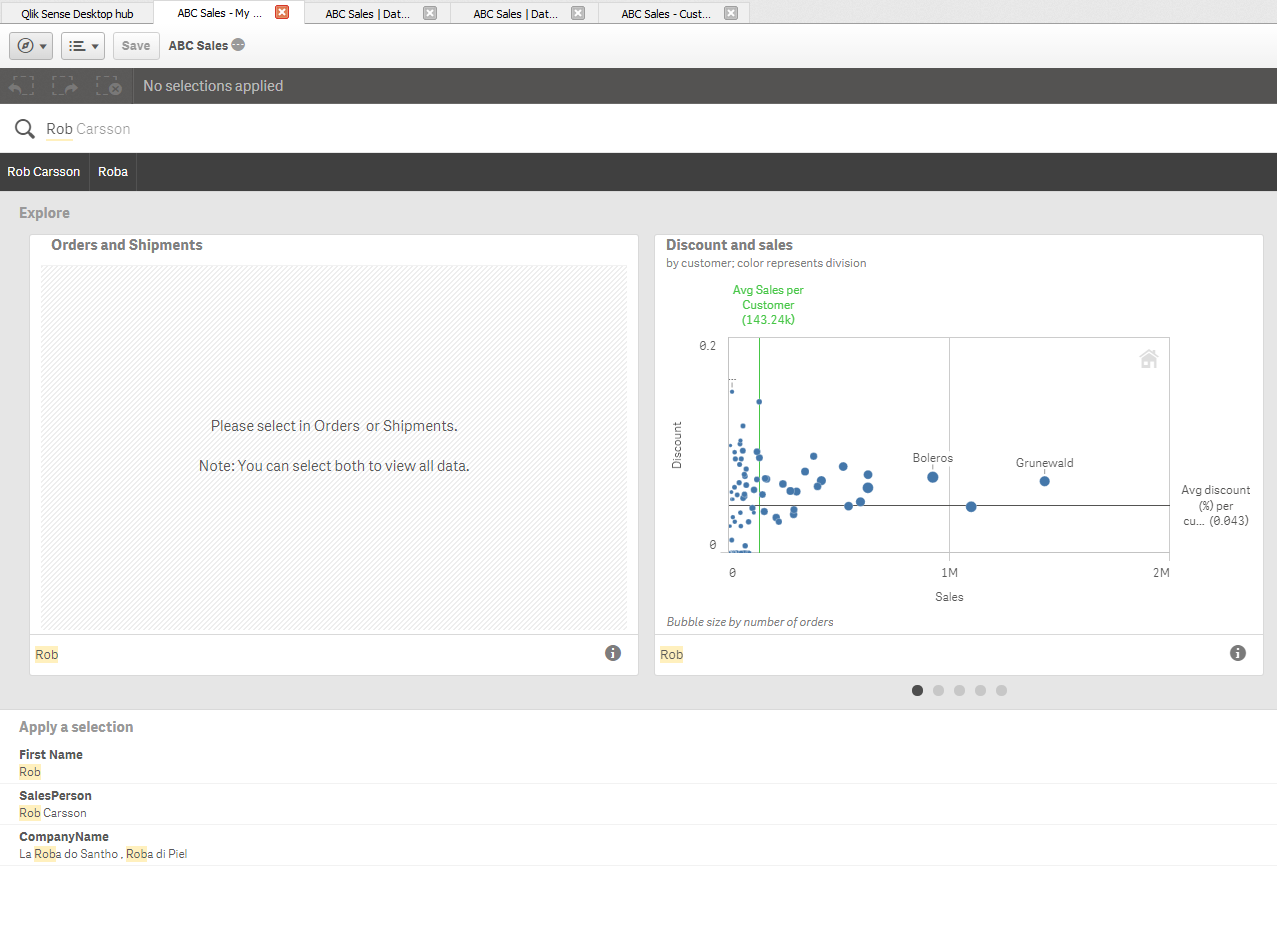
Tip: If you want to exclude multiple fields, simply list the fields you want to exclude using comma separators while ensuring your field name syntax is correct.
Search exclude field1,field2,field3;
Another common scenario may be you want to hide most of the ID fields from your Smart Search (maybe because they are only needed for the data model building process).
A possible way you can achieve this is through the following syntax:
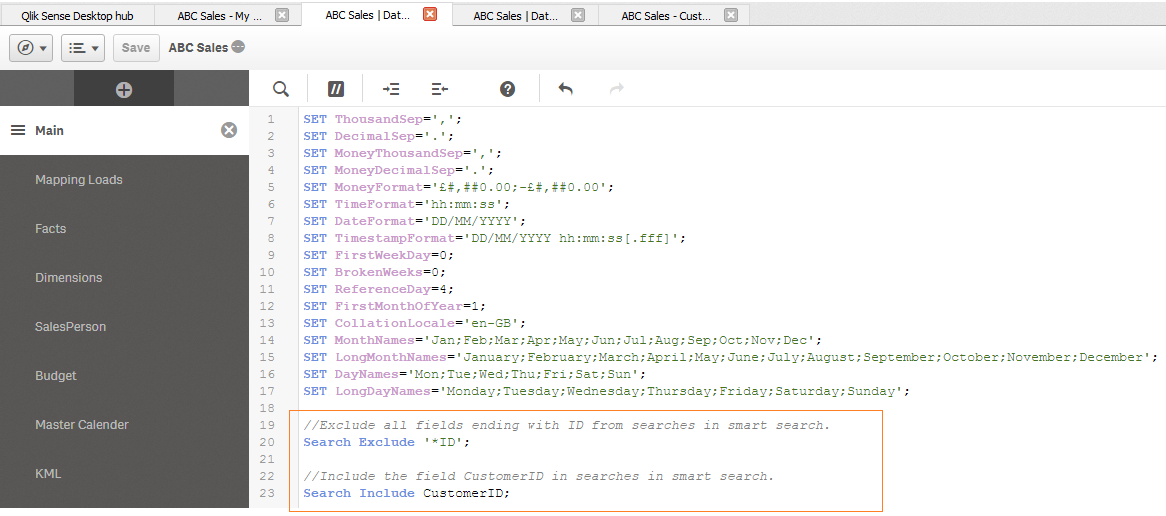
The above contains two lines of code:
- Search Exclude '*ID';
- This excludes all fields ending with ID from searches in Smart Search.
- Search Include CustomerID;
- This includes the field CustomerID in searches in Smart Search.
This way I am ensuring all but one ID field is included in my Smart Search.
We hope through this post you can see how the Search syntax along with Exclude and Include keyword clauses is a simple yet powerful way to control which fields a user can search on your Qlik Sense application. It also speeds up the search index creation when the data model is first loaded.
For a full list of services offered by Qlik Consulting check out: http://www.qlik.com/us/services/qlik-consulting.
Regards,
Mitul Vadgama
Consulting Services, UK
For more information on the Smart Search feature check out these videos:
You must be a registered user to add a comment. If you've already registered, sign in. Otherwise, register and sign in.