Unlock a world of possibilities! Login now and discover the exclusive benefits awaiting you.


 Jennell_Yorkman
- Subscribe to RSS Feed
- Mark as New
- Mark as Read
- Bookmark
- Subscribe
- Printer Friendly Page
- Report Inappropriate Content
How can a button be used in a QlikView app to dynamically select the last 3 months? I was asked that question a few weeks ago and thought it would make a good blog topic. It can easily be done and can provide the user with a quick way to filter data by a timeframe. Now there are other ways of doing this besides using a button for instance List Boxes can be used to select the desired dates. In this example, I have used a Text Object to do this.
In a Text Object, I add actions that clear certain fields and then make some selection(s). But before I do that I create variables that will be used in the actions. For example, if I wanted two Text Objects that select the last 7 days and the past 3 months, I would first create a variable that stores the current date (let’s assume the current date is July 1, 2014) and then add additional variables for the two timeframes: past 7 days and past 3 months. I added the following to my script and reloaded it.
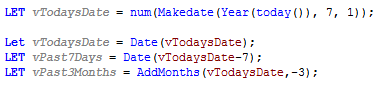
The script creates a variable, vTodaysDate, that stores the current date (July 1, 2014) in the appropriate date format (as set in the SET DateFormat=’M/D/YYYY’ line in the beginning of the script) and then creates variables for the past 7 days and past 3 months. The value of the variables once the app is reloaded is as follows:
vTodaysDate = 7/1/2014
vPast7Days = 6/24/2014
vPast3Months = 4/1/2014
These variables are then used in the action of the Text Object to select the specified timeframe. So to see how this will work, let’s review the actions that are used for the Past 7 days and the Past 3 months Text Objects seen in the image below.
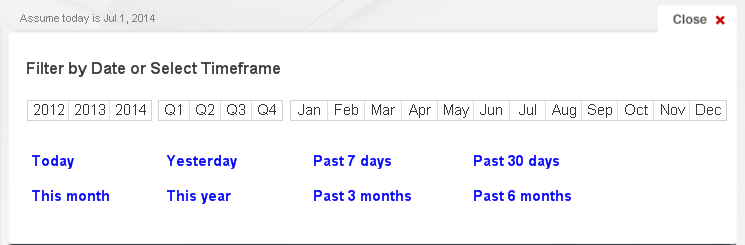
The Past 7 days Text Object would have the following actions:
| Action Sort Order | Action | Field | Search String |
|---|---|---|---|
| 1 | Clear Field | OrderDate | |
| 2 | Clear Field | Year | |
| 3 | Clear Field | Month | |
| 4 | Clear Field | Quarter | |
| 5 | Select in Field | OrderDate | =’>=$(vPast7Days)’ |
The OrderDate, Year, Month and Quarter fields are cleared and then order dates that are greater than or equal to 6/24/2014 are selected.
The Past 3 months Text Object would have the following actions:
| Action Sort Order | Action | Field | Search String |
|---|---|---|---|
| 1 | Clear Field | OrderDate | |
| 2 | Clear Field | Year | |
| 3 | Clear Field | Month | |
| 4 | Clear Field | Quarter | |
| 5 | Select in Field | OrderDate | =’>=$(vPast3Months)’ |
The OrderDate, Year, Month and Quarter fields are cleared and then order dates that are greater than or equal to 4/1/2014 are selected.
Making these selections by clicking a Text Objects with actions can be easier than selecting multiple dates from an OrderDate List Box. When the user has the need to view the data based on predefined timeframes, Text Objects or Buttons can be used to simplify the process. You can find an example of how to create timeframe links in my technical brief that adds timeframe selections to the Dashboard sheet of the Sales Management and Customer Analysis demo.
Thanks,
Jennell
You must be a registered user to add a comment. If you've already registered, sign in. Otherwise, register and sign in.