Do not input private or sensitive data. View Qlik Privacy & Cookie Policy.
Skip to main content

Announcements
Qlik Connect 2026 Agenda Now Available: Explore Sessions
Charles_Bannon
Employee
Employee

As QlikView developers, one of our main focuses is on the user experience. There are many instances where objects only need to be shown upon the user’s request. An example of this is list boxes (filters). With the use of conditional expressions, a QlikView developer can make the list boxes available when the user needs them.

I have seen too many applications where list boxes take up most of the design area available to the developer. Invariably you get the same response, “It is what the users want”. And while I am sure they “need” all of the list boxes, they just do not need them on the screen the entire time.  So how do you get around this demand for list boxes? Create a “Filters” button and have the user show and hide the list boxes whenever they want.

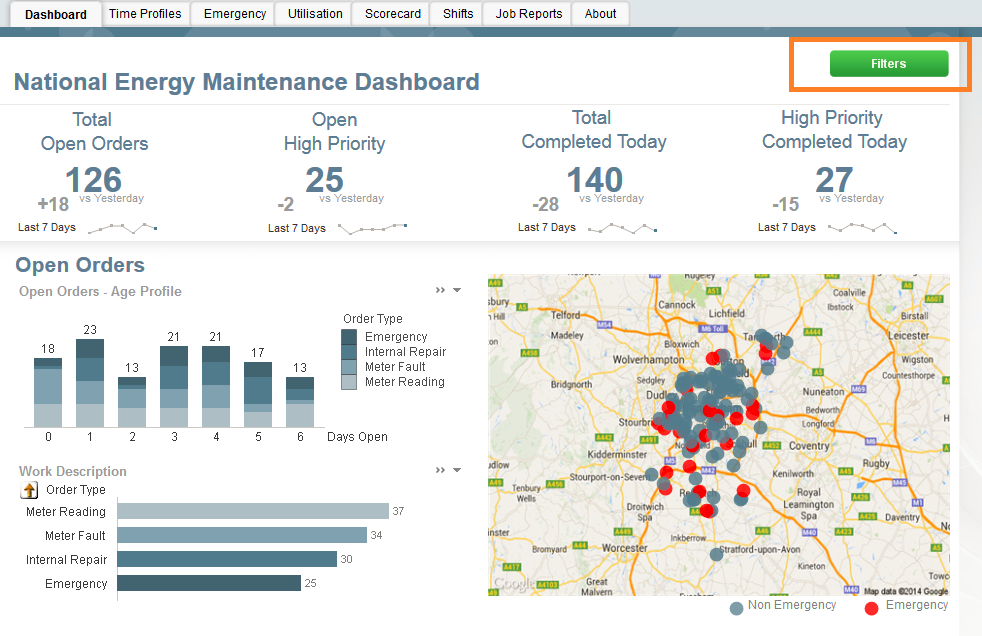
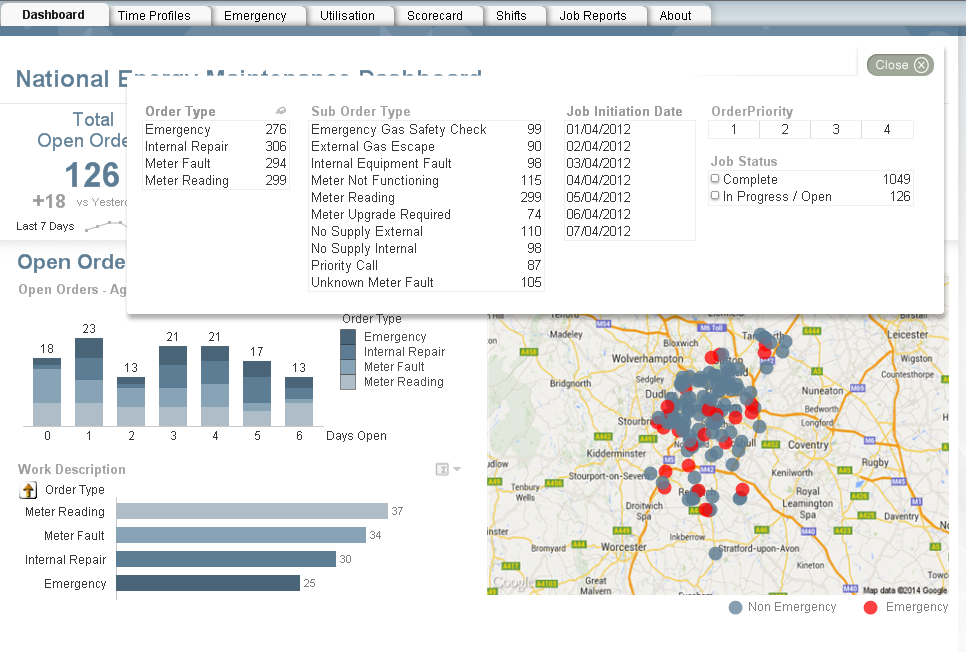
For this first example, I will reference the Workforce Management demo. On the dashboard below there are no visible list boxes. The lack of list boxes opens up more space to the developer. Instead of making the list boxes available at all times, we have a Filters button which, when invoked, will display the filters over top of the visualizations. Once the user makes the appropriate selections, he/she can close the filter panel and continue with his/her discovery.  This is done by setting a variable and conditionally showing the objects based on the current value of the variable. The beauty of this approach is that the user gets to have the filters that he/she needs and the developer does not lose any display area.

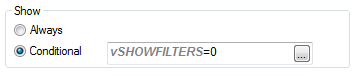
Here you can see the filter button with a conditional show. When invoked, there is an action to change the variable to 1 which makes the filters button disappear and makes the filter objects appear.
ShowFilters1.png

ShowFiltersScreenshot1.png

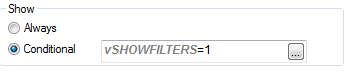
All of the filter objects have the same show conditional. When the user selects the close button, the variable is changed back to 0 which makes the filter objects disappear and the Filters button reappear.
ShowFilters2.png

ShowFiltersScreenshot2.png

This approach can also be used if you need to show/hide help/information pop-ups as shown here in the IT Asset Management demo.
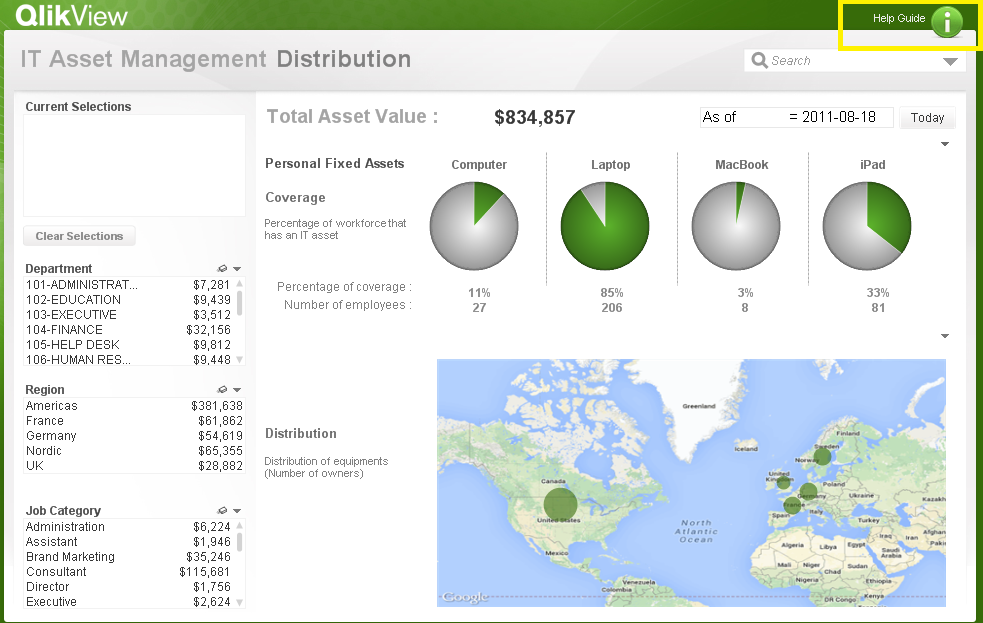
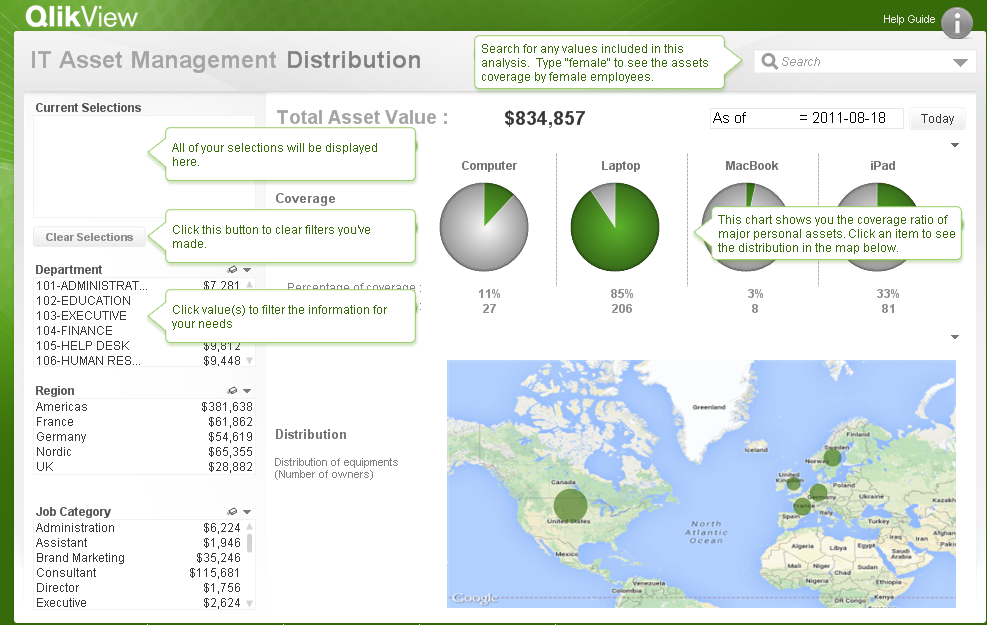
InfoScreenshot1.png

InfoScreenshot2.png

If you would like to see how the filter and the help/information buttons were developed, the QVWs can be downloaded from the demo site. As was stated earlier, the filter example referenced the Workforce Management demo and the Help/Info button referenced the IT Asset Management demo. Happy Qliking!

24 Comments
Anonymous
Not applicable

Charles:

I 've seen the demo & I use this technique when I think it is useful (very often).

Thanks for posting & share.

CB.

2,336 Views
Anonymous
Not applicable

Real estate (or lack of) is such a critical aspect of application design (especially for tablets). Progressive disclosure like this is a great way to maximize display whilst focusing functionality. Great article Charles - you've shown just how easy it can be achieved!

I'd add that you can easily use the same button to 'toggle' your filters or help on/off. Use the 'Set Variable' action, your variable vSHOWFILTERS, and the value set to =mod(vSHOWFILTERS+1,2)

0 Likes
2,336 Views
Anonymous
Not applicable

Importantly this type of design ensures that users are able to utilise Qlikview's association model. If you use a multibox then it is difficult to view associations. Also if you limit a tab to only a few filters then again this removes the impact of the association model.

0 Likes
2,336 Views
kouroshkarimi
Creator III
Creator III

Charles, glad to see something on this finally on the design blog. I've been using this technique for years and on pretty much every dashboard to great effect. You may want to consider discussing conditional expressions and dimensions as well at some point.

0 Likes
2,336 Views
Brice-SACCUCCI
Employee
Employee

Hi,

great post that shows how easy it is to enhance the basic QlikView experience!

I think the first example lacks the view of the current selections. This is one of the interest of showing the most important filters permanently and the "current selections" object, like the second example does.

Also, it is important to keep the green-white-gray somewhere on the screen so that the user can know what he/she is seeing at a glance and exploits the associative power of QlikView (the gray values !) .

One of the most important concepts in usability is this ability to quickly understand what I'm seeing, like the "Breadcrumb" feature on e-commerce websites for instance.

I'd suggest a mixed approach with the main filters always visible and a "More Filters" button to expand the filtering capabilities. Or maybe have a way to display or hide a filter panel inside the page, not on top of it. I haven't seen this on any of our demos yet but I already done that on an app by using two tabs with linked objects. A little hard to maintain but the result is interesting.

2,336 Views
Anonymous
Not applicable

Agree with Brice SACCUCCI.

It is essential that user knows what he is looking at, that is what is currently selected.  I usually recommend to show always one of these:
- Current Selections
- Key Filters

And, use a button to switch between these two.  Doesn't take too much space in most cases.

In addition, when user is in the "Filters" view, it makes sense to conditionally show "additional filters" if necessary, as Charles Bannon has described.

Regards,

Michael

0 Likes
2,336 Views
rwunderlich
Partner Ambassador/MVP

Steve Street

I find a slightly simpler expression to toggle the flag is:

=NOT vSHOWFILTERS

2,039 Views
Anonymous
Not applicable

Thanks Rob!

0 Likes
2,039 Views
rwunderlich
Partner Ambassador/MVP

That's a really great example on your blog Rebecca.

If we could only get object grouping implemented in QV, the user could drag the whole selection "thing" around to where they wanted it. That would be nice!

-Rob

2,039 Views
Marcio_Campestrini
Specialist
Specialist

Thanks for the post.

0 Likes
2,039 Views