Unlock a world of possibilities! Login now and discover the exclusive benefits awaiting you.

- Qlik Community
- :
- Blogs
- :
- Technical
- :
- Design
- :
- Mode Function

 Jennell_Yorkman
- Subscribe to RSS Feed
- Mark as New
- Mark as Read
- Bookmark
- Subscribe
- Printer Friendly Page
- Report Inappropriate Content
Have you ever heard of the Mode function? Until recently, I was not aware of this function. The Mode function can be used in the script or in a chart to find the most commonly-occurring value in aggregated data. I will show you how it works by loading the small data set below.
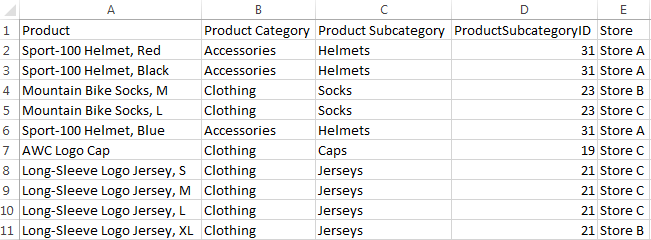
Now that I have loaded this data, I may want to see which Product Category or Product Subcategory occurs the most. To do this in Qlik Sense, I can add a Text & image object to a sheet and add the measure Mode([Product Category]) or Mode([Product Subcategory]).
- Mode([Product Category]) returns Clothing because it is the most common value in the Product Category field.
- Mode([Product Subcategory]) returns Jerseys because it is the most common value in the Product Subcategory field.
Making selections can affect the data returned by the Mode function. For instance, if I selection Store A, Accessories will be the most common product category and Helmets will be the most common product subcategory. If I want to avoid these values changing when I make selections, I can simply use the set analysis expression {1} which will evaluate all records and ignore any selections I have made.
- Mode({1} [Product Category])
- Mode({1} [Product Subcategory])
The Mode function can also be used in the script to determine the most commonly-occurring value. The key to remember when using the Mode function in the script is to use the Group By clause. By using the Group By clause, you are indicating what field the values should be aggregated by. In the script below, I am loading the products in the first load script and then in the second load script, I am using the Mode function to determine the most commonly-occurring store by Product Category.
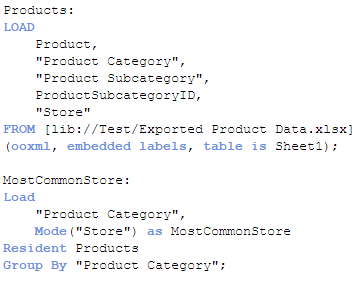
The results will look like this:

For the Accessories product category, Store A is the most common and for Clothing, Store C is most common. If there is not one single value that occurs more than the others, then the Mode function will return NULL.
The Mode function provides a quick way to see which value occurs the most in aggregated data. It can be used with text data, as done in the examples show here, or with numeric data. Hopefully, you learned something new as I did about one of the many functions offered in Qlik Sense and QlikView.
Thanks,
Jennell
You must be a registered user to add a comment. If you've already registered, sign in. Otherwise, register and sign in.