Do not input private or sensitive data. View Qlik Privacy & Cookie Policy.
Skip to main content

Announcements
Qlik and ServiceNow Partner to Bring Trusted Enterprise Context into AI-Powered Workflows. Learn More!
hic
Former Employee
Former Employee

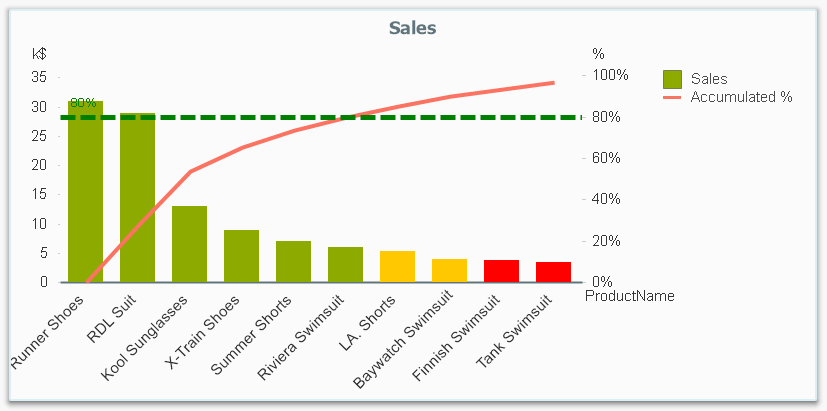
“Which products contribute to the first 80% of our turnover?”

This type of question is common in all types of business intelligence. I say “type of question” since it appears in many different forms: Sometimes it concerns products, but it can just as well concern any dimension, e.g. customer, supplier, sales person, etc. Further, here the question was about turnover, but it can just as well be e.g. number of support cases, or number of defect deliveries, etc.
 

QV Bar chart.png


It is called Pareto analysis or ABC analysis and I have already written a blog post on this topic. However, in the previous post I only explained how to create a measure which showed the Pareto class. I never showed how to create a dimension based on a Pareto classification – simply because it wasn’t possible.


But now it is.


But first things first. The logic for a Pareto analysis is that you first sort the products according to their sales numbers, then accumulate the numbers, and finally calculate the accumulated measure as a percentage of the total. The products contributing to the first 80% are your best, your “A” products. The next 10% are your “B” products, and the last 10% are your “C” products. In the above graph, these classes are shown as colors on the bars.


The previous post shows how this can be done in a chart measure using the Above() function. However, if you use the same logic, but instead inside a sorted Aggr() function, you can achieve the same thing without relying on the chart sort order. The sorted Aggr() function is a fairly recent innovation, and you can read more about it here.


The sorting is needed to calculate the proper accumulated percentages, which will give you the Pareto classes. So if you want to classify your products, the new expression to use is


=Aggr(
    If(Rangesum(Above(Sum({1} Sales)/Sum({1} total Sales),1,RowNo()))<0.8, 'A',
        If(Rangesum(Above(Sum({1} Sales)/Sum({1} total Sales),1,RowNo()))<0.9, 'B',
            'C')),
    (Product,(=Sum({1} Sales),Desc))
    )


The first parameter of the Aggr() – the nested If()-functions – is in principle the same as the measure in the previous post. Look there for an explanation.


The second parameter of the Aggr(), the inner dimension, contains the magic of the sorted Aggr():


    (Product,(=Sum({1} Sales),Desc))


This structured parameter specifies that the field Product should be used as dimension, and its values should be sorted descending according to Sum({1} Sales). Note the equals sign. This is necessary if you want to sort by expression.


So the Products inside the Aggr() will be sorted descending, and for each Product the accumulated relative sales in percent will be calculated, which in turn is used to determine the Pareto classes.


The set analysis {1} is necessary if you want the classification to be independent of the made selection. Without it, the classification will change every time the selection changes. But perhaps a better alternative is to use {$<Product= >}. Then a selection in Product (or in the Pareto class itself) will not affect the classification, but all other selections will.


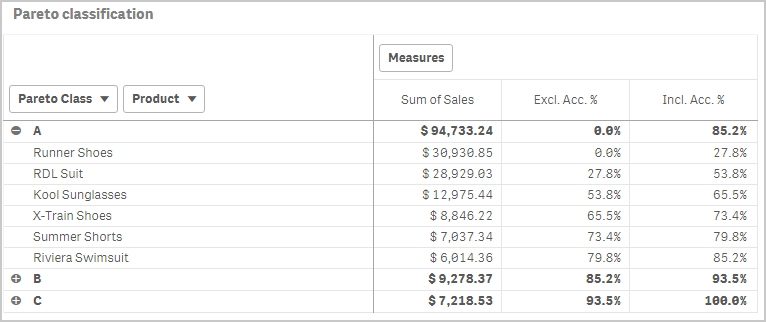
The expression can be used either as dimension in a chart, or in a list box. Below I have used the Pareto class as first dimension in a pivot table.
 

QS Pivot.png


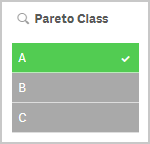
If you use this expression in a list box, you can directly select the Pareto class you want to look at.
 

QS List box.png


The other measures in the pivot table are the exclusive and inclusive accumulated relative sales, respectively. I.e. the lower and upper bounds of the product sales share:


Exclusive accumulated relative sales (lower bound):


=Min(Aggr(
    Rangesum(Above(Sum({1} Sales)/Sum({1} total Sales),1,RowNo())),
    (Product,(=Sum({1} Sales),Desc))
  ))


Inclusive accumulated relative sales (upper bound):


=Max(Aggr(
    Rangesum(Above(Sum({1} Sales)/Sum({1} total Sales),0,RowNo())),
    (Product,(=Sum({1} Sales),Desc))
  ))


Good luck in creating your Pareto dimension!


HIC


Further reading related to this topic:

The sortable Aggr function is finally here!

Recipe for a Pareto Analysis

Recipe for an ABC Analysis

86 Comments
SDT
Creator
Creator

Great post with excellent longevity! Thank you all.

I am using the sorted aggregation to get the # of items making up 80% of revenue.

It works fantastic if I select a single fiscal year. What I would like is to create a visual over time showing how many items made up 80% of revenue each fiscal year. I built a bar chart with FiscalYear as the dimension and added FiscalYear to the sorted aggregation. It still does not work (unless I select a single fiscal year).

=COUNT(DISTINCT
AGGR(If(RANGESUM(ABOVE(SUM({<FLXID=>} InvoicedAmt)/SUM({<FLXID=>} TOTAL InvoicedAmt),1,RowNo()))<0.8, FLXID),
FiscalYear,(FLXID,(=SUM({<FLXID=>} InvoicedAmt),desc))))

I'm guessing it has to do with the ABOVE() function? Any help would be greatly appreciated.


Cheers,

Steve


0 Likes
842 Views
marcus_sommer

You may try to return multiple value for the aggr() and/or adding a total to the above():

=COUNT(DISTINCT
AGGR(NODISTINCT If(RANGESUM(ABOVE(TOTAL SUM({<FLXID=>} InvoicedAmt)/SUM({<FLXID=>} TOTAL InvoicedAmt),1,RowNo()))<0.8, FLXID),
FiscalYear,(FLXID,(=SUM({<FLXID=>} InvoicedAmt),desc))))

0 Likes
833 Views
SDT
Creator
Creator

Thank you very much @marcus_sommer . I tried this and it still does not work. When I select a single fiscal year, I get a different result than when showing all fiscal years.


0 Likes
827 Views
marcus_sommer

Maybe it's caused from the aggr-sorting which didn't include the FiscalYear or in other words you may need to wrap the sorting-expression also with an aggr().

0 Likes
794 Views
SDT
Creator
Creator

I tried this and still not working correctly...

COUNT(DISTINCT
AGGR(
IF(RANGESUM(ABOVE(
SUM({<FLXID=>} TOTAL <FiscalYear,FLXID> InvoicedAmt)/SUM({<FLXID=>} TOTAL <FiscalYear> InvoicedAmt)
,1,RowNo()))<0.8, FLXID),
(FiscalYear,(Numeric,Ascending)),(FLXID,(=SUM({<FLXID=>} InvoicedAmt),desc))))

0 Likes
789 Views
marcus_sommer

It was more meant in this direction:

=COUNT(DISTINCT
AGGR(NODISTINCT If(RANGESUM(ABOVE(TOTAL SUM({<FLXID=>} InvoicedAmt)/SUM({<FLXID=>} TOTAL InvoicedAmt),1,RowNo()))<0.8, FLXID),
FiscalYear,(FLXID,(=aggr(SUM({<FLXID=>} InvoicedAmt), FiscalYear),desc))))

Such kind of task could become quite tricky. Therefore it's also important to understand what happens by the attempts which didn't return the expected results. Maybe some goes partly in the wanted direction and they might be combined in another way ...

Personally I would change the object to a table-chart to be able to use n expressions in parallel with different versions respectively their parts. Further helpful could be to simplify the testing by removing any conditions (if-loops as well as the set analysis) which isn't necessary to get a working logic and just reducing the sub-set of data per selections (maybe just a few dozen records). 

0 Likes
782 Views
SDT
Creator
Creator

Good suggestion on the straight table. I built one out with FiscalYear and Item (FLXID) in separate columns and then broke down the expression into its parts. I got it working well up to the point where it only shows an item if it is in the top 80% of revenue for that fiscal year.

I duplicated the table and removed the item dimension. Now the expression below returns 100%, 200%, and 300% for each fiscal year. The table has a total of 3 lines. I'm thinking I need an aggregation here. Tried a few variants with no luck. Ideally it should read 100% for each fiscal year.

RANGESUM(ABOVE(
SUM({<FLXID=>} InvoicedAmt)/SUM({<FLXID=>} TOTAL <FiscalYear> InvoicedAmt)
    ,0,RowNo()))
0 Likes
755 Views
SDT
Creator
Creator

Note that the table with the items and fiscal years is correctly sorted by year and then item based on descending revenue for that item in that year. 

As soon as I add the RANGESUM() expression above, it changes the sorting. I have also tried the following with zero luck.

{<BridgeDateType={'Invoiced'}, OrderState={'Invoiced'}, InvoicedAmt={">0"}>}
AGGR(RANGESUM(ABOVE(
SUM({<FLXID=>} InvoicedAmt)/SUM({<FLXID=>} TOTAL <FiscalYear> InvoicedAmt)
    ,0,RowNo()))
,(FiscalYear,(FLXID(SUM({<FLXID=>} InvoicedAmt),desc))))
0 Likes
745 Views
SDT
Creator
Creator

OK, I built a table with Fiscal Year and the expression below.

Then I added two more columns where I added the fiscal year to the top line set analysis.

Those two columns show the correct results for each fiscal year. The expression below only shows the correct numbers when a single fiscal year is selected.

{<BridgeDateType={'Invoiced'}, OrderState={'Invoiced'}, InvoicedAmt={">0"}>}
COUNT(DISTINCT
AGGR(
If(RANGESUM(ABOVE(
SUM(InvoicedAmt)/SUM(TOTAL <FiscalYear> InvoicedAmt)
,1,RowNo()))<0.8, FLXID),
FiscalYear,(FLXID,(=SUM(InvoicedAmt),desc))))

SDT_0-1739566833898.png


0 Likes
737 Views
Oleg_Troyansky
Partner Ambassador/MVP

@SDT - in a complex calculation like this, many things could potentially go wrong. While it's hard to be certain without testing the actual app, I believe the following is the most likely issue.

When you calculate Pareto counts within each Fiscal Year, you need to sort your Items (FLXID) in the context of each year. However, your formula, specifically the part that is sorting FLXID, is going to sort the Items by the summarized invoice amounts "globally", i.e. not considering Fiscal Year. The only solution to this problem that I can think of, is to create a combo field FLXID|FY and use that combo as the second dimension of AGGR(). I believe that should work.

As a side note, I believe you should use 0 as the second parameter to your ABOVE() function if you want the calculation to include the current raw (and I believe you should want that).

Cheers,

Oleg Troyansky


0 Likes
715 Views
