Do not input private or sensitive data. View Qlik Privacy & Cookie Policy.
Skip to main content

Announcements
April 13–15 - Dare to Unleash a New Professional You at Qlik Connect 2026: Register Now!
hic
Former Employee
Former Employee


An ABC analysis is a dynamic bucket classification of e.g. products, based on some property, usually the sales number. The best products are your "A" products and the worst are your "C" products.

It is used in all types of business intelligence applications and can appear in many different forms: It can concern any dimension, e.g. customer, supplier, sales person, etc. and be based on any measure. The sales number is one example, but it can just as well be e.g. number of support cases, or number of defect deliveries, etc.

One way to make an ABC analysis is to use a Pareto analysis where the classification is based on the accumulated number after the entities have been sorted according to their numbers. The products contributing to the first 80% are usually the A products.

However, the Pareto analysis, as described in the above blog post, is sometimes limiting: It is for instance not easy to use several dimensions, and it is not possible to define the ABC classes as a dimension. Hence, it is sometimes better to use an alternative classification function:

The Rank.

QlikView has a Rank() function that is well suited for this purpose. With it, you can rank any dimension according to any expression. You can use several dimensions and you can define your ABC classes as dimensions. The logic is that you calculate a relative rank, i.e. you divide the rank of the product with the total number of products:

     (Rank(Sum(Sales),1)-1) / Count(distinct total Product)

If this number is lower than 0.5 the product belongs to the better 50% and thus to the “A” products. Similarly you can use 0.75 as a limit for belonging to group “B”. The result will be very similar to a Pareto analysis.
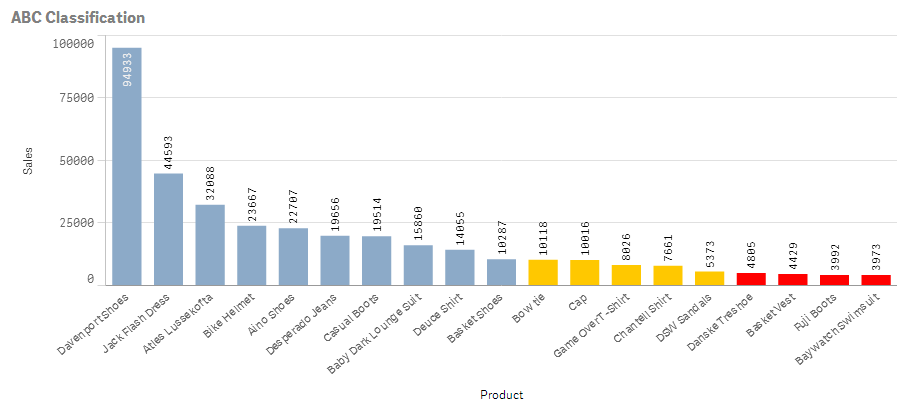
Sense Bar chart.png


One possibility is to use colors to display the classification:

  1. Create a bar chart and choose your dimension and your basic measure. In the example below, I use Product and Sum(Sales) labeled as “Sales”.

  2. Set the color of the bars to
    If((Rank(Sum(Sales),1)-1) / Count(distinct total Product) < 0.50, RGB(140,170,200),
    If((Rank(Sum(Sales),1)-1) / Count(distinct total Product) < 0.75, RGB(255,200,0), LightRed()))
    In QlikView you do this under the expression “Background color” and in Qlik Sense you do it under “Appearance” – “Colors and Legend” for the object.


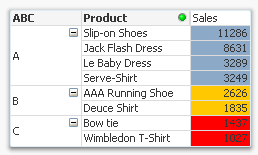
But you can also use this method to create a field or a calculated dimension, which means that you can make the ABC classes selectable:

     Aggr( If((Rank(Sum(Sales),1)-1) / Count(distinct total Product)< 0.50, 'A',
          If((Rank(Sum(Sales),1)-1) / Count(distinct total Product)< 0.75, 'B', 'C')),
          Product)
As Dimension.png


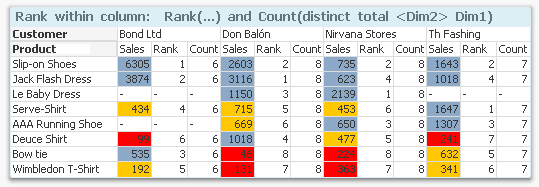
Finally, if you want to use ranking in a two-dimensional chart, you can use the same logic. However, you must first decide how the rank should be calculated. Normally you would want the ranking to be done within each group defined by the second dimension, i.e. per column in a pivot table:
Two-dimensional per column.png


The above chart shows sales per product and customer. The colors define the classes and the rank and the count is done within each column, i.e. the products are classified within each customer. The following expression was used:

     If((Rank(Sum(Sales),1)-1) / Count(distinct total <Customer> Product)< 0.50, RGB(140,170,200),

     If((Rank(Sum(Sales),1)-1) / Count(distinct total <Customer> Product)< 0.75, RGB(255,200,0), LightRed()))


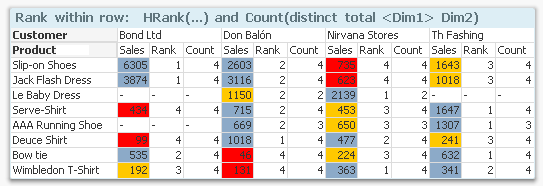
But you may also want to do the ranking within each group defined by the first dimension, i.e. classify the customers within each product. Then you need to swap place of Customer and Product in the formula, and you need to use HRank() instead:

     If((HRank(Sum(Sales),1)-1) / Count(distinct total <Product> Customer)< 0.50, RGB(140,170,200),

     If((HRank(Sum(Sales),1)-1) / Count(distinct total <Product> Customer)< 0.75, RGB(255,200,0), LightRed()))
 

Two-dimensional per row.png


Good luck in creating your ABC analysis!

HIC


Further reading related to this topic:

Recipe for a Pareto Analysis

37 Comments
hic
Former Employee
Former Employee

I think we both agree that the Pareto method is the more advanced method, and by far the most used method. So of course you find references to this.

The ranking method is simpler, not so frequently used, and need not be described since anyone can first sort and then group. So of course you don't find references to this.

But both methods group the customers in good-average-bad buckets, i.e. makes an ABC grouping. What you want to call an analysis using the ranking method is of course a matter of taste, but as I see it, the grouping is an ABC grouping, and then you should not hide this. If it walks like a duck...

You are right that in QlikView, you can create an action that makes a Pareto select. And this is not possible in Qlik Sense. But a selection that selects only the A group is not the same as having the ABC classification as a dimension where you will see all groups. My point with this blog post is that you can have the ABC classes as dimension, but only if you use the ranking method.

Then you write that "In standard QlikSense application we can not get a list of customers that contribute to the first 80% of my sales". But this is not true. The method used in Recipe for a Pareto Analysis can successfully be implemented also in Qlik Sense.

HIC

0 Likes
959 Views
vadimtsushko
Partner - Creator III

But both methods group the customers in good-average-bad buckets, i.e. makes an ABC grouping. What you want to call an analysis using the ranking method is of course a matter of taste, but as I see it, the grouping is an ABC grouping, and then you should not hide this. If it walks like a duck...

I still think ABC grouping is more specific term then `good-agerage-bad` classification by arbitrary method. And, more importantly, business users I meet share that common meaning. But I see your point, we can agree to disagree on that definition.

Then you write that "In standard QlikSense application we can not get a list of customers that contribute to the first 80% of my sales". But this is not true. The method used in Recipe for a Pareto Analysis can successfully be implemented also in Qlik Sense.

If I understand it correctly, that method still cannot be used to set selection in Qlik Sense to get list of products that contribute to the first 80% of my sales. I meant just that scenario - to set a filter to a group A and to proceed with further analyses.

We are doing that in our QlikView projects without Pareto select: We can just search in measure with accumulated percentage for values < 80%, like that:

2016-09-06_13-08-44.png

2016-09-06_13-12-10.png


I believe that scenario still is impossible in standard QlikSense application. We can do something like this, or even better (to make dynamic ABC calculated dimension) within mashup application though.

Like this:

2016-09-06_13-28-25.png

0 Likes
959 Views
caiogil1
Contributor III
Contributor III

How can I create a bar chart with this dimension? Like using the %accumulative, group A up to 80% of total sales, group B 80% to 95%, C...


Maybe I have to use other expression than this one, right?


Aggr( If((Rank(Sum(Sales),1)-1) / Count(distinct total Product)< 0.50, 'A',

          If((Rank(Sum(Sales),1)-1) / Count(distinct total Product)< 0.75, 'B', 'C')),

          Product)

0 Likes
959 Views
hic
Former Employee
Former Employee

If you accept using the Rank method, then you should use the formula you mention in your question. But if you instead want to use the Pareto method (See Recipe for a Pareto Analysis) then it is not possible to define it dynamically as a dimension. I have at least not found a way.

You can define it statically in the script using a combination of Group By and Order By, but this is not as useful as having it dynamically.

HIC

0 Likes
959 Views
MMachado
Contributor II
Contributor II

Hi Henric. 

First of all, great post.

I used your formula and it worked. But I'm facing a problem when select dthe ABC dimension. It's like the formula recalculate everything, and then even if I select a 'B' classification, after selection it's shown as 'A'.

this is my expression for table:

MMachado_0-1595717648770.png

this is the table before selection:

MMachado_1-1595717856536.png

this is the table after 'C' selection:

MMachado_3-1595718171437.png

Do you have any guesses?

Tks, Marcelo.

0 Likes
790 Views
barnabyd
Partner - Creator III

G'day Marcelo,

I usually solve this sort of problem by calculating the ABC dimension in the load script. The calculated dimension is then not required in the UI.

This is normally fine unless you need user controlled limits with variables.

Cheers,

Barnaby. 

0 Likes
781 Views
MMachado
Contributor II
Contributor II
Hi! good sugestion. by the way, do you have an example of ABC script?
Tks.
0 Likes
785 Views
