Unlock a world of possibilities! Login now and discover the exclusive benefits awaiting you.

- Qlik Community
- :
- Blogs
- :
- Technical
- :
- Design
- :
- The Expression Search

.png "Former Employee") hic
hic
- Subscribe to RSS Feed
- Mark as New
- Mark as Read
- Bookmark
- Subscribe
- Printer Friendly Page
- Report Inappropriate Content
Any search string beginning with an equals sign will be interpreted as an expression search, e.g.:
=Sum(Sales)>80000
If you use this search string in a field listing customers, it will pick out customers for which the total sales number is more than 80000. This means that the Qlik engine will create a hypercube – the same as what you have in a chart – with Customer as dimension and Sum(Sales)>80000 as measure, and use this to determine the search result.
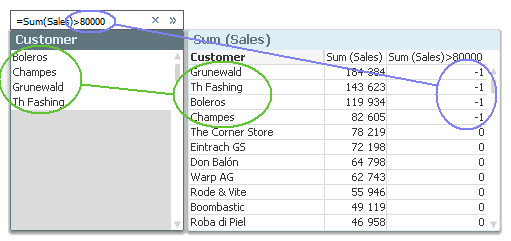
You can of course use the same search string in any field, e.g. Products or Months. But the results will be different, just as the different charts would show different numbers.
There are many implications of the above; implications you need to be aware of in order to make correct use of an expression search.
First of all: A hypercube is normally based on the current selection, which means that the search will not include excluded values. This is different from the wildcard search and the numeric search where the search is made in the symbol tables that hold all values, also excluded ones. If you want to include excluded values in your search, you need to use Set Analysis in your search string, e.g.:
=Sum({1} Sales)>80000
Further, the search string is a Boolean expression. This means that you can have several criteria, e.g.:
=Sum(Sales)>80000 or Count(distinct OrderID)>100
But it also means that you can simplify your expression, using the fact that all non-zero numbers are interpreted as TRUE. As an example, the two following expressions are equal:
=Count(If(Product='Trousers', OrderID))>0
=Count(If(Product='Trousers', OrderID))
Finally, the expression search implies an aggregation. This means that you must use an aggregation function. If you don’t, the Only() function will be used. For example, if you want to search for customers from a specific country, you can write
=Country='Germany'
This will work fine if each customer is associated with one country only. However, it will not work if there are several possible values per customer. For example, if you instead want to search for customers that have bought a specific product, you might try:
=Product='Trousers'
Then you will find some customers, but probably not the ones you are looking for. You will find those that have bought only trousers and nothing else, since it is interpreted as Only(Product)='Trousers'. If you want to find all customers that have bought trousers and perhaps also other products, you should instead try one of the following
=Count(If(Product='Trousers', OrderID))>0
=Count({$<Product={'Trousers'}>} OrderID)
=Index(Concat(distinct Product, ','), 'Trousers')
=Sum(Product='Trousers')
I admit that neither of the above expressions is very user-friendly, but it is nevertheless how it works.
If you want a simpler way to find these customers, you will just have to do it the manual way: Click on 'Trousers' in the Product list box, then look at the list of customers. 
Further reading related to this topic:
You must be a registered user to add a comment. If you've already registered, sign in. Otherwise, register and sign in.