Unlock a world of possibilities! Login now and discover the exclusive benefits awaiting you.

- Qlik Community
- :
- Blogs
- :
- Technical
- :
- Design
- :
- The Search String

.png "Former Employee") hic
hic
- Subscribe to RSS Feed
- Mark as New
- Mark as Read
- Bookmark
- Subscribe
- Printer Friendly Page
- Report Inappropriate Content
Obviously, a search is defined by the search string that you enter when you search for something. But there are several different ways a search string can be interpreted. See for instance the picture below: In the normal search to the left you have a different result set from what you get in the wildcard search.
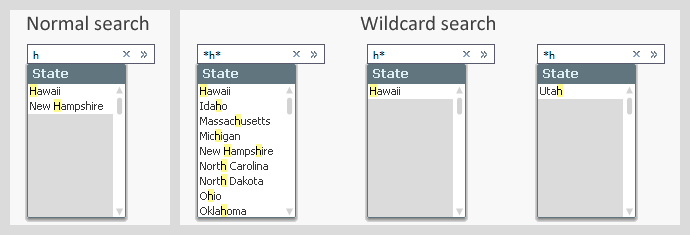
The logic is the following:
- Normal search
The search string is matched against the beginning of every word in the field value. Normal search is used only in interactive searches. - Wildcard search
If the search string contains a wild card or the search string is used in a programmatic search (e.g. in a Set Analysis expression), a wildcard search is made instead of a normal search. This means a strict, case insensitive, match between the search string and the field values, where the only way of representing unknown characters is explicit use of wild cards. - Numeric search
If the search string begins with ‘<’ or ‘>’, a numeric comparison is made. E.g. ‘>=1000’. Only values that fulfill the numeric requirement will be matched. - Expression search
If the search string begins with an equals sign ‘=’, an expression search is made. E.g. ‘=Sum(Sales)>1000’. Then an aggregation is made for each value in the field, and a match is found if the expression is true. This means that you can make a selection in one field based on an aggregation in another field. - Fuzzy search
If the search string begins with ‘~’, a fuzzy search is made. This means that all field values are ranked according to similarity and the top one will be selected when you hit return. - Compound search
Using a compound search, you can express more complicated search conditions with logical operators. Use brackets and ‘&’ or ‘|’, e.g. ‘(California|Nevada)’.
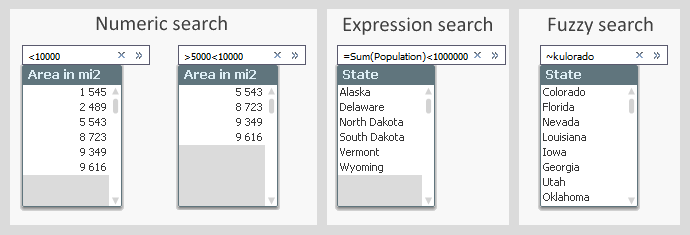
Hence, how the search string is interpreted depends only on which characters it contains. The settings in the list box properties do not affect the evaluation. The "Default Search Mode" only affects how the initial search string is created.
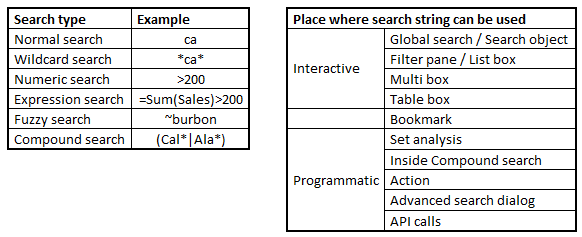
Further, you can use the search string in a number of different places, not just in the search area in the user interface: You can also use it in Set analysis, in actions, in bookmarks, in API calls, etc.
In principle, you can combine any search string with any search place. There are however some anomalies and exceptions. For example, you cannot use normal search or fuzzy search in programmatic searches and you cannot use the advanced search modes in the Qlik Sense global search.
The bookmark deserves a special mention. If a search is made and the resulting selection is stored in a bookmark, the bookmark remembers the search string and not the selection. This means that if new values appear when the script is run, they may be selected by the bookmark, even though they didn’t exist when the bookmark was created.
Further reading related to this topic:
You must be a registered user to add a comment. If you've already registered, sign in. Otherwise, register and sign in.