This article shares a step-by-step process on how to copy straight table data having quotes to Excel using "Add rows to table (Batch)" in Qlik Automate.
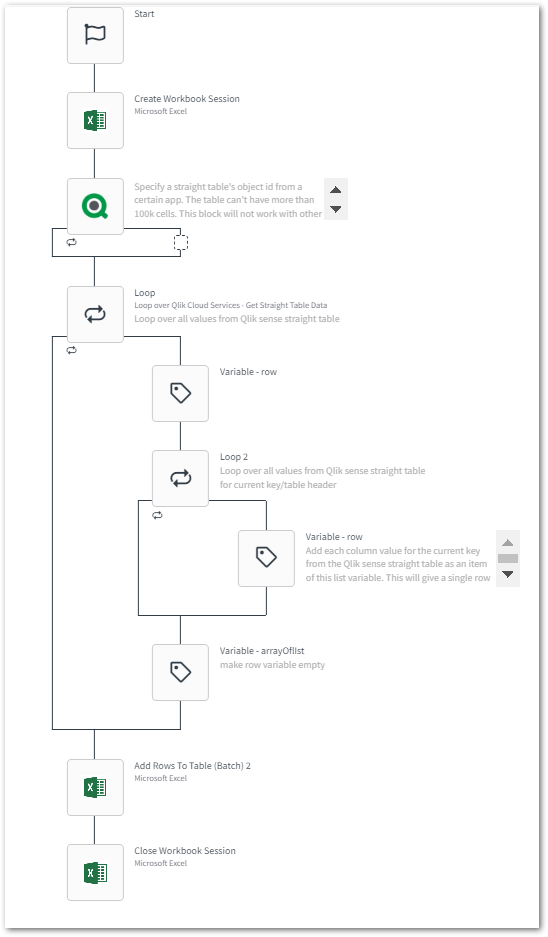
Start your automation with the Create Workbook Session block from the Microsoft Excel connector.
Use the session id returned by this block in all subsequent blocks with a Session Id input field. The session id field can be found by navigating to the settings of Microsoft Excel blocks as shown in the below screenshot.
When using a Microsoft Excel workbook session in automation, the session must be closed at the end of the automation by adding a Close Workbook Session block.
Workbook Session ID
Use the Get Straight Table Data block from the Qlik Cloud Services connector to get data from the straight table for a specific app we want to sync to the Microsoft Excel worksheet.
The limit of 100 000 records that can be retrieved through the Get Straight Table Data block.
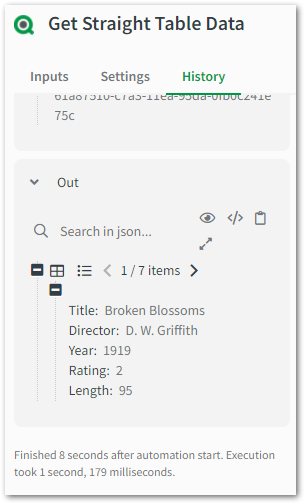
The response from the Get Straight Table Data block will be as shown in the below screenshot.
The keys will act as headers, and the values will act as rows corresponding to the keys in the Microsoft Excel table.
Response from Qlik Sense straight table
UseLoop block to loop over all items from the straight table.
Initialize a variable called 'row' of type List and use anotherLoop block to loop over all the keys from the straight table.
Within the loop, add this 'row' variable of type List to retrieve each column value for the associated key from the straight table as an item of this list variable, resulting in a single row containing values for all the keys in each iteration. The data will be in the format ["1","Text\"1\""]. Because this is a list variable, the quotations in the data are automatically escaped.
We must first compute the Array of Lists before inserting it into the Add Row To Table(Batch) block. [["1","Text"1""], [["2","Text2"]] will be the format.
Add arrayOflist (variable block of type string). Because the data from the previous stages is an array, use the JSON formula to convert it to a JSON string and append a comma at the end. The data obtained will be in the format ["1","Text\"1\""],["2","Text2"] .
Use Add Row To Table(Batch) block from the Microsoft Excel connector to add rows to the table in batch. From the data obtained from the previous stage, Trim the comma at the end and add opening and closing braces.
Make sure to close the workbook session by adding the Close Workbook Session block from the Microsoft Excel connector at the end of the automation.