Unlock a world of possibilities! Login now and discover the exclusive benefits awaiting you.

- Qlik Community
- :
- Blogs
- :
- Technical
- :
- Design
- :
- Customizable Straight Table

 Jennell_Yorkman
- Subscribe to RSS Feed
- Mark as New
- Mark as Read
- Bookmark
- Subscribe
- Printer Friendly Page
- Report Inappropriate Content
In many of the demos that I have done, I have added a customizable straight table or ad-hoc report where the user can select the dimensions and measures that should appear in the chart. This is often helpful and can replace multiple detailed straight tables in an application. Creating the customizable chart involves simply loading the dimensions and measures that the users can pick from and then adding a straight table with conditional dimensions and expressions.
In the Call Detail Record Analysis demo a customized report was added to the application. This is how the ad-hoc report looks with some dimensions and metrics selected.
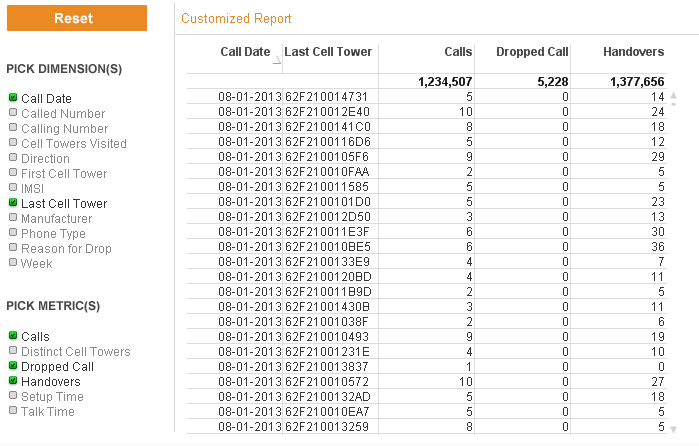
The steps taken to build this report were:
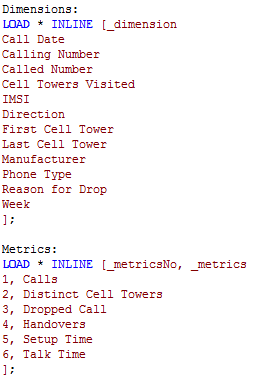
- Load dimensions and metrics that should appear in the list box for the user to choose from. In this example, this was done by adding two inline tables with the script below.
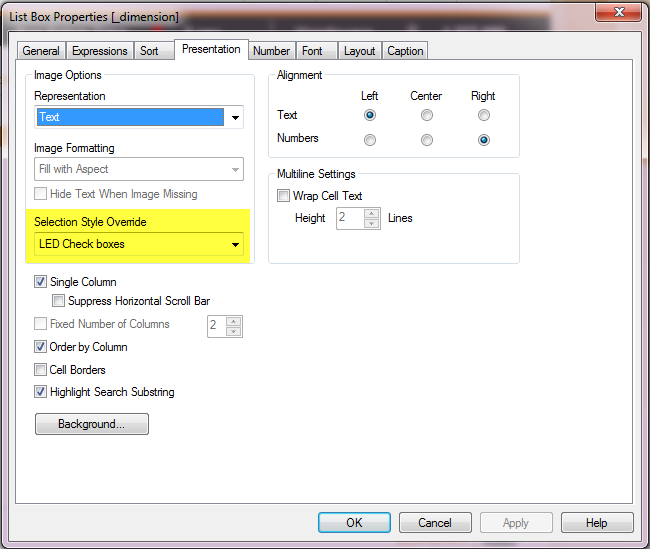
- Then list boxes for _dimension and _metrics were added to the report sheet with the LED Check boxes selection style.
- Next a straight table is added to the sheet with the following conditional calculation:
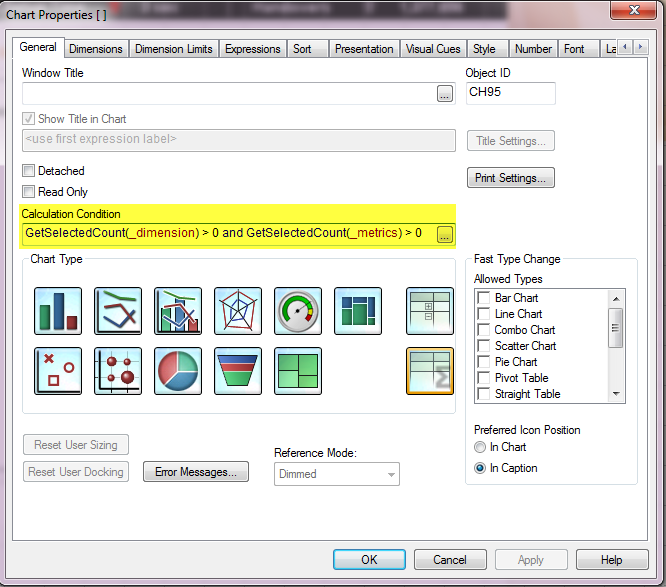
The chart will be displayed if at least 1 dimension and 1 metric are selected from the list boxes.
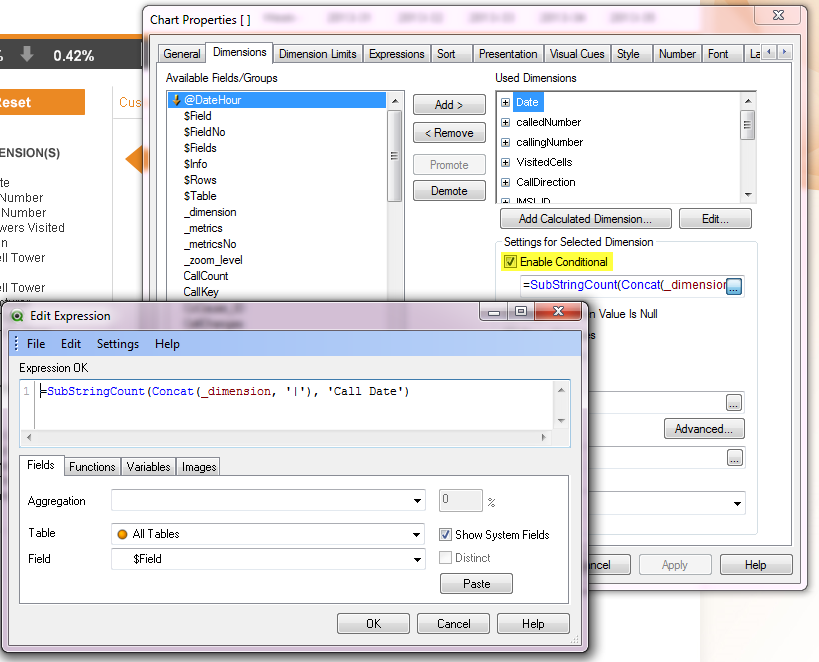
- Next the dimensions were added to the table. Each dimension in the list box was added to the chart with a conditional expression so that the dimension is only displayed if it is selected from the Dimensions list box.
- The same was done for each measure listed.
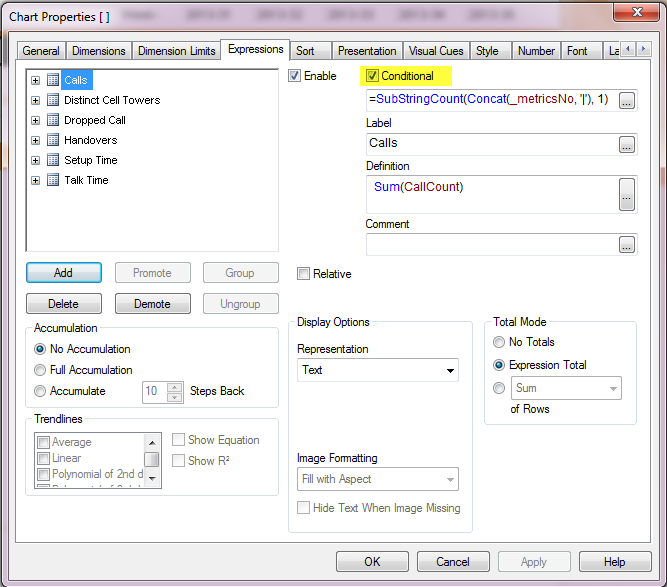
In five easy steps, a customizable straight table or report can be added to your QlikView application providing users the ability to display a report with the data they want to see at the time. This gives the user more flexibility and reduced the need to add detailed straight table charts to the sheets in the application.
You can read more about this topic in my Technical Brief which has more detailed step-by-step instructions. Have fun!
Thanks,
JMC
You must be a registered user to add a comment. If you've already registered, sign in. Otherwise, register and sign in.