Unlock a world of possibilities! Login now and discover the exclusive benefits awaiting you.

- Qlik Community
- :
- Blogs
- :
- Technical
- :
- Design
- :
- Get the Dates Right

.png "Former Employee") hic
hic
- Subscribe to RSS Feed
- Mark as New
- Mark as Read
- Bookmark
- Subscribe
- Printer Friendly Page
- Report Inappropriate Content
QlikView has an intelligent algorithm to recognize dates independently of which region you are in. In most cases, you will have no problems loading them. It just works and you do not need to think about it. However, in some cases dates are not properly recognized and then you need to add some code in the script to make it work.
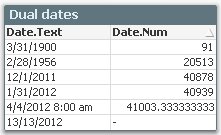 First of all – there are no data types in QlikView. Instead QlikView uses dual data storage for all field values; every field value is represented by a string and – if applicable – a number. The task of the developer is to make sure that QlikView recognizes the date correctly so that both a textual and a numeric part of the date are created.
The numeric part of a date is a serial number (same as Excel), i.e. a number around 41000 for dates in the year 2012.
Here are some tips that will help you load dates correctly and hopefully help you better understand how the date handling works.
- Use the interpretation functions
If you have the date as text you may need to use an interpretation function, e.g. Date#() or Timestamp#(). - Nest functions
If you want to display the date a specific way, you may need to nest an interpretation function inside a formatting function, e.g. Date(Date#(DateField, 'YYYYMMDD'), 'M/D/YY'). - Use the MakeDate function
If you have Year, Month and Day as separate fields, use the MakeDate() function to create a date serial number. - Use the rounding functions
If you have a timestamp and you want a date, you should probably use a rounding function, e.g. Date(Floor(Timestamp#(DateTimeField, 'YYYYMMDD hh:mm:ss')), 'M/D/YY'). - Use the numeric value in variables
If you want to use the variable for comparisons, it is simpler to use the date serial number rather than the textual representation, e.g. Let vToday = Num( Today() ). - Use combination fields, e.g. Year and Month as one field
It is often practical to display both year and month in one field, e.g. Date(MonthStart(DateField),'YYYY-MMM') - Use the Dual function
If you want more complicated combinations of a string with an associated numeric value, you can do almost anything using the Dual() function. - Use the Alt function for fields with mixed date formats:
If you have a field with mixed date formats, you can resolve them using the Alt() function.
For a more elaborate description of these tips, see the technical brief on QlikView dates.
You must be a registered user to add a comment. If you've already registered, sign in. Otherwise, register and sign in.