Unlock a world of possibilities! Login now and discover the exclusive benefits awaiting you.

- Qlik Community
- :
- Blogs
- :
- Technical
- :
- Design
- :
- The Crosstable Load

.png "Former Employee") hic
hic
- Subscribe to RSS Feed
- Mark as New
- Mark as Read
- Bookmark
- Subscribe
- Printer Friendly Page
- Report Inappropriate Content
Whenever you have a crosstable of data, the Crosstable prefix can be used to transform the data and create the desired fields. A crosstable is basically a matrix where one of the fields is displayed vertically and another is displayed horizontally. In the input table below you have one column per month and one row per product.
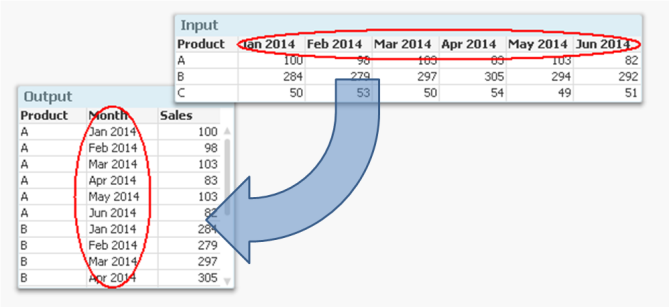
But if you want to analyze this data, it is much easier to have all numbers in one field and all months in another, i.e. in a three-column table. It is not very practical to have one column per month, since you want to use Month as dimension and Sum(Sales) as measure.
Enter the Crosstable prefix.
It converts the data to a table with one column for Month and another for Sales. Another way to express it is to say that it takes field names and converts these to field values. If you compare it to the Generic prefix, you will find that they in principle are each other’s inverses.
The syntax is
Crosstable (Month, Sales) Load Product, [Jan 2014], [Feb 2014], [Mar 2014], … From … ;
There are however a couple of things worth noting:
- Usually the input data has only one column as qualifier field; as internal key (Product in the above example). But you can have several. If so, all qualifying fields must be listed before the attribute fields, and the third parameter to the Crosstable prefix must be used to define the number of qualifying fields.
- It is not possible to have a preceding Load or a prefix in front of the Crosstable keyword. Auto-concatenate will however work.
- The numeric interpretation will not work for the attribute fields. This means that if you have months as column headers, these will not be automatically interpreted. The work-around is to use the crosstable prefix to create a temporary table, and to run a second pass through it to make the interpretations:
tmpData:
Crosstable (MonthText, Sales)
Load Product, [Jan 2014], [Feb 2014], … From Data;
Final:
Load Product,
Date(Date#(MonthText,'MMM YYYY'),'MMM YYYY') as Month,
Sales
Resident tmpData;
Drop Table tmpData;
Finally, if your source is a crosstable and you also want to display the data as a crosstable, it might be tempting to load the data as it is, without any transformation.
I strongly recommend that you don’t. A crosstable transformation simplifies everything and you can still display your data as a crosstable using a standard pivot table.
You must be a registered user to add a comment. If you've already registered, sign in. Otherwise, register and sign in.