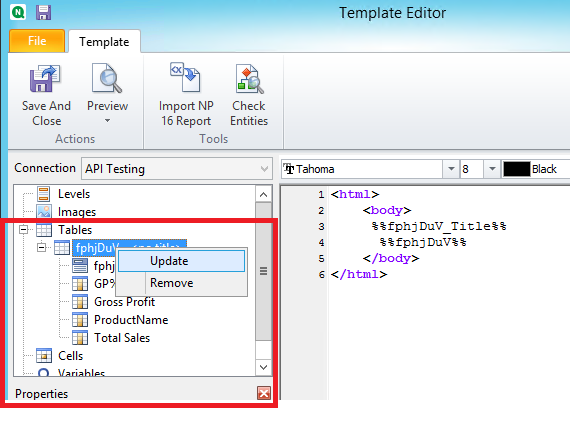
When making changes to the source Qlik Sense object, you must reload the metadata in NPrinting Connection associated with the NPrinting report. Then update the table object in the NPrinting template editor.
Open the NPrinting Designer template editor
Right click on the table object (left side of NP designer) that was changed in the source application (QV or QS)
Click 'update' to update the table object
Repeat point 3 for all table objects in the NP designer template editor
If the object is entirely new or different due to changes to the source QVW or QVW, expand the table object in the NP designer and drag the updated chart field into the NPrinting Template (right side of NPrinting Designer) replacing the original table tag.
Preview the report or save and close the template editor and run the report as a publish task.
Cause
NP Designer Table Objects (left side of designer) and NPrinting tags (template on right side of NP designer) within the NPrinting template editor do not automatically get updated by reloading the NPrinting metadata.
Metadata reload specifically updates the local NPrinting metadata cache on the NP server exclusively.
NP metadata reload does not update table objects within the NP designer nor the NPrinting tags in the report template. This must be done manually.