The SQL Server Native 11 Client Driver does not store the encrypted password correctly in the Connection String. This is causing errors with the Connection.
In order to reproduce the error, the following steps are followed:
Log into a Server with SQL Server 2012 Native Client installed and QlikView with a user that does not have Windows Authentication to the Database Connection.
Open a Blank QVW and Edit the Script with the OLE DB Connection
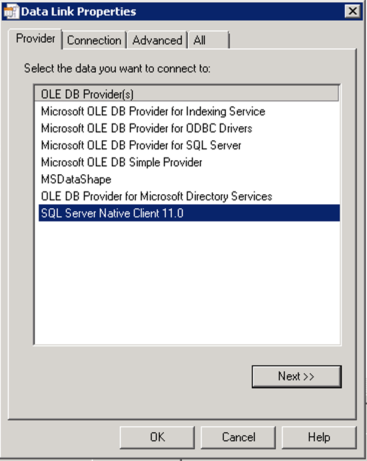
Choose the SQL Server Native Client 11.0 in the Data Link Properties Provider tab
Fill out the Connection Properties for a SQL Server Authorized User and Click "Test Connection" Everything should succeed at this point.
However, once you click OK the following error is shown, "Connector connect error: ErrorSource: Microsoft SQL Server Native Client 11.0 ErrorMsg: Login failed for user.
This is caused by the SQL Server Native Client 11.0 Driver and the Connection dialog that displays after connecting to the OLE DB Driver in the QlikView Application. This is otherwise known as Integrated Security.
Resolution:
In order to bypass the error message and create a SQL Server Native Client 11.0 Connection for OLE DB the following steps need to be followed in the exact order shown:
Open a Blank QVW and Edit the Script with the OLE DB Connection
Choose the Microsoft SQL Server Native Client 11.0 in the Data Link Properties Provider tab
Select the Connection Tab Enter the Server Name and User Name
Deselect the Blank Password option
Add the Password
Select the "Allow Saving Password" option
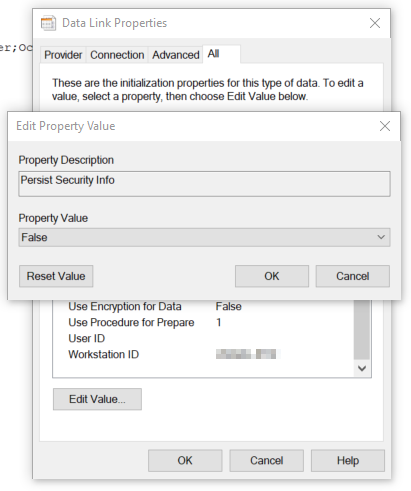
Navigate to the All tab
Select the "Persist Security Info" Click Edit Value
Choose "False" for the Property Value and Click OK
Changing the value to "False" or using the Reset Value button will omit the Integrated Security property completely.