Unlock a world of possibilities! Login now and discover the exclusive benefits awaiting you.

- Qlik Community
- :
- Forums
- :
- Groups
- :
- Industry and Topics
- :
- Scalability
- :
- Qlik Sense Scalability Tools
- Subscribe to RSS Feed
- Mark Topic as New
- Mark Topic as Read
- Float this Topic for Current User
- Bookmark
- Subscribe
- Mute
- Printer Friendly Page
- Feature this Topic

 Daniel_Larsson
- Mark as New
- Bookmark
- Subscribe
- Mute
- Subscribe to RSS Feed
- Permalink
- Report Inappropriate Content
Qlik Sense Scalability Tools
This package (referred to as Qlik Sense Scalability Tools) contains a complete set of tools for easy creation, execution and analysis of load/performance tests.
This tool is now deprecated and will not receive any further updates, please use the Qlik Sense Enterprise Scalability Tools instead.
Supported versions of Qlik Sense: all 2020, all 2021, 2022-aug
Included parts are:
- Standalone application for creating and executing a simulation script
- Documentation on how to use the package
- Regression analyzer
- Benchmarking package
- App evaluator package
QlikView and Qlik Sense documents to help analyze result and log files (previously included in this package) can be found here :https://community.qlik.com/docs/DOC-15451
Troubleshooting
For help to troubleshoot connection problems, please review Appendix A of the documentation or Connection Troubleshooting Tips
Change log
v5.17.0
- Add support for Qlik Sense May 2022 release
- Add support for Qlik Sense Aug 2022 release
v5.16.0
- Add support for Qlik Sense Feb 2022 release
v5.15.0
- Add support for Qlik Sense Nov 2021 release
v5.14.0
- Add support for Qlik Sense Aug 2021 release
(See Readme.txt for changes in earlier versions of the tool.)
Your use of Qlik Sense Scalability Tool will be subject to the same license agreement between you and Qlik for your Qlik Sense License. Qlik does not provide maintenance and support services for the Qlik Sense Scalability Tool, however please check QlikCommunity for additional information on use of these products.
- Tags:
- Group_Documents
- load testing
- load_testing
- performance
- performance_&_scalability
- performance_testing
- scalability

 rohitk1609
- Mark as New
- Bookmark
- Subscribe
- Mute
- Subscribe to RSS Feed
- Permalink
- Report Inappropriate Content
Hi Daniel,
The below solution bit confusing to implement:
1. Does the the user simulated have access to the app? If you are using header auth, make sure the virtualproxyprefix and the headername are set to the ones you defined in the qmc. Also test a header user manually using e.g. modify headers plugin in firefox, fiddler or similar. For different header users to be able to connect the app must be published.
I have created virtual proxy with header authentication as per tutorial video but i could connect to qlik sense via scalability tool. I was confused which header auth need to add in browser , what value to give , I have tried with random names and value but it was not working. Please provide a detail solution for header auth because I think most of the people stuck here.
2. Make sure what you put in "server" is the hostname only, shortname is fine if the machines are on the same domain, otherwise fully qualified named
I have added my machine name because I am working on my personal machine.
3. If you use ssl unchecked, make sure you have enabled "allow http" in the proxy setting in the qmc.
Yes it is easy to do and I have done it
But result was negative with above three points.
Finally, I have deleted the virtual proxy which I was created as per tutorial and used NTLM connection
4.If above two fails, try accessing with NTLM, (removing the virtualproxyprefix or changing to the one where you have NTLM auth
it is working now and giving positive response app structure changed.
Last, Can you please explain what it means : changing to the one where you have NTLM auth ??
Best,
Rohit
Daniel_Larsson
- Mark as New
- Bookmark
- Subscribe
- Mute
- Subscribe to RSS Feed
- Permalink
- Report Inappropriate Content
Hi,
1.
Have you read Appendix B in the tool documentation? This section includes screenshots of which values to put where. Specifically bullet 2 a vi and vii . Which users are actually accepted into the system once this is correct will depend on how you allocated tokens. One (of many different ways) would be to use static header auth, and set a user directory, then create a login access type allowing everyone with this user directory and allocating appropriate amount of tokens to it. Documentation on license can be found here: http://help.qlik.com/en-US/sense/September2017/Subsystems/ManagementConsole/Content/license-and-toke...
4.
Change the "VirtualProxyPrefix" you've set in the tool to the one where you've configured NTLM auth, e.g. the root is the default for this (i.e. blank value in tool), but I don't presume to know how you configured your server. Please be aware that if you chose NTLM, you are not truly simulating different users, as far as the proxy is concerned it's only one user (with different sessions), however engine sessions will be unique for each simulation. Also be extra aware of your token allocations, it's common to use user access for a NTLM user, a user access type can only have 5 sessions, which gives a maximum of 5 simulated users (i.e. make user to have a token allocation so that you will not hit this limitation).

- Mark as New
- Bookmark
- Subscribe
- Mute
- Subscribe to RSS Feed
- Permalink
- Report Inappropriate Content
I have downloaded the Scalability Tool 4.1.0 zip file on Win 10 Enterprise. I unblocked zip file and then launched the app. I am trying to connect Qlik sense server (Sep, 17 Release). I get below error every time with NTLM Authentication (SSL OR NON SSL). Certificates are trusted by load client
---------------------------
App structure
---------------------------
Failed to get app structure: Failed to connect to app. Error::Failed to connect to application
---------------------------
OK
---------------------------
I am able to connect to app via virtual proxy (Auth Mode: Ticket with NTLM) from IE 11 on same machine but not through Tool.
I see below entries in Tool logs when I try to connect to app from tool with NTLM.
at ClickScenarioEditor.SdkExerciserAssembly.ParseAppStructureResults(String jsonStructure)
at ClickScenarioEditor.SdkExerciserAssembly.<DoGetAppStructure>d__39.MoveNext()
--- End of inner exception stack trace ---
---> (Inner Exception #0) System.ComponentModel.WarningException: Failed to connect to app. Error::Failed to connect to application
Please suggest some steps to successfully run the tool.
We are also in-parallel working on running the tool with HTTP Header. We are observing a wierd behaviour with HTTP header. We are able to connect to HUB and QMC via Virtual Proxy by injecting Header Auth value, but app is giving error on launching. We are working with Qlik support team to fix Virtual Proxy issue, but even NTLM option does not work in the tool.
Regards,
Animesh Kumar
- Mark as New
- Bookmark
- Subscribe
- Mute
- Subscribe to RSS Feed
- Permalink
- Report Inappropriate Content
I am facing a similar issue with Scalability Tool. Were you able to connect to App finally. I am thinking that websense on windows is blocking the tool to connect. Please share if you were able to resolve the issue at your end
Regards,
Animesh Kumar
- Mark as New
- Bookmark
- Subscribe
- Mute
- Subscribe to RSS Feed
- Permalink
- Report Inappropriate Content
Hi Experts,
We got virtual Proxy working with HTTP Header from Chrome by injecting http header value. But Scalability Tool Still giving same error message.
Failed to connect to app. Error::Failed to connect to application.
I checked in fiddler logs there is no attempt made to connect to qlik sense server with NTLM or HTTP Header SSL or NON SSL.
Regards,
Animesh Kumar
Daniel_Larsson
- Mark as New
- Bookmark
- Subscribe
- Mute
- Subscribe to RSS Feed
- Permalink
- Report Inappropriate Content
Hi,
I put together a check list to go through when investigating connection problems.
Qlik Sense Scalability Tools Connection Troubleshooting Tips
- Mark as New
- Bookmark
- Subscribe
- Mute
- Subscribe to RSS Feed
- Permalink
- Report Inappropriate Content
Hi Daniel,
Thanks for you response. Please find below in-line results of troubleshooting tips. Still getting same error..
Using header auth
- Is the app published? Yes, for everyone
- Can you connect manually to the virtual proxy with header auth using modify header plugin in firefox, fiddler or similar.Yes, from chrome using Modify HTTP Header extension
- If it works, make sure the user which get logged in is the one from the header not your ntlm user. Yes, User logged in the one passed in the Header
- Can the header user access the app you want to simulate? Yes, App published and accessible to everyone
- If manual connection (1) with header works, make sure all these settings correspond to your tool settings
- VirtualProxyPrefix settings same as Prefix defined in QMC on the virtual proxy Correct prefix
- HeaderName same as Header authentication header name on the virtual proxy Correct Header Name
- ConnectionType set to Header. It is Header
- Server is set to the same server name as the certificate, default fully qualified domain name, without defining protocol etc, i.e. myserver not https://myserver/hub. Yes it is our server name mentioned in certificate
- A default sense installation uses https and a self-signed certificate. Make sure the SSL checkbox is checked when using SSL or TLS (default) and the AllowUntrustedCertificate checkbox is checked if using the self-signed or any other “untrusted” certificate. Certificate is trusted by load client, but HTTP does not work as well. Http has been allowed on central proxy
- If Connect to App doesn’t work, try doing a simple scenario of 1 user 1 iteration with only a small timerdelay in the scenario. Does this get any errors? I have always tried with 1 user 1 iteration
Error:Failed to get app structure: Failed to connect to app. Error::Failed to connect to application - If you are getting license access denied, make sure the header users have an appropriate amount of tokens allocated. Yes, generous amount of login access tokens have been allowed for any user connecting to Qlik sense server.
Using NTLM auth
- Make sure the user has access to the app by manually connecting to it. Yes, it is working in Browser with NTLM from machine where I am running the scalability Tool
- If manual connection (1) with header works, make sure all these settings correspond to your tool settings
- VirtualProxyPrefix settings same as Prefix defined in QMC on the virtual proxy or blank if using root (default). Prefix correct
- ConnectionType set to NTLM. Yes
- Server is set to the same server name as the certificate, default fully qualified domain name, without defining protocol etc, i.e. myserver not https://myserver/hub. Yes it is our server name mentioned in certificate
- A default sense installation uses https and a self-signed certificate. Make sure the SSL checkbox is checked when using SSL or TLS (default) and the AllowUntrustedCertificate checkbox is checked if using the self-signed or any other “untrusted” certificate. Certificate is trusted by load client, but HTTP does not work as well. Http has been allowed on central proxy
- If Connect to App doesn’t work, try doing a simple scenario of 1 user 1 iteration with only a small timerdelay in the scenario. Does this get any errors? I have always tried with 1 user 1 iteration
Error:Failed to get app structure: Failed to connect to app. Error::Failed to connect to application - If you are getting license access denied, make sure the header users have an appropriate amount of tokens allocated.
Yes, generous amount of login access tokens have been allowed for any user connecting to Qlik sense server.
rohitk1609
- Mark as New
- Bookmark
- Subscribe
- Mute
- Subscribe to RSS Feed
- Permalink
- Report Inappropriate Content
Hi Daniel,
Is there any change when we deploy scalability tool for shared persistence, i.e apps are executing or reloading on separate scheduler node and load on separate proxy nodes ?
- Mark as New
- Bookmark
- Subscribe
- Mute
- Subscribe to RSS Feed
- Permalink
- Report Inappropriate Content
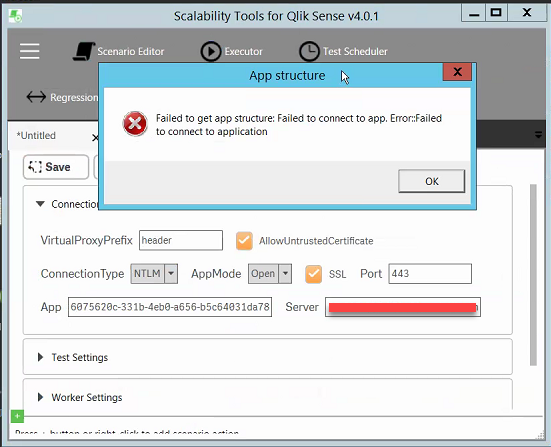
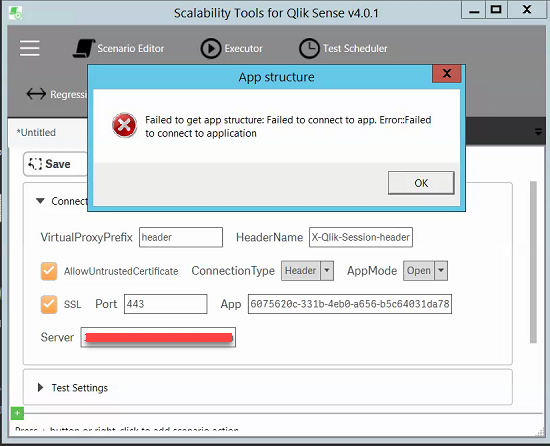
Having issues similar to the above ones, getting a "Failed to get app structure: Failed to to connect to app. Error: Failed to connect to application" when doing an "App strcture... Connect to app".
Have tried both header and NTLM. No luck getting the app structure. Please help. thanks
Daniel_Larsson
- Mark as New
- Bookmark
- Subscribe
- Mute
- Subscribe to RSS Feed
- Permalink
- Report Inappropriate Content
Animesh Kumar wrote:
- If Connect to App doesn’t work, try doing a simple scenario of 1 user 1 iteration with only a small timerdelay in the scenario. Does this get any errors? I have always tried with 1 user 1 iteration
Error:Failed to get app structure: Failed to connect to app. Error::Failed to connect to application
You would only get this error when pressing "connect to app" not when trying execute a simple scenario of 1 user 1 iteration. The error message when doing this might in some cases reveal more, so please
- Make sure scenario is something small such as 1 timerdelay action.
- Press start executor button
- Press execute button inside the executor
Hopefully it gives a a better error message for your specific case.