Unlock a world of possibilities! Login now and discover the exclusive benefits awaiting you.

- Qlik Community
- :
- Blogs
- :
- Technical
- :
- Design
- :
- Canonical Date

.png "Former Employee") hic
hic
- Subscribe to RSS Feed
- Mark as New
- Mark as Read
- Bookmark
- Subscribe
- Printer Friendly Page
- Report Inappropriate Content
A common situation when loading data into a Qlik document is that the data model contains several dates. For instance, in order data you often have one order date, one required date and one shipped date.
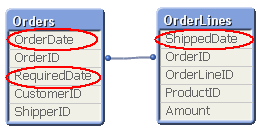
This means that one single order can have multiple dates; in my example one OrderDate, one RequiredDate and several ShippedDates - if the order is split into several shipments:
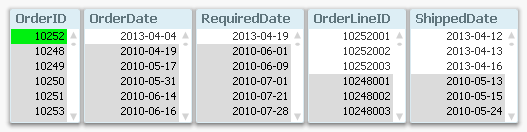
So, how would you link a master calendar to this?
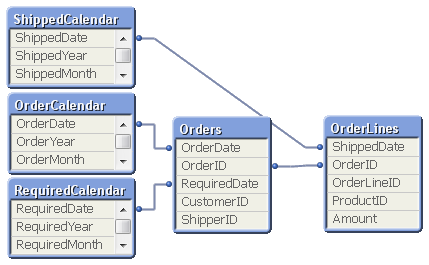
Well, the question is incorrectly posed. You should not use one single master calendar for this. You should use several. You should create three master calendars.
The reason is that the different dates are indeed different attributes, and you don’t want to treat them as the same date. By creating several master calendars, you will enable your users to make advanced selections like “orders placed in April but delivered in June”. See more on Why You sometimes should Load a Master Table several times.
Your data model will then look like this:
But several different master calendars will not solve all problems. You can for instance not plot ordered amount and shipped amount in the same graph using a common time axis. For this you need a date that can represent all three dates – you need a Canonical Date. This is how you create it:
First you must find a table with a grain fine enough; a table where each record only has one value of each date type associated. In my example this would be the OrderLines table, since a specific order line uniquely defines all three dates. Compare this with the Orders table, where a specific order uniquely defines OrderDate and RequiredDate, but still can have several values in ShippedDate. The Orders table does not have a grain fine enough.
This table should link to a new table – a Date bridge – that lists all possible dates for each key value, i.e. a specific OrderLineID has three different canonical dates associated with it. Finally, you create a master calendar for the canonical date field.
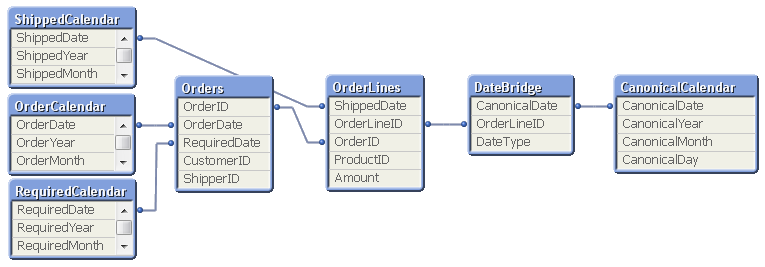
You may need to use ApplyMap() to create this table, e.g. using the following script:
DateBridge:
Load
OrderLineID,
Applymap('OrderID2OrderDate',OrderID,Null()) as CanonicalDate,
'Order' as DateType
Resident OrderLines;
Load
OrderLineID,
Applymap('OrderID2RequiredDate',OrderID,Null()) as CanonicalDate,
'Required' as DateType
Resident OrderLines;
Load
OrderLineID,
ShippedDate as CanonicalDate,
'Shipped' as DateType
Resident OrderLines;
If you now want to make a chart comparing ordered and shipped amounts, all you need to do is to create it using a canonical calendar field as dimension, and two expressions that contain Set Analysis expressions:
Sum( {$<DateType={'Order'}>} Amount )
Sum( {$<DateType={'Shipped'}>} Amount )
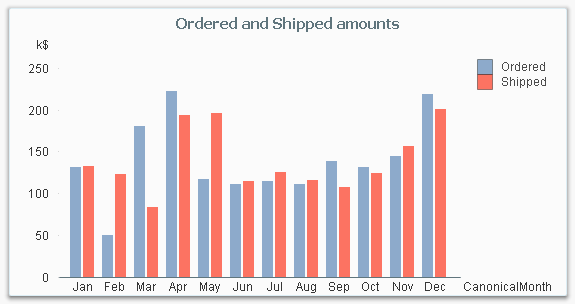
The canonical calendar fields are excellent to use as dimensions in charts, but are somewhat confusing when used for selections. For this, the fields from the standard calendars are often better.
Summary:
- Create a master calendar for each date. Use these for list boxes and selections.
- Create a canonical date with a canonical calendar. Use these fields as dimension in charts.
- Use the DateType field in a Set Expression in the charts.
A good alternative description of the same problem can be found here. Thank you, Rob, for inspiration and good discussions.
You must be a registered user to add a comment. If you've already registered, sign in. Otherwise, register and sign in.