Unlock a world of possibilities! Login now and discover the exclusive benefits awaiting you.


.png "Former Employee") hic
hic
- Subscribe to RSS Feed
- Mark as New
- Mark as Read
- Bookmark
- Subscribe
- Printer Friendly Page
- Report Inappropriate Content
Interpretation vs Formatting
The first thing you should be aware of is that there are two different functions: Date#() and Date(). The first is an Interpretation function and the second is a Formatting function.
- Interpretation functions use the textual value of the input, and convert this to a number.
- Formatting functions use the numeric value of the input, and convert this to a text.
In both cases, the output is a dual, i.e. it has both a textual value and a numeric value. The textual value is displayed, whereas the numeric value is used for all numerical calculations and sorting.
The table below shows how to use the interpretation function Date#(). Note that the format code must match the input parameter.

This is very different from the formatting function Date(). Next table shows how to use this function. Note that the format code matches the format of the output text.
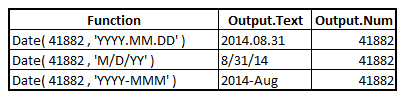
In real life, it is often useful to nest an interpretation function inside a formatting function:

Formatting vs Rounding
The second thing you should be aware of is that the Date() function and other formatting functions never change the numeric value of the input value.
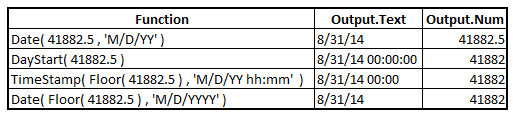
This means that you can format a timestamp as a date only, without the time information. This can sometimes be confusing since there is a “hidden” value. In the table below, you can see that the input value corresponds to 12:00 in the middle of the day, but the Date() function effectively hides this from the textual output - but it remains in the the numeric value.

So what should you do if you want to remove the time part of the field, and just keep the date part? Well, obviously you must use a function that changes the numeric value: You need a Rounding function, e.g. DayStart() or Floor().
In the table below, you can compare the output of the Date() function with a couple of different rounding and formatting options.
Summary
The above discussion is not relevant to dates only. It is just as relevant for Years, Weeks, hours, seconds and any other time interval. Further, it is relevant to a number of other functions:
Interpretation functions: Date#(), TimeStamp#(), Time#(), Interval#(), etc.
Formatting functions: Date(), TimeStamp(), Time(), Interval(), etc.
Rounding functions: Round(), Floor(), Ceil(), DayStart(), WeekStart(), MonthStart(), etc.
Combine these functions sensibly, and you will be able to round or format any way you want.
Further reading related to this topic:
You must be a registered user to add a comment. If you've already registered, sign in. Otherwise, register and sign in.