Unlock a world of possibilities! Login now and discover the exclusive benefits awaiting you.

Recent Documents
-
How to Import an Excel Template
This guide walks you through importing an existing Excel template using the Spreadsheets extension in Qlik Sense (presented at Qlik Connect 2025).Chec... Show More -
Excel-Style Spreadsheets Inside Qlik Apps: How to Add [Tutorial]
This guide walks you through building a feature-rich spreadsheet that looks and feels like Excel in Qlik Sense using the Spreadsheets extension (first... Show MoreThis guide walks you through building a feature-rich spreadsheet that looks and feels like Excel in Qlik Sense using the Spreadsheets extension (first demoed at Qlik Connect 2025).
Check it out as a video tutorial or keep reading:
Step 1: Add the Spreadsheets Extension
- Open your Qlik app and go to the Assets panel.
- Head to Custom objects > AnyChart 4, and drag AnyChart Spreadsheets onto your app's sheet.
This creates a basic spreadsheet looking as follows:
Step 2: Add Data
- Select the object, open the Properties panel, go to Data, and click Add.
- Choose the new data section, enable Create synced sheet, and click Edit data.
- Add the dimensions and measures you want to use.
This creates one more sheet, titled DataSheet1, populated with your data.
Step 3: Format Your Spreadsheet
- To keep things clean, feel free to delete the empty sheet created by default, titled Sheet1.
- On DataSheet1, select your table area, head to the INSERT tab, and click Table. Confirm with OK.
- Apply formatting as needed, all in a familiar Excel-like interface. For example:
- Resize rows and columns.
- Change alignment and font settings from the HOME tab.
Step 4: Add Charts
You can also add charts within the spreadsheet's sheets, just like in MS Excel.
- Select your data, open the INSERT tab, and choose Insert Chart.
- Select a chart type, click OK, and place the chart where you need it.
Step 5: Save Changes
- Whenever you need to save everything you have done, open the USER tab and click Save to app.
Step 6: Apply Selections & See Your Spreadsheet in Action
- Apply filters or selections in your Qlik app.
- The spreadsheet updates instantly. Charts, tables, and formulas adjust to the selected data in real time.
This works as the spreadsheet is fully connected to Qlik’s associative engine.
Optional: Export to Excel
If you want to work outside of Qlik, such as in Microsoft Excel or Google Sheets, feel free to export the entire spreadsheet as an .xlsx file:
- Go to the FILE tab, choose Export, and select Excel format.
- Click Export Excel File, enter a file name, and confirm with OK.
- The file downloads immediately, ready to open in Excel or another compatible tool.
Here's how the downloaded XLSX file looks when opened in MS Excel:
Done
You now have a reactive spreadsheet, built with live Qlik data, ready to expand, customize, or share.
Helpful Links
- Download the extension
- Explore the demo app (view live or download QVF)
- See the documentation
- Request a personalized live demo
-
DocuGen - Automatic generation of Qlik Sense app documentation thanks to Qlik Ap...
Download latest version Challenge: Many of us likely know that after developing a Qlik Sense app, documentation needs to be created to deploy our a... Show MoreDownload latest version
Challenge:
Many of us likely know that after developing a Qlik Sense app, documentation needs to be created to deploy our analysis to production. This process is time-consuming, often requiring several days to produce what feels like just a "piece of paper". Another issue is that documentation is often made using standard templates, leading to materials that aren't complete and can be hard to comprehend. Documentation can be mandatory for both regulatory and operational reasons. Following the idea of “working smarter,” I want to automate this process using DocuGen with Qlik Application Automation (QAA). This approach can save us valuable time, allow us to transfer use cases to production faster, and provide documentation that is both thorough and easy to read.
Idea:
It all started with this simple idea and a first prototype, which I built in QAA. Various Qlik Cloud Services blocks are used to extract the relevant metadata from the individual app (e.g. table definitions, sheets and visualizations, variables, measures and dimensions, etc.). This data is then stored in variables and once all the information has been collected it gets passed into a “Custom Code” block. This block uses Python 3.11 and creates a dynamic HTML file without external references. This means that the created HTML file remains transportable and does not require any external resources, as it contains all the necessary functions itself. Finally, the created HTML file is saved to MS Sharepoint.
Input parameters for the python script.
Outcome:
This approach enables us to produce standardized documentation significantly more quickly on a daily basis, reducing the time required from an estimated 3 to 5 days to approximately 30 minutes. In my day-to-day job as a BI Specialist, I am now able to transfer analysis prototypes to production much faster for my customers and deliver added value for the business departments even faster. I think many other people in similar roles like me face the same challenge. This is the reason why I created a community project out of this idea together with Dennis Jaskowiak (Qlik PreSales). We started to extend the documentation with more functionalities, generalized the design of the documentation and reworked the code. In this article, we would like to share the project and its content with the Qlik Community.
App general information overview.
Sheets & visualizations section.
Data model section.
Script section.
Content of the package:
The archive consists of only 4 files:
To import the QAA you need the DocuGen v(x).json file. This file contains the exported QAA workspace.
The "code" folder contains the code segments used if you want to customise the code for your needs.
-
custom_code_block.py: This file contains the code that we use in the
"Custom Code"blog in the automation. -
used_css.css: This file contains the CSS definition that we use in the
"Variable - vCSS"blog in the automation and imports the style description for our HTML file. The definition is not minified in this file. -
used_js.js: This file contains the Java scripts that we use in our Python script (custom_code_block.py at the very end). The JavaScript is implemented in the Python code (last
<script></script>section). It is important that'{'and'}'are replaced with'{{'and'}}'so that they are not evaluated in Python.
Installation:
- Create a new blank Qlik Application Automation
- Upload workspace (right click on canvas) à DocuGen v(x).json
- Create a connection for SharePoint a. scroll to the bottom and click on the “Create File on Microsoft SharePoint” Block that has a red border b. click on the Connection tab and create a connection to your Microsoft SharePoint c. After you receive the information
“Connection is linked”you can use it by clicking on your created connection. The connection tab should now change its colour from red to black. - (optional) If you want to switch the number format from ‘comma’ to ‘point’ as decimal separator you can switch the value of the block named
“Variable – vNumber Format”from'de'to'us'. It’s the second block of the automation. - Now you can run the automation to generate your first documentation
Running the automation:
When you click on “Run” the automation gets executed. By default, the automation has configured “Run Mode: Manual”. It requires a few inputs for processing:
- Space – where the app is located (Personal doesn’t work)
- App name
- List of Sections that need to be documented (e.g. Data Model, Measures, Dimensions etc.)
- Screenshots (yes/no)
- List for type of sheets (e.g. Public, Community, Private)
If you want to run the automation triggered (e.g. by REST call) it needs to me modified. We will post an example later to showcase this option.
Features:
This list showcases what DocuGen covers:
-
General app information:
- app name, description, Id, Resource type, type of usage, owner, published, published time, space Id, has section access, is encrypted, create date, modified date, last reload time, app memory footprint, app reload peak RAM
-
Data model:
- For every table it generates:
- title, number of rows, number of fields, number of key fields, is loose, comment, table size,
- table containing field name, number of distinct values, number of non-null values, tags, ishidden, iskey, connected tables
- For every table it generates:
-
Measures:
- For every measure it generates:
- title, label, description, Id, definition, expression, grouping, custom formatted, format type, format, color, tags
- For every measure it generates:
-
Dimensions:
- For every dimension it generates:
- title, label, description, Id, definition, grouping, tags
- For every dimension it generates:
-
Variables:
- For every variable it generates:
- title, Id, definition, comment, tags
- For every variable it generates:
-
Sheets & Visualizations:
- list of sheets
- for every sheet it generates title, type, Id, description, grid resolution, sheet mode, list of used objects
- link to sheet
- list of objects on the sheet
- for every object on a sheet, it generates screenshot, type, Id, title, subtitle, footnote, color mode, color definition, dimensions, measures, link to object
- if the object is a container (layout container, tabbed container or normal container) it creates a list of all child objects containing the following information:
- type, Id, title, subtitle, footnote, color mode, color definition, dimensions, measures, link to object
- list of sheets
-
Load Script:
- For every script section it generates:
- title, script
- For every script section it generates:
Closing:
This is it for now. I hope this community project can help you automate and reduce the time you spend on documentation. On the bottom of that article, you will find the necessary files. The current version of the files will be hosted on GitHub.
Link to GitHub : LINK
A special thanks to Emil Koslowski (Product Manager Qlik Application Automation) for his invaluable support with various Qlik Application Automation questions. Your efforts have been instrumental in shaping a robust solution. Additionally, a big shoutout to Dennis Jaskowiak (PreSales Qlik) for his genuine enthusiasm for the idea, as well as his mentorship and unwavering support throughout the development - your guidance has been truly instrumental. Thank you!
This project has been created by Prodromos Chatziagorakis (Volkswagen Financial Services) & Dennis Jaskowiak (Qlik).
-
-
Supercharge your Qlik development with metadata!
Imagine that you are an average ordinary Qlik Developer. You start to create a new application for some healthcare big cheese so you find the virtual ... Show MoreImagine that you are an average ordinary Qlik Developer. You start to create a new application for some healthcare big cheese so you find the virtual data warehouse of QVD files and all goes well. The data loads just fine and just for giggles and grins you utilize the Data Preview in the Load Script to see the values and panic hits you. What on earth is wrong with the Age field?
That Qlik Dork guy is falling apart and could be 99 for all you know. But Dan and Levi? C'mon they can't possibly be that old. Suddenly you are reminded of the importance of metadata. If you knew how that field was defined, it might help you understand those crazy values. Right?
-
Using an Application Automation to serve as an Advanced Analytics Connector
My Catch 22 So here was the situation I was facing, my boss was screaming at me to do something that didn't exist so I ... alright truth be told he wa... Show MoreMy Catch 22
So here was the situation I was facing, my boss was screaming at me to do something that didn't exist so I ... alright truth be told he was never screaming at me and he was fine with the initial work around I came up with. I was the one screaming to try and connect to the Google Gemini Pro #LLM in the same Server Side Extension manner I had been for other Large Language Models. I wanted to be able to ask a question and get a response, but also have the response be responsive if I filtered selections in the data.
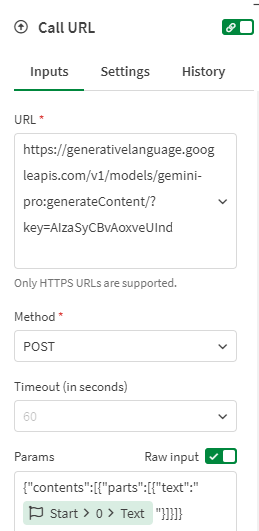
The problem is that the API for Google Gemini Pro expects a nested block of JSON, and the generic Advanced Analytics Connector only sends a basic JSON block with field/value pairs. But my hero, Daniel Pilla, helped me realize that a Qlik Application Automation will accept the basic JSON field/value pair block and that I could then infuse the question and data into the URL call as needed for the Google Gemini Pro API.
Feel free to watch the video and skip all of the yapping I do after it. Or if you think it might be helpful and actually want to try, feel free to read the step by step instructions to give it a try on your end.
Video
Yapping with Step by Step Instruction
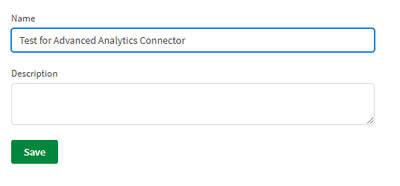
To test let’s create a brand new Qlik Application Automation
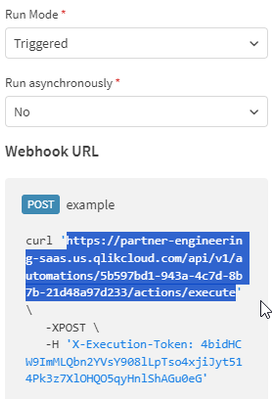
Be sure to set the Start block to Triggered and keep a copy of the information that it will display for you as to how to call the automation you will need that when creating the Advanced Analytics Connector inside of Qlik Sense momentarily.
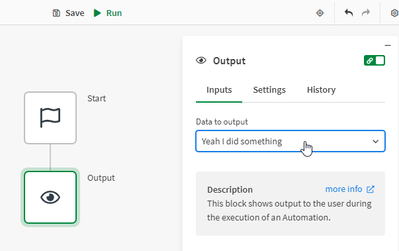
Then add an Output block that will simply output “Yeah I did something”
Create a new Qlik Sense application and go to the Load Script.
Before adding our Advanced Analytics connector we need to add some sample data to our load script to test with:
Data:
Load * Inline [
Question#, Prompt
Question 1, "Human: What can you tell me about the Qlik Associative Model and why customers love it so much? Assistant:"
];
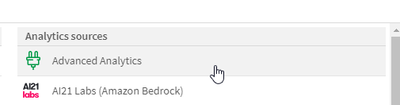
Choose Create new connection and then choose Advanced Analytics
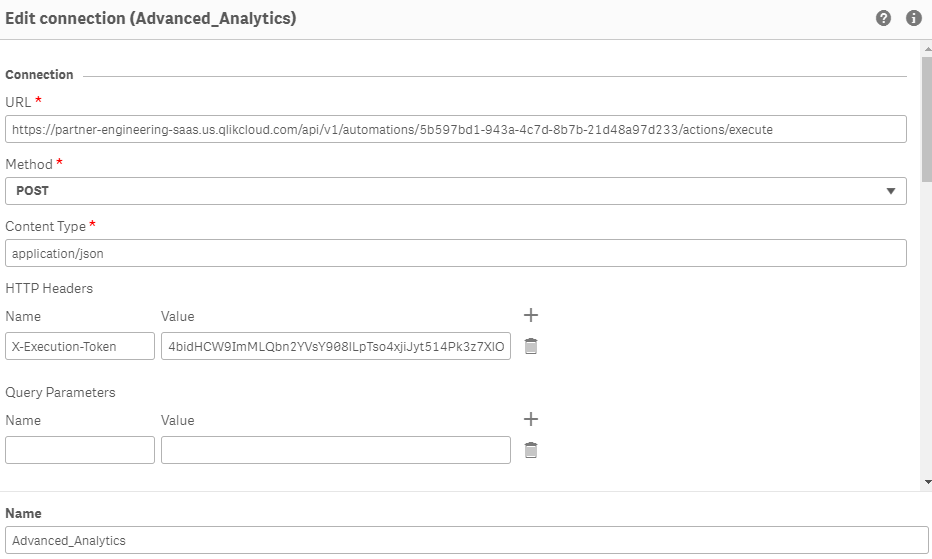
Simply copy the URL from the Automation you just created, and then create a HTTP Headers entry for X-Execution-Token as shown and the token provided.
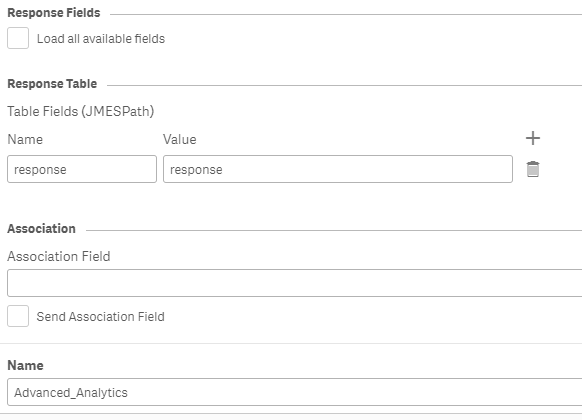
In the Response Table section simply input any table name value you wish for the Name of Returned Table and uncheck the box that says Load all available fields, and set the Table Field (JMESPath) to response and response.
You will see why based on the data in a second but for now just enter Question# as the Association Field and be sure the Send Association Field box is not checked:
Save your newly created Advanced Analytics connector.
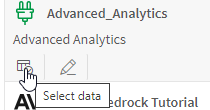
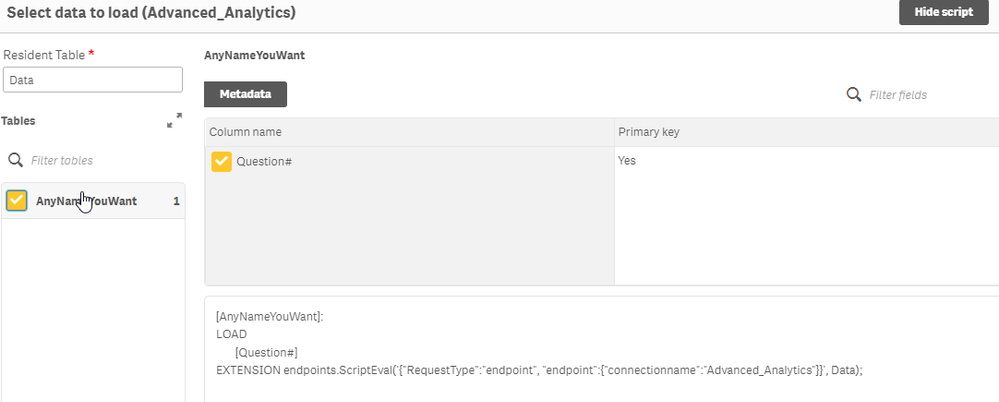
Now choose the Select Data icon for your Advanced Analytics test connection
After you type in the name of our sample data table “Data” the connector will then show you what information will be returned. Notice in my image it’s the AnyNameYouWant table because that is literally what I input, your screen will contain the name you used.
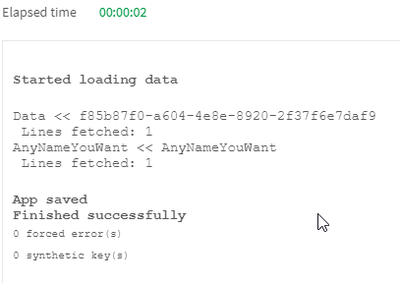
Run the load script and you will see that you sent 1 row and you got 1 row back:
Keep in mind that we didn’t do anything special in our Qlik Application Automation yet, we are simply using this as a test to understand HOW the Advanced Analytics Connector works. So let’s go over to the Qlik Application Automation you created and see what we learned.
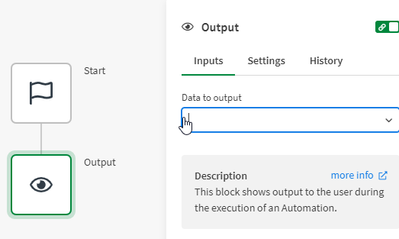
Click on your Output block and delete the “Yeah I did something” text that was being output previously:
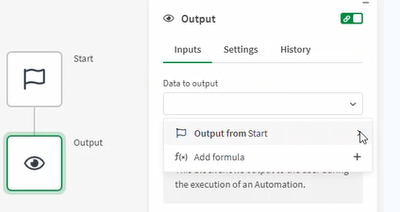
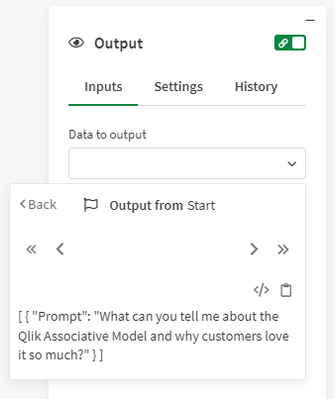
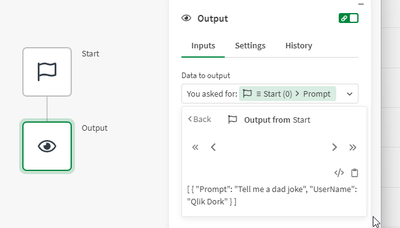
Now from the dropdown for Data to output choose the right arrow icon for Output from start because we want to see what it actually contains:
Not surprisingly it shows us that it received a simple record. Now click the Toggle view mode icon so that you can see what I mentioned at the onset. It is the very simple JSON block with a simple field/value pair that is passed in:
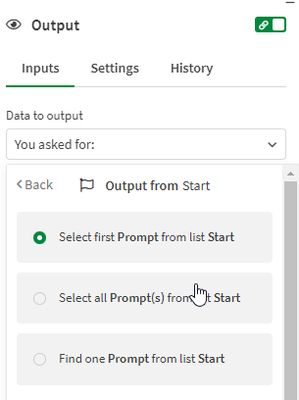
With that knowledge untoggled the View mode so we see the array instead and type
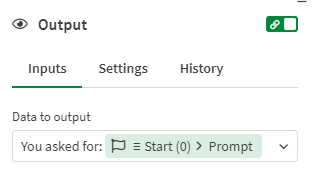
“You asked for: ” then click the Prompt field and choose Select first item from list. (While you saw it knows we only passed 1 entry, it assumes the body can be an array. So we need to select the first one, which is all we would ever pass it.)Instead of calling the automation from the load script again, lets build a simple Analytics sheet instead.
Simply add a Text & Image chart to your new sheet.
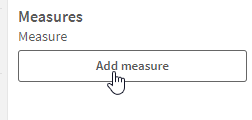
Now add a measure
And use the following string as your expression. The connectionname you use is the one you created and you can copy it right from the load script if needed to ensure you have spelling and spacing correct:
Your measure expression should be:
endpoints.ScriptEvalStr('{"RequestType":"endpoint", "endpoint":{"connectionname":"Advanced_Analytics"}}', 'Tell me a dad joke' as Prompt, 'Qlik Dork' as UserName)
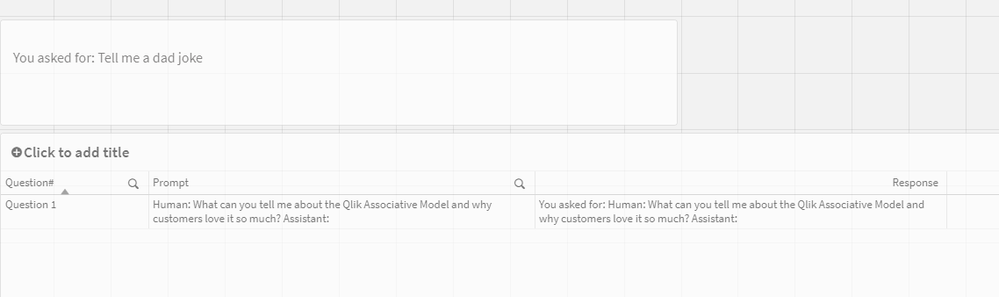
The measure we added is evaluated and our Text & Image Chart now contains the response from our Automation:
Now let’s go back to the Automation and take another look at it. We know we were just forcing the Output value, it’s the Start block that we care about. Notice that now the Start block had a plain JSON body with both fields.
Now let’s add a Table object to our screen. Add the Question# and the Prompt as dimensions. Then add a measure with the following expression:
endpoints.ScriptEvalStr('{"RequestType":"endpoint", "endpoint":{"connectionname":"Advanced_Analytics"}}', Prompt)
Yeah … we can call our Automation as an SSE style Advanced Analytics connector and we know that we can pass fields from our actual data, or made up values as needed.
Summary
We know there is nothing super exciting about getting a return value that repeats your question. But this post is just the foundation for you to build upon, which is exactly what I did and what I refer to in my video. Who knows what you may try and utilize the Advanced Analytics Connector for and when you encounter a red screen error or something you will know just what the issue may be.
On my end, one Dan helped me know I could call my Application Automation from an Advanced Analytics Connector, the rest of my problem was resolved quickly. All I simply had to do was add the simple basic URL block to my automation and call the Google Gemini Pro API.
In a similar fashion to what it expects, their API returns a nested block. I was able to pull that value out and return it as the result.
-
Manage GCP Group with Qlik Automation
Problem By the time I’m writing this article Qlik Cloud Service does not support yet the GCP user group during the authentication phase. Thus allow GC... Show MoreProblem
By the time I’m writing this article Qlik Cloud Service does not support yet the GCP user group during the authentication phase. Thus allow GCP users to access Qlik Cloud, base on their groups is not (yet) an option.
This is expected to be a temporary situation and Qlik will deliver soon (or later) also this feature. Nevertheless timing is important and it may avoid the SaaS adoption for Qlik enthusiast with the hard constraint to relay on Google groups.
In the context above, in this article I'm going to propose an alternative way to achieve the same business scope granting users to spaces based on their membership groups. Therefore, acting on the Authorization instead, the Authentication. This solution is imperfect, widely improvable (anyone is welcome to contribute) and to some extent graceless, but it just works and sometime could make the difference between adopting Qlik SaaS or something else.
Environment
- Qlik Cloud Service
- Qlik Application Automation
- GCP Directory API
Resolution
Any authenticated user (through GCP or any other solution) will land on Qlik Cloud creating a new user for their first access. This solution is triggered on that specific event “User Creation”. Qlik Automate is triggered on the User creation event, and go through the following steps
- Invoke the Google Directory API and retrieve the list of authorized users.
- Check the new created user is among this list.
- If the user is authorized to access, then assign a license and grants for the authorized spaces.
- If the user is not authorized, then the automation disables it.
Google API Call
Here you can find the Google API documentation . The HTTP request retrieve a paginated list of users belonging to the same {groupKey}. This HTTP request needs an authentication method, for this you need to create a service account on the google platform.
- Follow the instruction here to get the user account, the private key and the private key id.
- Set the start Block as:
- Run Mode : Webhook
- Connector : Qlik Cloud Service
- Event : User Created
- From the Qlik Cloud Service Connector use the Get User Block to get the user details from the user just created
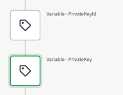
- Next step is getting the Bearer Token for the REST call. Use two variable blokes to store the Private Key and the Private Key Id.
Pay attention to paste the Private Key. It is made of 3 lines. The first line is the “BEGIN PRIVATE KEY” the second line is the key itself without any carriage return line feed, the third line is the “END PRIVATE KEY” line. You should end up with something like this:
-----BEGIN PRIVATE KEY-----
<Your private Key in one single line, remove all the CR+LF or /n>
-----END PRIVATE KEY-----
- Use a custom code block to get the Bearer token. You need to pass 3 inputs to the custom block
Private Key id from the variable
Private Key from the variable
Time as: {number: {date: 'now', 'U'}}
Select Python as language and paste these lines:
import jwt

iat = inputs['time']
exp = iat + 3600 * 1000
payload = {'iss': 'qlik-user-sync@qliksaasidp-377811.iam.gserviceaccount.com',
           'sub': 'qlik-user-sync@qliksaasidp-377811.iam.gserviceaccount.com',
           'aud': 'https://admin.googleapis.com/',
           'iat': iat,
           'exp': exp}
additional_headers = {'kid': inputs['Private Key Id'],"alg": "RS256","typ": "JWT"}

signed_jwt = jwt.encode(payload, inputs['Private Key'], headers=additional_headers,
                       algorithm='RS256')
print (signed_jwt)
For more details please check this page.
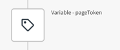
- Next steps need to manage the multipage. Use a new variable, call it pageToken and set as empty string.
- The following 3 steps get the number of users the query will retrieve and create an array with the number of pages to read.
- Inside the Loop, as first step let’s call the Google Directory API. Use the Call URL Block. You can find the documentation on how to use it at this page.
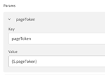
Remember to use as parameter the pageToken
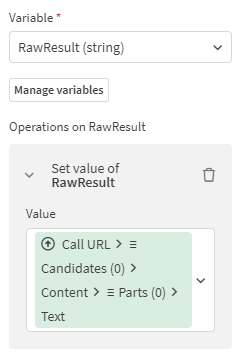
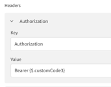
And in the header the authorization Bearer as follow:
- Next step is updating the nextPage Token for the next iteration:
- Loop over the list of members coming from the API Call.
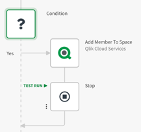
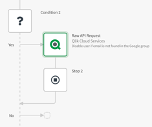
- Now, for each iteration we can finally check if the user just created is in the list with a simple condition Block. If it is in the list, we can assign a license and grant the user to one or more spaces. If it is not, just go for the next iteration.
- Once the iterations on the pages is over and the user was not found, we know he/she is not among the list of authorized users, thus we can get further action such as disable it.
Here attached to this article you can find the Automation. Remember to replace the placeholder in the Variable Private Key Id and Variable Private Key with your own keys as well as the group in the two call url blocks.
-
Analytics Solutions for the US Department of Defense - Whitepaper
How the DoD makes decisions is changing. Historical transaction reporting and static batch data analyses are giving way to predictive data science, st... Show MoreHow the DoD makes decisions is changing. Historical transaction reporting and static batch data analyses are giving way to predictive data science, streaming analytics, machine learning (ML), and artificial intelligence (AI). The DoD must embrace these new paradigms for more informed, real-time decisions to impact business, operations, and mission performance.
This whitepaper will address how Qlik can enable the DoD to achieve it's mission.