NULL is not a value. It is a lack of value. It is a placeholder that marks nothingness.
So how do you search for NULLs? How do you find the customers that didn't buy product X? Or, how do you find the users that didn't log on this month? There is no search string that matches NULL and even if there were, you can’t select NULL.
NULLs cannot be selected explicitly, so to find the records with NULLs, the selection must always be made in another field. In the example of customers not having bought product X, it means that the Product field for some customers is NULL. Hence, you need to select the customers for which the Product is NULL.
In other words – you need to make the selection in a field other than where you have the NULL. And here’s how you do it:
Set your selection criteria the normal way.
Use Select Excluded on the field where you want to negate the selection
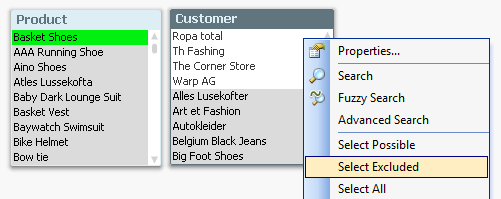
For example, if you want to find customers that have not bought Basket Shoes, then you should first select Basket Shoes from the Product list box. Then you will in your Customer list box have the customers that indeed bought Basket Shoes. But the grey customers are the ones you are looking for. So, right click, and Select Excluded. Voilà!
The second example was how to find users that have not logged this month. Analogously, you first select the month and then you negate the selection by using Select Excluded on the User list box.
A third example could be that you want to find the customers that have not bought any product at all. Then you should first right-click the products and Select All. This will maybe not change very much, but it will exclude the customers that never placed any orders. In other words: These are now gray and can be selected using Select Excluded.
A final example could be that you have a combination of criteria, e.g. you want to find customers that have not bought any shoes in the last few months. The method is still the same: Select relevant products and select relevant time range. The possible customers are the ones that have bought of the products in the time range, and the excluded customers are the interesting ones. Select Excluded!
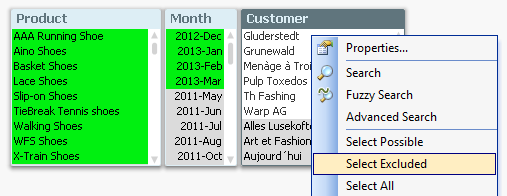
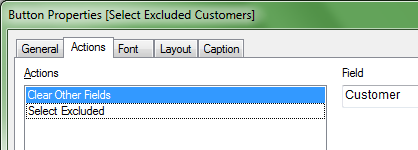
However, when you have a combination of selections, QlikView doesn’t always remove both of the initial selections when you select the excluded values, so to get it right you should combine it with a Clear Other Fields. A good, user-friendly solution is to put both commands in a button that you label Select Excluded Customers.
If you want to read more about how to manage NULLs in your QlikView application, you should read this Technical Brief.
You are absolutely right that OtherSymbol sometimes is useful. When you run a script that has OtherSymbol in the data, the symbol is replaced by one or several values that exist in the same field in previously loaded tables, but have not yet been loaded from the current table. Hence, it can be used to mark missing values. However, it has some peculiarities…
You need to load your tables in the right order. In your example, loading Customers before you load Data will not yield the same result as the opposite.
You usually want to have the OtherSymbol as the last record of the table. Having it in the middle of the table or in the beginning will not yield the same result as in the end.
The OtherSymbol changes the number of records. If you e.g. use the OtherSymbol in the CustomerID in the Orders table, this table will have records for customers that never placed any orders. In other words, Count(OrderID) may return an incorrect answer.
But if you are aware of these limitations, the OtherSymbol can be very useful.
Thanks for this post. But I hope that QV eventually make nulls selectable in some situation
I initially preferred to not join tables. I believed this would keep the file size smaller and keep a clearer record of the table structure in the table viewer.
But this null issue required me to join some (non data / dimension) tables (I used mapping tables to do this but would have preferred not to). I felt this was one area where QlikView could be improved so that tables do not need to be joined to allow selection of Nulls
Example. I had a number of situations like this
InvNum VALUE SalesManID
123 1,000 990
124 2,000 991
125 3,000 No number entered
edit ok This above example can use set null display = '<Null>' (or set nullvalue). And mapping tables were used for tables joined to the above table where the SalesManID was missing from the joined table. So this is a type 1 missing value not a null
So invoice 125 would not have a Cust name if I reported by Cust Name and Sales (invoice) value
I was able to improve the pivot table (chart) as follow
But I could not select / search / filter by Other (until I went the mapping table route)
What I would have liked is to have an option under Dimensions
Say under suppress when value is Null
Another option
Show when value is Null as name _______________
This would allow a name to be typed in (say Other or missing) and would also make Other selectable
I know there are other ways to achieve this but it mainly involves joining tables (as far as I can see) Exists does work but creates another field to drill down (which is confusing IMO) but only works (I think) for the first table anyway (ie if there are say more than one concatenated sales tables)
I agree that it (hypothetically) would have been nice to have NULLs and Missing values selectable. But it is not so easy...
Making them selectable would imply changes in the internal data structure - changes that at best only would slow the evaluation down, and at worst would be impossible to implement. Examples:
1) NULL and Missing value are not the same - they would need to handled differently. See more on NULL handling in QlikView for the differences. True NULLs would in principle be simple to make selectable, but not Missing values.
2) It would affect all counting functions: NULLs and Missing values should not be counted - neither in frequency counts, nor in Count().
3) It would affect the Logical inference engine, the engine that determines which values are possible: And what would it mean that "Missing values are possible"? This concept is not defined - not until you define your cube (pivot table) with an aggregation. An example of a definition could be: "Is there a value of the field Amount, for which there is no SalesManID?" Note that if you replace the word "Amount" with "Month" in the previous sentence, you will get a different answer. So, SalesManID sometimes has Missing values, sometimes not.
So, in my view, Missing values are best defined in a cube (when the aggregation function is given), exactly the way you have done it.
I have also used where not exists a lot as well. Although I usually went where not Exists(field2,field) drop field field2. I possible overused the mapping table. I had about 25 tables and reduced down to 10-15. When we purchased QV the consultant (who checked my work) was anti not only synthetic tables but also lots of tables as well
This commentary is very useful, however, (and perhaps I missed it) I have need where I want to exclude null values during the LOAD process. I am inheriting an existing script that is loading in about 20 fields from a datasource, where some fields have nulls and some do not. For 1 specific field [Project Status], I want to EXCLUDE the entire record if [Project Status] value is Null.
Note: the only other two possible values are Open and Closed.
This seems basic and i searched the community and couldn't locate the correct syntax.
prieper's solution above is what I would use too. However, it's good to know that it will remove not only NULLs, but also empty strings and strings consisting of one or several blanks. But since this is what you usually wants, this is OK.
However, if you only want to remove NULLs, but keep the strings, you should instead use
Load ... From ... Where not IsNull([Project Status]) ;
In for example a pivot table i can then in a calculated column use the selected value to hide/show rows that have missing values in another table like so:
