Unlock a world of possibilities! Login now and discover the exclusive benefits awaiting you.

Analytics & AI
Forums for Qlik Analytic solutions. Ask questions, join discussions, find solutions, and access documentation and resources.
Data Integration & Quality
Forums for Qlik Data Integration solutions. Ask questions, join discussions, find solutions, and access documentation and resources
Explore Qlik Gallery
Qlik Gallery is meant to encourage Qlikkies everywhere to share their progress – from a first Qlik app – to a favorite Qlik app – and everything in-between.
Qlik Community
Get started on Qlik Community, find How-To documents, and join general non-product related discussions.
Qlik Resources
Direct links to other resources within the Qlik ecosystem. We suggest you bookmark this page.
Qlik Academic Program
Qlik gives qualified university students, educators, and researchers free Qlik software and resources to prepare students for the data-driven workplace.
Recent Blog Posts
-
Ensure Correct Positioning of Selection Toolbar in a Mashup
A small quirk I have experienced while working with the Qlik Mashup API is that the selection toolbar “floats away” from its corresponding chart the f... Show MoreA small quirk I have experienced while working with the Qlik Mashup API is that the selection toolbar “floats away” from its corresponding chart the further the page is scrolled down.
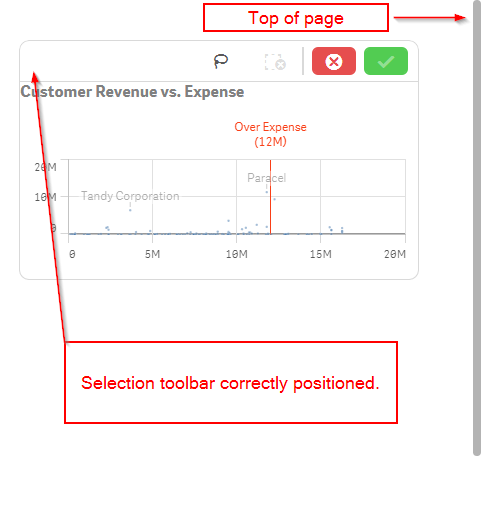
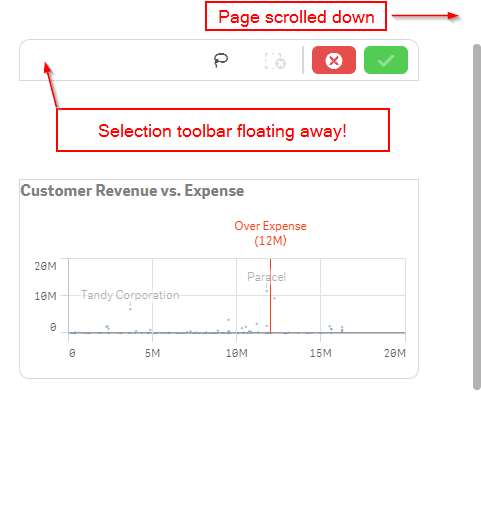
This isn’t a problem if your page does not scroll, or if you position all of the charts with absolute positioning, the default positioning if you use the default mashup template, but if your page scrolls and you are not using absolute positioning on the charts, then you will likely run into this problem too when creating a mashup.
An easy fix for this is to create a container div for all of the page content, set its height equal to the body height, and move the overflow property from the body tag to the container div tag. Let’s walk through this.
First, let's wrap our content in a container div, remove any overflow styling that's on the body, and add overflow styling to the container div.
<body>
     <div id="scroll-container" style="overflow:auto;">
          <!-- YOUR CONTENT HERE -->
     </div>
</body>
Then, we'll need to add some scripting so that the height of the container div is set correctly.
<body>
     <div id="scroll-container" style="overflow:auto;">
          <!-- YOUR CONTENT HERE -->
     </div>

     <script>
          $(document).ready(function() {
               // Sets the container div height correctly on page load
               $("#scroll-container").height($("body").height());

               // Will reset the container div height correctly if window size changes
               $(window).resize(function() {
                    $("#scroll-container").height($("body").height());
               });
          });
     </script>

</body>
And that should do it! Now when you scroll your page, if you click on a chart, the selection toolbar should be correctly positioned atop the chart.
-
Introducing Qlik Sense 2.0!
"Innovation - distinguishes between a leader and a follower." - Steve Jobs Steve Jobs said it best. Since April, #TeamQlik has been hard at work deliv... Show More"Innovation - distinguishes between a leader and a follower." - Steve Jobs

Steve Jobs said it best. Since April, #TeamQlik has been hard at work delivering innovative capabilities in our products and today we get to share it with the world. I am pleased to announce the general availability of Qlik Sense Enterprise 2.0, Qlik DataMarket and the Qlik Analytics Platform. (applause)

By taking these solutions to market, we continue to meet our commitments to our customers and partners,and STILL challenge the norm by disrupting the business intelligence space. It should be no surprise that Qlik is in a unique position in this saturated BI pool. Between outdated BI stacks, and data visualization tools that don't tell the whole story, Qlik delivers a visual analytics platform that puts insight and data at the point where it adds most value, the point of decision. Our associative data indexing engine empowers users to see the whole story that lives in their data, unlike other, shall I say, tools. And it’s only Qlik that is proven in its ability to deliver true agility for the business user, along with governance, trust and scale for IT. Now enough tooting our horn, let me summarize what's new in Qlik Sense 2.0 by not just telling you but showing you with the power of video. (below videos requires YouTube access)
To learn more about these great innovations and experience them for yourself, download Qlik Sense Desktop for free and visit our New to Qlik Sense Videos page on the Qlik Community forum, where you can learn how to use these new features, create apps, build visualizations and much more.
Enjoy!
Michael Tarallo
Senior Product Marketing Manager
Qlik
Follow me: @mtarallo
-------------------------------------------------------------------------------------------------------------------------------------------------
(NOTE: To increase resolution or size of the video, select the YouTube logo in the bottom right of the player. You will be brought directly to YouTube where you can increase the resolution and size of the player window. Look for the 'settings' gears icon in the lower right of the player once at YouTube.)
Qlik Sense 2.0 - What's New in 90 seconds
(Turn your speakers up and get pumped!)Qlik Sense 2.0 - What's New Presentation (3 min)
Introduction to Qlik DataMarket (90 secs)
Getting Started with Qlik Sense Webinar (50 mins)
Additional How To Videos:

-
New Qlik Sense Courses Now Available!
Qlik Education has released three new exciting Qlik Sense training courses for customers, partners and Qlik team members to increase skills in creatin... Show MoreQlik Education has released three new exciting Qlik Sense training courses for customers, partners and Qlik team members to increase skills in creating powerful visualizations.
The three new exciting courses are:
1- Create Mashups with Qlik Sense

2- Qlik Sense Server Architecture
3- Qlik Sense for QlikView Experts
The new course, Create Mashups with Qlik Sense was developed for business analysts and web developers using Qlik Sense. This One day introductory course provides the foundation skills required to create web page mashups using Qlik Sense Workbench.
The new 1 day course, Qlik Sense Server Architecture is designed for enterprise architects who wish to learn the techniques to advance their skills in Qlik Sense server components, architecture configurations, managing services, load balancing, and single sign-on methods.
Qlik Sense for QlikView Experts is a 1 day course designed to enable Qlik Sense skills in those already familiar with QlikView. This technical course teaches the basics of Qlik Sense visualizations and data modeling.
For more information and to register, please visit our website. If you have questions related to these courses or others please contact us at education@qlik.com

-
Dynamically Selecting Timeframes
How can a button be used in a QlikView app to dynamically select the last 3 months? I was asked that question a few weeks ago and thought it would ma... Show MoreHow can a button be used in a QlikView app to dynamically select the last 3 months? I was asked that question a few weeks ago and thought it would make a good blog topic. It can easily be done and can provide the user with a quick way to filter data by a timeframe. Now there are other ways of doing this besides using a button for instance List Boxes can be used to select the desired dates. In this example, I have used a Text Object to do this.
In a Text Object, I add actions that clear certain fields and then make some selection(s). But before I do that I create variables that will be used in the actions. For example, if I wanted two Text Objects that select the last 7 days and the past 3 months, I would first create a variable that stores the current date (let’s assume the current date is July 1, 2014) and then add additional variables for the two timeframes: past 7 days and past 3 months. I added the following to my script and reloaded it.
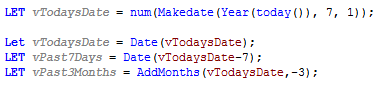
The script creates a variable, vTodaysDate, that stores the current date (July 1, 2014) in the appropriate date format (as set in the SET DateFormat=’M/D/YYYY’ line in the beginning of the script) and then creates variables for the past 7 days and past 3 months. The value of the variables once the app is reloaded is as follows:
vTodaysDate = 7/1/2014
vPast7Days = 6/24/2014
vPast3Months = 4/1/2014
These variables are then used in the action of the Text Object to select the specified timeframe. So to see how this will work, let’s review the actions that are used for the Past 7 days and the Past 3 months Text Objects seen in the image below.
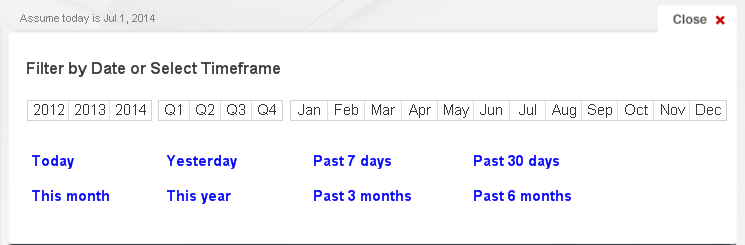
The Past 7 days Text Object would have the following actions:
Action Sort Order Action Field Search String 1 Clear Field OrderDate 2 Clear Field Year 3 Clear Field Month 4 Clear Field Quarter 5 Select in Field OrderDate =’>=$(vPast7Days)’ The OrderDate, Year, Month and Quarter fields are cleared and then order dates that are greater than or equal to 6/24/2014 are selected.
The Past 3 months Text Object would have the following actions:
Action Sort Order Action Field Search String 1 Clear Field OrderDate 2 Clear Field Year 3 Clear Field Month 4 Clear Field Quarter 5 Select in Field OrderDate =’>=$(vPast3Months)’ The OrderDate, Year, Month and Quarter fields are cleared and then order dates that are greater than or equal to 4/1/2014 are selected.
Making these selections by clicking a Text Objects with actions can be easier than selecting multiple dates from an OrderDate List Box. When the user has the need to view the data based on predefined timeframes, Text Objects or Buttons can be used to simplify the process. You can find an example of how to create timeframe links in my technical brief that adds timeframe selections to the Dashboard sheet of the Sales Management and Customer Analysis demo.
Thanks,
Jennell
-
The right chart for your data set (and for your device)
Patrik Lundblad wrote an interesting article in this blog called “Dissecting How to Choose the Right Chart”. It explains which chart best communicates... Show MorePatrik Lundblad wrote an interesting article in this blog called “Dissecting How to Choose the Right Chart”. It explains which chart best communicates what we want to convey with the data set we have. Taking this concept one step further, there are additional variables when considering what chart works best. What other variables? Things like screen size and type of interaction model are important factors that affect the suitability of a chart.
Let’s pick a classic example: Sales by region by quarter. We should start by asking ourselves, “What would I like to show?” I want to compare between regions and dates. Secondly, ask “What data do I have?” I have one variable per item, Sales, and have a few categories. This will prompt me to choose a bar chart. A grouped bar chart will help me see exactly the information I need.
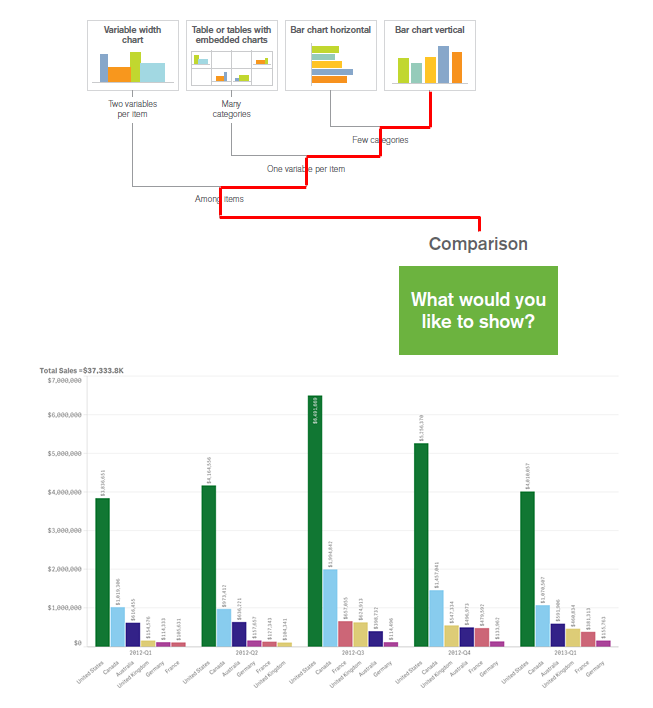
Even if the grouped bar chart is a perfect legible data visualization in a desktop or laptop computer, would it be my first choice if the chart is going to be consumed on the screen of a 4” mobile device? The answer will probably be no. Instead, I might want to create a horizontal bar chart, or even perhaps change the chart type to a stacked bar chart in order to simplify the user experience.
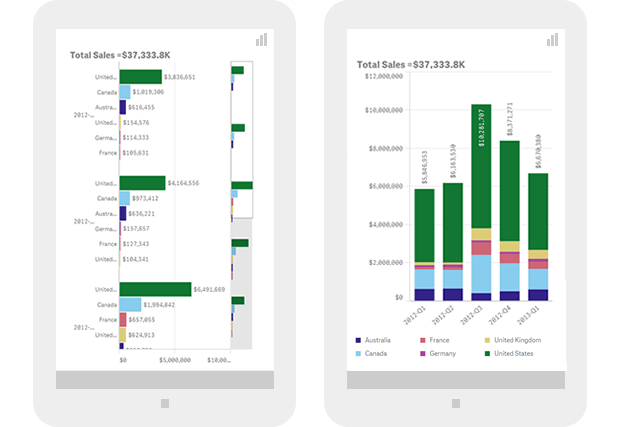
CPU, memory, and network connectivity responsive model
Since each device’s CPU and memory are two factors that may limit the amount of data a device can handle, it would be good to aggregate large data sets prior to sending it over to the device. This will minimize the in-device processing time but also generate a new dataset that might require a whole new visual representation. Ideally we should be able to display different levels of data aggregation and therefore different chart types based on the device’s processing power.
The same rationale applies to mobile data connectivity. In order to optimize the user experience, we should be able to detect when a device is in a poor reception area or belongs to a slow network. This would allow us to dynamically choose the chart type that best fits the particular conditions.
Responsive data visualization is still a challenge for developers and designers and in the years to come we need to develop new responsive data visualization principles similar to the “How to choose the right chart.” These principles would set guidelines on how to present data considering factors such as device screen dimensions, computational power, or wireless data connectivity. This new model will guide us through the decision making process on what chart type to choose but also on how the chart will morph and transform to effectively communicate data insights on different devices, from desktops and mobiles phones to tiny wearables screens.

-
Qlik Community Version Upgrade
Hello Qlik Community Members,I'm sure you noticed our scheduled maintenance window last week and again yesterday. Apologies for the extended outages w... Show MoreHello Qlik Community Members,
I'm sure you noticed our scheduled maintenance window last week and again yesterday. Apologies for the extended outages which we know impact your collaboration and research schedule. These outages were part of a large platform version upgrade project and we did our best to minimize them as much as possible. Qlik Community is now on a newer version of the platform which has some great enhancements to improve user experience as well as fixes for some minor bugs.
Post Upgrade Tips
Please be sure to clear your browser cache and cookies to refresh the community interface. You may want to also log out and log back in. We have tested in all of the primary browsers (Chrome™, Firefox®, Safari® and Internet Explorer®) to ensure the updates are rendering correctly.
For the best experience you should always use the most recent version of your browser which contains extensions, updates, and plugins to help ensure you have the proper experience with loading time, content posting, and video display.
Profile Page
The profile page has been redesigned to be more engaging with larger images, centralized editing, and access to different types of content.
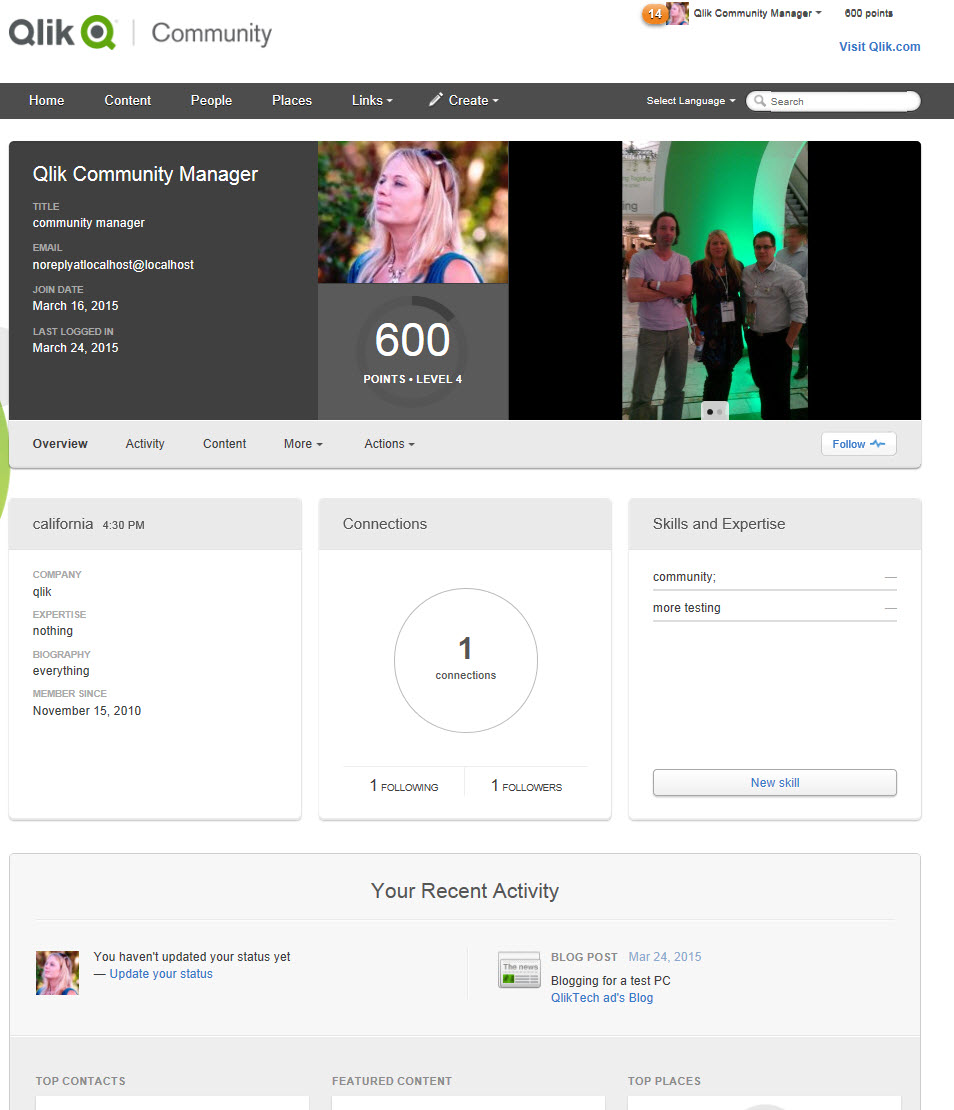
Profile image and details are next to an enhanced image carousel. The Profile Biography, Connections, and Self Assigned Skills (NEW) are easy to see and update.
Recent Activity displays your Status Update (NEW), Contacts, Featured Content, Recent Places, and different types of content streams.
Filtering
People and Content Filtering has been improved and now allows dual filtering for a more refined search. You can search for content status, assignment, and activity level in specific areas or across the whole Community.
You can also change the display from 'pane' to 'list' style depending on your preference.
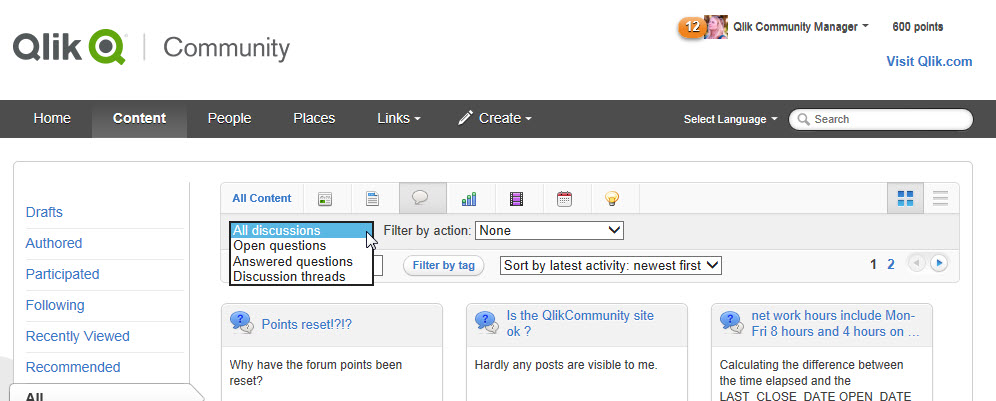
We will be posting additional tips in the coming weeks to help you utilize more of the updated features.
Be sure to check your profile information, bookmarks, and content to ensure everything is correct.
If you have questions, issues, or feedback please email sara.leslie@qlik.com
Best Regards,
Qlik Community Management Team

-
Be sure to check out our Fika Learning Series event this week: Aiming for the mi...
This Wednesday we will be hosting our 2nd Fika Learning Series event with Qlik experts online to answer questions pertaining to this engaging and very... Show MoreThis Wednesday we will be hosting our 2nd Fika Learning Series event with Qlik experts online to answer questions pertaining to this engaging and very relevant topic:
The benefits of blending data and experience
Intuition and analytics are two poles of the decision-making spectrum. If you’re like most people, you naturally gravitate to one or the other. But no person or data set is perfect, and making decisions based solely on intuition or analytics won’t generate the best outcomes. Join our live event to learn how you can move to the middle and become a “data-informed” decision maker. During our Fika events, we’ll share educational videos and have our experts available to answer your questions in live discussion forums.
Take a sneak peek at the pre-event video intro.
Its not too late to RSVP for the event.
Best Regards,
Qlik Community Management Team
-
Make a Selection
I was recently working on a Qlik Sense app where the developer wanted to show some profile data based on the user’s selection. The user was prompted ... Show MoreI was recently working on a Qlik Sense app where the developer wanted to show some profile data based on the user’s selection. The user was prompted to make a single selection in a field and once they did specific data for that selection would be displayed. When I first looked at the image below, I thought that it may be confusing to the user if there is data in the profile before they have made a vendor selection. As you can see in the image below, no selections have been made yet but there is data in most of the objects.
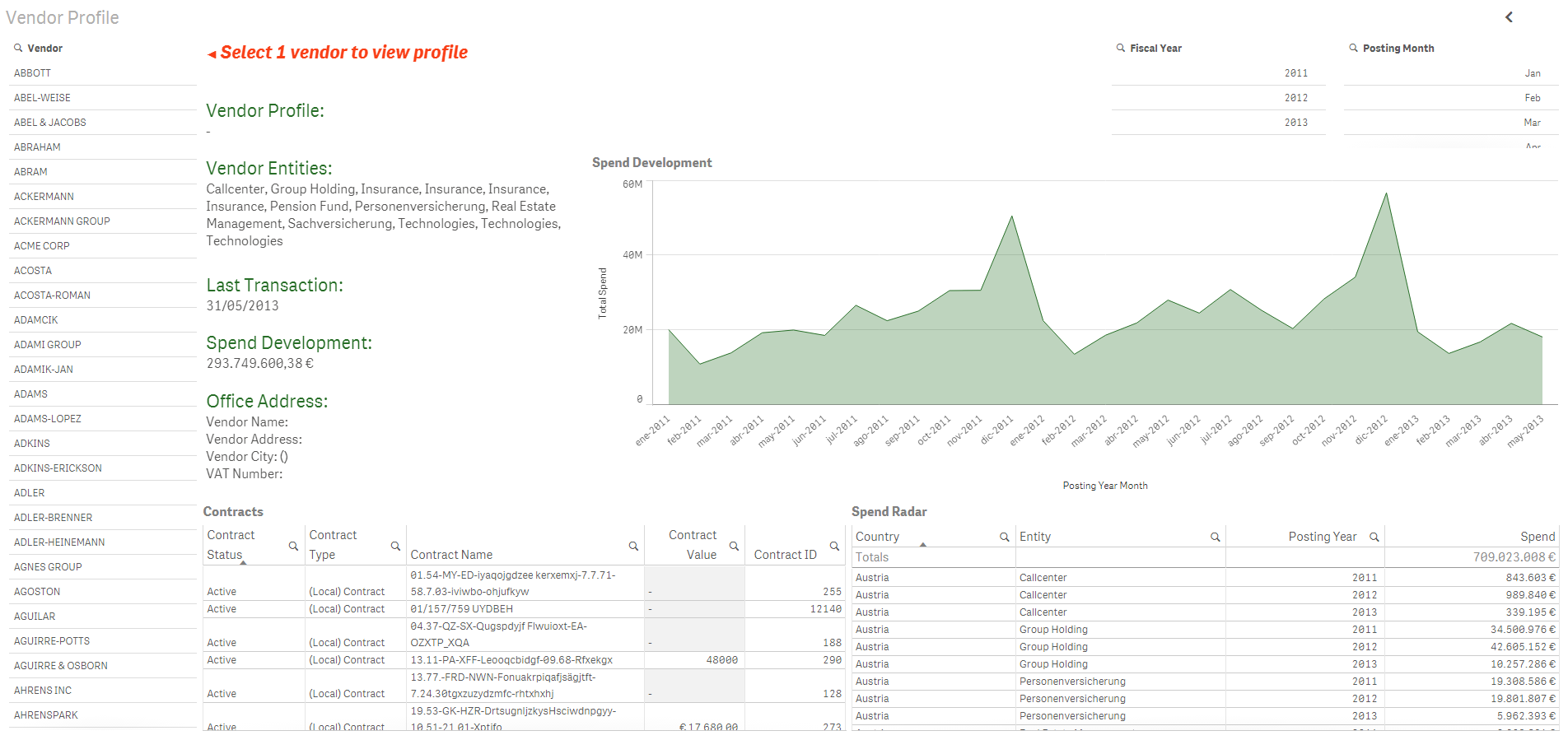
In some objects like the Spend Development line chart and the Contracts and Spend Radar tables, the data makes sense without a vendor selection – we are viewing the spend and contracts for all vendors. But in some objects like the Last Transaction field, this does not make sense. The last transaction date being displayed is across all vendors so it is just the latest transaction date among all the vendors. You can also see that the Vendor Profile is null since one has not been selected yet. So my thought to get around this was to modify the expressions being used for some of the objects. For instance, for the Vendor Profile, instead of simply having the field name for the vendor name:

I modified the expression to use the GetSelectedCount() function to first determine if one selection has been made from the Vendor filter pane. If one vendor has been selected, then I display the vendor name. Otherwise, I display an empty string. GetSelectedCount() is a chart function that returns the number of selected (green) values in a field.

So here is what the sheet looks like now without any selections. The vendor fields like profile, entities, last transaction, spend development and office address are all blank since a single vendor has not been selected. If multiple vendors were selected, these fields will remain blank since we only want to display that data for one vendor at a time.
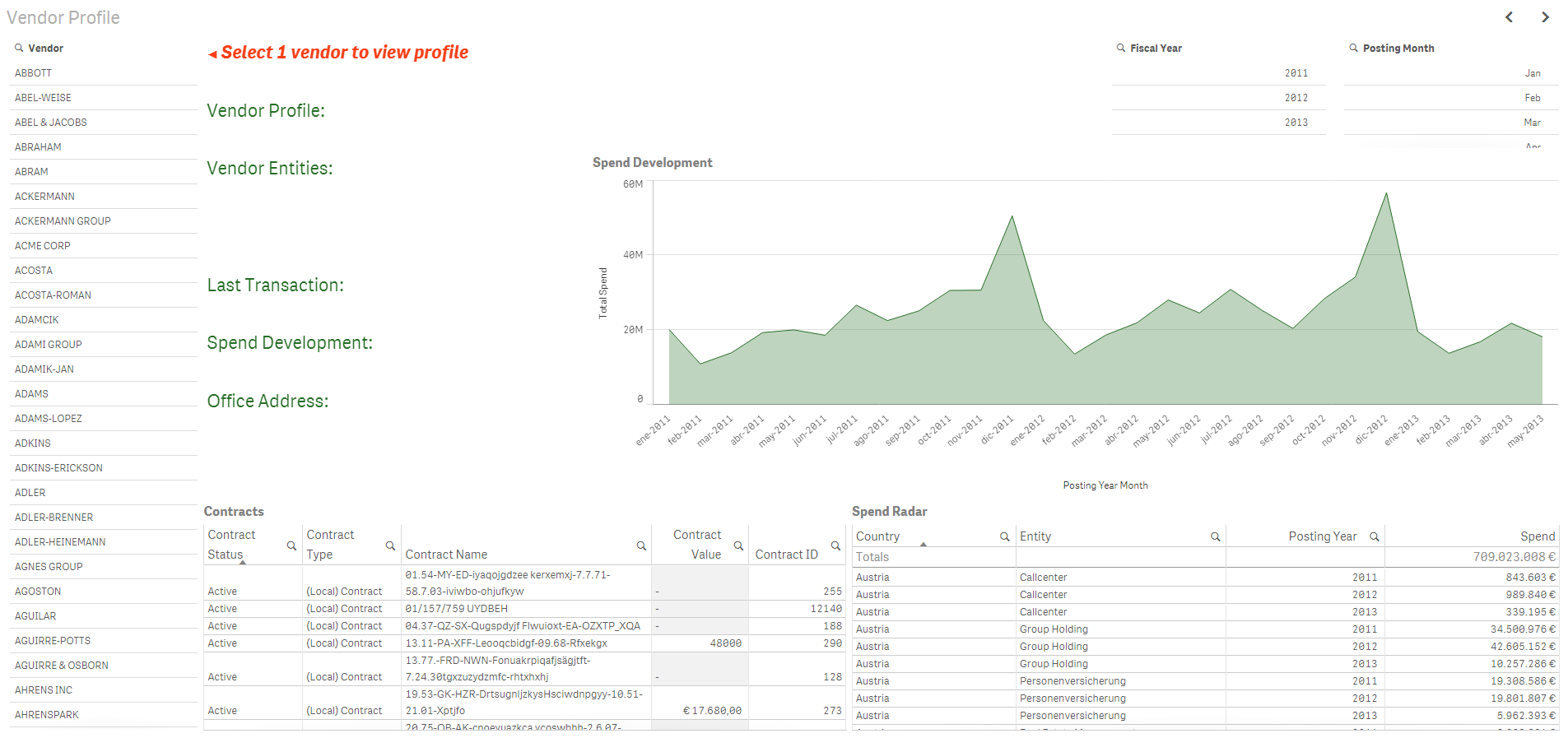
Once a vendor is selected, the sheet looks like this:
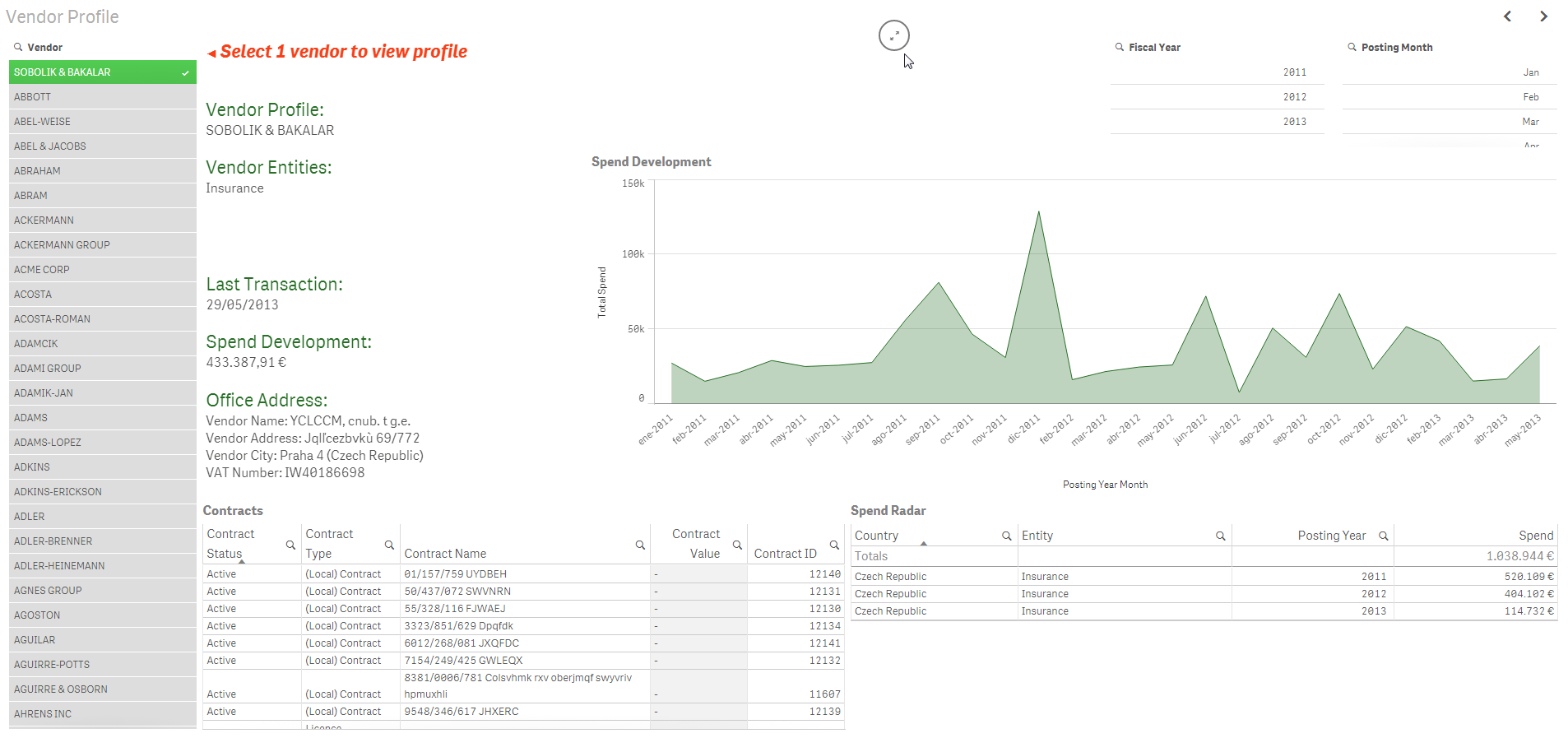
The related data is displayed and it is clear to the user that they are viewing data for the selected vendor. To me, it made more sense to show no data in these fields when a vendor had not been selected versus showing misleading or confusing data.
In this example, GetSelectedCount() was one way I could help prompt the user to make a selection. Even though we have text on the page asking the user to select 1 vendor, we all know that sometimes users do not read the text on a page. By removing the data that is displayed in some of the fields, it brings to the user’s attention that something is missing and that they may need to do something to view the data. The GetSelectedCount() function works with the red text to prompt the user to do something. There may be other ways of handling this in Qlik Sense – I would be curious to hear what techniques you have used.
Thanks,
Jennell
-
Designing for the new Resolution
Deciding what resolution to design for is a common question. For the last several years the general recommendation had been to design for 1024 x 768, ... Show MoreDeciding what resolution to design for is a common question. For the last several years the general recommendation had been to design for 1024 x 768, which had been the dominant resolution on the web. Now things have shifted. The dominant resolution for the past few years has been (and is) 1366 x 768. This is largely because more and more people are using laptops. So the simple answer is to just say "design for 1366 x 768." That said it's a bit more complicated than that.
Go wide
The trend over the past few years has definitely been to take advantage of the larger resolutions and to start designing wider going beyond the pixel dimensions of the 960 grid system used to design for 1024 x 768. As an example of this trend we can examine the web traffic coming to Qlik.com. I know that the top 8 resolutions are all wider than 1024 which accounted for 78.01 % of our traffic last year. Of those resolutions 1366 x 768 was number 1 with 25.92% of traffic and the narrowest resolution of the top 8 was 1280 x 800. Now there could be certain biases in these numbers, that the people interested in a BI product might be more technologically savvy so they may have higher resolutions than the average internet user, but if you are looking to design apps for BI users then it's a good measurement of your potential user base.
So why consider 1024 x 768
While 1024 is going away it's aspect ratio is still valuable. 1024 x 768 is the same aspect ratio as 2048 x 1536, the resolution of the ipad. The ipad is by far the dominant device in the tablet market. So designing for 1024 means you are going to produce something that the majority of your users can see (since most people are on even wider desktop computers) but also you will have a good idea of what your users will experience when using your design on an ipad in landscape orientation. Designing for 1024 means you can create something once and deploy it on desktops as well as tablets knowing it will be accessible on the devices most people want to explore BI on. This saves you time & resources from having to build things twice, once for wider desktops and again for tablets.
Responsive Design & Dynamic Grids
If you are creating a mashup app, using HTML & Qlik together, then the best approach is in using a dynamic grid that is responsive to the available resolution. It can still be a 12 column grid system but it will adapt based on the device you are using. This approach takes more work but it is the best recommendation for designing for today's web and the realities of people using multiple devices to access the same content. In addition, Google recently announced that "mobile-friendliness" will be used as a ranking signal when they deliver search results. In other words, if your content isn't optimized for mobile devices you may be further down the search results than before. Something to consider if you want your content to be found online.
Listen to your users
Ultimately you are designing for your users. If you are creating an app for an environment where most users are at a certain resolution size, then design for that size. If you are designing an app where tablet usage is likely, consider designing for 1024 or using a dynamic grid if the app is a mashup. If not start thinking about going wide.
-
NEW! Qlik Sense Skills Assessment
Are you a Qlik Sense power user? How well do you think you know Qlik Sense? Do you want to challenge yourself to see how well-rounded you are with the... Show MoreAre you a Qlik Sense power user? How well do you think you know Qlik Sense? Do you want to challenge yourself to see how well-rounded you are with the product? We have the tool for you! We've updated the Skills Assessment tool to incorporate Qlik Sense and have three new assessments live on our website! Please check them out at http://www.qlik.com/us/services/training/skills-assessment and encourage your peers to do the same! You can take Qlik Sense assessments as a Visualization Author, Data Architect or Qlik Administrator. So, what are the benefits of taking this Skills Assessment?
- Understand where you are at on your Qlik Sense learning journey for FREE!
- Unlimited attempts to take assessments
- Measure your progress before and after training
-
An Experience Using Extensions
Recently, I was asked to create an application in which a user would be able to search for videos for the demos on demo.qlik.com. After reviewing the ... Show MoreRecently, I was asked to create an application in which a user would be able to search for videos for the demos on demo.qlik.com
 . After reviewing the task at hand, I decided that I would need to incorporate a QlikView extension in order to have the videos play inside the QlikView application. The extension that I chose was the webpageviewer.qar. My dataset included the URLs for the videos. The videos were previously uploaded to YouTube. By uploading the videos to YouTube, it allowed me to embed the videos in the webpage viewer so that only the video would show up in the webpage viewer instead of the entire webpage.
 Another aspect of the application was to give the user the ability to select tags in order to filter the data and find the desired video to play. As a team we decided that, because there were so many tags to display, it would be better to show them as a popup over the other objects on the page. The user could invoke this popup by selecting the “View all video tags” button. The user also had the ability to remove the popup from the screen by selecting the close button. Easy enough, right? All it entailed was creating a couple of variables, a text box and a list box for tags and layer them all accordingly. This was standard QlikView show/hide. Not so fast my friend! Did you know that the webpage viewer takes layer precedence over all other objects on the screen? That’s right; you cannot layer over top of the webpageviewer because of the flash used for the videos. The webpageviewer always comes to the top. OK, so now what?
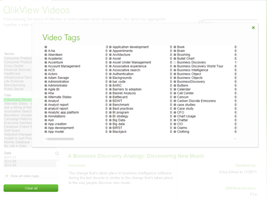
I decided that I needed to somehow put a show/hide condition on the webpageviewer and hide it when the popup was selected. Only one problem, the original webpageviewer did not have an area to write a conditional show expression. ARGH! Well since I sit next to the extension guru, I asked him if he could tweak the extension and give me the ability to show/hide the extension. After a couple of minutes of tweaking, I was in business. I was able to hide the video player when the “View all video tags” button was selected by creating a variable named vShowTags. When the “View all video tags” button is selected, there is an action that sets the vShowTags variable to YES. When that happens, the webpageviewer extension is hidden. And when the user selects to close the popup another action is triggered that sets the vShowTags variable to NO which allows the webpageviewer extension to show on the page.
There are many ways to accomplish desired tasks in QlikView. The challenge is sorting through all of your options until you find the best solution. Click here for the zip file that contains the QVW, Technical Brief and the extension object used in the creation of the Video Player demo. You can also see the Video Player demo on demo.qlik.com Happy Qliking!

-
Recipe for a Scatter Chart
A scatter chart or a bubble chart is easy to make in QlikView – if you know how to… There are however a couple of things that may be confusing when yo... Show MoreA scatter chart or a bubble chart is easy to make in QlikView – if you know how to… There are however a couple of things that may be confusing when you make the chart.
The first thing is the Dimension. Many think that this is identical to one of the axes of the chart, and for most chart types it is. But not for a scatter chart. Here, the logical dimension is not the same as the graphical.
Instead, you should visualize your graph and ask yourself: “What should each dot or bubble represent?”
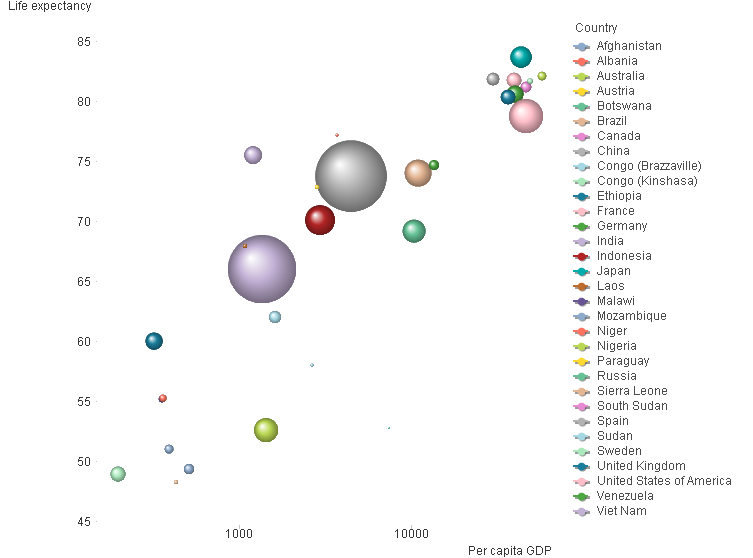
In the graph above, each bubble represents a country. In your case, it could perhaps be one bubble per customer, supplier or product. This is your dimension.
The next question is: “Where should the bubble be positioned?” In the graph above, the x-coordinate is per capita GDP and the y-coordinate is the life expectancy. You may want to use e.g. the total order value, gross margin, net cost or some other numbers. These are your measures. These are used for the axes in the graph.
You need at least two expressions. Optionally, you can have a third expression that will be used for the size of the bubbles. In the chart above, the country population is used as third expression.
When defining the measures, you encounter the next confusing thing: A country has only one GDP, but QlikView still wants you to use an aggregation function, e.g. Sum() or Avg(). The reason is that QlikView cannot “know” if your data has one or several records for each dimensional value. So, you need to use an aggregation function to tell QlikView what to do, should there be more than one record. If there really is only one record per dimensional value, then it doesn’t matter if you use Sum() or Avg(). Both will work fine.
But if you have several records per dimensional value, then you need to stop and think. Do you want to sum the records? Or do you want the average?
Once you know which dimension and expressions to use, it is straightforward:
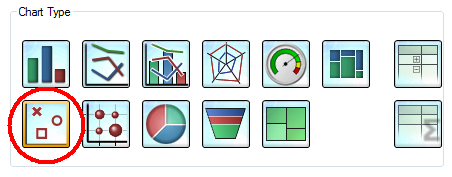
- Create a chart and choose Scatter Chart. Click Next.
- Add your dimension. Click Next.
- Add the fields that you want to use for your two expressions in the “X” and “Y” controls.
- If you want a bubble chart, you need to add the third expression that determines the size of the bubbles.
- Check “Advanced mode” to the lower left. QlikView 11 unfortunately jumps to the “Sort” page here, so you need to click “Back” to verify that the right aggregation functions for your expressions are used. You may need to change the functions.
- Click Finish.
Now you will have made a scatter chart. To make it more beautiful, you should also consider the following:
- Choose a style [Style – Look]
- Increase the Bubble size [Presentation – Max bubble Size]
- Change the scale of one or both axes. [Axes]
- Remove the “Force 0” option.
- Use a logarithmic scale.
If you want to try to make a scatter chart using some good sample data, look at the document Creating a Scatter Chart.

-
Get certified at the Qlik World Conference in Orlando!
Are you interested in QlikView Certifications? Now is your chance! Certification exams will be held at the 2014 Qlik World Conference in Orlando, FL... Show More
Are you interested in QlikView Certifications? Now is your chance! Certification exams will be held at the 2014 Qlik World Conference in Orlando, FL on November 18th and 19th.
If you are planing on taking the QlikView Designer or QlikView Developer exams and would like FREE TUTORING prior to the exam, please read the attached document provided by IPC Global.
If you are interesting in attending the conference visit, Qlik World Conference 2014 for details and registration.

-
String Functions
QlikView is full of functions that can be used in expressions and/or the script to manipulate and parse the data. I decided to write about some commo... Show MoreQlikView is full of functions that can be used in expressions and/or the script to manipulate and parse the data. I decided to write about some common string functions that can be very helpful:
- Subfield()
- Len()
- Index()
- MinString()
- MaxString()
- Substringcount()
Subfield()
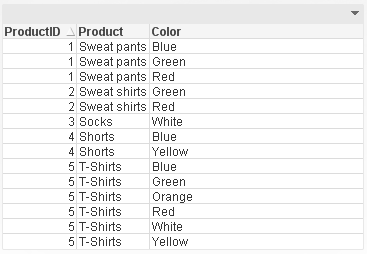
One of the most useful functions is the Subfield() function. From within the script, this function returns a specific substring from a larger delimited substring. This function allows you to transform a table like this:
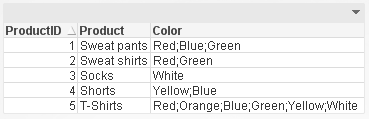
To a table like this parsing the Color field so that each product and color combination has its own row. This makes it easier to filter the data by color using list boxes.
Len()
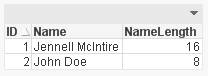
The Len() function returns the length of a string in either an expression (Len(Name)) or in the script providing the number of characters in in string like this:
Index()
The Index() function returns the position of a substring within another string. This function may be overlooked but it can be very handy when parsing a string field like a phone number. Using the Index() function, I can determine where the ‘-‘ are in the phone number therefore capturing the parts correctly.
Phone:
NoConcatenate LOAD
ID,
Phone,
Left(Phone, Index(Phone, '-')-1) as Phone1,
Mid(Phone, Index(Phone, '-')+1, 3) as Phone2,
Right(Phone, Len(Phone)-Index(Phone, '-', 2)) as Phone3
Resident PhoneTemp;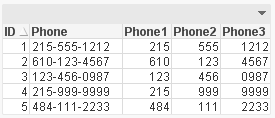
MinString() and MaxString()
Next are the MinString() and MaxString() functions. I think everyone has used these functions at least once in QlikView. They return the first or last value over a dimension (in an expression) or over a group by clause (in a script). I find these functions most helpful in chart expressions when I need to see the first or last value across a dimension.
Substringcount()
The last function is the Substringcount() function. I think this is a hidden treasure – not many people know about it but once you do, you use it all the time. The Substringcount() function returns the number of times a substring is in a string. So, if the field String is “abcdefabcdef” then the expression Substringcount(String, ‘def’) will return 2. I find this helpful with a show condition when I want to determine is a value has been selected or is possible.
There are so many string functions in QlikView that can make your life easier. Browse through them the next time you are in the Help section to see what shortcuts you can use to manipulate your data.
I wrote a technical brief about these string functions with more detail.
-
Mobile Usability, a few guidelines
Mobile access to information is becoming big business. While the share of the mobile market depends on what study you read, a 2012 study by Chitika sa... Show MoreMobile access to information is becoming big business. While the share of the mobile market depends on what study you read, a 2012 study by Chitika said US mobile devices accounted for about 20% of all US internet traffic. Of that 20% smartphones were 14.6% while tablets were 5.6%. These numbers are all up from previous years. As the number of devices increases so too does the power of these devices. Mobile devices are moving away from being solely information consumption devices and into the realm of information creation devices. As the hardware becomes more powerful, and the user experiences become more sophisticated, our mobile devices are allowing us access to interact with information from anywhere. With this groundswell in mobile are increased expectations from users for well-designed, considerate, intelligent designs that work well on the device at hand. Smartphone experiences shouldn’t be the same as desktop experiences but it should be just as good. The usability considerations for how we interact with these devices can be very different from device to device.
The attached technical paper begins to address some mobile usability considerations. The summary of this paper is that:
• The conversation around mobile devices is less about Consumption vs. Creation and more about Task Complexity vs. Task Duration.
• Properly sized designs for the desktop experience will also work for the tablet experience.
• Smartphones want customized experiences.
• Progressive disclosure is more important than ever on smartphones.
• How people interact with touch-based devices influences success rate of applications.
• Leave room to enable scrolling.
-
Introducing Qlik Sense 1.1
Hello Qlik Community! You may be wondering - how do we make our product delight as many people as possible? It is quite simple actually. We take every... Show MoreHello Qlik Community! You may be wondering - how do we make our product delight as many people as possible? It is quite simple actually. We take everything we've learned as a software company and push it one step further.
That being said, we are very excited to announce Qlik Sense version 1.1, our first point release for our next generation self-service data visualization software. Qlik Sense 1.1 introduces new visualization objects, usability improvements and of course bug fixes. To learn more about Qlik Sense 1.1, watch this brief video to see its highlights and continue reading on to learn about each feature.
Get a free version of Qlik Sense Desktop - here
Qlik Sense 1.1 Highlights
New Pivot Table
A welcomed addition to Qlik Sense is our new Pivot Table object. It offers rapid interchangeability of metrics and dimensions, which create different responsive views of the same data-set. Depending on what you want to focus on, you simply “pivot” dimensions and measures to summarize and group data of interest and hide data that is either too detailed or irrelevant during the analysis. We have also added on-the-fly filtering and search, which simplifies your analysis by allowing you to focus on what’s important so the necessary data is displayed front and center. When used in combination with other Qlik Sense visualizations, uncovering outliers and spotting areas of interest become even easier. Watch this brief video (7 min) below to see the Pivot Table in action.
The KPI Object
Our customers are just as innovative as we are. We noticed that the Text and Image object was being used often to present summarized metrics. So we took this capability one step further and we added a new type of visualization called the KPI object. The KPI object is used to quickly track performance of your metrics. It can display a main measure along with an optional secondary measure for complimentary or comparison purposes. There is also conditional styling and defined thresholds, which can easily highlight alerts and comparison differences. With the addition of graphics, such as trending arrows and other symbols, visual notification is improved - allowing you to quickly visualize and track performance of key metrics and measures. Take a look at this brief video (5 min) to see the KPI object in action.
Map Object Update
In this latest release of Qlik Sense, our goal was to make our mapping easier to use. By teaming up with Mapbox, an innovative provider of comprehensive mapping capabilities, we provide simplified mapping without the need to negotiate usage agreements or pay additional fees. This is available to both the Free Qlik Sense Desktop product and Qlik Sense Server. If you have your own map service or want to use another the option is available for you to configure. Other improvements include null value recognition, adjustable opacity, improved color intelligence, labels for expressions and the ability to take snapshots for storytelling.Watch this brief video update (8 min) to learn more about the changes to the Qlik Sense map object.
Finally, small changes make a big difference. We have added a number of usability enhancements that improve the overall user experience when navigating and creating content in Qlik Sense. Some of these include, improvements to Data Storytelling, additional shortcut menu options, automatic grouping of date and time fields and much more, please refer to the Qlik Sense 1.1 release notes for more information on these and other improvements.
Thanks for taking the time to learn what’s new in Qlik Sense. Don’t forget to visit the New to Qlik Sense forum on the Qlik Community where you can quickly learn how to get started with Qlik Sense, browse how-to videos and join in the conversation with me and others.
Kindest Regards,
Michael Tarallo
Senior Product Marketing Manager
@mtarallo - Follow me on Twitter
Qlik
-
Tips on posting questions
The Education Services team is thrilled to see the amount of activity in the forum and we are dedicated to ensuring you get the answers to your Qlik q... Show MoreThe Education Services team is thrilled to see the amount of activity in the forum and we are dedicated to ensuring you get the answers to your Qlik questions.
In order to get the most from responses from your posts, please follow the guidelines below:
- Only use the categories QlikView and Qlik Sense (all other categories are for internal employees only)
- Ensure your post has a specific question including question marks ???
- Make sure to mark your question with bold letters so its clear for members what exactly you are asking
- Put the question in the title of the post but at the same time, keep the title relevant - 'Hi' or 'QlikView question' is not very helpful for scanning for questions and answers
- Attach images or samples to help explain your question
Refer to the guideline attached for more helpful tips
-
We are back online- sorry for extended maintenance time today
Hello Qlik Community Members,Apologies for the Community down time today! We had a planned maintenance window early this morning and the vendor encoun... Show MoreHello Qlik Community Members,
Apologies for the Community down time today! We had a planned maintenance window early this morning and the vendor encountered some issues which required additional time to resolve.
We are very sorry for the inconvenience and appreciate your patience. We do NOT have any planned outages over the coming weeks so your collaboration should be uninterrupted.
Have a great week!
-The Qlik Community Team
-
Design's big questions
What is design? Who is a designer? I've been a designer for 13 years and what I do now isn't the same as what I started doing but I'm still a designer... Show MoreWhat is design? Who is a designer? I've been a designer for 13 years and what I do now isn't the same as what I started doing but I'm still a designer. I spent the first couple of years designing books and doing traditional ad agency work, eventually moving into User Experience design. While the nature of the output changed I was still a "designer" just in different mediums.
I've heard the term "designer" used to describe a wide variety of jobs. Usually when people outside of the creative world talk about designers they are thinking just about people who make things look nice. At the same time however I've heard Information Architects referred to as designers and they don't usually contribute to the aesthetic at all. So who's a designer? What defines a designer? I think the answer is in how you answer the larger question of, "what is design?"
What is Design?
Design is not defined by making things look pretty. Making things aesthetically pleasing can be a component of design, but it is not the sole defining factor. At it's most broad, design is problem solving. It is making a solution to meet the needs of other people (users). By this definition you can have well designed code, a well designed wire-frame, a well designed city, a well designed phone, a well designed experience, etc. It isn't necessarily about the visual. When something is well designed it meets the needs of the intended audience - it has solved a problem. User Experience design works to solve the problems of users interacting with an experience (usually digital). A UX designer then is someone taking human computer interaction knowledge, usability data, and visual design and bringing them together to create great interactive experiences that help people.
Still though the idea that great design means something looks great persists. Is Craigslist well designed? It isn't attractive but it has the content people want and it solves a problem. Is the Juicy Salif well designed? It's beautiful but the gold plated version can't be used to juice lemons because the acid in the lemons will destroy the gold. It can be challenging to define what makes great design, but at its core is the creation of something that solves problems for others.
-
Building new visualizations in Qlik Sense
In the words of the Fugees; Ready or not, here I come. Be warned though, this will be a wall of text so grab yourself a cup of coffee, sit back, relax... Show MoreIn the words of the Fugees; Ready or not, here I come.
Be warned though, this will be a wall of text so grab yourself a cup of coffee, sit back, relax and immerse yourself into the world of code and a little history lesson.A brief history of time
With the release of QlikView 10 we shipped the possibility for developers to build their own QlikView objects using web technologies like javascript, HTML and CSS. These objects could leverage the power of the QlikView association engine, making selections and behave just like standard QlikView charts would. Did you need a specific chart for this specific project? No problem, now you could extend the standard set of charts with something custom and specific just for you.
So was it a huge success out of the gate? Hell no.
Not only did this introduce a new skillset that previous was not common amongst a BI team but back then the browser landscape was extremely fragmented and inconsistencies between them was many.
Things started to pick up as QlikView 11 was released (adding support for Document Extensions) and a huge improvement was made both to the documentation and the many examples that started to ship with the product. I guess it was also around this time that things really started moving outside of the Qlik-o-sphere. Infographics, charts on the web and javascript frameworks became more commonplace, normal people’s interest in data spiked and development time on the web was greatly reduced.Over the years we have seen innovative mapping solutions for QlikView entering the market, lots and lots of new charts has been developed and are available for free and under open source licenses. Mind you this is not something Qlik has developed, we merely produced the tools and the community stepped up and has produced some amazing things.
Fast forward to 2015 and beyond
Charts and data in the real world has become more and more common place, web technologies has advanced tremendously and we are soon reaching an evergreen state of web browsers allowing developers to leverage the greatest and latest features the web has to offer. Visualization frameworks and libraries are popping up everywhere making it easier and easier to chart data which in turn also puts pressure on us, Qlik, to be as open as possible and be able to integrate with these libraries.Qlik Sense has also been released for almost 6 months and that marked a milestone for us, not only is it a new product but it was also built with the mindset that everything a software developer at Qlik is able to build should be built on an open and documented platform that anyone should be able to leverage.
We no longer make a separation between things built by Qlik and visualizations produced by a partner or a customer, we give each visualization an equal amount of weight.
We also took the opportunity to do a little name change, because naming things are important.
No longer is it called Extensions, as in an extension of the product, but instead we simply refer to it as Visualizations.Enough with the ranting, let’s write some code!
So what skills do you need
- A understanding of HTML and CSS
- Basic to advanced javascript knowledge
What software do you need
- Qlik Sense Desktop
- A text editor (Optional)
This video will give you a short introduction to the workbench editor that ships together with Qlik Sense Desktop and showing you how to build your first visualization.
Additional assets:
http://help.qlik.com – Documentation
http://branch.qlik.cm – Developer Community to share and collaborate on projects