Unlock a world of possibilities! Login now and discover the exclusive benefits awaiting you.

Product Innovation
By reading the Product Innovation blog, you will learn about what's new across all of the products in our growing Qlik product portfolio.
Support Updates
The Support Updates blog delivers important and useful Qlik Support information about end-of-product support, new service releases, and general support topics.
Qlik Academic Program
This blog was created for professors and students using Qlik within academia.
Community News
Hear it from your Community Managers! The Community News blog provides updates about the Qlik Community Platform and other news and important announcements.
Qlik Digest
The Qlik Digest is your essential monthly low-down of the need-to-know product updates, events, and resources from Qlik.
Qlik Learning
The Qlik Learning blog offers information about the latest updates to our courses and programs, as well as insights from the Qlik Learning team.
Recent Blog Posts
-
Tibia - Explore your hunts
Tibia - Explore your hunts Yuri Nicolett I've always been a data enthusiast, and that passion follows me even into my hobbies! One of them was playing Tibia (www.tibia.com), and my analytical mind couldn't resist the curiosity: what would it be like to have a complete dashboard of my in-game adventures? That's how I decided to build a simple, yet powerful, Qlik dashboard to dive into the details of my virtual journey. Now, I can track every... Show MoreTibia - Explore your huntsYuri Nicolett I've always been a data enthusiast, and that passion follows me even into my hobbies! One of them was playing Tibia (www.tibia.com), and my analytical mind couldn't resist the curiosity: what would it be like to have a complete dashboard of my in-game adventures? That's how I decided to build a simple, yet powerful, Qlik dashboard to dive into the details of my virtual journey. Now, I can track everything: from the hours dedicated and the number of epic creatures defeated, to my financial balance in the world of Tibia – how much gold I earned versus how much I invested. The "magic" behind it? Reading and storing game logs, transforming each session into a detailed, insight-rich history. It's proof that a passion for analytics drives us to create solutions in any universe, even virtual ones!
Discoveries
Detailed Hunt Analysis: You can see a complete summary of each hunt, including its duration, location (like "Baruta"), total XP gained, and XP per hour, allowing you to evaluate the efficiency of your sessions. Loot and Financial Management: The dashboard details the total value of loot obtained in a hunt and the value spent, providing a clear view of the financial balance of your adventures (profit or loss). For instance, it's possible to identify significant items in the loot value. Monster Monitoring: You can track which monsters were encountered and the quantity of each during your hunts, helping to identify areas with higher creature concentrations. Item Tracking: The detailed log allows you to specifically see what was dropped, the quantity, and the individual value of each item, such as armors, potions, or gold coins.
Impact
It helped even more with my fun!
Audience
Roles/titles of users: There are no business roles or titles, as it is for personal use. Where it's displayed: It is likely displayed on the user's personal computer or on devices where they access Qlik for their gaming statistics. Usage frequency and importance to business: There are no business usage metrics or importance to a business, as the purpose is purely for leisure and personal tracking of in-game achievements.
Data and advanced analytics
There are no business usage metrics or importance to a business

-
Qlik Automate: Deprecation of “Run Conversational Task” block for Hugging face c...
Hello Qlik Automate admins and users, The Run Conversational Task block in the Hugging Face connector has been deprecated and removed from Qlik Automate. Why was the block removed? The block was removed due to Model Unavailability. The API used no longer supports any available models for execution under the conversational task. How does this affect me? You will no longer see the Run Conversational Task block in the Hugging Face connector. What ac... Show MoreHello Qlik Automate admins and users,
The Run Conversational Task block in the Hugging Face connector has been deprecated and removed from Qlik Automate.
Why was the block removed?
The block was removed due to Model Unavailability. The API used no longer supports any available models for execution under the conversational task.
How does this affect me?
You will no longer see the Run Conversational Task block in the Hugging Face connector.
What action is needed from me?
Check Your Existing Workflows.
Review any workflows and automations that include the Run Conversational Task block and remove the block from the automation to prevent an execution error.
If you have any questions, we're happy to assist. Reply to this blog post or take similar queries to the Qlik Application Automation forum.
Thank you for choosing Qlik,
Qlik Support -
Viz for Deck: テーブルって地味かしら?
テーブルって地味って思っていませんか?テーブルって、他のチャートと比べて文字や数字の羅列になりがちで華がないよなあなどと思っている人もいるのではないでしょうか?今回はテーブルを華やかにするアイデアをお伝えします。長文ですけど、下にいくほど面白いので最後まで読んでくださいね! インジケーターやミニチャートはご存じですよね?ただ数字を表示するだけでなく、これらを使用すると直感的に理解しやすくなったり、さらに追加の情報を盛り込み、リッチな表現にすることができます。 下の図は特別なテクニックは全く使用していません。 1.インジケーター(アイコン)を利用しています。限度を1000000とし、上回る場合は緑の旗アイコン、下回る場合は赤の三角アイコンを表示しています。アイコンとともに値を表示するかしないか、値にもアイコンと同じ色を設定するかどうか、インジケーターの位置も調整できます。 2.ミニチャートを利用しています。テーブルの主軸は取引先ですが、その軸毎にさらに年月度を軸として、各月の値... Show Moreテーブルって地味って思っていませんか?テーブルって、他のチャートと比べて文字や数字の羅列になりがちで華がないよなあなどと思っている人もいるのではないでしょうか?今回はテーブルを華やかにするアイデアをお伝えします。長文ですけど、下にいくほど面白いので最後まで読んでくださいね!
インジケーターやミニチャートはご存じですよね?ただ数字を表示するだけでなく、これらを使用すると直感的に理解しやすくなったり、さらに追加の情報を盛り込み、リッチな表現にすることができます。
下の図は特別なテクニックは全く使用していません。
1.インジケーター(アイコン)を利用しています。限度を1000000とし、上回る場合は緑の旗アイコン、下回る場合は赤の三角アイコンを表示しています。アイコンとともに値を表示するかしないか、値にもアイコンと同じ色を設定するかどうか、インジケーターの位置も調整できます。
2.ミニチャートを利用しています。テーブルの主軸は取引先ですが、その軸毎にさらに年月度を軸として、各月の値をミニチャートの棒グラフで表現しています。色もこまやかに指定することができます。
3.こちらもミニチャートですが、棒ではなく点線を表示しています。
4.ミニチャートのスパーク線を表示しています。
5.前月との差をミニチャートの正負で表示しています。負の場合は赤、正の色は青を指定しています。
ランキングによって絵文字を出すのはどうでしょう?ちょっと楽しくなります。簡単な数式で実現できます。
正と負の表現をアレンジしたのが下の図です。
利益率がマイナスの場合は左側に赤い棒と記号、正の場合は右側に青い棒を表示しています。式を解説します。
まず、利益率が 0 以上の場合、空白を11回繰り返した後、縦棒「|」を1文字表示します。その後ハイフォン 「-」を繰り返すのですが、商品名ごとに求めた利益率の絶対値が最も大きい値に対する当行の利益率の比率を求め、それを整数に四捨五入した数の30倍の「-」を繰り返します。何倍にするかは線が適当な長さになるように決めます。そしてそのあとに「●」を表示します。
利益率が 0 未満の場合は、縦棒「|」の位置を12文字目に合わせるために、最大利益率に対する比率分の長さを10から減算して空白を繰り返したのち「●」を表示します。そして比率分の数の「-」を繰り返して「|」を表示します。
最後に利益率の値を1文字の空白後に表示します。色はテキストカラー表現に設定します。
マークを変えればこんな楽しい図にもできます。
だいぶ長くなっちゃいましたが最後にピボットテーブルを利用した、グループ別のウォーターフォールをご紹介します。
さきほどと同様のテクニックで商品区分別の最大値に対する各行に比率を求めて「■」を繰り返し表示します。1軸目の商品区分の行でない場合のみ、最初に空白を置いています。
テーブルもアイデア次第でビジュいい感じに盛れますね!Happy Dueling !
** 過去の記事 **

-
Why data is key for AI
The old saying, GIGO-garbage in, garbage out, stays relevant even today with the world of fast evolving technologies. In particular, the world of data-AI is no different. Your AI projects are majorly impacted by the quality of data and therefore data has to be "ready" for AI. What might be relevant for one particular AI project might not be relevant to another. Getting your AI project to deliver the right outcomes is dependent on the processes b... Show MoreThe old saying, GIGO-garbage in, garbage out, stays relevant even today with the world of fast evolving technologies. In particular, the world of data-AI is no different. Your AI projects are majorly impacted by the quality of data and therefore data has to be "ready" for AI. What might be relevant for one particular AI project might not be relevant to another. Getting your AI project to deliver the right outcomes is dependent on the processes brought to the table with the data in question.
-
Red-White-Blue Refresh: One-Click Tenant Makeovers via Qlik APIs
Brands API, Themes API & Qlik Automate: swap logos, palettes, and app themes on schedule. -
Qlik Cloud 6月の新機能
2025年6月にリリースされた Qlik Cloud の主な新機能をご紹介します。 下記も合わせてご参照ください。 Qlik TECH TALK セミナー:What's New In Qlik ~ 2025年6月リリース最新機能のご紹介 ~
-
Connector Factory – May and June 2025 releases
For May & June 2025, Connector Factory has released more connectors and enhancements for data integration, data analytics and application automation. -
The Web Developer's Introduction to Qlik Sense API's
IntroductionWe've covered on this blog about how to get started with the Qlik APIs and some of the associated tools like Enigma.js.But what if you're completely new to Qlik Sense and feel more comfortable developing websites and building visualizations? You're probably thinking: "Do I really have to learn something else? Just get me started!" Well this is what we'll try to do here - give web developers familiar with modern web development (e.g. R... Show MoreIntroduction
We've covered on this blog about how to get started with the Qlik APIs and some of the associated tools like Enigma.js.But what if you're completely new to Qlik Sense and feel more comfortable developing websites and building visualizations? You're probably thinking: "Do I really have to learn something else? Just get me started!" Well this is what we'll try to do here - give web developers familiar with modern web development (e.g. React, Webpack, ES6+) an approachable tutorial to connect to Qlik Sense, understand the layout of the app, and get some data within 20 minutes!Before we get started, we will assume that you have some knowledge of web development as well as access to a Qlik Sense server and a pre-existing app. To follow along, take a look at this repo on GitHub and download the Consumer Goods Sales app from our Demo Site.Project Setup
Our first step will be to clone the example repo for the basic setup of the project. In this tutorial, we have already installed the development dependencies (Webpack, Webpack Dev Server, Babel) as well as the dependencies for the app (React, ReactDOM, Enigma.js). You are probably familiar with React and ReactDOM but probably not Enigma.js which is what we'll use to connect to and interact with the Qlik Engine JSON API. Enigma.js allows us to easily use all the methods that we need in simple JavaScript.
To get started, simply clone the repo, install the dependencies, and then we'll get going.git clone https://github.com/qlik-demo-team/qlik-engine-tutorial my-qlik-app cd my-qlik-app npm install npm run devGo to http://localhost:8080 to see "My Amazing Qlik Sense Mashup!" on your screen. Note: to see the final result of any one section, you can switch to one of five branches in the repo: start (setup), connection (connecting to Qlik Sense), hypercube (getting data), list-object (making a selection), finished (completed project).
Connecting to Qlik Sense
One of the first steps in building a web app with access to Qlik Sense is to get the domain for your Qlik Sense server as well as your app ID. Going to your Qlik Sense Hub is an easy way to get the domain. You can ignore the "https://" and just get the url of the Qlik Server (e.g. qlik-server.example.com) or if just running locally (localhost).Next you'll need the app ID of the app that you wantto access from your website. A simple way to do that is to just open the app and then look at theURL - the app ID is right in that url after "/sense/app/[appID]/" (your URL will probably not have the "windows" before "sense").Now that we have the domain and app ID, we can connect to Qlik Sense. We'll show the code first and then explain what we're doing. Copy and paste the code below into the Home.js file and update it with the domain of your Qlik server and app ID.const enigma = require('enigma.js'); const schema = require('enigma.js/schemas/12.170.2.json'); const SenseUtilities = require('enigma.js/sense-utilities'); const config = { host: '', // <== Qlik server domain here secure: true, port: 443, prefix: '', appId: '', // <== app ID here }; const url = SenseUtilities.buildUrl(config); const qDocPromise = enigma.create({ schema, url }).open().then(global => global.openDoc(config.appId)); console.log(qDocPromise)Enigma.js is a Promise-based library so as you'll notice, in your console, it says Promise {<pending>} meaning it has just logged the Promise itself, not the object. Establishing the connection is a great first step in understanding how Enigma works and how we'll be communicating with our Qlik server.
Because everything is Promise-based, to actually see the returned value, we'll need an extra bit of code:qDocPromise.then((doc) => { console.log(doc); })The resulting object is what we'll use to do most of the talking to the Qlik Sense server. Without going into much further detail, this object is called the "Doc" (in older versions, it was called the App but is now usually just called the Doc).
Listing the Available Fields
Now that we have made our connection to the Qlik server and opened the correct app, let's get a better understanding of the data by listing out the fields:qDocPromise.then((doc) => { console.log(doc); doc.createSessionObject({ qInfo: { qType: 'fields' }, qFieldListDef: {}}).then((fields) => fields.getLayout().then((layout) => { const { qItems } = layout.qFieldList; const sorted = qItems.sort((a,b) => a.qName > b.qName ? 1 : -1) console.log(sorted) })) })If you open your console, you can see that the resulting array has of over 200 fields. Building a mashup without understanding anything about the data is difficult but the above snippet does a good job of just listing all the fields
available to you. But because this is an introductory exercise, we're going to pick a couple fields that we know beforehand and see if we can get some data!Source: List fields in an appGetting Data
Getting started with the Qlik APIs is difficult if you are not familiar with the jargon. In the Qlik Engine JSON API documentation, you'll see terms like "hypercube", "dimension", and "measure" thrown around a good bit. A hypercube is just the code that requests the data you want. Some Qlik apps can be quite large with hundreds of fields and we obviously won't use ALL of that data in every visualization. A hypercube allows us to pick only what we want. A hypercube is comprised of dimensions (typically a category in your data, e.g. "customer", "product", etc.) and measures (typically some value on which you can make calculations, e.g. sum, count, average, etc.). Copy the code below into a new file called hypercube.js:// hypercube.js const hypercube = { qInfo: { qId: 'Consumer Sales', qType: 'data' }, qHyperCubeDef: { qDimensions: [ { qDef: { qFieldDefs: ['[Product Group Desc]']}, qFieldLabels: ['Product Group'] } ], qMeasures: [ { qDef: { qDef: '=SUM([Sales Margin Amount])/SUM([Sales Amount])', qLabel: 'Margin' }}, ], qInitialDataFetch: [{ qTop: 0, qLeft: 0, qWidth: 10, qHeight: 1000, }], qInterColumnSortOrder: [], qSuppressZero: true, qSuppressMissing: true, } } export default hypercube;Now that we have our hypercube, let's use our doc object to get the data. First import the hypercube at the top of the file, just below your Enigma imports, and then add the following code:
// Enigma.js imports
import hypercube from './hypercube';

// CODE

qDocPromise.then((doc) => {
  // new code
  doc.createSessionObject(hypercube).then((obj) => obj.getLayout().then(layout => {
    console.log(layout);
    const dataPages = layout.qHyperCube.qDataPages[0].qMatrix
    console.log(dataPages)
  }))
})
Boom! And just like that, we now have some data! In your console, you'll be able to see both the layout object as well as the data. For some users, this is good enough - if you know the fields you want, you can make as many hypercubes as you'd like to get the data you're looking for. From here, you can use vanilla JavaScript to clean-up
the array to feed into a visualization library like D3 or use Picasso.js which has a plugin that can work with hypercubes.Making a Selection
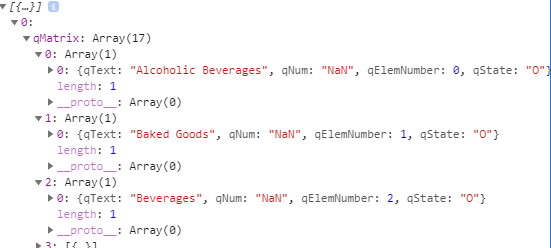
By this point, we have made our connection to Qlik Sense, we've written our first hypercube, and we've actually gotten some data. But how do we make selections? One of Qlik's key selling points is being able to interact with the data and make selections. To do that, we'll use another important object in the Qlik Engine called a List Object. List Objects, unlike hypercubes, only have one dimension and no measures. They aren't designed to give you data but rather give you information on a particular dimension. Let's dig into the example. First, create a new file called listObject.js:// listObject.js const listObject = { title: "A list object", description: "Description of the list object", qInfo: { qId: 'Consumer Sales List Object', qType: 'List Object'}, qListObjectDef: { qStateName: "$", qDef: { qFieldDefs: ['[Product Group Desc]'], qFieldLabels: ["Product Description"], qSortCriterias: [{qSortByLoadOrder: 1}]}, qInitialDataFetch: [{ qTop: 0, qLeft: 0, qWidth: 10, qHeight: 1000, }], }, } export default listObject;Import your list object at the top of the page. Then, inside the qDocPromise, right below the code to fetch the hypercube data, copy and paste the following:// top of page, below other import statements import listObject from './listObject'; // CODE qDocPromise.then((doc) => { // Getting data from hypercube doc.createSessionObject(hypercube).then((obj) => obj.getLayout().then(layout => { console.log(layout); const dataPages = layout.qHyperCube.qDataPages[0].qMatrix console.log(dataPages) })) // NEW CODE: List Object doc.createSessionObject(listObject).then((obj) => { obj.getListObjectData('/qListObjectDef',[ {qLeft: 0, qTop: 0, qWidth: 10, qHeight: 100}]).then(objectData => { console.log(objectData); }) }) })If we open our console and peak inside objectData, we see that inside the qMatrix property, there is an array with 17 items. Each item is an array with a single object that represents a possible value for the field of "Product Group Desc". There is a descriptor/title/name for that field (qText), a numeric value (qNum), an element number (qElemNumber), and it's selection state (qState). Let's try making a selection. Just for fun, let's pick "Beverages", which as we can see in the picture below has a qElemNumber of 2.
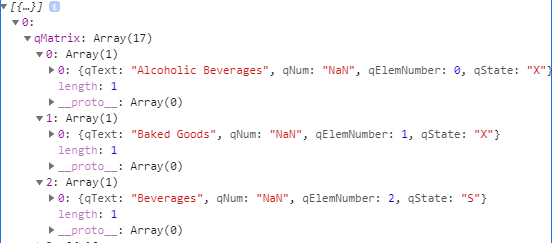
Now, update the code like this:qDocPromise.then((doc) => { // Getting data from hypercube doc.createSessionObject(hypercube).then((obj) => obj.getLayout().then(layout => { console.log(layout); const dataPages = layout.qHyperCube.qDataPages[0].qMatrix console.log(dataPages) })) // UPDATED CODE: List Object doc.createSessionObject(listObject).then((obj) => { obj.getListObjectData('/qListObjectDef',[ {qLeft: 0, qTop: 0, qWidth: 10, qHeight: 100}]).then(objectData => { console.log(objectData); obj.selectListObjectValues('/qListObjectDef', [2], true, false).then((res) => { console.log(res); obj.getListObjectData('/qListObjectDef',[ {qLeft: 0, qTop: 0, qWidth: 10, qHeight: 100}]).then(objectData2 => { console.log(objectData2) }) }) }) }) })Here is a quick rundown of what's happening. The doc.createSessionObject() creates our list object. We then use the resulting list object (which I've called `obj`) to call obj.getListObjectData(). When we logged that to the console, we saw that there was an array of 17 items, all of them with the name of the field and a qState of "O". We then called obj.selectListObjectValues() and selected "Beverages" which had a qElemNumber of 2 (we need to use qElemNumbers to tell the Qlik Engine which item to select). The log of "true" tells us that it was successful. We then call obj.getListObjectData() again to see that the list has been updated. There are still 17 items in the array but now we see that everything except "Beverages" has a qState of "X" while Beverages has a qState of "S". Selecting a value in this way is akin to clicking on a particular bar in a Qlik bar chart - you are selecting "Beverages" and now all the charts in Qlik Sense will, if they are connected to the column "Product Group Desc", show only the data for "Beverages". Here is the console output just to confirm our selections:Conclusion
So there it is, you've done it! You've learned the three most fundamental tasks in creating a Qlik Sense mashup:- Connecting to Qlik Sense
- Creating a Hypercube and Getting Data
- Creating a List Object and Making a Selection
With those three skills, you'll be able to make an interactive web app with your Qlik Data. In this tutorial, we scraped the surface of all that you can do with the Qlik Engine JSON API but we hope that you can now feel free to explore a bit. Here are a few resources that we think will help you get up-to-speed with the Qlik APIs: -
Viz for Deck: 侮るなかれ棒チャート
なんだ今回棒チャートか、と思った人いませんか?「基本のき」の棒チャートも工夫次第でいろんなアレンジができるんですよ。 デフォルトの設定で棒チャートを作成するとこんな感じですね。 プロパティパネルのスタイルのプレゼンテーションで「垂直」か「水平」かを切り替えられますね。 さらにスタイル指定のチャートタブで、枠線や棒の太さを変更すると下記のように見栄えを変えることができます。 続いて次は色にグラデーションを設定した例です。 左は色の設定を「カスタム 数式を使用」にして、ColorMix1を使ってピンクからベージュへのグラデーションを設定しています。 Colormix1() は、0 ~ 1 の間の値を基準に 2 色グラデーションの ARGB カラー表現を返す数式で使用されます。Colormix1 (Value , ColorZero , ColorOne)と書きます。Value は、0 と 1 の間の実数です。Value = 0 の場合、ColorZero が返され、Valu... Show Moreなんだ今回棒チャートか、と思った人いませんか?「基本のき」の棒チャートも工夫次第でいろんなアレンジができるんですよ。
デフォルトの設定で棒チャートを作成するとこんな感じですね。
プロパティパネルのスタイルのプレゼンテーションで「垂直」か「水平」かを切り替えられますね。
さらにスタイル指定のチャートタブで、枠線や棒の太さを変更すると下記のように見栄えを変えることができます。
続いて次は色にグラデーションを設定した例です。
左は色の設定を「カスタム 数式を使用」にして、ColorMix1を使ってピンクからベージュへのグラデーションを設定しています。
Colormix1() は、0 ~ 1 の間の値を基準に 2 色グラデーションの ARGB カラー表現を返す数式で使用されます。Colormix1 (Value , ColorZero , ColorOne)と書きます。Value は、0 と 1 の間の実数です。Value = 0 の場合、ColorZero が返され、Value = 1 の場合、ColorOne が返されます。0 < Value < 1 のとき、相当する中間の色を返します。
上記の式では案件金額の順位をRank関数で求め、それを値の数の6で割ることで 0 ~ 1 に変換して Value として使用しています。
右の例では色は同じですが、透明度をグラデーションで変更しています。ARGB関数の最初の値は透明度を示しています。続く3つの値でRGBを指定します。次は全体で100%になる積み上げ棒チャートをアレンジしてみました。
左のあみだくじのようなチャートは色は単色とし、枠線を「大」にして棒の太さも太くして視覚的な効果を出しています。このチャートには軸が二つあります。例えば部門と四半期などです。そしてメジャーには、計算値を二つ目の軸を無視した合計「sum(Total <一つ目の軸> 項目)」で割って割合を求めています。
そして右のチャートですが、こちらは最大の値に対する各軸の比率を濃い色で表しています。実は棒チャートではなくコンボチャートで作っています。濃い色の部分は単純に項目の集計ですが、薄い透明な部分は最大の値からそれぞれの軸の値をマイナスして求めています。
この例では、軸(部門名)を無視して全部門のうち、案件金額の集計の最大値の部門の値から、各軸の案件金額をマイナスしています。
そしてコンボチャートではメジャー別にスタイルを設定することができるので、それぞれの「その他のプロパティ」でどちらも主軸とし、異なる色を設定しています。最大案件金額の透明度を上げた設定にしています。
最後に下記の2つのチャートをご覧ください。
左は棒チャートのバタフライモードです。メジャーが2つある場合にプレゼンテーションで簡単にバタフライ表示をすることができます。
右は実はコンボチャートです。2つ目のメジャーをマイナス値に変換するとともに、メジャー別のスタイル指定で色の透明度を上げた設定をしています。水に映っているような効果がありますね。
基本チャートもアイデア次第で魅力的に変身させることができます。
Happy Dueling !
** 過去の記事 **
-
Direct Access gateway versions 1.4 and 1.5 reaching End of Life by January 31st ...
Edited 1st of December 2025: End of Life date changed from December 31st, 2025, to January 31st, 2026. The old versions 1.4.x and 1.5.x of Qlik Data Gateway - Direct Access will be officially End of Life by January 31st, 2026. Version 1.4 was released in June and July 2023 and reached End of Support on February 19, 2024. Version 1.5 was released in September 2023 and reached End of Support on June 12, 2024. How will this affect me? Both version... Show MoreEdited 1st of December 2025: End of Life date changed from December 31st, 2025, to January 31st, 2026.
The old versions 1.4.x and 1.5.x of Qlik Data Gateway - Direct Access will be officially End of Life by January 31st, 2026.
- Version 1.4 was released in June and July 2023 and reached End of Support on February 19, 2024.
- Version 1.5 was released in September 2023 and reached End of Support on June 12, 2024.
How will this affect me?
Both versions will stop working after reaching End of Life. We recommend you plan to upgrade to the latest available version of the currently supported 1.7.x as soon as possible.
How do I upgrade?
For the upgrade procedure, please refer to Upgrading Qlik Data Gateway - Direct Access on Qlik's online help. This page also lists all the significant changes for each version.
The upgrade to 1.7.x from 1.4 or 1.5 has been thoroughly tested, and the process is expected to be smooth. However, please follow the steps carefully and always take a backup before upgrading. It is also worth noting that .NET 8.x is required (from v1.6.6) and will be automatically installed during the upgrade.
What else do I need to keep in mind?
There are several configuration settings added in later versions of the Direct Access gateway that may be applicable for your deployment. Therefore, please review all details in the online help on Configuring and troubleshooting Qlik Data Gateway - Direct Access. Note that most Direct Access gateway settings can be configured in the Qlik Cloud Administration activity center (from v1.7.2).
Always upgrade to the latest version!
Version 1.6, which was initially released in December 2023, reached end-of-support on June 14, 2025, and is tentatively set for End-of-Life by end of June 2026. We will share an update later this year with the exact End-of-Life date for this version.
Please note that you are always better off upgrading to the latest version available, especially as cloud-side fixes, which get deployed almost every week, most often does not apply to older gateway versions.
If you have questions or need additional assistance, our forums are always open to you, and Support is only a chat away.
Thank you for choosing Qlik,
Qlik Support -
How Analytics is Transforming Healthcare
In recent years, data analytics has emerged as a game-changer in the healthcare industry. From improving patient outcomes to streamlining hospital operations, analytics is helping healthcare providers make faster, more informed decisions. -
Techspert Talks - Data Pipelines and Transformations
Hi everyone, Want to stay a step ahead of important Qlik support issues? Then sign up for our monthly webinar series where you can get first-hand insights from Qlik experts. The Techspert Talks session from July looked at Data Pipelines and Transformations. But wait, what is it exactly? Techspert Talks is a free webinar held on a monthly basis, where you can hear directly from Qlik Techsperts on topics that are relevant to Customers and Partner... Show MoreHi everyone,
Want to stay a step ahead of important Qlik support issues? Then sign up for our monthly webinar series where you can get first-hand insights from Qlik experts.
The Techspert Talks session from July looked at Data Pipelines and Transformations.
But wait, what is it exactly?
Techspert Talks is a free webinar held on a monthly basis, where you can hear directly from Qlik Techsperts on topics that are relevant to Customers and Partners today.
In this session covered:
- Creating pipelines in Qlik Talend Cloud Data Integration
- Demonstrating transformation possibilities
- Preparing data for analytics
Click on this link to see the presentation

-
Get to Know our Expert Instructors!
Continuing on in our instructor’s series, we travel Down Under to the place often called ‘The oldest continent’. Where kangaroos, koalas, and kookaburras roam, landscapes range from tropical rainforests to the red deserts of the Outback and the Great Barrier Reef beckons, to meet our first Instructor from the APAC region. -
Why Every Major Needs Data Literacy—and How Qlik Can Help
In today’s world, data is everywhere—and it’s shaping decisions in every field. From predicting climate trends to improving patient outcomes, analyzing customer behavior to studying historical patterns, data is no longer confined to IT departments or finance teams. It’s a vital language across all disciplines. That’s why data literacy isn’t just a technical skill—it’s a core competency every student should graduate with. Whether you're a busines... Show MoreIn today’s world, data is everywhere—and it’s shaping decisions in every field. From predicting climate trends to improving patient outcomes, analyzing customer behavior to studying historical patterns, data is no longer confined to IT departments or finance teams. It’s a vital language across all disciplines. That’s why data literacy isn’t just a technical skill—it’s a core competency every student should graduate with.
Whether you're a business major optimizing supply chains, a psychology student studying behavior patterns, or a nursing student tracking patient data, your ability to interpret, question, and communicate with data will be essential to your success. It’s not just about understanding numbers—it's about turning information into insight.
-
Viz for Deck: KPI はもっと自由になれる
KPIオブジェクトはそのままでは四角四面な感じです。 すっきりはしているのですが、遊び心を加えて図のようなKPIはいかがでしょうか?実は意外と簡単に作ることができます。 まずパワーポイントで背景用の画像を作ります。この図では図形の円を使用しています。塗りつぶしは単色で色は白、透明度は72%、線も単色の白、幅は9.5pt、スタイルは太い線と細い線の多重にしています。 この図を「図形として保存」で名前をつけて保存します。 そしてQlikのシート編集画面で KPI を作ります。スタイル指定の基本設定で背景を単色透明にし、背景画像として先ほど保存した円をメディアライブラリにアプロードして選びます。サイズは「常に適合」にして、位置は真ん中にしました。 スタイル指定のチャートで、タイトルとメジャーのフォントの大きさも適宜調整します。 そして、ちょっと面倒なのですが、プロパティパネルのプレゼンテーションの色から、「条件付きの色」も「ライブラリーカラー」もオフにして、白を選びます... Show MoreKPIオブジェクトはそのままでは四角四面な感じです。
すっきりはしているのですが、遊び心を加えて図のようなKPIはいかがでしょうか?実は意外と簡単に作ることができます。
まずパワーポイントで背景用の画像を作ります。この図では図形の円を使用しています。塗りつぶしは単色で色は白、透明度は72%、線も単色の白、幅は9.5pt、スタイルは太い線と細い線の多重にしています。
この図を「図形として保存」で名前をつけて保存します。
そしてQlikのシート編集画面で KPI を作ります。スタイル指定の基本設定で背景を単色透明にし、背景画像として先ほど保存した円をメディアライブラリにアプロードして選びます。サイズは「常に適合」にして、位置は真ん中にしました。
スタイル指定のチャートで、タイトルとメジャーのフォントの大きさも適宜調整します。
そして、ちょっと面倒なのですが、プロパティパネルのプレゼンテーションの色から、「条件付きの色」も「ライブラリーカラー」もオフにして、白を選びます。これで完成です。同じ方法で下記のようなKPIも作成できます。ちょっと画面が華やぎますね。
Happy Dueling !** 過去の記事 **
Viz for Deck: 数字の視覚化アイデア
Viz for Deck: ダッシュボードの色を切り替える
-
【新着レポート】Qlik、15 年連続で BI 市場のリーダーの 1 社に!
「2025年 Gartner® アナリティクス / BI プラットフォームの Magic Quadrant 」が発表になりました。Qlik は、 15 年連続でアナリティクス / BI プラットフォームのリーダーの 1 社に評価されました。 -
Harness the power of AI with this brand-new certification!
The Qlik AI Specialist certification validates your knowledge of key AI concepts and applications, including the fundamental skills needed to create Qlik predictive AI models and generative AI assistants. -
Dissecting the New UI: Administration Part 2
A tour of the last part of the last section of the New UI: Administration. -
Analyzing customer churn using Qlik Sense & Amazon SageMaker.
In any subscription-based business model, one of the primary goals is to retain its customers. Also, with the increase in market competition, it is crucial to identify ‘unhappy’ customers at an early stage so as to provide additional benefits and retain them. Churn prediction refers to determining which consumers are most likely to abandon a service or terminate their membership. To be able to predict churn gives businesses the necessary edge sin... Show MoreIn any subscription-based business model, one of the primary goals is to retain its customers. Also, with the increase in market competition, it is crucial to identify ‘unhappy’ customers at an early stage so as to provide additional benefits and retain them. Churn prediction refers to determining which consumers are most likely to abandon a service or terminate their membership. To be able to predict churn gives businesses the necessary edge since getting new customers is sometimes more expensive than keeping old ones.
Ref: https://www.opexengine.com/keep-customer-churn-rate-under-control-or-labor-like-sisyphus/
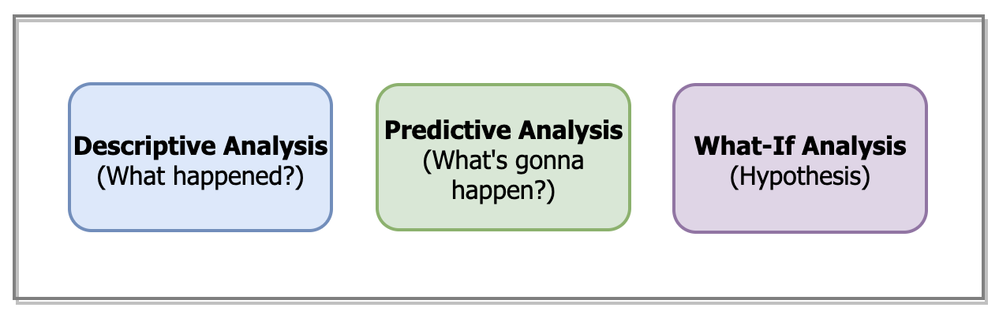
The application of Machine learning techniques to understand & predict customer churn isn’t something new. Several ML algorithms have been used in the field of telecom, banking, insurance, etc. to detect early churn signals. However, just relying on an ML algorithm’s output to understand whether a customer will churn or not isn’t really an optimal approach anymore. To have a thorough understanding of the churn analysis process, the need to amalgamate historical data(what happened in the past?) with the predicted outcome(what will happen in the future?) is paramount.
This is where Qlik Sense’s visual analytics platform serves as an effective solution. Now, using advanced analytics connectors within Qlik Sense SaaS, users can build a Machine Learning model in an AutoML platform, consume the predictions in Qlik Sense and use them along with the Qlik’s data model to take advantage of things such as:
- associative benefits
- faster calculations
- out-of-the-box visualizations
- perform what-if analysis
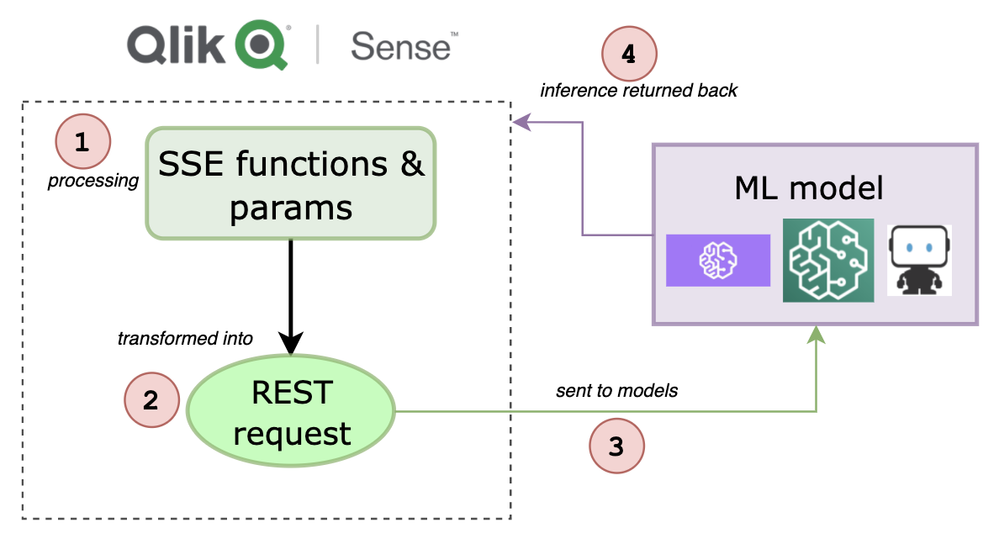
If you want to understand the entire workflow to integrate 3rd-party ML endpoints within Qlik Sense, I highly recommend going through this first part that I wrote a few days back. The generic workflow is depicted below.
In this specific tutorial, we are going to analyze customer churn behavior for a telecom company by building an end-to-end Qlik Sense app and leveraging both historical as well as predicted data. For building the Machine Learning model and hosting the endpoint, we will use the Amazon SageMaker platform. We will keep our focus on building the Qlik Sense app and not on developing the ML model.
Pre-requisite: To be able to use Analytics Endpoints the "Enable machine learning endpoints" parameter should be enabled in the Management Console.
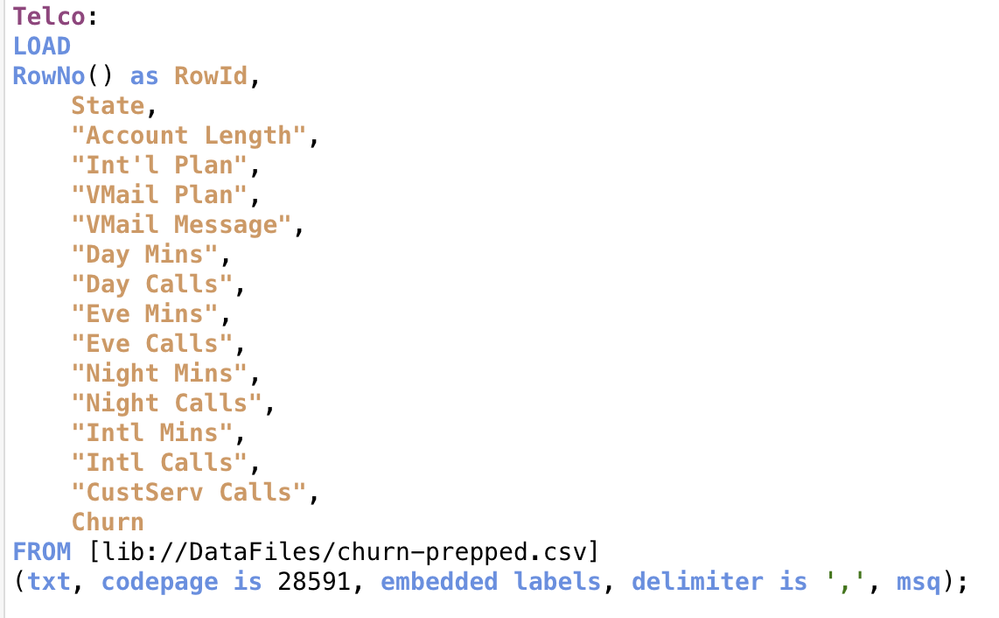
Step 1: Load source data
First, let us load the source data into Qlik Sense using the Data load editor.
We will analyze our dataset in detail when we build our ‘descriptive’ dashboard but for now we know that we have 15 attributes and 3333 records that describe the profile of each customer of the telecom operator.
The last attribute, Churn, is known as the target attribute–the attribute that we want our ML model to predict to know if a customer will churn or not.
Step 2: Train a churn-prediction model & deploy the inference API
Our next step is to build the churn prediction model. The target is to classify each customer into either of the two categories — churn or not churn. Therefore, this is a binary classification problem. We will be leveraging SageMaker Autopilot that allows us to automatically build, train, and tune the best machine learning model based on our data without having to write much code.
Credit: Amazon Web Services YouTube
If you are just getting started with SageMaker Autopilot, here is a great video from AWS to help you understand the basics. I use the describe_auto_ml_job API to look up the best algorithm selected by the SageMaker Autopilot job.
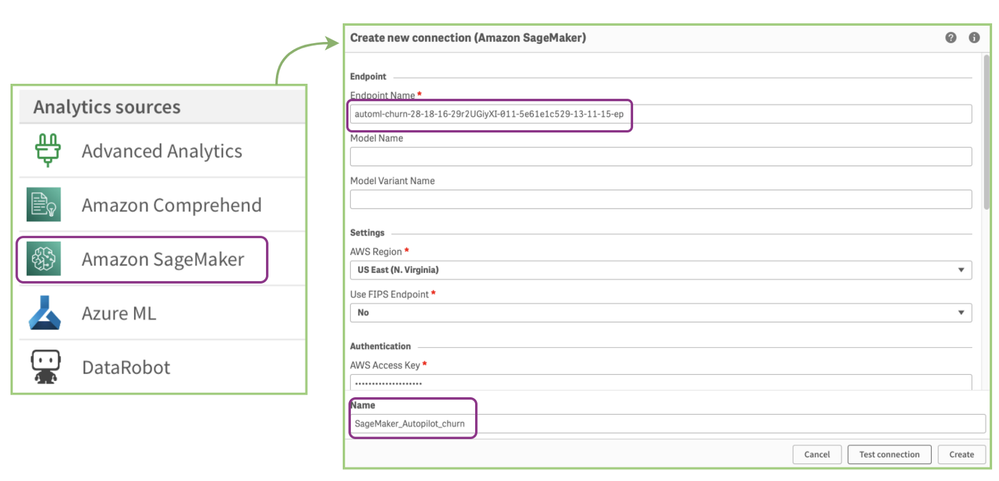
Finally, we will create our model based on the best candidate (automl-churn-28–18–16–29r2UGiyXI-011–5e61e1c5) & deploy it to a hosted endpoint. When the endpoint is ready, the endpoint status will change to ‘InService’ like below.
To make it easier for you to learn about how I trained & deployed my model in SageMaker, I will attach my Python notebook along with this blog.
Step 3: Send data from QS to the ML endpoint for prediction
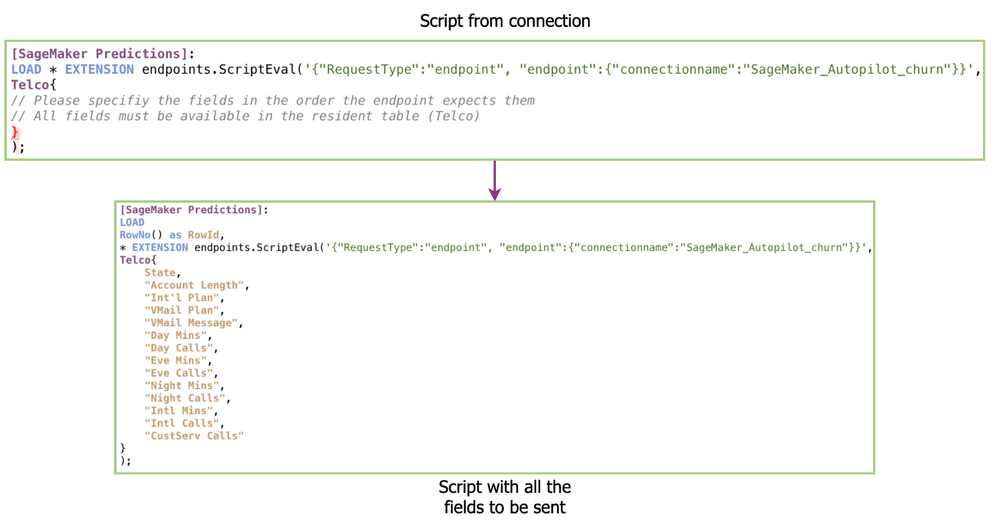
Now that we have the model endpoint ready for inference, we will send all the fields required by the model from QS to predict if a customer would churn or not. Please note that we will only send 14 attributes and exclude the last one(churn) since we want that prediction to be made by the model.
To do so, we go to the Data load editor and create a new SageMaker connection like below. You can read more about creating a new connection here.
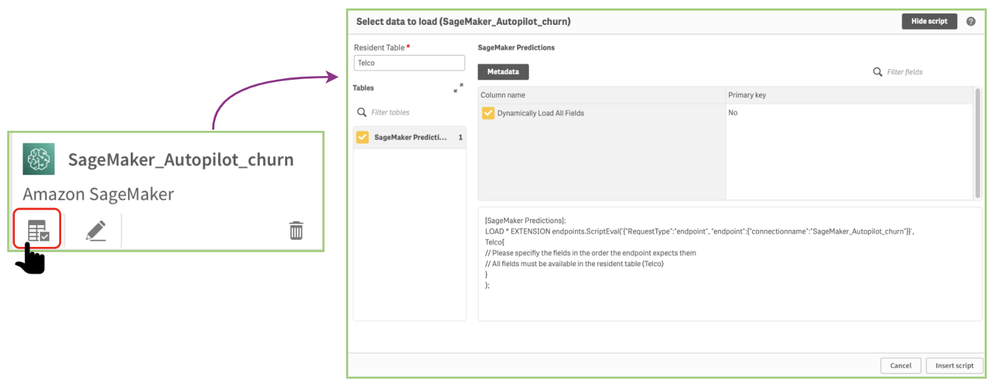
You should now see the SageMaker_Autopilot_churn name in your list of connections. Now, click on ‘select data’ to start sending your data from QS data model to SageMaker.
Click on ‘Insert script’ to get the script in the editor.
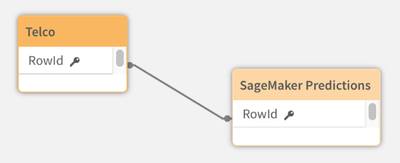
Please note how I have changed the raw script that we got from our connection to include all the 14 fields to be sent to our endpoint. Like our previous use case, we use RowNo( ) here as a field to associate the source data & the returned prediction table.
Here’s a peek at our data model after the data is loaded.
Let’s quickly check what is returned by the ML model based on the data we sent from Qlik Sense.
So, for every customer row, we have a predicted_label field that shows whether the customer will stay or leave. We also have the individual class probabilities for deeper analysis.
Step 4: Building the QS analytics app
Our final step is to build a Qlik Sense app so we can perform our analysis and present it to the stakeholders.
We will segregate the app into 3 sheets as shown below each serving its purpose:
Descriptive Analysis sheet:
Goal: This sheet will help us understand the historical source data & allow for detailed analysis.
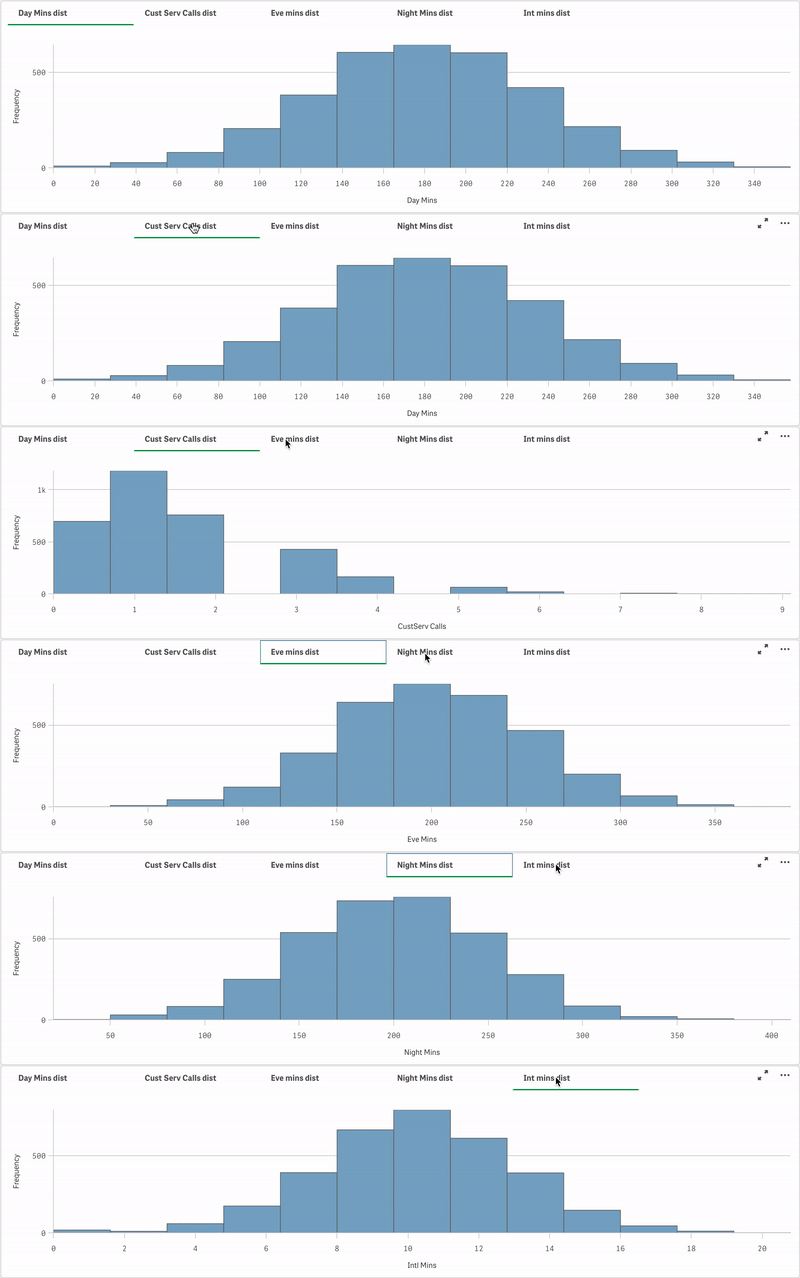
First, I want to understand the distribution of a couple of features and since we have 15 of them, I won’t visualize all of them but highlight the ones that my stakeholders are interested in. In terms of visualization, I will use a container object and add the distributions as histograms like below.
We can see that most of the fields (Day mins, Eve mins, etc.) have a normal distribution while Cust Serv Calls appear to be positively skewed.
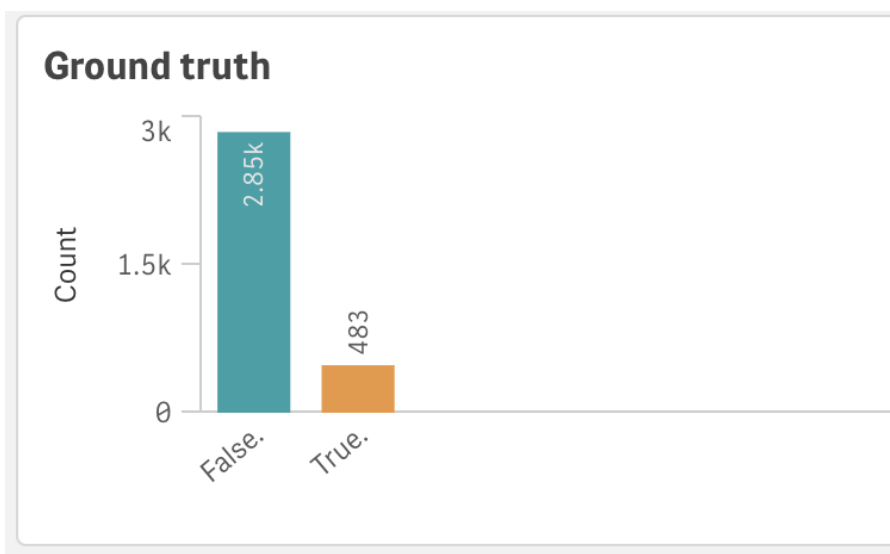
I also wanted to highlight how the target attribute(Churn) was distributed since it is important to know the reality of how many customers can actually churn. Looks like 14.49 % of the customers did churn.
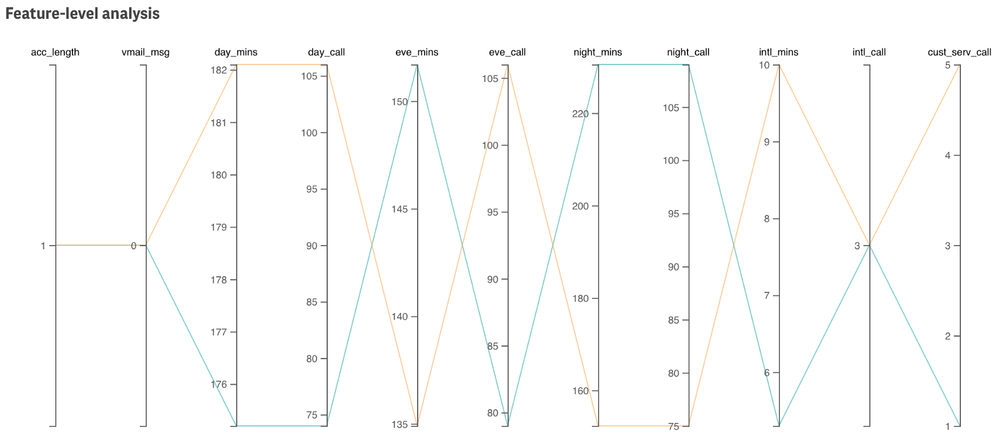
Next, since our data is high-dimensional (10+ features) and I want to enable detailed analysis of individual customers, choosing a visualization that works well with multidimensional data was crucial. I decided to go with a Parallel coordinate plot extension that I built sometime back.
Finally, putting everything together here’s our Descriptive dashboard.
Let’s do a simple analysis. I want to compare a customer who wants to churn with one that does not. So, I randomly select two such rows.
This view allows us to easily compare all the 11 numerical attributes. So, looks like both of these customers are new customers(observe acc_length=1). The orange line represents Churn=‘True’ and the cyan represents Churn=‘False’. For most of the features, we see the lines in a criss-cross form which helps us understand how these 2 customers differ. One thing that stands out is how the customer who churns makes 5 customer service calls in just a day and the other one makes 1. This gives us an indication that the orange customer might have faced some issues with the operator.
Predictive Analysis sheet:
Goal: This sheet will help us understand the churn predictions that we made using SageMaker & our model’s performance.
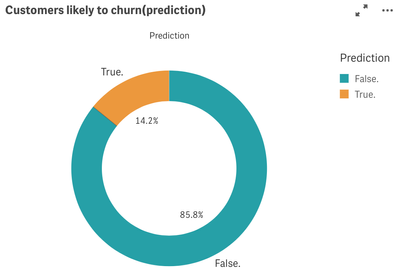
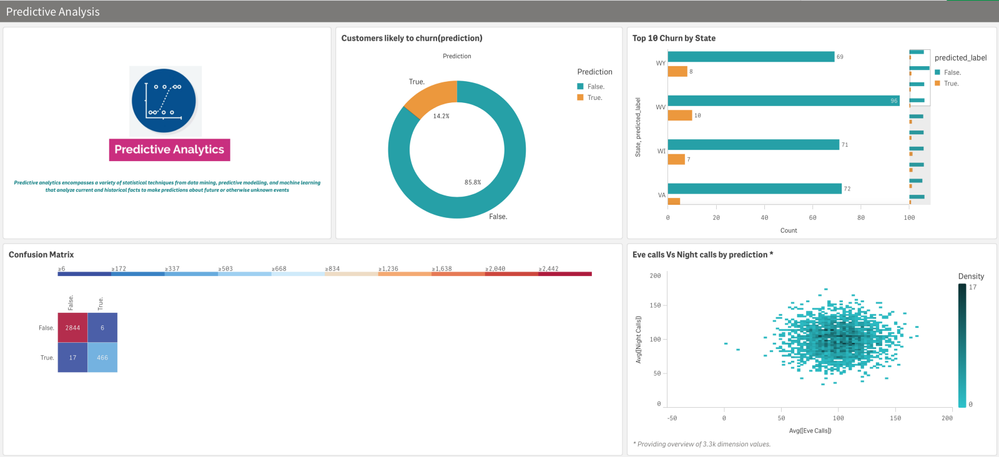
Let’s see how our overall predictions looks like.
The predictions are almost similar to the ground truth.
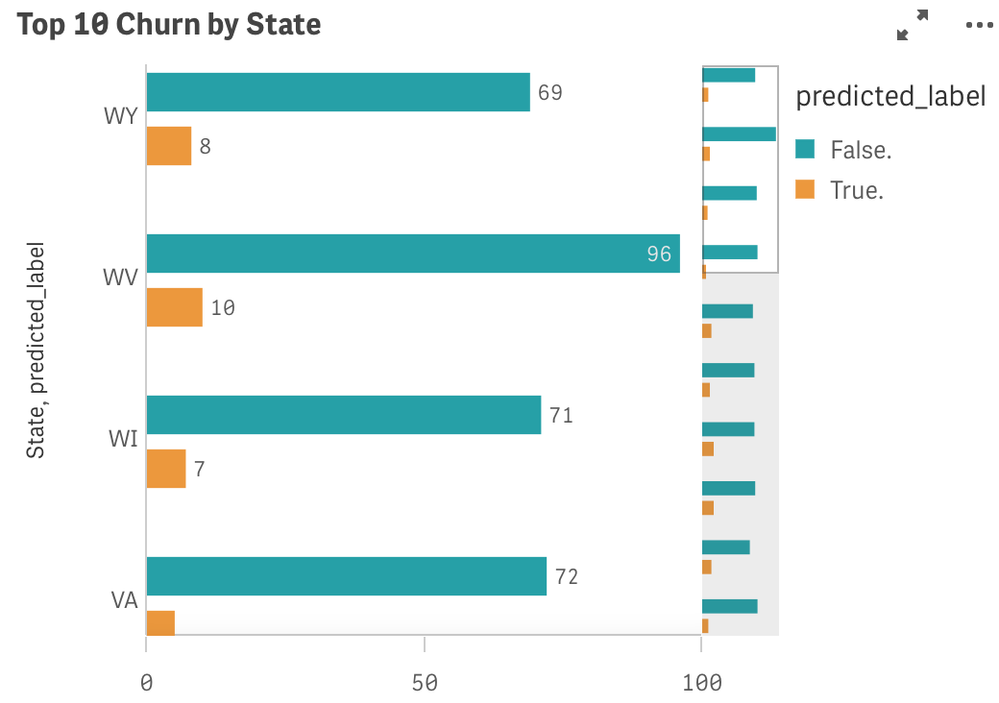
Next, I want to visualize the churn predictions by each state so the telecom operator can keep their focus on those ‘risky’ states.
This is a great example of how using Qlik’s associative property, we were able to integrate both historical and predicted data.
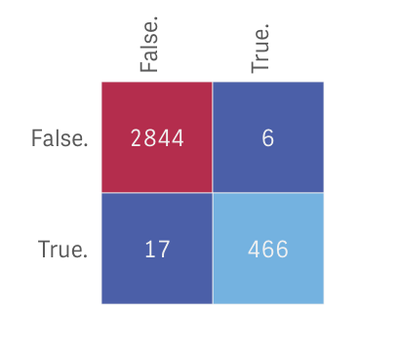
It is also important to understand what mistakes the ML model makes. False negatives are the most problematic because the model incorrectly predicts that a churning customer will stay. The best way to evaluate our model would be to draw a confusion matrix like below.
We have 17 such cases. We can select this ‘17 block’ from our matrix and perform detailed analysis of the special cases by analyzing both descriptive & predictive sheets.
Predictive dashboard:
What-If Analysis sheet:
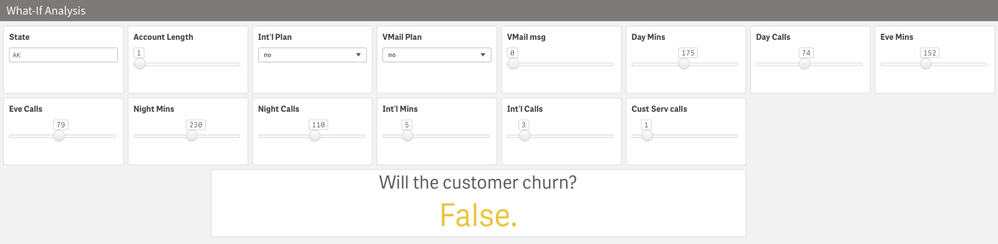
Our final piece is the ‘What-if’ scenario builder. Personally, I love this native capability of Qlik Sense as it allows us to look beyond traditional analysis. Also, note how easy & quick it is to build this. I have used a custom object called ‘variable input’ that allows me to include sliders, dropdown & text fields.
The ‘Will the customer churn?’ is a KPI object and uses a Server side extension function ScriptAggrStr()as a chart expression which allows us to get predictions in real-time by passing the values dynamically from the input boxes. Here’s the expression -
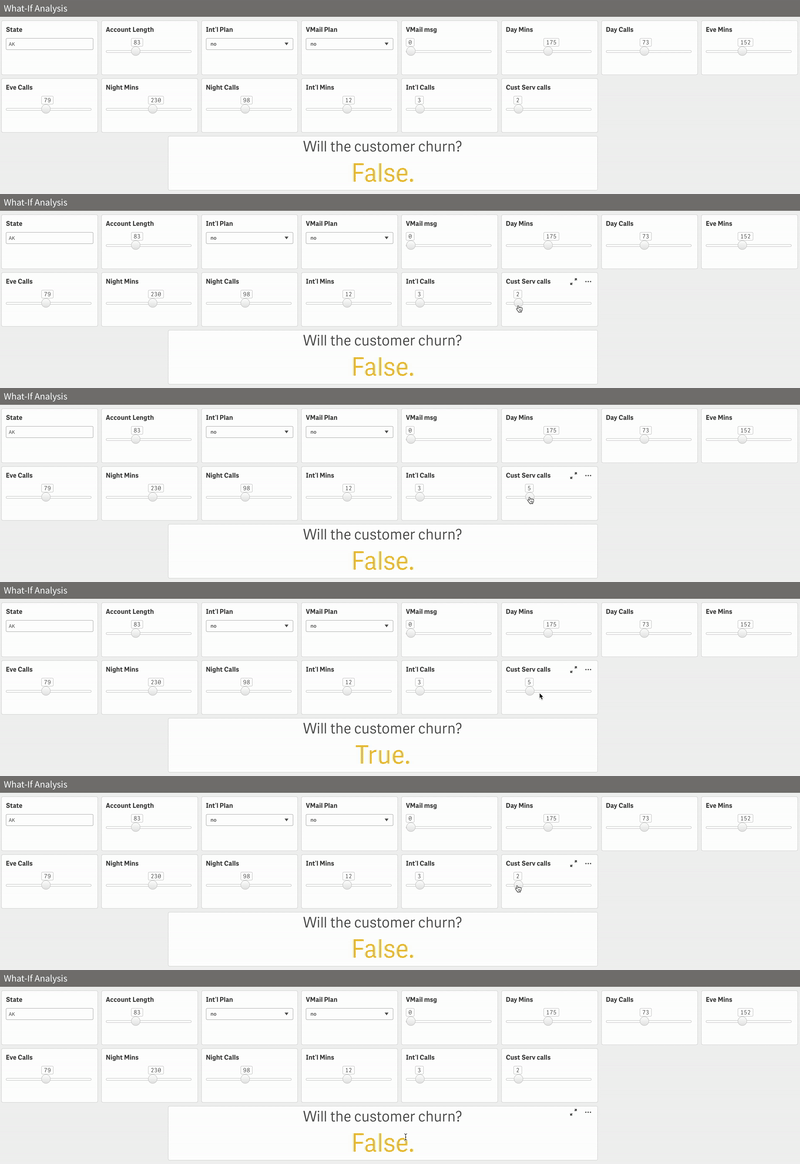
endpoints.ScriptAggrStr('{"RequestType":"endpoint", "endpoint":{"connectionname":"Amazon_SageMaker_Telco"}}',vState,vActLen,vIntPln,vVmailPln,vVmailMsg,vDayMins,vDayCalls,vEveMins,vEveCalls,vNightMins,vNightCalls,vIntMins,vIntCalls,vCustServCalls)Let us do quick & simple what-if analysis. From our Descriptive sheet, we noted that the field Cust Serv calls might be an important one. After all, a happy customer doesn’t need to call customer service. To really prove that correlation, let’s play around.
And looks like the hypothesis makes sense! However, please note that this is just one factor. I tried increasing the Int’l Mins to 15 instead of 12 and even though I had a lot of customer service calls, the prediction was False.
So, maybe providing more Int’l Mins to the customer would be a great idea to retain them. This kind of insight can help businesses dealing with churn to really understand the pitfalls and improvise on them even at a granular level.
That brings us to the end of this exciting blog. The tutorial is a detailed one as the whole idea was to allow Qlik users to quickly adapt to these capabilities and understand the process end-to-end. Let me know what you think!
~Dipankar, Qlik R&D
-
【オンデマンド配信】生成 AI からエージェント AI へ:AI 戦略で今すぐ成果を出すためのロードマップ
AI は未来の技術ではなく、既に今日のビジネスに欠かせない技術として幅広い分野で貢献しています。 本 Web セミナーでは、以下を実現する実践的なヒントやワークフロー、そして AI から価値を得るための知識を共有します。また、先進的な企業の具体的な導入事例や成功事例を通して、データを主要なビジネスワークフローや戦略目標を推進する AI 主導型アプリケーションへと変革する方法をご紹介します。 AI を戦略的に展開し、確かなビジネス成果を生み出す エージェント AI の秘めたる可能性を最大限に引き出し、業務プロセスを変革する スムーズな AI 統合のために、信頼性の高いデータ基盤を構築する ※ 参加費無料。パソコン・タブレット・スマートフォンで、どこからでもご視聴いただけます。 今すぐ視聴する