Unlock a world of possibilities! Login now and discover the exclusive benefits awaiting you.

Recent Documents
-
The Value of Qlik Open Lakehouse for Every Company
Most of us who've worked with Qlik for a while have watched the same pattern. The QVD layer quietly becomes the data platform. Sources multiply. Reloa... Show More -
How to recover Qlik NPrinting Administrator account privileges
This article assumes you understand:How to use pgAdminHave postgres credentials for Qlik NPrintingHow to connect to the Qlik NPrinting database * Modi... Show MoreThis article assumes you understand:
- How to use pgAdmin
- Have postgres credentials for Qlik NPrinting
- How to connect to the Qlik NPrinting database
* Modifying the Qlik NPrinting Repository will void the Support Agreement! Changes to the database should be performed by the Qlik NPrinting services only or through the use of supported API calls.
Overview
If, for some reason, you lost the Administrator role for your Qlik NPrinting Admin account and you are unable to change settings in the Web Console, you can follow this article to restore administrative access to the target account.
Symptoms
You are unable to edit/change any Administrative settings.
Resolution
You can force insert/update the user in the database with the administrator role id.
The first step is to connect to the database using pgAdmin.
The second step is to identify the administrator role id using pgAdmin.
- Open pgAdmin
- Connect to the Qlik NPrinting database
- Navigate to: Databases>nprinting>Schemas>public>Tables>role
- Right-click the table "role" and select "All Rows".
- Take note of the administrator "id" (green marked in the image above).
In my test environment, the administrator role equals "6b800774-db4f-4b5e-a975-24e5b86b5ece".
The third step is to identify the user role ID using pgAdmin.
- Open pgAdmin
- Connect to the Qlik NPrinting database
- Navigate to: Databases>nprinting>Schemas>public>Tables>usr
- Right-click the table "usr" and select "All Rows".
- Take note of the administrator "id" (green marked in the image above).
In my test environment, the administrator role equals "1628ad97-75af-4cb3-897f-da1cb07777e5".
The fourth step is to update the "role_recipient" table.
- Open pgAdmin
- Connect to the Qlik NPrinting database
- Open the Query tool by navigating to the top menu "Tools>Query Tool".
Use the following command line, replacing the information you previously retrieved.Insert into public.role_recipient VALUES ('user role id','administrator role id');
In my scenario, it will be:
Insert into public.role_recipient VALUES ('1628ad97-75af-4cb3-897f-da1cb07777e5','6b800774-db4f-4b5e-a975-24e5b86b5ece');
Click "Execute script" or press F5.
Go back to Web Console and refresh the page. The target user should have Admin privileges.
Environment
- Qlik NPrinting May 2023 IR to February 2025 SR4
- pgAdmin 9.13
-
From Rugby Scrum to Qlik Sprint
The word Scrum comes from rugby. The tight formation where players pack together, heads down, working as one unit to move the ball forward. The image ... Show MoreThe word Scrum comes from rugby. The tight formation where players pack together, heads down, working as one unit to move the ball forward. The image fits. In a Scrum team we also move as one unit, relying on communication, transparency, and trust in each other's capabilities to reach a shared goal.
Qlik delivery is a good home for that mindset. Migrations, new applications, reload optimization, data modeling. The work is complex by nature. Requirements shift the moment users see their data, source systems behave unpredictably, and the right solution is rarely the one sketched on day one. Waterfall: discovery. Design. Develop. Test. Looks tidy on paper, but it breaks when the data does not match the design document, or when a client realizes mid-project that the dashboard they asked for is not the one they actually need.
Scrum holds up because it rests on three pillars: transparency, inspection, and adaptation. Transparency means the work is visible. Jira (or your preferred Project Management Tool) is the single source of truth, and if a deliverable is not there, it does not exist. Inspection happens in the events: daily scrums, sprint reviews, retrospectives. Adaptation is what makes inspection worth anything. When a gateway server goes down or a client reshapes their reporting needs, the backlog shifts, and the sprint keeps moving.
The team itself is small by design. Ten people or fewer, three roles, no hierarchies. The Product Owner maximizes the value of the product and owns the backlog deciding which reports and data sources matter most. The Developers - Qlik developers, data engineers, and UAT support create a usable increment each sprint and hold themselves accountable, as a team, for what ships. The Scrum Master establishes the framework and removes the blockers: access requests, gateway issues, client dependencies that stall the work.
Everything is time-boxed. Sprint planning commits the team to specific apps, QVDs, or migration tasks. The daily scrum is fifteen minutes; progress, blockers, plan for the day; a missing credential surfaces here, not a week later. The sprint review is where working increments get demoed to stakeholders, and the feedback reshapes what comes next. The retrospective, for the team only, is where the process itself improves. And an item is only done when it meets the Definition of Done; for Qlik, that means the script runs cleanly on schedule, UAT passes, documentation is updated, and the reload is in the operations reference. Anything less goes back to the backlog.
The framework only works if the team lives the five values: commitment, focus, openness, respect, and courage. The courage to say an item is not done, to ask the question that feels obvious, to push back when the plan no longer fits the reality.
There is a story in Scrum: The Art of Doing Twice the Work in Half the Time about Toyota's assembly line: any worker can stop the whole line when a problem appears, and the team swarms to fix it on the spot. One defect, solved once, forever. The alternative is hundreds of cars shipped with the same flaw. The principle applies to our work too. A defect caught inside the sprint costs far less than one caught in production, and doing it right the first time is almost always faster than fixing it later.
Partial Scrum is not Scrum. Skipping the retrospective, letting the Product Owner drift from the backlog, stretching the daily past fifteen minutes. These turn the framework into ceremony. Either keep all the parts, or call it something else. As Schwaber and Sutherland write in the 2020 Scrum Guide: "Scrum exists only in its entirety and functions well as a container for other techniques, methodologies, and practices."
For Qlik delivery, that entirety is what gives us a way to plan without overcommitting to the plan. We commit to the sprint, we inspect the results, we adapt. The product gets closer to what the client needs with every cycle and not further away.
Further reading: The Scrum Guide (Schwaber & Sutherland) · Scrum: The Art of Doing Twice the Work in Half the Time (Sutherland).
-
Qlik Cloud IP Allow List Does Not Support IPv6 - WebSocket Error 1006
If users on your Qlik Cloud tenant are experiencing frequent WebSocket disconnections (Error 1006) and your organization has an IP Allow List configur... Show MoreIf users on your Qlik Cloud tenant are experiencing frequent WebSocket disconnections (Error 1006) and your organization has an IP Allow List configured, IPv6 may be the root cause. Qlik Cloud's IP Allow List feature currently only supports IPv4 addresses. When users connect via IPv6, their traffic does not match any entry in the allow list, causing the connection to be dropped.
Symptoms
Users experience random disconnections while working in Qlik Cloud apps. The error code reported is Error 1006 (WebSocket disconnection). The issue affects multiple users simultaneously and is not tied to a specific app or sheet. The problem is more prevalent after network changes or in environments where IPv6 is enabled by default.
Resolution
Qlik has confirmed they are adding native IPv6 support to the IP Allow List feature. The estimated delivery is between Q4 2026 and early 2027. You can follow the progress and vote on the ideation item here:
Workaround
Work with your IT or network team to disable or restrict IPv6 on the network infrastructure used to access Qlik Cloud. This forces client connections to use IPv4, which is properly handled by the IP Allow List. Once IPv6 traffic is restricted, users should no longer experience WebSocket disconnections caused by this issue.
Cause
Qlik Cloud's IP Allow List feature only evaluates IPv4 addresses. When a user's device connects over IPv6, the source address does not match any entry in the allow list, and the connection is rejected or dropped at the WebSocket layer, resulting in Error 1006. This is a known platform limitation. Qlik has confirmed they are adding IPv6 support to the IP Allow List feature, with an estimated delivery between Q4 2026 and early 2027.
Related Content
Qlik Help: IP Allow List configuration: https://help.qlik.com/en-US/cloud-services/Subsystems/Hub/Content/Sense_Hub/Admin/mc-configure-ip-allowlist.htm
-
Qlik Cloud with Qlik IDP: Users Are Not Automatically Removed When Email Is Deac...
When using Qlik Cloud with Qlik's built-in Identity Provider (Qlik IDP), deactivating or deleting a user's corporate email address does not automatica... Show MoreWhen using Qlik Cloud with Qlik's built-in Identity Provider (Qlik IDP), deactivating or deleting a user's corporate email address does not automatically remove or disable their access to Qlik Cloud. This is a common misconception that can create a security gap during employee offboarding.
Symptoms
A user's corporate email has been deactivated or their account deleted from the corporate directory. However, the user still appears as active in Qlik Cloud Management Console and their license seat remains occupied. The user may still be able to log in to Qlik Cloud if they have an active session or a previously set password.
Resolution
Administrators must manually remove or disable the user directly in Qlik Cloud. To do this, go to Management Console, navigate to Users, find the user and either remove them or change their role to No Access. This should be added as a required step in your organization's employee offboarding checklist.
If your organization requires automatic user deprovisioning, the permanent solution is to replace Qlik IDP with an external Identity Provider such as Microsoft Entra ID (Azure AD) or Okta, configured with SCIM provisioning. With SCIM enabled, when a user is disabled or removed in your corporate directory, Qlik Cloud is automatically notified and the user's access is revoked without any manual intervention.
Cause
Qlik IDP is a standalone identity store built into Qlik Cloud. It manages user accounts independently from any external corporate directory. Because there is no synchronization between Qlik IDP and external systems, changes made outside of Qlik Cloud such as deactivating an email or removing an Active Directory account have no effect on the user's Qlik Cloud account.
Environment
- Qlik Cloud Analytics (SaaS)
- Qlik IDP (built-in Identity Provider)
-
Qlik Excel Add-in OAuth Errors After Tenant Rename (OAUTH-1 and OAUTH-14)
If your Qlik Cloud tenant hostname was recently renamed (for example, from company-old.us.qlikcloud.com to company-new.us.qlikcloud.com) and users are... Show MoreIf your Qlik Cloud tenant hostname was recently renamed (for example, from company-old.us.qlikcloud.com to company-new.us.qlikcloud.com) and users are now receiving OAuth errors when connecting the Qlik Excel Add-in, this article explains what is happening and how to resolve it.
Symptoms
Users open Excel, launch the Qlik Add-in, and receive one of the following errors during authentication:
OAUTH-1: redirect_uri is not registered (Status 400)
OAUTH-14: OAuth client is not authorized
These errors appear even though the add-in was working before the tenant rename.
Resolution
- Log in to the Qlik Cloud Management Console on the new tenant hostname.
- Go to OAuth and delete the existing OAuth client used for the Excel Add-in.
- Create a new OAuth client with the following settings: Client type: Public. Grant types: Authorization Code. User default scope: Enabled. Allowed origins: your current tenant URL (e.g., https://company.us.qlikcloud.com).
- Go to Settings > Sharing and reports > Qlik add-ins for Microsoft Office. Select the new OAuth client from the dropdown and download the updated manifest.xml file.
- Distribute the new manifest.xml to your users. Users must remove the old add-in from Excel before installing the new one.
Important: If users access the tenant through both the original URL and an alias, add both to the allowed origins field. Missing either one will cause authentication to fail.
Cause
The Excel Add-in manifest.xml and its OAuth client are created as a pair and are tied to a specific tenant hostname. When the tenant is renamed, the existing OAuth client retains the old hostname in its redirect URIs and allowed origins, triggering OAUTH-1. If the manifest is recreated but the OAuth client configuration still has incorrect settings, OAUTH-14 follows. The manifest file cannot be edited to point to a new hostname. It must be regenerated from a newly created OAuth client on the correct tenant.
Related Content
- Tabular Reporting OAUTH Error Status 400 resolution: https://community.qlik.com/t5/Official-Support-Articles/Tabular-Reporting-OAUTH-Error-Status-400-resolution/ta-p/1716773
- Qlik Help: Administer the Qlik add-in for Microsoft Office: https://help.qlik.com/en-US/cloud-services/Subsystems/Hub/Content/Sense_Hub/Admin/mc-administer-add-in.htm
-
How to Import an Excel Template
This guide walks you through importing an existing Excel template using the Spreadsheets extension in Qlik Sense (presented at Qlik Connect 2025).Chec... Show More -
Understanding Data Capacity Allocation Across Multiple Tenants
Hello everyone,With a Qlik Cloud Analytics Premium license, you can have up to 5 separate tenants.New tenants can be activated by the SAO through the ... Show MoreHello everyone,
With a Qlik Cloud Analytics Premium license, you can have up to 5 separate tenants.
New tenants can be activated by the SAO through the My Qlik portal. The following link will guide you through configuring your first and/or additional tenants:
How to create your Qlik Cloud tenant - Qlik Community - 1711273When working with multiple tenants, it’s important to understand that your licensed data capacity is global and is shared across all tenants.
For example:
License: 50 GB
Tenant A: 23 GB used
Tenant B: 22 GB used
Your total consumption will therefore be 45 GB, aggregated across both tenants.
It’s essential to monitor overall usage to avoid exceeding your licensed capacity, regardless of which tenant the data resides in.
-
Excel-Style Spreadsheets Inside Qlik Apps: How to Add [Tutorial]
This guide walks you through building a feature-rich spreadsheet that looks and feels like Excel in Qlik Sense using the Spreadsheets extension (first... Show MoreThis guide walks you through building a feature-rich spreadsheet that looks and feels like Excel in Qlik Sense using the Spreadsheets extension (first demoed at Qlik Connect 2025).
Check it out as a video tutorial or keep reading:
Step 1: Add the Spreadsheets Extension
- Open your Qlik app and go to the Assets panel.
- Head to Custom objects > AnyChart 4, and drag AnyChart Spreadsheets onto your app's sheet.
This creates a basic spreadsheet looking as follows:
Step 2: Add Data
- Select the object, open the Properties panel, go to Data, and click Add.
- Choose the new data section, enable Create synced sheet, and click Edit data.
- Add the dimensions and measures you want to use.
This creates one more sheet, titled DataSheet1, populated with your data.
Step 3: Format Your Spreadsheet
- To keep things clean, feel free to delete the empty sheet created by default, titled Sheet1.
- On DataSheet1, select your table area, head to the INSERT tab, and click Table. Confirm with OK.
- Apply formatting as needed, all in a familiar Excel-like interface. For example:
- Resize rows and columns.
- Change alignment and font settings from the HOME tab.
Step 4: Add Charts
You can also add charts within the spreadsheet's sheets, just like in MS Excel.
- Select your data, open the INSERT tab, and choose Insert Chart.
- Select a chart type, click OK, and place the chart where you need it.
Step 5: Save Changes
- Whenever you need to save everything you have done, open the USER tab and click Save to app.
Step 6: Apply Selections & See Your Spreadsheet in Action
- Apply filters or selections in your Qlik app.
- The spreadsheet updates instantly. Charts, tables, and formulas adjust to the selected data in real time.
This works as the spreadsheet is fully connected to Qlik’s associative engine.
Optional: Export to Excel
If you want to work outside of Qlik, such as in Microsoft Excel or Google Sheets, feel free to export the entire spreadsheet as an .xlsx file:
- Go to the FILE tab, choose Export, and select Excel format.
- Click Export Excel File, enter a file name, and confirm with OK.
- The file downloads immediately, ready to open in Excel or another compatible tool.
Here's how the downloaded XLSX file looks when opened in MS Excel:
Done
You now have a reactive spreadsheet, built with live Qlik data, ready to expand, customize, or share.
Helpful Links
- Download the extension
- Explore the demo app (view live or download QVF)
- See the documentation
- Request a personalized live demo
-
Gantt Chart in Qlik Sense: How-To Tutorial [+VIDEO]
Looking for the simplest way to create a Gantt chart in Qlik Sense to further streamline data-driven project management in your company or organizati... Show MoreLooking for the simplest way to create a Gantt chart in Qlik Sense to further streamline data-driven project management in your company or organization? We’ll show you one right now! Follow this quick tutorial and you’ll learn how to easily visualize project tasks and activities as data in a matter of minutes — on smart, interactive Gantt charts using the intuitive Gantt Chart extension for Qlik Sense by AnyChart, Qlik's Technology Partner.
Watch the video tutorial:
Or read the text-and-pictures version below.
Loading Project Data in Qlik Sense
In Qlik, everything starts with the data.
We are going to create a Gantt chart based on data from an XLSX file that looks as shown below.
The tables in the file represent the structure of a company and its project schedule. There are three departments, each of them carrying out several projects. Each task within a project is assigned to a certain employee.
First of all, we will create an app, add this data to Qlik, apply the suggested associations, and load the data.
Then we need to make sure that Qlik established proper associations between tables.
Let’s create a sheet and add three filter panes by dropping three fields on the sheet: ‘department_name’, ‘project_name’, and ‘task_name’.
If we switch from ‘Edit’ to ‘View’ and try to select a department and a project, we will see that associated tasks are displayed correctly.
Adding Gantt Chart in Qlik Sense
Now that the data is loaded and the associations between the tables are set up the right way, we can add a Gantt chart.
Go to ‘Custom objects’, find AnyGantt, and drop a Project Chart on the sheet, below the filter panes we added before.
Add dimensions
To configure the Gantt chart, we need to add dimensions representing the hierarchical structure of our data.
We will use the following dimensions: ‘department_name’, ‘project_name’, and ‘task_name.
Add measures
The next step is adding measures.
Let’s use the ‘start_date’ and ‘finish_date’ fields.
These measures do not require aggregation, so we can use either the ‘Only()’ aggregation or just the name of the field.
Map data
Then we need to make sure that AnyGantt interprets our dates correctly.
Use the ‘Map as’ drop-down menu to map the ‘start_date’ field as ‘Actual Start’ and ‘finish_date’ as ‘Actual Finish’.
As you can see, you can also map a date as ‘Baseline Start’, ‘Baseline Finish’, ‘Actual Progress’, “Baseline Progress”, or “Data Field”.
Preliminary result
After these steps, we can already see a Gantt chart:
The data grid on the left displays the hierarchy of departments, projects, and tasks.
The timeline on the right displays the duration of tasks.
Show actual progress
Let’s add one more measure, ‘progress’, and map it as ‘Actual Progress’.
Please note that you do not need to aggregate it.
Now you can see progress bars.
Result: Gantt Chart in Qlik Sense, Built with Real Ease
That is it, the Gantt chart is ready:
In the ‘View’ mode, select a department or a project in a filter pane, and the Gantt chart will display the related tasks.
It is very easy!
Helpful Links
- Download the extension
- Explore demo apps (view live or download QVF)
- See the documentation
- Request a personalized live demo
Questions?
If you have any questions on how to create a Gantt chart or any other chart type using AnyChart's Extensions for Qlik Sense, drop us a note in the comments below or contact AnyChart's Support Team directly.
-
Decomposition Tree in Qlik Sense: All You Need to Know
A decomposition tree is a visualization tool used in data analysis and business intelligence to help break down complex data sets into more manageabl... Show More -
Again - Qlik Sense - Text&Image objs flash several times before becoming steady
We've upgraded a Qlik Sense customer site to May 2023 Patch 6 (from a previous 2021 release) and Text&Image objects flash several times before becom... Show More
-
Task Monitoring with PRTG
Monitoring of Tasks that reload Apps in Qlik Sense.One or more tasks are scheduled on the Qlik server that automatically load the Apps,The goal is to ... Show MoreMonitoring of Tasks that reload Apps in Qlik Sense.
One or more tasks are scheduled on the Qlik server that automatically load the Apps,
The goal is to be able to query the status of a task with the help of REST API technology and integrate it with the PRTG monitoring system.Step 1 -> Creation of a dedicated Virtual Proxy in Qlik QMC.
The documentation to be able to proceed is available from the following link:
Step 2 -> API Query Mode and Test.
Once the JWT virtual proxy has been configured and the validity of the Token has been verified as per the official guide, it is possible to proceed with the desired query.
NB. In this case we validated the token using a Service user who also runs all the dedicated services including the Proxy Service.
In this case we will monitor the correct reload of the tasks on the QLIK server, the Tasks are scheduled on the server and allow the App data to be reloaded.
When one of these tasks fails via API call, it is possible to have a json result with the related details inside.
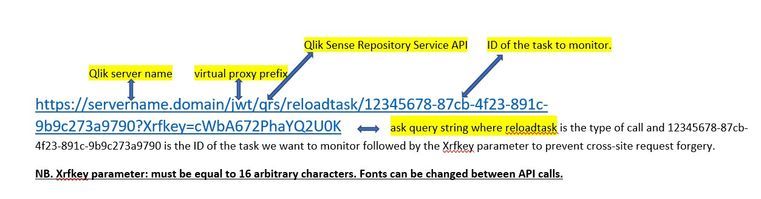
Below is an example of an API call:This is an example of a task we want to monitor:
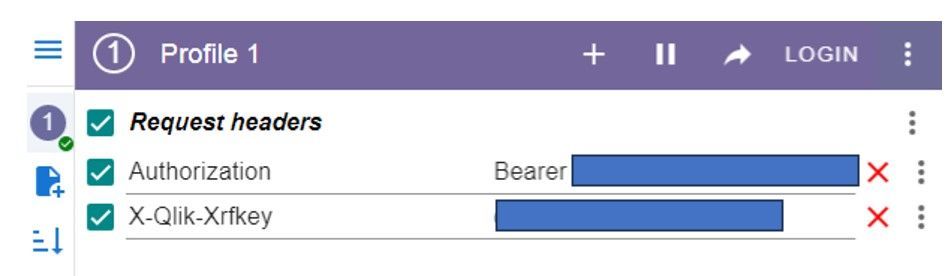
A quick method to test if the call was successful is from the browser using the Mode Header extension for google chrome described in step 1.
https://chrome.google.com/webstore/detail/modheader-modify-http-hea/idgpnmonknjnojddfkpgkljpfnnfcklj
So for the call to be successful you need to pass the following parameters:
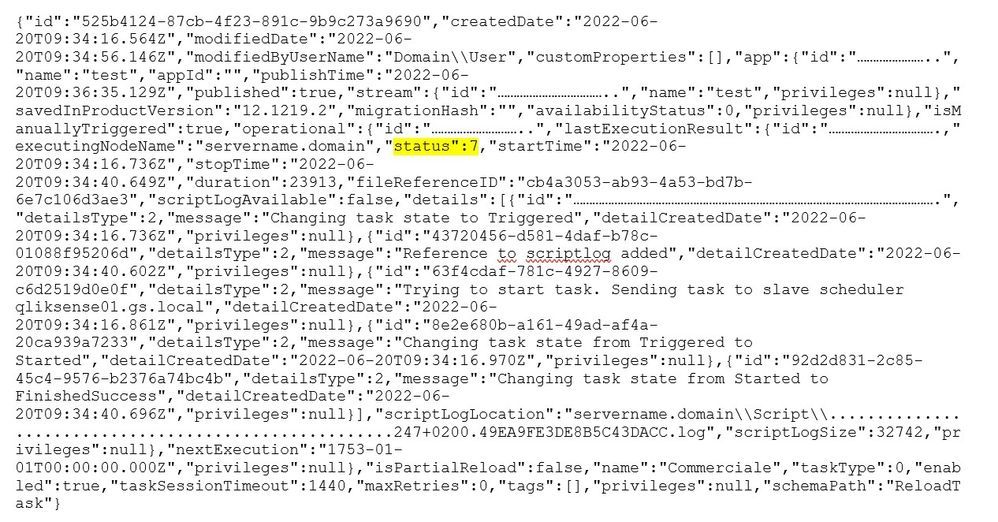
Where Header name: Authorization and Header value: Bearer followed by the previously generated and tested Token and finally the Xrfkey key.This will be the result in Json format returned by the browser if the call is successful:
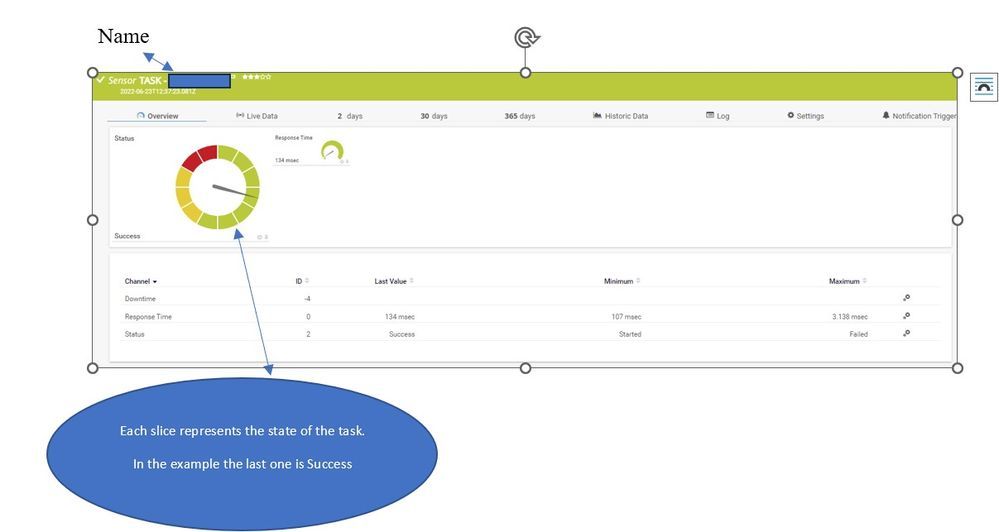
Specifically in PRTG what we are going to monitor is:- The name of the Task in this case "test"
The status in this case"status":7 = Success - Task name "name": "Reload task of TEST TASK FAIL"
- Start and end time date:
"startTime": "2022-05-04T07:46:34.100Z"
"stopTime": "2022-05-04T07:46:37.636Z"3. Other information that we may integrate and otherwise see in PRTG.
NB. A table with Qlik Sense reload task status codes and descriptions is available from the following link
https://help.qlik.com/en-US/alerting/July2023/Content/QlikAlerting/system-alerts.htm
This is an example of the string JSON with ok API call.
Step 3 -> Task monitoring from PRTG.
Type of sensor used in PRTG.
How to create a sensor.
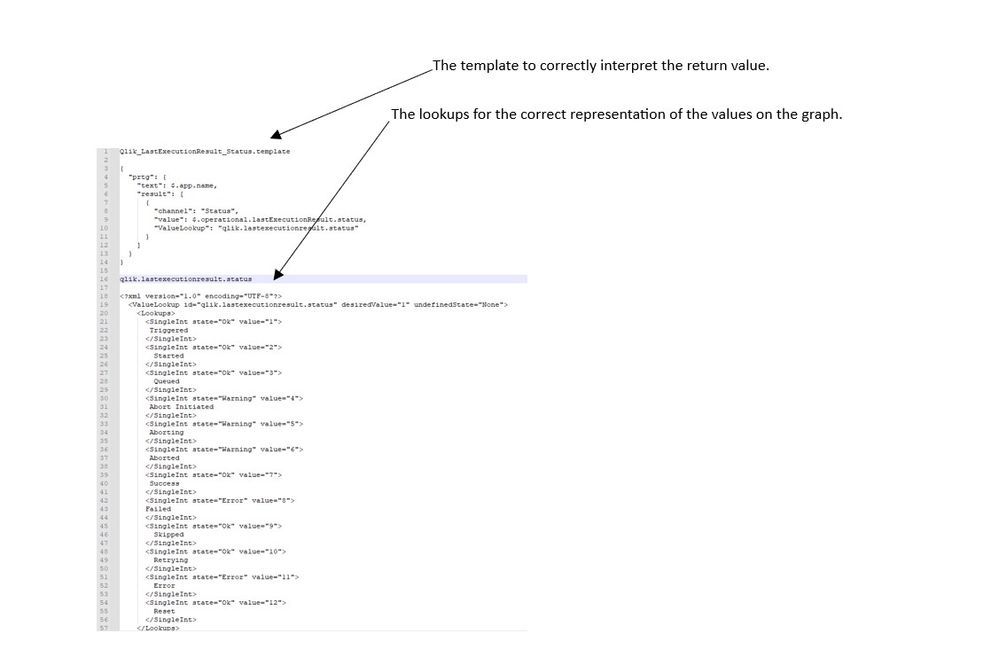
The path on the PRTG server where the template is to be uploaded is as follows:
C:\Program Files (x86)\PRTG Network Monitor\Custom Sensors\rest
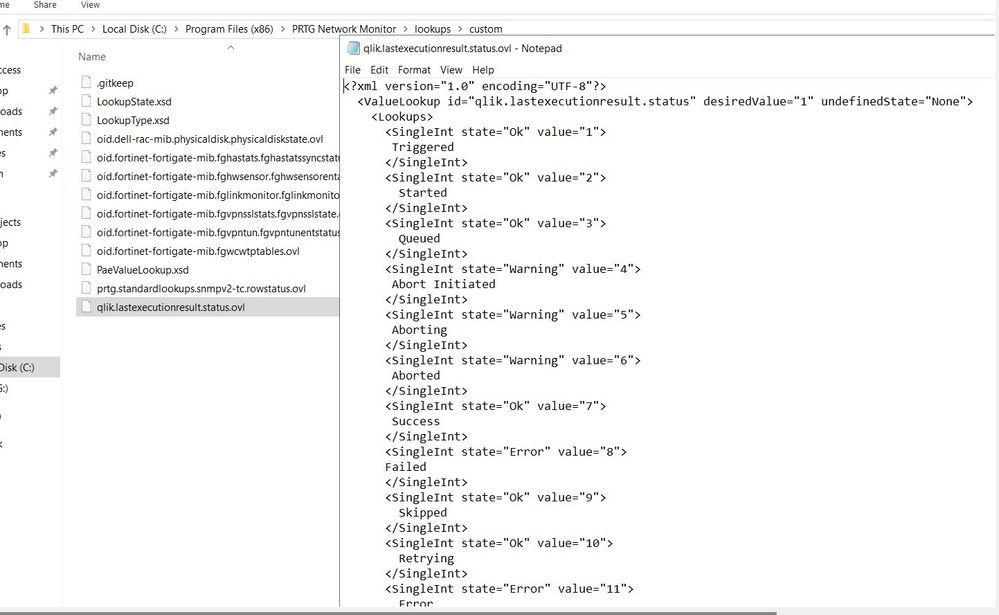
In the following path, however, it is necessary to define a Lookups in order to allow the sensor to interpret the various states of the Qlik Tasks listed in Step 2.
C:\Program Files (x86)\PRTG Network Monitor\lookups\custom
Result JSON query Task from Browser a part of this information will be used for the sensor in PRTG each task will correspond to a specific sensor.
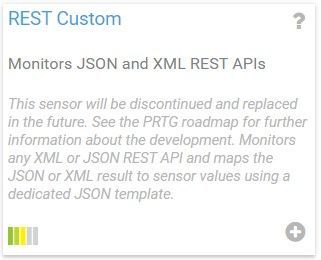
The REST Custom Sensor was used in PRTG.
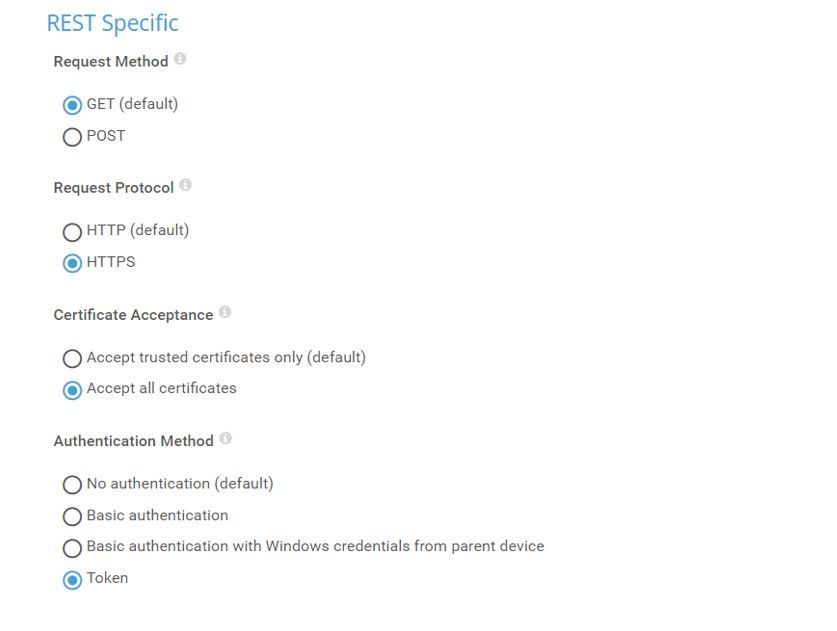
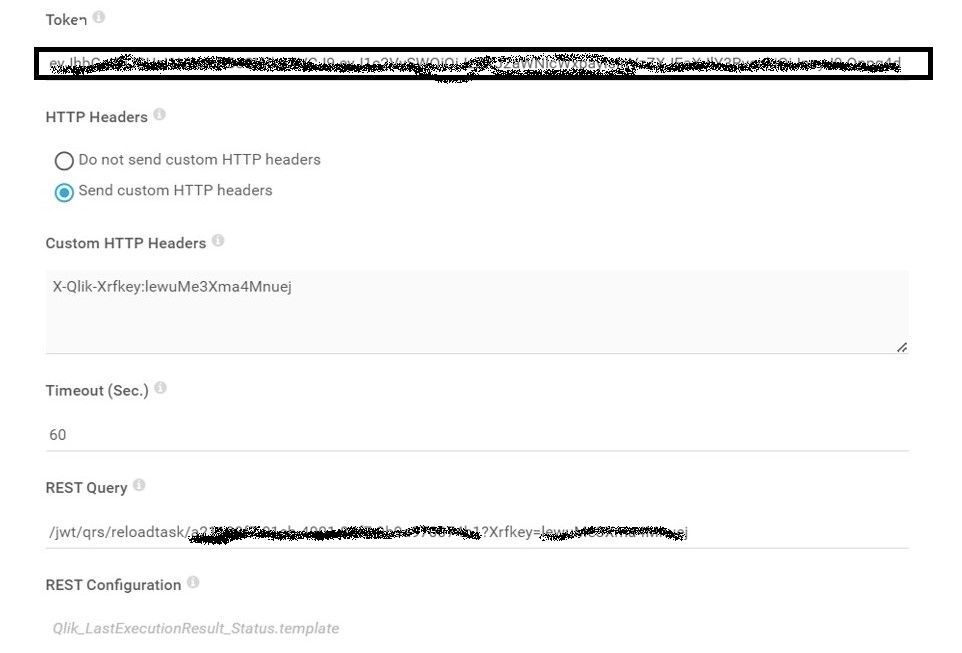
The REST Custom sensor queries a Representational State Transfer (REST) application programming interface (API) endpoint and maps the JavaScript Object Notation (JSON) or Extensible Markup Language (XML) result to the sensor values the mapping rule must be available as a REST configuration file in JSON template format (*.template) according to the PRTG API definition for custom sensors.Two files have been created on the PRTG server.
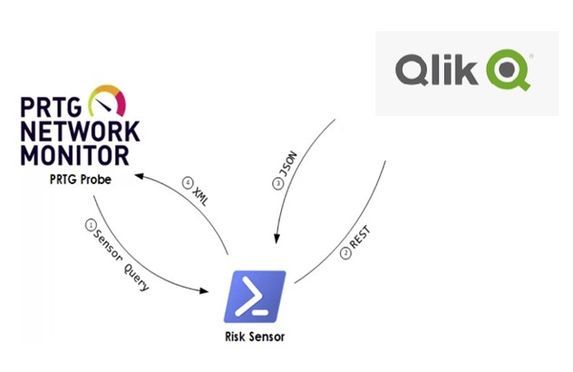
Final integration flow monitoring Task PRTG -> QLIK.
- The name of the Task in this case "test"
-
How to restore app with the same ID if app gets deleted unfortunately
This article talks about how to restore app with the same app ID if app gets deleted unfortunately by someone. There are many ways to restore an app ... Show MoreThis article talks about how to restore app with the same app ID if app gets deleted unfortunately by someone.
There are many ways to restore an app with same app ID:
- Restore the VM image of Qlik central server where the QVFs are stored.
- Find out the app ID of the deleted app.
- Copy the deleted app ID “file” and “.lock” files into physical location path (F:QlikSense\apps) and replace with the ID which gets deleted.
- Open PostgreSQL editor on central node.
- How to connect to PostgreSQL DB – follow the 2nd step here
- Create the app in PostgreSQL DB by running below query with the help of any existing app id
Insert into PUBLIC."Apps"(
"ID", "Name", "AppId", "PublishTime", "Published", "Description", "LastReloadTime", "Thumbnail", "CreatedDate", "ModifiedDate", "ModifiedByUserName", "Owner_ID", "Stream_ID", "SavedInProductVersion", "MigrationHash", "DynamicColor", "SourceAppId", "TargetAppId"
) Select 'Deleted APP ID’,"Name", "AppId", "PublishTime", "Published", "Description", "LastReloadTime", "Thumbnail", "CreatedDate", "ModifiedDate", "ModifiedByUserName", "Owner_ID", "Stream_ID", "SavedInProductVersion", "MigrationHash", "DynamicColor", "SourceAppId", "TargetAppId"
from public."Apps"
where "ID"='any existing app ID’ // existing app
above query will create the deleted app on QMC
- Check the app and data on QMC/HUB
- Create reload task or try to run the app – there is an issue here to refresh the task
- It will throw an error without any logs if we refresh either app or task
- Alternative1: We must duplicate the app and refresh it then publish into actual one in QMC
- Alternative2: Open data load script editor and reload the script
- Automate the Alternative1 by using power shell script to refresh it on daily basis