NOTE : for the Cloud (Remote Engine) replace the line :
System.out.format("%s=%s%n", envName, env.get(envName)); by context.output += ( envName + " = " + env.get(envName) + "\n"); and display the context.output in the task log using a tJoblog
Execute the task in the Cloud with "Execution log level" set to Info
Solution or Workaround
Modify the script launching the JobServer / Remote Engine start_rs.sh (JobServer/agent).
III - For Remote Engine launched as a service , you'll need to set the variables in the file <Remote Engine Folder>\etc\Talend Remote Engine-wrapper.conf
Problem Description
The + button is disabled in the Preferences > Talend > Run/Debug > Remote window, and you cannot add a Remote JobServer to ru...
Show More
Problem Description
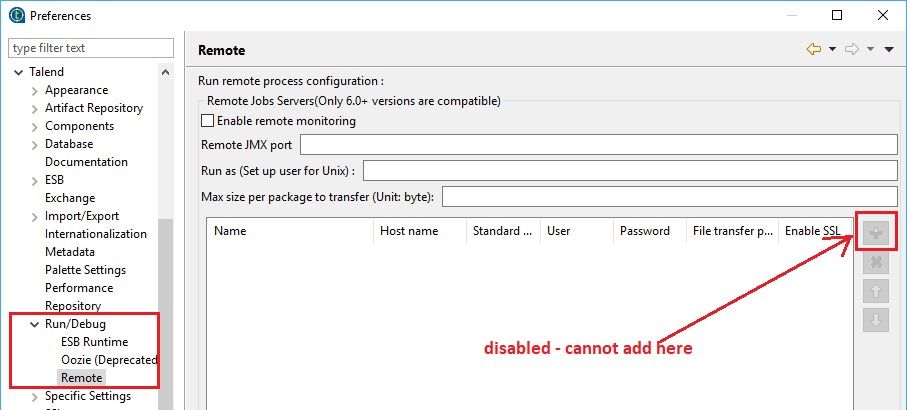
The + button is disabled in the Preferences > Talend > Run/Debug > Remote window, and you cannot add a Remote JobServer to run Jobs from Studio to the Target Exec JobServer.
Root Cause
When Studio is logged into a remote project (using a remote TAC connection), you cannot add a Remote JobServer from Studio because it's controlled by TAC.
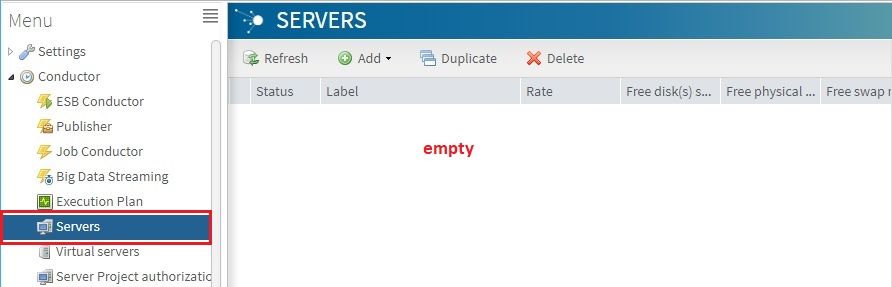
Studio won't display any Remote JobServers because there aren't any JobServers listed on the Servers page in TAC.
Solution
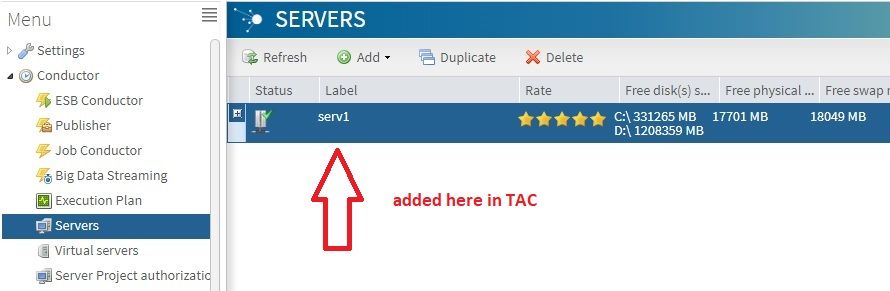
In TAC, add the JobServer to the Servers page.
You are now able to see the same JobServer listed in Studio, and you can use it to run the Job using Target Exec.
Problem Description
TAC shows an error, but the message is difficult to see, or the message is short, or it disappears before you can read it.
...
Show More
Problem Description
TAC shows an error, but the message is difficult to see, or the message is short, or it disappears before you can read it.
For example, when you are generating, deploying, or running a Job in Job Conductor, you get an Error while generating Job message, but that does not provide many details.
Solution
Click the Client log tab, as shown below.
If you cannot see the Client log tab, use the left arrow key, or close some of the other tabs.
For CommandLine specific errors, navigate to the Monitoring > CommandLine screen.
It is anticipated that on January 10th, 2018, customers using Intel Processors could suffer a potential decrease in performance of up to 30 percent...
Show More
It is anticipated that on January 10th, 2018, customers using Intel Processors could suffer a potential decrease in performance of up to 30 percent on all systems. This is solely a hardware issue coming from Intel systems, and will affect users on Windows, MacOS, and Linux.
There is a design flaw in Intel's processor chips that has forced a significant redesign of the Linux and Windows kernels to correct a chip-level security bug. The anticipation is that Windows systems will undergo maintenance and reboots on January 10, presumably to roll out the bug fixes. Unfortunately, these updates to both Linux and Windows may incur a performance decrease on Intel products. This can slow down system performance by up to 30 percent, depending on the task and the processor model. The bug will also impact big-name cloud computing environments, including Amazon EC2, Microsoft Azure, and Google Compute Engine.
These patches coming out could impact the performance of development, staging, and production environments, and will need to be taken into consideration by infrastructure teams.
Talend Version6.x Summary A Job executes slower on a JobServer using TAC compared to execution in Studio or as standalone Job.Additional Versions P...
Show More
Talend Version
6.x
Summary
A Job executes slower on a JobServer using TAC compared to execution in Studio or as standalone Job.
Additional Versions
Product
Talend Data Integration
Component
JobServer
Problem Description
When executing a Job on a JobServer using TAC or Job Conductor, the execution time is slower compared to the execution time in Studio or as a standalone Job.
Problem root cause
Using a tlogRow component in the Job. tLogRow is a component that should be dedicated to the debugging.
Solution or Workaround
Deactivate or remove the tlogRow component in the Job.
Use tFileOutputDelimited or a similar component to write output.
Talend Version 6.4.1 Summary When you start JobServer, the Job does not inherit the environment variables of your user profile.Additional Versions ...
Show More
Talend Version
6.4.1
Summary
When you start JobServer, the Job does not inherit the environment variables of your user profile.
Additional Versions
Product
Talend Data Integration
Component
JobServer
Problem Description
After starting JobServer using the start_rs.sh script file, the output of the environment from a terminal matches with the output of the environment generated by the Job. This was also crosschecked with the /proc/PID/environ file used by JobServer.
Problem root cause
Different sets of environment variables were noticed when JobServer was started using the systemd option.
Solution or Workaround
For the environment variables to work correctly when JobServer is started using systemctl, you have to use either an Environment or an EnvironmentFile directive.
Problem Description
When running an imported Job on a remote server, that uses a tDqReportRun component to launch a report, the generated report ...
Show More
Problem Description
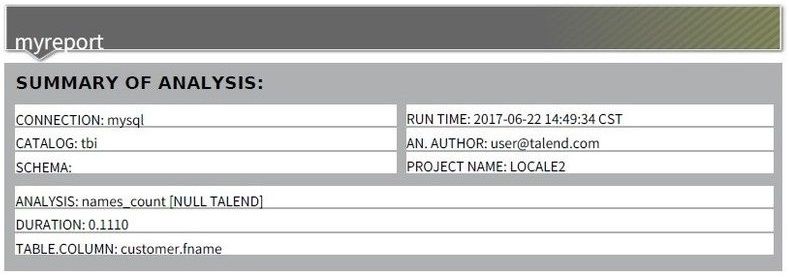
When running an imported Job on a remote server, that uses a tDqReportRun component to launch a report, the generated report file is empty.
Root Cause
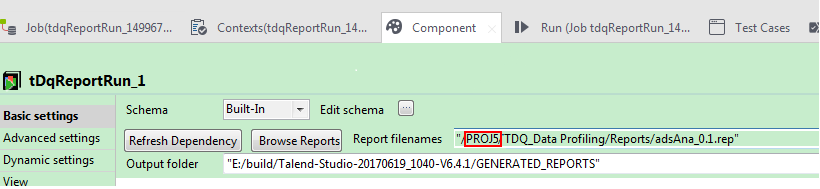
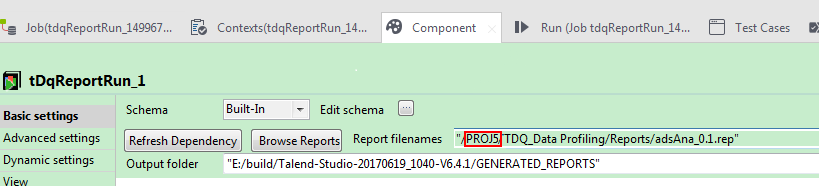
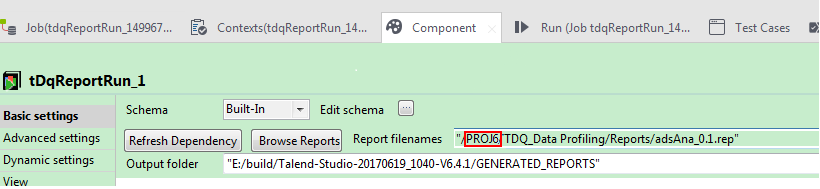
In this example, the Job uses a tDqReportRun component to create a project named PROJ5 and imports a project named PROJ6. In the Report filenames field of the tDqReportun properties, the name of the project is not updated.
Solution
When launching Talend Studio, select the existing project where the Job will be imported or create a new project, then click Finish. In this example, PROJ6 is selected.
Import the report, analysis, connection, and context.
Import the Job from the previous project into the new project.
Open the imported Job.
Double-click the tDqReportun component to open the Component view.
In the Report filenames field, edit the path to the report file and replace the name of the old project with the name of the current project. In this case, replace PROJ5 with PROJ6.
Run the Job.
The report file is saved in the output folder defined in the tDQReportRun basic settings.
Talend Version 6.3.1 Summary While running a job from TAC, you get the following error in the Job Server logs: [FATAL]: coe_s.emp_ff_to_ge...
Show More
Talend Version
6.3.1
Summary
While running a job from TAC, you get the following error in the Job Server logs:
If you run /etc/init.d/custom script as root, and even though you have your script configured to switch to the talend user using RUN_AS_USER, gpload expects the talend user to write under /root/gpAdminLogs. Since this directory is owned by root, it fails with the stated error. Even if you change the ownership of this particular directory to the talend user, it still fails with the same error. If you start the JobServer using the start_rs.sh script (default), this issue is not observed.
Solution or Workaround
Run the script that starts your Jobserver as a service using the following command:
su -l talend -c "/etc/init.d/yourshscript.sh start"
This should take care of the permission issues; if not, have a scripting engineer take a look at your script.
Symptoms
You may get the following error when trying to execute a task in Job Conductor:
Exception in thread "main" java.lang.NoClassDefFoundEr...
Show More
Symptoms
You may get the following error when trying to execute a task in Job Conductor:
Exception in thread "main" java.lang.NoClassDefFoundError
This is because the required Job libraries are missing. The following are two possible causes of this error:
The Job script is not exported completely.
The Job script is exported completely and deployed to the Job Server correctly. The Job works fine the first time, but the Job fails the second or subsequent time. Some required libraries are deleted.
Procedure
For the first cause
Re-generate the Job script and redeploy it to the Job Server.
For the second cause
There have been many Jobs deployed to the Job Server. There is a property in the Job Server to set the maximum number of cached libraries to keep. If the total number of libraries exceeds this value, some of the libraries will be deleted. To increase the value of this property to prevent this problem, follow these steps:
Go to Job Server installation dir/conf/, open the TalendJobServer.properties file, and edit the following property:
Problem Description
When deploying a TAC, 6.5.1, Big Data Streaming Job using the Big Data Streaming Conductor, the JobServer cache directory doe...
Show More
Problem Description
When deploying a TAC, 6.5.1, Big Data Streaming Job using the Big Data Streaming Conductor, the JobServer cache directory does not contain the JAR library files used by the Job. However, all the JARs used by the Job are in the JobServer repository directory.
Consequently, deploying a large number of Big Data Streaming Jobs uses a lot of disk space on the JobServer platform because those Jobs don’t use the cache directory to store the common JARs used by the Jobs.
The expected behavior is that the job deployed into JobServer is using the cache directory to store the Job' s used libraries.
Note: When deploying the Job from Studio to a remote server the cache is used as expected.
Root Cause
This is a known bug.
Solution
This issue is fixed in Talend 7.1.1.
Against Talend 6.5.1, the solution consists of applying Patch_20180516_TPS-2491_v1-6.5.1.zip.
Contact Talend Support to request patch Patch_20180516_TPS-2491_v1-6.5.1.zip.
Use the patch Readme file steps (embedded in the patch zip file) to apply the patch.
Symptoms
Although the remote JobServer is running fine, the following error is displayed when trying to configure the remote JobServer on TAC:
...
Show More
Symptoms
Although the remote JobServer is running fine, the following error is displayed when trying to configure the remote JobServer on TAC:
Diagnosis
You could run the Job on that remote JobServer from Studio. The remote JobServer is up and running fine, and no network issues are detected. The ports that are configured are correct.
Solution
This problem can be due to a simple configuration issue that occurs when there is a trailing space after the port number is configured on TAC. For example, the command port could be set to "8100 " but you cannot determine this just by looking at the configuration.
To resolve this issue, ensure that there are no extra spaces after entering the port numbers while configuring the JobServer on TAC, then save.