Unlock a world of possibilities! Login now and discover the exclusive benefits awaiting you.

Product Innovation
By reading the Product Innovation blog, you will learn about what's new across all of the products in our growing Qlik product portfolio.
Support Updates
The Support Updates blog delivers important and useful Qlik Support information about end-of-product support, new service releases, and general support topics.
Qlik Academic Program
This blog was created for professors and students using Qlik within academia.
Community News
Hear it from your Community Managers! The Community News blog provides updates about the Qlik Community Platform and other news and important announcements.
Qlik Digest
The Qlik Digest is your essential monthly low-down of the need-to-know product updates, events, and resources from Qlik.
Qlik Learning
The Qlik Learning blog offers information about the latest updates to our courses and programs, as well as insights from the Qlik Learning team.
Recent Blog Posts
-
Techspert Talks - Setting up Knowledge Marts for AI
Hi everyone, Want to stay a step ahead of important Qlik support issues? Then sign up for our monthly webinar series where you can get first-hand insights from Qlik experts. The Techspert Talks session from January looking at Setting up Knowledge Marts for AI. But wait, what is it exactly?Techspert Talks is a free webinar held on a monthly basis, where you can hear directly from Qlik Techsperts on topics that are relevant to Customers and Part... Show MoreHi everyone,
Want to stay a step ahead of important Qlik support issues? Then sign up for our monthly webinar series where you can get first-hand insights from Qlik experts.The Techspert Talks session from January looking at Setting up Knowledge Marts for AI.
But wait, what is it exactly?
Techspert Talks is a free webinar held on a monthly basis, where you can hear directly from Qlik Techsperts on topics that are relevant to Customers and Partners today.In this session we will cover:
- Synchronizing data in real time
- Connecting to Structured and Unstructured data
- Demonstration of chatbot application
- How to get started

-
clay tech_Myfairhotel
clay tech_Myfairhotel clay tech This dashboard provides a month & year–wise comparison of hotel revenue, highlighting key KPIs, room type performance, folio revenue contribution, and business source distribution to quickly track revenue trends and drivers. Discoveries Some of the key discoveries from using this app include clear visibility into month-on-month and year-on-year revenue trends, identification of top-performing room types... Show Moreclay tech_Myfairhotelclay tech This dashboard provides a month & year–wise comparison of hotel revenue, highlighting key KPIs, room type performance, folio revenue contribution, and business source distribution to quickly track revenue trends and drivers.
Discoveries
Some of the key discoveries from using this app include clear visibility into month-on-month and year-on-year revenue trends, identification of top-performing room types, and understanding which business sources contribute the most to overall folio revenue.
Impact
This app has helped the business make faster, data-driven decisions by highlighting revenue drivers and gaps, enabling better pricing, channel optimization, and room mix planning to improve overall performance.
Audience
This app is primarily used by hotel management, revenue managers, sales & marketing teams, and finance stakeholders. It is displayed on management review dashboards and is accessed daily/weekly for performance tracking, making it a critical tool for monitoring revenue health and supporting strategic decisions.
Data and advanced analytics
The app leverages consolidated transactional data with time-based comparisons and KPI-driven analytics to uncover trends and patterns. It enables proactive analysis of revenue, room type performance, and business sources, helping the business optimize forecasting, pricing strategies, and overall revenue management.
-
ClayTech_PortfolioSummary
ClayTech_PortfolioSummary ClayTech System This provides an overall comparison of how different stakeholders are performing across the Indian region. It is intended for those who prefer data and numbers over visual or fancy charts. The analysis highlights spend, onboarding, and activation ratios, helping management clearly identify key performance metrics and critical business gaps. Discoveries Some of the discoveries from using this a... Show MoreClayTech_PortfolioSummaryClayTech SystemThis provides an overall comparison of how different stakeholders are performing across the Indian region. It is intended for those who prefer data and numbers over visual or fancy charts. The analysis highlights spend, onboarding, and activation ratios, helping management clearly identify key performance metrics and critical business gaps.Discoveries
Some of the discoveries from using this app include: How the overall spend work and how their distribution over other channel Understand the onboarding and activation ration over the state and different dim.
Impact
That helps us to know the customer and product behavior and give them the visual number on which they can bat and set some action.
Audience
Include # of users (if you can share) This is mostly used by our business user who are at the post of AM, M of the product and Marketing.
Data and advanced analytics
here we applied the extension and advanced scripting of qlik in the load script.
-
Streamlining user types in Qlik Cloud capacity-based subscriptions
Hello Qlik Cloud Admins! As part of our ongoing commitment to provide the best possible experience for Qlik Cloud users, we are removing the Basic and Full User construct from tenants on capacity-based subscriptions, simplifying to just User. Why are we doing this? User capabilities on capacity-based tenants are governed by access control. Thus, a difference in user type designation is no longer required to determine what a user can do in the t... Show MoreHello Qlik Cloud Admins!
As part of our ongoing commitment to provide the best possible experience for Qlik Cloud users, we are removing the Basic and Full User construct from tenants on capacity-based subscriptions, simplifying to just User.
Why are we doing this?
User capabilities on capacity-based tenants are governed by access control. Thus, a difference in user type designation is no longer required to determine what a user can do in the tenant.
What changes are being made?
- Any user authenticating to a capacity-based tenant will be considered a Full User. The concept of a Basic User is removed from the product. Any users purchased under capacity entitlement will be available as Full Users. Full User consumption is deducted from the total number of user capacity purchased.
- The auto-assignment toggles in the Qlik Cloud Administration Center > Settings > Entitlements will be removed from the product.
To grant these roles to everyone in the tenant, use the Auto assign option in Manage users > Permissions.
How does this impact you?
Current access control configuration for existing users remains unchanged. You may have to modify the User Default role, assign users to built-in roles, or create new custom roles to support access to tenant features and capabilities. See Roles and permissions for users and administrators for information on your tenant’s access control system.
When will this change take effect?
This is targeted for February 2nd, 2026.
If you have any questions, we're happy to assist. Reply to this blog post or take your queries to our Support Chat.
Thank you for choosing Qlik,
Qlik Support -
Qlik’s Response to Apache Tika vulnerability CVE-2025-66516
In December 2025, the Apache Project announced a vulnerability in Apache Tika (CVE-2025-66516) and provided patches to resolve the issue. Qlik has been reviewing our usage of the Apache Tika product suite and has identified a limited impact as follows. Affected Software Apache Tika is used in several Qlik products. However, the vulnerability is only relevant to the case of a Talend Studio route that uses Apache Tika to parse PDFs. No other use... Show MoreIn December 2025, the Apache Project announced a vulnerability in Apache Tika (CVE-2025-66516) and provided patches to resolve the issue. Qlik has been reviewing our usage of the Apache Tika product suite and has identified a limited impact as follows.
Affected Software
Apache Tika is used in several Qlik products. However, the vulnerability is only relevant to the case of a Talend Studio route that uses Apache Tika to parse PDFs.
No other use case or product is impacted by the vulnerability. Qlik Cloud and Talend Cloud are not impacted by this vulnerability.
Nevertheless, we are patching all our products that contain Apache Tika out of an abundance of caution. Be on the lookout for a series of product patches for supported and affected versions.
Recommendation
The releases listed in the table below contain the updated version of Apache Tika, which addresses CVE-2025-66516.
Always update to the latest version. Before you upgrade, check if a more recent release is available.
Product Patch Release Date Talend Studio R2025-11v2 December 16, 2025 Talend Administration Center QTAC-1472 December 19, 2025 Talend ESB Runtime R2025-12-RT December 19, 2025 Talend Remote Engine Gen 2. Connectors 1.58.8 December 23, 2025 Talend Data Stewardship TPS-6013 December 23, 2025 Talend Data Preparation TPS-6016 January 16, 2026 Thank you for choosing Qlik,
Qlik Support -
Starting 2026 Strong: Empowering Data Analytics Education Across EMEA
As we step into 2026, I want to take a moment to reflect on the year behind us and look ahead to what’s coming for the Qlik Academic Program across EMEA. 2025 was a strong and rewarding year marked by meaningful collaboration with educators, growing student engagement, and a shared commitment to bringing real-world data analytics into the classroom. Our goal for 2026 is simple: to build on that momentum and continue supporting academic institutio... Show MoreAs we step into 2026, I want to take a moment to reflect on the year behind us and look ahead to what’s coming for the Qlik Academic Program across EMEA. 2025 was a strong and rewarding year marked by meaningful collaboration with educators, growing student engagement, and a shared commitment to bringing real-world data analytics into the classroom. Our goal for 2026 is simple: to build on that momentum and continue supporting academic institutions across the region in even more impactful ways.
-
Qlik Sense Migration: Migrating your Entire Qlik Sense Environment
Hi everyone, For various and valid reasons, you might need to migrate your entire Qlik Sense environment, or part of it, somewhere else. In this post, I’ll cover the most common scenario: a complete migration of a single or multi-node Qlik Sense system, with the bundled PostgreSQL database (Qlik Sense Repository Database service) in a new environment. So, how do we do that? Introduction and preparationBackup your old environmentDeploy and rest... Show MoreHi everyone,
For various and valid reasons, you might need to migrate your entire Qlik Sense environment, or part of it, somewhere else.
In this post, I’ll cover the most common scenario: a complete migration of a single or multi-node Qlik Sense system, with the bundled PostgreSQL database (Qlik Sense Repository Database service) in a new environment.
So, how do we do that?
- Introduction and preparation
- Backup your old environment
- Deploy and restore the new central environment
- What about my rim nodes?
- Finalizing your migration
- Data Connection
- Licensing
- Best practices
If direct assistance is needed and you require hands-on help with a migration, engage Qlik Consulting. Qlik Support cannot provide walk-through assistance with server migrations outside of a post-installation and migration completion break/fix scenario.
Introduction and preparation
Let’s start with a little bit of context: Say that we are running a 3 nodes Qlik Sense environment (Central node / Proxy-Engine node / Scheduler node).
On the central node, I also have the Qlik shared folder and the bundled Qlik Sense Repository Database installed.
If you have previously unbundled your PostgreSQL install, see How To migrate a Qlik Sense Enterprise on Windows environment to a different host after unbundling PostgreSQL for instructions on how to migrate.
This environment has been running well for years but I now need to move it to a brand new hardware ensuring better performance. It’s not possible to reinstall everything from scratch because the system has been heavily used and customized already. Redoing all of that to replicate the environment is too difficult and time-consuming.
I start off with going through a checklist to verify if the new system I’m migrating to is up to it:
- Do I meet the system requirements? Qlik Sense System Requirements
- Am I following virtualization best practices? Virtualization Best Practices In QlikView And Qlik Sense
And then I move right over to…
Backup your old environment
The first step to migrate your environment in this scenario is to back it up.
To do that, I would recommend following the steps documented on help.qlik.com (make sure to select your Qlik Sense version top left of the screen).
Once the backup is done you should have:
- A backup of the database in .tar format
- A backup of the content of the file share which includes your applications, application content, archived logs, extensions,…
- Backups of any data source files that need to be migrated and are not stored in the shared folder like QVDs
Then we can go ahead and…
Deploy and restore the new central environment
The next steps are to deploy and restore your central node. In this scenario, we will also assume that the new central node will have a different name than the original one (just to make things a bit more complicated 😊).
Let’s start by installing Qlik Sense on the central node. That’s as straightforward as any other fresh install.
You can follow our documentation. Before clicking on Install simply uncheck the box “Start the Qlik Sense services when the setup is complete.”
The version of Qlik Sense you are going to install MUST be the same as the one the backup is taken on.
Now that Qlik Sense is deployed you can restore the backup you have taken earlier into your new Qlik Sense central node following Restoring a Qlik Sense site.
Since the central node server name has also changed, you need to run a Bootstrap command to update Qlik Sense with the new server name. Instruction are provided in Restoring a Qlik Sense site to a machine with a different hostname.
The central node is now almost ready to start.
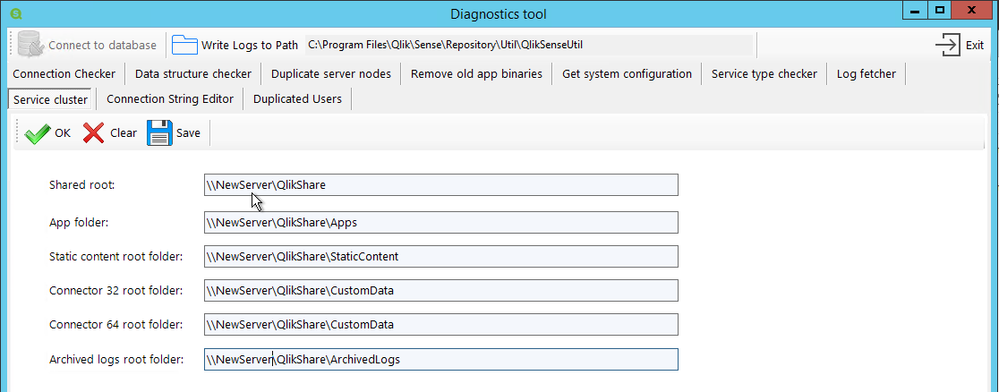
If you have changed the Qlik Share location, then the UNC path has also changed and needs to be updated.
To do that:
- Go to C:\Program Files\Qlik\Sense\Repository\Util\QlikSenseUtil
- Run QlikSenseUtil.exe as Administrator
- Click on Connect to the database and enter the credential to connect to the new PostgreSQL database
- Click on Service Cluster and press OK. This should display the previously configured UNC Path
- You simply need to update each path, save and start/restart all the Qlik sense services.
At this point make sure you can access the Qlik Sense QMC and Hub on the central node. Eventually, check that you can load applications (using the central node engine of course). You can also check in the QMC > Service Cluster that the changes you previously made have been correctly applied.
Troubleshooting tips: If after starting the Qlik Sense services, you cannot access the QMC and/or Hub please check the following knowledge article How to troubleshoot issue to access QMC and HUB
What about my rim nodes?
You’ve made it here?! Then congratulations you have passed the most difficult part.
If you had already run and configured rim nodes in your environment that you now need to migrate as well, you might not want to remove them from Qlik Sense to add the new ones since you will lose pretty much all the configuration you have done so far on these rim nodes.
By applying the following few steps I will show you how to connect to your “new” rim node(s) and keep the configuration of the “old” one(s).
Let’s start by installing Qlik Sense on each rim node like it was a new one.
The process is pretty much the same as installing a central node except that instead of choosing “Create Cluster”, you need to select “Join Cluster”
Detailed instructions can be found on help.qlik.com: Installing Qlik Sense in a multi-node site
Once Qlik Sense is installed on your future rim node(s) and the services are started, we will need to connect to the “new” Qlik Sense Repository Database and change the hostname of the “old” rim node(s) to the “new” one so that the central node can communicate with it.
To do that install PGAdmin4 and connect to the Qlik Sense Repository Database. Detailed instruction in Installing and Configuring PGAdmin 4 to access the PostgreSQL database used by Qlik Sense or NPrinting knowledge article.
Once connected navigate to Databases > QSR > Schemas > public > Tables
You need to edit the LocalConfigs and ServerNodeConfigurations table and change the Hostname of your rim node(s) from the old one to the new corresponding one (Don’t forget to Save the change)
LocalConfigs table
ServerNodeConfigurations table
Once this is done, you will need to restart all the services on the central node.
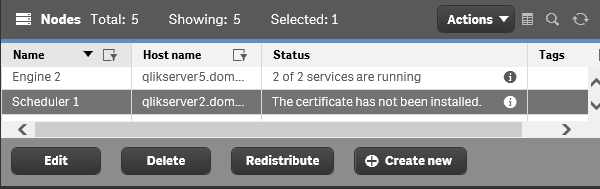
When you have access back, login to the QMC and go to Nodes. Your rim node(s) should display the following status, “The certificate has not been installed”
From this point, you can simply select the node, click on Redistribute and follow the instruction to deploy the certificates on your rim node. After a moment the status should change and you should see the services being up and running.
Do the same thing on the remaining rim node(s).
Troubleshooting tips: If the rim node status is not showing “The certificate has not been installed” it means that either the central node cannot reach the rim node or the rim node is not ready to receive new certificates.
Check that the port 4444 is opened between the central and rim node and make sure the rim node is listening on port 4444 (netstat -aon in command prompt).
Still no luck? You can completely uninstall Qlik Sense on the rim node and reinstall it.Finalizing your migration
At this point, your environment is completely migrated and most of the stuff should work.
Data Connection
There is one thing to consider in this scenario. Since the Qlik Sense certificates between the old environment and the new one are not the same, it is likely that data connections with passwords will fail. This is because passwords are saved in the repository database with encryption. That encryption is based on a hash from the certs. When the Qlik Sense self-signed cert is rebuilt, this hash is no longer valid, and so the saved data connection passwords will fail. You will need to re-enter the passwords in each data connection and save. This can be done in the QMC -> Data Connections.
See knowledge article: Repository System Log Shows Error "Not possible to decrypt encrypted string in database"
Licensing
Do not forget to turn off your old Qlik Sense Environment once you are finished. While Qlik's Signed License key can be used across multiple environments, you will want to prevent accidental user assignments from the old environment.
Note: If you are still using a legacy key (tokens), the old environment must be shut down immediately, as you can only use a legacy license on one active Qlik Sense environment. Reach out to your account manager for more details.
Best practices
Finally, don’t forget to apply best practices in your new environment:
- Qlik Sense Folder And Files To Exclude From AntiVirus Scanning
- Recommended practice on configuration for Qlik Sense
-
The 2026 Data Trends Are Here. Is Education Ready?
Data is at the center of the AI revolution. But as Bernard Marr explains in his Forbes article The 8 Data Trends That Will Define 2026 the biggest changes are not just technical; they are changing how people work, learn, and build careers. These 2026 data trends are already reshaping education and jobs. AI agents and agent-ready data are changing how work gets done, making it essential to understand how data is structured, accessed, and secure... Show MoreData is at the center of the AI revolution. But as Bernard Marr explains in his Forbes article The 8 Data Trends That Will Define 2026 the biggest changes are not just technical; they are changing how people work, learn, and build careers.
These 2026 data trends are already reshaping education and jobs.
-
AI agents and agent-ready data are changing how work gets done, making it essential to understand how data is structured, accessed, and secured.
-
Generative AI for data engineering is automating technical tasks, shifting skills toward design, logic, and critical thinking.
-
Data provenance and trust are becoming core requirements as data volumes grow, and decisions rely more on AI.
-
Compliance and regulation are expanding globally, making responsible data use a necessary skill across roles.
-
Generative data democracy allows more people to access insights, increasing the importance of data literacy for everyone.
-
Synthetic data is opening new opportunities while raising ethical and privacy considerations.
-
Data sovereignty is shaping how organizations manage data across borders and jurisdictions.
Together, these trends show why data literacy is becoming a universal skill for education and careers in 2026.
The Qlik Academic Program helps academic communities respond to these changes by putting data literacy at the center of learning. Students develop the ability to read, question, and explain data while working hands-on with real analytics tools to explore data, build insights, and understand how AI-driven decisions are made. Professors are supported with training and teaching resources that make it easier to embed data literacy and modern data topics across disciplines.
As the Forbes article makes clear, the future belongs to those who can work confidently with data, alongside AI, within regulations, and with trust.
By giving students, professors, and universities free access to analytics software, learning content, and certifications, the Qlik Academic Program helps education stay aligned with the data trends shaping 2026 and prepares learners for the jobs of tomorrow.
Join our global community for free: Qlik Academic Program: Creating a Data-Literate World
-
-
Watch! Q&A with Qlik: New to Qlik Cloud
Don't miss our previous Q&A with Qlik! Hear from our panel of experts to help you get the most out of your Qlik experience. Let our Qlik experts offer solutions to common issues encountered when upgrading Qlik Sense, best practices, and important configuration settings. SEE RECORDING HERE
-
-
Upcoming changes to Qlik Talend Nexus Repository January 26th, 2026
Hello Qlik Talend admins, Qlik is updating the Qlik Talend Nexus repository. The changes are rolled out in a phased approach. Phase One was completed on July 16th, 2025. Phase Two is scheduled for January 26th, 2026. What is the expected impact? The impact is minimal. Qlik Talend Studio: no impact Qlik Talend Administration Center version lower than 8.0.1 with R2025-07 patch: you'll no longer see any patches in the Qlik Talend Administration... Show MoreHello Qlik Talend admins,
Qlik is updating the Qlik Talend Nexus repository. The changes are rolled out in a phased approach. Phase One was completed on July 16th, 2025.
Phase Two is scheduled for January 26th, 2026.
What is the expected impact?
The impact is minimal.
Qlik Talend Studio:
- no impact
Qlik Talend Administration Center
- version lower than 8.0.1 with R2025-07 patch: you'll no longer see any patches in the Qlik Talend Administration Center UI
- version 8.0 with patch R2025-07 or higher: you'll see all patches available in the Qlik Talend Administration Center UI
If you have any questions, we're happy to assist. Reply to this blog post or start a chat with us.
Thank you for choosing Qlik,
Qlik Support -
-
Why Adding Analytics Doesn’t Have to Be Hard for Professors
Why Qlik Makes It Easy As data literacy and analytics becomes essential across higher education, many faculty want to introduce analytics into their courses—but hesitate for one simple reason: time. For most professors, the challenge isn’t interest—it’s practicality. Traditional analytics tools often require: Significant time to learn and teach Building course materials from scratch Managing software access and technical issues Justifying... Show MoreWhy Qlik Makes It EasyAs data literacy and analytics becomes essential across higher education, many faculty want to introduce analytics into their courses—but hesitate for one simple reason: time.For most professors, the challenge isn’t interest—it’s practicality. Traditional analytics tools often require:-
Significant time to learn and teach
-
Building course materials from scratch
-
Managing software access and technical issues
-
Justifying tools that don’t clearly align with real-world outcomes
When added together, these hurdles can make analytics feel like more work than impact. Qlik’s Academic Program is designed with faculty realities in mind.Professors get:-
Ready-to-use course materials (syllabi, labs, and assessments)
-
Easy, cloud-based access with no cost or complex setup
-
Flexible integration, from a single module to a full course
-
Industry-relevant analytics tools students actually use in the workforce
Instead of asking faculty to redesign their courses, Qlik fits seamlessly into what they already teach. Adding an analytics tool doesn’t have to be difficult.Qlik removes the biggest barriers—time, complexity, and curriculum creation—making it one of the easiest analytics programs for professors to adopt and teach.Explore more here: https://www.qlik.com/us/company/academic-program -
-
Mastering the HyperCube: High-Volume Data Strategies with @qlik/api
If you have been building custom web applications or mashups with Qlik Cloud, you have likely hit the "10K cells ceiling" when using Hypercubes to fetch data from Qlik.(Read my previous posts about Hypercubes here and here) You build a data-driven component, it works perfectly with low-volume test data, and then you connect it to production; and now suddenly, your list of 50,000+ customers cuts off halfway, or your export results look incomplete.... Show MoreIf you have been building custom web applications or mashups with Qlik Cloud, you have likely hit the "10K cells ceiling" when using Hypercubes to fetch data from Qlik.
(Read my previous posts about Hypercubes here and here)You build a data-driven component, it works perfectly with low-volume test data, and then you connect it to production; and now suddenly, your list of 50,000+ customers cuts off halfway, or your export results look incomplete.
This happens because the Qlik Engine imposes a strict limit on data retrieval: a maximum of 10,000 cells per request. If you fetch 4 columns, you only get 2,500 rows (4 (columns) x 2500 = 10,000 (max cells)).
In this post, I’ll show you how to master high-volume data retrieval using the two strategies: Bulk Ingest and On-Demand Paging, using the @qlik/api library.
What is the 10k Limit and Why Does It Matter?
The Qlik Associative Engine is built for speed and can handle billions of rows in memory. However, transferring that much data to a web browser in one go would be inefficient. To protect both the server and the client-side experience, Qlik forces you to retrieve data in chunks.
Understanding how to manage these chunks is the difference between an app that lags and one that delivers a good user experience.
Step 1: Defining the Data Volume
To see these strategies in action, we need a "heavy" dataset. Copy this script into your Qlik Sense Data Load Editor to generate 250,000 rows of transactions (or download the QVF attached to this post):
// ============================================================
// DATASET GENERATOR: 250,000 rows (~1,000,000 cells)
// ============================================================

Transactions:
Load
    RecNo() as TransactionID,
    'Customer ' & Ceil(Rand() * 20000) as Customer,
    Pick(Ceil(Rand() * 5),
        'Corporate',
        'Consumer',
        'Small Business',
        'Home Office',
        'Enterprise'
    ) as Segment,
    Money(Rand() * 1000, '$#,##0.00') as Sales,
    Date(Today() - Rand() * 365) as [Transaction Date]
AutoGenerate 250000;
Step 2: Choosing Your Strategy
There are two primary ways to handle this volume in a web app. The choice depends entirely on your specific use case.
1- Bulk Ingest (The High-Performance Pattern)
In this pattern, you fetch the entire dataset into the application's local memory in iterative chunks upon loading.
-
The Goal: Provide a "zero-latency" experience once the data is loaded.
-
Best For: Use cases where users need to perform instant client-side searches, complex local sorting, or full-dataset CSV exports without waiting for the Engine.
2- On-Demand (The "Virtual" Pattern)
In this pattern, you only fetch the specific slice of data the user is currently looking at.
-
The Goal: Provide a near-instant initial load time, regardless of whether the dataset has 10,000 or 10,000,000 rows as you only load a specific chunk of those rows at a time.
-
Best For: Massive datasets where the "cost" of loading everything into memory is too high, or when users only need to browse a few pages at a time.
Step 3: Implementing the Logic
While I'm using React and custom react hooks for the example I'm providing, these core Qlik concepts translate to any JavaScript framework (Vue, Angular, or Vanilla JS). The secret lies in how you interact with the HyperCube.
The Iterative Logic (Bulk Ingest):
The key is to use a loop that updates your local data buffer as chunks arrive.
To prevent the browser from freezing during this heavy network activity, we use setTimeout to allow the UI to paint the progress bar.
        qModel = await app.createSessionObject({ qInfo: { qType: 'bulk' }, ...properties });
        const layout = await qModel.getLayout();
        const totalRows = layout.qHyperCube.qSize.qcy;
        const pageSize = properties.qHyperCubeDef.qInitialDataFetch[0].qHeight;
        const width = properties.qHyperCubeDef.qInitialDataFetch[0].qWidth;
        const totalPages = Math.ceil(totalRows / pageSize);

        let accumulator = [];
        for (let i = 0; i < totalPages; i++) {
          if (!mountedRef.current || stopRequestedRef.current) break;

          const pages = await qModel.getHyperCubeData('/qHyperCubeDef', [{
            qTop: i * pageSize,
            qLeft: 0,
            qWidth: width,
            qHeight: pageSize
          }]);

          accumulator = accumulator.concat(pages[0].qMatrix);

          // Update state incrementally
          setData([...accumulator]);
          setProgress(Math.round(((i + 1) / totalPages) * 100));

          // Yield thread to prevent UI locking
          await new Promise(r => setTimeout(r, 1));
The Slicing Logic (On-Demand)
In this mode, the application logic simply calculates the qTop coordinate based on the user's current page index and makes a single request for that specific window of data (rowsPerPage).
        const width = properties.qHyperCubeDef.qInitialDataFetch[0].qWidth;
        const qTop = (page - 1) * rowsPerPage;

        const pages = await qModelRef.current.getHyperCubeData('/qHyperCubeDef', [{
          qTop,
          qLeft: 0,
          qWidth: width,
          qHeight: rowsPerPage
        }]);

        if (mountedRef.current) {
          setData(pages[0].qMatrix);
        }
I placed these two methods in custom hooks (useQlikBulkIngest & useQlikOnDemand) so they can be easily re-used in different components as well as other apps.
Best Practices
Regardless of which pattern you choose, always follow these three Qlik Engine best practices:
-
Engine Hygiene (Cleanup): Always call app.destroySessionObject(qModel.id) when your component or view unmounts.
-
Cell Math: Always make sure your qWidth x qHeight is strictly < 10,000. For instance, if you have a wide table (20 columns), your max height is only 500 rows per chunk.
-
UI Performance: Even if you use the "Bulk" method and have 250,000 rows in JavaScript memory, do not render them all to the DOM at once. Use UI-level pagination or virtual scrolling to keep the browser responsive.
Choosing between Bulk and On-Demand is a trade-off between Initial Load Time and Interactive Speed. By mastering iterative fetching with the @qlik/api library, you can ensure your web apps remain robust, no matter how much data is coming in from Qlik.
Attached is the QVF and here is the GitHub repository containing the full example in React so you can try it in locally - Instructions are provided in the README file.
(P.S: Make sure you create the OAuth client in your tenant and fill in the qlik-config.js file in the project with your tenant-specific config).
Thank you for reading!
-
-
Unlock Your Qlik Superpower
Discover your current skill level and receive recommendations to accelerate your learning. Access the new Skills Assessments free and receive training recommendations designed to strengthen and expand your skills.
-
【オンデマンド配信】AI の未来を創る:データ・エージェント・人間のタッグが生む新たな価値
AI を活用して投資利益率を高める 2026年のトレンド 多くの企業が AI に投資しているにもかかわらず、投資利益率を高めている企業はごく少数です。何を改善すべきなのか? 何十年もの間、企業は振り子のように揺れ動いてきました。前進している時は自由度を高め、後退している時は規律を強める…を繰り返してきました。2026年のデータで成功する戦略モデルは、二者択一ではありません。管理とイノベーションを両立して活かし、新たな価値を生み出すことが重要になります。 Web セミナー「AI の未来を創る:データ・エージェント・人間のタッグが生む新たな価値」では、Qlik のマーケットインテリジェンスリードの Dan Sommer と Qlik APAC の分析・AI 部門 最高技責任者の Charlie Farah が、2026年の重要なトレンドについて解説します。 本 Web セミナーでは、ビジネスを成功に導くために押さえるべき 3 つの重要なポイントをご紹介します。このポイントをビジネスに適用す... Show MoreAI を活用して投資利益率を高める 2026年のトレンド
多くの企業が AI に投資しているにもかかわらず、投資利益率を高めている企業はごく少数です。何を改善すべきなのか?
何十年もの間、企業は振り子のように揺れ動いてきました。前進している時は自由度を高め、後退している時は規律を強める…を繰り返してきました。2026年のデータで成功する戦略モデルは、二者択一ではありません。管理とイノベーションを両立して活かし、新たな価値を生み出すことが重要になります。
Web セミナー「AI の未来を創る:データ・エージェント・人間のタッグが生む新たな価値」では、Qlik のマーケットインテリジェンスリードの Dan Sommer と Qlik APAC の分析・AI 部門 最高技責任者の Charlie Farah が、2026年の重要なトレンドについて解説します。
本 Web セミナーでは、ビジネスを成功に導くために押さえるべき 3 つの重要なポイントをご紹介します。このポイントをビジネスに適用すると、データの整合性を確保してすべてのシステムをシームレスにつなぎ、ビジネスに革新を起こすことができます。さらに、この新たなモデルの基礎となるトレンドを探ることで、貴社のデータ戦略をレベルアップする方法も解説します。
偏った方針に振り回されることなく、分断を解消して統合基盤を構築するには?Web セミナーに参加して、AI を最大限に活用するために、新たなモデルの導入の重要性をご確認ください。
※ 参加費無料。日本語字幕付きでお届けします。パソコン・タブレット・スマートフォンで、どこからでもご参加・ご視聴いただけます。
-
Dynamic Engine Now Supports Google Kubernetes Engine: Deploy Anywhere, Scale Eve...
The evolution of enterprise cloud strategy is no longer about choosing a single provider - it's about deploying flexibly across AWS, Azure, Google Cloud, and on-premises infrastructure, depending on the unique needs of your business, industry, and regulatory environment. Today, we're excited to announce that Qlik Talend Dynamic Engine officially supports Google Kubernetes Engine (GKE), joining our existing support for AWS EKS, Azure AKS, and on-p... Show MoreThe evolution of enterprise cloud strategy is no longer about choosing a single provider - it's about deploying flexibly across AWS, Azure, Google Cloud, and on-premises infrastructure, depending on the unique needs of your business, industry, and regulatory environment. Today, we're excited to announce that Qlik Talend Dynamic Engine officially supports Google Kubernetes Engine (GKE), joining our existing support for AWS EKS, Azure AKS, and on-premises Kubernetes distributions like RKE2 and K3S.
-
統合が進む市場では、データ統合が競争優位を左右する(Qlik Blog 翻訳)
ブログ著者:Drew Clarke 本ブログは「In a Consolidating Market, Data Integration Is Your Control Point」の翻訳になります。 Gartner 社は、「Gartner® データ統合ツールの Magic Quadrant」において、再び Qlik をリーダーの 1 社として評価しました。Qlik は、今回で 10年連続の快挙を達成しました。この 10年間、データ統合を取り巻く環境は大きく変化しました。大規模なクラウドコンピューティングサービスを提供する企業群は存在感を高め、大手ベンダーは囲い込みを強化してきました。さらに、企業の買収が顧客の選択肢そのものを再編しています。 市場の統合が進んでいる今、最高情報責任者や最高データ責任者が考えるべきポイントが変わってきています。「Magic Quadrant のポジション」よりも、「自社のデータおよび AI 戦略の推進と継続性」が重要になっています。Deloitte 社が実... Show Moreブログ著者:Drew Clarke
本ブログは「In a Consolidating Market, Data Integration Is Your Control Point」の翻訳になります。Gartner 社は、「Gartner® データ統合ツールの Magic Quadrant」において、再び Qlik をリーダーの 1 社として評価しました。Qlik は、今回で 10年連続の快挙を達成しました。この 10年間、データ統合を取り巻く環境は大きく変化しました。大規模なクラウドコンピューティングサービスを提供する企業群は存在感を高め、大手ベンダーは囲い込みを強化してきました。さらに、企業の買収が顧客の選択肢そのものを再編しています。
市場の統合が進んでいる今、最高情報責任者や最高データ責任者が考えるべきポイントが変わってきています。「Magic Quadrant のポジション」よりも、「自社のデータおよび AI 戦略の推進と継続性」が重要になっています。Deloitte 社が実施したグローバル CIO 調査においても同じ方向性が示されました。クラウドや AI を活用した業務が増えているが、ベンダー依存の回避とアーキテクチャの柔軟性の維持が、これまで以上に重要な課題となっています。
リアルタイム・ハイブリッド・オープン
高性能な CDC(変更データキャプチャ)と複製
Qlik のログベースの変更データキャプチャおよび複製は、市場でもトップクラスと評価されています。データベース・メインフレーム・クラウドなど、あらゆる環境間で信頼性の高いリアルタイムの連携を実現します。これにより、ゼロダウンタイムでハイブリッドクラウドへデータを移行することが可能になり、リアルタイムのリスク管理と業務運用をサポートします。膨大なデータの移行と変換
Gartner 社は、膨大なデータやバッチ処理におけるデータ移行と変換機能のパフォーマンスについても高く評価しています。ここで求められるのは、負荷が増大しても安定して動作し、本番環境での想定外のトラブルを最小限に抑制できることです。これにより、日々の運用維持に縛られずに AI や分析といった新たな価値の創出に注力できるようになります。ハイブリッドおよびマルチクラウド対応の幅広いコネクター
Qlik が提供している幅広いコネクター、オンプレミス・クラウド・レイクハウス環境におけるサポートは、小さな機能や細かい仕様に見えますが、実際は運用の柔軟性をサポートする立役者です。ある業務はオンプレミスで、別の業務は AWS / Azure / Google Cloud で実行するといった柔軟な運用が可能になります。また、新しいデータ形式(Apache Iceberg など)を導入する際に、既存の統合戦略を策定し直す必要もありません。ガバナンス・メタデータ管理・AI 活用への対応
Gartner 社は、Qlik のメタデータ管理とガバナンスを市場の平均以上と評価しており、データパイプライン全体の系統・ポリシーの適用・データの流れの可視化などが含まれます。AI がより重要な業務に介入するようになり、データの出所や利用方法における規制当局の監視が厳しくなっている中、こうした機能はオプションではなく必須となっています。
特許取得済みの Qlik Trust Score for AI は、AI がアシストするパイプライン設計や品質チェックにも活用されており、メタデータ管理とガバナンスの基盤で機能します。管理できるデータのみが、自動化と信頼度評価の対象になります。レイクハウスと AI の活用 - 運用の柔軟性も維持
Qlik のオープンレイクハウスや Apache Iceberg の取り込み、圧縮、ハイブリッド複製に関する取り組みは、先進的なレイクハウス戦略を証明するものだと評価されています。Icebergは、複数の処理エンジンで同じデータを共有できるオープンテーブル形式のため、エンジニアリング・コスト効率・リスク管理のすべてにおいて優れています。
管理された Iceberg テーブルに一度データを置くだけで、データウェアハウス・AI・分析ツールで即座に利用できるようになります。複雑でコストを要する複数のデータのコピーを作成する必要はありません。信頼できるデータ製品、オープンなレイクハウスレイヤー、AI がサポートする統合を組み合わせると、無意識にデータ活用にAI を使えるようになります。個別の特別なプロジェクトとして扱う必要はありません。
統合が進む市場での独立性
Magic Quadrant で見落としがちな一行ですが、Qlik は引き続き独立性を維持し、ハイブリッド環境に対応したオープンプラットフォームを提供しています。
もしデータ統合プラットフォームが CRM ベンダーや主要クラウドが所有している場合、プラットフォームはどうしてもベンダーの都合に合わせた設計になります。ロードマップや価格設定、機能やデータ連携の範囲なども影響を受けます。
一方で、独りした統合プラットフォームなら、自由な選択肢と交渉力を確保することができます。クラウドやデータウェアハウスを自由に組み合わせたり、価値に応じて条件を交渉したり、性能・コスト・規制の変化に応じて柔軟に移行することも可能です。これが私が主張したい「自由」です。自社のビジネスに必要なデータファブリックや AI 環境を設計し、状況の変化に応じてゼロから構築し直すこともなく柔軟に変更できる状態なのです。
まとめ
Magic Quadrant の図を度外視すると、今年のレポートで伝えたいことはシンプルです。リアルタイム対応、ハイブリッド環境、オープンアーキテクチャは、今の標準要件となっています。ガバナンスやメタデータ管理、AI 活用の準備は、意思決定の需要な判断基準になりつつあります。さらに、市場の統合が進む中でも、独立性と柔軟性は変わらず重要です。
この Magic Quadrant の評価は、Qlik の取り組みが正しい方向に進んでいることを示しています。CDC や膨大なデータの移行、コネクタ、ガバナンス、レイクハウス、AI 支援の統合といった一貫した取り組みが評価されたと言えます。
データリーダーが重要視していることは、シンプルです。
- 必要な時に、クラウドやデータウェアハウス、基幹システム間で自由にデータを移行できるのか。移行する度にゼロからやり直す必要はないのか。
- データが AI や規制に対応できる状態であることを、明確な系統、ポリシーの適用、信頼の指標で証明できるのか。
- 単一の統合されたデータ基盤を運用しているのか。もしくは分散したツールを寄せ集めた状態なのか。そして、それがコスト、リスク、スピードにどう影響するのか。
こうしたポイントに対応できるのが、Qlik Talend Cloud / Qlik オープンレイクハウス / AI 支援の統合アプローチです。
データ統合ツール分野で 10年連続でリーダーの 1 社に評価された功績を誇らしく感じますが、本当に重要なのは、実際にプラットフォームを使用した際の自由な操作性と管理を実感いただけることです。
-
【新着レポート】Qlik、データ統合ツールで 10 年連続リーダーの 1 社に!
Gartner 社は、「2025年 Gartner® データ統合ツールの Magic Quadrant」を発表しました。Gartner 社が評価した 20 社のデータ統合メーカーの中で、Qlik は 10 年連続でリーダーの 1 社に評価されました。 データはこれまで以上に多くのシステム間で高速で移行し、AI 主導の意思決定の要となっています。信頼できるデータ統合基盤は、このような状況を支えるだけではなく、極めて重要なものとなっています。自社に最適なプラットフォームを選択するには?本レポートで 詳細をご確認ください。 データ統合市場における Gartner 社 のインサイト Qlik がリーダーの 1 社に評価された理由 データ統合市場における各メーカーの評価 無料レポートを見る -
Some of the best Qlik Sense extensions created so far
Since the release of Sense back in September 2014 a lot of good things have happened to the product. If you look back you almost can’t believe that it was just 6 months ago when we launched Sense. Since then, R&D guys and girls have added quite a lot of improvements and new functionality (and more is coming next) into the product. Today, I don’t want a focus on the company’s centralized development. We talk enough about ourselves here, but on t... Show MoreSince the release of Sense back in September 2014 a lot of good things have happened to the product. If you look back you almost can’t believe that it was just 6 months ago when we launched Sense. Since then, R&D guys and girls have added quite a lot of improvements and new functionality (and more is coming next) into the product.
Today, I don’t want a focus on the company’s centralized development. We talk enough about ourselves here, but on the decentralized Sense development guerrilla from out there. Since January 26 these individuals contributing with a fresh view to Qlik Sense (to QlikView as well) have a place to share their ideas and Open Source projects. It’s called Qlik Branch and it’s open for everyone to join.
From all the projects already submitted to Qlik Branch, I will nominate 3 of my favorites created so far.
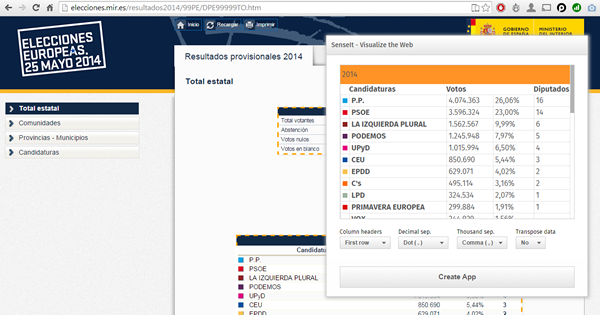
SenseIt by Alex Karlsson
It goes to my personal Top 1 for a variety of reasons but particularly because it opens a completely new and unexplored category for Extensions. We are used to seeing extensions (or visualizations) within the product itself but this is something completely different. SenseIt is a browser extension or plugin that will let you create a new app on the fly by capturing a table from Chrome and loading it as data into your Qlik Sense Desktop. Truly amazing experience and the name is cool too (isn’t it?)
D3 Visualization Library by Speros Kokenes
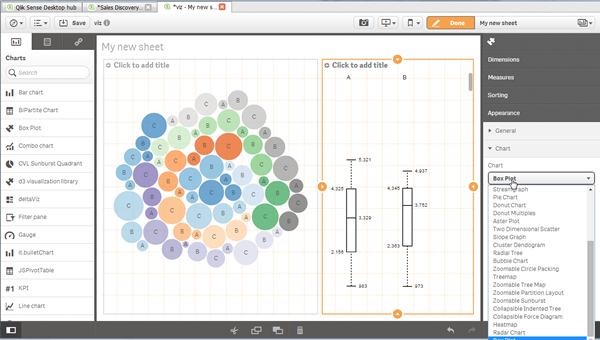
As a visualization junkie I am, I love D3.js, I truly love some of the beautiful and smart visualizations built around the popular JavaScript library. I have seen (and ported) some of those charts to Sense, one by one, so you end up having a packed chart library on your Sense desktop. Speros have gone a bit further by converting the Visualization object into a truly D3js library where you can go and pick up your favorite D3js visualization, very entertaining. In future releases we might end up having control over the chart colors and some other cool stuff that will make this extension superb, remember you can contribute and make it even better.
deltaViz self-service dashboard by Yves Blake
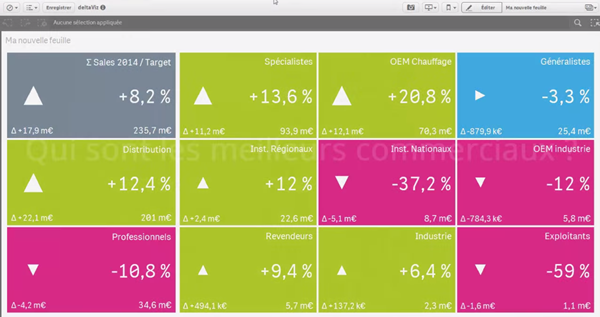
For those of us QlikView lovers any addition to the dashboard world in Sense it’s always very much appreciated. If it’s very well executed and designed as it is deltaViz, then there’s no reason to not try it. DetalViz is a complete solution for dashboards focused on comparisons and very well implemented to take advantage of Qlik Sense grid system. If you still have doubts about this visualization, you can see it live here: https://www.youtube.com/watch?v=4s30AEf4qJc
These are my top 3 favorite extensions/visualizations created so far, but what are yours?
AMZ