Unlock a world of possibilities! Login now and discover the exclusive benefits awaiting you.

Product Innovation
By reading the Product Innovation blog, you will learn about what's new across all of the products in our growing Qlik product portfolio.
Support Updates
The Support Updates blog delivers important and useful Qlik Support information about end-of-product support, new service releases, and general support topics.
Qlik Academic Program
This blog was created for professors and students using Qlik within academia.
Community News
Hear it from your Community Managers! The Community News blog provides updates about the Qlik Community Platform and other news and important announcements.
Qlik Digest
The Qlik Digest is your essential monthly low-down of the need-to-know product updates, events, and resources from Qlik.
Qlik Learning
The Qlik Learning blog offers information about the latest updates to our courses and programs, as well as insights from the Qlik Learning team.
Recent Blog Posts
-
【新着レポート】Qlik、データ統合ツールで 10 年連続リーダーの 1 社に!
Gartner 社は、「2025年 Gartner® データ統合ツールの Magic Quadrant」を発表しました。Gartner 社が評価した 20 社のデータ統合メーカーの中で、Qlik は 10 年連続でリーダーの 1 社に評価されました。 データはこれまで以上に多くのシステム間で高速で移行し、AI 主導の意思決定の要となっています。信頼できるデータ統合基盤は、このような状況を支えるだけではなく、極めて重要なものとなっています。自社に最適なプラットフォームを選択するには?本レポートで 詳細をご確認ください。 データ統合市場における Gartner 社 のインサイト Qlik がリーダーの 1 社に評価された理由 データ統合市場における各メーカーの評価 無料レポートを見る -
Some of the best Qlik Sense extensions created so far
Since the release of Sense back in September 2014 a lot of good things have happened to the product. If you look back you almost can’t believe that it was just 6 months ago when we launched Sense. Since then, R&D guys and girls have added quite a lot of improvements and new functionality (and more is coming next) into the product. Today, I don’t want a focus on the company’s centralized development. We talk enough about ourselves here, but on t... Show MoreSince the release of Sense back in September 2014 a lot of good things have happened to the product. If you look back you almost can’t believe that it was just 6 months ago when we launched Sense. Since then, R&D guys and girls have added quite a lot of improvements and new functionality (and more is coming next) into the product.
Today, I don’t want a focus on the company’s centralized development. We talk enough about ourselves here, but on the decentralized Sense development guerrilla from out there. Since January 26 these individuals contributing with a fresh view to Qlik Sense (to QlikView as well) have a place to share their ideas and Open Source projects. It’s called Qlik Branch and it’s open for everyone to join.
From all the projects already submitted to Qlik Branch, I will nominate 3 of my favorites created so far.
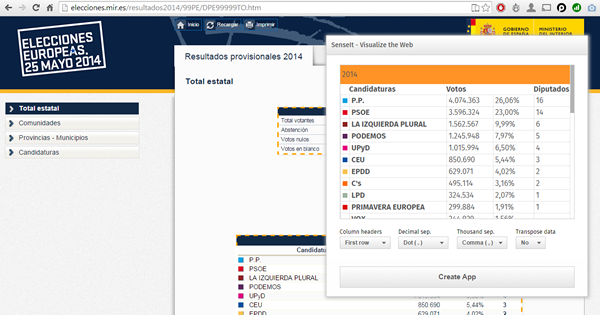
SenseIt by Alex Karlsson
It goes to my personal Top 1 for a variety of reasons but particularly because it opens a completely new and unexplored category for Extensions. We are used to seeing extensions (or visualizations) within the product itself but this is something completely different. SenseIt is a browser extension or plugin that will let you create a new app on the fly by capturing a table from Chrome and loading it as data into your Qlik Sense Desktop. Truly amazing experience and the name is cool too (isn’t it?)
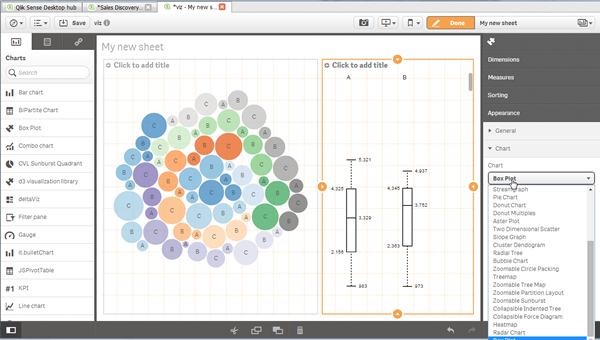
D3 Visualization Library by Speros Kokenes
As a visualization junkie I am, I love D3.js, I truly love some of the beautiful and smart visualizations built around the popular JavaScript library. I have seen (and ported) some of those charts to Sense, one by one, so you end up having a packed chart library on your Sense desktop. Speros have gone a bit further by converting the Visualization object into a truly D3js library where you can go and pick up your favorite D3js visualization, very entertaining. In future releases we might end up having control over the chart colors and some other cool stuff that will make this extension superb, remember you can contribute and make it even better.
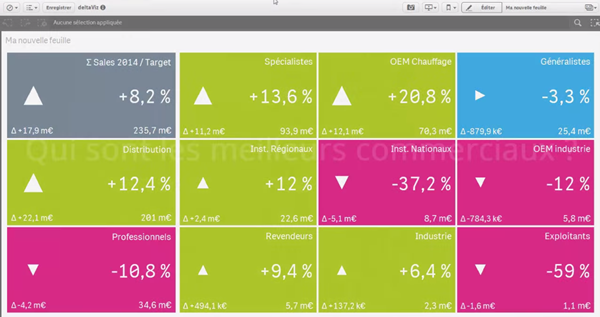
deltaViz self-service dashboard by Yves Blake
For those of us QlikView lovers any addition to the dashboard world in Sense it’s always very much appreciated. If it’s very well executed and designed as it is deltaViz, then there’s no reason to not try it. DetalViz is a complete solution for dashboards focused on comparisons and very well implemented to take advantage of Qlik Sense grid system. If you still have doubts about this visualization, you can see it live here: https://www.youtube.com/watch?v=4s30AEf4qJc
These are my top 3 favorite extensions/visualizations created so far, but what are yours?
AMZ

-
Celebrating a Year of Transformative Learning: Wrapping Up 2025 with the Qlik Ac...
As we approach the end of 2025, it’s time to take a moment to reflect on the incredible journey we’ve had with the Qlik Academic Program. This year has been one of growth, innovation, and meaningful impact in data analytics education. -
【オンデマンド配信】The AI Reality Tour Tokyo 2025 ダイジェスト
去る 10月 28日(火)に開催しました「The AI Reality Tour Tokyo 2025」では、予測 AI・生成 AI・エージェンティック AI を統合した Qlik の最新製品をご紹介する基調講演をはじめ、Qlik のユーザーが語る先進的な事例、Qlik のパートナー企業による最新のテクノロジーやソリューション、展示ブースなどで、貴社の AI 戦略を成功に導く最新情報をご紹介しました。 当日の講演の一部をオンデマンドでご視聴いただけます。さらに、オンデマンド配信限定のテクノロジー講演も配信中!ぜひ、この機会にご視聴ください。 ※本 Web セミナーは、2025年 10月 28日(火)開催の「The AI Reality Tour Tokyo 2025」 における一部の講演を録画したものです。※視聴無料。パソコン・タブレット・スマートフォンで、どこからでもご視聴いただけます。今すぐ視聴する 今すぐ視聴する -
Wrapping Up the Semester & Looking Ahead With Qlik
As the fall semester comes to a close, now is the perfect time to pause, enjoy family and friends, and fully embrace the holiday season. Take the time to relax, regroup, and recharge—you’ve earned it. When you return refreshed for a new year and a new semester, Qlik has you covered. We’re here to support you with everything you need to bring data analytics to life in your classroom. For Professors: We Make Next Semester Easy We provide ready-to-u... Show MoreAs the fall semester comes to a close, now is the perfect time to pause, enjoy family and friends, and fully embrace the holiday season. Take the time to relax, regroup, and recharge—you’ve earned it.
When you return refreshed for a new year and a new semester, Qlik has you covered. We’re here to support you with everything you need to bring data analytics to life in your classroom.
For Professors: We Make Next Semester Easy
We provide ready-to-use academic resources, including:
-
Course content
-
Training materials
-
Syllabi
-
Exams
-
Hands-on learning tools
And the best part? You’re not doing it alone.
What I Can Offer You
I’m available to Zoom into your class to introduce Qlik, explain who we are, and walk through the opportunities available through our academic program.
Once your students are signed up, we offer a student workshop designed to build confidence with Qlik from day one. We cover the fundamentals so that when you begin your lessons, students already feel comfortable navigating and using the platform.
Let’s Get You on the Schedule
We’d love to partner with you next semester—and spots will fill up quickly.
Please reach out to me directly to reserve your session or ask any questions.
brittany.fournier@qlik.comDuring the Break
Make sure to get signed up and spend a little time exploring the Qlik portal. It’s a great chance to see all the tools and resources we have to offer! Sign up here!Enjoy the holidays, rest well, and we look forward to supporting you and your students in the new year!
-
-
Update to the Automations Custom Code block version beginning January 31st 2026
We plan to update the Custom Code block in Qlik Automate to upgrade related software versions. When will this change go into effect? The update is expected to begin rolling out on January 31st, 2026. We urge developers and automation users to review their Custom Code blocks for any possible compatibility issues before this date and to update them where necessary. What exactly is changed? The following software versions will be updated: PHP 8.3.2... Show MoreWe plan to update the Custom Code block in Qlik Automate to upgrade related software versions.
When will this change go into effect?
The update is expected to begin rolling out on January 31st, 2026. We urge developers and automation users to review their Custom Code blocks for any possible compatibility issues before this date and to update them where necessary.
What exactly is changed?
The following software versions will be updated:
- PHP 8.3.20 upgraded to PHP 8.4 (Visit PHP docs)
- NodeJS 22 upgraded to NodeJS 24 (Visit NodeJS docs)
- Python 3.12 upgraded to Python 3.14 (Visit Python docs)
If you have any questions, we're happy to assist. Reply to this blog post or take similar queries to the Qlik Automate forum.
Thank you for choosing Qlik,
Qlik Support -
Qlik Open Lakehouse、ストリーミング対応、信頼性、オープン性、AI対応を強化(Qlik Blog 翻訳)
今年初めの Qlik Connect において、当社は Qlik Open Lakehouse を発表しました。これは完全に管理された Apache Iceberg ベースのプラットフォームであり、組織がオープンレイクハウスアーキテクチャにおいてデータを容易かつコスト効率良く取り込み、最適化し、管理できるように設計されています。そして Qlik Open Lakehouse の最初のバージョンは、2025年 9月より一般提供が開始されました。 -
Introducing: Write Table now available in Qlik Cloud Analytics
Make your analytics apps interactive. Edit data, add comments, and watch your updates sync across sessions instantly. With Write Table’s instant syncing and change tracking, teams can collaborate in real time and export updates through Qlik Automate. Find it in the Chart Library when editing an app and get started! Learn more here: Write Table | help.qlik.com Qlik Write Table FAQ SaaS in 60 Write Table Product Tour Write Table now available i... Show MoreMake your analytics apps interactive.
Edit data, add comments, and watch your updates sync across sessions instantly. With Write Table’s instant syncing and change tracking, teams can collaborate in real time and export updates through Qlik Automate.
Find it in the Chart Library when editing an app and get started!
Learn more here:
- Write Table | help.qlik.com
- Qlik Write Table FAQ
- SaaS in 60
- Write Table Product Tour
- Write Table now available in Qlik Cloud Analytics | Qlik Product Innovation Blog
Thank you for choosing Qlik,
Qlik Support -
ダッシュボード上で直接入力・編集が可能に! Qlik Cloud の新機能 「ライトテーブル」
従来のBIツールでは、ダッシュボードで分析した内容を踏まえ次のアクションを取るために他システムへ入力したり、Excelでデータを修正して再度取り込み、また確認するといった作業が必要でした。分析画面と日常業務がつながっていないと、気付きを反映するまでに時間がかかったり、担当者間で認識がずれたりするケースも少なくありません。 こうした課題に応える新機能として、Qlik Cloudに「Write table(ライトテーブル)」が追加されました。これは分析画面上に配置できる編集可能なテーブルで、ユーザーが直接セルに入力したり、プルダウンを使って更新することができます。複数人による同時編集にも対応しており、行単位でロックされるため競合が起きません。編集内容は“change store”に保存され、APIを使って外部システムとの連携や自動化フローのトリガーとして利用することも可能です。 この機能がもたらす価値は、「分析」と「実務」がこれまで以上に近づく点にあります。例えば在庫数の修正、配送ステータ... Show More従来のBIツールでは、ダッシュボードで分析した内容を踏まえ次のアクションを取るために他システムへ入力したり、Excelでデータを修正して再度取り込み、また確認するといった作業が必要でした。分析画面と日常業務がつながっていないと、気付きを反映するまでに時間がかかったり、担当者間で認識がずれたりするケースも少なくありません。
こうした課題に応える新機能として、Qlik Cloudに「Write table(ライトテーブル)」が追加されました。これは分析画面上に配置できる編集可能なテーブルで、ユーザーが直接セルに入力したり、プルダウンを使って更新することができます。複数人による同時編集にも対応しており、行単位でロックされるため競合が起きません。編集内容は“change store”に保存され、APIを使って外部システムとの連携や自動化フローのトリガーとして利用することも可能です。
この機能がもたらす価値は、「分析」と「実務」がこれまで以上に近づく点にあります。例えば在庫数の修正、配送ステータスの更新、営業案件の進捗管理、社内コメントの書き込みなど、従来であれば別システムで行っていた作業を、Qlikアプリ内で完結できるようになります。特にビジネス部門において、現場が気付いた内容をその場で即時反映できることは大きな強みです。
さらに、外部システム連携や自動化機能(Qlik Automate)を組み合わせれば、入力内容をもとに通知や外部システム更新を自動化するなど、「分析 → 編集 → 実行」を継ぎ目なく実現できます。BIを見るためのツールから意思決定と実行を支えるプラットフォームへ進化させたい企業にとって、Write tableは大きな一歩となるでしょう。
データ修正の二度手間を減らし、ダッシュボードと現場作業を自然につなぐ体験が、業務プロセスの質を大きく変えるはずです。ぜひ一度試してみてください。
Write tableは、Qlik Cloud Analytics Premium以上のサブスクリプション、または Qlik Sense Enterprise SaaS でご利用いただけます。
Qlik TECH TALK セミナー:分析アプリでの直接データ操作とリアルタイム情報共有を実現!Write Tableのご紹介

-
【オンデマンド配信】製造業向け自社製品の製品価値を最大化する!
製造業における競争力は、いま“データを活かせる製品”かどうかで大きく変わりつつあります。本 Web セミナーでは、自社製品に Qlik Cloud Analytics をバンドルすることで実現できる新たな価値創出モデルをご紹介します。センサーデータや稼働ログを可視化し、予兆保全やリモート診断を可能にするだけでなく、製品改善につながる利用データの取得、アフターサービスの収益化など、多くのメリットを具体的なユースケースを交えて解説します。“売り切り”から“継続的な価値提供”へ。製品の競争力を高め、顧客満足度を向上させるための実践的な方法をぜひご確認ください。 ※ パソコン・タブレット・スマートフォンで、どこからでもご視聴いただけます。今すぐ視聴する 今すぐ視聴する -
Qlik Trail: an extension to record, replay, and share your selection journeys
When I’m exploring a Qlik app, I often want to show exactly how I reached a view—without typing instructions or jumping on a call. Qlik Trail is a small extension I created that does just that: Click Record, make your selections, and you’ll get a tidy list of steps that you can replay from start to finish, or jump to a specific step. Then, when you’re happy with the journey, you can export the trail as JSON and hand it to someone else so they can... Show MoreWhen I’m exploring a Qlik app, I often want to show exactly how I reached a view—without typing instructions or jumping on a call.
Qlik Trail is a small extension I created that does just that: Click Record, make your selections, and you’ll get a tidy list of steps that you can replay from start to finish, or jump to a specific step. Then, when you’re happy with the journey, you can export the trail as JSON and hand it to someone else so they can import and run the same sequence on their side.
Why not just use bookmarks?
Bookmarks are great for destinations (one final selection state). Qlik Trail is more about the path:
-
Multiple steps in a defined order (A → B → C)
-
Replay from start for narration or Replay a specific step
-
Export/import a whole journey, not a bunch of one-offs
You can use bookmarks to save a point in time, and use Qlik Trail when the sequence matters more.
What can you do with the Qlik Trail extension?
-
Record steps manually, or toggle Auto to capture each change
-
Name, duplicate, reorder, delete, or ungroup steps
-
Organize steps into Groups (Executive Story, Sales Ops, Training, …)
-
Replay to here (apply one step) or Replay from start (play the group)
-
Export / Import trails as JSON
Demo
Before we go into how the extension was built, let's see a demo of how it can be used.
I’ll share two practical trails an Executive Story and Sales Ops with selections you can record and replay on your end, for this demo I'll use the Consumer Goods Sales app (which you can get here: https://explore.qlik.com/details/consumer-goods-sales)
Setup
-
Upload the extension .zip file in the Management Console, then add Qlik Trail (custom object) to a sheet.
-
Optional: enable Auto-record in the object’s properties if you want every change captured while you explore.
-
Toolbar (left to right): Record, Replay from start, Delete, Delete all, Auto, Group filter, New group, Export, Import.
Trail 1 — Executive Story
Create Group: Executive Story
Step 0 — “US overview: top categories”
Selections: (none)Step 1 — “Northeast · Fresh Vegetables”
Selections: Region = Northeast, Product Group = Fresh VegetablesStep 2 — “Northeast · Cheese (A/B)”
Selections: Region = Northeast, Product Group = Cheese
quick A/B inside the same region.Step 3 — “West vs Northeast · Fresh Fruit”
Selections: Region = West, Northeast, Product Group = Fresh Fruit
same category across two regions to see differences.Step 4 — “Northeast focus: PA · Fresh Fruit”
Selections: Region = Northeast, State = Pennsylvania, Product Group = Fresh Fruit
drill to a particular state.Presenting: select the group → Replay from start. If questions land on Step 4, use Replay to here.
Trail 2 — Sales Ops Story
Create Group: Sales Ops Story
Step 1 — “South · Ice Cream & Juice (summer basket)”
Selections: Region = South, Product Group = Ice Cream, JuiceStep 2 — “Central · Hot Dogs (promo check-in)”
Selections: Region = Central, Product Group = Hot DogsStep 3 — “West · Cheese (margin look)”
Selections: Region = West, Product Group = CheeseTips when building trails
-
One idea per step. (Region + Category) or (Region + a couple of States)
-
Duplicate then tweak for fast A/B comparisons
-
Group by audience. Exec, Ops, Training
-
Ungrouped steps = scratchpad. Move into a group when it’s ready
-
After recording, drag to reorder so replay tells a clean story
Sharing your trails
Click Export to download qliktrail_export_YYYY-MM-DD_HHMM.json.
Your teammate can Import, pick a group, and hit Replay from start. Same steps, same order—no instructions needed.
Tech notes
1) Module & CSS injection
Load CSS once at runtime so the object stays self-contained:define(['qlik','jquery','./properties','text!./style.css'], function(qlik, $, props, css){ if (!document.getElementById('qliktrail-style')) { const st = document.createElement('style'); st.id = 'qliktrail-style'; st.textContent = css; document.head.appendChild(st); } // … });2) Capturing selections per state
Read SelectionObject, group by qStateName, then fetch only selected rows via a lightweight list object. Store both text and numeric to be resilient to numeric fields:app.getList('SelectionObject', function(m){ // build grouped { state -> [fields] } }); ... app.createList({ qStateName: stateName || '$', qDef: { qFieldDefs: [fieldName] }, qInitialDataFetch: [{ qTop:0, qLeft:0, qWidth:1, qHeight:10000 }] }).then(obj => obj.getLayout() /* collect S/L/XS states */);Snapshot (what we export/import):
{
  "ts": "2025-03-10T14:30:00Z",
  "states": [
    {
      "state": "$",
      "fields": {
        "Region": { "text": ["Northeast"], "num": [] },
        "Product Group": { "text": ["Fresh Vegetables"], "num": [] }
      }
    }
  ]
}
3) Replaying selections
Clear target state, then select values. Prefer numbers when available; fall back to text:app.clearAll(false, state);
... field.selectValues(pack.num.map(n=>({qNumber:n})), false, false) // fallback to qText field.selectValues(pack.text.map(t=>({qText:String(t)})), false, false);4) Auto-record with a quiet window
Avoid recording during replays to prevent ghost steps:ui.replayQuietUntil = Date.now() + (layout.props.replayQuietMs || 1200); if (Date.now() >= ui.replayQuietUntil && ui.autoOn) record();5) Groups, ordering & persistence
Trails live in localStorage per app key. Groups look like { id, name, members:[stepId,…] }. Ordering is a simple seq integer; drag-and-drop reassigns seq inside the open list.That’s Qlik Trail in a nutshell. It lets you hit record, name a few steps, and replay the story without hand-holding anyone through filters. Use Bookmarks to keep states, but Trail will help you keep tack of the sequence.
P.S: this extension is a work-in-progress experiment and not prod-ready, I'm planning to add more features to it and make it more stable in the future.
🖇 Link to download the extension: https://github.com/olim-dev/qlik-trail -
-
Qlik Cloud Analytics Enhancements
As we enter the last month of the year, let’s review some recent enhancements in Qlik Cloud Analytics visualizations and apps. On a continuous cycle, features are being added to improve usability, development and appearance. Let’s’ look at a few of them. Straight Table Let’s begin with the straight table. Now, when you create a straight table in an app, you will have access to column header actions, enabled by default. Users can quickly sort any ... Show MoreAs we enter the last month of the year, let’s review some recent enhancements in Qlik Cloud Analytics visualizations and apps. On a continuous cycle, features are being added to improve usability, development and appearance. Let’s’ look at a few of them.
Straight Table
Let’s begin with the straight table. Now, when you create a straight table in an app, you will have access to column header actions, enabled by default. Users can quickly sort any field by clicking on the column header. The sort order (ascending or descending) will be indicated by the arrow. Users can also perform a search in a column by clicking the magnifying glass.
When the magnifying glass icon is clicked, the search menu is displayed as seen below.
If a cyclic dimension is being used in the straight table, users can cycle through the dimensions using the cyclic icon that is now visible in the column heading (see below).
When you have an existing straight table in an app, these new features will not be visible by default but can easily be enabled in the properties panel by going to Presentation > Accessibility and unchecking Increase accessibility.
Bar Chart
The bar chart now has a new feature that allows the developer to set a custom width of the bar when in continuous mode. Just last week, I put the bar chart below in continuous mode and the bars became very thin as seen below.
But now, there is this period drop down that allows developers to indicate the unit of the data values.
If I select Auto to automatically detect the period, the chart looks so much better.
Combo Chart
In a combo chart, a line can now be styled using area versus just a line, as displayed below.
Sheet Thumbnails
One of the coolest enhancements is the ability to auto-generate sheet thumbnails. What a time saver. From the sheet properties, simply click on the Generate thumbnail icon and the thumbnail will be automatically created. No more creating the sheet thumbnails manually by taking screenshots and uploading them and assigning them to the appropriate sheet. If you would like to use another image, that option is still available in the sheet properties.
From this
To this in one click
Try out these new enhancements to make development and analysis faster and more efficient.
Thanks,
Jennell
-
Qlik Cloud 11月の新機能
下記ではもう少し詳しくご紹介しています。合わせてご参照ください。 Qlik TECH TALK セミナー:What's New In Qlik ~ 2025年11月リリース最新機能のご紹介 ~
-
【オンデマンド配信】卸売業界必見!SAP データの利活用
多くの卸売企業が基幹システムとして利用している SAP。そこに格納されているデータを外部データなどと組み合わせてさまざまなビジネスシーンで広く活用することで、その価値は何倍にも高まります。一方で SAP データを簡単に解放することが難しいという現実もあります。本 Web セミナーでは、SAP データ価値を高める弊社ソリューションを、事例も交えご紹介します。 ※ パソコン・タブレット・スマートフォンで、どこからでもご視聴いただけます。今すぐ視聴する 今すぐ視聴する -
Regular Expressions in Qlik: Finally Native
Regex has been one of the most requested features in Qlik Sense for years, and now it’s finally here. With this year's May 2025 release, Qlik added native support for regular expressions in both load scripts and chart expressions. That means you can validate formats, extract values, clean up messy text, and more, all without complex string logic or external preprocessing. In this post, we’ll look at what’s new, how it compares to the old workaro... Show MoreRegex has been one of the most requested features in Qlik Sense for years, and now it’s finally here.
With this year's May 2025 release, Qlik added native support for regular expressions in both load scripts and chart expressions. That means you can validate formats, extract values, clean up messy text, and more, all without complex string logic or external preprocessing.
In this post, we’ll look at what’s new, how it compares to the old workarounds, and a practical example you can plug into your own app.
The New Regex Functions
Regex (short for Regular Expression) is a compact way to define text patterns. If you’ve used it in Python, JavaScript, or other programming languages, the concept will feel familiar.
Qlik now includes native support for regular expressions with functions that work in load scripts and chart expressions:
-
MatchRegEx() – check if a value matches a pattern
-
ExtractRegEx() – extract the first substring that matches
-
ReplaceRegEx() – search and replace based on a pattern
-
SubFieldRegEx() – split text using regex as the delimiter
There are also group-based versions (ExtractRegExGroup, etc.), case-insensitive variants (MatchRegExI), and helpers like CountRegEx() and IsRegEx().
Replacing Old Patterns
Here's where regex saves time:
- Format validation: Replace nested Len(), Left(), and Mid() with a single pattern.
- Substring extraction: Skip the manual slicing; let the pattern do the work.
-
Pattern-based replacements: Clean or reformat values without chaining multiple functions.
With regex:
If(MatchRegEx(Code, '^[A-Z]{2}-\d{5}$'), 'Valid', 'Invalid')  // check format

ExtractRegEx(Text, '\d{5}')                                   // get first 5-digit number

ReplaceRegEx(Field, '\D', '')                                 // strip non-digits
Cleaner logic. Fewer steps. Easier to maintain.
Use Cases That Just Got Easier
If any of the following sound familiar, regex will help:
-
Format checks: postal codes, product SKUs, ID numbers.
-
Data extraction: get domain from email, number from notes, etc.
-
PII masking: hide parts of a SSN or credit card.
-
String cleanup: strip unwanted characters, normalize spacing.
-
Splitting tricky fields: CSV lines with quoted commas, mixed delimiters.
Keep in mind that these functions can be used directly in chart expression, so you can build visuals or filters based on pattern logic, not just static values.
Example: Clean and Validate Phone NumbersLet’s say you’ve got a bunch of phone numbers like this:
(312) 678-4412
312-678-4412
3126784412
123-678-4412    // invalid: area code starts with 1
312-045-4412    // invalid: exchange starts with 0
312-678-441     // invalid: too short
You want to:
-
Validate that it’s a proper 10-digit North American number
-
Standardize the format to (###) ###-####
Here’s how to do it with regex in your load script:
LOAD
    RawPhone,

    // 1. Strip out anything that's not a digit
    ReplaceRegEx(RawPhone, '\D', '') as DigitsOnly,

    // 2. Validate: 10 digits exactly, starting with 2–9
    If(MatchRegEx(RawPhone, '^\(?[2-9]\d{2}\)?[-.\s]?\d{3}[-.\s]?\d{4}$'),
        'Valid', 'Invalid') as Status,

    // 3. Standardize format to (###) ###-####
    ReplaceRegEx(
        ReplaceRegEx(RawPhone, '\D', ''),
        '(\d{3})(\d{3})(\d{4})',
        '(\1) \2-\3'
    ) as FormattedPhone

INLINE [
    RawPhone
    3025557890
    (404) 222-8800
    678.333.1010
    213 888 9999
    1035559999
    678-00-0000
    55577
];
Result:
One pattern replaces multiple conditions and formatting is consistent. This is much easier to maintain and easy to expand if the rules change.
Final Thoughts- Use regex where it adds value.
For simple cases like Left() or Trim(), stick with built-in string functions. - When you're working with inconsistent inputs, embedded formats, or anything that doesn’t follow clean rules, regex can save a lot of time.
- If you're applying regex across large datasets, especially in charts, it’s better to handle it in the load script where possible.
Not sure how to write the pattern?
Tools like regex101.com or regexr.com are great for testing and adjusting before you build in Qlik.
With native regex in Qlik Sense, you can now clean, validate, extract, and transform text with precision without convoluted scripts or third-party tools. It’s a quiet but powerful upgrade that unlocks a ton of flexibility for real-world data.
-
-
Techspert Talks - Unleashing the Qlik Talend Cloud Dynamic Engine
Hi everyone, Want to stay a step ahead of important Qlik support issues? Then sign up for our monthly webinar series where you can get first-hand insights from Qlik experts. The Techspert Talks session from December was Unleashing the Qlik Talend Cloud Dynamic Engine. But wait, what is it exactly?Techspert Talks is a free webinar held on a monthly basis, where you can hear directly from Qlik Techsperts on topics that are relevant to Customers ... Show MoreHi everyone,
Want to stay a step ahead of important Qlik support issues? Then sign up for our monthly webinar series where you can get first-hand insights from Qlik experts.The Techspert Talks session from December was Unleashing the Qlik Talend Cloud Dynamic Engine.
But wait, what is it exactly?
Techspert Talks is a free webinar held on a monthly basis, where you can hear directly from Qlik Techsperts on topics that are relevant to Customers and Partners today.In this session we will cover:
- Enabling seamless parity
- Scaling always-on deployment
- Expanding DevOps agility

-
-
Qlik Academic Program in Brazil
Education in Brazil is changing fast, and data skills are becoming more important every day,especially with the rise of AI. That’s why the Qlik Academic Program is gaining so much attention across the country. More universities, teachers, and students are discovering how Qlik can help them learn and grow. Teachers across Brazil are using Qlik to update their classes and give students a taste of what today’s job market looks like. Whether it’s a w... Show MoreEducation in Brazil is changing fast, and data skills are becoming more important every day,especially with the rise of AI. That’s why the Qlik Academic Program is gaining so much attention across the country. More universities, teachers, and students are discovering how Qlik can help them learn and grow.
Teachers across Brazil are using Qlik to update their classes and give students a taste of what today’s job market looks like. Whether it’s a workshop, a guest lecture, professor training, a Qlik Sense demo, or a presentation about the Academic Program in São Paulo, Rio de Janeiro, Paraná, Florianópolis, Paraíba, and beyond, the Academic Program offers simple, collaborative, and flexible ways to learn about data.
Brazil has a strong culture of creativity and learning, which aligns perfectly with Qlik’s mission. The Academic Program gives students and teachers free access to high-quality learning materials. Students can explore data, practice real-world skills, and even earn recognized certificates. Teachers also receive ready-to-use resources that make it easy to bring Qlik into their lessons.
As the Qlik Academic Program continues to grow in Brazil, these collaborations represent something bigger than expansion. Whether you're studying in Porto Alegre, teaching in Recife, or researching in Manaus, the goal is the same: to help everyone learn and succeed.
If you want to learn more about how Qlik can support your studies or teaching, visit Qlik Academic Program: Creating a Data-Literate World
-
Introducing Namespaces in Qlik Cloud APIs
Namespaces for REST and Events APIs are being introduced in Qlik Cloud to support the growing number of APIs and services in the platform, and to unlock versioning support in the future. This change makes it easier for you to find, understand, and use Qlik APIs by grouping related resources by context, as well as standardizing the interface for the APIs. To learn more, see the API namespaces overview page on qlik.dev. What to expect The new name... Show MoreNamespaces for REST and Events APIs are being introduced in Qlik Cloud to support the growing number of APIs and services in the platform, and to unlock versioning support in the future. This change makes it easier for you to find, understand, and use Qlik APIs by grouping related resources by context, as well as standardizing the interface for the APIs.
To learn more, see the API namespaces overview page on qlik.dev.
What to expect
- The new namespaced APIs will be introduced in parallel with the existing APIs.
- The existing APIs will be deprecated and removed after a minimum 12-month deprecation period from the notice of deprecation on the changelog (qlik.dev).
- No immediate action is needed. As each API is namespaced, a deprecation notice will be published with migration guides.
Key changes
REST
- Removal of
v1from the path:v1will be removed from the path to prepare for versioning support in the future. - Grouping resources by context: Related APIs will be grouped together under a namespace which indicates in which context the resources are applicable. For example:
- The
analyticsnamespace for Analytics-specific resources such as apps, notes, and ODAGs apps. - The
corenamespace for platform-wide resources such as users, groups, ip-policies, and roles.
- The
- Standardization of interfaces: The payloads for the new namespaced APIs will be standardized to be compliant with Qlik’s API design principles, meaning improved consistency of payloads, query parameters, and response formats between different APIs, irrespective of the context.
Events
Events will adhere to the same namespace rule to avoid conflict of resource names and to match the REST resources. This changes the pattern from
com.qlik.v<version>.<eventContext>.<action>tocom.qlik.<namespace>.<eventContext>.<action>.Want to learn more?
Head to the API namespaces overview page for additional details and examples.
Thank you for choosing Qlik,
Qlik Support -
Reminder: Qlik Data Gateway - Direct Access versions 1.4 and 1.5 reaching End of...
Qlik Data Gateway - Direct Access versions 1.4 and 1.5 are reaching End of Life by January 31st, 2026*. The original announcement can be read in Direct Access gateway versions 1.4 and 1.5 reaching End of Life by January 31st, 2026. How will this affect me? Both versions will stop working after reaching End of Life. We recommend you plan to upgrade to the latest available version of the currently supported 1.7.x as soon as possible. How do I upgra... Show MoreQlik Data Gateway - Direct Access versions 1.4 and 1.5 are reaching End of Life by January 31st, 2026*.
The original announcement can be read in Direct Access gateway versions 1.4 and 1.5 reaching End of Life by January 31st, 2026.
How will this affect me?
Both versions will stop working after reaching End of Life. We recommend you plan to upgrade to the latest available version of the currently supported 1.7.x as soon as possible.
How do I upgrade?
For the upgrade procedure, please refer to Upgrading Qlik Data Gateway - Direct Access on Qlik's online help. This page also lists all the significant changes for each version.
The upgrade to 1.7.x from 1.4 or 1.5 has been thoroughly tested, and the process is expected to be smooth. However, please follow the steps carefully and always take a backup before upgrading. It is also worth noting that .NET 8.x is required (from v1.6.6) and will be automatically installed during the upgrade.
What else do I need to keep in mind?
Several configuration settings were added in later versions of the Direct Access gateway that may apply to your deployment. Therefore, please review all details in the online help on Configuring and troubleshooting Qlik Data Gateway - Direct Access. Note that most Direct Access gateway settings can be configured in the Qlik Cloud Administration activity center (from v1.7.2).
Always upgrade to the latest version!
If you have questions or need additional assistance, our forums are always open to you, and Support is only a chat away.
Thank you for choosing Qlik,
Qlik Support* The previously announced date was set for December 31st, 2025, and was later extended until January the following year.