Today our special guest blogger isØystein Kolsrud -a Software Architect at Qlik, part of the Customer First team which serves as a bridge between support and R&D. He is one of the main developers behind the .NET SDK, and has extensive experience with the Qlik Sense APIs.Øystein has prepared a series of technical posts that outline the Qlik Engine API fundamentals. That we will release over the next coming weeks in the Qlik Design Blog.Part 1 covers JSON-RPC fundamentals. Please post your comments and questions below and I'll make sure thatØystein is aware so he can respond appropriately.--------------------------------------------- Over the years I have answered a number of questions on Qlik Community relating to the Qlik Sense APIs. My main focus has typically been on the .NET SDK, but many times my answers to questions have not really concern the .NET implementation all, but are in fact relevant for all interactions with the engine, no matter what technology is used for the communication. With this and future blog posts, I will try to explain some of the fundamentals of how the engine API works. My hope is that these posts will be of interest to anyone who would like to become more familiar with the inner workings of the engine API. And though most libraries used for handling engine communication do their best to hide many of the low level concepts I will describe, it is not uncommon that a certain behavior is difficult to explain without going back to the basics. At least, I hope I will in the future be able to reference to these posts as the need arises. So let's start, and the first thing I'll do is to go back to the absolute basics: JSON-RPCJSON-RPCRPC is short for "Remote Procedure Call", and JSON (much like XML) is a way to structure data as strings. I will not be covering more information about JSON, as there are plenty of resources on the web for doing that, suffice to say that a well structured JSON string can take any of four types: String, Number, Array or Object. A JSON object consists of a set of properties that have a name and an associated JSON string, while an array is simply a list of JSON strings. The very first thing that happens when you connect to the engine is that you will receive a message from the engine with the following text over the websocket:{ "jsonrpc": "2.0", "method": "OnAuthenticationInformation", "params": { "userId": "demouser_1", "userDirectory": "DEMO", "logoutUri": "https://localhost/demo/qps/user", "serverNodeId": "7183c034-716e-4b68-844e-c91270a87148", "mustAuthenticate": false }}This message is a JSON object describing a method call, or a "Remote Procedure Call" if you like. It is a request sent from the server to the connecting client telling it to perform a particular operation. The three top level properties in the message are all part of the standard specification for the JSON-RPC protocol and are not Qlik-specific constructs. In fact the whole message conforms to the JSON-RPC Request object specification of the JSON-RPC specification. More details about that standard can be found here:https://www.jsonrpc.org/specificationThe first property named "jsonrpc" simply specifies which version of the JSON-RPC protocol that is being used and will always by "2.0" when interacting with Qlik Sense. The two other properties, "method" and "parameters", contain information about what operation the sender is requesting the receiver to perform. Now it is totally up to the receive to choose what do do with this message, but the most important information in this specific call is the "mustAuthenciate" property of the parameters, which, as the name implies, states whether or not the client must take any particular actions in order to become authentication. The fact that the value is "false" here is a good thing as it means that we are all good to go and ready to start sending requests to the server.Note that the values of the parameters of the "OnAuthenticationInformation" call will differ depending on what authentication mechanism is used to connect to the server. The particular format show above is what you get when you connect successfully through a virtual proxy using static header authentication. I will not delve deeper into the authentication flow in these blog posts, as that is a quite big area and would probably benefit from a set of blog posts on its own. I chose static header authentication for this post simply because it is usually one of the easiest ones to get up and running.Sending our first messageNow that we have an open connection to the engine, we are ready to send our first message. When connection through the .NET SDK, the first message to be sent will always be a particular RPC that simply ensures that the connection is open. This is necessary since, for some authentication methods, the "OnAuthenticationInformation" message will be sent by the server only after a valid message has been received from the client. Doing this first call therefore has the effect that we capture any authentication failures as early as possible after opening the connection. The call looks like this:{ "jsonrpc": "2.0", "id": 0, "method": "QTProduct", "handle": -1, "params": []}We have already discussed the "method" and "params" properties in the previous section, and their values in this case conform to the specification of the engine API method called "QTProduct" as defined in the engine API reference documentation:https://help.qlik.com/en-US/sense-developer/June2020/APIs/EngineAPI/services-Global-QTProduct.htmlBut the call also introduces two new concepts that are very important to understand how the engine API works. The first of these concepts is the "request id".RPC request IDThe "id" property of an RPC request object is used as an identifier to connect an RPC request with a response. Upon receiving an RPC request, the engine will start processing that request, and when it is done, it will send back a response to the client with the result. This response will contain the same value for the "id" property as the one used in the request. For the "QTProduct" request above, the response will typically look like this:{ "jsonrpc": "2.0", "id": 0, "result": { "qReturn": "Engine 64-bit Edition (x64)" }}The contents of this message is called an "RPC response object" and also conforms to the JSON-RPC specification. Note that the value of the property "id" is the same as the value used in the request in the previous section. This is important as specifying the id makes it possible to have multiple request active in parallel without worrying about the order in which the responses are returned. We could for instance send the two following requests to the engine:{ "jsonrpc": "2.0", "id": 0, "method": "QTProduct", "handle": -1, "params": []}{ "jsonrpc": "2.0", "id": 1, "method": "OSName", "handle": -1, "params": []}The engine would then start processing these in parallel and reply in whatever order the processing completes. So the responses could very well come back in reverse order like this:{ "jsonrpc": "2.0", "id": 1, "result": { "qReturn": "WindowsNT" }}{ "jsonrpc": "2.0", "id": 0, "result": { "qReturn": "Engine 64-bit Edition (x64)" }}It is up to the client to connect the responses to the correct requests based on he "id" property, and handling this is one of the key things that libraries like Enigma and the .NET SDK take care of. A user of such libraries can safely perform concurrent operations and let the libraries take care of the low level matching of requests and responses due to this "id" property.I mentioned earlier that the call to "QTProduct" introduced two important concept out of which the "id" is the first. The second important concept is the "handle", and handles will be the primary topic of the next blog post in this series.
...View More
With the June 2020 release of Qlik Sense came many chart enhancements. My favorite is the addition of mini charts to a table. In a table, a measure can be visualized via a mini chart as either bars, dots, sparklines, or positive/negative.This enhancement not only makes a table more appealing to look at, but it can easily point out changes and trends in the data. To add a mini chart to a table, follow these simple steps:Add a measure to the table. In the example above, Sum(Sales) is the measure.In the Properties window of the table, change Representation to Mini chart.Select the dimension to indicate what data to view. In the table above, Month was the selected dimension.Select the Type of mini chart to add (bars, dots, sparklines or positive/negative).That is it, the mini chart is added to the table. There are other options that can be adjusted to change the look and feel of the mini chart. In the Colors area, there is the option to select the color of the bar/dot/line as well as the option to select the color of the max value, min value, first value and last value. If showing a sparkline mini chart, you also have the option to show dots on the line for each data point of the selected dimension. The y-axis can also be adjusted for the mini chart. There is the option to use local or global so you can decide if the y-axis range is based on the specific row or all rows. There is also the choice to select auto, zero as baseline or zero as center for the y-axis. Read more about mini chart in Qlik Help.Mini charts are eye candy for your table. Dress up the measures in your table with mini charts to provide another layer of information in an easy to digest manner. Learn more about the Qlik Sense June 2020 release by checking the links below:Qlik Sense App - What’s New AppVideo – What’s New – Qlik Sense June 2020Video – June 2020 Feature DemonstrationBlog – Qlik Product Innovation Blog – Qlik Sense June 2020Thanks,Jennell
...View More
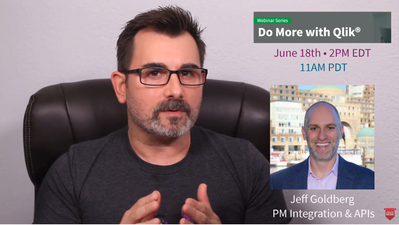
Join me and my special guest Jeff Goldberg, Product Manager Integration and APIs, this Thursday at 2PM ET to learn about our new Command Line Interface for Qlik Sense SaaS - qlik-cli
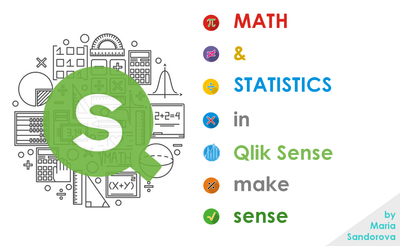
A few months ago I stumbled upon a fantastic app that showcase the not very well known math functions in Qlik. The app does a great work popularizing math & statistics using default Qlik functions. Ever since I put my hands on the app I wanted to blog about it.Explore the app here:https://showcase3.qlik.com/sense/app/c863e07b-87bc-4d0f-a6e1-92f3289b4f56More info and app download here:https://community.qlik.com/t5/Qlik-Sense-Documents-Videos/Math-amp-Statistics-in-Qlik-Sense-app-included/ta-p/1665018I asked the app's author, Mária Šándorová@JaMajka1to introduce the app:I started to develop the app like this the same year I started to work as a full-time Qlik developer. For me it was a good way how to explore mathematical possibilities together with script and expressions syntax of a great tool that was new to me. After that it didn’t have my focus for some time. And then there was a boom of advanced analytics and predictions. Qlik community, different blogs, even my own presentations and Qonnections were full of SSE – possibilities how to utilize mathematical power of R or python for these algorithms. They are great tools with their advantages in more complex algorithms and a good step forward for Qlik that it can be integrated with them. However, I think that because of all these information and materials about advanced analytics for Qlik in R or Python or anywhere else, we started to underestimate Qlik’s own capabilities. When someone needs to calculate a correlation, identify outliers, run k-means clustering or test data normality, we really don’t need to use an external tool – we can use Qlik’s default functions as are or script an algorithm within Qlik. I spent days building this app and I still haven’t covered many areas like hypothesis testing or linear regression. Not to mention algorithms you can script within Qlik. So there really are many advanced analytics and statistics possibilities integrated within Qlik itself, too. I think it’s amazing that we have different options on how and where to calculate something! And I believe that for being able to make a good choice, we need to consider our options and the first step is to know we have it 😊. So, exploring Qlik’s capabilities in statistics was the first reason to create this app. It defines the content of it. The structure and design of the app is driven by something different. I really like data literacy initiatives and I believe we need to help people become data intelligent and understand their data. I know, this app is more about mathematics than about context and visualizations, but I think it’s also an integral part of the data intelligent company – even if not necessary important for all users. And what is a better way how to understand the function if not having a simple use case and a generated dataset in an interactive tool? I love the idea of trying possibilities and seeing the results in the same second. In advanced sections of the app you can select a subset of data in two clicks and thanks to Qlik, everything is recalculated! Select outliers only and see the results of mean and variance … select excluded values and see their results… That’s brilliant for understanding what’s going on! And if you prefer specific formulas and definitions, they are there, as well 😉.I hope you like it as much as I do
...View More
Join me this Thursday to learn about my new webinar series.Sign up here:https://go.qlik.com/Do-More-with-Qlik-Webinar-Series?_ga=2.59309549.1553862558.1591019803-2011899493.1579200524
...View More
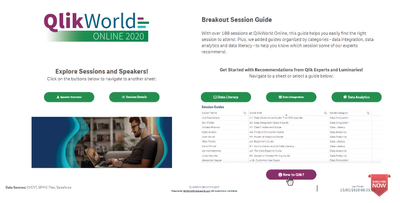
QlikWorld Online is approaching fast so we created a Session Guide to keep you informed about the many sessions that are staff and partners and customers will be providing.Check out the Guide here:https://showcase3.qlik.com/sense/app/b8c838ac-38b8-4064-9b41-0d22b056ce6dLet me know if you have any questions.
...View More
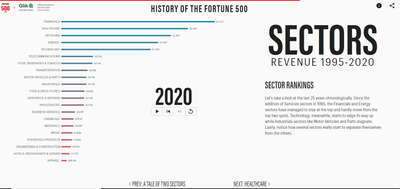
Let's check out how we can build an animated rank chart with picasso.js! You can check out an example in the History of the Fortune 500 app that we built for Fortune athttps://qlik.fortune.com/.In this post I'm going to review the picasso.js settings for building an animated rank chart. For the chart to be animated, you'll also need to implement something like I covered in my last blog post about animating picasso.js athttps://community.qlik.com/t5/Qlik-Design-Blog/Animations-with-picasso-js/ba-p/1686543.DataFor this example I'm going to use dimensions and measures like we were using the q picasso plugin. You'll want to have 1 dimension and 2 measures. The first measure should be the value you are ranking, and the second measure should be a rank expression.SettingsThe general idea here is that we need to calculate the position of the bars along the y-axis such that as we interpolate the change in the rank the position will change. We also use a labels component in place of an axis component for the y axis labels, since the labels component will attach to the bars and move along with the bars, as opposed to the y-axis, which would be a band scale axis that has discrete positions. Here's what the settings are, with some comments to explain.{
scales: {
y: {
data: {
extract: {
field: 'qDimensionInfo/0',
props: {
rank: { field: 'qMeasureInfo/1' }
}
},
sort: (a, b) => a.rank.value - b.rank.value, // sort values in scale (in case we use brushing or something
},
padding: 0.2,
},
x: {
data: { field: 'qMeasureInfo/0' },
include: [0],
expand: 0.5, // you need to use expand so the labels fit, may need to adjust based on length of your labels
},
},
components: [
// this is the main box component
{
type: 'box',
key: 'bars',
displayOrder: 1,
data: {
extract: {
field: 'qDimensionInfo/0',
props: {
start: 0,
end: { field: 'qMeasureInfo/0' },
rank: { field: 'qMeasureInfo/1' }
}
}
},
settings: {
major: {
scale: 'y',
// this is what positions the bars on the y-axis
// the reason we calculate the position manually is so that as we interpolate the change in rank it will animate
fn: (d) => (d.datum.rank.value * d.scale.step()) - (d.scale.paddingOuter() * d.scale.bandwidth()) - (0.5 * d.scale.bandwidth()),
},
minor: { scale: 'x', ref: 'end' },
orientation: 'horizontal',
},
},
// we use these labels instead of an axis component for animation reasons.
// we can attach the labels to the bars so they animate along with the position of the bars
{
type: 'labels',
displayOrder: 2,
settings: {
sources: [{
component: 'bars',
selector: 'rect',
strategy: {
type: 'bar',
settings: {
align: 0.5,
justify: 0,
fontSize: 14,
direction: 'left',
labels: [{
placements: [{ position: 'outside', fill: '#666' }],
label: (node) => node.data.label,
}],
padding: {
top: 0, right: 8, bottom: 0, left: 0,
},
},
},
}],
},
},
// these are the value labels
{
type: 'labels',
displayOrder: 2,
settings: {
sources: [{
component: 'bars',
selector: 'rect',
strategy: {
type: 'bar',
settings: {
align: 0.5,
justify: 0,
fontSize: 11,
direction: 'right',
labels: [{
placements: [{ position: 'outside', fill: '#666' }],
label: (node) => node.data.end.value,
}],
padding: {
top: 0, right: 0, bottom: 0, left: 6,
},
},
},
}],
},
},
],
}Now you need to do is interpolate the change in the rank value when updating the chart, and you'll have an animating rank chart. You can also check out these settings athttps://observablehq.com/@fkabinoff/rank-chart-that-can-be-animated-by-interpolating-rank-chang.
...View More