In today's data-driven world, where every byte of information matters, integrating artificial intelligence with analytical tools opens up a new realm of possibilities. Following Qlik’s annoucement of its new OpenAI Connector, we will be trying it out in this post and seeing different ways it can be used to seamlessly bring generative AI content to augmentyour Qlik data.
The OpenAI connector serves as a bridge between your Qlik Sense apps and OpenAI's robust generative AI models, such as the ones powering ChatGPT.
With it, you can bring a new level of contextual understanding and analytical depth to your applications, enhancing the way you comprehend and utilize your data.
In the upcoming sections of this post, we will start by taking a look at how you can directly tap into OpenAI’s completion API using the simple REST connector, then we will jump into how to do the same in a much simpler way using the new OpenAI Analytics connector.
Before you start, you need to:
Sign up for an OpenAI account: https://platform.openai.com/
Create a new API key
In Qlik Cloud Managment console, make sure to enable “Learning endpoints” under “Feature control” in the Settings section:
1/ Using the REST connector to call OpenAI’s completion API:
First, let’s prepare our data. After loading our customer reviews table, we need to prepare both our data and prompt so that we can send it as part of the request body to the completion API endpoint.
You can view all the details on the documentation: https://platform.openai.com/docs/api-reference/completions/create
But we basically need to first convert our data into JSON format, concatenate it with our prompt sentence, then inject it into the request body.
[Reviews]:
First 25
LOAD
review_id,
product_id,
product_name,
customer_id,
customer_name,
review_title,
review_text,
review_date,
verified_purchase,
recommend_product
FROM [lib://DataFiles/reviews-data.csv]
(txt, codepage is 28591, embedded labels, delimiter is ',', msq);
// turn data into json:
[InputField_JSON]:
Load
'Reviews: [' & Concat( '{review_date: ' & review_date & ', review_title: ' & review_title & ', review_text: ' & review_text & ', product_name: ' & product_name & ', customer_name: ' & customer_name & ', recommend_product: ' & recommend_product & ' }', ',') & ']' as json
RESIDENT Reviews;
LET vDataInput = Peek('json');
// construct prompt
LET prompt = 'You are a data analyst, you will summarize the following data into the top products based on reviews and give the names of customers who made negative comments.';
TRACE vprompt = '$(prompt)';
// construct request body for openAI request
LET requestBody = '{
"model": "text-davinci-003",
"prompt": "$(prompt) Source: $(vDataInput)",
"max_tokens": 2048,
"temperature": 0
}';
LET requestBody = Replace(requestBody, '"', Chr(34)&Chr(34));
TRACE vRequestBody = '$(requestBody)';
In the above script, we turned the Reviews data into a JSON-formatted string and stored it in the “vDataInput” variable, we then created the prompt phrase asking the model to summarize the data and return top products based on the reviews as well as the names of customers who gave bad reviews.
Finally, we constructed the request body for the POST request that will be used in the REST API call below.
Notice that the model chosen is text-davinci-003, the prompt is the combination of our 2 variables, and max_tokens is set to a higher number to allow for a bigger response.
Next, we create the REST API connection and make sure to to check “Allow With Connection”:
Finally, Save the newly created connection, then click on “Select Data” under the connection name, choose Root and insert Script to get the following:(P.S: I have edited the generated script to add the “WITH CONNECTION statement injecting the requestBody variable as the Body of the request”):
LIB CONNECT TO 'REST OpenAI';
RestConnectorMasterTable:
SQL SELECT
"id",
"object",
"created",
"model",
"__KEY_root",
(SELECT
"text",
"index",
"logprobs",
"finish_reason",
"__FK_choices"
FROM "choices" FK "__FK_choices"),
(SELECT
"prompt_tokens",
"completion_tokens",
"total_tokens",
"__FK_usage"
FROM "usage" FK "__FK_usage")
FROM JSON (wrap on) "root" PK "__KEY_root"
WITH CONNECTION
(BODY "$(requestBody)" );
[OpenAI Response]:
LOAD
[text] AS response_openai,
[finish_reason],
[__FK_choices] AS [__KEY_root]
RESIDENT RestConnectorMasterTable
WHERE NOT IsNull([__FK_choices]);
JOIN([OpenAI Response])
LOAD
[prompt_tokens],
[completion_tokens],
[total_tokens],
[__FK_usage] AS [__KEY_root]
RESIDENT RestConnectorMasterTable
WHERE NOT IsNull([__FK_usage]);
DROP TABLE RestConnectorMasterTable;
Once we hit “Load Data”, we can jump to a sheet to view the response:
Great, after inserting the “response_openai” field into a Text & Image object, we can see that the model returned the answers accuretly!
Keep in mind that you can use this method in Qlik Enterprise as well.
2/ Using the new OpenAI Connector:
There are 2 different configurations of this connector to send data to the endpoint service:
OpenAI Completions (GPT-3) and OpenAI Chat Completions (GPT-3.5, GPT-4) – Rows:
This will send each row of data as a question to the completion api and each response will be stored as text in a table with the same number of rows as the input.
OpenAI Completions (GPT-3) – JSONTables: This will send a request on each row, where the response is expected to be a JSON list of data. The connector will convert the JSON table into a table of data in the Qlik Data Model.
2.1/ Rows:
First, we load the Reviews table into Qlik and include a new field for the prompt, where we ask the model to suggest actions to be taken in order to improve sales based on the reviews customers have left for each product.
[Reviews]:
First 25
LOAD
review_id,
product_id,
product_name,
customer_id,
customer_name,
review_title,
review_text,
review_date,
verified_purchase,
recommend_product,
'Based on the review with title: '& review_title & ' about product ' & product_name & ' customer "' & customer_name & '" said ' & review_text & ', what action would you suggest based on this feedback to improve sales?' as prompt
FROM [lib://DataFiles/reviews-data.csv]
(txt, codepage is 28591, embedded labels, delimiter is ',', msq);
Then, we create a new OpenAI Data Connection:
Select OpenAI Completions (GPT-3) - Rows, insert your API Key, and make sure to increase the Max Tokens to a higher number to allow for a bigger response from the API.
We set the association field to “review_id” to connect the OpenAI generated data with our Reviews table.
We then use the Select Data wizard and enter “Reviews” as the Resident Table.
The Data Field is the prompt field we previously added to our table.
With that inserted, this is how the complete load script should look like:
[Reviews]:
First 25
LOAD
review_id,
product_id,
product_name,
customer_id,
customer_name,
review_title,
review_text,
review_date,
verified_purchase,
recommend_product,
'Based on the review with title: '& review_title & ' about product ' & product_name & ' customer "' & customer_name & '" said ' & review_text & ', what action would you suggest based on this feedback to improve sales?' as prompt
FROM [lib://DataFiles/reviews-data.csv]
(txt, codepage is 28591, embedded labels, delimiter is ',', msq);
[openai]:
LOAD
[id],
[object],
[created],
[model],
[prompt_tokens],
[completion_tokens],
[total_tokens],
[choices.text],
[choices.index],
[choices.logprobs],
[choices.finish_reason],
[review_id]
EXTENSION endpoints.ScriptEval('{"RequestType":"endpoint", "endpoint":{"connectionname":"OpenAI"}}', Reviews{review_id,prompt});
Once the data is loaded, we can now inspect the data model and see the relation between the newly generated openai table and our Reviews table:
Finally, we create a sheet with our Reviews table fields in a table, and a Text & Image object where we put the [choices.text] field which contains the OpenAI response.
For instance:
when selecting a good Review:
when electing a bad Review:
Alternatively, you can call the connection directly from a chart and pass in the prompt.
For instance, here we add a Text & Image object, and add the ScriptAggrStr expression to ask the model to give a general sentiment on a product regarding its price and performance.
If(GetSelectedCount(product_name)>0,
endpoints.ScriptAggrStr('{"RequestType":"endpoint", "endpoint":{"connectionname":"OpenAI","column": "choices.text"}}', 'How do customers feel about ' & product_name & 'in regards to its price and performance')
,'Please select a product to see results')
2.2/ Rows with a JSON prompt
What if instead of sending each row data as a prompt to the completion API, we want to send the whole Reviews dataset and get a general insight based on that.
In this case we can re-use our data to JSON transformation we did in Section 1 of the post, and create and inline table with one row that contains our prompt along with this JSON formatted data, then simply use the “OpenAI Completions - Rows” config to get our response:
Here is how the load script looks like:
// Open AI - Rows call - JSON
[Reviews]:
First 25
LOAD
review_id,
product_id,
product_name,
customer_id,
customer_name,
review_title,
review_text,
review_date,
verified_purchase,
recommend_product
FROM [lib://DataFiles/reviews-data.csv]
(txt, codepage is 28591, embedded labels, delimiter is ',', msq);
// Turn Reviews Table into JSON
[InputField_JSON]:
Load
'" {"Reviews" : [' & Concat( '{"review_date": "' & review_date & '", "review_title": "' & review_title & '", "review_text": "' & review_text & '", "product_name": "' & product_name & '", "customer_name": "' & customer_name & '", "recommend_product": "' & recommend_product & '" }', ',') & '] }"' as json
RESIDENT Reviews;
LET vDataInput = Peek('json');
// Build Prompt text
SET vPrompt = 'Based on the following dataset, what insights can you retrieve, what strategies could I implement to improve customer satisfaction, and which products should I focus on to improve their sales. Dataset: ';
SET vText = $(vPrompt) $(vDataInput);
TRACE vdata = $(vText);
// Load into table
[TableWithData]:
LOAD
RowNo() as RowId,
'$(vText)' as Text
AUTOGENERATE 1;
[openai]:
LOAD * EXTENSION endpoints.ScriptEval('{"RequestType":"endpoint", "endpoint":{"connectionname":"OpenAIJSONTables"}}', TableWithData{RowId,Text});
Notice once the data is loaded that all our dataset is sent as part of the prompt.
Once we load the data, we add a Text & Image object and insert the [choices.text] field to view the AI generated response:
2.3/ JSON Tables
Lastly, let’s explore how the JSON Tables config of the OpenAI Connector works to return a table of data:
First, we create the connection and choose the appropriate configuration (make sure to increase the Max Tokens)
The laod script is simple, we have an inline table with a Text field containing our prompt, followed by the OpenAI load statement generated through the Select Data wizard.
SourceTable:
NoConcatenate
LOAD
RowNo() as RowId,
Text
Inline
[Text
top 10 Countries by Population. Extract as JSON list];
[openai]:
LOAD * EXTENSION endpoints.ScriptEval('{"RequestType":"endpoint", "endpoint":{"connectionname":"OpenAI TABLES"}}', SourceTable{RowId,Text});
Once the data is loaded, we can check the Data model and preview the openai table.
Notice that we now have a table with the top 10 countries by population. This data can be used to generate analytics content without refering again to openai.
Attached, you will find the QVF of the example app. Within the Data Load Editor, each example is broken into its own section that ends with an EXIT SCRIPT. You can drag the section to the top to only load that specific example.
More things to consider:
Using OpenAI connector inside Qlik Application Automation: https://community.qlik.com/t5/Official-Support-Articles/How-to-Getting-started-with-the-OpenAI-Connector-in-Qlik/ta-p/2077315
Useful Resources:
https://www.youtube.com/watch?v=R9ScDzEU9DQ
https://www.youtube.com/watch?v=XCaaRenozb8&t=502s
https://www.youtube.com/watch?v=qfGWKXAAKNI
https://help.qlik.com/en-US/cloud-services/Subsystems/Hub/Content/Sense_Hub/LoadData/ac-openai-use.htm
I hope you found this post useful and you were able to get a better understanding on how the new OpenAI Connector works to bring generative AI content to augment your existing Qlik Sense applications.
Thank you for reading.
...View More
The straight table, included in the Visualization bundle, has all the table properties that we are used to as well as many new features. These new features make it easier for developers to create a straight table and it gives users the ability to customize straight tables in the apps they view. The straight table is ideal when you want to provide detailed data – the raw data. While you do not want to have too many columns (ten or less columns are ideal for the best performance), a straight table can have many columns (dimensions and measures).
As previously mentioned, the straight table can be added to a sheet from the Qlik Visualization bundle. This means developers will need to open the advanced options to add the straight table to their sheet(s) and make edits. Once the straight table is added to a sheet, developers can add columns – either fields and master items or custom expressions. One of the new features that developers can take advantage of to build tables quickly is the ability to add more than one dimension and/or measure at once. Simply select the dimensions and measures you would like to add to the table and then click the Add button.
Once columns are added to the table, they can be dragged as needed to the desired position/order. Developers also can add alternate columns to the straight table. These columns can be dimensions and/or measures. These alternates columns will be available to users to customize the straight table if chart exploration is enabled. This is a great new feature because the user does not need edit permissions to modify the straight table. Users can add and/or remove columns based on their analysis. Being able to add columns as needed also improves performance since the straight table does not need to display all the columns, all the time. Loading the straight table with the minimum columns needed will decrease the load time.
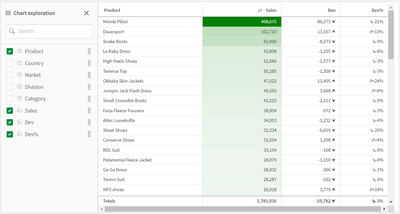
Chart exploration allows users, who are in analysis mode, to add and remove columns from the straight table they are viewing by checking or unchecking them in the Chart exploration panel (see image below). Any users viewing the sheet can customize the straight table. Users cannot see layout changes made by other users using the app, unless they opt to share the visualization or create a public bookmark with the layout saved.
Another new feature for developers is the ability to set the column width. By default, the column width is set to Auto, but developers can set it to Fix to content, Pixels or Percentage. Pagination is another new feature that can be enabled in a Straight table. With pagination, a specified number of rows are displayed at once and the user can navigate through the pages using arrows or selecting the page.
Many of the properties for the straight table are familiar but the new ones are moving the straight table to a new level. Learn everything you need to know about the straight table in Qlik Help and add one to your next app. Also check out the SaaS in 60 video for a quick video overview:
Thanks,
Jennell
...View More
In my previous blog posts (part 1, part 2), I explained how we can use enigma.js to communicate with the Qlik Associative Engine and get access to data. We also went through the concept of Generic Objects and saw how they can be used to do many things including getting raw data and using it to build visualizations.
In this post, we are going to expand on that and take a look at a real world example where enigma.js can be used to get Master Measures data that is rendered as KPIs in a web app, and monitor them for any changes to reflect the latest values.
This post is based on the following tutorial on qlik.dev where you can find the boilerplate code and more resources to help you get started: https://qlik.dev/embed/control-the-experience/dimensions-and-measures/get-master-measures/
You will find the full example code attached at the end of the post, I recommend you download it and open it in your favorite text editor as I will only feature some parts of it to keep this post short.
1- First, let’s take a look at the index.html:
We include the enigma.js library.
We define the configuration options to connect to our Qlik Cloud tenant and other needed variables including:
the tenant URL
the Web Integration ID (you can learn more about how to create this here)
The App ID
and a list containing the names of the Master Measures we wish to access.
const TENANT = '<INSERT YOUR TENANT HERE (example: xxxx.us.qlikcloud.com)>';
const WEB_INTEGRATION_ID = '<INSERT WEB INTEGRATION ID HERE>';
const APP_ID = '<INSERT APP ID HERE>';
const MASTER_MEASURE_NAMES = ['# of Invoices', 'Average Sales per Invoice', 'Sales (LYTD)', 'Sales LY'];
const IDENTITY = '1234';
In the main function, we initiate the login process, get the csrf token, and open the Enigma session. Then we get all the Master Measures via the getMeasureList function, and render only the Master Measure data from the "MASTER_MEASURE_NAMES" list we previously defined.
All the functions are defined in scripts.js
(async function main() {
const isLoggedIn = await qlikLogin();
const qcsHeaders = await getQCSHeaders();
const [session, enigmaApp] = await getEnigmaSessionAndApp(qcsHeaders, APP_ID, IDENTITY);
handleDisconnect(session);
const allMasterMeasuresList = await getMeasureList(enigmaApp);
const masterMeasureValuesDct = await masterMeasureHypercubeValues(enigmaApp, allMasterMeasuresList, MASTER_MEASURE_NAMES);
})();
2- Now, let’s take a look at the different functions that make this happen:
Login and session handling:
the qlikLogin function checks to see if you are login by fetching the /api/v1/users/me api endpoint, if not it redirects to the Interactive idp login page.
getQCSHeaders fetches the CSRF token needed to make the websocket connection to the Qlik Engine.
// LOGIN
async function qlikLogin() {
const loggedIn = await fetch(`https://${TENANT}/api/v1/users/me`, {
mode: 'cors',
credentials: 'include',
headers: {
'qlik-web-integration-id': WEB_INTEGRATION_ID,
},
})
if (loggedIn.status !== 200) {
if (sessionStorage.getItem('tryQlikAuth') === null) {
sessionStorage.setItem('tryQlikAuth', 1);
window.location = `https://${TENANT}/login?qlik-web-integration-id=${WEB_INTEGRATION_ID}&returnto=${location.href}`;
return await new Promise(resolve => setTimeout(resolve, 10000)); // prevents further code execution
} else {
sessionStorage.removeItem('tryQlikAuth');
const message = 'Third-party cookies are not enabled in your browser settings and/or browser mode.';
alert(message);
throw new Error(message);
}
}
sessionStorage.removeItem('tryQlikAuth');
console.log('Logged in!');
return true;
}
// QCS HEADERS
async function getQCSHeaders() {
const response = await fetch(`https://${TENANT}/api/v1/csrf-token`, {
mode: 'cors',
credentials: 'include',
headers: {
'qlik-web-integration-id': WEB_INTEGRATION_ID
},
})
const csrfToken = new Map(response.headers).get('qlik-csrf-token');
return {
'qlik-web-integration-id': WEB_INTEGRATION_ID,
'qlik-csrf-token': csrfToken,
};
}
Enigma session connection:
we use enigma.create() function to establish the websocket connection and create a new QIX session.
we use openDoc() method of the global object to open our app, and then return it for later use.
// ENIGMA ENGINE CONNECTION
async function getEnigmaSessionAndApp(qcsHeaders, appId, identity) {
const params = Object.keys(qcsHeaders)
.map((key) => `${key}=${qcsHeaders[key]}`)
.join('&');
return (async () => {
const schema = await (await fetch('https://unpkg.com/enigma.js@2.7.0/schemas/12.612.0.json')).json();
try {
return await createEnigmaAppSession(schema, appId, identity, params);
}
catch {
const waitSecond = await new Promise(resolve => setTimeout(resolve, 1500));
try {
return await createEnigmaAppSession(schema, appId, identity, params);
}
catch (e) {
throw new Error(e);
}
}
})();
}
async function createEnigmaAppSession(schema, appId, identity, params) {
const session = enigma.create({
schema,
url: `wss://${TENANT}/app/${appId}/identity/${identity}?${params}`
});
const enigmaGlobal = await session.open();
const enigmaApp = await enigmaGlobal.openDoc(appId);
return [session, enigmaApp];
}
Get a list of all master measures in our app:Now that we have the enigma app object, we can use the createSessionObject method to create a session object by passing the qMeasureListDef definition with qType “measure”
// GET LIST OF ALL MASTER MEASURES
async function getMeasureList(enigmaApp) {
const measureListProp = {
"qInfo": {
"qType": "MeasureList",
"qId": ""
},
"qMeasureListDef": {
"qType": "measure",
"qData": {
"title": "/qMetaDef/title",
"tags": "/qMetaDef/tags"
}
}
}
const measureListObj = await enigmaApp.createSessionObject(measureListProp);
const measureList = await measureListObj.getLayout();
return measureList.qMeasureList.qItems;
}
Get data from our list of Master Measures:
Now, we loop through the list of all master measures returned from the function above and only grab the ones matching our list of matching measures from the MASTER_MEASURE_NAMES variable defined in index.html.
We then create a generic object based on the Hypercube definition that includes the matchingMeasures representing the measureObjects’ qIds.
Finally, we listen to any changes using the .on(”changed” …) event listener and grab the latest layout.
// CREATE HYPERCUBE WITH MULTIPLE MASTER MEASURES (INCLUDE MATCHING NAMES ONLY)
async function masterMeasureHypercubeValues(enigmaApp, allMasterMeasuresList, desiredMasterMeasureNamesList) {
let matchingMeasures = [];
allMasterMeasuresList.forEach(measureObject => {
if (desiredMasterMeasureNamesList.includes(measureObject.qMeta.title)) {
matchingMeasures.push({
"qLibraryId": measureObject.qInfo.qId
})
}
});
if (!matchingMeasures.length > 0) {
console.log('No matching master measures found! Exiting...');
return
}
const measureDef = {
"qInfo": {
"qType": 'hypercube',
},
"qHyperCubeDef": {
"qDimensions": [],
"qMeasures": matchingMeasures,
"qInitialDataFetch": [
{
"qHeight": 1,
"qWidth": matchingMeasures.length,
},
],
},
};
const measureObj = await enigmaApp.createSessionObject(measureDef);
const measureObjHypercube = (await measureObj.getLayout()).qHyperCube;
// LISTEN FOR CHANGES AND GET UPDATED LAYOUT
measureObj.on('changed', async () => {
const measureObjHypercube = (await measureObj.getLayout()).qHyperCube;
processAndPlotMeasureHypercube(measureObjHypercube);
})
processAndPlotMeasureHypercube(measureObjHypercube);
}
Render the data to the HTML as KPIs:Lastly, we retrieve the data in “hypercube.qDataPages[0].qMatrix” and loop through it to construct an easy manipulate array of key/value objects which are then injected into the HTML.
// HELPER FUNCTION TO PROCESS HYPERCUBE INTO USER FRIENDLY DICTIONARY
function processAndPlotMeasureHypercube(hypercube) {
const masterMeasureValuesDict = Object.create(null);
hypercube.qMeasureInfo.forEach((measure, i) => {
masterMeasureValuesDict[measure.qFallbackTitle] = hypercube.qDataPages[0].qMatrix[0][i].qText;
});
const masterMeasureKeys = Object.keys(masterMeasureValuesDict);
masterMeasureKeys.sort();
const sortedMasterMeasureValuesDict = Object.create(null);
masterMeasureKeys.forEach(name => {
sortedMasterMeasureValuesDict[name] = masterMeasureValuesDict[name];
})
renderKpis(sortedMasterMeasureValuesDict);
}
// RENDER KPIs
function renderKpis(masterMeasureValuesDict) {
let kpiData = [];
Object.entries(masterMeasureValuesDict).forEach(([key, value]) => {
kpiData.push({
label: key,
value: Number(value).toLocaleString()
});
});
const kpisContainer = document.querySelector('#kpis');
kpisContainer.innerHTML = '';
kpiData.forEach((kpi) => {
const kpiCard = document.createElement('div');
kpiCard.classList.add('kpi-card');
const labelElement = document.createElement('div');
labelElement.classList.add('kpi-label');
labelElement.innerText = kpi.label;
const valueElement = document.createElement('div');
valueElement.classList.add('kpi-value');
valueElement.innerText = kpi.value;
kpiCard.appendChild(labelElement);
kpiCard.appendChild(valueElement);
kpisContainer.appendChild(kpiCard);
});
}
This is how the KPIs are rendered to the page:
To show how the on-change event listener works, let's simulate a change by editing the # of Invoices Master Measure in Qlik:
Looking back the web page, the change is instantly reflected on the KPI:
That’s all, I hope you found this post helpful, do not forget to check out more tutorials on qlik.dev that cover other important use cases!
P.S: to make it easier to run the web app, I have included a server.py file to easily serve the files viahttps://localhost:8000. You can run it with the command: python server.py.
Also, don’t forget to whitelist this localhost domain when generating a new Web Integration ID:
Thanks for reading!
...View More
Let's see how it is possible to control sheet and object-level access in Qlik Cloud, specifically when organizations want to show/hide specific assets in an application based on the group membership of the current user that is accessing the application.
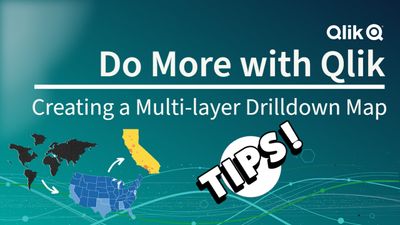
Customer asked how to create a drill-able map, BUT wanted to display different layers when drilling down. It's very easy by simply using a Drilldown dimension and controlling the layer visibility in the map layer options - check it out!