There are now many new ways a filter pane can be customized to change its appearance and/or functionality. In this blog, I will cover the new customizations available. Let's start with the new look of the filter pane properties panel (shown below). Now when the field or master item is selected in the properties panel, an additional properties panel is provided with further appearance and functionality options.
There is now a “Show title” checkbox that can be used by app developers to show or hide the title of the filter pane. App developers can indicate if they want search capabilities on or off in a filter pane by toggling the Search option. By default, the search mode for a filter pane is normal, but now it can be set to Wildcard mode which adds asterisks before and after the search text like this:
This example wildcard search will search for any text with “wear” in it.
In the presentation section of the properties panel, is where app developers can customize how the filter pane will look. By default, the text alignment is set to Auto, but it can also be set to left, center or right. There are checkboxes for the following options: Compact view, Checkbox mode and Histogram.
The Compact view option reduces the space between dimension values, fitting more items in less space. In the image below, the second filter pane has the Compact view option checked. Notice that there is less space between the list items, making the filter pane smaller than the default filter pane on the far left. This can be helpful if space is an issue on your sheet. The Checkbox mode (see third filter pane) will add a checkbox to the left of the list items and the checkbox is what is used to make selections. The Histogram option (fourth filter pane) displays bars under each list items to indicate the frequency of the item in the data – it is like a visual representation of the frequency. Each of these options can be used independently or in combination with one another. Below is an example of each and all three together.
The last of the new customization options that can be found in the properties pane is how to show the data – either single column or grid.
Here is a simple example using the Year dimension. The filter pane on the left is showing the filter as a grid while the filter pane on the right is showing a single column.
Here is another example of the grid option when there are more values.
When displaying the values in a grid, the app developer is presented with the option to set the order and the maximum number of columns. In the example above the values are ordered by row, so you read them from left to right versus top to bottom. The Max visible columns can be manually set (custom) or can be set to auto.
These new filter pane customization options provide the app developer with more flexibility in how they would like to present filter panes on a sheet. Check out Qlik Help for a video on creating a filter pane as well as additional helpful information. Also take a look at Michael Tarallo’s SaaS in 60 video herefor this and other new features in Qlik Sense SaaS.
Thanks,
Jennell
...View More
When analyzing data with Qlik Sense, you might have come across the need to compare two sets of selections side by side. This is where the Alternate States feature come into play, allowing you to create different sets of selections and compare them in the same dashboard. In this blog post, we'll walk through the process of performing comparative analysis using alternate states in Qlik Sense including how to create it, apply it, and we’ll dive into how we can synchronize selections between the default state and alternate states.
What are Alternate States?
Alternate states in Qlik Sense can be thought of as multiple windows looking into the same app data model, allowing users to perform comparative analysis without losing or overriding other selections. Each state represents a unique perspective (For example, a Sales perspective, Operations, or Finance view) on the data, and these different windows or "states" can coexist within the same app without interfering with one another.
The normal operation of Qlik Sense involves a default state that affects the entire app when selections are made since every object in each sheet inherits from this state. However, this inheritance can be broken by creating new states for either sheets or individual objects, allowing them to exist independently and enabling side-by-side comparisons of charts. In this way, selections on different objects on the same sheet can co-exist without interfering with one another. This allows for having side-by-side comparison of charts.
Setting up the Alternate States
Let’s create two states for our example:
Click on “Master Items” then ‘Alternate States”
Select“Create new”
Enter “State A” as the name.
Keep in mind that there are some naming limitations:
- Do not use $, 0, or 1 as a state name.
- Do not use a state name starting with $ or $_ followed by a number (for example $3).
- Do not use a state name already used as a bookmark name.
Repeat the same for the second state and name it “State B”
Add 2 filter panes with the “Country” field and 3 bar charts
For each filter pane, go to Appearance > Alternate Sates and select State A and State B respectively.
In the 2 bar charts, add “Country” as a dimension and “count of distinct Orders” as a measure.
Notice that now, if you try and make a Selection in either filter pane, nothing will happen to the Bar charts, that is because the selections are made to the newly created Alternate States whereas the bar charts are still in the default state.
Applying Alternate States
In order to make the selections on the Alternate states affect the visualization objects, we need to link them to these alternate states. We can do that in a variety of ways:
1- You can drag the newly created state from the left sidebar onto the visualization
2- You can go to the properties of the visualization, and under Appearance > Alternate states, choose the appropriate state from the dropdown (similar to what we did on the filter panes).
3- You can use Set Analysis to add the alternate state to the measure. Let’s use the following expression in our bar charts:
Count({[State A]} distinct orderID)
Count({[State B]} distinct orderID)
Bonus: Dynamic title for the Bar Charts.
If you want the title of the bar chart to reflect the selections of the respective alternate state, you can use the following expression:
='# of Orders '&GetCurrentSelections(chr(13)&chr(10), ': ', ',', 9, 'State A')
This will get the current selections in State A and comma separate them. Repeat this for State B.
Using Set Operators with Alternate States
It’s possible to use Set Operators (+, *, -, /) with states, meaning that we can do intersections, unions, exceptions etc... For example:
Count({$ + [State A]} distinct orderID) -> will count the distinct orders in the union of the “Default” state and the alternate state “State A”.
Count({1 - [State A]} distinct orderID) -> will count the distinct orders NOT in “State A”
Count({[State A] * [State B]} distinct orderID) -> will count the distinct orders that are both in the intersection of ”State A“ and “State B”
Keep in mind that you should be cautions when using set operators in this manner. In some situations the result will not be what is expected. This is because the selections in a given state generate a set of data that may not be fully compatible with the set(s) it is being combined with. This is especially true as the complexity of the data model increases.
Synchronizing Selections between the Default state and Alternate States
When doing comparative analysis, you might run into a case where for instance you have 2 alternate states A and B, as well as the Default state.
Let’s say that we have 3 filter panes based on the field “Country” that have states A, B, and Default. In addition to that, we have 2 more filter panes with fields “Year” and “Month” that only have state Default.
If we’re only comparing Countries, we would be fine to make selections in all 3 “Country” filter panes to compare.
However, if we make a selection in either “Year” or “Month” filter panes which are only in the Default state, we can no longer see a clear comparison. So how can we solve that?
It’s simple, we can tweak the expressions in our 2 “alternate state”-bound measures to the following:
Count({[State A]<[orderDate.autoCalendar.Year] = $::[orderDate.autoCalendar.Year], [orderDate.autoCalendar.Month] = $::[orderDate.autoCalendar.Month]>} distinct orderID)
Count({[State B]<[orderDate.autoCalendar.Year] = $::[orderDate.autoCalendar.Year], [orderDate.autoCalendar.Month] = $::[orderDate.autoCalendar.Month]>} distinct orderID)
Notice that we have added the following set analysis syntax for both "Year" and "Month":
[orderDate.autoCalendar.Year] = $::[orderDate.autoCalendar.Year]
This means that we can keep selections for "Year" and "Month" consistent between states because when we select “Year” and “Month” in the Default states, these selections will be automatically applied to our Alternate States!
Conclusion
Comparative analysis is an essential tool for data analysis. Using alternate states in Qlik Sense makes it possible to compare two different sets of selections side by side. You can also go beyond the basics and leverage the power of Set Analysis to include Set operators or to automatically sync fields across states.
Attached is a QVF that has the example we went through!
Thanks for reading.
...View More
Learn the differences between Qlik Sense button actions - Reload Data and Execute Automation - when you want to reload a Qlik Sense app, or have ANY user execute an automation.
Is there a way to rename several field names in table all at once? This is a question I recently asked myself while building a data model. I was building an app to explore various datasets and one of the source files included a CSV file that had over 300 fields. Most of the fields were codes used to describe a metric. I also had a key or definition table that provided a description for all the codes. Below is a small fictional example of the type of data included in the files.
Data Dictionary file example:
Data file example:
The data file was the file that had over 300 codes for the field names. Of course, I can rename fields in the script using “as” in my load script like this:
This is what I would normally do to rename fields in my data model, but when I have over 300 fields in a single table, this can be cumbersome. I use mapping tables all the time to normalize/update/scramble data in a field, but I did not know mapping tables could be used to also rename fields in a table. Here is the syntax to do this (Qlik Help).
Rename Field (using mapname | oldname to newname{ , oldname to newname })Rename Fields (using mapname | oldname to newname{ , oldname to newname })
Depending on how many fields you are renaming, you use Rename Field or Rename Fields. One option is to use a map that was previously loaded using the Mapping Load syntax. The other option is to list the old name and new name as parameters in the script function. Since I have a file with all the codes and descriptions, I will use a mapping table in this function. In the script below, I load the data dictionary mapping table named DataDictionaryMap and then I load the Data table. To keep things simplein this example, the Data table only has 4 fields with code field names, but imagine there are over 300 fields with code field names. The last step is to rename the fields using the Rename Fields function using the DataDictionaryMap I created.
A preview of the Data table, as shown below, displays the new field names that use the code description. Instead of renaming each field individually, I used the Rename Fields script function along with a mapping table, to rename all the field names that were included in the map. Fields that are not in the map, remain the same with no change. Note that whenever you rename fields, you want to make sure there are no fields with the same name.
It is funny how I have used mapping tables and the rename table function all these years without coming across the rename fields function using a mapping table. Nonetheless, I love it when I learn something new so hopefully, you find this helpful.
Thanks,
Jennell
...View More
In my previous blog post, I talked about how custom visualization extensions enable you to go beyond the default visualization capabilities of Qlik Sense and we took a look at how to create a custom Stream Chart using Qlik’s Nebula.js and Picasso.js.
Sometimes however, you might find yourself wanting to build more complex charts that can be difficult to do using only what the Picasso.js library has to offer.
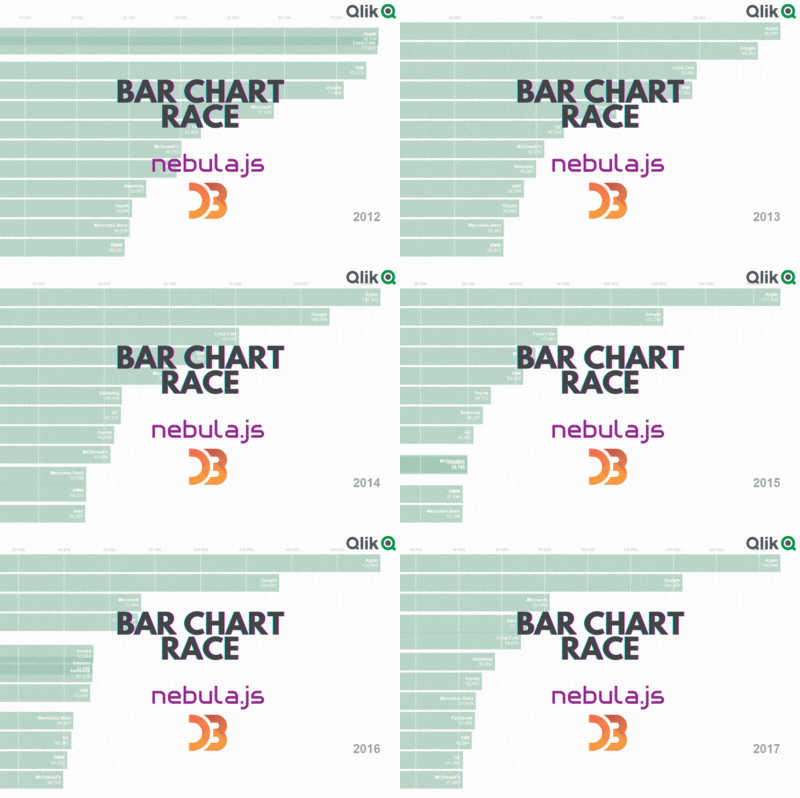
In this blog post, we will do just that as we build a cool Racing Bar Chart visualization using D3.js that we will then package and upload to our Qlik Cloud tenant.
First, let’s talk about what a Bar Chart Race visualization is and where you can use it to enhance your data storytelling:
A bar chart race is a type of data visualization that displays changes in data over time using dynamic animated bars. It’s often used to show the ranking or position of different groups or categories over a period of time.
In a bar chart race, the bars representing each group/category move horizontally or vertically to show the changes in their values over time. The length of the bars represents the magnitude of the data being visualized.
This type of chart is particularly effective in visualizing data that is dynamic and changes frequently. It can be used to compare different categories or groups in terms of their performance, popularity, or other factors over time. Bar chart races are also visually engaging, making them a popular tool for sharing data on social media and other platforms.
Some examples of usage include:
Comparing sales data for different products or services
Showing the distribution of income levels across a population
Visualizing the frequency of different types of crimes in a city or region
Monitoring the spread of a virus across countries
Comparing the popularity of different social media platforms over time
Project setup
If you are new to creating visualization extensions in Qlik Sense, you might want to go through my previous blog post or check out these resources as I’m not going to cover all the details here.
Run the following command to bootstrap the codebase (notice that we used the “—picasso none” to prevent the generation of a picasso.js template)'npx @nebula.js/cli create racing-bar-chart --picasso none
Next, move into the newly created project directory and run the following commands (1st one to install D3.js, and 2nd one to run our project)npm i d3@6.0.0 --save
npm run startThis will open the Nebula.js dev UI, follow the instructions to connect to your Qlik Cloud tenant:
Enter the websocket URL which includes the “web integration id” and is formatted like this:wss://YOUR_TENANT.us.qlikcloud.com/&qlik-web-integration-id=YOUR_WEBINTEGRATION_IDP.S: to get your web integration id, go to your Qlik Management Console, click on “Web” on the left sidebar, then click on “Create new"
Next, select the Qlik Sense App from the list (The QVF with data is attached to this post)
Back to the code base, we need to edit the configuration files to define the data structure as follow:
object-properties.js:const properties = {
showTitles: true,
title: "",
subtitle: "",
footnote: "",
qHyperCubeDef: {
qDimensions: [],
qMeasures: [],
qInitialDataFetch: [
{
qWidth: 3,
qHeight: 3300,
},
],
},
};
export default properties;
data.js:export default {
targets: [
{
path: "/qHyperCubeDef",
dimensions: {
min: 1,
},
measures: {
min: 1,
},
},
],
};
Since we’re going to view Brand Value over time for Companies, we need 1 measure (sum(value)) and 2 dimensions (Date and Name).
You can now select these 2 dimensions and 1 measure in the Nebula.js dev UI on your browser:
Developing the visualization in Nebula.js and D3.js:
For the purposes of keeping this post short, we’re not going to dive deep into the details of the D3.js code. You can visit this comprehensive post by the co-creator of Observable and main developer of this library, that explains in detail the implementation of this chart.
index.js:This is the main entry of our extension and contains our Nebula.js code.Note that we’re using a few hooks from the imported @nebula.js/stardust package which should be familiar if you’re used to developing React.js applications.- useElement provides the HTML element where we attach our visualization.- useLayout is used to get the layout of our generic object (hypercube).- useEffect is used to run the callback function we pass it when certain values change.- useState helps keep track of state within the application. In this case we use it to replay the animation.
vis.js:This is where all the magic happens and where the D3.js specific code lives.For brevity, I will highlight the important parts of this file:
1: constants needed in calculating d3 scales and positionning.
2: D3 scales with x being a linear scale and y being a band scale
3: Data derived from the source data (gets passed on index.js)
4: Helper functions including rank() function to compute brand ranks, and keyframes() to compute interpolate values within each year for a smooth animation.
5: D3 formatting functions
6: D3 drawing functions for the components that make up the visualization:
Bars
x-axis
labels (on each bar)
ticker (Date)
7: D3 animation that iterates over each keyframe and updates the components above.
Finally, to build the extension, run:
npm run build
And in order to package the extension for Qlik Sense, run: (make sure to zip the folder in /dist before uploading it to your tenant)
npm run sense
-------------------------------
Source Code on Github:https://github.com/ouadie-limouni/Qlik-Nebula-Bar-Chart-Race-Viz-Extension
Zipped Extension: Attached
QVF: Attached
...View More
Check out the Do More with Qlik - Tips and Tricks Edition Playlist for all the things you should know about the Qlik Cloud Platform. New content added on a regular basis!
The ObjectID and InObject functions are system functions that can only be used in chart expressions. The ObjectID function has one optional parameter and is used to return the object ID of the object the expression is in or of the object type that is included in the parameter. A text & image object with ObjectID() in the expression returns the ID of the text & image object. ObjectID('text-image') also returns the ID of the text & image object. To determine the ID of the sheet the object is on, use the expression ObjectID('sheet'). This will return the ID of the sheet just as you see it in the URL of an app.
In the example below, there are 4 sheets and a button from the master items is on each sheet. An expression is used to color the background of the button based on the sheet it is on. In this expression, the ObjectID function is used to check the sheet ID before assigning the button color.
Here are the results:
The InObject function takes one parameter, which is the ID of an object, and is used to determine if the current object, (where the expression is written), is contained in another object. In the text & image expression below, the InObject function is used to see if the text & image object is in the sheet with ID '040e64b6-4a93-4962-a833-aed253db4ac1'. In this case, the expression returned true (-1) because the text & image object is in the identified sheet. If the expression was false, 0 would have been returned.
The InObject function can also be used to color buttons as done in the previous example. In this example, there are three sheets – a navigation sheet, a blue sheet, and a green sheet. On the navigation sheet there are two master buttons that will navigation the user to the respective sheet.
In the background color expression for the blue sheet, the InObject function is used to determine if the blue sheet button is in the blue sheet. If it is, then the button is colored blue, otherwise it is colored light gray. The parameter used in the InObject function is the sheet ID for the blue sheet.
A similar expression is used for the background color expression of the green sheet button except in this expression, the parameter is the sheet ID for the green sheet.
When the blue sheet button is clicked, the user is directed to the blue sheet and the buttons looks like this:
When the green sheet button is clicked, the user is directed to the green sheet and the buttons looks like this:
Below is another example of the InObject function with a few levels. There is a text & image object in a container object on a sheet. The first three expressions below use the ObjectID function to get the object IDs for the sheet, container, and text & image objects. The last three expressions use the InObject function to confirm that the text & image object is in the container, that the text & image object is in the sheet, and that the text & image object is not in the next sheet.
I would love to hear how you use the ObjectID and InObject functions – share in the comments.
Thanks,
Jennell
...View More