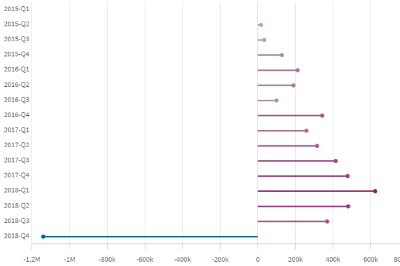
It's been a while since I posted a tip about creating charts. I say roll up your sleeves and let's hack one of the standard charts to create a chart type that doesn’t exist in our chart library. Who's in?We will be making a lollipop chart and something extra, because, well, why not.First, let's describe what a lollipop chart is and why it can be useful.What is a lollipop chart?A lollipop chart is a variation of a bar chart. It differs from a traditional bar chart in two ways: bars are reduced to a line, and the bar tips are oversized in the shape of a circle. If you're a sweet tooth, it'll remind you of a lollipop.One of the main benefits of a lollipop chart is that it can be used to represent a large set of tall bars in a less intimidating way. However, it is pertinent to emphasize that this chart is less accurate than a regular bar chart. This is mainly because the center of the circle at the end of the lollipop marks the value. In comparison to the straight edge of a bar, it is difficult to determine where the center is located.Hands onWe will use a combo chart and some of its not-so-new features to create a lollipop chart. Remember a bar chart needs at least one dimension and one measure.Drag a combo chart and add a dimension and one measureNothing wrong with this chartNext, let’s start messing with the chart settings. Go to Appearance, Presentation, and then Advance Styling. There you will be presented with a bunch of configuration options. What we want is to make the bar width really thin. Anything around 0.1 usually works well.Now our combo chart should look something like the one below.Next, is the time to add the candy on top of those lines. Since we are using a combo chart we can quickly add another measure to it and pick a marker as its representation. Simply add the same measurement you used for the bars again. It will be added as a line and the label will say height of line. Don’t panic, no yet. Next expand the new measure panel and scroll down to click on “More properties” button and pick “Marker” from the options displayed.Your chart should be looking something like thisThe next step is to get the colors of the bars and the marker in sync. Simply select the appropriate color in the menu option under the measure “More properties” panel.If you want your circle markers in sync with your bars, and you are using something more sophisticated than single color you can go a long way with colors by using expression instead of single color in the panel.As a final step, make sure that neither the legend nor the tooltip ruin our little hack by showing both metrics. To do that just scroll to the very bottom of the combo chart Presentation properties panel deactivate the legend and change the tooltip properties from basic to custom to make sure you have control over it.EXTRA TIP:After learning how to make a fancy lollipop chart using the combo chart, we can spend some time creating a bar chart with rounded corners as in the picture below.The process is simple, just adjust the bar width until it matches the circle diameter size and voila, your rounded corner bar chart is ready. There are some colors that work better than others at dissimulating marker borders (darker colors), keep that in mind if you are looking for perfection.Thank you for reading this post I hope you enjoyed it.Arturo
...View More
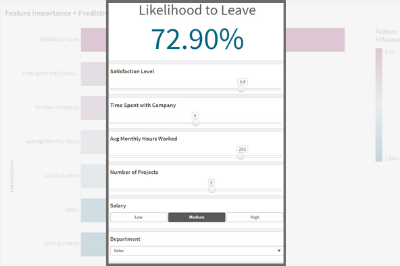
Qlik AutoML is a powerful tool that makes it easy for analytics teams to easily generate models, make predictions, and test business scenarios using a code-free experience.In a previous introductory blog post by Dipankar, you can learn more about how to get started with AutoML and find out just how easy it is to navigate the interface and start training and evaluating ML models in a few steps.Today, we will leverage the power of Qlik Server-Side Extension (SSE) to build a simple Scenario Analysis dashboard right into Qlik Sense.“What-if scenarios” are a great way to plan for decisions and actions by testing different parameters while capitalizing on AutoML’s prediction API.So what is SSE?Server-side Extension protocol allows us to extend the Qlik built-in expression library with functionality from external calculation engines. In our case, we will use AutoML’s re-calculation of the prediction based on changes on variables to show the result in a KPI chart.Let’s go through the process in a practical example. We will look at Employee Turnover Risk (dataset attached at the end of the post)Create your AutoML project and load the dataset making sure to select the “left” field as the target. After successfully completing the training process, go ahead and deploy your model and enable API Access. Take note of the Access URL and Token, we will need them to make the connection in Qlik Sense.On our QS tenant, we need to create a new Data Connection via the "Qlik AutoML" Analytics source connector. If you don’t see it, make sure to enable Machine learning Endpoints in the Management Console. Now, let’s move on to building our Scenario analysis sheet on the Qlik Sense app (find the qvf attached at the end of the post).First, we create multiple variables to be used in our “Variable Input” objects. We concentrate on the features that are more important according to the Feature Importance chart.Next, we create our objects:The KPI that shows the Likelihood for Employees to leave is based on a measure that uses the SSE expression as follows, where some of the features are passed in as variables.P.S: note the first argument of the ScriptEvalEx matches the field types of our features in order - with N being number and S being string. Also, the features passed as the third argument need to map 1 to 1 with autoML, missing features will result in an error.=endpoints.ScriptEvalEx('NNNNNNNSS','{"RequestType":"endpoint", "endpoint":{"connectionname":"Qlik_AutoML_Employee_Turnover","column":"probability_yes"}}',
vSatisfactionLevel AS satisfaction_level,
last_evaluation,
vNumberOfProjects AS number_project,
vAvgMonthlyHoursWorked AS average_montly_hours,
vTimeSpent AS time_spend_company,
Work_accident,
promotion_last_5years,
vDepartment AS sales,
vSalary AS salary)Next. we build our variable inputs using the “Variable Input” chart under Custom Objects > Qlik Dashboard Bundle. Adjust the “Show as” type as needed. And that’s all! You can now adjust the variables to trigger AutoML which automatically redistributes the data and re-predicts the outcome in order to understand the implication of any potential action.Below, notice that Employee #2 has a high turnover %. Upon adjusting the “Avg Monthly Hours Worked”, “Number of Projects”, and “Salary” or a combination of these parameters, the % drops drastically.Attached is the dataset used as well as the qvf.I hope you found this post helpful!
...View More
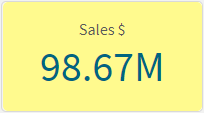
In this blog post, I will discuss some of the color enhancements that have been added to the KPI chart and the Map chart in Qlik Sense SaaS. Both allow you to further customize the visualizations in an app. Let’s begin with the KPI chart. A KPI is a key performance indicator and is often used to highlight an important metric. In Qlik Sense SaaS, you can now change the background color of a KPI. In the past, KPIs always had a white background and users had the ability to change the color of the metric.Now, users can also change the background color of the KPI. In the Presentation section of the Properties Panel, in Styling, the background color can be set. The background can be set to a single color, or an expression can be used to set the color. This is nice if you want to make the KPI stand out on the sheet based on a condition or an expression.Here is what the KPI looks like with a background color.Notice that the label of the KPI color cannot be changed so make sure you select a background color that does not hide the label. In the KPIs above, the label of the KPI on the right is easier to read than the one on the left. Also keep in mind that you have the option to hide the KPI label. I would recommend doing this only if the KPI metric being displayed is clear to the user without the label.Another new color related feature added to Qlik Sense SaaS is the color of the labels used in a Map. Users can now change the label coloring to Light or Dark or they keep it set to Auto. This setting is found in the Presentation section of the Properties Panel. To use this feature, the map must be showing the labels.When set to Auto, the labels will change depending on the base map being used. If the base map is darker, then a light label tends to be used and if the base map is lighter, a dark label color tends to be used. Users now have the option to set this regardless of the base map color. So depending on the map and the coloring you are using in the map; you may prefer a light label even if the background is light like in the map below. The key is to go with the option that is best read by the user. Usually that is this the option with the most contrast.This is just a few of the visualization enhancements that have been made in Qlik Sense SaaS. Learn more about the KPI background color enhancements as well as other KPI improvements in Michael Tarallo’s SaaS in 60 video. You can check out the entire SaaS in 60 video series here to learn more about new product features.Thanks,Jennell
...View More
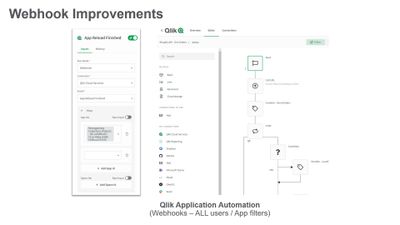
Qlik's Mike Tarallo shows you how easy it is to create Webhooks in the Qlik Active Intelligence platform, using Qlik Application Automation and it's new filter parameters in the Qlik Application Automation Start block.
Today our Leigh Kennedy, Principal Enterprise Architect, will walk you through Systems Development lifecycle concepts used with the Qlik Active Intelligence platform. This is a 2 part series, this entry covers Part 1.
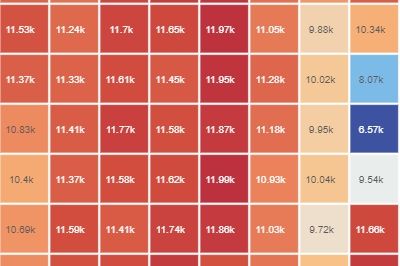
How to create a heatmap with the new GridChartWhat is a heatmap chart?Heatmaps are two-dimensional representations of data that show magnitudes as colors. A color variation - may be based on hue or intensity - gives a clear indication to the reader of how the data measured is distributed or varies over space.The result should be a data piece that doesn't require a lot of explanation. Typically, warm high-contrast colors are used to represent high-value data points, while cool colors represent low-value data points in heatmaps.Most common Birth Dates (US)Qlik Sense Feb 22 (day of the month/month)The chart above is an excellent use case for a heatmap, it is simple and straight to the point. Births are fairly evenly distributed throughout the year, with a slight bias towards the summer months. The average number of births drops significantly on some days, such as 4th July, 24th-25th December, and January 1st.There is also a very popular version control product out there that displays a punch-card-like activity chart like the one below that I think is an excellent implementation of a heatmap.Not my profileWith the February 22 release, the Grid Chart will be your first choice when it comes to heatmaps. In addition to all the features that one expects in a Grid Chart, there is now a shortcut that lets us create a heatmap just like that.Remember that this chart is especially useful if it is self-explanatory, so try to avoid complex combinations of dimensions. This chart is best suited to time-series-based dimensions.Enjoy it!Arturo
...View More
Web accessibility is a topic that's not often brought up when planning to build an experience on the web. It is however crucial to acknowledge the importance of ensuring that all users are able to access the content you create as it helps to eliminate barriers to access valuable information and proactively creates an inclusive environment for people regardless of their visual, cognitive, physical, or auditory disabilities.
You can read more about Qlik’s commitment to making products and services available to everyone here. Qlik Sense comes with features and improvements aimed at accessibility compliance with WCAG 2.0 standards.
Accessibility in Qlik Sense
The product features in Qlik Sense include:
Default color schemes with high contrast
Support for keyboard navigation
Keyboard shortcuts
Screen reader support (A screen reader -NVDAis supported - can be used to interact with apps built-in Qlik Sense)
Note: Navigation through the hub, app sheets, toolbar, and data visualizations can be done using a keyboard only for screen reader users. All key shortcuts can be found on this handy help page.
Recommendations when building apps and visualizations
Overall app best practices:
Aim for a simplified design and decluttered apps
Aim for a simple/flat structure instead of a complicated grid when building sheets (This makes it easier for users with keyboard-only navigation to find their way around the page)
Build sheets so that the content provides a general overview first, then goes into details later on
Include descriptive titles that make it easier for users navigating with a screen reader to understand the context of the current object
Accessible visualizations best practices:
Color accessibility: since the spectrum of colors is narrower for people who have certain visual impairments, they may interpret visualizations differently than intended.
For instance: a red and green KPI can be confusing if users see those colors as more yellow and brown. In this case, including shapes with colors can help make it more accessible.
Stick to standard colors or safe palettes and test for sufficient color contrast ratio to allow better readability.
Using charts that include the accessible built-in Data View
Providing context whenever possible through labels and clear text descriptions (titles, subtitles, and footers)
Limiting values in dimensions to a minimum when possible
Make use of separation and space, for instance, adjusting the spacing between bars and segments in a bar chart can help users distinguish sections of a chart
Example:(Source - https://accessibility.psu.edu/images/charts/)
Inaccessible Bar Chart: Information is conveyed only by color
Accessible version of the Bar Chart: labels for each category added to the bottom
Accessibility in Mashups
When it comes to building web apps or mashups that integrate with Qlik Sense, developers should plan for creating an accessible experience.
It is true that there are challenges in doing so especially when relying on direct iframe embeds or certain libraries that have limited support for accessibility features or are still in the works. But leveraging the available methods, enforcing best practices stated above, and making fallbacks available for users can be a good start.
If using the Capability API, you can make use of the Visualization API's toggleDataView method as described hereto change between a visualization and a data view.
Otherwise, a screen-reader only text description can be added to explain this feature which will be hidden to users of the site via CSS.
<h3>Nebula.js Rendered Line Chart</h3>
<p>A description of the chart that explains in detail the chart for screen readers</p>
<div className="sr-only">[This text is hidden for screen readers only] Explain here how to toggle between the chart view and the data table view by clicking on the Enter key and the Escape key and navigating the rows with Up/Down arrows.</div>
<div id="barViz" ref={elementRef} style={{ height: 500}} onKeyDown={handleKeyDown}></div>
If working with a third party library such as D3.js, you can use attributes to add descriptive text to your charts.
// append the svg object to the body of the page
var svg = d3.select("#" + id)
.append("svg")
.attr("width", width + margin.left + margin.right)
.attr("height", height + margin.top + margin.bottom)
.attr("role", "img")
.attr("aria-label", "Include a clear description here including the type of the chart, the data represente, and the overall trend")
.append("g")
.attr("transform", "translate(" + margin.left + "," + margin.top + ")");
I have put together a basic example in thisgithub repo where you can explore the code.
I hope you found this post helpful and it helped motivate you to introduce accessibility into your development workflow. If you have techniques or ideas that you already use, please do not hesitate to share them below!
...View More
There have been many chart label enhancements made in Qlik Sense. In this blog, I will cover some of the new options available such as:All labels visibleLayered labelsLine layer for labelsIn the Appearance section of the Properties panel, if the “Show data point” checkbox is checked, there will be a drop down for Value labels as seen below. Selecting “All” will show all the data point labels in your charts.In the chart above, all the data point labels are visible. This is a nice option when there are not too many data points or if the data points are spaced out. But if you find the labels overlapping as seen above, you may want to consider the “Auto” option. You always want the data to be readable, so if there are many data points that are close together to the point where the labels are not readable, switch to “Auto”. The “Auto” option has always been an available setting, but it is even better now. “Auto” displays labels based on the space available but it has been improved to display more labels. In the chart below, the Value labels is set to “Auto” and there is no overlap, and the labels are readable.Another label enhancement is the ability to layer the labels on the x-axis. This property can be changed in the x axis section of the Properties panel as seen below (if the x-axis labels are set to be displayed in the chart).We often see layers “Horizontal” or “Tilted” but now there is the “Layered” option which staggers the labels between two lines providing more space for the label text. I really like this option because it is clean, and most labels are fully visible.The last label enhancement I will cover today is the line layer for labels. This makes use of the Dual function to create a white line layer along the x-axis which can be used as a label for a visualization. The chart below shows an example of two line layer labels – one for the month and one for the percent change.Let’s take a closer look at how these labels were created. Since we are creating the labels for the x-axis, Labels and title for the x and y axis is set to “None.”And the measure for the month and percent label is presented as a white line (which will not be visible since the background is also white).The measure below is used to create the month label.In this expression, the Dual function takes the month field and gives it a numeric value of -50. By using the Dual function, it allows the field to have a string representation that is displayed as the month and a numeric representation of -50 which we cannot see since the white line blends with the white background. The percent change label works the same way except in this expression, some additional formatting is added to show an indicator for an increase or decrease in sales since the previous month.This is a cool trick that adds more value to your chart labels. You can learn more about the Dual function in Qlik Help and in one of my previousblogs.Hopefully, you find these new label enhancements useful. All the examples shown here are available in the What’s New app which can be viewed and downloaded from the Demo Site.Thanks,Jennell
...View More
The author works as Data Analyst in a B2b e-commerce platform located in Shanghai. The company chose Qlik Sense as BI analysis tool. Current business need is to analyze customers’ order situation in each month, which requires each customer’s registration year-month, order year-month and the number of order months. Since there exists very few information of Qlik Sense in China, the author summarizes and writes this article, aiming at sharing and hopes to get more better ideas.