There is no doubt that having some sort of version control system baked into your development workflow is very important especially when challenges like storing and maintaining different backup versions of a project or collaborating with other members of your team become a nightmare.A version control system makes all these problems disappear as it enables you to commit changes you make throughout the lifetime of a project, giving you access to historical versions that you can easily roll back to. It also allows for easier collaboration as multiple people can simultaneously work on the same project by branching out into their own isolated environments without impacting the work of others in a controllable and maintainable manner.When it comes to Qlik Sense, the lack of version control capabilities has opened the door to both simple solutions that can work for a smaller context as well as more creative ones to fill in the gap. From copying applications that may lead to a cluttered workspace, to manually creating your own system using a combination of Git and serializing your Qlik Sense apps, to sophisticated third-party solutions that take care of the heavy lifting, you can test and choose the option that fits your needs.You can visit this Knowledge Base post to discover more Qlik Sense version control solutions.In this blog post, I gave one of these solutions a go to see how adding version control can change the way you develop your Qlik Sense apps in the future.Gitoqlok is a chrome extension that does just that, it integrates your VCS of choice such as Github, BitBucket, Gitlab, Gitea, etc … with your Qlik Sense App through their respective APIs. It uses the concept of serializing application objects to JSON and deserializing them back. The supported objects include story, sheet, measure, dimension, masterobject, snapshot, variable, bookmark, appprops, and fields.Source: gitoqlik.comTo get started, install the chrome extension here.1.Connect Gitoqlik to the Github API using your personal token:Visit Github to generate a new token and check the “repo” scope. Copy over your newly generated token into the "Git Settings" page of the extension. Make sure to go over the settings including your repository visibility (private or public), how your repo and branches will be named by default, etc..2.Once you create your app, you are ready to use the extension to create a repository. Gitoqlok makes this easy as it automatically detects your Qlik app, generates a default repo name based on the settings previously selected, and creates a master branch.3.As you’re making progress developing the app (loading data, scripting, creating a data model, analyzing and visualizing data), you can commit your changes into the repo every time. Your commits can include the Load Script, the App Objects, Reload Tasks, and Data Connections.You can use the git commit history to view your changes and revert to a previous state.4.You can collaborate with other people from your team so that each team member works on their own copy of the app in their own workspace.Each team member would create an isolated branch inside the repository so that their changes do not affect the master branch. Gitoqlik makes this process seamless as it detects that copies of the main application have been created and finds the main repository allowing you to branch out with a single click.For more information about this tool, check out the docs.I would love to hear what techniques you use to collaborate or track your changes when developing QS apps. If you have any suggestions for integrating version control with Qlik Sense, please leave them in the comments below.
...View More
The year 2021 has been a challenging year for all of us without a question. And with this challenge of not being able to be in person for work, business or education, emerged a new opportunity — relying on our community. As a team dedicated to supporting development and innovation, we feel thrilled to create possibilities that drive value for our worldwide Qlik developer community & organizations enabling them to take data & visual-analytics-led decisions. We are wrapping up the year with some key milestones that we achieved as part of the DevRel team in Qlik R&D.RebrandingFirst, we focused on rebranding our various developer platforms. We realized that it was imperative to be able to communicate & reach out to our developer community through certain specific platforms so the discussions are focused. As a starting step, we relaunched our Twitter. This platform is effectively used to share updates about any new blog posts, videos, experiments, etc., and serves as a primary scene of our presence.Twitter Page We also have an active community presence in our developer-focused Slack channel “Qlik Dev”, and we decided to keep that going so the community can benefit from it by getting direct help from fellow members, Qlik-insiders, and the DevRel team. One of the primary goals of the DevRel team is to set a two-way communication process between our developers and the R&D team. The Slack channel helps us in this process by getting direct feedback back to Qlik R&D about our suite of products and APIs. This feedbacks are a great way to understand what our users think, any pain points & suggestions. The openness is something we really value at Qlik.Slack channel — Developer communityContentThe Qlik community consists of a wide array of developers with varying roles & levels of expertise (Data Analysts, BI Engineers, Embedded Analytics developers, etc.). While we started with a focus on developers leveraging Qlik APIs for embedding analytics, we also wanted to expand our horizon and support different developer needs. Therefore, it was crucial to identify role-specific developer contents that could cater to each category of the developer. With this in mind & the interest of our community, we focused on certain specific areas:Embedded Analytics — Qlik Sense APIs, open-source libraries(Nebula, Picasso, Enigma, etc.), AutomationsDescriptive Analytics — Data analysis, dashboards, visualizationPredictive Analytics — Machine Learning within QS (supervised/unsupervised), Qlik AutoMLMediumsWe also realized that there was a lot of content out there in the community but they needed to be streamlined so the developers could just rely on these primary sources to start their Qlik development journey. With this in mind, we set qlik.dev as our base for all things related to Embedded Analytics. qlik.dev is comprehensive & lists out tutorials, API specifications & various ways to use our libraries.qlik.devTo target the other two categories(Descriptive & Predictive Analytics), we leveraged the Qlik Design blog which is again an excellent platform for any Qlik developer to be and understand the best practices, innovative solutions, etc.Qlik Design Blog- CommunityOur motive has always been to simplify the journey for the developer community and we understand that everyone has their own preferences in terms of tutorial mediums. Some may just like to open up a tutorial, look at a code snippet and take things from there and some may like to follow an end-to-end coding video. This led to launching our own Developer playlist on the official Qlik YouTube channel.Developer PlaylistWe also kept in mind the various categories of developers mentioned before and so irrespective of whether you are just getting started or you are looking at implementing an advanced-level use case, this playlist is going to have it all. Since its release last month, we have productionized 4 videos in the form of 3 series.Videos releasedHere’s a high-level overview of the various series we have launched.Various YouTube series in Developer playlistWe are going to focus a lot in the next year on the already launched series & plan to additionally introduce a few to address the various aspects within the Qlik developer journey. So stay tuned!TakeawaysAlthough it’s been less than a year since we started revamping our platforms and setting the goals(as a team), we wanted to understand how the community responded to the released content.Here is the count of articles for each category released in the Qlik Design blog.Count of articles percategoryAnd here is a breakdown of the number of views for the two categories.The articles in the Predictive Analytics category have a very consistent & high number of viewers. And things around building visualization extension using Nebula, migrating from Capability APIs to Nebula, chatbot had great interests in the Embedded Analytics part. This allows us to pay heed to what the developers are interested in.We also created a Control chart to understand how the views change over time and look like there are no special cause variations and things look consistent.Finally, we aim to assist & guide developers in bringing the best of the Qlik ecosystem so they can adapt to new & existing technologies to solve critical business problems. Our communities play a pivotal role in this process and we can’t wait to unfold what lies the next year. Together we can bring the best of Qlik. Happy Holidays!~Dipankar, Qlik R&D
...View More
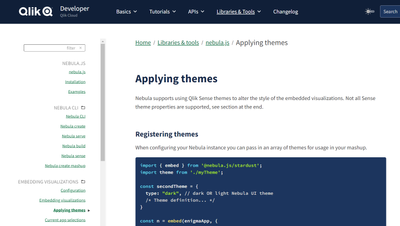
Using Qlik Sense themes with nebula.js is easy. The basic idea is to get the theme, configure the theme to be loaded by nebula.js, and then tell nebula.js that's the theme you'd like to use. Let's take a look.Loading a Qlik Sense ThemeThere are 3 common scenarios here, either you load your theme locally into your project, you load your theme from Qlik Sense Enterprise, or you load your theme from Qlik Sense Enterprise Windows, or you load your theme from Qlik Sense Enterprise SaaS.Loading your theme in your project is as simple as including it.import myTheme from '{path-to-theme}/theme';Loading your theme from Qlik Sense Enterprise Windows looks like thisconst myTheme = await fetch('{qlik-sense-enterprise}/resources/assets/external/sense-themes-default/{theme-name}/theme.json')
.then((response) => response.json());And loading your theme from Qlik Sense Enterprise SaaS looks like thisconst myTheme = await fetch('https://your-tenant.us.qlikcloud.com/api/v1/themes', {
headers: {
'Authorization': `Bearer ${<API-key>}`
}
})
.then((response) => response.json());Configure nebula.js to load the themeNext you need to configure nebula.js to load the theme. This is done in the embed function, similar to loading types. It looks like this.const nebula = embed(app, {
themes: [
{
id: 'myTheme',
load: () => Promise.resolve(myTheme),
},
],
types: [],
});You can configure nebula.js to load multiple themes.Tell nebula.js what theme to useAnd finally, you need to tell nebula.js what theme to use. That's done by setting the theme property in the context. You can do this either in the embed function, or change it any other time using the context function. This is what it looks like doing it in the embed function.const nebula = embed(app, {
context: {
theme: 'myTheme',
},
themes: [
{
id: 'myTheme',
load: () => Promise.resolve(myTheme),
},
],
types: [],
});And this is what it looks like doing it later with the context function.const nebula = embed(app, {
themes: [
{
id: 'myTheme',
load: () => Promise.resolve(myTheme),
},
],
types: [],
});
nebula.context({ theme: 'myTheme' });And that's it! Now your theme will be applied to your nebula.js visualizations. Custom visualizations will need to be configured to consume the theme. And there are some differences between themes applied in nebula.js and themes applied in Qlik Sense. For that information, and more, please visitApplying Themes with nebula.js
...View More
There is no doubt that Machine Learning applications have become ubiquitous in today’s world. From using it to solve critical healthcare problems to recommending music/products, we have seen the kind of impact it can have in our daily lives. However, there is a fair cost associated with building ML-based solutions specifically when -dealing with the end-to-end ML pipelinehaving skilled resources (Data Scientists, ML Engineers) to build & deploy modelsTypically, an ML pipeline would look like this -Machine LearningprocessEach of these steps is complex and involves spending a crucial amount of time. Also, specific expertise(statistical, software engineering knowledge, etc.) is needed to be able to perform these tasks and ultimately productionize the models to be consumed by end-users. These factors have led to the possibility of automating the pipeline and helping cut down the manual costs.Organizations today also need to be able to empower teams who are already data literate and leverage data for decision making. Consider a BI Engineer who is already part of the analytics process. Wouldn’t it be great if we can enable them to engineer the features, train & automatically select a robust model and help them deploy it without needing to rely on a team of data scientists & ML engineers? This has given rise to a new role called ‘Citizen Data Scientist’.These are nascent steps towards the democratization of Machine Learning and can help organizations maximize their data & analytics strategy providing them with a matured analytics team. And this is where Qlik AutoML comes in!Source: QlikAutoMLQlik AutoML is an automated machine learning platform for analytics teams used to generate models, make predictions, and test business scenarios using a simple, code-free experience. I had the opportunity to get my hands-on and the experience has only been promising. In this introductory blog, we will quickly walk through some of the features as part of the ML pipeline while solving a binary ‘classification’ problem.For this use case, we will use the Breast Cancer Wisconsin (Diagnostic) dataset and our goal is to classify blood cells as ‘benign’ or ‘malignant’. First, we will create our project and load the dataset using the AutoML interface.Qlik AutoML presents a nice overview of the dataset for exploratory data analysis with information about unique values, null values, min/avg/max, etc.Since our label is the ‘diagnosis’ field, we will set it as target.The interface automatically creates a pipeline which by default consists of the preprocessing steps applied by Qlik AutoML such as null value imputation, encoding of categorical values, feature scaling, k-fold cross-validation, etc.It also presents the list of algorithms based on the selected target label and you will have the option to select/deselect from this list.Additionally, you can add Hyperparameter optimization into the pipeline that would tell the system to perform a search optimization over multiple parameter settings & models to find the best ones.To start our training and let Qlik AutoML do its job of finding the best algorithm(good F1 score criteria) we will click on Analyze. As the training process runs, the interface would look like this.After the training is over, the best candidate is automatically selected by the AutoML system. In our case, Logistic Regression is selected as the best model with an F1 score of 0.951. The analysis results are presented for further drill down. There are 4 key components as seen below.Analysis results aftertrainingLet’s quickly take a look at each of these as they are crucial in helping citizen data scientists/analysts understand their model & features.Feature importanceThis view presents Permutation importance, i.e. how much the model performance depends on a feature, and SHAP importance, i.e. how each feature contributes to the predicted outcome.Permutation importance can be beneficial in refining our model by dropping some of the less important features. In our case, we see that there are a lot of features(left image) that are not important, so will drop them later and refine our model to see if it improves performance.Similarly, SHAP importance can help us understand the most important features. We know now that ‘texture_worst’, ‘radius_worst’, ‘concavity_mean’, etc. are some of the most important features that impact the decisions.CorrelationsThis view lets us know how each features are correlated to each other in 2 forms — correlation matrix & target correlations.FitFit shows how well Qlik AutoML performed in comparison to the historical data. In our case, looks like the model did pretty well with the predictions.Model StatsThe final view lets a way to evaluate our model. In a classification problem, typically this can be done by analyzing a ROC curve and Confusion matrix. Qlik AutoML also presents the same plots.For our Logistic Regression model, the ROC curve looks like below. Classifiers that give curves closer to the top-left corner indicate better performance and we know that our model does great from this.ROC CurveNext, let’s look at the Confusion matrix.Confusion MatrixFor our use case, i.e. classifying diagnosis of cancer cells, it is imperative to know the false negatives(i.e. where the predictions incorrectly indicate the absence of a condition when it is actually present). We can see that 3 of them are FN.If you would like to explore all the models used in the training pipeline, the Model Metrics screen presents all the details. You can also understand the hyperparameters used in a specific model by clicking on a specific model. Here is an example from our Logistic Regression model.Now, let’s use this analysis and predict on unknown test data(not used in training the model) to see how it performs.The Create Predictions section allows us to load a test dataset and predict.Here’s our Prediction analysis.Analysis after prediction on testdataOne of the interesting views in this analysis is the Scenarios where you can modify(increase/decrease) your features and see how it impacts the predictions. Let’s try something in our use case — we will increase the ‘texture_worst’ value and see how the results look.Qlik AutoML presents a nice visual comparison in the form of grouped bar charts to understand how this scenario change has changed the predictions. Looks like an increase in the ‘texture_worst’ feature leads to more ‘Malignant’ patients.Once we are satisfied with both training and test analysis, the AutoML system allows us to easily deploy and make a production version of the model via an API(Prediction API) for inferences. You can now integrate this into any workflow or framework that allows you to make HTTPS POST Requests.This brings us to the end of this introductory blog on Qlik AutoML. My personal experience using the system has been seamless. Here are some key takeaways:easy-to-use interface (native Qlik Sense experience)quickly train, evaluate & deploy ML models with minimal adjustmentsvisualization-assisted analysisno-code machine learningseamless integration with frameworks using Prediction APIIn the next blog, we will deep dive into how to build, deploy and evaluate a Machine Learning model using Qlik AutoML and consume it in Qlik Sense to take advantage of augmented analytics.~Dipankar, R&D Advocate
...View More
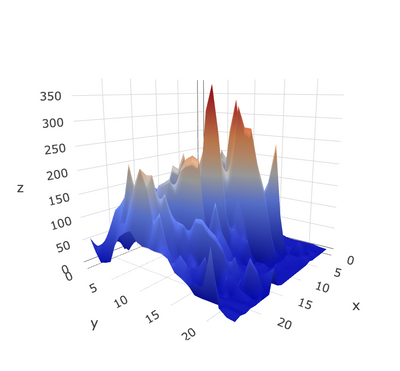
Building a visualization from scratch is always a time & resource-intensive task. Specifically, when you would like to design something which is out-of-the-box or custom, there is a learning curve to getting hold of component-based frameworks such as D3.js but your ultimate goal of using the visualization may be different.For instance, in the Qlik Sense world, a BI Developer might just be focused on using the visualization on their dashboards and presenting key metrics. Similarly, a Data Scientist might just use it for exploratory data analysis or validating their hypothesis. Irrespective of the use-cases, building a Qlik Sense visualization extension should not be cumbersome.An easy way to get started building a visualization extension in Qlik Sense is by using our framework-agnostic library, Nebula.js. If you haven’t tried Nebula, here is a simple tutorial to get right into it. Basically, Nebula comes with a bundle of visualization objects and APIs to interact with the engine & even allows for seamless integration of custom charts (e.g. D3) so they can be used within the Qlik Sense environment.One of the many incentives of working with Nebula is that it is framework-agnostic and allows using any available charting frameworks to create new visualizations for use within Qlik’s platform. In this blog, we will understand how to quickly build a visualization extension by integrating Nebula.js with a widely used charting library called Plotly. Personally, Plotly has been a top choice for many of my use-cases due to the ease of its use and native interaction capability.Plotly is an open-source, interactive library that is built on top of d3.js and stack.gl. Plotly.js ships with over 40 chart types, including 3D charts, statistical graphs, and SVG maps.Source: Plotly.jsBefore we walk through the steps to build our Qlik Sense extension, let me give you a brief background about the problem I was trying to solve and how Plotly has made that journey easy. As part of my research work, I had to design a prototype that could visualize mountain elevation data in 3D. A common way to achieve this is by using Surface plots.Surface plots are diagrams of three-dimensional data. Rather than showing the individual data points, surface plots show a functional relationship between a designated dependent variable (Y), and two independent variables (X and Z).A SurfaceplotNow, since my experience with 3D visualization has been limited, I was looking for an easy-to-adopt solution and after reviewing a few available JavaScript libraries, Plotly seemed to be a great choice. Also, in my case, I was looking for an effortless way to interact with the data since I needed to invoke the data from Qlik Sense first and Plotly served that purpose.Alright now, let’s try building a 3D Surface plot using a sample data set. This dataset is made publicly available by Plotly and looks like its elevation details of Mt. Bruno.Pre-requisites:Node.js (version 10 or newer)An existing web integrationInstall plotly.js library via NPMStep 1: Create a NebulaprojectThe quickest way to get started is to use the nebula.js CLI:npx @nebula.js/cli create hello --picasso noneThe command scaffolds a project into the /hello folder with all the required files under /src.To read more around building extensions with Nebula, here is a basic tutorial.Step 2: Install Plotly.js usingNPMTo get all the dependencies related to Plotly, we will do an NPM install. Please route to the /hello folder and run the following command.npm install plotly.js-distNow if I check my package.json file, I can see that the dependency has been installed.Step 3: Import PlotlylibraryNext, to use all the Plotly related stuff, we will import the library in our main JavaScript file index.js, and from here on we will start building our visualization. This is how my code looks like now.import { useElement } from '@nebula.js/stardust';
import properties from './object-properties';
import data from './data';
import Plotly from 'plotly.js-dist'
export default function supernova() {
return {
qae: {
properties,
data,
},
component() {
const element = useElement();
element.innerHTML = '<div>Hello!</div>';
},
};
}Step 4: Accessing QIX engine and retrieving dataNow that we have all the required dependencies, let’s start invoking the data that is there in our Qlik Sense app (with which we plan to use this extension). Nebula offers custom hooks that enable us to access the hypercube to interact with the dimensions & measures.To retrieve our data, we first need to access the layout through the useLayout() hook and then use it in combination with the useEffect() hook. The hypercube’s qDataPages[0].qMatrix contains all the dimensions and measures, and we will pass this data to the Plotly visualization object using a function viz() that we will define later. The below code snippet shows how to achieve this.component() {
const element = useElement();
const layout = useLayout();
//getting data array from QS object layout
useEffect(() => {
var qMatrix = layout.qHyperCube.qDataPages[0].qMatrix;
//an array that invokes each row of qMatrix from layout:
var data = qMatrix.map(function (d) {
return {
0: d[0].qText,
1: d[1].qText,
2: d[2].qText,
3: d[3].qText,
4: d[4].qText,
5: d[5].qText,
6: d[6].qText,
7: d[7].qText,
8: d[8].qText,
9: d[9].qText,
10: d[10].qText,
11: d[11].qText,
12: d[12].qText,
13: d[13].qText,
14: d[14].qText,
15: d[15].qText,
16: d[16].qText,
17: d[17].qText,
18: d[18].qText,
19: d[19].qText,
20: d[20].qText,
21: d[21].qText,
22: d[22].qText,
23: d[23].qText
};
});
var width = 1000;
var height = 400;
var id = "container_" + layout.qInfo.qId;
// if not created, use id and size to create
const elem_new = `<div id=${id}></div>`;
element.innerHTML = elem_new;
//function to draw Plotly surface plot
viz(data, width, height, id);
}, [element, layout]);
}Step 5: Creating the SurfaceplotOur next step is to build the topological 3D surface plot using the data we retrieved from Qlik Sense and Plotly.We define a basic layout for our Plotly visualization like this.var layout = {
title: 'Mt Bruno Elevation',
autosize: false,
width: 800,
height: 500,
margin: {
l: 65,
r: 50,
b: 65,
t: 90,
}
};Next, we want to store our values as an array so we can pass it to Plotly as it would expect. The following function does the same.function unpack(data, key) {
return data.map(function(data) {
return data[key];
});
}
var z_data=[ ]
for(var i=0;i<24;i++)
{
z_data.push(unpack(data,i));
}To render the Plotly 3D surface chart, we will need to define a data parameter by specifying the array and type of the plot.var data = [{
z:z_data,
type: 'surface'
}];Finally, we render the chart by passing the object id, data and layout to the newPlot() method.Plotly.newPlot(id, data, layout);Step 6: Create a Qlik Sense extensionThe last step is to create a visualization extension that can be used within Qlik Sense environment. To do that, we will use the following Nebula CLI command.nebula senseThis creates a ZIP file with all the required files so we can import it to Qlik Sense.Here’s our 3D Surface plot in Qlik Sense.Plotly 3D Surface Plot in Qlik SenseThis tutorial showcases an easy approach to developing custom visualizations to be used within Qlik Sense using Nebula.js and a 3rd-party charting library called Plotly. The goal was to give an idea of how effortlessly you can build out-of-the-box solutions without really investing much time by designing them from scratch.The entire code can be found here:https://github.com/qlik-oss/QlikSense_Plotly~Dipankar, R&D Advocate
...View More
Our Leigh Kennedy, Master Principal Enterprise Architect, is back sharing his in the trenches experience with you. In the attached document Leigh educates you on applying software development life cycle (SDLC) concepts to your Qlik Sense Enterprise SaaS tenants. Take it away Leigh!IntroductionThe majority of customers use some form of software development lifecycle in their organizations. When moving to SaaS customers are sometimes unsure of if or how to apply these techniques to a Qlik Sense Enterprise SaaS environment.We will explore some of the technical processes that need to occur within or interacting with a Qlik Sense Enterprise SaaS tenant as part of a software development lifecycle. We look at a number of areas including setting up your SaaS tenant in a way that supports your SDLC, encouraging re-use, building context aware applications, and many other topics. This document covers Qlik Sense Enterprise SaaS only and does not focus on our Hybrid Data Delivery or Qlik Application Automation offerings - they deserve a doc of their own and we hope to bring you one in the near future!The aim of this document is not to provide a strict SDLC process for customers to follow, rather it aims to provide examples of how SDLC processes could work in a Qlik Sense Enterprise SaaS environment. We encourage you to implement or amend the parts or this you need so Qlik Sense Enterprise SaaS fits into your organization.PDF attached in this post.
...View More
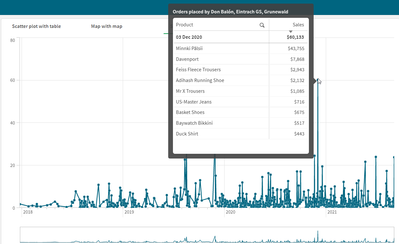
Custom tooltips in visualizations keep getting better and better. Now, you can add a chart to a tooltip – it is like a chart within a chart. The ability to add master visualizations to tooltips enables users to drill down in the data in a different way. Charts can be added to custom tooltips for the following charts: Bar, Bullet, Combo, Line, Map, Scatter Plot and Treemap.When a chart is added to a tooltip, the chart picks up on the dimension that is being hovered over and displays the embedded visualization based on that dimension. It provides a nice way to see details, trends or supporting information about a data point in a visualization. The line chart below shows sales over time. The table that is added to the tooltip shows the products that were ordered on the respective order date as well as customers that placed the order. It is clean and simple and offers details in the moment.Adding a chart to a tooltip is easy to do. The first step is to create the chart that you would like to add to the tooltip. Make sure the chart is not too big and will fit in the tooltip. Add the chart to the master items. Then in the properties panel of the visualization under Appearance > Tooltip, toggle Basic to Custom. In the Chart section, click the Add chart button. Select the chart from the list of master items. Lastly, change the chart size, if necessary. Now, test it out. Exit edit mode and hover in the chart to see the tooltip. Make sure it looks as you expect and is fully visible. It’s that easy. Want to see more? Check out this video on adding a chart to a custom tooltip.Things to be aware of when considering using a chart in a tooltip:The chart that is added to the tooltip must be a master visualization.You cannot interact with the tooltip chart so make sure the whole chart is visible because there is not the option to scroll.You can select the size for the chart (small, medium, or large) so keep that in mind if you have a larger chart that may not be fully visible when set to small or medium.When using a touch device, charts will not appear in custom tooltips.If using a Treemap chart in a custom tooltip, you can only have one dimension in the Treemap.Container and Trellis container charts are not supported in custom tooltips.Charts in tooltips are not supported in Storytelling.Charts in tooltips is a helpful new feature that can enhance your visualizations and provide further insights. To view some examples, check out the Charts in Tooltips sheet in the What’s New App on the Demo Site that was released earlier this month.Thanks,Jennell
...View More
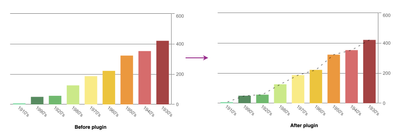
Nebula.js is a collection of product & framework-agnostic JS library that helps developers achieve the following goals:allows for developing visualization extensions (e.g. non-native charts in Qlik Sense client)develop mashups (e.g. creating/embedding Qlik Sense visualizations to web applications)For this tutorial, we will focus on the 2nd use case.BTW if you are just getting started with Nebula, here is an introductory video.Now, if you have used Nebula.js to build a mashup by either creating Nebula charts on the fly or embedding visualizations from your Qlik Sense client, you might have realized that the charts do not really present many customization abilities and they are rendered as it is in the client. Enter “plugins”!Background:Before we delve into what plugins specifically allow you to do, please note that they involve dealing with Picasso.jscomponents that run under the hood. Components are the visual building blocks that make up the chart & by combining them in various forms virtually any chart can be created. Typically components can be — axes, grid lines, data points, etc. So, using Nebula plugins we would essentially be interacting with these components to customize our chart. I have tried summing this up in the image below.What do plugin allows us todo?Modify an existing chart component. For instance, changing the interpolation of a line chart from linear to monotone in the below chart.Add a new chart component. Note that the new component can either be a standard Picasso component(native Picasso) or a custom one(your own). For instance, below we add a reference line at the median of frequency in a bar chart. This is an example of adding a standard component.Now that we know the usability & background behind Nebula plugins, let’s try to develop some.1. Modifying an existing component:For our first implementation, we will try to modify an existing Picasso component in a Nebula line chart. Currently, this is how our chart looks like -Our aim is to simply change the interpolation of the line from linear to monotone.Step 1: Define the pluginTo be able to use a plugin, we need to first define it. Let’s do that as shown below.const linePluginNew = {
info: {
name: "line-plugin",
type: "component-definition"
},
fn: ({ layout, keys }) => {
const componentDefinition = {
type: "line",
key: keys.COMPONENT.LINE,
settings: {
layers: { curve: "monotone", line: { strokeWidth: 3 } }
}
};
return componentDefinition;
}
};Important things to note:A plugin definition is an object, with two properties infoand fn. The fn property returns a picasso.js component.The info property has an attribute called type which should specify whether you are developing a custom plugin or a standard one. For standard components, the value will be 'component-definition' & for custom ones the value will be 'custom-component'.To override an existing component, fnshould return a picasso.jscomponent that has the same key as the existing component (keys.COMPONENT.LINE in this example)Finally, we change the curve to monotone inside our settings and set stroke-width as per our requirement.Step 2: Using the pluginIn the next step, we just have to use the defined plugin by passing the name inside the plugins attribute like below. nuked.render({
type: "line-chart",
element: document.querySelector(".object"),
plugins: [linePluginNew],
fields: ["Decade", "=Max(Length)", "=Avg(Length)"],
properties: {
title: "Line Chart",
dataPoint: {
show: false,
showLabels: true
},
gridLine: {
auto: false
},
dimensionAxis: {
show: "all",
dock: "near"
},
measureAxis: {
show: "all",
logarithmic: true
}
}
}),Here’s our customized visualization.2. Add a new component:As mentioned before, adding a new component can have 2 scenarios — adding a standard component or adding a custom one. We will cover both of them through two implementations below.Adding a standard componentIn this example, our goal is to add a native ‘line’ component to a bar chart that goes through the end of the bars. Currently, this is how our chart looks like.Let us start building our plugin.First, since our goal is to add a native line component, our Picasso fn should know about it. We will use the type attribute to pass that info.fn: ({ keys, layout }) => {
const componentDefinition = {
key: "sum-line",
type: "line",
}
return componentDefinition;Next, we need to know the value of each bar, so we can draw our line based on that. Therefore, we have to define the data we want to work with.const componentDefinition = {
key: "sum-line",
type: "line",
layout: { displayOrder: 10 },
data: { collection: keys.COLLECTION.MAIN },
}Finally, each component uses a settingsobject that is specific to the component. In this case, we will pass the end value of each of our bars to SCALE.MAIN.MINOR. We also control the aesthetics of the line we are drawing using layers attribute like below.settings: {
coordinates: {
minor: {
scale: keys.SCALE.MAIN.MINOR,
fn: d => d.scale(d.datum.end.value)
},
major: { scale: keys.SCALE.MAIN.MAJOR,
}
},
layers: {
line: {
stroke: "black",
strokeWidth: 2,
opacity: 0.5,
strokeDasharray: "5 10"
}
}
}Finally, after applying our plugin to the bar chart, here’s what it looks like.Adding a custom componentOur final use case is to develop a custom plugin and add it as a component in our native chart. The goal here is to incorporate some custom labels to the min & max positions of one of the lines in our line chart. Remember we changed the native line chart to have monotone interpolation in the 1st use case.We will try to add the labels in this chart now. Let’s start!Step 1: Implement the custom plugin.As discussed before, since we are developing a custom plugin, we will need to specify that in the infoproperty by passing the custom-componentto the type attribute.const minMaxLabelsPluginImplementation = {
info: {
componentName: "custom-labels-plugin",
name: "custom-labels-plugin",
type: "custom-component"
}
}Next, we use the require property to pull in our dependencies. In this case, we will pull the ‘chart’ instance for getting our component-related data and scales as seen below.const implementation = {
require: ["chart"],
render() {
const items = this.chart
.component(keys.COMPONENT.LINE)
.data.items.filter(
item => item.line.value === 1 && item.label >= "1950's"
);
const scale = this.chart.scales();
}
}Each component has a type property that identifies the type of component to create. In this case, since we want to just create a label, we will pass a ‘text’ type. The other relevant properties are then added to our code as below.if (item.end.value === min) {
labels.push({
type: "text",
text: `min: ${item.end.label}`,
x: timeScale(item.major.value) * width,
y: lineScale(item.end.value) * height + 15,
anchor: "middle",
fontFamily: "Helvetica, san-serif",
fontSize: "15px",
fill: "darkred"
});
}Step 2: Define the pluginNow that we have implemented the functionality for our custom plugin, we will use it to define a plugin so it can be used with Nebula charts.const minMaxLabelsPlugin = {
info: {
name: "labels",
type: "component-definition"
},
fn: ({ keys }) => {
const componentDefinition = {
type: "custom-labels-plugin",
key: "my-labels"
};
return componentDefinition;
}
};Note how the type property inside the fn:( ) changes from standard ones like ‘line’, ‘point’, etc. to ‘custom-labels-plugin’. The type value has to exactly match with the componentName of the plugin defined above.Step 3: Use the pluginThe final step is to apply the custom plugin to our line chart.nuked.render({
type: "line-chart",
element: document.querySelector(".object"),
plugins: [linePluginNew, minMaxLabelsPluginImplementation, minMaxLabelsPlugin],
fields: ["Decade", "=Max(Length)", "=Avg(Length)"],
// Overrides default properties
properties: {
title: "Line Chart",
dataPoint: {
show: false,
showLabels: true
},
gridLine: {
auto: false
},
dimensionAxis: {
show: "all",
dock: "near"
},
measureAxis: {
show: "all",
logarithmic: true
}
}
}),And here’s our visualization with the custom labels.All the code related to this tutorial can be found in this Glitch or my Github.Hope this tutorial will allow developers to take their first step towards building plugins in Nebula.~Dipankar, Qlik R&D
...View More
Part 2 of Qlik App Automation Sending Customer Email Notifications. This video shows you how to send a mail message to customers using the READ FILE and Send Mail blocks without a Qlik Sense App.Bonus: Also I show how to simply call the Automation from an action Button in a Qlik Sense App.Part 1:https://community.qlik.com/t5/Qlik-Design-Blog/Sending-Personalized-Email-Messages-from-a-Qlik-Sense-App-using/ba-p/1856811
...View More
Happy Friday everyone. If you have a Wordpress website and you want to incorporate visualizations from our Qlik Cloud, then you are at the right place. Below are the steps needed to install, configure and use the plugin by iframing an entire app sheet or creating a page with nebula.js and pulling just by ids.Installation into WordPressLogin to your WordPress Admin Portal.On the left navigation panel, select "Plugins".Towards the top of the plugins list, click the "Add New" button.In the search box towards the right-hand side, type "Qlik" and hit enter to search.The Qlik Saas plugin is currently one of only two results returned. Click the "Install Now" button next to it.WordPress will then download and install the plugin for you. Once complete, "Install Now" button will change to "Activate". Click the "Activate" button to complete the installation.Configure Qlik CloudCreate a public / private key pair for signing JWTshttps://qlik.dev/tutorials/create-signed-tokens-for-jwt-authorization#create-a-public--private-key-pair-for-signing-jwtsConfigure JWT identity providerhttps://qlik.dev/tutorials/create-signed-tokens-for-jwt-authorization#configure-jwt-identity-providerAdd the public key to the configurationhttps://qlik.dev/tutorials/create-signed-tokens-for-jwt-authorization#add-the-public-key-to-the-configurationInput Issuer & Key IDhttps://qlik.dev/tutorials/create-signed-tokens-for-jwt-authorization#input-issuer-and-key-id-valuesConfigure pluginAdd Host of Qlik Saas as <tenant>.<region>.qlikcloud.comAdd your WebIntegrationIDhttps://qlik.dev/tutorials/implement-jwt-authorization#configure-a-web-integration-idAdd you AppIDAdd your Private key from previous step “Create a public / private key pair for signing JWTs”https://qlik.dev/tutorials/create-signed-tokens-for-jwt-authorization#create-a-public--private-key-pair-for-signing-jwtsAdd the Key ID created from previous stephttps://qlik.dev/tutorials/create-signed-tokens-for-jwt-authorization#input-issuer-and-key-id-valuesUsing the pluginiFrame an entire sheet by adding the shortcode into your page[qlik-saas-single-sheet id="1ff88551-9c4d-41e0-b790-37f4c11d3df8" height="400" width="500"]Add object by adding the object id or "selections" for the current selections toolbar, with a shortcode into your page [qlik_saas_object id="selections" height="50"][qlik_saas_object id="CSxZqS" height="400"]iFrame sheet shortcodeiFrame sheet previewMashup shortcodesMashup Helpdesk sheet 1 and 2 with nebula.js and object IDsSheet 2That's it!/Yianni
...View More