Unlock a world of possibilities! Login now and discover the exclusive benefits awaiting you.

Recent Documents
-
QSEoW: Engine Settings.ini parameters usage guide
The Qlik Sense Engine reads an optional configuration file, Settings.ini, that exposes engine-level behavior the Qlik Management Console (QMC) does no... Show MoreThe Qlik Sense Engine reads an optional configuration file, Settings.ini, that exposes engine-level behavior the Qlik Management Console (QMC) does not surface — telemetry thresholds, session time-to-live, audit selection capture, legacy reload mode, data-lineage suppression, and several performance switches. Qlik's official article on this topic ("How to modify Qlik Sense Engine's Settings.ini") documents the procedure but, by design, lists no parameters — the keys are provided in scattered KB articles or handed out per-case by Qlik Support.
This article assumes you understand:
- How to stop and start the Qlik Sense Engine and Qlik Sense Service Dispatcher Windows services
- The difference between an engine node and a central/proxy node in a multi-node site
- Where Qlik Sense writes its logs (%ProgramData%\Qlik\Sense\Log)
** Editing the engine configuration file is a supported-but-supervised operation. Some keys (legacy reload mode, override script security) materially weaken security, and several settings are owned by the QMC and will be overwritten if set in the wrong place. Back up the file, change one thing at a time, and validate on a non-production node before touching production. **
The file: location and a safe edit procedureThe engine reads the file on startup but does not ship one by default. If it is missing, create it.
- Qlik Sense Enterprise on Windows (server): C:\ProgramData\Qlik\Sense\Engine\Settings.ini
- Qlik Sense Desktop: C:\Users\<username>\Documents\Qlik\Sense\Settings.ini
To edit it safely in a multi-node site:
- Stop the Qlik Sense Engine Service and the Qlik Sense Service Dispatcher on every node that runs an engine.
- Open the file in a text editor running as Administrator (Notepad or Notepad++).
- Make your change using the schema below.
- Save, then apply the identical file to every engine node. A key set on one node only produces inconsistent behavior, because the node serving a given session may not be the one you edited.
- Start the Service Dispatcher and Engine services on each node.
On Qlik Sense Desktop the steps are the same, but no service restart is needed — just relaunch the client.
The schema, and the two gotchas[Settings 7] Key=Value Key2=Value2
Keep in mind: A trailing blank line is mandatory. The engine will not parse the last key unless an empty line follows it.
Note: the engine Settings.ini retains its values across version and patch upgrades (confirmed by Qlik Support in the Community, tested across a November 2023 → February 2024 upgrade), unlike some .config files that revert to defaults. Re-verify after major upgrades regardless.
The parametersThe keys below are grouped by purpose. Each table includes a confidence marker so you can tell documented behavior from community-confirmed behavior:
- DOC — documented in Qlik Help (official documentation)
- KB — documented in a Qlik KB/support article
- COM — stated by Qlik staff in the Community, no standalone KB
- VER — version-sensitive; confirm the exact key for your build
Keep in mind: there is no published, complete reference for this file. The list below is everything with public documentation or a verifiable Qlik-staff Community reference — not an exhaustive list of every key the engine will accept. If you need a key that is not here, request it from Qlik Support for your specific version.
Logging and telemetry verbosity (mirror the QMC)These mirror the QMC Engines → Logging levels. The scale is roughly 0 = Off, 1 = Error, 2 = Warning, 3 = Info, 4 = Debug, 5 = Fatal-included. Info produces very large files — use it only during active troubleshooting. Prefer setting these in the QMC; if set in the file, expect the QMC to be the source of truth on restart.
QIX performance/telemetry thresholdsUsed with the Telemetry Dashboard to capture per-object and per-reload CPU and RAM. The "Error" and "Warning" labels are log-bucket names — they do not mean the engine encountered an error. Lower the thresholds to capture more events; raise them to capture only the heavy hitters.
[Settings 7]
SystemLogVerbosity=2
WarningProcessTimeMs=30000
ErrorProcessTimeMs=60000
WarningPeakMemory=1073741824
ErrorPeakMemory=2147483648
Set QixPerformanceLogVerbosity to Warning (2) in the QMC to actually emit the telemetry rows.
Session time-to-live (keep sessions warm)Useful when new-session creation latency hurts the user experience more than the marginal cache cost of holding sessions open. Available in Qlik Sense Enterprise November 2017 and later.
[Settings 7]
EnableTTL=1
SessionTTL=30
Keep in mind: the key name has drifted between builds — on some versions SessionTTL is TTLSeconds. If TTL does not take effect, confirm the exact key for your build. Holding sessions open increases engine session-cache RAM, so monitor memory.
Audit logging — selection captureDefault audit logging does not capture user selections. These engine-only keys add that detail and cannot be set from the QMC.
[Settings 7]
AuditLogAllSelection=1
AuditLogMessageLimit=10000
MaxCurSelEntries=6
Note: this can grow log volume very quickly (the Get layout command alone is extremely chatty). Watch ...\Log\Engine\Audit.
Reload mode and script securityThese let the engine run legacy-mode scripts and external EXECUTE statements (bat/exe/Python).
** Enabling override script security allows any app developer to run operating-system commands as the engine service account. Restrict who can edit and publish reload apps before enabling it, and treat it as a security-review item on shared environments. **
[Settings 7]
StandardReload=0
OverrideScriptSecurity=1
Keep in mind: on the server, the equivalent of StandardReload=0 is unticking Standard mode in QMC → Engines → Advanced. If you change the file but the QMC still shows Standard mode enabled, the QMC value wins — uncheck it there as well.
Data-lineage suppressionStrips lineage metadata from generated QVDs, for privacy, file-size, or sensitive-source reasons.
Keep in mind: there is a version-dependent difference inherited from QlikView — the disable value was -1 in QlikView 11 and is 0 from QlikView 12.x onward. For QlikView, the file also lives under ...\QlikTech\QlikViewBatch\Settings.ini.
Performance: New Row Applicator (AAALR) and cache behaviorWhen the engine logs AAALR(x) is greater than 1.0, we suggest using new row applicator, it is flagging an inefficient associative load on a large dataset (slow responses, high memory).
[Settings 7]
DisableNewRowApplicator=0
DisableCacheQueue=1
Note: the logic is inverted — the key is DisableNewRowApplicator, so 0 means enabled. The algorithm has existed since QlikView yet is still disabled by default in Qlik Sense, so you must opt in. Setting SELOG_AAALR=0 also doubles as a quick way to confirm the engine is reading your file: if the AAALR message stops after a restart, the file is live. The AAALR message itself is informational; with no real performance impact it can be disregarded.
Cross-reference: QlikView-only keysThese belong to QlikView, not Qlik Sense, and are listed only so they are not mistaken for Qlik Sense engine keys:
- GraphicsBackEnd=1 — fixes certain visualization rendering issues (QlikView Desktop / QVS Settings.ini). Confidence: COM.
- AllowDataLineage — disables QVD lineage in QlikView Batch / Desktop; value is -1 in QlikView 11, 0 from QlikView 12.x. Confidence: COM.
Verifying a change, and why one might appear to do nothingIf a setting has no effect, work through these in order:
- No trailing blank line after the last key — the last key is ignored. This is the most common cause.
- Wrong section header — it must be exactly [Settings 7].
- Service not restarted — the Engine (and Service Dispatcher) must be cycled; Desktop must be relaunched.
- Not applied to all nodes — a cluster needs identical files on every engine node; the node serving the session may not be the one you edited.
- The QMC owns the setting — log verbosity and reload mode can be overwritten by the QMC/QRS on restart. Set those in the QMC.
- It is not a Settings.ini key — working set, hard max, and maximum calculation time live in QMC → Engines → Advanced.
- Wrong file — Desktop versus server path, QlikView versus Qlik Sense, per-user versus %ProgramData%.
- Key-name drift between builds — for example, SessionTTL versus TTLSeconds, or AllowDataLineage=-1 versus =0.
- Confirm the file is even read — temporarily add SELOG_AAALR=0 (if you get the AAALR message) or bump a verbosity level and watch the log change after a restart.
- Permissions — the engine service account must be able to read the file; edits saved without administrator rights may not have landed where you think.
Related ContentThis article consolidates parameters from the following Qlik Help and Qlik Community sources, several of which were confirmed by Qlik Support staff in the threads linked:
- How to modify Qlik Sense Engine's Settings.ini (Official Support Article) — https://community.qlik.com/t5/Official-Support-Articles/How-to-modify-Qlik-Sense-Engine-s-Settings-ini/ta-p/1714789
- Telemetry logging (Qlik Sense for administrators Help) — https://help.qlik.com/en-US/sense-admin/May2021/Subsystems/DeployAdministerQSE/Content/Sense_DeployAdminister/QSEoW/Deploy_QSEoW/telemetry-logging.htm
- How to enable Qlik Sense QIX performance logging and use the Telemetry Dashboard — https://community.qlik.com/t5/Knowledge/How-to-enable-Qlik-Sense-QIX-performance-logging-and-use-the/ta-p/1711405
- Adjusting the Qlik Sense Engine TTL — https://community.qlik.com/t5/Official-Support-Articles/Adjusting-the-Qlik-Sense-Engine-TTL/ta-p/1713815
- How to enable Audit Logging in Qlik Sense Enterprise on Windows — https://community.qlik.com/t5/Official-Support-Articles/How-to-enable-Audit-Logging-in-Qlik-Sense-Enterprise-on-Windows/ta-p/1713978
- Disabling standard mode (Qlik Sense on Windows Help) — https://help.qlik.com/en-US/sense/November2019/Subsystems/Hub/Content/Sense_Hub/LoadData/disable-standard-mode.htm
- AAALR is registered in the Qlik Sense logs (DisableNewRowApplicator) — https://community.qlik.com/t5/Knowledge/AAALR-is-registered-in-the-Qlik-Sense-logs/ta-p/1714266
- Improve app opening performance with ExcludeConnectionsOnOpenApp — https://community.qlik.com/t5/Official-Support-Articles/Qlik-Sense-Enterprise-on-Windows-Improve-app-opening-performance/ta-p/2134472
- Configuring system function calculations (Qlik Sense for administrators Help) — https://help.qlik.com/en-US/sense-admin/May2022/Subsystems/DeployAdministerQSE/Content/Sense_DeployAdminister/QSEoW/Administer_QSEoW/Managing_QSEoW/configure-system-function-calculation.htm
- Qlik Engine Memory Management — https://community.qlik.com/t5/Official-Support-Articles/Qlik-Engine-Memory-Management/ta-p/1710559
-
From Rugby Scrum to Qlik Sprint
The word Scrum comes from rugby. The tight formation where players pack together, heads down, working as one unit to move the ball forward. The image ... Show MoreThe word Scrum comes from rugby. The tight formation where players pack together, heads down, working as one unit to move the ball forward. The image fits. In a Scrum team we also move as one unit, relying on communication, transparency, and trust in each other's capabilities to reach a shared goal.
Qlik delivery is a good home for that mindset. Migrations, new applications, reload optimization, data modeling. The work is complex by nature. Requirements shift the moment users see their data, source systems behave unpredictably, and the right solution is rarely the one sketched on day one. Waterfall: discovery. Design. Develop. Test. Looks tidy on paper, but it breaks when the data does not match the design document, or when a client realizes mid-project that the dashboard they asked for is not the one they actually need.
Scrum holds up because it rests on three pillars: transparency, inspection, and adaptation. Transparency means the work is visible. Jira (or your preferred Project Management Tool) is the single source of truth, and if a deliverable is not there, it does not exist. Inspection happens in the events: daily scrums, sprint reviews, retrospectives. Adaptation is what makes inspection worth anything. When a gateway server goes down or a client reshapes their reporting needs, the backlog shifts, and the sprint keeps moving.
The team itself is small by design. Ten people or fewer, three roles, no hierarchies. The Product Owner maximizes the value of the product and owns the backlog deciding which reports and data sources matter most. The Developers - Qlik developers, data engineers, and UAT support create a usable increment each sprint and hold themselves accountable, as a team, for what ships. The Scrum Master establishes the framework and removes the blockers: access requests, gateway issues, client dependencies that stall the work.
Everything is time-boxed. Sprint planning commits the team to specific apps, QVDs, or migration tasks. The daily scrum is fifteen minutes; progress, blockers, plan for the day; a missing credential surfaces here, not a week later. The sprint review is where working increments get demoed to stakeholders, and the feedback reshapes what comes next. The retrospective, for the team only, is where the process itself improves. And an item is only done when it meets the Definition of Done; for Qlik, that means the script runs cleanly on schedule, UAT passes, documentation is updated, and the reload is in the operations reference. Anything less goes back to the backlog.
The framework only works if the team lives the five values: commitment, focus, openness, respect, and courage. The courage to say an item is not done, to ask the question that feels obvious, to push back when the plan no longer fits the reality.
There is a story in Scrum: The Art of Doing Twice the Work in Half the Time about Toyota's assembly line: any worker can stop the whole line when a problem appears, and the team swarms to fix it on the spot. One defect, solved once, forever. The alternative is hundreds of cars shipped with the same flaw. The principle applies to our work too. A defect caught inside the sprint costs far less than one caught in production, and doing it right the first time is almost always faster than fixing it later.
Partial Scrum is not Scrum. Skipping the retrospective, letting the Product Owner drift from the backlog, stretching the daily past fifteen minutes. These turn the framework into ceremony. Either keep all the parts, or call it something else. As Schwaber and Sutherland write in the 2020 Scrum Guide: "Scrum exists only in its entirety and functions well as a container for other techniques, methodologies, and practices."
For Qlik delivery, that entirety is what gives us a way to plan without overcommitting to the plan. We commit to the sprint, we inspect the results, we adapt. The product gets closer to what the client needs with every cycle and not further away.
Further reading: The Scrum Guide (Schwaber & Sutherland) · Scrum: The Art of Doing Twice the Work in Half the Time (Sutherland).
-
Qlik GeoAnalytics Data Package Release Notes - 26.04 - April 2026 Initial Releas...
Table of Contents What's new in Qlik GeoAnalytics Data Package 26.04System requirements notesDownloads The following release notes cover the version... Show MoreTable of Contents
The following release notes cover the versions of Qlik GeoAnalytics Data Package released in April 2026. For questions or comments, post in the Product Forums or contact Qlik Support.
What's new in Qlik GeoAnalytics Data Package 26.04
- Adds and updates several Admin Areas for the Location service.
- Adds Regions (Admin1) and Community Development Councils (Alternative Admin1) Areas for Singapore.
- Updates Postal Code Areas for USA and Germany.
A complete change log can be found in the readme file included in the release zip file.
System requirements notes
See the system requirements for GeoAnalytics Server.
Downloads
Qlik GeoAnalytics Data Package 26.04 zip file can be found on the Product Downloads under the category "Qlik Data Analytics".
The installation guide is available as an attachment for this document.
About Qlik
Qlik converts complex data landscapes into actionable insights, driving strategic business outcomes. Serving over 40,000 global customers, our portfolio provides advanced, enterprise-grade AI/ML, data integration, and analytics. Our AI/ML tools, both practical and scalable, lead to better decisions, faster. We excel in data integration and governance, offering comprehensive solutions that work with diverse data sources. Intuitive analytics from Qlik uncover hidden patterns, empowering teams to address complex challenges and seize new opportunities. As strategic partners, our platform-agnostic technology and expertise make our customers more competitive.
-
How to Import an Excel Template
This guide walks you through importing an existing Excel template using the Spreadsheets extension in Qlik Sense (presented at Qlik Connect 2025).Chec... Show More -
Excel-Style Spreadsheets Inside Qlik Apps: How to Add [Tutorial]
This guide walks you through building a feature-rich spreadsheet that looks and feels like Excel in Qlik Sense using the Spreadsheets extension (first... Show MoreThis guide walks you through building a feature-rich spreadsheet that looks and feels like Excel in Qlik Sense using the Spreadsheets extension (first demoed at Qlik Connect 2025).
Check it out as a video tutorial or keep reading:
Step 1: Add the Spreadsheets Extension
- Open your Qlik app and go to the Assets panel.
- Head to Custom objects > AnyChart 4, and drag AnyChart Spreadsheets onto your app's sheet.
This creates a basic spreadsheet looking as follows:
Step 2: Add Data
- Select the object, open the Properties panel, go to Data, and click Add.
- Choose the new data section, enable Create synced sheet, and click Edit data.
- Add the dimensions and measures you want to use.
This creates one more sheet, titled DataSheet1, populated with your data.
Step 3: Format Your Spreadsheet
- To keep things clean, feel free to delete the empty sheet created by default, titled Sheet1.
- On DataSheet1, select your table area, head to the INSERT tab, and click Table. Confirm with OK.
- Apply formatting as needed, all in a familiar Excel-like interface. For example:
- Resize rows and columns.
- Change alignment and font settings from the HOME tab.
Step 4: Add Charts
You can also add charts within the spreadsheet's sheets, just like in MS Excel.
- Select your data, open the INSERT tab, and choose Insert Chart.
- Select a chart type, click OK, and place the chart where you need it.
Step 5: Save Changes
- Whenever you need to save everything you have done, open the USER tab and click Save to app.
Step 6: Apply Selections & See Your Spreadsheet in Action
- Apply filters or selections in your Qlik app.
- The spreadsheet updates instantly. Charts, tables, and formulas adjust to the selected data in real time.
This works as the spreadsheet is fully connected to Qlik’s associative engine.
Optional: Export to Excel
If you want to work outside of Qlik, such as in Microsoft Excel or Google Sheets, feel free to export the entire spreadsheet as an .xlsx file:
- Go to the FILE tab, choose Export, and select Excel format.
- Click Export Excel File, enter a file name, and confirm with OK.
- The file downloads immediately, ready to open in Excel or another compatible tool.
Here's how the downloaded XLSX file looks when opened in MS Excel:
Done
You now have a reactive spreadsheet, built with live Qlik data, ready to expand, customize, or share.
Helpful Links
- Download the extension
- Explore the demo app (view live or download QVF)
- See the documentation
- Request a personalized live demo
-
Gantt Chart in Qlik Sense: How-To Tutorial [+VIDEO]
Looking for the simplest way to create a Gantt chart in Qlik Sense to further streamline data-driven project management in your company or organizati... Show MoreLooking for the simplest way to create a Gantt chart in Qlik Sense to further streamline data-driven project management in your company or organization? We’ll show you one right now! Follow this quick tutorial and you’ll learn how to easily visualize project tasks and activities as data in a matter of minutes — on smart, interactive Gantt charts using the intuitive Gantt Chart extension for Qlik Sense by AnyChart, Qlik's Technology Partner.
Watch the video tutorial:
Or read the text-and-pictures version below.
Loading Project Data in Qlik Sense
In Qlik, everything starts with the data.
We are going to create a Gantt chart based on data from an XLSX file that looks as shown below.
The tables in the file represent the structure of a company and its project schedule. There are three departments, each of them carrying out several projects. Each task within a project is assigned to a certain employee.
First of all, we will create an app, add this data to Qlik, apply the suggested associations, and load the data.
Then we need to make sure that Qlik established proper associations between tables.
Let’s create a sheet and add three filter panes by dropping three fields on the sheet: ‘department_name’, ‘project_name’, and ‘task_name’.
If we switch from ‘Edit’ to ‘View’ and try to select a department and a project, we will see that associated tasks are displayed correctly.
Adding Gantt Chart in Qlik Sense
Now that the data is loaded and the associations between the tables are set up the right way, we can add a Gantt chart.
Go to ‘Custom objects’, find AnyGantt, and drop a Project Chart on the sheet, below the filter panes we added before.
Add dimensions
To configure the Gantt chart, we need to add dimensions representing the hierarchical structure of our data.
We will use the following dimensions: ‘department_name’, ‘project_name’, and ‘task_name.
Add measures
The next step is adding measures.
Let’s use the ‘start_date’ and ‘finish_date’ fields.
These measures do not require aggregation, so we can use either the ‘Only()’ aggregation or just the name of the field.
Map data
Then we need to make sure that AnyGantt interprets our dates correctly.
Use the ‘Map as’ drop-down menu to map the ‘start_date’ field as ‘Actual Start’ and ‘finish_date’ as ‘Actual Finish’.
As you can see, you can also map a date as ‘Baseline Start’, ‘Baseline Finish’, ‘Actual Progress’, “Baseline Progress”, or “Data Field”.
Preliminary result
After these steps, we can already see a Gantt chart:
The data grid on the left displays the hierarchy of departments, projects, and tasks.
The timeline on the right displays the duration of tasks.
Show actual progress
Let’s add one more measure, ‘progress’, and map it as ‘Actual Progress’.
Please note that you do not need to aggregate it.
Now you can see progress bars.
Result: Gantt Chart in Qlik Sense, Built with Real Ease
That is it, the Gantt chart is ready:
In the ‘View’ mode, select a department or a project in a filter pane, and the Gantt chart will display the related tasks.
It is very easy!
Helpful Links
- Download the extension
- Explore demo apps (view live or download QVF)
- See the documentation
- Request a personalized live demo
Questions?
If you have any questions on how to create a Gantt chart or any other chart type using AnyChart's Extensions for Qlik Sense, drop us a note in the comments below or contact AnyChart's Support Team directly.
-
Decomposition Tree in Qlik Sense: All You Need to Know
A decomposition tree is a visualization tool used in data analysis and business intelligence to help break down complex data sets into more manageabl... Show More -
Comparing Qlik Analytics and R Software for Accurate Two-Sample T-Tests Research...
A while ago, I conducted an internal research project with my colleagues @AlaneMiguelis, and Dr. @priscilarubim, aiming to validate the accuracy of a ... Show MoreA while ago, I conducted an internal research project with my colleagues @AlaneMiguelis, and Dr. @priscilarubim, aiming to validate the accuracy of a Two-Sample T-Test in Qlik by comparing it with the medical research gold standard: R. While we explored various hypothesis testing methods, we prioritized formalizing our findings on the T-Test. Recently, we decided to make this document available to the whole community.
The focus of our project was to assess whether the statistical results produced by Qlik matched those generated by R, particularly for the Two-Sample T-Test. Our methodology involved rigorous data analysis and repeated testing to ensure the reliability and consistency of our results. Through our detailed comparative analysis, we aimed to provide insights into the robustness of Qlik’s statistical capabilities. The code and dataset is available in a Git repository for those who want to reproduce the study.
Here is the abstract of our study. The full document can be accessed through the link at the end of this post.
ABSTRACT
Objective
The statistical determination of a large or small difference between two groups is not based on an absolute standard, but is rather an evaluation of the probability of an event.1,2 In the field of medical research, it is common to use statistical software for descriptive statistics as well as to perform statistical tests.3 However, most software provides ready-to-use functions, and the researchers have almost no information as to how those statistical tests are calculated inside those functions. This article evaluates the accuracy of two-sample Student’s t-test using Qlik analytics software. The gold standard used for this evaluation is the set of standard t-test functions available in R software, a widely used, robust, and reliable statistical software.5–7
Materials and MethodsThe tests performed in this evaluation used a subset of Framingham heart study data. The dataset contains data on 4,434 anonymous participants, collected in three periods apart from each other by 6 years from 1956 to 1968. Five t-tests with 2 scenarios each were performed in Qlik analytics and in R and the results compared.
ResultsIn general, the results for multiple statistics obtained in Qlik analytics match the ones found in R for multiple scenarios: small and large sample sizes, small and large p-values, assuming and not assuming equal variance.
DiscussionAlthough Qlik analytics matches all statistics for t-test found in R, the p-value only matches up to four decimal points, which is concluded to be enough for testing hypothesis since the conventional levels of significance do not go lower than 0.1.
ConclusionThis research concluded that Qlik analytics can be used for two-sample t-tests in multiple scenarios.
Keywords: Qlik, t-test, r language, Framingham.
Link for the full article: Comparing Qlik Analytics and R Software for Accurate Two-Sample T-Tests Research Paper (ipc-global.com) -
Calling QlikView Tasks from Qlik Sense on-prem
Introduction QlikView > Qlik Sense > Qlik Cloud...Replatform is challenging and sometimes, different platforms have to coexist and interact to each ot... Show MoreIntroduction
QlikView > Qlik Sense > Qlik Cloud...
Replatform is challenging and sometimes, different platforms have to coexist and interact to each other.In this article I will show how can you call QlikView Tasks from Qlik Sense - and potentially from Qlik Cloud - using PowerShell Scripts.
Requirements
- QlikView and Qlik Sense Servers must be accessible to each other
- Qlik Sense Service User Account must have QlikView QMC rights to execute tasks
- Qlik Sense Legacy Mode enabled - More info: Disabling standard mode | Qlik Sense on Windows Help
- PowerShell installed and enabled to execute scripts
# Open Powershell as Admin and Execute the following to allow Powershell Scripts execution
# Set-ExecutionPolicy -ExecutionPolicy RemoteSigned
# Set-ExecutionPolicy Unrestricted
The PowerShell Script
The PowerShell script is simple as it shows below. It requires two parameters:
- The QlikView QMC Service URL: usually in the form http://myqlikurl:4799/QMS/Service
- The QlikView Task ID: this is a Task ID GUID number. You can get the Task ID from QlikView QMC Task Log - probably there are other ways to get this GUID too.
param (
    [Parameter(Mandatory=$true)]
    [string]$QlikViewQMCServiceUrl,
    [Parameter(Mandatory=$true)]
    [string]$TaskID
)

$service = New-WebServiceProxy -Uri $QlikViewQMCServiceUrl -Namespace QlikViewServer -UseDefaultCredential
$serviceKey = $service.GetTimeLimitedServiceKey()

$hdrs = @{}
$hdrs.Add("SOAPACTION","http://ws.qliktech.com/QMS/12/2/IQMS2/RunTask")
$hdrs.Add("Content-Type", "text/xml;charset=utf-8")
$hdrs.Add('X-Service-Key',$serviceKey)

$body = @{}
$body = '<s:Envelope xmlns:s="http://schemas.xmlsoap.org/soap/envelope/">
<s:Body>
<RunTask xmlns="http://ws.qliktech.com/QMS/12/2/">
<taskID>' + $TaskID + '</taskID>
</RunTask>
</s:Body>
</s:Envelope>'

$res = Invoke-WebRequest -Uri $QlikViewQMCServiceUrl -Method Post -Body $body -UseDefaultCredential -Headers $hdrs
Running the PowerShell Script
We can Run the PowerShell Script in multiple ways:
- CMD
- PowerShell
- Batch Files
- Qlik Sense Task
- Qlik Sense Load Script
- SQL Server Stored Procedures
- Any other platform that supports PowerShell scripts
For now, we'll run it through Qlik Sense Load Script:
EXECUTE powershell.exe -ExecutionPolicy Bypass -File "$(vTempPowerShellScriptFile)" -QlikViewQMCServiceUrl "$(vTempQlikViewQMCServiceUrl)" -TaskID "$(vRunningTask)";To call the EXECUTE statement in the Load Script you must enable the Legacy Mode in your Qlik Sense Server.
- vTempPowerShellScriptFile is the full path of the PS1 PowerShell Script file
- vTempQlikViewQMCServiceUrl is the QlikView QMC Service Url
- vRunningTask is the QlikView Task ID
That is it! Now from Qlik Sense Server we can call QlikView Tasks with minimum changes in our server environments.
Enhancing the PowerShell Script
The PowerShell Script in my example contains only the core of its functionality. I strongly recommend including log messages and error handling through try/catch/finally blocks.
What about Qlik Cloud?
I haven't tested this but here is my theory:
- Have a SQL Server on-prem with access the QlikView Server
- Create a Store Procedure with the same parameters of the PowerShell Script. The Stored Procedure will execute the PowerShell Script.
- Install and configure Qlik Data Gateway on a server with access to the SQL Server Database
- On Qlik Cloud setup a SQL Server connection based on the Qlik Data Gateway
- From Qlik Cloud, create a Qlik Sense Application that calls the Stored Procedure from the Load Script - For more info: Solved: Qlik Data Gateway with SQL Stored Procedures - Qlik Community - 2001425
That should do the magic. Please let me know if you have tried this and if it has worked.
-
Again - Qlik Sense - Text&Image objs flash several times before becoming steady
We've upgraded a Qlik Sense customer site to May 2023 Patch 6 (from a previous 2021 release) and Text&Image objects flash several times before becom... Show More
-
Task Monitoring with PRTG
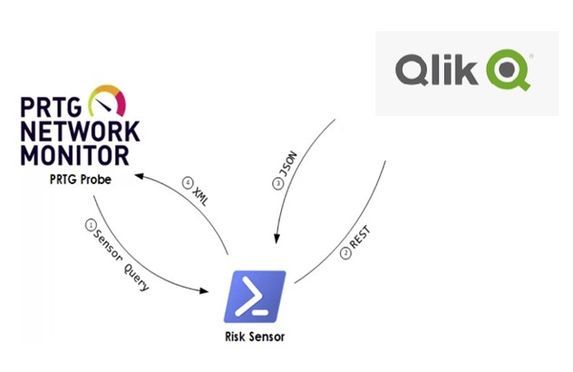
Monitoring of Tasks that reload Apps in Qlik Sense.One or more tasks are scheduled on the Qlik server that automatically load the Apps,The goal is to ... Show MoreMonitoring of Tasks that reload Apps in Qlik Sense.
One or more tasks are scheduled on the Qlik server that automatically load the Apps,
The goal is to be able to query the status of a task with the help of REST API technology and integrate it with the PRTG monitoring system.Step 1 -> Creation of a dedicated Virtual Proxy in Qlik QMC.
The documentation to be able to proceed is available from the following link:
Step 2 -> API Query Mode and Test.
Once the JWT virtual proxy has been configured and the validity of the Token has been verified as per the official guide, it is possible to proceed with the desired query.
NB. In this case we validated the token using a Service user who also runs all the dedicated services including the Proxy Service.
In this case we will monitor the correct reload of the tasks on the QLIK server, the Tasks are scheduled on the server and allow the App data to be reloaded.
When one of these tasks fails via API call, it is possible to have a json result with the related details inside.
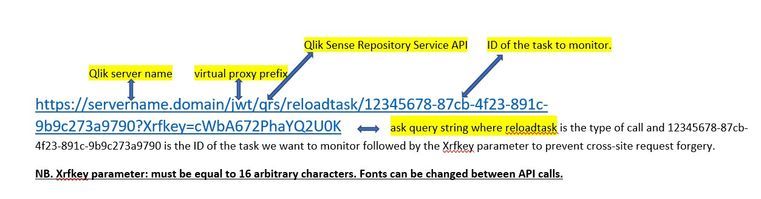
Below is an example of an API call:This is an example of a task we want to monitor:
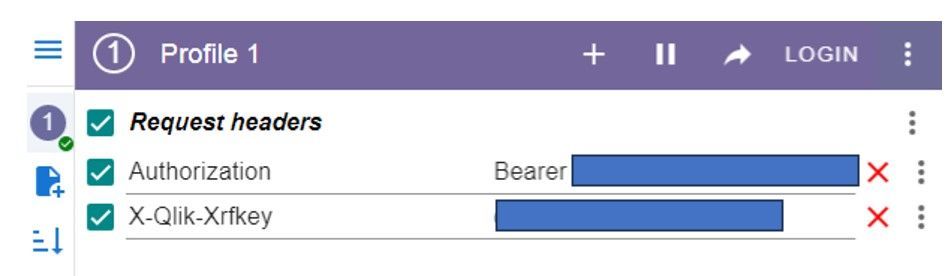
A quick method to test if the call was successful is from the browser using the Mode Header extension for google chrome described in step 1.
https://chrome.google.com/webstore/detail/modheader-modify-http-hea/idgpnmonknjnojddfkpgkljpfnnfcklj
So for the call to be successful you need to pass the following parameters:
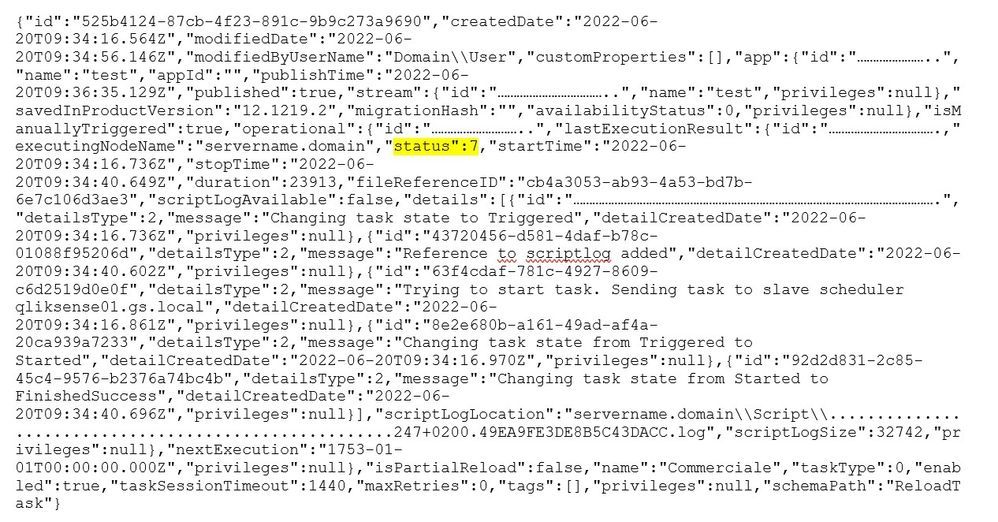
Where Header name: Authorization and Header value: Bearer followed by the previously generated and tested Token and finally the Xrfkey key.This will be the result in Json format returned by the browser if the call is successful:
Specifically in PRTG what we are going to monitor is:- The name of the Task in this case "test"
The status in this case"status":7 = Success - Task name "name": "Reload task of TEST TASK FAIL"
- Start and end time date:
"startTime": "2022-05-04T07:46:34.100Z"
"stopTime": "2022-05-04T07:46:37.636Z"3. Other information that we may integrate and otherwise see in PRTG.
NB. A table with Qlik Sense reload task status codes and descriptions is available from the following link
https://help.qlik.com/en-US/alerting/July2023/Content/QlikAlerting/system-alerts.htm
This is an example of the string JSON with ok API call.
Step 3 -> Task monitoring from PRTG.
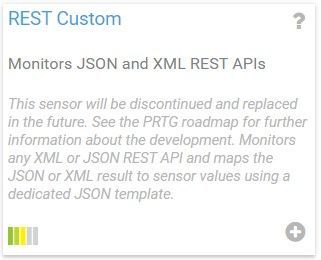
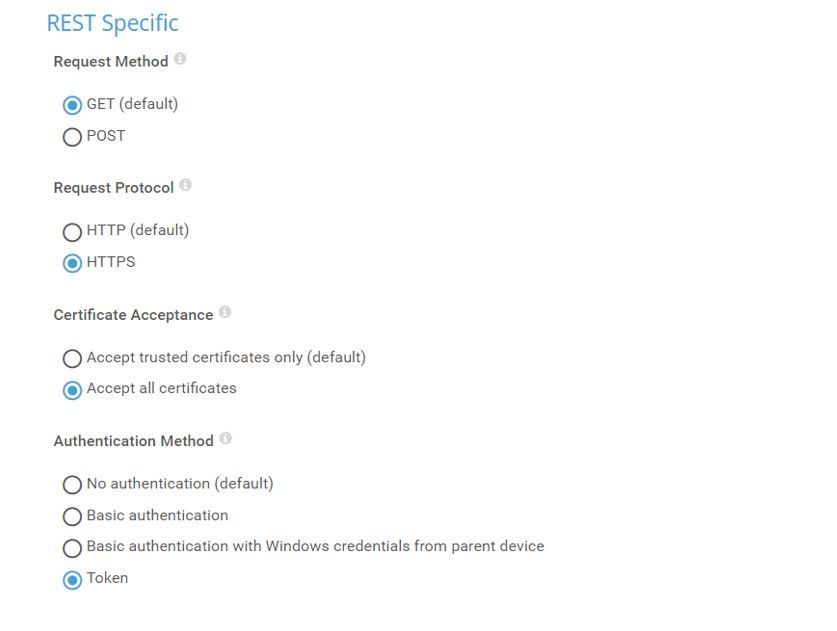
Type of sensor used in PRTG.
How to create a sensor.
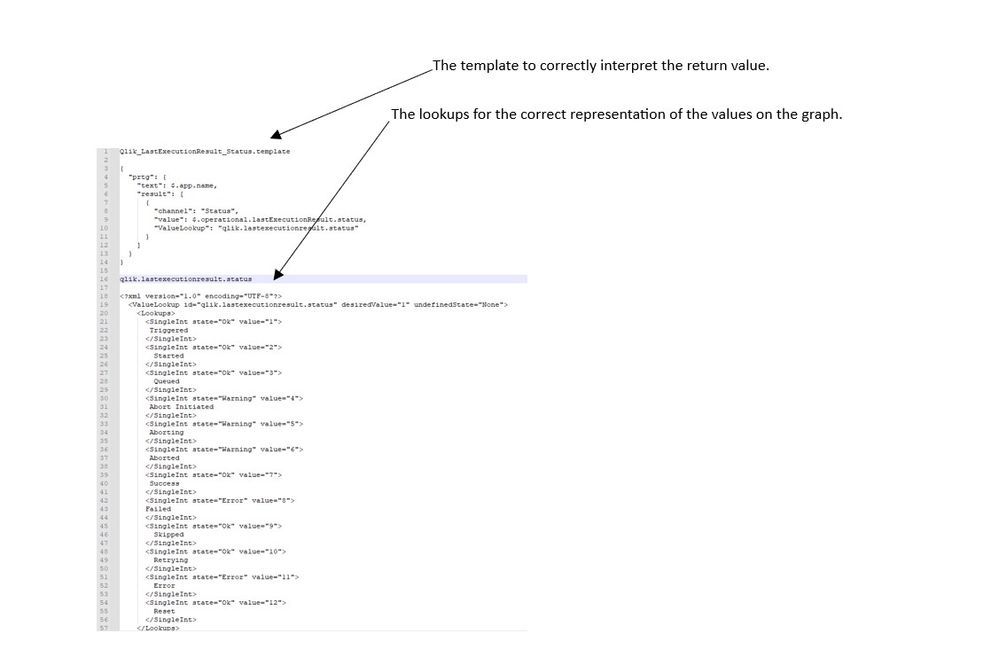
The path on the PRTG server where the template is to be uploaded is as follows:
C:\Program Files (x86)\PRTG Network Monitor\Custom Sensors\rest
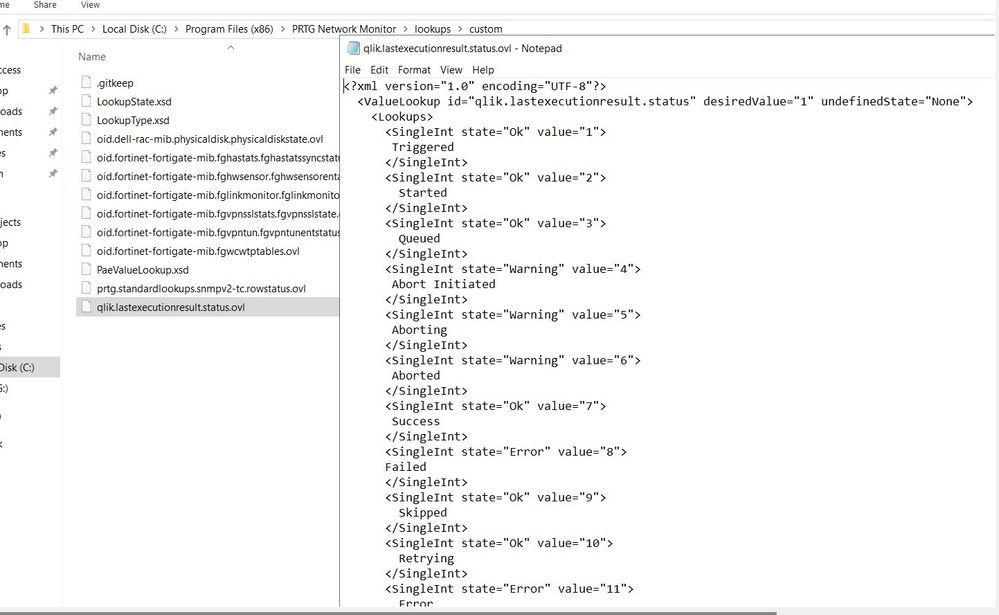
In the following path, however, it is necessary to define a Lookups in order to allow the sensor to interpret the various states of the Qlik Tasks listed in Step 2.
C:\Program Files (x86)\PRTG Network Monitor\lookups\custom
Result JSON query Task from Browser a part of this information will be used for the sensor in PRTG each task will correspond to a specific sensor.
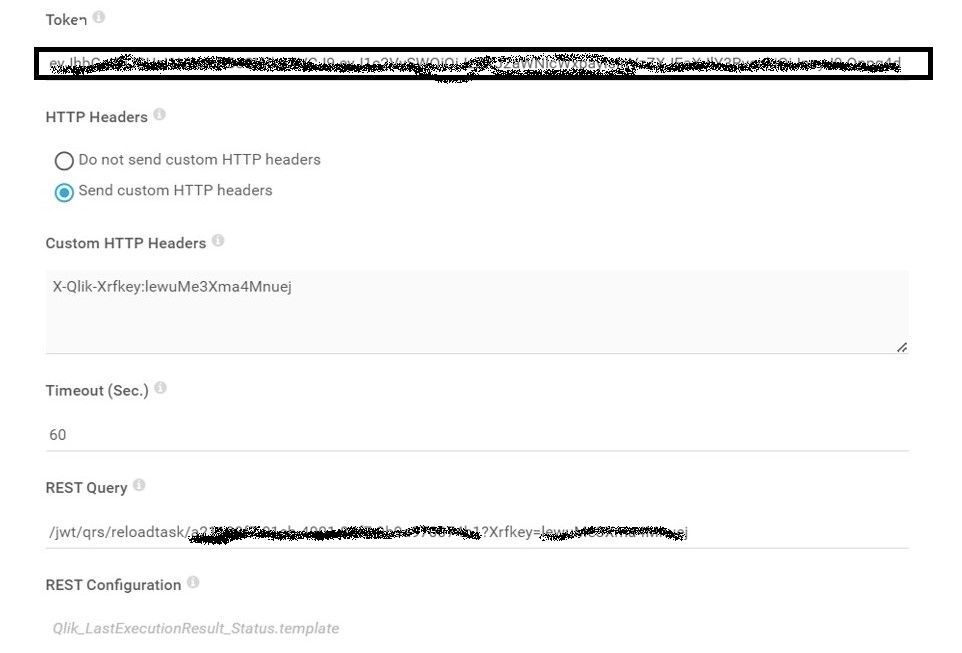
The REST Custom Sensor was used in PRTG.
The REST Custom sensor queries a Representational State Transfer (REST) application programming interface (API) endpoint and maps the JavaScript Object Notation (JSON) or Extensible Markup Language (XML) result to the sensor values the mapping rule must be available as a REST configuration file in JSON template format (*.template) according to the PRTG API definition for custom sensors.Two files have been created on the PRTG server.
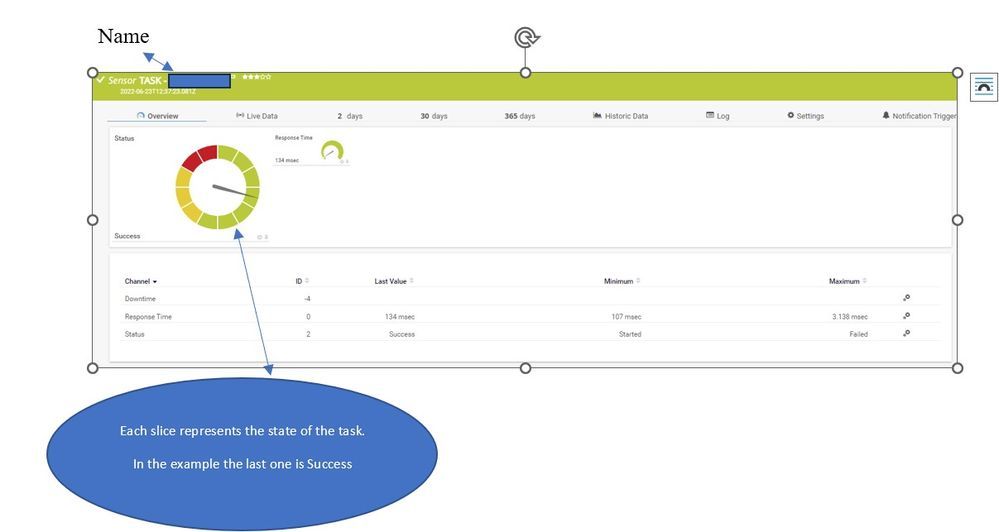
Final integration flow monitoring Task PRTG -> QLIK.
- The name of the Task in this case "test"
-
Reload task limits when using the QRS and Engine APIs in Qlik Sense Enterprise c...
Reloading an app updates it with the latest data from the app data sources. The QRS API or engine API can be used to trigger a reload but there are ... Show More -
Qlik Data Integration for the Federal Government - Whitepaper
Federal data platforms are reaching such levels of data volume and complexity that traditional integration tools no longer suffice. The scale, speed,... Show More
-
Analytics Solutions for the US Intelligence Community - Whitepaper
How the Intelligence Community (IC) makes decisions is changing. Historical transaction reporting and static batch data analyses are giving way to pre... Show More
-
Analytics Solutions for the US Department of Defense - Whitepaper
How the DoD makes decisions is changing. Historical transaction reporting and static batch data analyses are giving way to predictive data science, st... Show MoreHow the DoD makes decisions is changing. Historical transaction reporting and static batch data analyses are giving way to predictive data science, streaming analytics, machine learning (ML), and artificial intelligence (AI). The DoD must embrace these new paradigms for more informed, real-time decisions to impact business, operations, and mission performance.
This whitepaper will address how Qlik can enable the DoD to achieve it's mission.

















.png "Former Employee")