Unlock a world of possibilities! Login now and discover the exclusive benefits awaiting you.

Recent Documents
-
How to connect to Microsoft Azure using cMQConnectionFactory
Talend Version 6.1.1 Summary Connecting to Microsoft Azure using cMQConnectionFactory.Additional Versions ProductTalend ESBComponentcMQConnectio... Show More -
Talend ESB: Use tHash components in ESB Runtime
Question Is it safe to use the tHashOutput and tHashInput components in SOAP/REST services or in Jobs called by routes? Answer tHashxxx components a... Show More -
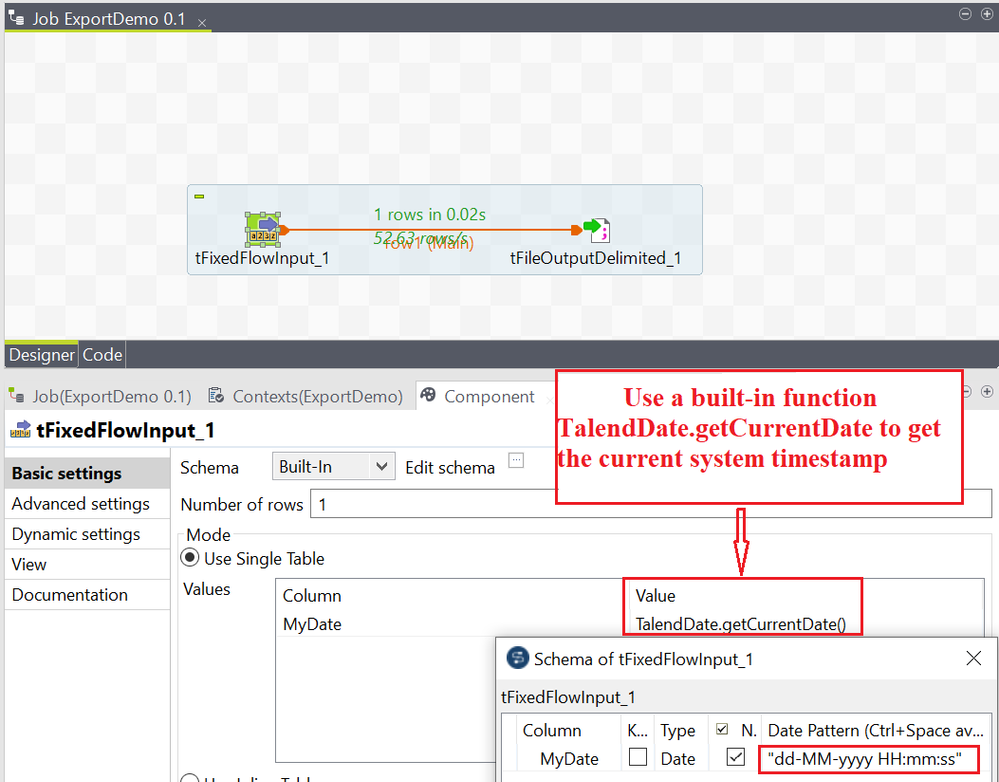
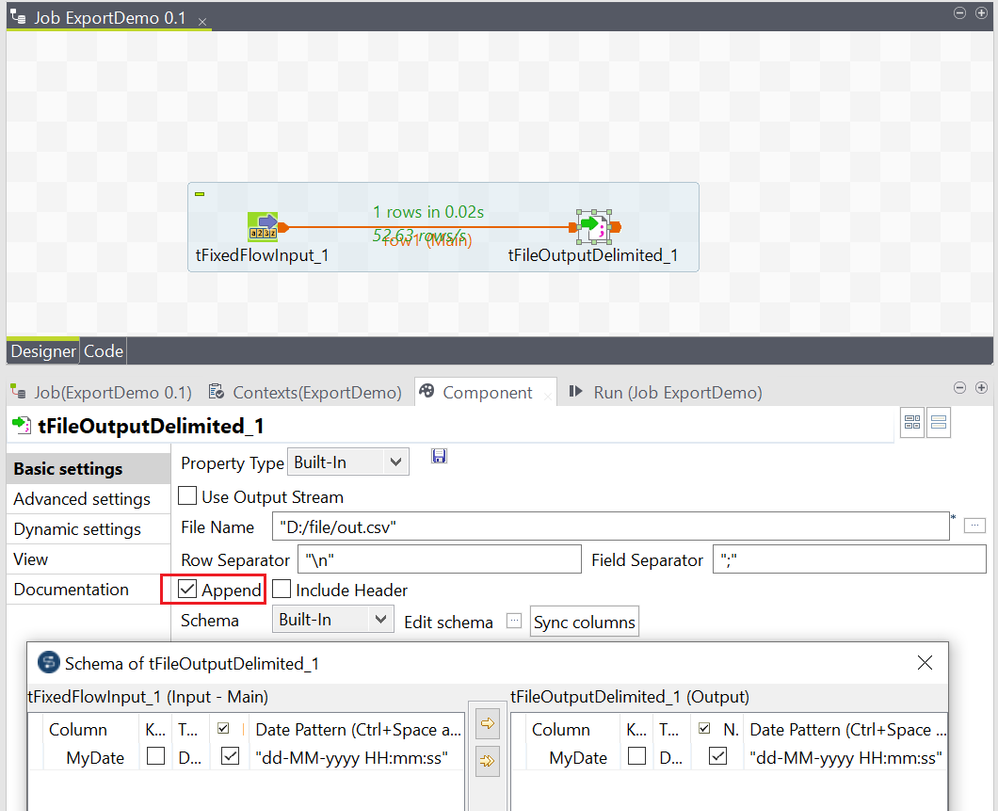
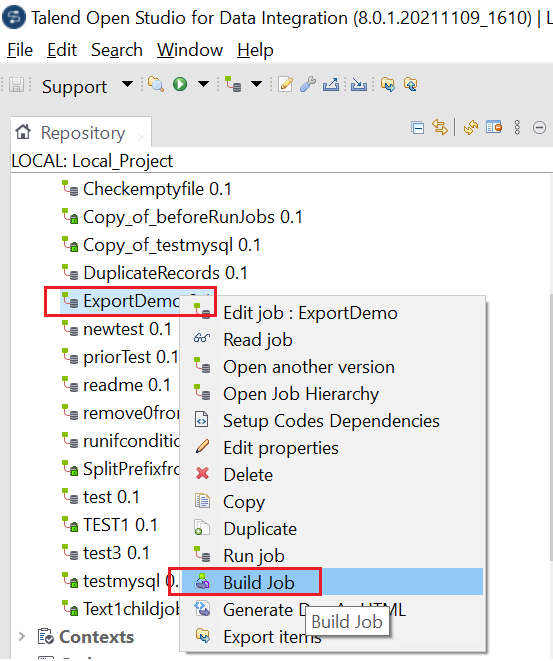
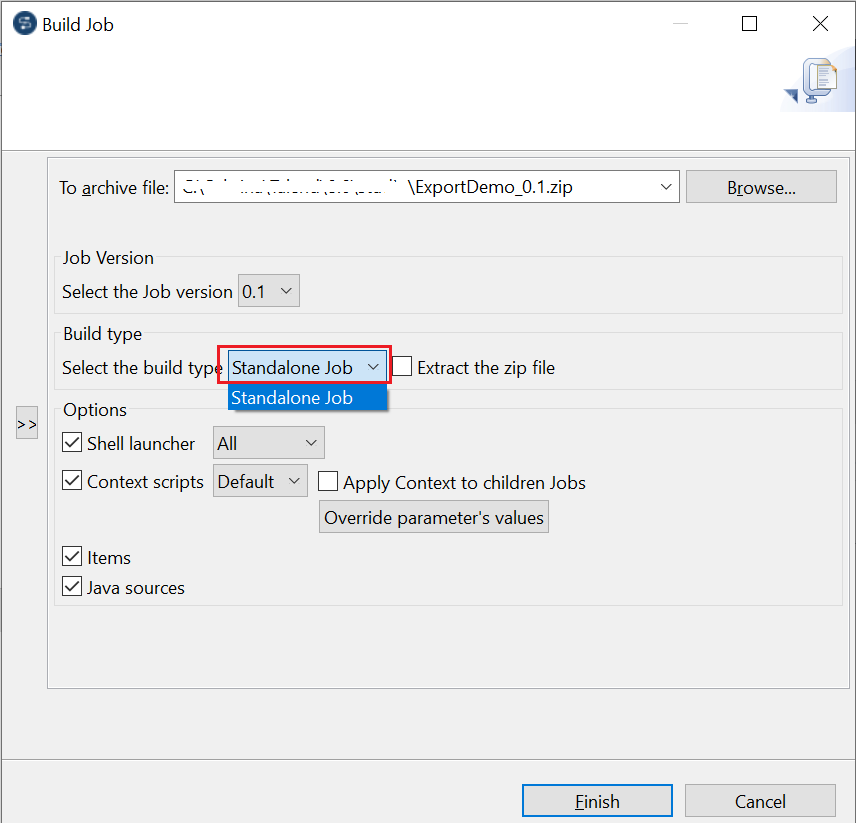
Exporting a Job script and executing it outside of Talend Studio
Overview Talend Jobs support cross-platform execution. You can develop your Job on one machine, export the Job script, and then move it to another m... Show More -
tOracleBulkExec and tOracleOutputBulkExec fail with a 'java.io.IOException: Cann...
Talend Version 6.x 7.x 8.x Summary tOracleBulkExec and tOracleOutputBulkExec fail with the following error: java.io.IOException: ... Show More -
'Talend Big Data Advanced - Spark Streaming' Training Course
This course concentrates on Big Data Spark Jobs. It is mainly focused on Big Data Streaming Jobs but also introduces you Big Data Batch Jobs. Afte... Show MoreThis course concentrates on Big Data Spark Jobs. It is mainly focused on Big Data Streaming Jobs but also introduces you Big Data Batch Jobs.
After an introduction to Apache Kafka and Apache Spark, you work on a log processing use case, a common Big Data use case. You see how to publish messages to Kafka, subscribe to receive messages, insert data into ElasticSearch and use Kibana to create charts and dashboards. You also see how to save data to and read data from HBase tables.
- Target Audience: Anyone who wants to use Talend Studio to interact with big data systems.
- Prerequisites: Completion of Talend Big Data Basics.
- Badge: Complete this learning path on your way to earning the Talend Big Data Developer Practitioner badge. To know more about the criteria to earn this badge, refer to the Talend Academy Badging Program page.
- Availability: This learning plan is available as part of a Talend Academy Learning Subscription.
If you are already a Talend Academy subscriber or want to access the publicly available content on the platform, go to the Talend Academy Welcome page to log in or create an account.
-
tFTP Connection (SFTP) fails with an 'Algorithm negotiation fail' error
Problem Description tFTP Connection with SFTP support, fails with the following error: tFTPConnection_1 Algorithm negotiation fail Exception i... Show More -
How to generate a trace for the HTTP requests executed by Studio
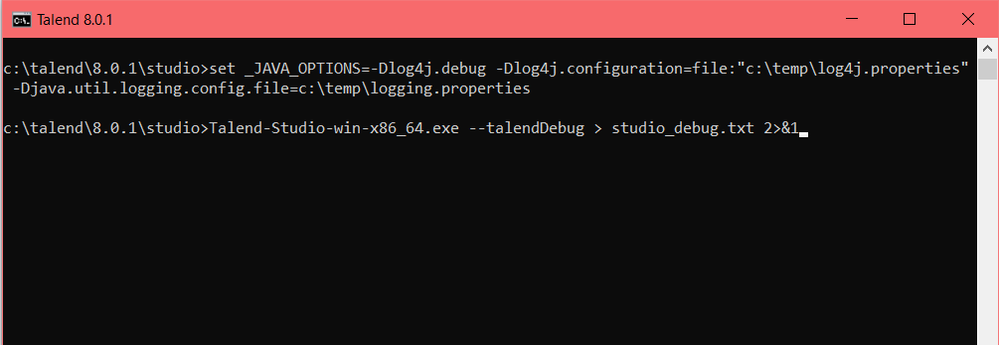
Question How do you generate a trace of the HTTP requests executed by the Talend Studio without using a third-party tool? Answer 1. Create a lo... Show More -
Integrating Apache Zeppelin data science notebooks with Talend
Overview This article demonstrates how to integrate Zeppelin Notebooks in a Talend DI Job by leveraging the Zeppelin RESTful API. Use the two not... Show MoreOverview
This article demonstrates how to integrate Zeppelin Notebooks in a Talend DI Job by leveraging the Zeppelin RESTful API.
Use the two notebooks prepared for you, in the Archive.zip file that is attached to this article. The first notebook trains, using historical data stored on HDFS, a Machine Learning model and saves it to HDFS. The second notebook loads the trained Machine Learning model and uses it to score the new data. Then the article explains how to develop two Talend DI Jobs to integrate those notebooks. The first Job ingests historical data to HDFS, and then triggers its execution. The second Job uploads the new data from S3 to HDFS, runs the notebook that scores the new data, and saves the results to HDFS.
Assumptions
-
Amazon Web Services (AWS):
- You should be familiar with the AWS platform.
-
Talend:
- You should have a basic knowledge of Talend Studio.
- Restful API:
- You should have a basic understanding of Restful API.
Prerequisite
-
AWS account
-
EMR 5.11.1 with Hadoop, Zeppelin, Livy, Hive, Hue, and Spark
-
AWS S3 bucket
-
IAM Role to access S3 bucket (Access Key / Secret Key)
-
EC2 machine with Talend Studio 7.0.1 and above
-
Source materials: Archive.zip file attached to this article
Apache Zeppelin
Getting started with Zeppelin on EMR
-
Connect to your AWS Management Console, click Services, then search for EMR and select it.
-
Click Create cluster, on the following screen, select Go to advanced options.
-
On the Software and Steps page, select emr-5.11.1 from the Release pull-down menu, then select Hadoop, Zeppelin, Livy, Hive, Hue, and Spark from the Software Configuration list. Click Next.
-
On the Hardware configuration page, keep the default setting or if needed choose a specific Network and Subnet, then click Next.
-
On the General Cluster Settings page, under General Options, provide a Cluster name for your cluster. Click Next.
-
On the Security page, under the Security Options settings, select an EC2 key pair from the drop-down menu, or create one, then click Create cluster.
-
Wait a few minutes for your cluster to be up and running.
-
Edit the network security rules by navigating to the EC2 dashboard.
-
Select the EC2 machine of your master node, then under the Description tab, click Security groups.
-
Select the Inbound tab and click Edit.
-
Create a new rule to allow all traffic from the EC2 where Talend will be installed, make sure to use the Security Group ID.
-
Create a new rule to allow all traffic from your local machine to the cluster.
-
Go back to your EMR cluster home page and select your cluster. On the Summary tab, notice that you can now access your cluster web UI connections from your local machine.
-
Click the Hue link, for the first connection, create the Hue superuser, using admin as username, and a password of your choice. Remain on this screen.
-
Your EMR cluster is all set.
Training a Machine Learning model
-
Before getting into Zeppelin, you need to upload the training data. Select Files, under Browser, from the menu on the left, and navigate to /user/admin.
-
Click the New button, and select Directory. Name the directory, Input_Data, then click Create.
-
Navigate to Input_Data, click Upload > Files, and browse to the TrainingData.csv file and select it.
-
Return to the EMR Management Console, and click the Zeppelin link.
-
From the Welcome to Zeppelin page, select Create new note to open the properties box.
-
In the Note Name field, name the note Model_Training.
-
Select spark from the Default Interpreter pull-down menu.
- Click Create Note.
-
-
In the first paragraph, import the TrainingData.csv file and create a Spark DataFrame, by copying and pasting the following code into the note:
val df_data = spark. read.format("org.apache.spark.sql.execution.datasources.csv.CSVFileFormat"). option("header", "true"). option("inferSchema", "true"). load("/user/admin/Input_Data/TrainingData.csv") -
Run the paragraph by clicking the Play button on the right-hand side of the paragraph. You can observe the results output below your code.
-
In the second paragraph, split your data in to three parts, training_data, test_data, and prediction_data, using the code below, then run the paragraph.
val splits = df_data.randomSplit(Array(0.8, 0.18, 0.02), seed = 24L) val training_data = splits(0).cache() val test_data = splits(1) val prediction_data = splits(2) -
In the third paragraph, import machine necessary libraries, create features using indexers, and assemble your features in a vector, using the code below, then run the paragraph.
import org.apache.spark.ml.classification.RandomForestClassifier import org.apache.spark.ml.feature.{OneHotEncoder, StringIndexer, IndexToString, VectorAssembler} import org.apache.spark.ml.evaluation.MulticlassClassificationEvaluator import org.apache.spark.ml.{Model, Pipeline, PipelineStage, PipelineModel} import org.apache.spark.sql.SparkSession val stringIndexer_label = new StringIndexer().setInputCol("PRODUCT_LINE").setOutputCol("label").fit(df_data) val stringIndexer_prof = new StringIndexer().setInputCol("PROFESSION").setOutputCol("PROFESSION_IX") val stringIndexer_gend = new StringIndexer().setInputCol("GENDER").setOutputCol("GENDER_IX") val stringIndexer_mar = new StringIndexer().setInputCol("MARITAL_STATUS").setOutputCol("MARITAL_STATUS_IX") val vectorAssembler_features = new VectorAssembler().setInputCols(Array("GENDER_IX", "AGE", "MARITAL_STATUS_IX", "PROFESSION_IX")).setOutputCol("features") -
In the last paragraph, select your model, create the pipeline, train it, and save it to disk, using the code below, then run the paragraph. For permission reasons, the model is saved under Hadoop.
val rf = new RandomForestClassifier().setLabelCol("label").setFeaturesCol("features").setNumTrees(5) val labelConverter = new IndexToString().setInputCol("prediction").setOutputCol("predictedLabel").setLabels(stringIndexer_label.labels) val pipeline_rf = new Pipeline().setStages(Array(stringIndexer_label, stringIndexer_prof, stringIndexer_gend, stringIndexer_mar, vectorAssembler_features, rf, labelConverter)) val model_rf = pipeline_rf.fit(training_data) model_rf.write.overwrite().save("/user/hadoop/Model/MyModel") -
If you want to check the predicted results on the test data split, add the following code to the next paragraph and run it. Don't forget to remove this paragraph after testing.
val prediction_test= model_rf.transform(test_data) prediction_test.show(10) -
Your training model notebook is all set. Go to Hue and remove the training data because you will upload it from S3 to the cluster using a Talend Job.
Scoring a Machine Learning model
-
Create a new note, by clicking Notebook and selecting Create new note.
-
Name the note Model_Scoring, then select spark from the Default Interpreter pull-down menu. Click Create Note.
-
From Hue, upload the NewData.csv file into the /user/admin/Input_Data/ folder.
-
Go back to the notebook, and read the NewData.csv file from HDFS, store the data in a Spark DataFrame, and filter out the product line, by copying and pasting the following code into the note, then run the paragraph.
val df_data = spark. read.format("org.apache.spark.sql.execution.datasources.csv.CSVFileFormat"). option("header", "true"). option("inferSchema", "true"). load("/user/admin/Input_Data/NewData.csv") val df_newdata = df_data.select("GENDER","AGE","MARITAL_STATUS","PROFESSION") -
Import the necessary libraries, and load the trained model, using the code below, then run the paragraph.
import org.apache.spark.ml.classification.RandomForestClassifier import org.apache.spark.ml.feature.{OneHotEncoder, StringIndexer, IndexToString, VectorAssembler} import org.apache.spark.ml.evaluation.MulticlassClassificationEvaluator import org.apache.spark.ml.{Model, Pipeline, PipelineStage, PipelineModel} import org.apache.spark.sql.SparkSession val model_rf = PipelineModel.read.load("/user/hadoop/Model/MyModel") -
Score your new data using the trained model, and export result to HDFS, using the code below, then run the paragraph.
val newprediction = model_rf.transform(df_newdata) val output_pred = newprediction.select("GENDER","AGE","MARITAL_STATUS","PROFESSION","predictedLabel") output_pred.coalesce(1).write.mode("overwrite").csv("/user/hadoop/Output_Data/output.csv") -
Using File Browser, navigate to /user/Hadoop/Output_Data/output.csv and check the results.
-
Your model scoring notebook is all set, go to Hue and remove the NewData.csv because you will upload it from S3 to the cluster using a Talend Job.
Talend Studio
Getting started
-
Before installing Studio make sure that your EC2 can access the EMR cluster, by going to the inbound network rules of your cluster and allowing all traffic from the Studio security group.
-
To install Studio on an EC2 machine, see the Installing Talend Studio with the Talend Studio Installer page on the Talend Help Center.
-
When the installation is complete, open Studio, and create a new local project.
-
Provision an S3 bucket and upload the TrainingData.csv and NewData.csv files.
Creating a Machine Learning training Job
-
Expand Job Designs, then right-click Standard, and select Create Standard Job.
-
Name your Job ML_training and click Finish.
-
On the Repository view, expand Metadata, and right-click Create Hadoop Cluster.
-
Give your cluster a name, then click Next.
-
Select the distribution, Amazon EMR, and version, EMR 5.8.0, of your Hadoop cluster.
- Select Enter manually Hadoop services.
-
Click Finish.
-
-
Enter the connection information manually, using the admin username for authentication. Click Next.
-
Click Check Services to ensure that Studio can successfully connect to the cluster.
-
In the designer, add a tPrejob component, a tS3Connection component, and a tHDFSConnection component.
-
Connect the tPrejob to the tS3Connection using an OnComponentOK trigger, then connect the tS3Connection to tHDFSConnection using an OnSubjobOK. trigger.
-
Double-click the tS3Connection component, on the Basic settings tab, fill in the Access Key and Secret Key.
-
Double-click the tHDFSConnection component.
-
On the Basic settings tab, select Repository as the Property Type.
-
To the right of Repository, click the […] button, and navigate to Metadata.
-
Select EMR_HDFS.
-
Click OK.
-
-
Add a tS3Get, tHDFSPut, tREST and a tLogRow component to the canvas.
-
Using OnSubjobOK triggers, connect them as shown below:
-
Double-click the tS3Get component, on the Basic settings tab, fill in the Bucket, Key, and File fields with the appropriate settings.
-
Double-click the tHDFSPut component, on the Basic settings tab, configure the settings as shown in the screenshot below:
-
Before setting up the tRest component, retrieve the note id using the List of the notes API from the Apache Zeppelin web site.
-
Open up a new tab on your web browser, and using the EMR IP and Zeppelin port of your instance, enter the URL as follows: http://zeppelin-server:zeppelin-port/api/notebook.
-
Double-click the tRest component, to use the method to run a note, enter the URL, for example, http://zeppelin-server:zeppelin-port/api/notebook/job/NOTE_ID, then select POST for the HTTP Method.
-
Edit and define the schema, as shown in the screenshot below:
-
Configure the HTTP Headers, by setting the name to "Content-type", and the value to "application/json".
-
Run the Job and confirm results.
Creating a Machine Learning scoring Job
-
Create a new Standard Job, and name it ML_Scoring. Copy and paste the tPreJob, tS3connection, and tHDFSConnection components from the previous Job into this Job.
-
Add a tS3Get, tHDFSPut, tREST, and a tLogRow component to the canvas and connect them as shown below:
-
Double-click the tS3Get component, and configure the Basic settings as shown below:
-
Double-click the tHDFSPut component, and configure the Basic settings as shown below:
-
Before setting up the tREST component, call the Zeppelin API, http://zeppelin-server:zeppelin-port/api/notebook, to list the notes and find the id related to the Model_Scoring.
-
Double-click the tRest component, to use the method to run a note, enter the URL, for example, http://zeppelin-server:zeppelin-port/api/notebook/job/NOTE_ID, then select POST for the HTTP Method.
-
Configure the HTTP Headers, by setting the name to "Content-type", and the value to "application/json".
-
Run the Job and confirm results.
-
Confirm your results in Hue, by navigating to /user/Hadoop/Ouput_Data/output.csv.
Conclusion
You’ve learned how to integrate Zeppelin Notebooks with Talend, and you created a data science pipeline with Talend Jobs to train a Machine Learning model and to score new incoming data.
-
-
How to integrate Talend Jobs containing dynamic queries with Cloudera Navigator ...
Introduction Talend Jobs that are developed using context variable and dynamic SQL queries are not supported; therefore, Talend Data Catalog (TDC)... Show MoreIntroduction
Talend Jobs that are developed using context variable and dynamic SQL queries are not supported; therefore, Talend Data Catalog (TDC) is unable to harvest metadata and trace data lineage from a Talend dynamic integration Job using the Talend ETL bridge.
This article shows you how to work around these limitations in Talend Jobs that use resources from a Cloudera Cluster using Cloudera Navigator and Talend Data Catalog bridge.
Sources for the project are attached to this article.
Prerequisites
-
Cloudera Cluster CDH 5.10 and above
-
Cloudera Navigator 2.15.1 and above
-
MySQL server to store metadata table of the dynamic integration framework
-
Talend Big Data Platform 7.1.1 and above
-
Talend Data Catalog 7.1 Advanced (or Plus) Edition and above, with latest cumulative patches
Setting up Talend Studio
-
Open Talend Studio and create a new project.
-
In the Repository, expand Metadata, right-click Hadoop Cluster, then select Create Hadoop Cluster.
-
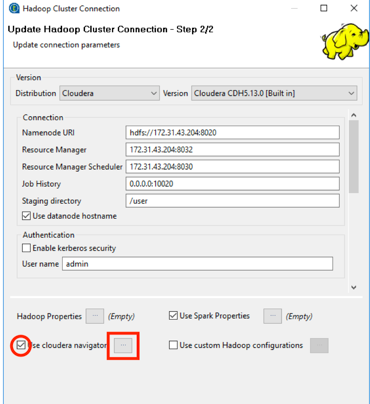
Using the Hadoop Cluster Connection wizard, create a connection to your Cloudera Cluster, and make sure that you select the Use cloudera navigator check box.
-
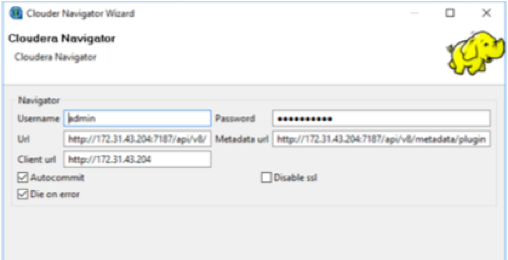
Click the ellipsis to the right of Use Cloudera Navigator, then set up your connection to Cloudera Navigator, as shown below:
For more information on leveraging Cloudera Navigator in Talend Jobs, see the How to set up data lineage with Cloudera Navigator page of the Talend Big Data Studio User Guide available in the Talend Help Center.
Building the dynamic integration Job
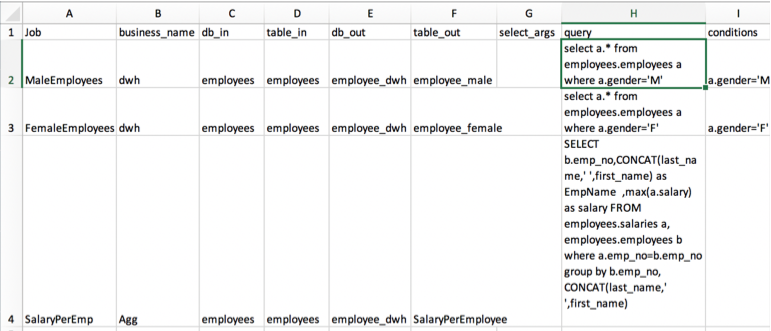
This use case uses MySQL to store metadata such as table source/target, queries, and filters, then stores these values in context variables that are used to build integration Jobs at runtime. The dynamic Job reads data from source tables in Hive and writes data to target tables in Hive.
-
Upload the metadata for the dynamic integration Job to the MySQL server (or any other DB of your choice), using the Metadata_Demo_forMySql.xlsx file attached to this article.
-
Upload the source data, located in the employees.csv and salaries.csv files attached in this article, to Hive.
-
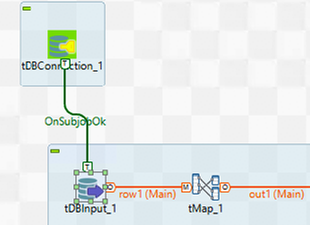
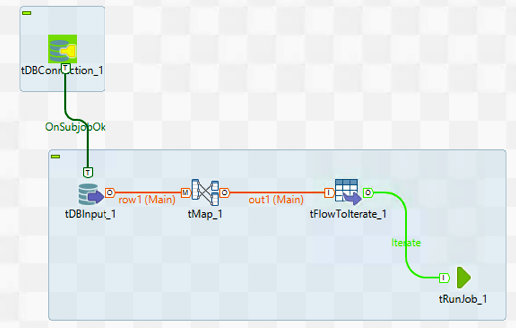
Create a standard Job, then add a tDBConnection component to connect to the metadata database. Note: The complete preparation Job, located in the prepare_load_dwh_Hive.zip file, is attached to this article.
-
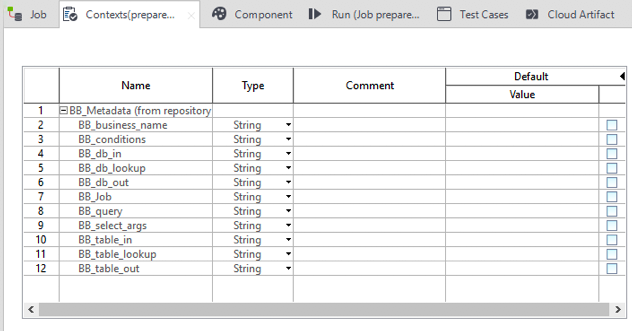
Replicate all of the fields in the metadata table by creating the following Context variables:
-
Add a tDBInput component.
-
Connect the tDBConnection component to the tDBInput component using the OnSubjobOk trigger.
-
Double-click the tDBInput component to open the Basic settings view. Click the [...] button next to the Table name text box, then select the table name where you've uploaded the metadata, in this case, meta_tables, apply the appropriate schema, and use the following query:
"SELECT
  `meta_tables`.`Job`,
  `meta_tables`.`business_name`,
  `meta_tables`.`db_in`,
  `meta_tables`.`tabel_in`,
  `meta_tables`.`db_out`,
  `meta_tables`.`table_out`,
  `meta_tables`.`select_args`,
  `meta_tables`.`query`,
  `meta_tables`.`conditions`,
  `meta_tables`.`db_lookup`,
  `meta_tables`.`table_lookup`
FROM `meta_tables`
WHERE  `meta_tables`.`business_name`='Agg'"
Notice that the value for bussiness_name is hardcoded with Agg. Depending on the type of dynamic query you want to run, you could use a context variable so that at runtime, the Job uses the context variable value and filters the metadata table on the business_name (in this case, Agg or Dwh).
-
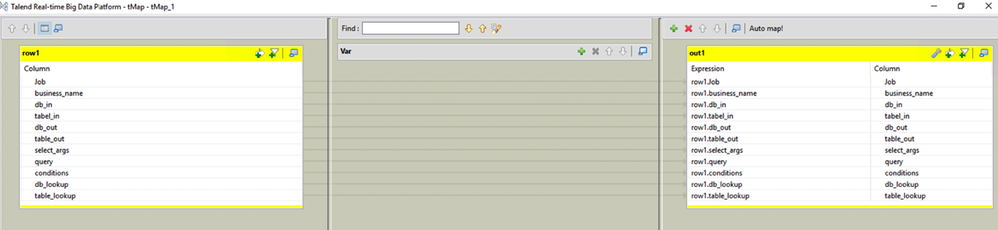
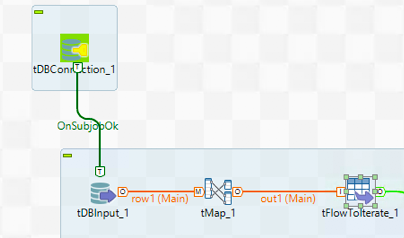
Add a tMap component after the tDBInput component, then connect it using a Main row. The tMap component acts as a pass-through and creates output that contains all the input fields.
-
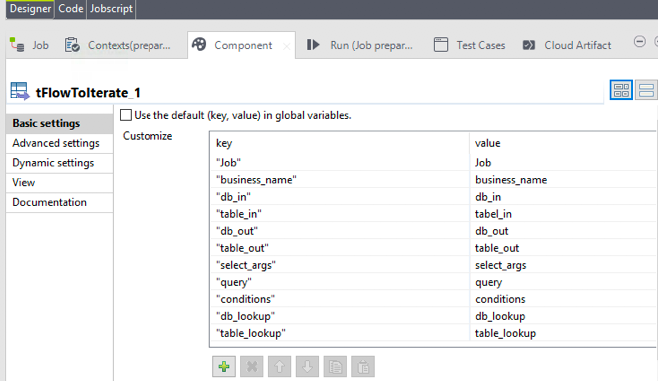
Connect the tMap to a tFlowToIterate component, then create a key-value pair for each of the fields in the metadata table.
-
Add a tRunJob component. Connect the tFlowToIterate component to the tRunJob component using Row > Iterate.
-
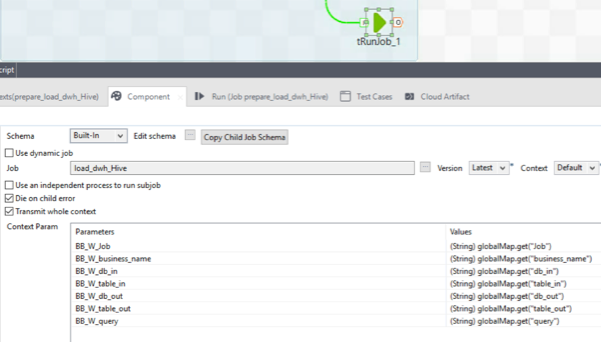
Set up the tRunJob component to transmit the whole context to the child Job for each iteration, as shown below:
Building the data integration Job
In this section, you build a Job that is triggered by the tRunJob component from the previous Job.
Note: The complete integration Job, located in the load_dwh_Hive.zip file, is attached to this article.
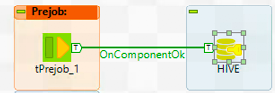
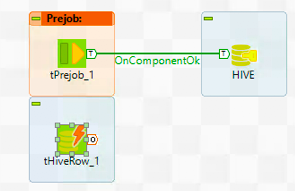
- Create a new standard Job, then add a tPreJob component and a tHiveConnection component.
-
Connect tPreJob to tHiveConnection using the OnComponentOK trigger.
-
Add a tHiveRow component below the tPreJob component.
-
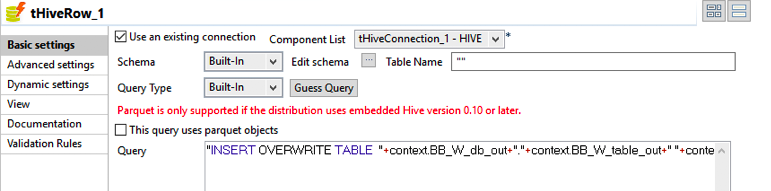
Configure the tHiveRow component, as shown below:
-
Use the context parameter transmitted by the parent Job by entering the following query in the Query text box.
"INSERT OVERWRITE TABLE "+context.BB_W_db_out+"."+context.BB_W_table_out+" "+context.BB_W_query+" "
The integration Job (child Job) runs as many times as the number of rows returned by the metadata table filtered by the context business_name in the parent Job.
-
Run the Job.
-
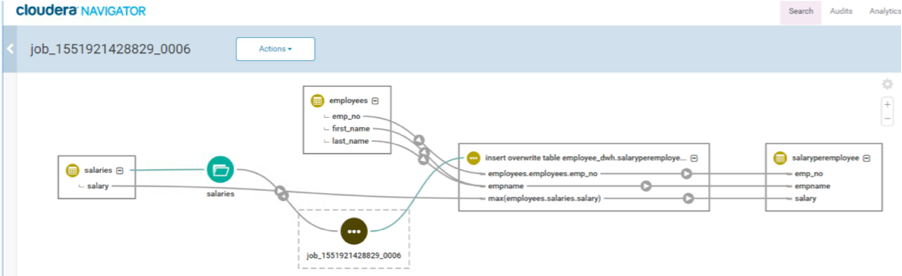
Open Cloudera Navigator, then search for Hive Jobs. Locate the Talend Job and review trace the data lineage.
Configuring Talend Data Catalog
-
Open Talend Data Catalog (TDC).
-
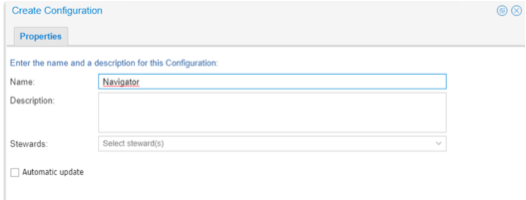
Create a new configuration.
Cloudera Hive bridge
-
For the bridge to work, you'll need to the Cloudera JDBC connector for Hive and the JDBC driver of your Hive metastore (in this case, Postgres).
-
Ensure both of the drivers are accessible by TDC server or an Agent.
-
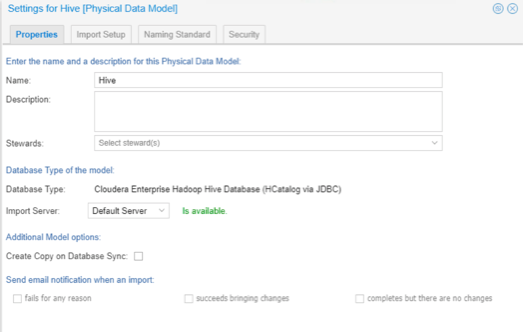
Create a new Physical Data Model to harvest the Hive metastore.
-
On the Properties tab, select the Cloudera Enterprise Hadoop Hive Database.
-
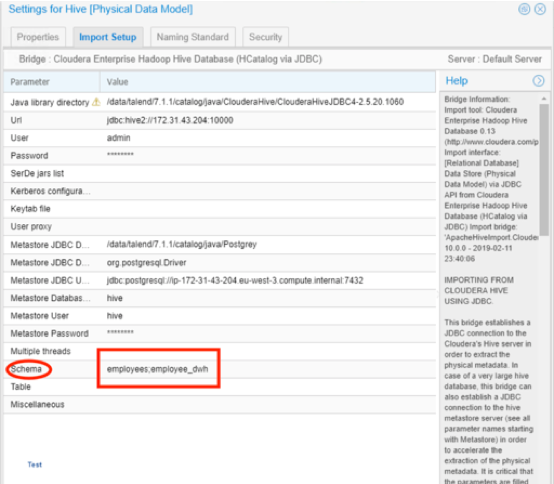
On the Import Setup tab, in the User and Password fields, enter your Hive metastore credentials (typically set up during the cluster installation). If you are not able to retrieve it, use the StackExchange, connect to PostgreSQL server: FATAL: no pg_hba.conf entry for host tutorial for a Hive metastore with Postgres.
-
Review your settings, when you're finished, the Import setup tab should look like this:
Click Import to start the metadata import.
-
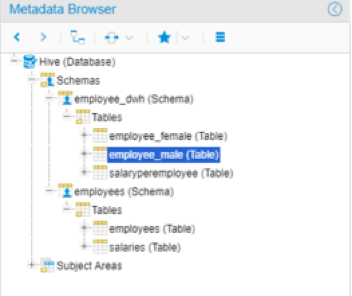
After a successful import, navigate to Data Catalog > Metadata Explorer > Metadata Browser, and locate the harvested metadata, in this case, employee_male (Table).
Cloudera Navigator bridge
-
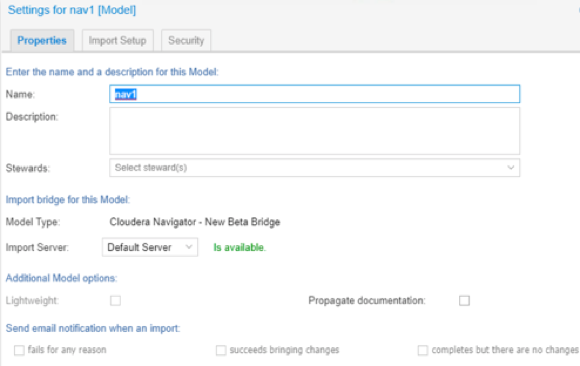
Create a new model, then in Model Type, select Cloudera Navigator - New Beta Bridge.
-
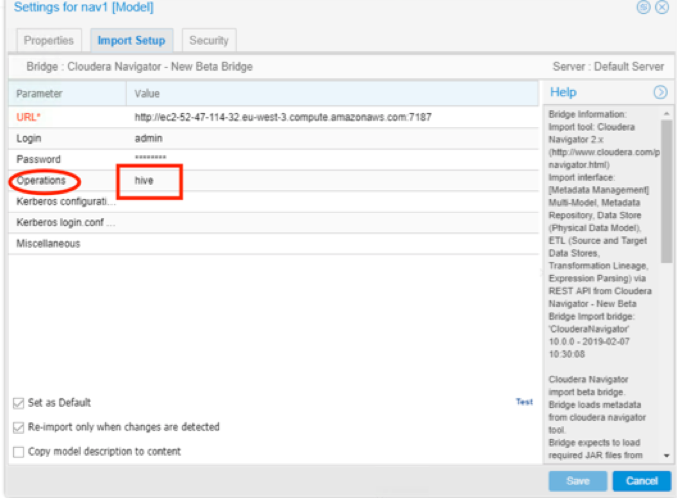
On the Import Setup tab, fill in the Navigator URL*, Login, Password, then filter the Operations you want to harvest, in this case, hive.
-
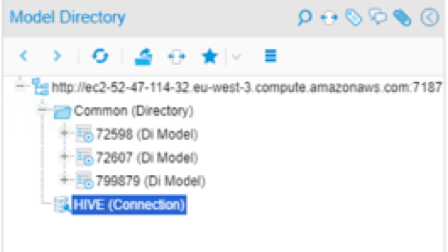
After a successful import, you'll find metadata harvest for Navigator, the Hive (connection), and the dynamic Data Integration Job (Di Model).
Stitching
-
Make sure that your harvested models belong to your configuration, by dragging them to the configuration you set up earlier.
-
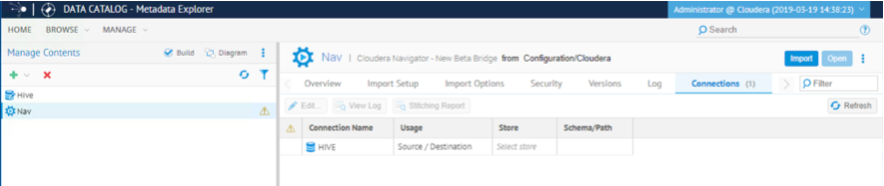
On the Manage menu, select Manage Contents, click the Nav model, then select the Connection tab on the right.
-
Select the Connection Name, in this case, Hive.
-
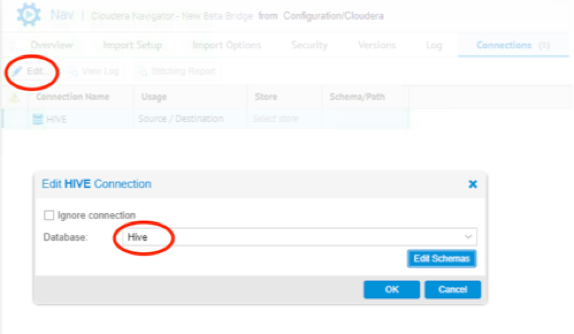
Click Edit, then, from the Database pull-down list, select Hive (click Edit Schemas if it wasn't done before), then click OK.
-
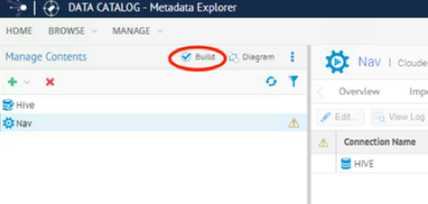
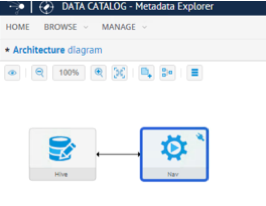
Click Build, then click the Diagram to see the connection between models.
-
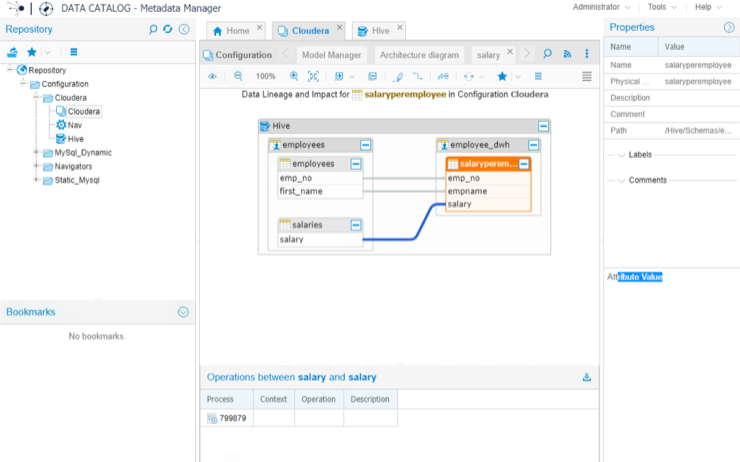
Trace the data lineage of the Talend Job containing dynamic queries executed against Hive.
Conclusion
This article showed you how to handle the Talend Data Catalog Harvesting process of DI Jobs using context variables and dynamic queries on a Cloudera Cluster leveraging Navigator and Hive bridges to trace data lineage.
-
-
Install, configure, and automate Talend 7 Continuous Integration with Jenkins
Overview Talend Continuous Integration (CI) is now fully compliant with Maven standards, and Continuous Integration and Deployment (CI/CD) with Ta... Show MoreOverview
Talend Continuous Integration (CI) is now fully compliant with Maven standards, and Continuous Integration and Deployment (CI/CD) with Talend has never been easier.
This tutorial illustrates how to automate CI/CD with Talend 7 and Jenkins, by complementing current Talend documentation. For more information, see the Talend Software Development Life Cycle Best Practices Guide.
Requirements
-
Talend platform Edition 7.0.1
-
Jenkins
-
Source code management supported by Talend
Architecture
This example uses a Continuous Integration server (Jenkins) by leveraging Talend CI Builder, Bitbucket as a service for the code repository, and the Talend Nexus Artifact Repository.
You can continue to use TAC to publish Jobs to a Nexus repository using the Publisher page, but the Publisher page is deprecated in TAC, so Talend recommends using a Maven build.
Talend CI Builder is a Maven plugin, delivered by Talend, that transforms the Talend Job sources to Java classes using the Talend CommandLine application. This allows you to execute your tests in your own company Java factory.
-
The overall high-level architecture:
-
Talend platform architecture and components on a Windows Server machine:
-
CI server architecture and components on a Red Hat machine:
Installing the Talend platform
Install TAC and CommandLine
-
Download the Talend-Installer, the Dist file, and your License.
-
Extract and store them in the same folder.
-
Double-click the installer.
-
Choose Advanced Install, choose Custom, then browse to your License File.
-
Select Talend Administration Center and Talend Command Line. Click Next.
-
Select Talend Administration Center, Talend Command Line, and Talend Server Services. Click Next.
-
Choose Install an embedded tomcat8 server on the drop-down list. Keep the default Create TAC administrator user setting. Click Next.
-
Choose Embedded H2 database on the drop-down list and select Install Nexus server with TAC.
-
Keep the default Nexus Port.
-
Keep the default CommandLine port.
-
Select Install Talend Administration Center as a service and Install Talend Command Line as a service.
-
The Talend platform will install.
Set up Bitbucket as a service
-
Create a Bitbucket account or use your existing one.
-
Click the plus [+] sign.
-
From the CREATE menu, select Repository.
-
Create a new repository and give it a name. Select Git as the version control system, then click Create repository.
Set up Talend Administration Center
-
Go to the TAC web interface.
-
Login with security@company.com and your password.
-
Create a new user. Complete your Git login with your Bitbucket login, click Validate, then click Save.
-
Log out, then log back in as the user you just created.
-
Create a new project.
-
Navigate to your Bitbucket repository and find the Git URL.
-
Complete your project details. Check the connection to your Bitbucket repository, if it is OK, click Save.
-
Grant your user write privileges on the newly created project.
Set up Talend Nexus
-
Open the Nexus web interface.
-
Login with the user admin and password Talend123.
-
Navigate to Server Administration and configuration, click Repositories, then select Create repository.
-
Create a new repository, choose maven2 (hosted) and configure it, as shown below. Use this repository to deploy snapshot versions of your Talend Job.
-
Create a second repository, choose maven2 (hosted) and configure it, as shown below. Use this repository to deploy release version of your Talend Job.
-
Create a third repository, choose maven2 (hosted) and configure it, as shown below. This repository is used by Talend CI Builder and is defined later in the maven_user_settings.xml file.
-
When the installation is complete, open Studio.
Installing Talend Studio
Install Studio and connect to TAC
-
On another machine, install Talend Studio using the installer.
-
When the installation is complete, open Studio.
-
Click Manage Connection, click the green plus [+] sign to create a Remote TAC connection. Enter the User name, User Password, and the Web-app Url. Click Check url to make sure the connection is working.
-
Select the connection you created. Click Finish.
Create a sample Job
Create a simple Job that reads two flat files and uses a tMap component to join the files.
-
Add two tFileInputDelimited components to the Designer.
-
Drag and drop a tMap component and connect your input files to the tMap. Use one as a source table and the other as a lookup table.
-
Use an ID common for both files and join them using the tMap interface.
-
Drag and drop a tFileOutputDelimited component and connect it at the output of the tMap component to store the results of the join into a file.
-
Run your Job and make sure that it runs successfully.
Create test cases
-
Right-click the tMap component within the Job, then select Create Test Case.
-
Give it a name, then click Finish.
A test case Job has been generated automatically for you.
-
As the note in Step 2 indicates, you need sample data to complete the step. Create another Job with the files you used in the tFileInputDelimited components, but only extract 200 rows by using a tSampleRow component.
-
Create another Job with the sample files as input, connect the same tMap component as before, and connect a tOutputfiledelimited component at the output to get a sample output for your test cases.
-
After the sample files are generated, double-click the testcase. Select the TestCase tab and open the Default test case.
-
For each input_file and reference_file, click File Browse and select each previously generated sample file.
-
Right-click the Default test, select Run Instance, and make sure that your test runs successfully.
Your test cases are now set up, and you can automate them within the Jenkins pipeline.
-
Before going to the next steps, make sure you have saved your Job and pushed the modification to your Bitbucket repository.
Configuring the CI server
Install Maven
-
Login to the Red Hat machine.
-
From the Apache Maven Project web page, download Maven.
-
Extract the ZIP archive to the directory where you want to install Maven.
-
Open a terminal and add the M2_HOME environment variable by entering the following command:
export M2_HOME=/opt/apache-maven/apache-maven-3.0.x
-
Add the M2 environment variable by entering the following command:
export M2=$M2_HOME/bin
-
Add the M2 environment variable to your path by entering the following command:
export PATH=$M2:$PATH
-
Make sure that JAVA_HOME is set to the location of your JDK.
-
Verify that Maven is installed successfully on your machine, by running the command:
mvn --version
Install Git
-
Ensure that your system is up-to-date with the latest version of packages by running the YUM package manager update command, as shown below:
yum update
-
Install Git by running the command:
yum install git
-
Verify that Git is installed successfully on your machine, by running the command:
git --version
Install and configure Talend CommandLine
-
Ensure that the dist file is in the same folder as the Talend-Tools-Installer-YYYYYYYY_YYYY-VA.B.C-linux64-installer.run file.
-
Make the Talend-Tools-Installer-YYYYYYYY_YYYY-VA.B.C-linux64-installer.run file executable, using the following command. If you want to install Talend server modules as services, execute this command with the super-user rights.
chmod +x Talend-Tools-Installer-YYYYYYYY_YYYY-VA.B.C-linux64-installer.run
-
Launch Talend Installer by running the command:
./Talend-Tools-Installer-YYYYYYYY_YYYY-VA.B.C-linux64-installer.run
-
Accept the License Agreement, and choose the directory where you want your Talend product to be installed.
-
Choose Advanced Install from the installation style list, and Custom from the installation type list.
-
Add your license file and launch the installation.
-
Install only Talend CommandLine with default port 8002.
-
Start Talend CommandLine at least once to initialize its default Maven repository, then close it.
-
Edit the commandlinePath/configuration/maven_user_settings.xml file and add the connection information to the Nexus repositories. In your case, Nexus is on a remote server where you installed the Talend platform, so replace localhost with the private EC2 IP address.
<?xml version="1.0" encoding="UTF-8"?>
<settings xsi:schemaLocation="http://maven.apache.org/SETTINGS/1.1.0 http://maven.apache.org/xsd/settings-1.1.0.xsd" xmlns="http://maven.apache.org/SETTINGS/1.1.0"
    xmlns:xsi="http://www.w3.org/2001/XMLSchema-instance">
  <localRepository>/<.m2Path>/repository</localRepository>

<servers>
    <!-- credentials to access the default releases/snapshots repositories -->
    <server>
        <id>releases</id>
        <username>admin</username>
        <password>Talend123</password>
    </server>
    <server>
        <id>snapshots</id>
        <username>admin</username>
        <password>Talend123</password>
    </server>
    <!-- credentials to access the repositories holding external jars -->
    <server>
        <id>talend-custom-libs-release</id>
        <username>admin</username>
        <password>Talend123</password>
    </server>
    <server>
        <id>talend-custom-libs-snapshot</id>
        <username>admin</username>
        <password>Talend123</password>
    </server>

    <!-- credentials to access the repositories holding maven plugins -->
    <server> <!-- central (as proxy) -->
        <id>central</id>
        <username>admin</username>
        <password>Talend123</password>
    </server>
    <server>
        <id>thirdparty</id>
        <username>admin</username>
        <password>Talend123</password>
    </server>

</servers>

<mirrors/>
<proxies/> <!-- http proxies, not maven proxy repositories -->

<profiles>
    <profile>
        <id>talend-ci</id>
        <repositories>
            <repository>
                <id>central</id>
                <name>central</name>
                <url>http://localhost:8081/repository/maven-central/</url>
                <layout>default</layout>
            </repository>
            <repository>
                <id>talend-custom-libs-release</id>
                <name>talend-custom-libs-release</name>
                <url>http://localhost:8081/repository/talend-custom-libs-release</url>
                <layout>default</layout>
                <releases>
                    <enabled>true</enabled>
                </releases>
                <snapshots>
                    <enabled>false</enabled>
                </snapshots>
            </repository>
            <repository>
                <id>talend-custom-libs-snapshot</id>
                <name>talend-custom-libs-snapshot</name>
                <url>http://localhost:8081/repository/talend-custom-libs-snapshot</url>
                <layout>default</layout>
                <releases>
                    <enabled>false</enabled>
                </releases>
                <snapshots>
                    <enabled>true</enabled>
                </snapshots>
            </repository>
        </repositories>

        <pluginRepositories>
            <pluginRepository>
                <id>central</id>
                <name>central</name>
                <url>http://localhost:8081/repository/maven-central/</url>
                <layout>default</layout>
            </pluginRepository>
            <pluginRepository>
                <id>thirdparty</id>
                <name>thirdparty</name>
                <url>http://localhost:8081/repository/thirdparty</url>
                <layout>default</layout>
            </pluginRepository>
        </pluginRepositories>
    </profile>
</profiles>

<activeProfiles>
    <activeProfile>talend-ci</activeProfile>
</activeProfiles>

</settings>
Install CI Builder
-
Extract the Talend-CI-Builder-V7.0.1.zip archive file in the directory of your choice.
-
Browse to the installation directory and execute the following command:
mvn install:install-file -Dfile=ci.builder-7.0.1.jar -DpomFile=ci.builder-7.0.1.pom
-
Browse to the CI Builder installation directory and execute the following command to deploy the new repository on Nexus:
mvn deploy:deploy-file -Dfile=ci.builder-7.0.1.jar -DpomFile=ci.builder-7.0.1.pom -DrepositoryId=thirdparty -Durl=http://127.0.0.1:8081/repository/talend-custom-libs-release/ -s <commandlinePath>/configuration/maven_user_settings.xml
where the -Durl parameter value corresponds to your repository URL on Nexus, and the -s parameter value corresponds to the path to your maven_user_settings.xml file.
-
Log back in to the Nexus web UI, click Browse, then navigate to the thirdparty repository.
-
This Maven plugin is now available for anyone and can be incorporated in your builds.
Install Jenkins
-
From the Jenkins web page, download Jenkins.
-
Download the appropriate version for your environment.
-
Before starting the installation, verify that you have installed a Java JDK, and set your JAVA_HOME and PATH, then follow the Jenkins documentation on Installing Jenkins on Red Hat distributions.
Install Jenkins plugins
-
After installing Jenkins with the default setup, log in and install additional plugins.
-
Click Manage Jenkins then select Manage Plugins.
-
Click the Available tab.
-
Select and install the following plugins: Bitbucket, GitLab, Pipeline, Build Pipeline, Green Balls, Publish Over SSH, SSH, and Workspace Cleanup.
Configuring Jenkins
-
Navigate to the Jenkins main page.
-
Click Manage Jenkins, then Global Tool Configuration.
-
Click JDK > JDK installations, fill in Name and JAVA_HOME, as it is set up on your CI server, then Save.
-
Click Git, fill in the Name and Path to Git executable where Git is installed on your CI server, then Save.
-
Click Maven installations, fill in the Name and MAVEN_HOME of your CI server, then Save.
-
You are all set to start building a Jenkins CI Pipeline. You will specify your Bitbucket credential within your Jenkins Jobs.
Create a Jenkins CI Pipeline
Add a Bitbucket webhook
-
Login to Bitbucket.
-
Select your repository.
-
Click Settings.
-
From WORKFLOW select Webhooks.
-
Click Add webhook, specify a title, and build the URL as follows: http://PUBLIC IP of JENKINS:8080/bitbucket-hook/. Configure the remaining options as shown below, then Save.
-
To the right of your webhook, click View requests.
-
Go back into Studio and make a small change to your Job, for example, change the name of a component, then push the change to Git, come back to the Bitbucket webhooks request, and make sure that the webhook is working.
Compile
-
Go to Jenkins main page and select New Item.
-
Enter the Job name: 01_BitBucket_Compile, select Maven Project, click OK.
-
Scroll down to Source Code Management, select Git, enter your Repository URL, add your credentials, and specify the branch, for example, */master.
-
Scroll down to Build Trigger, then select Build when a change is pushed to BitBucket.
-
Scroll down to Build Environment, then select Delete workspaces before starts.
-
Scroll down to Build, and complete the first section as shown below: add the Root POM of your Talend project, define your Maven Goals and options, and point to your cmdline instance for MAVEN_OPTS.
-
Complete the section as shown below: locate your maven_user_settings.xml file.
-
Click Save. Your first Jenkins Job is complete.
-
To run it manually, click the green arrow with a clock, on the right side of the screen.
-
Click the console output to see the results, and you should end up with the status: Finished: SUCCESS.
-
As you did earlier, make a small change to your Job from the Studio, push the modification to Git, and make sure that the compile of the Jenkins Job has been triggered.
Test
-
Create a new Maven project, name it 02_Test, scroll down to Build Triggers, configure the project as shown below:
-
Set up the Build Environment:
-
Configure Build as shown below, then click Save:
Package
-
Create a new Maven project, name it 03_Package, scroll down to Build Triggers, and configure the project as shown below:
-
Set up the Build Environment:
-
Configure Build as shown below, then click Save:
Install
-
Create a new Maven project, name it 04_Install, scroll down to Build Triggers, and configure the project as shown below:
-
Set up the Build Environment:
-
Configure Build as shown below, then click Save:
-
Create a new Maven project, name it 05_Deploy, scroll down to Build Triggers, and configure the project as shown below:
-
Set up the Build Environment:
-
Configure Build as shown below, then click Save:
MAVEN_OPTS:
-Dproduct.path=/opt/cmdline
-Dgeneration.type=local
-DaltDeploymentRepository=snapshots::default::http://YOUR NEXUS PUBLIC IP:8081/repository/ben_snapshots/
-
Create a new Pipeline view from the Jenkins main page by clicking the plus [+] sign next to the tabs.
-
Give it a name, Pipeline View, select Build Pipeline View, then OK.
-
Specify the Pipeline Flow, as shown below. Keep the rest of the default settings. Click OK.
-
Run the first job manually, or make a small change to your Talend Job, and push the update to Bitbucket. Click the Pipeline view you just created.
-
Make sure that your pipeline ran successfully, and check your repository to confirm that your Talend Job has deployed.
-
-
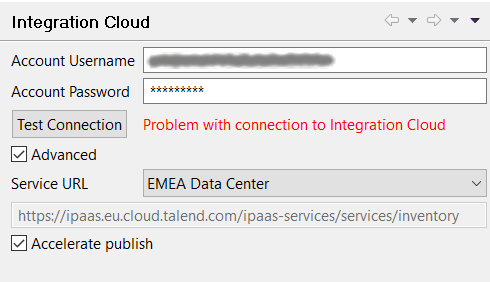
'Problem with connection to Integration Cloud' error when testing the connectio...
Problem Description Testing the Integration Cloud connection in Studio (Preferences > Talend > Integration Cloud) fails with the following error:... Show More -
Configuring SVN when proxy is involved
Talend Version 6.1.1 Summary Configuring SVN when proxy is involved.Additional Versions6.2.1Key wordssvn proxy tacProductTalend Data Integr... Show More -
Causes of the "UnsupportedClassVersionError" exception
Symptoms This error can occur when you execute a Job script outside of Talend Studio, and the JVM used to execute the Job is different from the J... Show More -
MDM migration from 6.2.1 to 6.4.1 is slow
Talend Version6.4.1 Summary MDM migration from 6.2.1 to 6.4.1 is slowAdditional Versions ProductTalend MDMComponentMigrationProblem DescriptionMigr... Show More -
Which encoding does tMomOutput use?
Question If not specified, which encoding/code-page does tMomOutput use? Answer tMomOutput will use the default encoding of the machin... Show More -
Can I install only the new components rather than the entire release?
Answer While it is possible for you to download only specific components in a new release from the SVN, Talend strongly recommends that you insta... Show More -
What is the difference between Built-In and Repository?
Answer Built-in: all information is stored locally in the Job. You can enter and edit all information manually. Repository: all information is ... Show More -
Tracing records with breakpoints
Overview Talend Studio is an IDE based on Eclipse RCP. It provides a proprietary record trace debugger and allows you to run Talend Jobs in Trace... Show MoreCreate an example Job
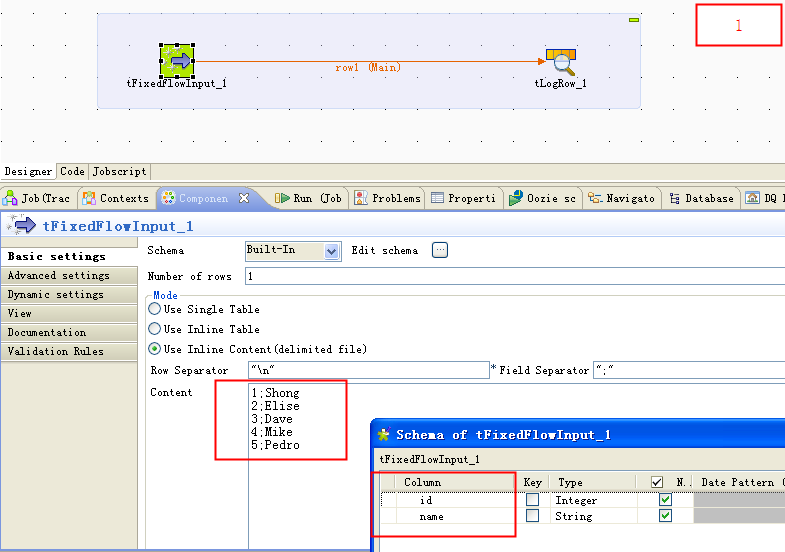
Create an example Job called TraceRecordsWithBreakpoint. Use a tFixedFlowInput to generate some source data such as:
1;Shong
2;Elise
3;Dave
4;Mike
5;Pedro
The detailed Job settings are shown in the following figure:
Set a breakpoint
To set a breakpoint on the data flow, proceed as follows:
-
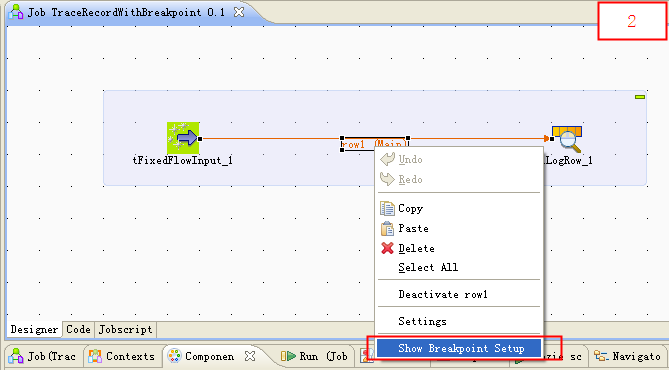
Right-click the connector between two components and select Show Breakpoint Setup.
Note: This feature is available only in Talend Data Integration (on subscription only).
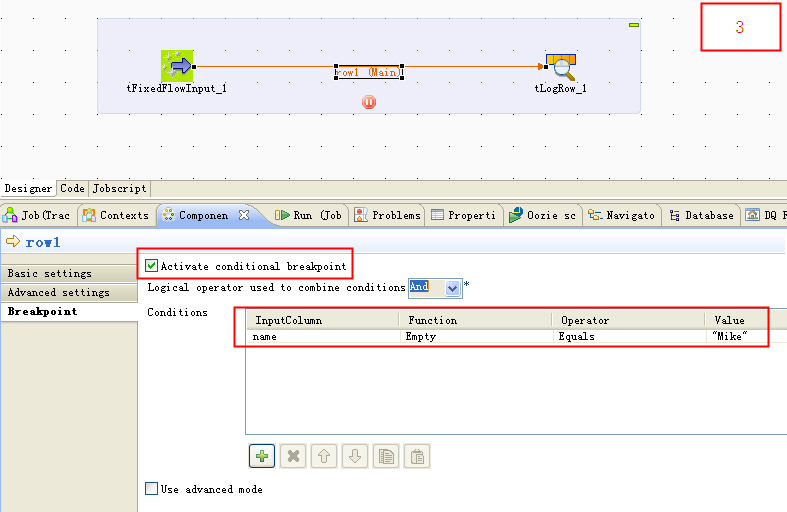
-
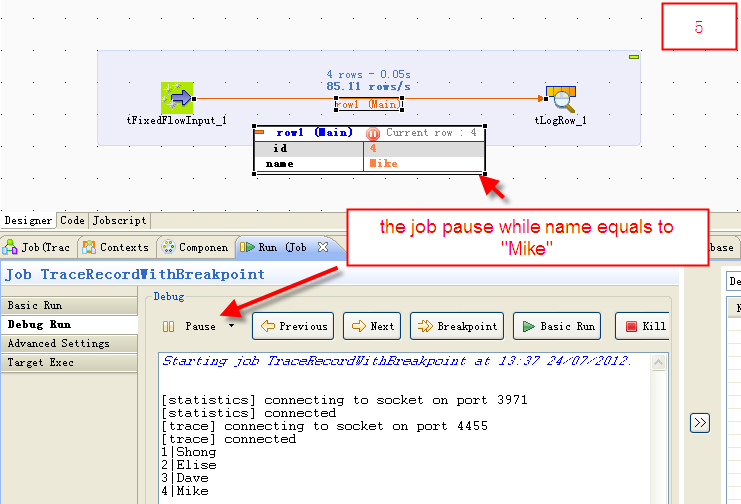
In the Breakpoint tab, check Active conditional breakpoint and/or Use advanced mode to set a breakpoint. In this example, if you check Active conditional breakpoint and set a breakpoint in the Condition table, the Job will pause when the value of the Name column equals Mike.
Trace records with breakpoint
Now run the Job in Traces Debug mode and trace records. Follow these steps:
-
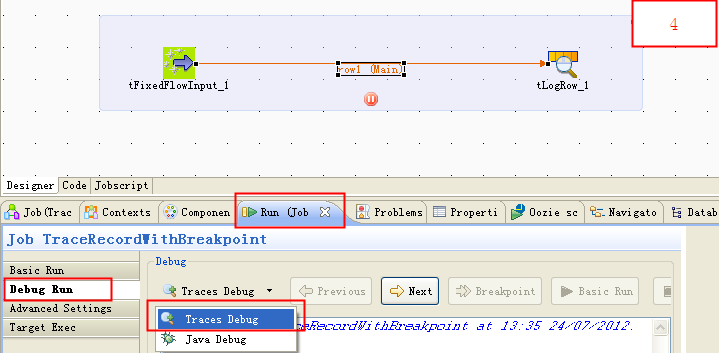
In the Run view, click Debug Run tab, select Traces Debug from the Debug list, and click Traces Debug to run the Job.
-
As the figure shows, the Job pauses when the value of the Name column equals Mike, when it matches the condition of the breakpoint.
Result
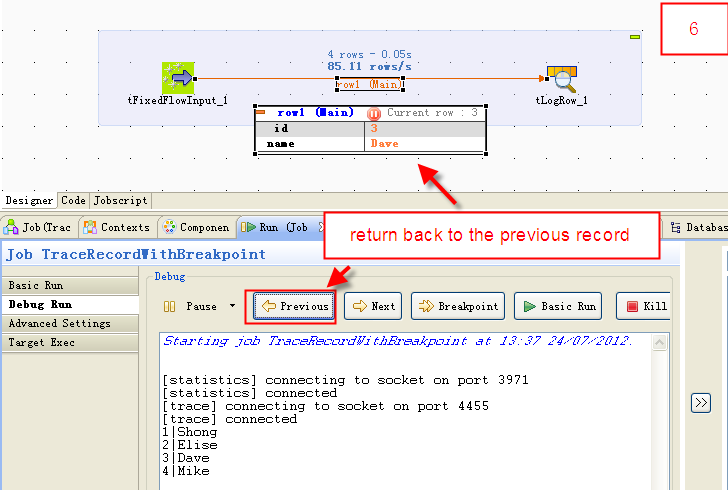
Now you can trace the records by clicking Previous, Next, and Breakpoint.
- Previous: return back to the previous record.
- Next: go to the next record.
- Breakpoint: continue to run and pause until next breakpoint.
- Basic Run: continue to run until ends.
- Kill: kill the Job.
-
-
How can I display Karaf wrapper logs in milliseconds?
Talend Version6.1.1, 6.2.1, 6.3.1, 6.4.1 Summary How can I customize my Karaf wrapper log format?Additional Versions ProductTalend ESBComponentRunt... Show More -
A Job using a tSqoopImport component hangs during the Job run
Problem Description A Job is designed with a tSqoopImport component to import data from Oracle to HDFS. The Job hangs without errors or warnings.... Show More