My friend,Øystein Kolsrud - Software Architect at Qlik, is back with part 4 of the Qlik Engine API fundamentals: HypercubesPrevious articles:Part 1:Let's Dissect the Qlik Engine API - Part 1: RPC BasicsPart 2:Let's Dissect the Qlik Engine API - Part 2: HandlesPart 3:Let's Dissect the Qlik Engine API - Part 3: Generic ObjectsIntroductionThe topic of this post is the concept of "hypercubes", which can sound rather intimidating at first, but which is simply a very flexible and convenient way of extracting data from Qlik Sense.BackgroundWe have in previous posts seen some basic examples of how to perform evaluations in Qlik Sense. It is theoretically possible to use the approach described in Part 3 (where a generic object is used to group evaluations) to extract any information we want from the system. In fact, it would be possible to rely solely on the "Evaluate" method described in Part 2 along with selections to produce any imaginable set of data. But the obvious downside to this approach is performance. A visualizations would typically have to call that method an enormous amount of times, maybe even millions, in order to fully display a chart. Doing so is of course not feasible, and this is where the hypercube comes into play.The term "hypercube" is a concept taken from mathematics and is a geometric concept denoting a cube of a generic number of dimensions. The good old cube as we know it is a hypercube of 3 dimensions. The square is a hypercube of 2 dimensions. But in mathematical terms, there is no reason why it would not be possible to express higher order cubes, using any number of dimensions. For more reading on this (and some fancy animations), Wikipedia provides a good starting point:https://en.wikipedia.org/wiki/HypercubeBut that's all I'll say about mathematics for now. In Qlik Sense, a hypercube is simply an interface for defining a set of data to extract. And as far as this post goes, it is sufficient to simply think of a hypercube as a table.Defining a hypercubeI will start with an extension of the example used in the previous post where we used the "StringExpression" construct to evaluate the sum of sales. In that example we created a generic object with the following set of properties:{
"qInfo": {
"qId": "81bac84a-cb6a-48ac-8139-298b6e4913c5",
"qType": "myKpi"
},
"myProp0": { "qStringExpression": "=Sum(Sales)" }
"myProp1": { "qStringExpression": "=Sum(Sales)/Count(Month)" },
}The resulting object gave us an interface for performing computations, and we could use selections together with "GetLayout" to evaluate the sum of sales for a particular employee. This approach would be fine for a simple KPI, but for a more complex visualization we would typically like to do something more interesting like for instance listing the sales for all employees at once. In that case, what we need is to be able to construct a table with the employee as one column and the expressions to evaluate as the other columns. That way we could tell the engine to fill in the cells of the table and extract all the information in one go. This is exactly the purpose of a hypercube.To use a hypercube, we need to add a definition of our hypercube to the properties of a generic object. And just like an evaluation can be added by using the reserved "qStringExpression" property, a hypercube can be added using the reserved property "qHyperCubeDef". The hypercube is, as I have already mentioned, a very flexible tool which means that there is a huge amount of settings available for it. I will only cover a very small portion of what you can do with hypercubes in this blog series, but you will find the full definition of the structure for defining them here:https://help.qlik.com/en-US/sense-developer/November2020/APIs/EngineAPI/definitions-HyperCubeDef.htmlThe two most important settings for a hypercube are "qDimensions" and "qMeasures". These are the properties that define the dimensions that the hypercube should consider, along with the measures that should be computed based on the values of those dimensions. In our case we will have one dimension (the field "SalesRep") and two measures (the sum of sales, and sum of sales per month) which means our call to "CreateSessionObject" will like like this:{
"jsonrpc": "2.0",
"id": 17,
"method": "CreateSessionObject",
"handle": 1,
"params": [
{
"qInfo": { "qType": "myCube" },
"qHyperCubeDef": {
"qDimensions":
[ { "qDef": { "qFieldDefs": [ "SalesRep" ] } } ],
"qMeasures":
[ { "qDef": { "qDef": "Sum(Sales)" } },
{ "qDef": { "qDef": "Sum(Sales)/Count(Month)" } }
]
}
}
]
}The engine replies with the following message giving us a handle for interacting with the new object:{
"jsonrpc": "2.0",
"id": 17,
"result": {
"qReturn": {
"qType": "GenericObject",
"qHandle": 4,
"qGenericType": "myCube",
"qGenericId": "3cb898dc-b7dc-44ed-ba83-c27fae5d0658"
}
},
"change": [ 4 ]
}Getting dataNow that we have an object containing a valid hypercube definition, we can extract data from it using the method "GetHyperCubeData":https://help.qlik.com/en-US/sense-developer/November2020/APIs/EngineAPI/services-GenericObject-GetHyperCubeData.htmlThis method takes two arguments, of which the first is a path to where in the properties structure of the object the hypercube is defined. In our case the definition is found at the root level, so our path will be "/qHyperCubeDef" just like the example in the reference documentation. The second argument contains a definition for what data to retrieve from the cube. This is defined as a set of pages each defining a rectangle of the data of the table defined by the hypercube. The definition of the "NxPage" structure can be found here:https://help.qlik.com/en-US/sense-developer/November2020/APIs/EngineAPI/definitions-NxPage.htmlIn my very simple example, the table contains three columns (one for the dimension and two for the expressions) and only two rows as my data contains only two sales reps. So to get all data for this hypercube, I will use a page starting at the top left corner, with width set to 3 and height set to at least 2 (I somewhat arbitrarily choose 20 in this case):{
{
"jsonrpc": "2.0",
"id": 21,
"method": "GetHyperCubeData",
"handle": 4,
"params": [
"/qHyperCubeDef",
[ { "qLeft": 0,
"qTop": 0,
"qWidth": 3,
"qHeight": 20
}
]
]
}The response I get is, as the reference documentation states, an array of instances of the structure "NxDataPage":https://help.qlik.com/en-US/sense-developer/November2020/APIs/EngineAPI/definitions-NxDataPage.htmlThe full response to the call to "GetHyperCubeData" does in our case look like this:{
"jsonrpc": "2.0",
"id": 20,
"result": {
"qDataPages": [
{
"qMatrix": [
[ { "qText": "Amalia Craig", "qNum": "NaN",
"qElemNumber": 0, "qState": "O"
},
{ "qText": "261142", "qNum": 261142,
"qElemNumber": 0, "qState": "L"
},
{ "qText": "2720.2291666667", "qNum": 2720.2291666666665,
"qElemNumber": 0, "qState": "L"
}
],
[ { "qText": "Amanda Honda", "qNum": "NaN",
"qElemNumber": 1, "qState": "O"
},
{ "qText": "253689", "qNum": 253689,
"qElemNumber": 0, "qState": "L"
},
{
"qText": "2698.8191489362", "qNum": 2698.81914893617,
"qElemNumber": 0, "qState": "L"
}
]
],
"qTails": [ { "qUp": 0, "qDown": 0 } ],
"qArea": { "qLeft": 0, "qTop": 0, "qWidth": 3, "qHeight": 2 }
}
]
}
}The most important part of the returned data is what we find in the property "qMatrix". That is where all the data is found. The matrix consists of an array of rows (two in this case), and each row contains an array of cells. The cells contain values in the same order as the dimensions and measures are defined for the hypercube, so cell position number 0 contains the dimension value and position 1 and 2 contain the measures computed for that dimension.More to learnI will stop here for now, but I'll come back to hypercubes in later posts as this is a very important concept in Qlik Sense. Pretty much every visualization will be based on an object containing a hypercube definition of some form. In fact, some visualizations will contain multiple hypercubes. An example of this is the map visualization which contains one hypercube for each map layer. Another example is the box plot visualization which contains one main hypercube which is based on the dimensions and measures the user defines, and a set of auxiliary hypercubes constructed under the hood that are derived from the main hypercube but used to compute the whiskers and outliers.
...View More
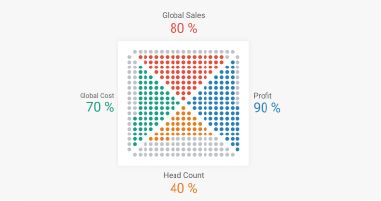
Our guest blogger Christophe Brault@christophebrault, will show you how to build a very different type of chart with Qlik Sense. A really smart addition to Qlik's wide chart library that illustrates how standard charts have more to offer when we look at them with the right eyes. Check out Christophe's website for more interesting examples with Qlikhttps://www.qreatic.fr/How to build a Quadrant Dot chart, step by stepHave you ever felt restrained with Qlik Sense graphic objects before? Personally, if I'm not careful, I feel like I'm doing the same Dashboard over and over again. Sometimes you want something different, surprising or striking. Those are the days when thinking out of the box gets especially important.I found the Dot Quadrant chart online and I was curious about how could we achieve something like that in Qlik, so I tried.In this article I will not discuss when or why to use this visualization, but I'll focus on a detailed guide on how to built it, and more generally, how to hijack basic graphics in Qlik.Building our gridFirst, we need to create a grid that contains all the dots that will make the chart. We will use a Scatter Plot Chart to create a 21 x 21 grid. Notice how we are generating a 21 X 21 grid instead of a 20 by 20, since we need to delimit each sector.Generate every point in the scriptTMP:LOAD RECNO() AS X AUTOGENERATE 21;JOIN LOAD RECNO() AS Y AUTOGENERATE 21;Prepare your dataDATA :LOAD X &'|'& Y AS POINT,X+Y AS TOTAL,X,YRESIDENT TMP;DROP TABLE TMP;Create the Dot Quadrant chart using a scatter chart and filling dimension with the field called Point, and X Y as measures. Set the Range for both to Max with 22 and there is your grid.Create trianglesThe first thing is to remove the points that separate our four sections. It’s easily done with X and Y. Use color "by Expression" in your chart to set the color to white so they disappear from view.IF(X=Y OR X+Y=22, RGB(255,255,255))To know what "triangle" each points belongs to you could use the conditions belowif(Total=22 or X=Y,'NONE',if(Total>=23 and Y>X,'TOP',if(Total<23 and Y>X,'LEFT',if(Total>=23 and Y<X,'RIGHT', if(Total<23 and Y<X,'BOTTOM')))))Using those conditions you can generate a new field in your script called "POSITION" that will help you later on to target the right quarter of your Dot Quadrant ChartYour loading script by now should look like the code belowTMP:LOAD RECNO() AS X AUTOGENERATE 21;JOINLOAD RECNO() AS Y AUTOGENERATE 21;DATA:// // DEFINE TRIANGLE POSITIONLOAD X,Y,TOTAL,POINT,IF(TOTAL=22 OR X=Y,'NONE',IF(TOTAL>=23 AND Y>X,'TOP',IF(TOTAL<23 AND Y>X,'LEFT',IF(TOTAL>=23 AND Y<X,'RIGHT',IF(TOTAL<23 AND Y<X,'BOTTOM'))))) AS Position;LOAD X&'|'&Y AS POINT,X+Y AS TOTAL,X,YRESIDENT TMP;DROP TABLE TMP;Once you know where each dot belongs to, is time to color each one of the quadrants. You can reuse the field "Position" in Color by Expression :if(Position='NONE',rgb(255,255,255), if(Position='TOP',rgb(231, 76, 60), if(Position='RIGHT',rgb(41, 128, 185), if(Position='BOTTOM',rgb(230, 126, 34), if(Position='LEFT',rgb(22, 160, 133))))))Displaying KPI in the gridIn my example, I have four metrics and one dimension, year, containing two values. Since each quarter is made up of 100 points, it is time to asing them a value from 1 to 100 starting from the center dot. This way you will be able to control how the sections will fill up. You want them to fill up starting from the center outwards.In the load script, is time to create a new field called "NoPoint" as shown belowTop:load Position,X,Y,RowNo() as NoPointT Resident DataWhere Position ='TOP'Order by Y asc;Right:load Position,X,Y,rowno() as NoPointR Resident DataWhere Position ='RIGHT'Order by X asc;Bottom:load Position,X,Y,RowNo() as NoPointB Resident DataWhere Position ='BOTTOM'Order by Y desc;Left:load Position,X,Y,rowno() as NoPointL Resident DataWhere Position ='LEFT'Order by X desc;All:LOAD Position,X,Y,NoPointT as NoPoint Resident Top;Concatenate(All)LOAD Position,X,Y,NoPointR as NoPoint Resident Right;Concatenate(All)LOAD Position,X,Y,NoPointB as NoPoint Resident Bottom;Concatenate(All)LOAD Position,X,Y,NoPointL as NoPoint Resident Left;join(Data)LOAD * resident All;Drop tables All,Top,Right,Bottom,Left;Finally, go back to the chart coloring properties panel and add each KPI likePosition='TOP' and Sum({$<Metric={'Sales'}>}Percentage)*100>=NoPointBy know, your color expression should be something like thisif(X+Y=22 or X=Y,'#ffffff', if(Position='TOP' and Sum({$<Metric={'Sales'}>}Percentage)*100>=NoPoint,'#e74c3c', if(Position='RIGHT' and Sum({$<Metric={'Profit'}>}Percentage)*100>=NoPoint,'#2980b9', if(Position='BOTTOM', if(Sum({$<Metric={'Headcount'}>}Percentage)*100>=NoPoint,'#e67e22','#bdc3c7'), if(Position='LEFT', if(Sum({$<Metric={'Cost'}>}Percentage)*100>=NoPoint,'#16a085','#bdc3c7'),'#bdc3c7') ) ) ) )To complete your chart remember to hide what you don't need in there, the Labels and Titles for X and Y and Voila !Thanks for reading and find more chart hijacking at https://www.qreatic.fr/dailyqlikchallenge/category/Charts+HijackingChristophe BraultPS: Check Christophe's Dot Quadrant app attached
...View More
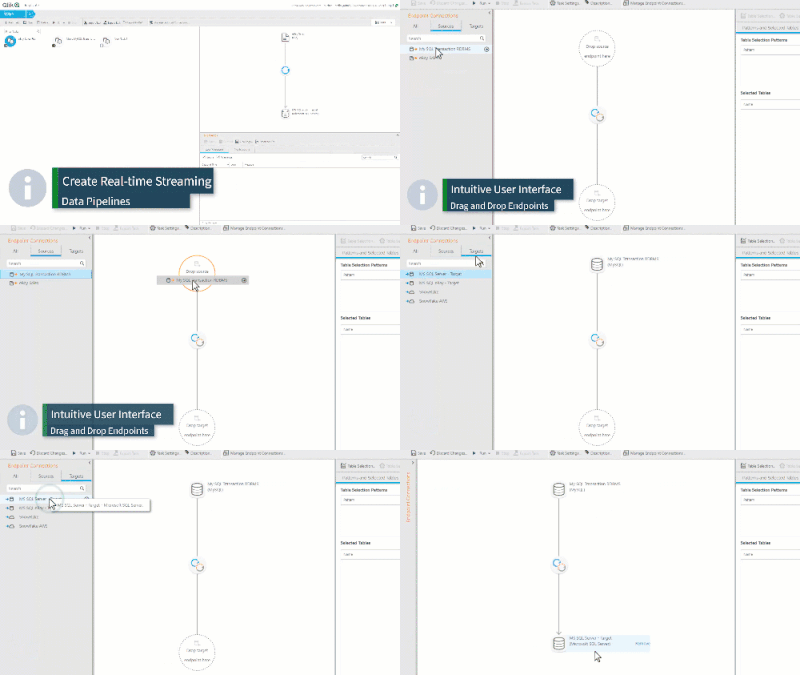
ThisThursday at 2PM ET- I'll be hosting our first Do More with Qlik Session of the year, introducing you to Qlik Replicate.Take a brief look at what Qlik Replicate can do and join me LIVE where I will demonstrated real-time automated data ingestion and update. Hope to see you there!Registration and resources links below.Sign Up for Do More with Qlik - Qlik ReplicateTake Replicate for a Test DriveQlik Data Integration Product Page
...View More
As Qlik developers, we are always looking for ways to maximize the development real estate in our apps. And sometimes, we (well me), tend to overcomplicate things in order to accomplish the task at hand.
The holidays are approaching, and Santa is almost ready to deliver toys to children around the world again! But just how does Santa run such an enormous enterprise and continue to scale to meet global demand each and every year? With the help of Qlik Sense, of course! From supply chain to operations to distribution, Santa uses Qlik Sense to enable all aspects of his organization to make data-driven decisions.Since it’s that time of year, let’s look at how Qlik Sense is used on the shop floor in Santa’s Workshop to monitor and improve production. Qlik Sense is available to shop managers and teams on mobile devices throughout the shop floor, and real-time data and alerting enables timely action to any changes. Below are four real-world examples from Santa’s workshop this year.Click to open the "Santa's Workshop" Qlik Sense appAll Wrapped UpOn September 26 the Jingle, Twinkle, Merry, and Peppermint Teams were trending on average 5% below target. Qlik Sense alerted management that the teams were not meeting production targets and that downstream bottleneck time for the three teams was more than 3x higher than average, so a manager went to investigate the packaging department. What they discovered was quite a scene! One of the newer elves, in the midst of trying to prove himself and working as fast as he possibly could, had gotten himself so tangled up in gift wrap and tape that the other packaging elves were having a frightfully difficult time getting him free of the mess. The manager quickly went and got Grandma Elf, who is particularly apt at solving such crises, and packaging was then resumed, relieving the downstream bottleneck for the Jingle, Twinkle, Merry, and Peppermint Teams, and bringing production back in line with targets.Industrious ElvesOn October 11, Jingle Team’s production dropped to more than 16% below target. When the manager received an alert from Qlik Sense and checked to identify a cause she discovered that personal break time for the team was 8x more than average for the day. She immediately went to talk to the team to discuss the finding, but they were not at their workstations or the candy bar break room. She eventually discovered the entire team outside engaged in an intense and prolonged snowball fight. While elves are generally an industrious bunch, they love a good snowball fight, and the Jingle Team had lost track of time amidst the fierce battle. After the manager jumped in to toss a few snowballs herself and show the elves who’s boss she got the team back to work and production back on track.North Pole BluesThen on November 19, Qlik Sense alerted that the production of both the Jingle Team and the Holly Team was more than 11% under target. Downtime caused by an upstream bottleneck was more than 5x average for both teams. Turns out that having your workshop in the North Pole presents some unique logistical challenges, and essential materials due to arrive that morning were held up in transit after Jack Frost decided it would be a good day for an impromptu artic blizzard. Luckily, the real-time alerting of Qlik Sense enabled the problem to be identified quickly, and production on the two lines was shifted to use available resources and quickly get production levels back up to capacity.A Sticky SituationOn December 16, less than ten days out from Christmas Eve during the final push to reach production goals for the year, Qlik Sense alerted that the Marshmallow Team was operating at almost 12% under their daily target. Analyzing the data revealed that repair downtime was 5.5x longer than average, so a specialist repair team was sent to investigate. The repair team discovered cotton candy in the machine gears, causing increasingly frequent shutdowns, a sticky situation to say the least. The repair team got to work right away, licking the machine clean despite the health department protest, and the Marshmallow Team was back to full production just two days later.
...View More
Did you know that you can monitor visualizations in the cloud hub? Visualizations from sheets in an app and from Insight Advisor can be selected for monitoring. Once selected, these visualizations will appear in the cloud hub in the Your charts section on the Home page and under Charts on the Explore page. Charts can be saved with or without selections and are refreshed every time the source app reloads. Let’s look at how it is done.In the image below, the bar chart is on a sheet in my app. Right click on the chart and then click on the eclipse (…) to see the Monitor in hub option displayed below. In the Insight Advisor, the eclipse is in the top right of the chart. Any selections applied to the chart will be saved and applied to the chart that you are monitoring.What is nice about this is you can keep an eye on a specific chart without having to open the app and navigate to the visualization. The latest reloaded version of the chart is always the one that is visible in your cloud hub as seen below.If you want to look at the chart in the app, that is easy to do. When you hover over the chart, there are 2 options: View chart and View in app. View chart will open the latest reloaded version of the chart. Selections cannot be made from here, but they can be made if View in the app is selected. View in the app will open the chart in the app or in Insight Advisor depending on where the source chart was selected. From Home or Explore, you can also click on the eclipse in the lower right of the chart to:See details about the chart such as the reload historyAdd the chart to a collectionEdit some properties of the chartDelete the chart from monitoringAnother nice feature is you can compare versions of the chart. To do this, select the View chart option. From here, you can not only see the latest version of the chart you are monitoring but you can view previous versions of the chart. You can also compare 2 versions of the chart. When you hover over a chart in the Chart history section that is not selected, you will see a 1 and/or 2 in the right top corner of the chart. Selecting 1 will move the chart to the left side of the selected chart for comparison. Selecting 2 will move the chart to the right side of the selected chart for comparison. In the image below, the latest reloaded chart is selected and when I hover over the previous chart, I can see the 2 in the upper right that I can select if I want to compare it to the selected visualization.Monitoring your charts in your personal space in the cloud hub gives you a new level of flexibility and allows you to see what visualizations are important to you quickly with options to explore them further, if needed. Check out Michael Tarallo's Qlik Sense in 60 - Chart Monitoring video to quickly see how it is done and seeQlik Help for more information on monitoring your visualizations in the cloud hub.Thanks!
...View More
Hey guys - a large percentage of my time is spent showcasing all the great features and capabilities that Qlik products have to offer. BUTusually, a small percentage shows how they all work or fit together. I feel that telling stories and showing a process from beginning to end, all while keeping it brief and simple is the best way to introduce a topic of interest. In this brief 2 min video, I take you from monitoring, to exploring, to the creation of an intelligent alert to get notified of changes in your data.(Video transcript attached below)Granted, some of these examples I use can be seen as an oversimplification in the grand scheme of things - but are they really an oversimplification? Just because the data is based on a collection of video games is it really different than that of stocks, or products for sale, or insurance portfolios, or pharmaceuticals, logistics, healthcare data etc. you get my point. Data is a combination of time, measures, locations, categories, expressions - basically the numerical components along with the who, what, when and where etc. and when made ready for analysis it can answer your questions that will help make informed decisions or identify problems to be addressed, or processes that should be repeated.For this example and others I have created, it just so happens that this data speaks to me, it is interesting and it allows me to understand all the features, capabilities and possibilities with Qlik Sense to allow me to share them with you in an easy to explain fashion and perhaps in a manner that you can relate to. I recommend everyone use a dataset that they love and want to know more about when learning all the new features or functions that Qlik Sense has to offer.Tell me what you think and if so - tell me what datasets you use and find interesting to help you understand Qlik Sense.Features shown in this video:Chart Monitoring:https://youtu.be/MFXPZ_uffzshttps://help.qlik.com/en-US/cloud-services/Subsystems/Hub/Content/Sense_Hub/Hub/monitor-charts-hub.htmData Alerts:https://www.youtube.com/watch?v=V6szm8jjzuAhttps://help.qlik.com/en-US/cloud-services/Subsystems/Hub/Content/Sense_Hub/Alerting/monitoring-changes-with-alerts.htmMGO Image Grid:https://developer.qlik.com/garden/56e8f64ee37930b98cf9dea4
...View More
If you are new to this community and you are interested in putting together web pages that will serve as dashboards based on your Qlik Sense charts, then let me start with a brief introduction.If you are aware of the library and have read my previous post “Using Nebula.js with React.js or in Simple html pages”, then you can skip it and go straight to the framework of your choice.IntroductionNebula.js is an open source “collection of JavaScript libraries, visualizations, and CLIs that helps developers build and integrate visualizations on top of Qlik's Associative Engine”.It connects to all of our available Qlik Sense products, including the Qlik hosted, Qlik Sense Business and Qlik Sense Enterprise for SaaS.You can find documentation and how to get started herehttps://qlik.dev/libraries-and-tools/nebulajs.There are also some tutorials like- https://qlik.dev/tutorials/build-a-helloworld-extension-using-nebulajs- https://qlik.dev/tutorials/build-a-simple-mashup-using-nebulajs- https://qlik.dev/tutorials/build-a-simple-web-appAngularToday I will show you a template that I put together that uses the Angular 10 framework and some of the available Picasso charts.The template can be found here https://github.com/yianni-ververis/nebula-angular.From bash, powershell or any other cli interface start by- Downloading the repositorygit clone git@github.com:yianni-ververis/nebula-angular.git- Add your Qlik Sense url, appId and/or the webIntegrationId if you are building against the Qlik Hosted, Qlik Sense Business and Qlik Sense Enterprise for SaaS, in the src/app/globals.ts- Install the appropriate packages by runningnpm install- Change the dimensions and measures in the charts. You can start by changing the dimension and measure fields in the Barchart at scr/app/barchart/barchart.component.ts, Lines 25 and 28. The ones in the template are from the Helpdesk app.SvelteHere, is a Svelte.js starter repo with of the available Nebula chartsThe template can be found here https://github.com/yianni-ververis/nebula-svelteFrom bash, powershell or any other cli interface start by- Downloading the repositorygit clone git@github.com:yianni-ververis/nebula-svelte.git- Add your Qlik Sense url, appId and/or the webIntegrationId if you are building against the Qlik Hosted, Qlik Sense Business and Qlik Sense Enterprise for SaaS, in the src/components/stores.js- Install the appropriate packages by runningnpm install- Change the dimensions and measures in the charts. You can start by changing the dimension and measure fields in the Barchart at scr/containers/BarChart.svelte, Lines 15 and 18. The ones in the template are from the Helpdesk app.
...View More
Since we released our new augmented analytics features, Insight Advisor Chat and Business Logic, I have presented these topics a few times and created / gathered some resources to showcase the various capabilities to show you how they work under the covers. Since then I felt it was important to compile these resources and share them with you. Take a look and let me know what you think. These capabilities are available in both Qlik Sense Enterprise SaaS and Windows Client-managed.Have questions? Please post them in the comments below.Insight Advisor ChatInsight Advisor Chat offers a fully conversational, natural language analytics experience in Qlik Sense. Multi-language natural language processing (NLP) understands user intent, and natural language generation (NLG) delivers added insight and perspective for a deeper understanding of your question. Insights include auto-generated charts, narrative insights, observations, and more. Users can dive directly into search-based visual analysis for further exploration. And because it works across Qlik Sense apps, it allows people to find the right insights even if they don't know where to look. Current languages supported with NLP include English, French, German, and Russian. And the Windows version supports integration with Microsoft Teams and Slack.Business LogicBusiness Logic provides a robust business logic layer that incorporates business rules and metadata to customize and guide the behavior of Insight Advisor when generating insights and interacting conversationally with users. It includes the ability to logically group fields, classify data, specify default behaviors, define preferred relationships, and more. Users can create calendar periods to define how measures should be filtered, aggregated, and compared based on preferred timeframes.And,they can customize natural language processing, including defining vocabulary rules and synonyms for more natural interaction.ResourcesAugmented Analytics: - Do More with Qlik Session (TOC is in YouTube video description)https://youtu.be/T5_-rED-5VMBuilding Logical Modelshttps://www.youtube.com/watch?v=pPD_t0_dhwQ(PDFs attached to blog)Ask Insight Advisor.pdfBusiness Logic.pdf - attachedNatural Language Query Features Guide.pdfI hope these are helpful and please let me know if you have any questions.Regards,Mike Tarallo
...View More
My friend,Øystein Kolsrud - Software Architect at Qlik, is back with part 3 of the Qlik Engine API fundamentals:Generic ObjectsIntroductionThis post will focus on the concept of generic objects and how they are used to organize information in Qlik Sense."Evaluate" revisitedPart 2 of this series focused on the concept of handles and gave an example of how to evaluate expressions in Qlik Sense using the app method "Evaluate" along with selections in a field. That method is quite handy for doing simple calculations, but it is very common that you want to evaluate multiple expressions at the same time. Imagine that we want to build a visualization representing a KPI. We would like the visualization to display the sum of sales, be we would also like to display the average sum of sales per month. We could do this by performing two calls to the engine using the "Evaluate" method like this:{
"jsonrpc": "2.0",
"id": 6,
"method": "Evaluate",
"handle": 1,
"params": [
"Sum(Sales)"
]
}
{
"jsonrpc": "2.0",
"id": 7,
"method": "Evaluate",
"handle": 1,
"params": [
"Sum(Sales)/Count(Month)"
]
}For which the engine would reply:{
"jsonrpc": "2.0",
"id": 6,
"result": {
"qReturn": "513503"
}
}
{
"jsonrpc": "2.0",
"id": 7,
"result": {
"qReturn": "5135.03"
}
}Conceptually this works fine, but it is not very efficient as it requires a lot of communication with the engine. Ideally we would like these two expression to be evaluated together. And this is exactly the purpose of the concept of "Generic object". Generic objects provide an interface for grouping information and expressions that constitute different parts of the same entity. This can for instance include two expressions that should always be evaluated together like in the case of our KPI.Grouping evaluations with generic objectsWe will now use a generic object to group the two evaluations used for our KPI. In this first example I will utilize what is called a "session object" which is an object that is not persisted as part of the app, but created on the fly and discarded when the app is closed. The endpoint to create such an object is called "CreateSessionObject" and is defined here:https://help.qlik.com/en-US/sense-developer/June2020/APIs/EngineAPI/services-Doc-CreateSessionObject.htmlThe argument required for this call is a structure of the type "GenericObjectProperties" which contains the definition of the different evaluations we would like to be associated with our object. The only property that must be defined when creating a generic object is the property "qInfo.qType" which is just a simple string. Since this is our own custom object, I'll just choose the value 'myKpi' for the object:{
"jsonrpc": "2.0",
"id": 9,
"method": "CreateSessionObject",
"handle": 1,
"params": [ {"qInfo": {"qType": "myKpi"}} ]
}The engine replies with an object interface for the newly created session object:{
"jsonrpc": "2.0",
"id": 9,
"result": {
"qReturn": {
"qType": "GenericObject",
"qHandle": 3,
"qGenericType": "myKpi",
"qGenericId": "81bac84a-cb6a-48ac-8139-298b6e4913c5"
}
},
"change": [ 3 ]
}Now that we have our object, we want to add the KPI values to this object, and to do that, we'll dig further into the concept of "properties".Generic object propertiesThe properties of an object is where we define what evaluations to associate with that object. The properties can be defined when you create the object, but you can also modify the properties of an existing object. To retrieve the properties of an object you use the method "GetProperties":https://help.qlik.com/en-US/sense-developer/June2020/APIs/EngineAPI/services-GenericObject-GetProperties.htmlThe method takes no arguments and the call simply looks like this:{
"jsonrpc": "2.0",
"id": 10,
"method": "GetProperties",
"handle": 3,
"params": []
}Notice that we use the handle corresponding to our newly created generic object to define the method context. This handle was returned to us when we called "CreateSessionObject", and must be used for all interactions with this particular object. The engine returns the following response:{
"jsonrpc": "2.0",
"id": 10,
"result": {
"qProp": {
"qInfo": {
"qId": "81bac84a-cb6a-48ac-8139-298b6e4913c5",
"qType": "myKpi"
},
"qMetaDef": {}
}
}
}The value if "qId" has been randomly assigned by the engine, and is a unique identifier within the app. Now that we have the property definition, we will add our custom expression to this structure and call "SetProperties" on the object to update it:{
"jsonrpc": "2.0",
"id": 12,
"method": "SetProperties",
"handle": 3,
"params": [
{
"qInfo": {
"qId": "81bac84a-cb6a-48ac-8139-298b6e4913c5",
"qType": "myKpi"
},
"qMetaDef": {},
"myProp0": { "qStringExpression": "=Sum(Sales)" },
"myProp1": { "qStringExpression": "=Sum(Sales)/Count(Month)" }
}
]
}The names of the two properties "myProp0" and "myProp1" were picked by me, and could be anything. But the name of the inner expression, "qStringExpression" is NOT random. This is a predefined property name that the engine will recognized and act upon, and the definition of its contents can be found in the engine API reference documentation:https://help.qlik.com/en-US/sense-developer/June2020/APIs/EngineAPI/definitions-StringExpression.htmlThe response to the "SetProperties" call is pretty sparse, but states that the object has now changed:{
"jsonrpc": "2.0",
"id": 12,
"result": {},
"change": [ 3 ]
}We are now at the point where we want to tell the engine to compute our expressions, and this is where the concept of "Layout" comes into play.Generic object layoutThe term "layout" in the engine API does not have much to do with the term "layout" as we would think of it in the context of a graphical layout. (I remember I was confused by this when I first learned about the concept.) To the engine, a layout is a structure that is created based on the properties of an object and the state of the app in which that object resides. So the properties is where we define what the engine should compute, and the layout contains the computed values. So to compute the two expressions we added to our generic object, we simply call "GetLayout" on that object:https://help.qlik.com/en-US/sense-developer/June2020/APIs/EngineAPI/services-GenericObject-GetLayout.html{
"jsonrpc": "2.0",
"id": 13,
"method": "GetLayout",
"handle": 3,
"params": []
}The result of which is (and I will from now on exclude some of the information to reduce verbosity):{
"jsonrpc": "2.0",
"id": 13,
"result": {
"qLayout": {
...
"myProp0": "513503"
"myProp1": "5135.03",
}
}
}In the layout, the properties "myProp0" and "myProp1" get the evaluated value of the expressions we defined in the corresponding properties structure. When the layout is produced, the engine will traverse the properties and look for certain predefined names of which "qStringExpression" is one. When the engine encounters this value in the properties it will interpret it as an expression that should be evaluated, and when the layout for the object is produced it will add to the layout the computed counterpart for the symbols found in the properties structure.When reading about the engine API you will sometimes come across the concept of a "properties/layout duality". This duality refers to how a certain value is expressed in the properties and what its counterpart is in the layout. The layout duality of a "qStringExpression" is simply a string, but we will see later that other properties have more complex layout duals.SummaryGeneric objects provide a means of grouping evaluations, but also enable other important features such as change notifications which will be covered in later posts in this series. The concept of generic objects is fundamental to how Qlik Sense organizes data and is how the visualizations in a Qlik Sense app are defined and persisted from an engine perspective.
...View More