For many companies, the full cloud promise is still a work in progress. Many systems are still generating local data, business units or departments have on-premises legacy data that cannot be left behind. With Qlik DataTransfer you can securely push your on-prem data and local files into the cloud.What is Qlik DataTransfer?Qlik DataTransfer is a simple (and free) app that brings on-prem data to the Qlik Sense. It will let you securely upload multiple on-premises data such as, Qlik apps (QVF and QVW), data files (XLS, CSV, TXT, and QVD) stored in folders in a file system, and any data stored in on-prem DBMS and so. The new data will be available for use under DataFile space in the Qlik Sense tenant or your preference.Data Connections.Inspect and selectQlik DataTransfer lets you look into the existing tables from your on-premises data sources using a familiar and easy-to-use UI. It allows you to select the fields that contain the data you want to transfer to the desired space in Qlik Sense on a set schedule.At the time of writing this post, the supported data storage systems are:Amazon Redshift, Apache Drill, Apache Hive, Apache Phoenix, Apache Spark, Azure SQL, Cloudera Impala, MS SQL Server, MongoDB, MySQL, Oracle, PostgreSQL, Presto, Snowflake, Teradata, REST, and ODBC.Note: You can add Qlik Connectors, for example SAP NetWeaver, to expand the available data connections in Qlik DataTransferWatch a FolderFor those of us that have valuable data on the file system stored in files, Qlik DataTransfer offers the ability to watch a folder for new or updated files, and as the files come in or change, it will automatically make the files available in Qlik Sense SaaS.Additionally, users can select the app(s) they want to be reloaded when new data comes in. So, if there's new data in a folder somewhere in one of your company's darkest on-premise server, then not only the new data will be pushed to Qlik Sense, but any app using that data could automatically be reloaded. Fresh data guaranteed.Qlik DataTransfer will look for data files in the folder on the file system with the following formats XLS, CSV, TXT, and QVDReload = transform + combineQlik DataTransfer includes the Qlik Engine, that means that it is capable of reloading a Qlik Sense app, so picture this.You could normally create a Qlik Sense app with the tool of your choice, or a QlikView app for that matter. You could pull data from multiple data sources. You could create really intricate data transformations and data normalizationprocesses in your app. You could work with Qlik visual data prep and/or with Qlik scripting, just as you do on a regular basis when creating Qlik apps.This time, though, your app won't need any sheets or visualizations. Your app will be used by Qlik DataTransfer to automatically generate and push QVDs to the cloud.Refresh data on a set scheduleQlik DataTransfer offers data upload on a set schedule for Qlik apps and for Data Connections, your data will update whenever you need it. Remember that the Data folders will be monitored for changes, so no need to schedule anything.Additional resources:Check out the Qlik DataTransfer quick demo by@Michael_TaralloProduct PageHelp PageI hope you enjoy Qlik DataTransfer.Arturo
...View More
In today's blog....as promised, Qlik Solution ArchitectTomilayo Komolafe (Tomi) is back providing real in-the-trenches solutions to real customer problems. ( If you missed Tomi's introduction to the Qlik Design Blog and our last post / video, you can visit this link -Contact Tracing with Qlik Sense SaaS - and Active Intelligence Solution.)When working with a Qlik customer, Tomi stumbled upon a particular problem of not being able to iterate over, or loop through, file data stored in a cloud-based platform. Tomi recorded a video of the particular solution, which I embedded below along with some sample data and a sample Qlik Sense App.(attached below) - I would like to mention that Tomi borrowed some Qlik script for this solution from Qlik MVP and Luminary@stevedarkof Quick Intelligence fame. I would like to also thank Steve for his valuable contributions, not only to help make this solution easy and possible but also for all the help he provides to our Qlik Community members (reference material links below).👍 - Thanks Steve and Tomi for demonstrating teamwork for results a Qlik core value to help our customers.Before we get started - a word from our sponsor😁Don't forget to sign up for our next Do More with Qlik - next week 4/8@ 2PM - where Jeff Goldberg and I will cover Qlik Sense SaaS and our new Webhooks integration.Register here:The ProblemThe problem was observed when recently working with a customer who needed to bring in 800+ csv files stored in his company’s OneDrive shared folder location into Qlik. If the files were stored in his local directory, he could use Qlik’s wildcard character to ingest many of these files. Something as simple as “*.csv” for example would have returned all files that are CSVs in his lib file path. Unfortunately, many of these cloud vendor options such as Google Drive, OneDrive, Dropbox, etc, don’t allow for use of special characters in their environment. Obviously, he would’ve needed to load all 800 CSV files individually right? 😉Luckily, there’s a solution that automates this process in Qlik and still provides enough flexibility for the end user. Watch this video to learn how and note the links and reference materials below - including sample solution and data attached.Can't see the video? YouTube blocked by your region or organization? Download LoopFiles.zip for a copy of the .mp4 file that you can download and watch on your computer or mobile device.Reference: (Steve Dark solutions)How to load multiple Excel Files from OneDrive FolderLooping through cloud files - other vendorsFiles:sample_data_and_app.zipExtract .xls files to cloud-based storage location of your choice (OneDrive in this example)Import .QVF fileAdd / Edit Metadata / cloud data source connections appropriatelyQlik Help:One Drive Connector
...View More
The NCAA Men's basketball tournament is a phenomenon in the United States. Each year millions of people complete tournament brackets to show off their knowledge of college basketball (and to win a little money). Don't go at it alone. Let Qlik Sense and the Bracket Mania app give you the inside scoop on any tournament match-up.
Let’s take a look at how the visualization lifecycles (creating/updating/destroying visualizations) in the Visualization API and nebula.js currently compare to each other.
Hey guys - we started a new series of succinct videos to keep you up to date on what's new in Qlik Sense SaaS on a weekly basis.Subscribe to the new YouTube Qlik Sense SaaS in 60 Playlistandstay informed as it happens.This week we introduce our new Databricks connector and the ability to Binary Load Qlik Sense apps directly from Personal and Shared spaces using their APP ID:Can't see the video? YouTube blocked by your region or organization? Download the attached .mp4 to watch on your computer or mobile device.Note:The BINARY statement must be the first statement at the top of the script in the Qlik Sense App. If you have access to the app (personal / shared space) - it will automatically find the app it needs. There isn't a need to specify the specific space location. Simply us the Binary statement and the APP ID.BINARY [APP ID]Example: -BINARY [a5df6cd3-71ce-411be-9368-5236cca78729]The APP ID can be found in the URL of the browser when accessing the app you want to use for binary loading.Transcript:Hey guys this is Mike Tarallo with Qlik and welcome to SaaS in 60. This week we have added a new connector for Databricks and the ability to perform binary loading of Qlik Sense apps that reside in Shared and Personal Spaces. To support the growing popularity of Databricks, a Qlik strategic partner, Qlik Sense now includes a pre-configured connector for Databricks, including the new Spark 3.0 engine. Utilizing the Databricks SQL Analytics service, the Databricks connector enables Qlik Sense users to easily include data from Databricks to gain a comprehensive view of their business as well as generate new insights and data-driven actions. Binary loading is the process of loading a data model directly from a Qlik Sense app instead of a traditional data connector. You can now easily reuse data models from Qlik Sense apps that reside in personal and shared spaces. Note the source and target app must be in the same space. This is in addition to the existing capability to binary load from third party file share such as S3 or Google Drive....and that is your SaaS in 60.
...View More
In this detailed demonstration video, you will see how Qlik Sense SaaS, offers a true Active Intelligence solution to contact tracing. (Active Intelligence is a new paradigm, creating in-the-moment awareness about every aspect of your business. It delivers a state of continuous intelligence from real-time, up-to-date information designed to trigger immediate actions.)
Let's face it - it usually takes a bit longer for features and capabilities of any product to gain traction in an organization. We released On Demand App Generation in 2018 with our Qlik Sense client-managed edition. Frankly I don't have much insight into whom has or has not implemented it. BUT, I can tell you from those that I have spoken with over the years, many were surprised to even see this awesome feature in the product when I brought it up.However, in older versions, in order to enable it - there were a number of requirements which involved copying data load script along with inserting bindings and variables - which at first glance could be perceived as cumbersome. Even the first time I worked with it, I was a bit overwhelmed. This was true for others as well, so much so, that some Qlik enthusiast even developed web app add-ons and extensions to simplify the process and generate the template for you.BUT....... since the release of ODAG, just like anything else, it has evolved and is now extremely simple to enable and implement. I show you this process in my latest Do More with Qlik(archive link below) session and summarize the ODAG concept in the latest Qlik Sense in 60 video embedded in this post - so please be sure to check them out. Let me know what you think in the comments below. Stay tuned to my next post where I build on what we learned about ODAG to introduce you to Dynamic Views!On Demand App Generation - (ODAG - concept)In summary, ODAG was originally developed to meet the need of analysis of very large data sets. The concept is quite simple:One Qlik Sense app displays summarized data with filters from the big data source.You select the filter values and reduce your answer set to meet a defined row count constraint.You click the app navigation link along the bottom to open the ODAG panelYou click a button and a new more detailed app, dynamically built from a template, is generated directly from the source data with applied filters and defined metrics at a much more detailed level. That's it!ODAG Requirements SummarizedQlik Sense base app (contains summarized measures as KPIS and desired dimension values as filters)Summarized dataApp Navigation link - linked to 2nd Qlik Sense template appDefined row count constraintApp retention settingQlik Sense template app (contains detail KPIs and detailed analysis metrics)Activation script with binding syntaxWHERE conditions with odag_ binding variables added to queryQlik Sense in 60 - On Demand App Generation (video)(Video transcript attached)Help Topicshttps://help.qlik.com/en-US/sense/February2021/Subsystems/Hub/Content/Sense_Hub/LoadData/using-OnDemand-apps.htmSource data:https://www1.nyc.gov/site/tlc/about/tlc-trip-record-data.pagePresentation:Do More with Qlik Session - you may need to register to access it:https://gateway.on24.com/wcc/experience/eliteqliktech/1910644/2395144/do-more-with-qlik-for-beginners-and-beyondRegister: https://pages.qlik.com/21Q3_QDEV_DA_GBL_DoMorewithQlikTargetpage_Registration-LP.htmlSample Apps attached -ODAG - Apps - Taxi Trips.zip - (Note you need to add your data connection and access SQL etc to your data sources)Can't see the video? YouTube blocked by your region or organization? Download the .mp4 attached in this post to view this on your computer or mobile device.
...View More
How do you edit a public sheet in a shared app? In the Qlik Sense cloud hub, users can use a shared space to develop apps collaboratively. Depending on your license and space permission, users in a shared space can create and edit content in an app. According to Qlik Help, there are 4 permissions in a share space.Owner: You are the first administrator that can manage the space and its members as well as create content in the space.Is admin: You can manage the space and its members as well as create content in the space.Can edit: You can add and edit content in apps. You cannot manage the space and its membership.Can view: You can view apps in the space, but cannot create content or manage the space.In this blog, I will share some ways to edit the public sheets in an app. I assume the app is in a shared space and you have create/edit permissions.An app in a shared space can have sheets that are private or public. Private sheets are sheets in the My sheets section of the App overview and are visible only to you as the owner. Public sheets are in the Public sheets area and are visible to everyone who has permissions to the shared space. See the highlighted areas in the image below.Sometimes, there may be the need to edit or delete a sheet that is already public or add a new sheet. Let’s cover how to do this.Update an existing public sheet – there are two options:The first option is to right-click on the sheet and select Duplicate. The duplicate sheet will appear in the My sheets section in the App overview. You are now the owner of the sheet and can edit as needed. Once edits are complete, right-click on the sheet and select Make public. Once the sheet is public, you are no longer the owner. Note that it does not overwrite the original sheet that was duplicated. Move the sheet to the appropriate location, if necessary. Now, you need to remove/delete the original sheet that was duplicated. To do this, right-click on the sheet and select Make private. This will move the sheet to the My sheets section of the App overview. From there, you can opt to leave the sheet since only you can see it, or you can right-click on it and select Delete to remove it from the app.The second option is to make the sheet you would like to edit private by right-clicking on it and selecting Make private. This will move the sheet to the My sheet section of the App overview. From there, you own the sheet and can edit it. Once the edits are complete, right-click on the sheet and select Make public. This will add the sheet back to the Public sheets section of the App overview. If necessary, move the sheet to the appropriate location.The main difference between these two options is that in the first option, the sheet that is being edited is still visible to users while the edits are being done in a private copy of the sheet. Whereas in the second option, the sheet being edited is not visible to users until it is made public again.Delete a public sheet – To delete a public sheet from an app, right-click on it to Make private, then right-click on the now private sheet and select Delete.Add a new sheet to an existing app - Click on Create new sheet and open the sheet to add content. Once the sheet is ready to share, go to the App overview, right-click on the new sheet and select Make public.Hopefully, you now know how you can update a public sheet in a shared space. It is easy and the key thing to remember is to make the sheet public once you are ready to share the sheet with others who have access to the shared space.🙂Thanks,Jennell
...View More
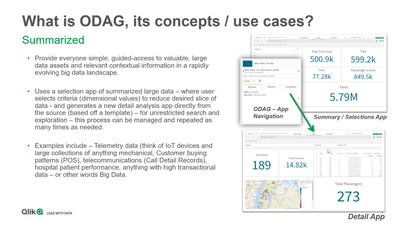
What is On Demand App Generation ( ODAG ) , its concepts and use cases – summarized:Provides everyone simple, guided-access to valuable, large data assets and relevant contextual information in a rapidly evolving big data landscapeUses a selection app of summarized large data – where user selects criteria (dimensional values) to reduce desired slice of data - and generates a new detail analysis app directly from the source (based off a template app) – for unrestricted search and exploration – this process can be managed and repeated as many times as neededExamples include – Analysis of telemetry data (think of IoT devices and large collections of anything mechanical), customer buying patterns (POS), telecommunications (Call Detail Records), hospital patient performance, anything with high volumes of large dataHelp topic:https://help.qlik.com/en-US/sense/November2020/Subsystems/Hub/Content/Sense_Hub/DataSource/Manage-big-data.htmSee an example of ODAG in action in 60 seconds!What is a Dynamic View, what does It do, its concepts and use cases:Enables data refreshes in individual visualizations DIRECTLY FROM THE SOURCE TEMPLATE APP – WITHOUT a need to reload the main Qlik Sense APPTHE DV is an object in the MAIN Qlik Sense app - configured from a template app that contains master visualizations. The main Qlik Sense app can be considered a Hybrid app as it works with data from the Qlik Engine and also has DVs which can be refreshed from the source app.The template DV app is based on the same ODAG technology and can be a simple template just to refresh the latest data – or can contain parameters from the main app to be passed to the Dynamic view.The template app for a Dynamic View is created in the exact same manner as an ODAG-based app.Help Topic:https://help.qlik.com/en-US/sense/November2020/Subsystems/Hub/Content/Sense_Hub/DynamicViews/creating-dynamic-views.htmSee an example of Dynamic Views in action:
...View More
In my previous articles I talked about Nebula.js and the use with the existing extensions on major frameworks like React, Svelte and Angular.Since the last one, a new extension was added, sn-table. Here is how to use it.First install itnpm install @nebula.js/sn-tableThen import it and add it into your configurationimport table from '@nebula.js/sn-table';...
{
name: 'table',
load: () => Promise.resolve(table),
},
...If you have issues, you can view the entire configuration athttps://observablehq.com/@yianni-ververis/nebula-jsThen, start adding dimensions and measures.n.render({
element: chartElement,
type: 'table',
properties: {
qHyperCubeDef: {
qDimensions: [
{ qDef: { qFieldDefs: ['Case Owner Group'] }, qNullSuppression: true, qLabel: 'Department' },
{ qDef: { qFieldDefs: ['Priority'] }, qNullSuppression: true },
],
qMeasures: [
{ qDef: { qDef: 'Avg([Case Duration Time])', autoSort: false }, qSortBy: { qSortByNumeric: -1 }, qLabel: 'Avg Duration' },
],
qInterColumnSortOrder: [2, 0, 1],
qInitialDataFetch: [{
qWidth: 3,
qHeight: 3000,
}],
},
showTitles: true,
title: 'Table',
subtitle: 'Sample supernova table',
footnote: '',
totals: {
show: true,
},
},
});You should have something like thisView the entire example herehttps://observablehq.com/@yianni-ververis/nebula-jshttps://observablehq.com/@yianni-ververis/nebula-js-tableHappy coding!/Yianni
...View More